


This is for vendors selling through a market's online store, not vendors with
their own direct online store. A market's store works one of two ways: either
the market gets orders to the customer, or you do. Your market decides which,
for the whole store.
From here you can:
- Check which fulfillment your market uses
- Handle an order in a Market Fulfilled store
- Set up your own fulfillment in a Vendor Fulfilled store
- Decline an order you can't fill
Check which fulfillment your market uses
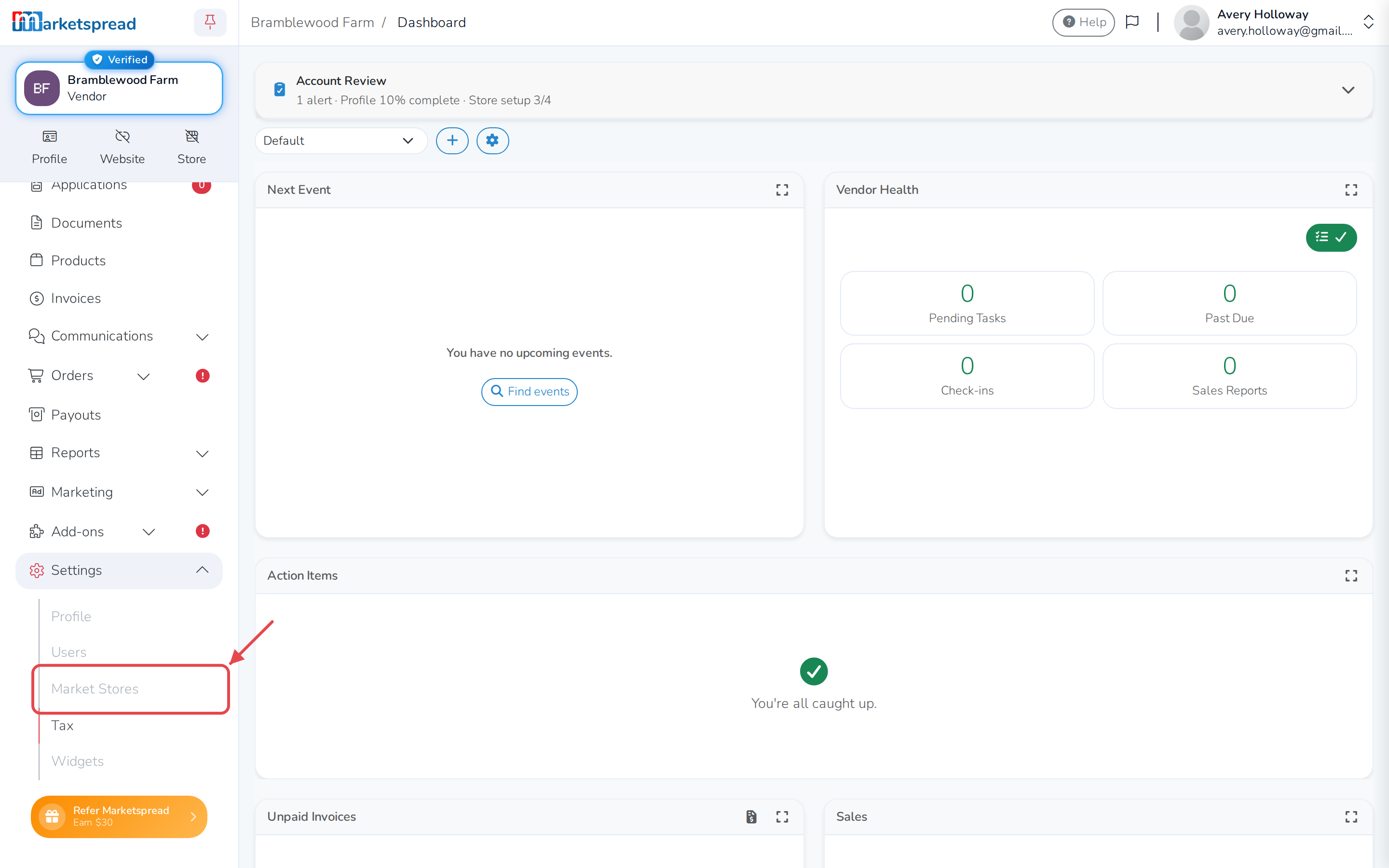
- Click Settings, then Market Stores.
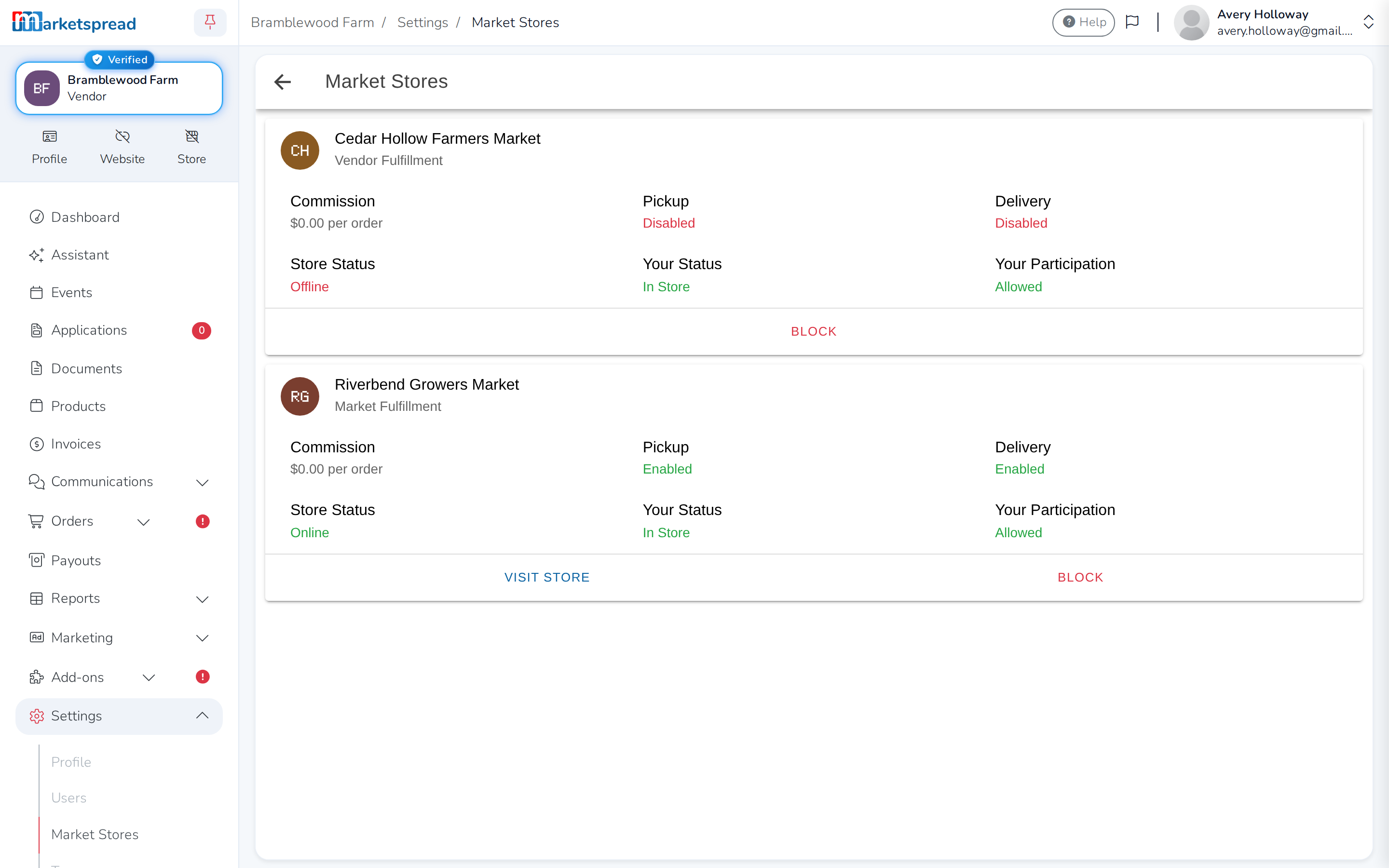
- Find your market in the list. Under its name it says Market
Fulfillment or Vendor Fulfillment.
Note
Your market sets this for the whole store. You can't change it from your
account.
Handle an order in a Market Fulfilled store
The market gets the order to the customer — it accepts the order, and takes
care of pickup, delivery and refunds. You don't have to accept it yourself.
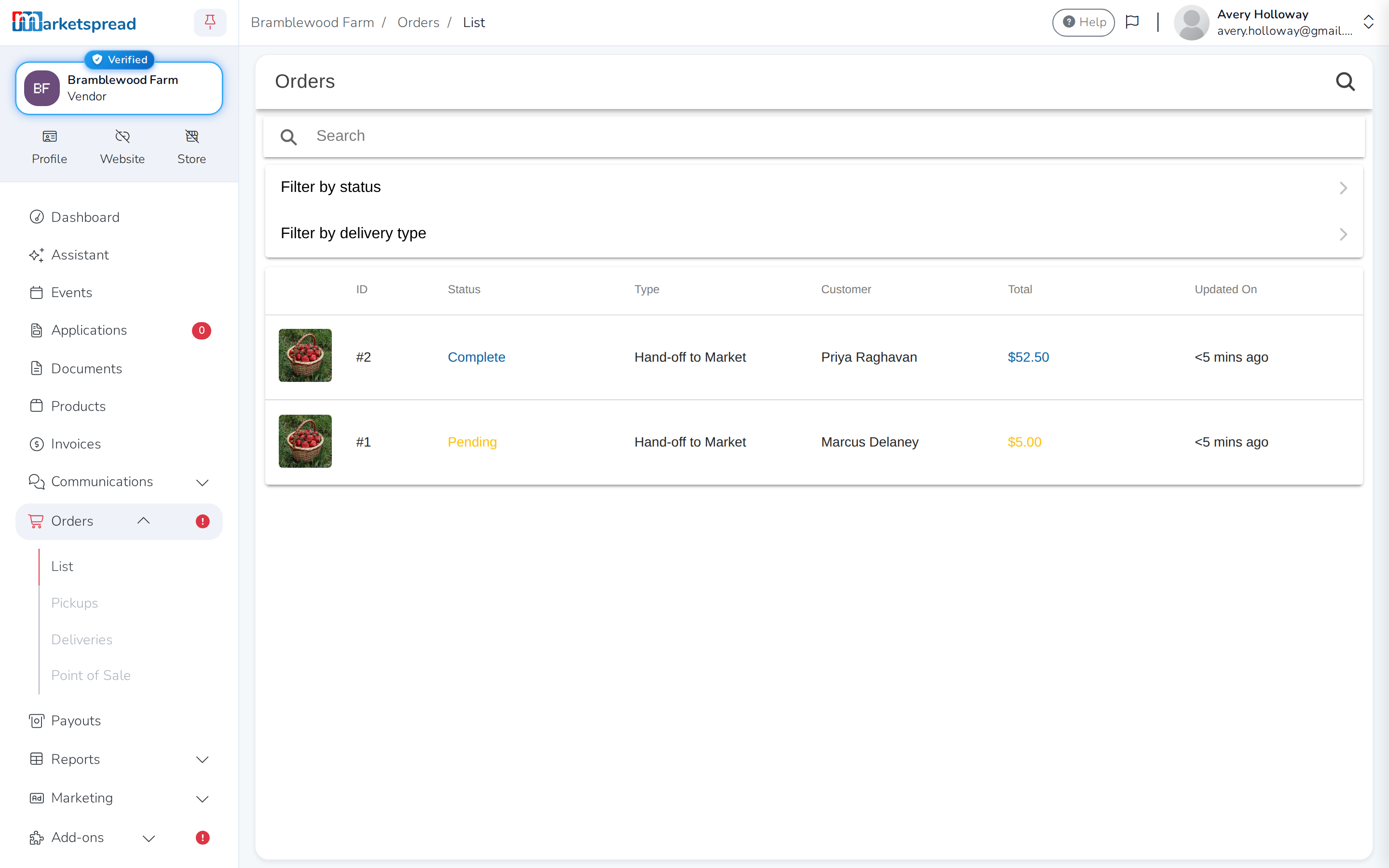
Orders you sell still get emailed to you and appear under Orders, tagged
Hand-off to Market.
- Click Orders, then open the order.
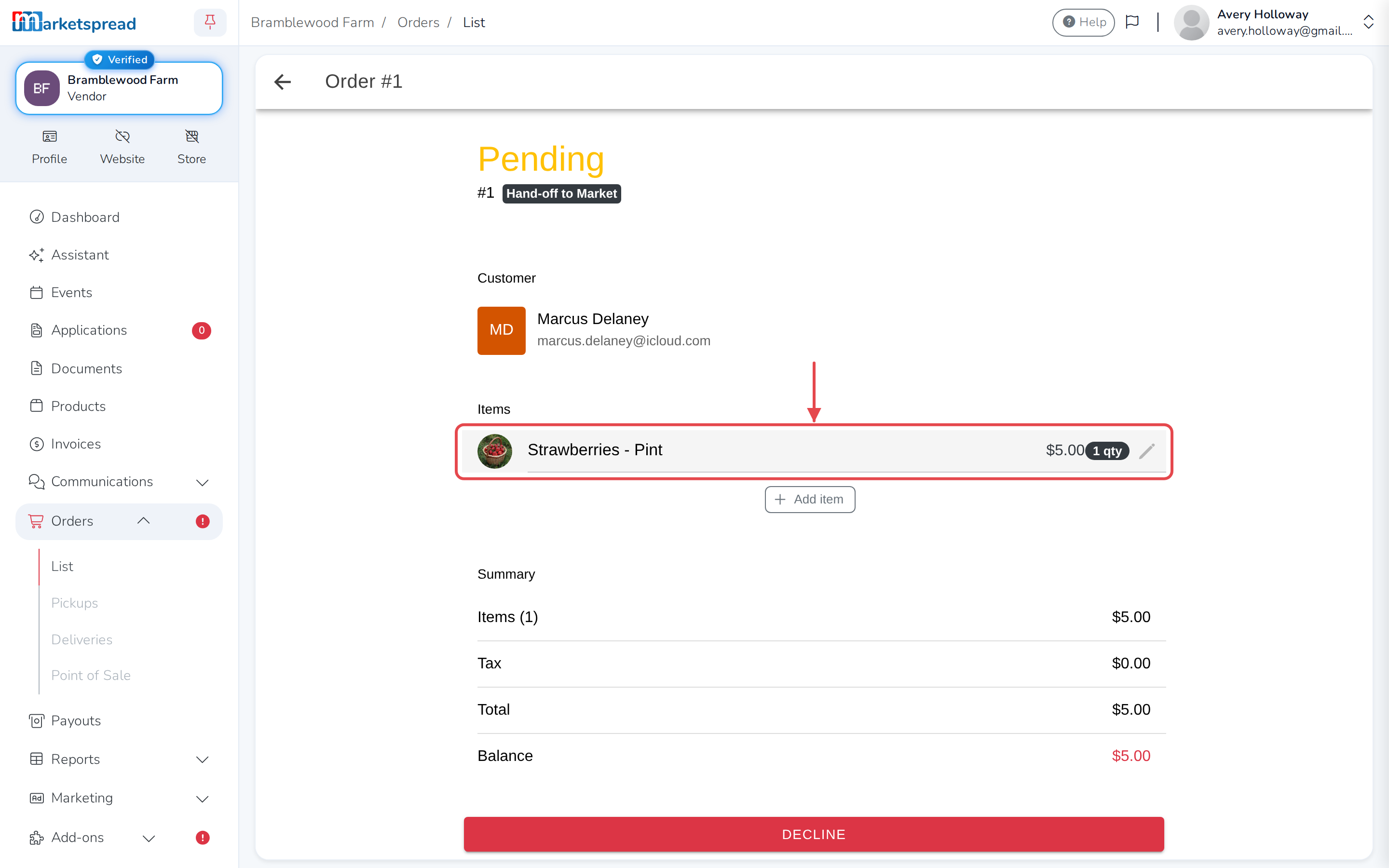
- Click the pencil on an item to change its quantity, or click Add item
to add another.
- Pack the order and get it to the market in time.
Once the market finishes the order, it shows Complete in your list;
until then it shows Pending.
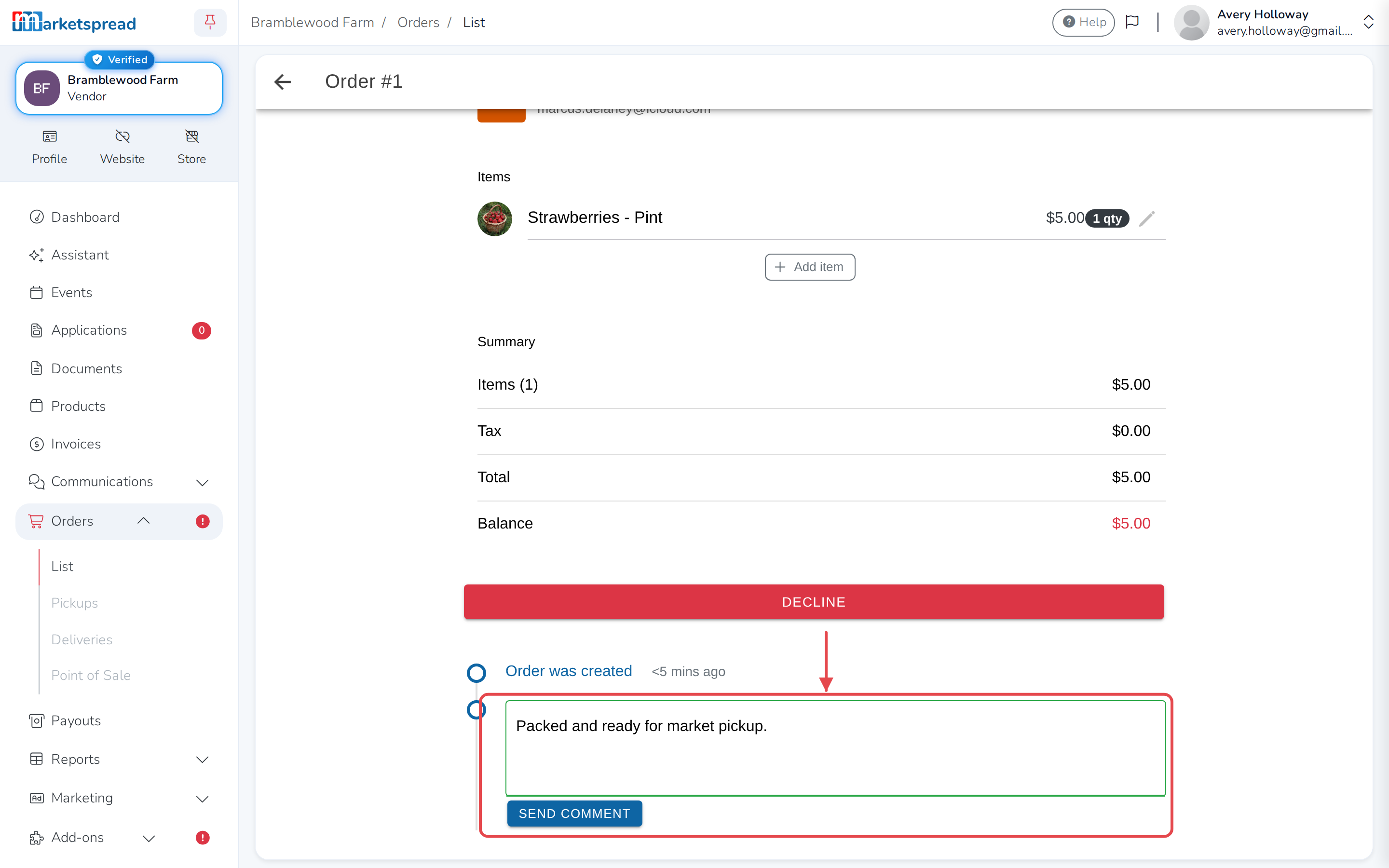
A comment on the order goes to the market, not the customer
Type a note at the bottom of the order and click Send comment. On a
Market Fulfilled order, that reaches the market's staff — the customer
never sees it.
Set up your own fulfillment in a Vendor Fulfilled store
Here, you decide how customers get their order. These orders are also
emailed to you and appear under Orders.
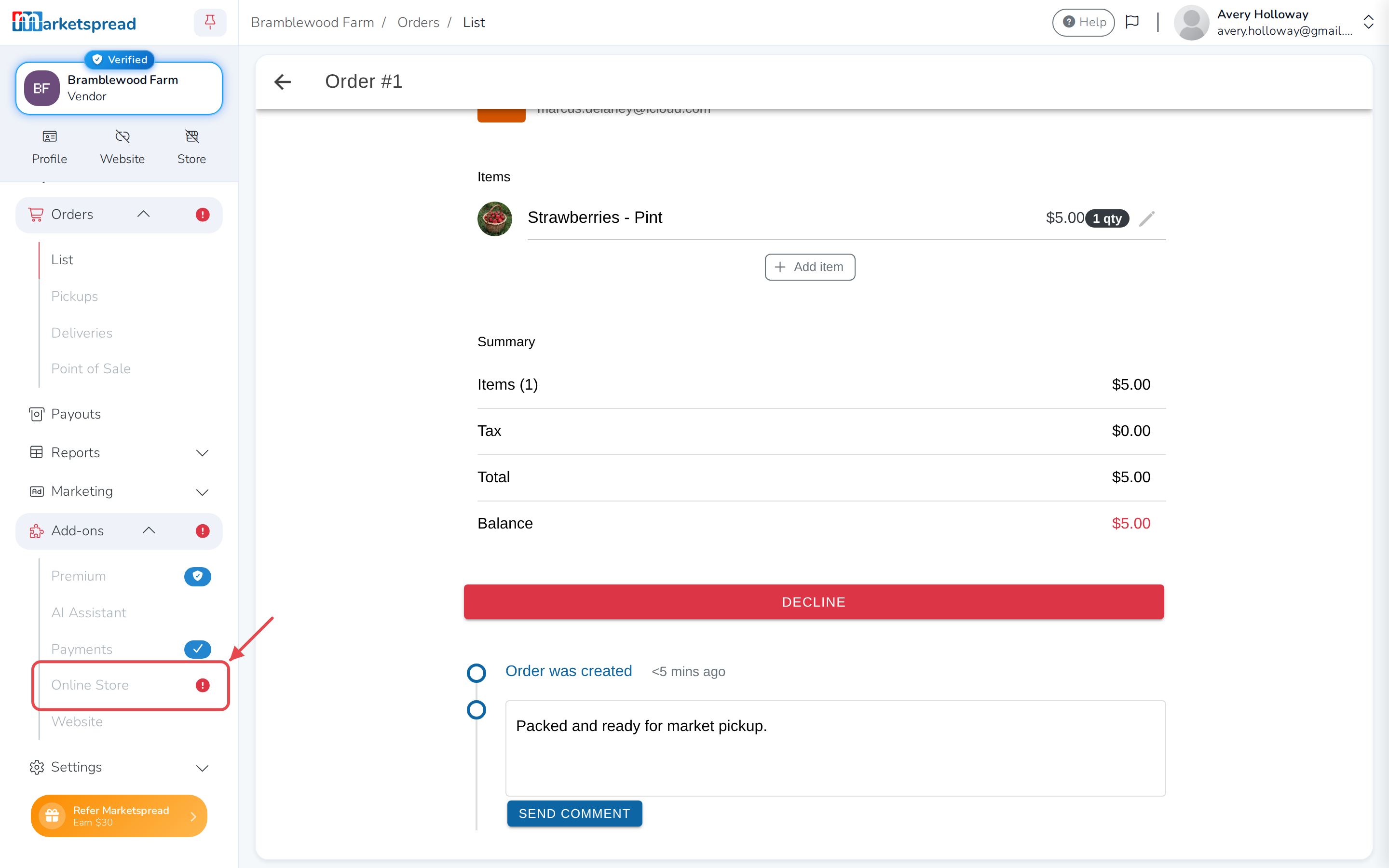
- Click Add-ons, then Online Store.
- Turn on Enable pickup, Enable delivery or Enable shipping,
however you plan to fulfill orders.
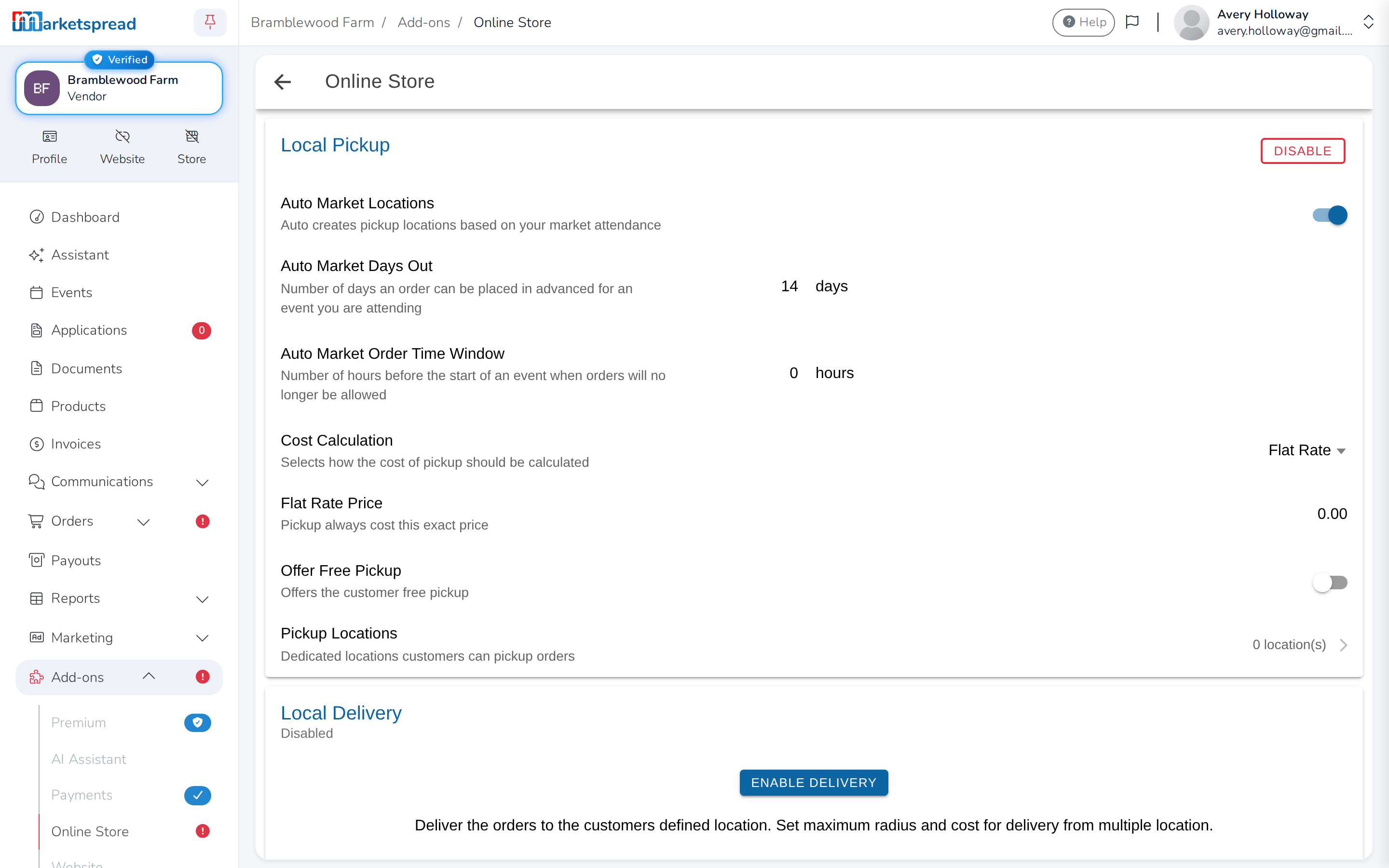
Customers choose from whatever you turn on when they order your products in
the market's store. Your fulfillment options are independent of the other
vendors in that store.
See Set up your own online store
for the full walkthrough of each option. Once pickup orders start coming in, see
Manage online orders for pickup. For
deliveries, see Manage online orders for
delivery.
Decline an order you can't fill
- Open the order and click Decline.
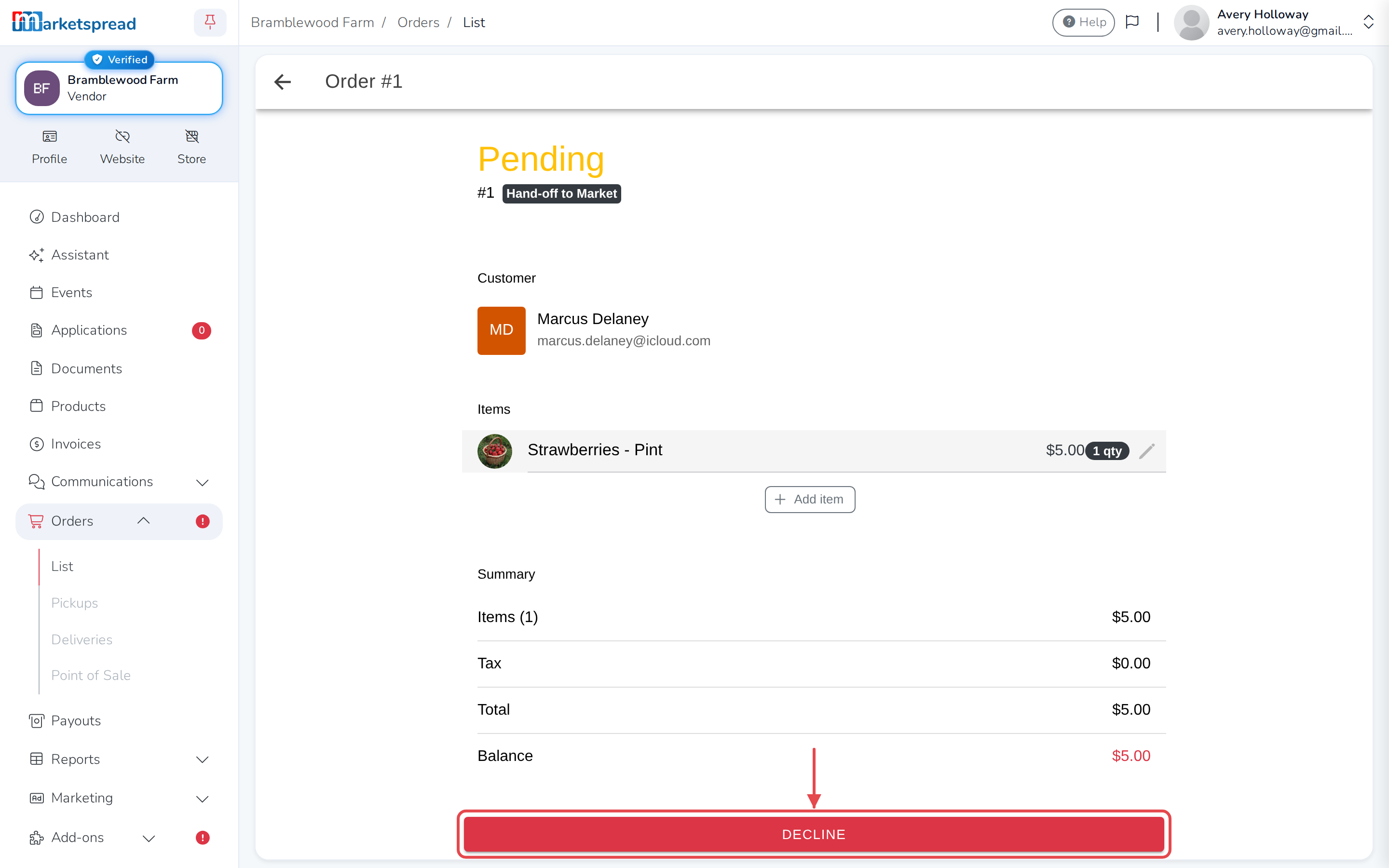
- Type a reason — it's required.
- Click Decline again to confirm.