


A vendor can only report their sales for an event day once — after that, their own report locks. If a number was entered wrong, you can still go in and fix it.
Find the vendor's sales report
-
Open Event Configuration, then click Events.
-
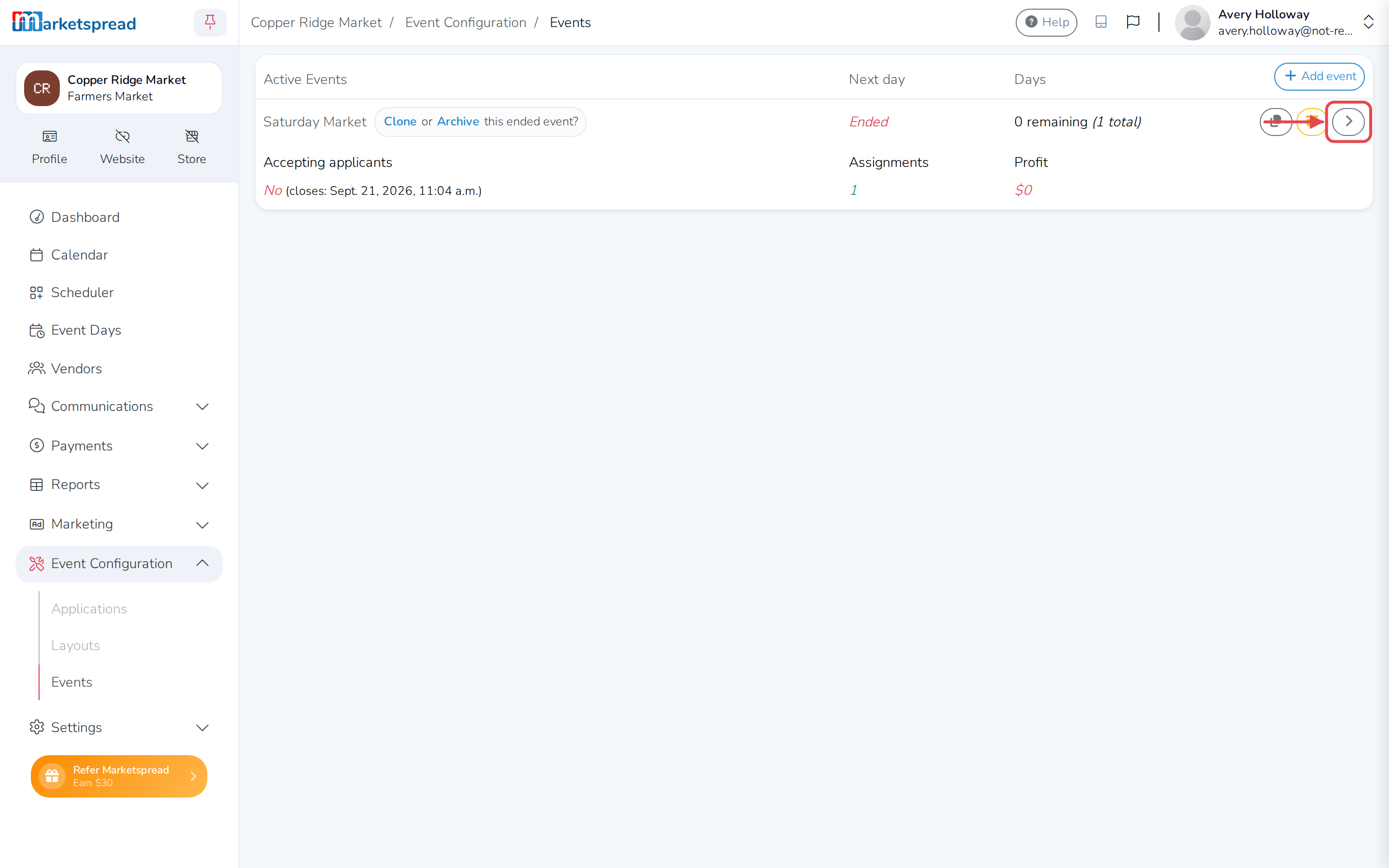
Click the arrow next to the event.
-
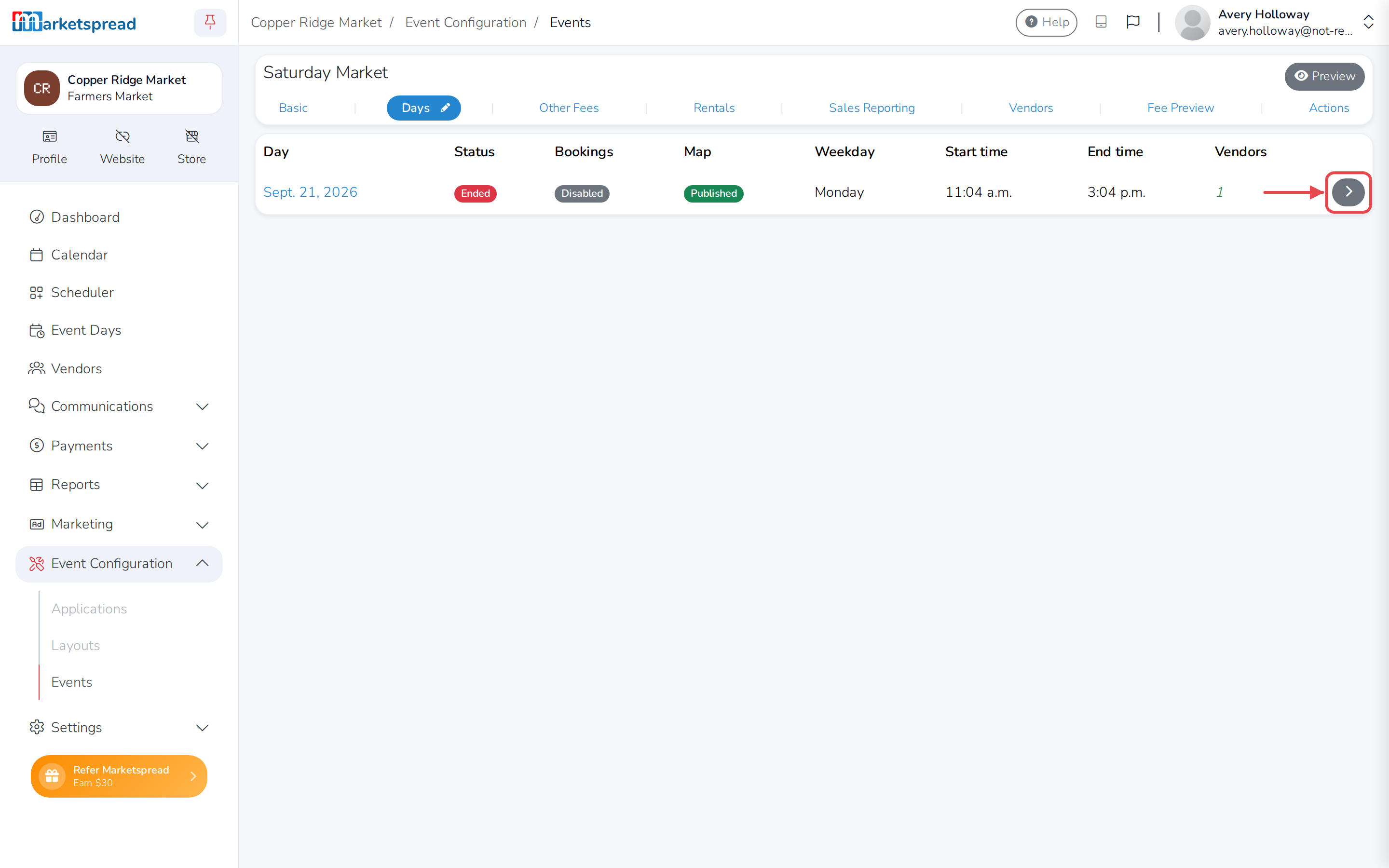
Click the Days tab.
-
Click the arrow next to the day that's ended.
-
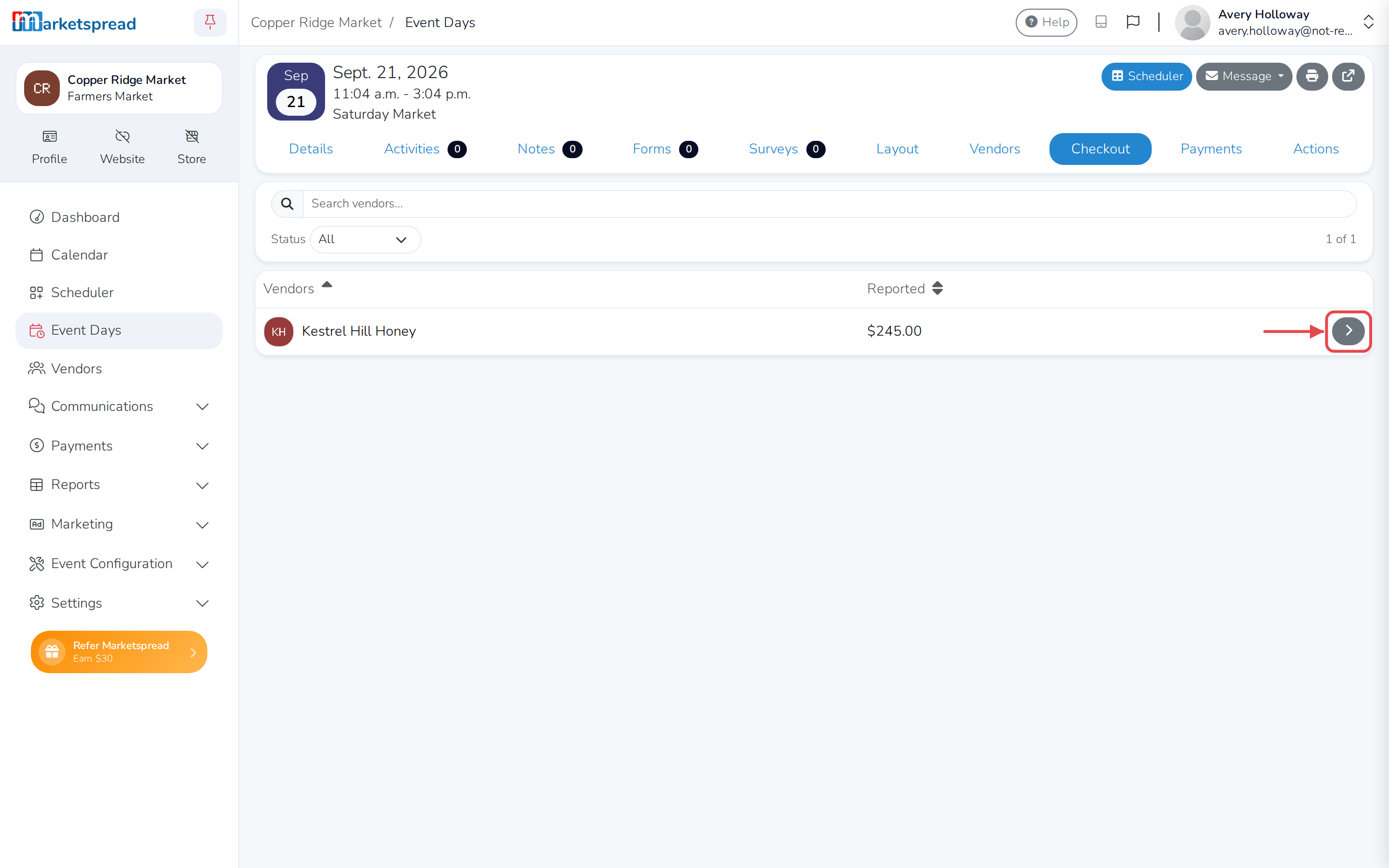
Click the Checkout tab.
-
Find the vendor — their reported total shows in the Reported column — and click the arrow next to their name.
Note
If the vendor isn't on this list, they haven't been marked Attended for the day. Set that on the Vendors tab first.
Update the sales report
-
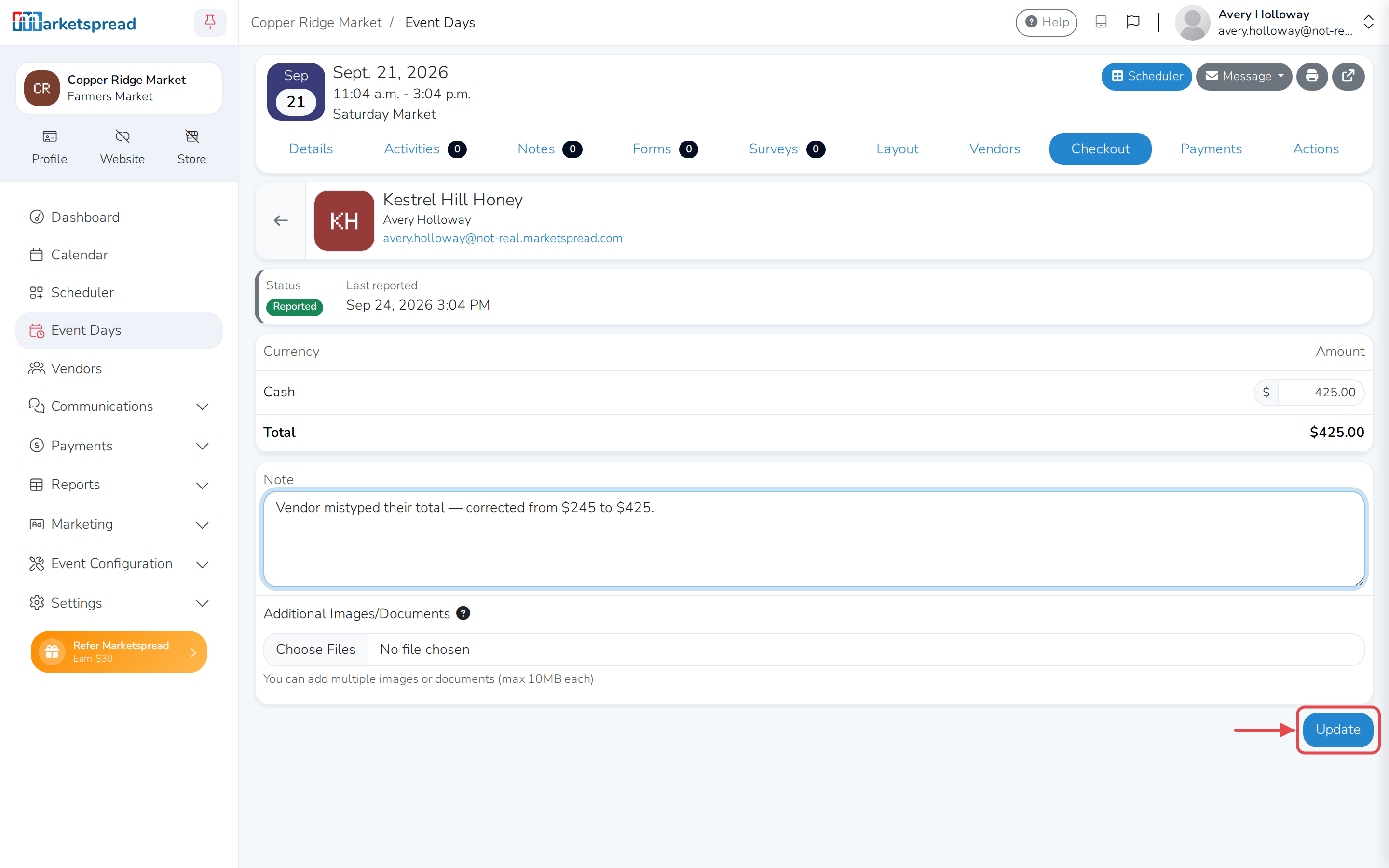
Change the Amount for whichever currency was wrong.
-
Update Note if you want to record why you changed it.
-
Click Update.
Note
If your market requires sales reports to be verified and this one already has been, it's locked — only someone who can verify sales reports can still change it.