


Marketspread can ask your vendors to confirm they're coming to an event day, and show you who has. Turn on check-in for an event, then see each vendor's status from that day's Vendors tab. You can also have Marketspread mark attendance for you when nobody's set it.
From here you can:
- Turn on vendor check-in for an event
- See who has checked in for an event day
- Let Marketspread mark attendance automatically
Turn on vendor check-in
-
Open Event Configuration → Events in your side toolbar.
-
Click the event you want to turn check-in on for.
-
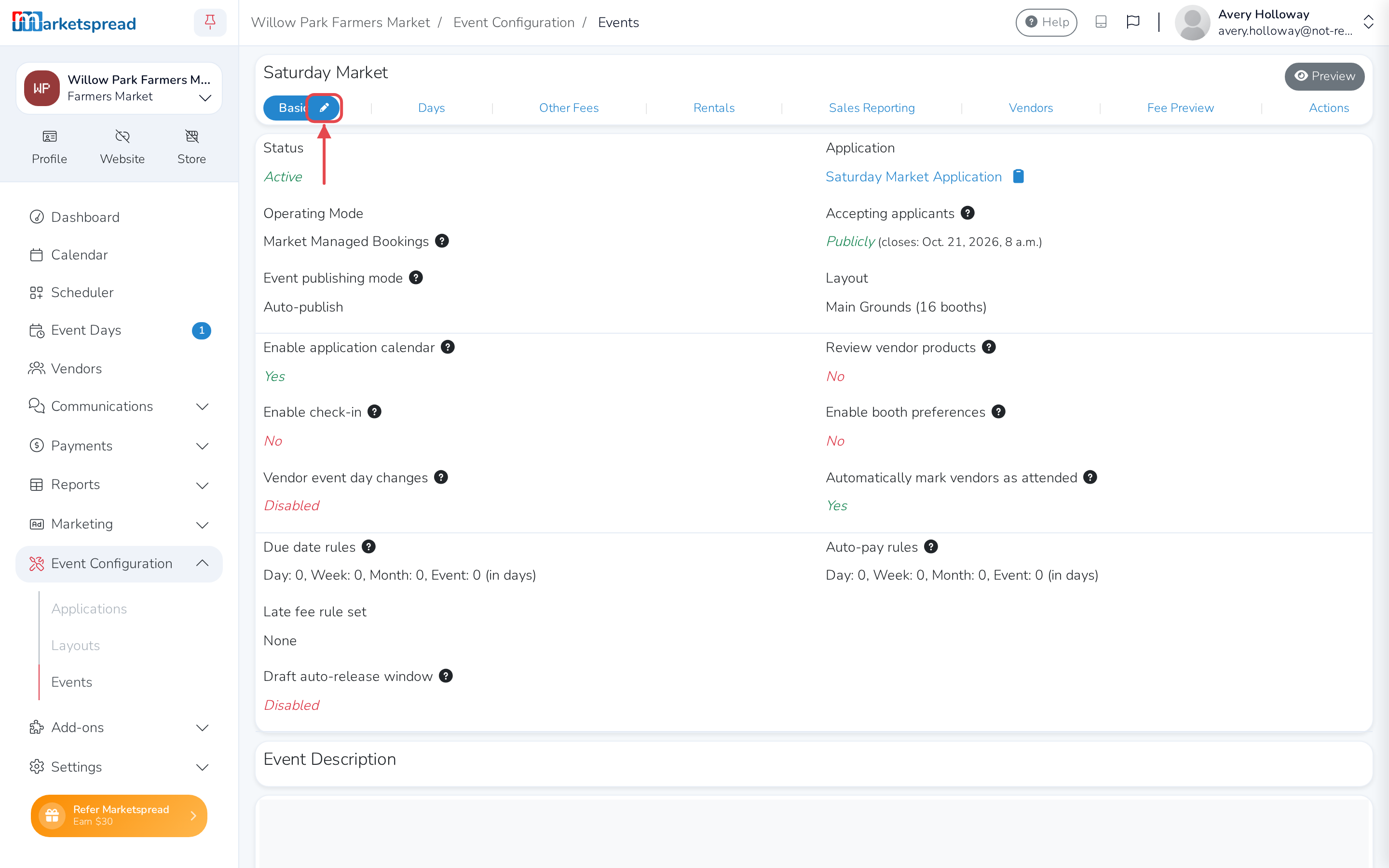
Click the pencil next to Basic.
-
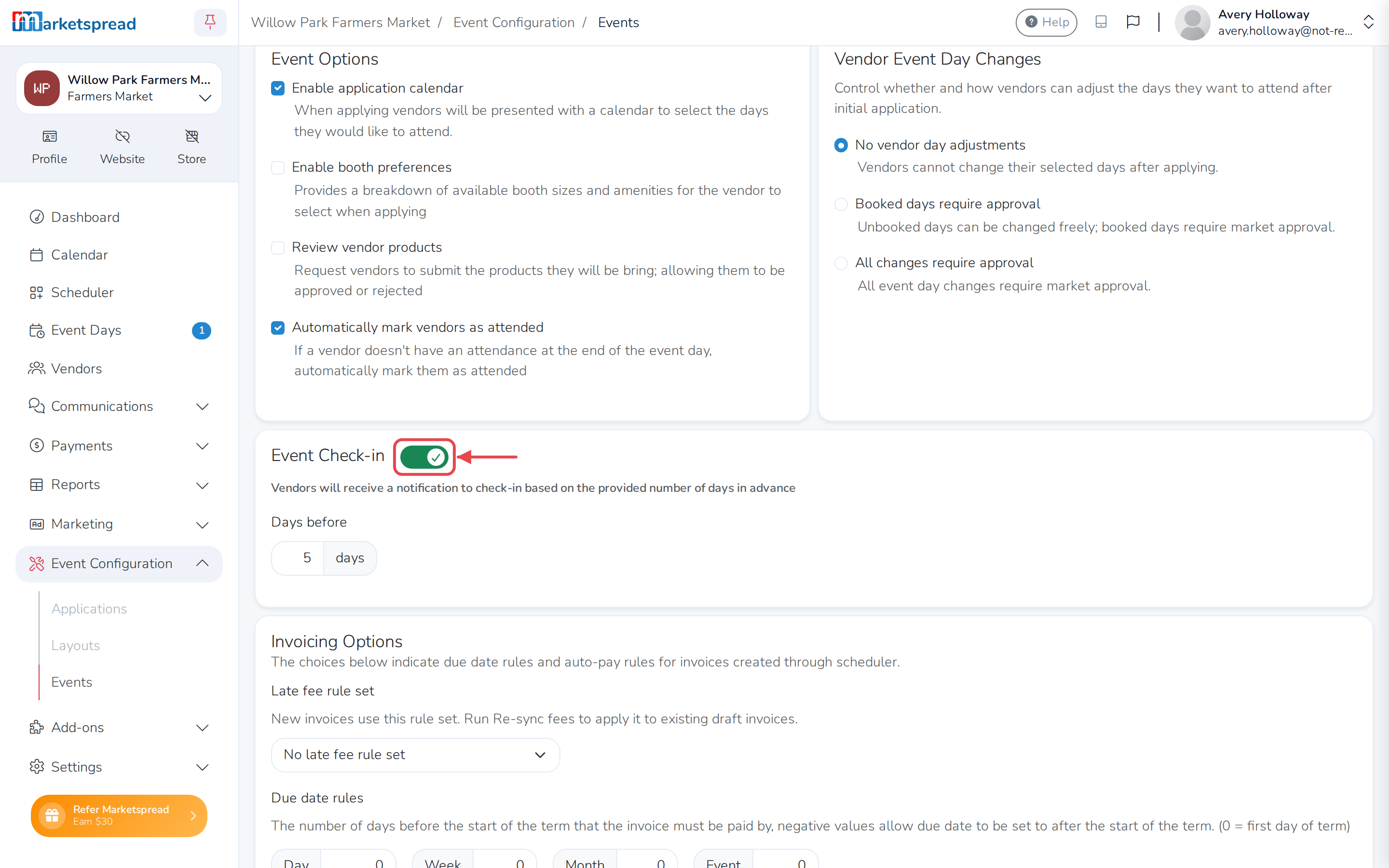
Turn on the toggle next to Event Check-in.
-
Under Days before, enter how many days ahead of each event day vendors should be asked to check in.
-
Click Save basic.
Note
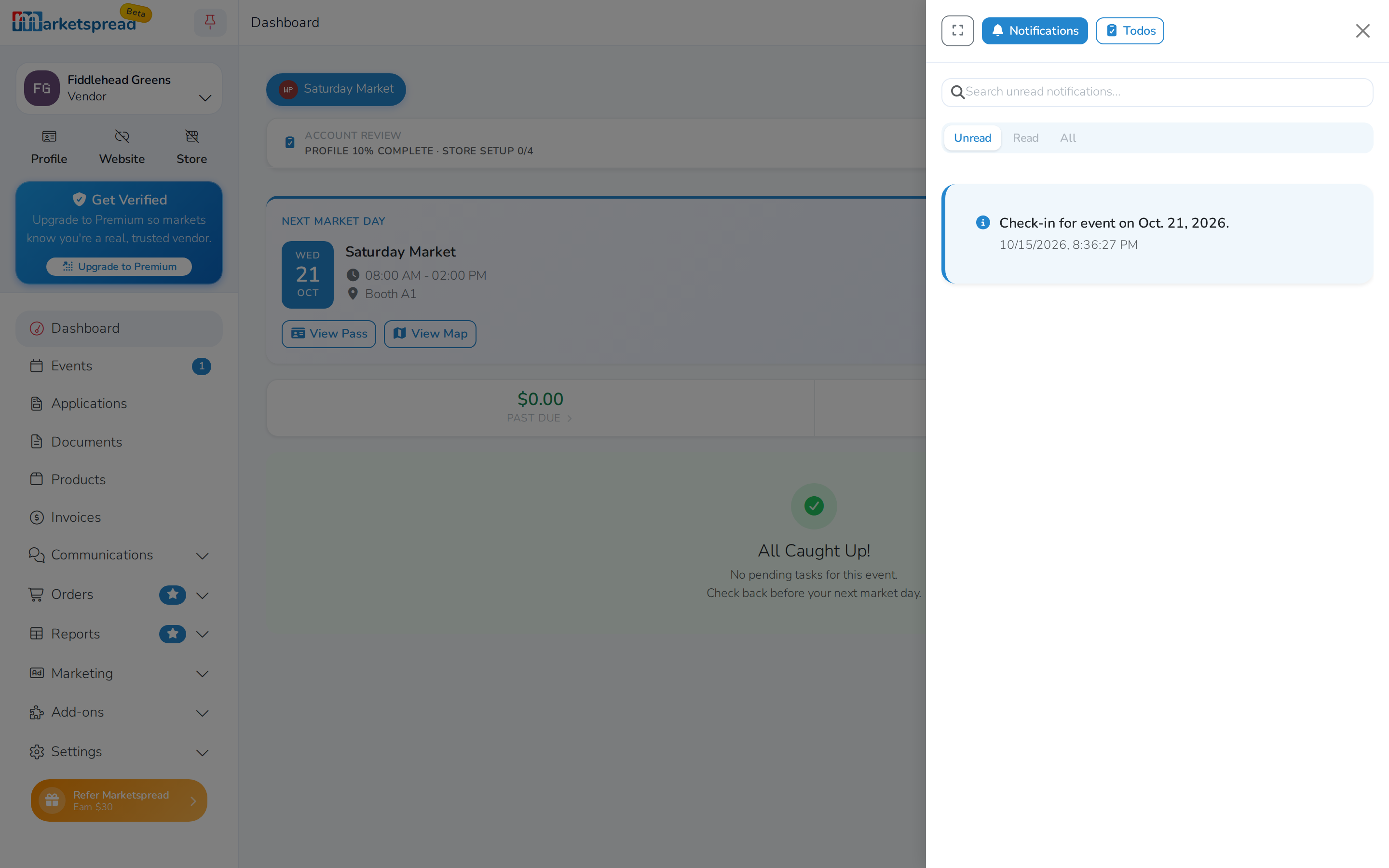
Once this is on, every vendor booked on that event gets an email and a dashboard notification asking them to say whether they're coming.
See who has checked in
-
Click Event Days in your side toolbar.
-
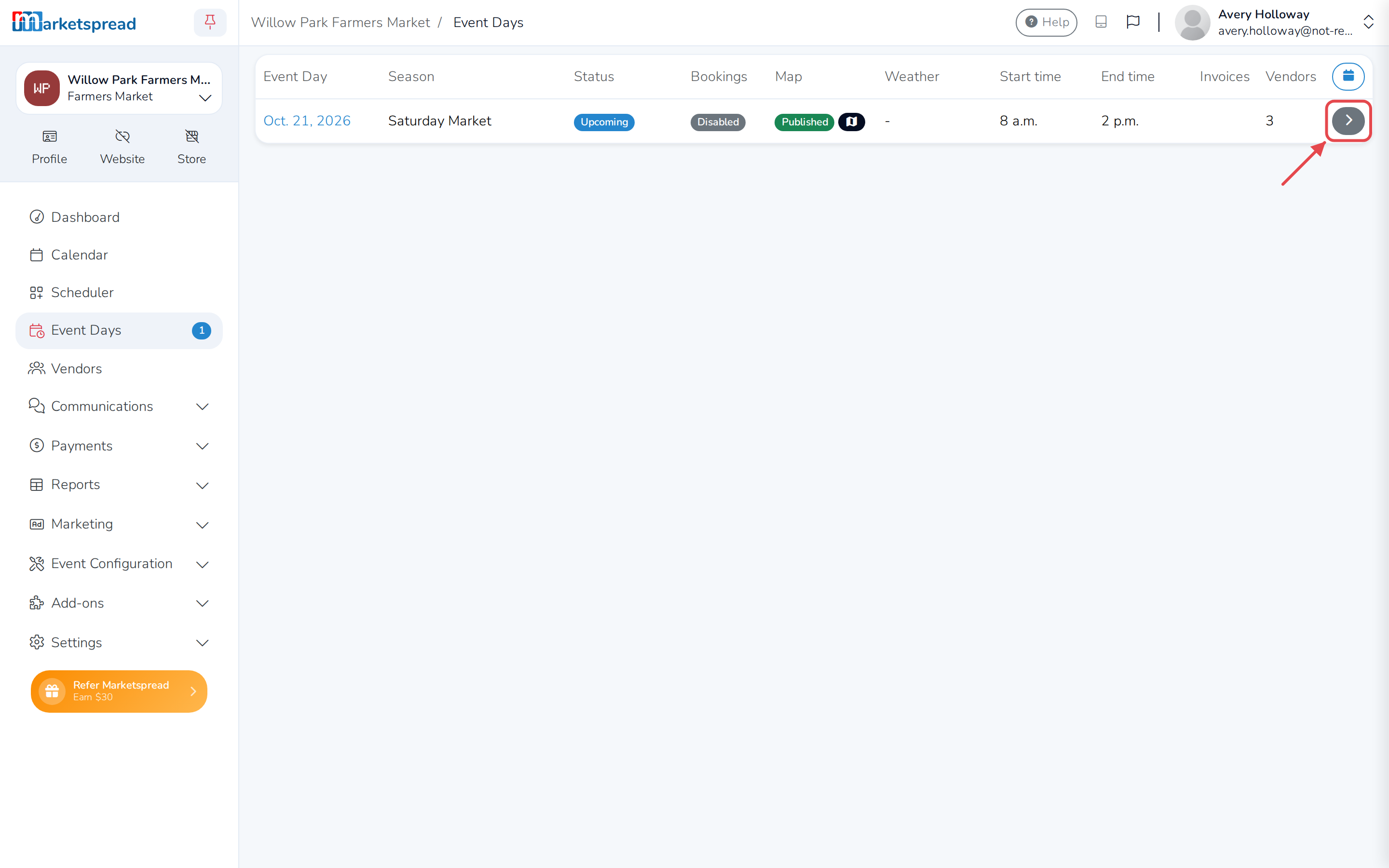
Click the arrow at the end of the row for the day you want.
-
Click Vendors.
-
Click the Vendors dropdown and choose All Vendors (by name).
-
Check the Check-in column next to each vendor.
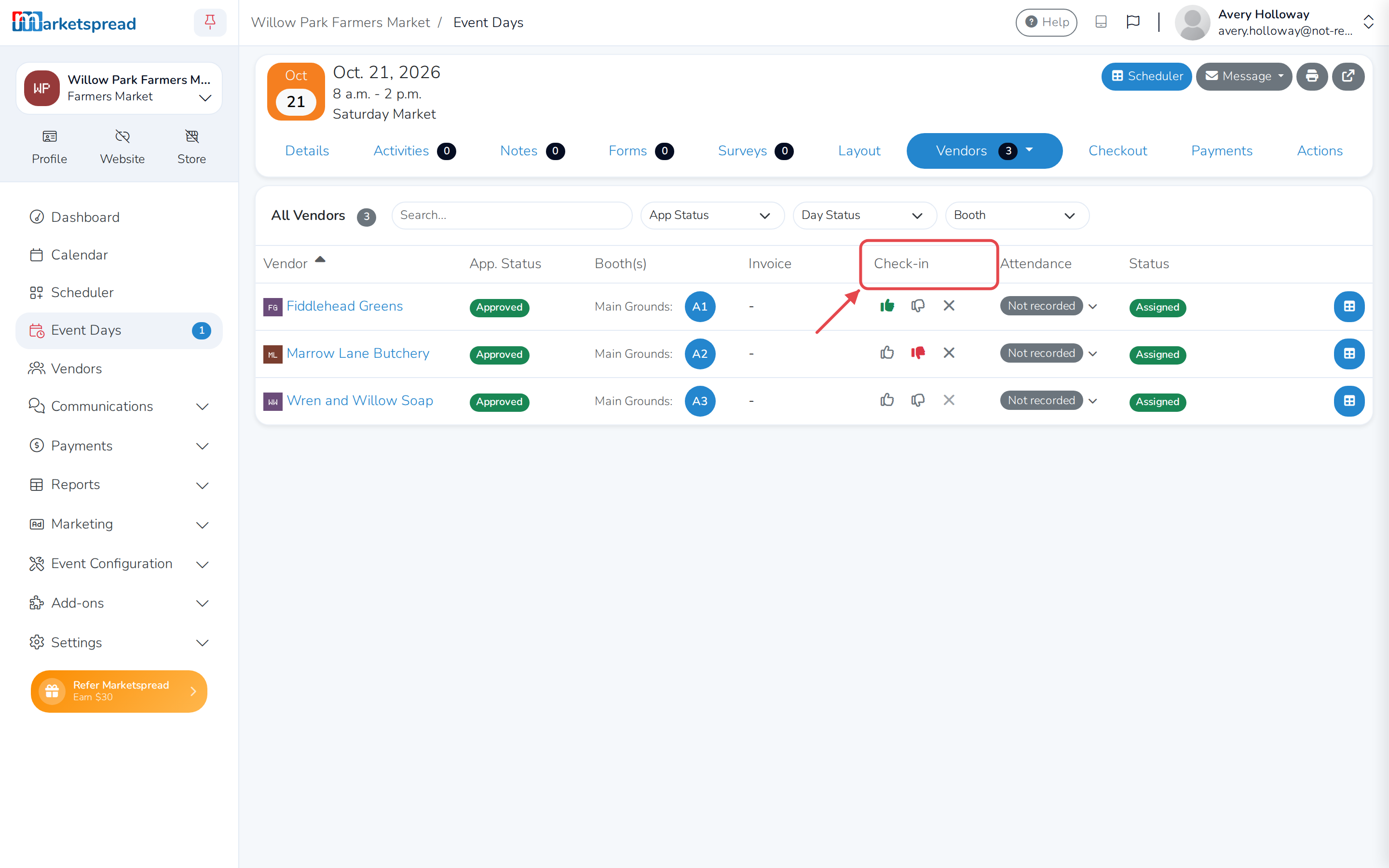
A green thumbs up means a vendor confirmed they're attending; a red thumbs down means they said they're not. If neither is colored in, they haven't responded yet. You can also click a thumb yourself to check a vendor in for them.
Note
If a vendor checks in as not attending, you get a notification about it, and their attendance for that day is updated for you.
Take vendor attendance covers marking who actually showed up.
Let Marketspread mark attendance automatically
-
Open Event Configuration → Events in your side toolbar.
-
Click the event you want to change.
-
Click the pencil next to Basic.
-
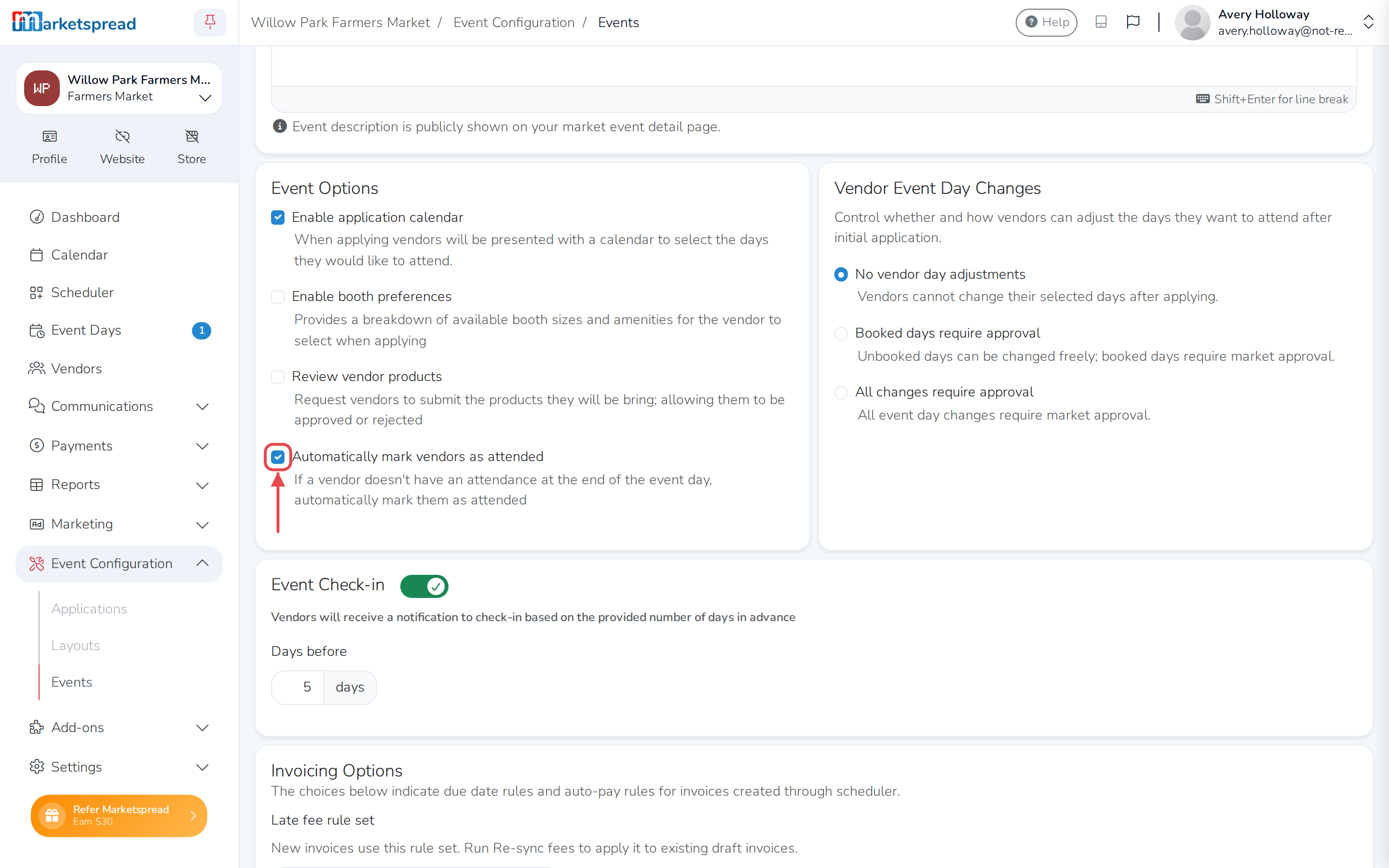
Turn Automatically mark vendors as attended on or off.
-
Click Save basic.
Note
This is turned on by default. If a vendor doesn't have an attendance status by the end of the event day, they're marked attended automatically.