


Rentals are things like tables, chairs or a tent that a vendor can be charged for on top of their booth fee. Once a vendor is booked into a booth for an event day, you can change what they're charged for rentals from Scheduler — the same screen you use to book vendors into booths.
From here you can:
- Change how many of each rental a vendor is charged for, and the price
- Check the change on their invoice
Change a vendor's rentals for a day
-
In the left-hand panel of your dashboard, click Scheduler.
-
Click Select a vendor near the top of the screen, and choose the vendor.
-
Click Edit.
-
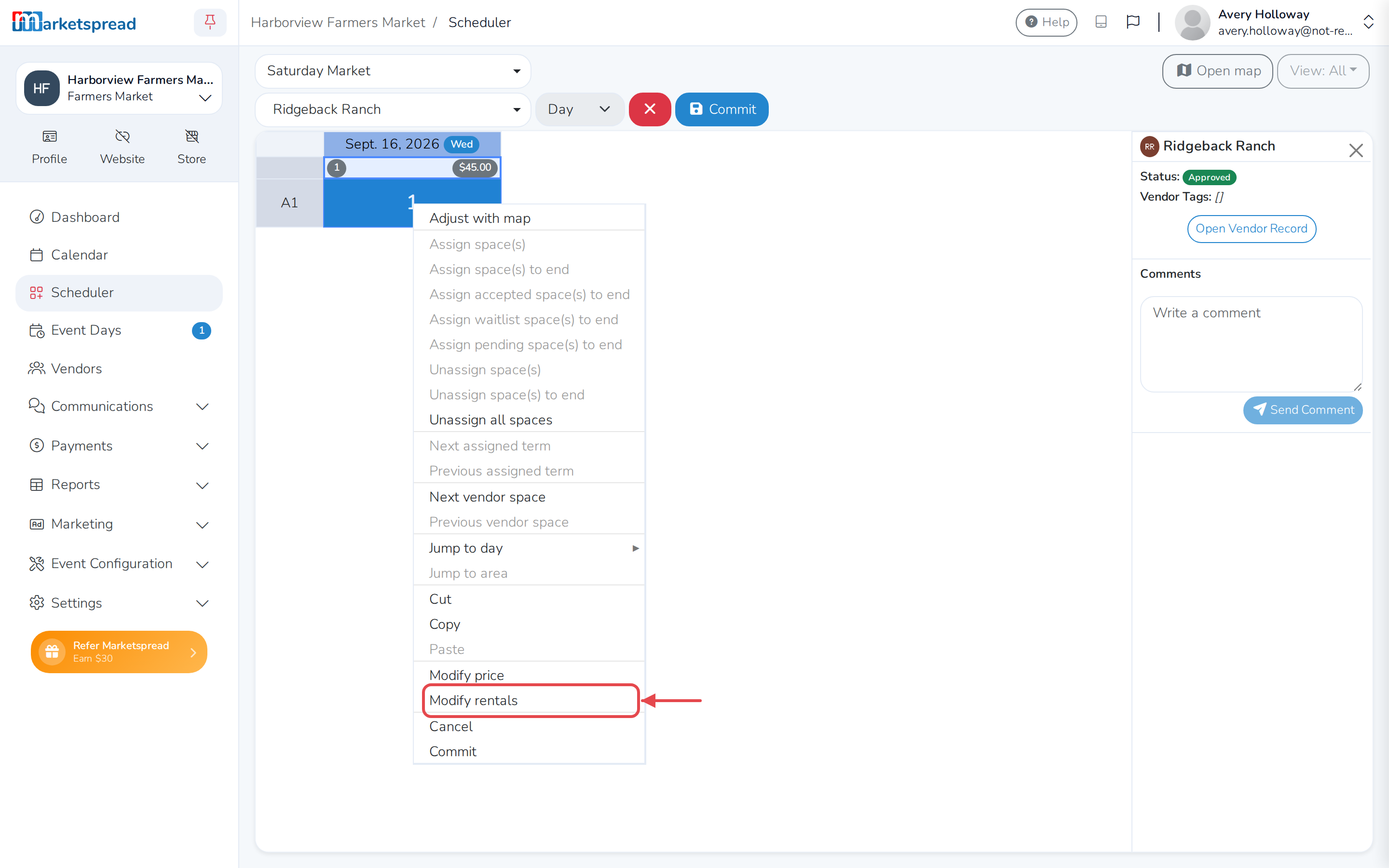
At the top of that day's column, right-click the cell that shows the vendor's price and rentals (two-finger click on a Mac trackpad), then click Modify rentals. It's near the bottom of the menu, so you may need to scroll.
-
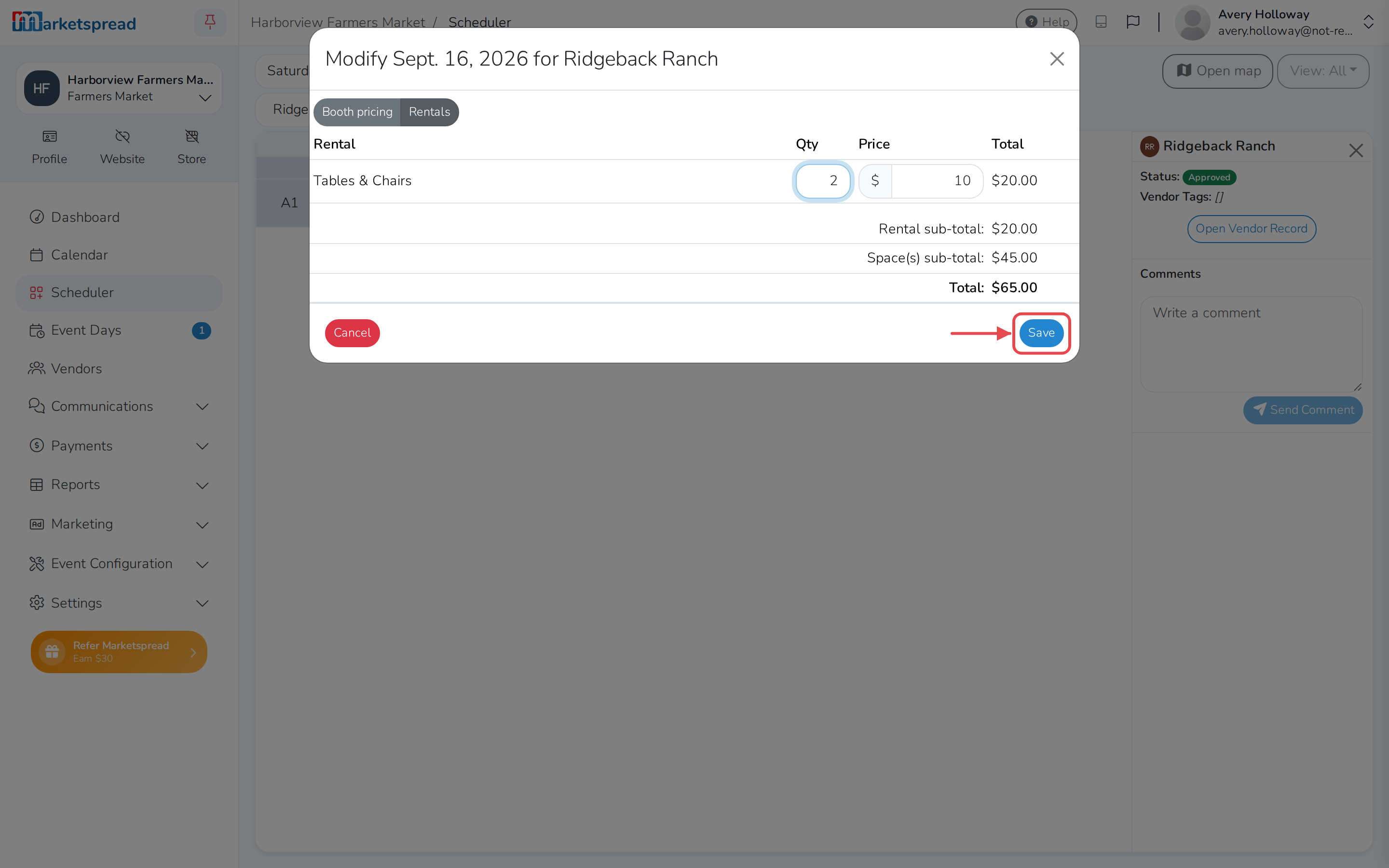
Set the Qty for each rental the vendor is being charged for.
-
Change the Price for a rental too, if you need to.
-
Click Save.
-
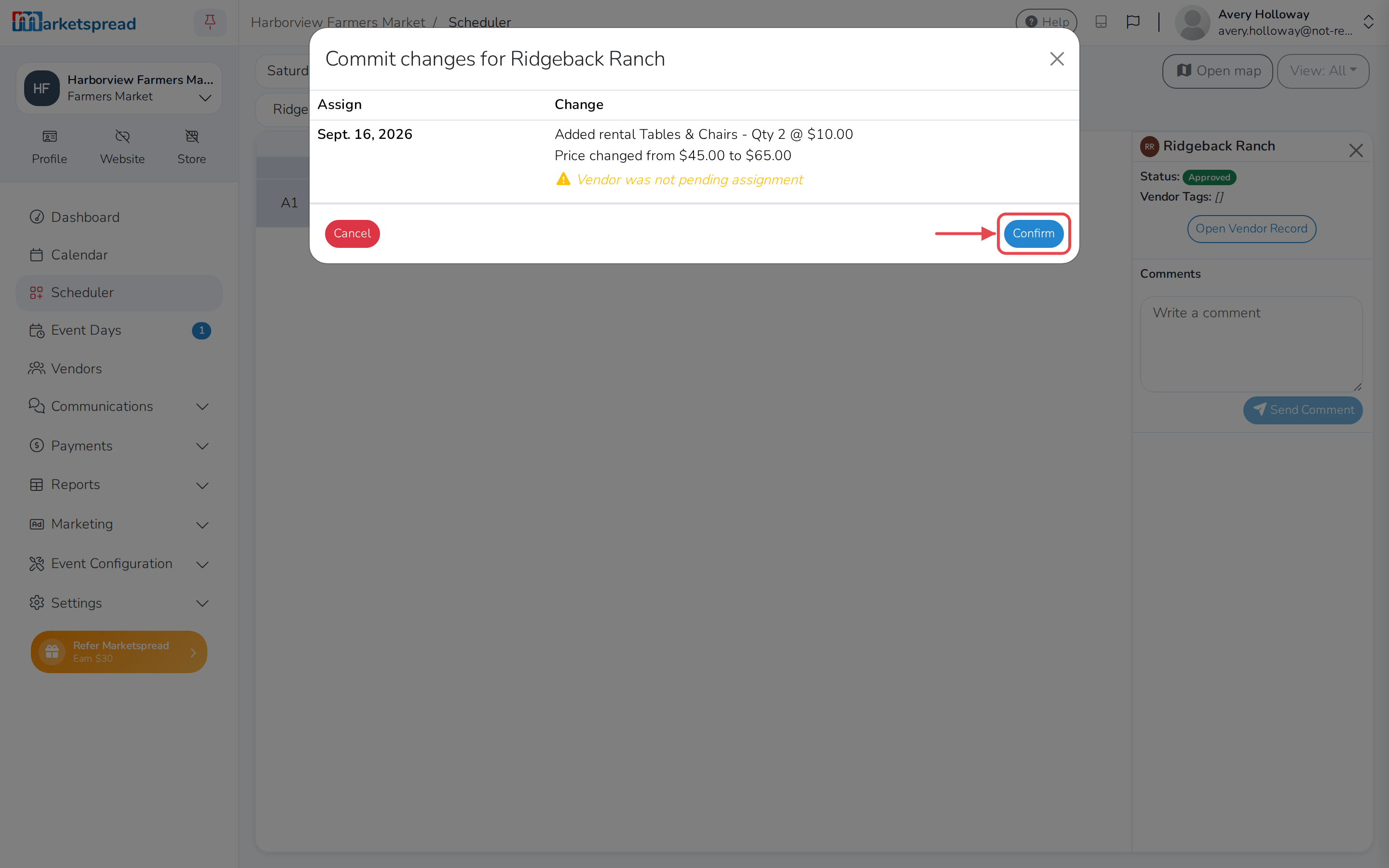
Click Commit.
-
Review the change, then click Confirm.
Tip
If that cell already shows a rentals badge, double-click it instead of using the menu — it opens the same dialog straightaway.
Caution
If the vendor already paid and you lower a quantity or price, you'll be asked to refund them. Type REFUND or CREDIT to confirm the refund or credit — this can't be undone.
Check the change on the invoice
- Right-click the vendor's cell for that day, then click View invoice.
Note
View invoice is greyed out until that day has an invoice. If it doesn't yet, the rental change is still saved — you'll be able to see it once one is created.