


If your market accepts its own tokens or SNAP, you can charge vendors a fee on token sales. You can also reimburse them for SNAP automatically. Every time a day's sales are reported, an invoice is created with the fee and any reimbursement already worked out.
Turn on the sales fee
-
Open Event Configuration, then Events.
-
Click the event you want to set this up for.
-
Click the Sales Reporting tab.
-
Turn on Enable sales reporting, if it isn't already on.
-
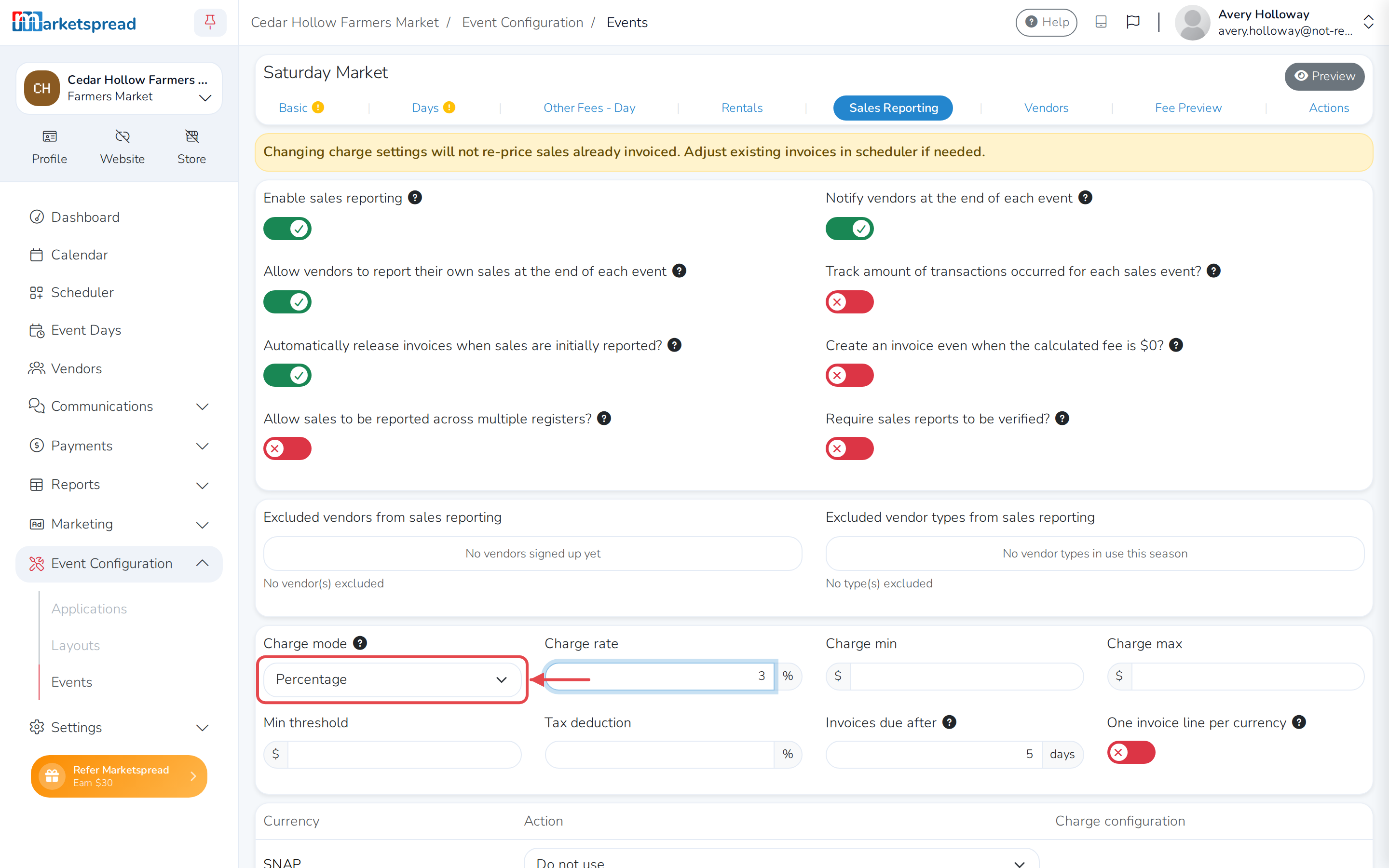
Set Charge mode to Percentage.
-
Enter a Charge rate.
Set what each currency does
Further down the same tab, every currency your market accepts has its own Action.
No currencies listed?
Add SNAP or your market's own currency in Settings, then Customizations — see Manage vendor sales reporting with currencies.
-
For a currency you charge a fee on (like your own tokens), set its action to Chargeable.
-
For a currency you reimburse vendors for (like SNAP), set its action to Reimbursable.
-
Click Save sales reporting.

A currency can also be set to Chargeable + Reimbursable, if you want it counted both ways.
Reimburse a vendor
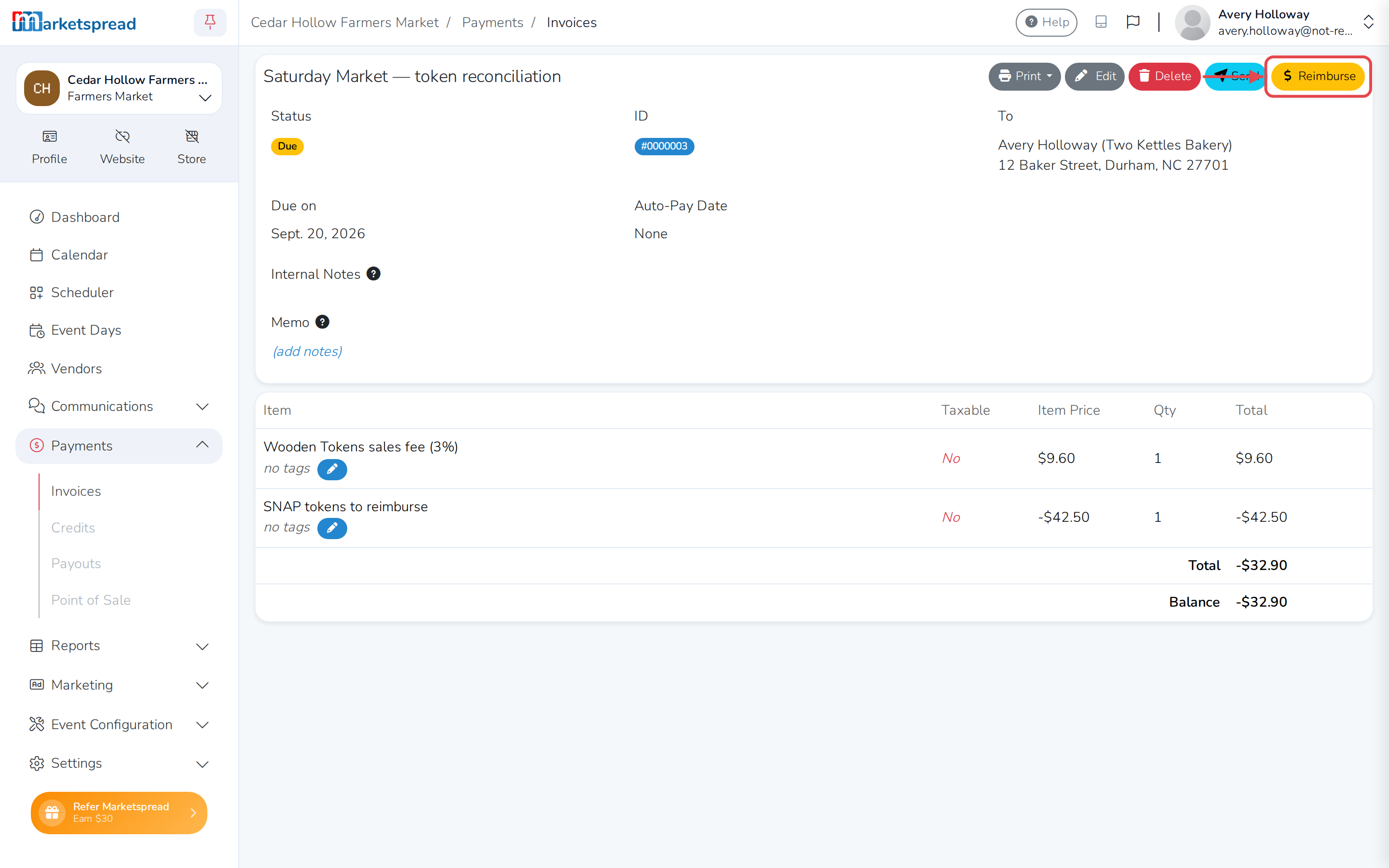
Once a vendor reports sales, their invoice shows the fee and any reimbursement together. A negative balance means you owe the vendor money back.
-
Open Payments, then Invoices.
-
From the dropdown at the top (it shows Overview by default), choose Reimbursements.
-
Click the arrow next to the invoice you want to open.
-
Click Reimburse.
-
Check the Amount.
-
Choose a Reimburse Type — Cash, Check or Credit.
-
Click Reimburse Funds.
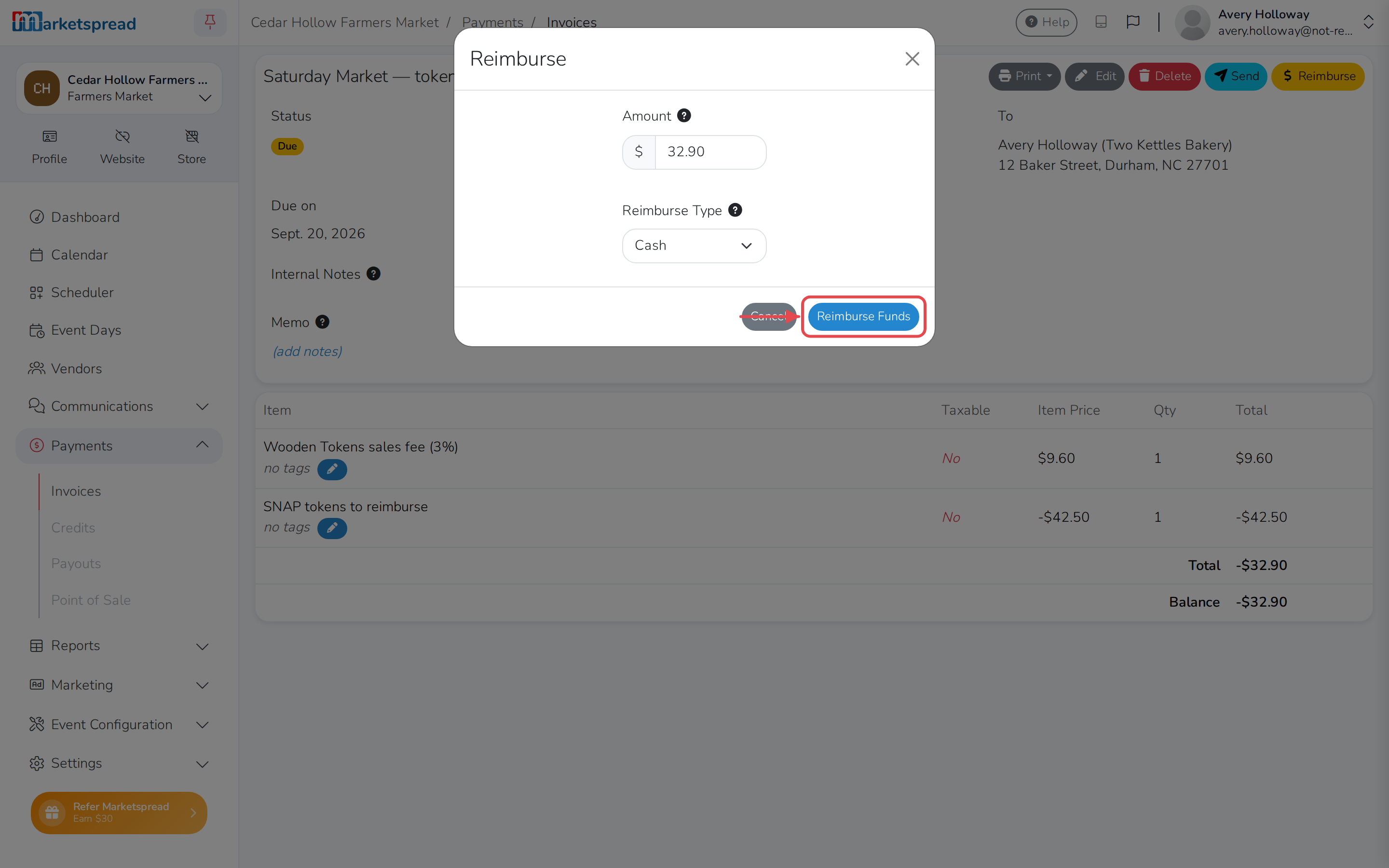
The invoice's balance goes to zero and is marked paid.
If the vendor owes you instead
A positive balance shows an Add Payment button instead of Reimburse. The vendor can pay in person, or online if you've turned on credit card payments.