


Use Checkout to record a vendor's sales for an event day on their behalf. If your market charges vendors based on sales, this is the total it uses to work out what they owe. From an event day's Checkout tab, you can:
- Report a vendor's sales for the day
- Correct a report you already made
Report a vendor's sales
Note
A vendor only shows up here once they're marked Attended for the day. If you don't see them, mark their attendance from the Vendors tab first.
-
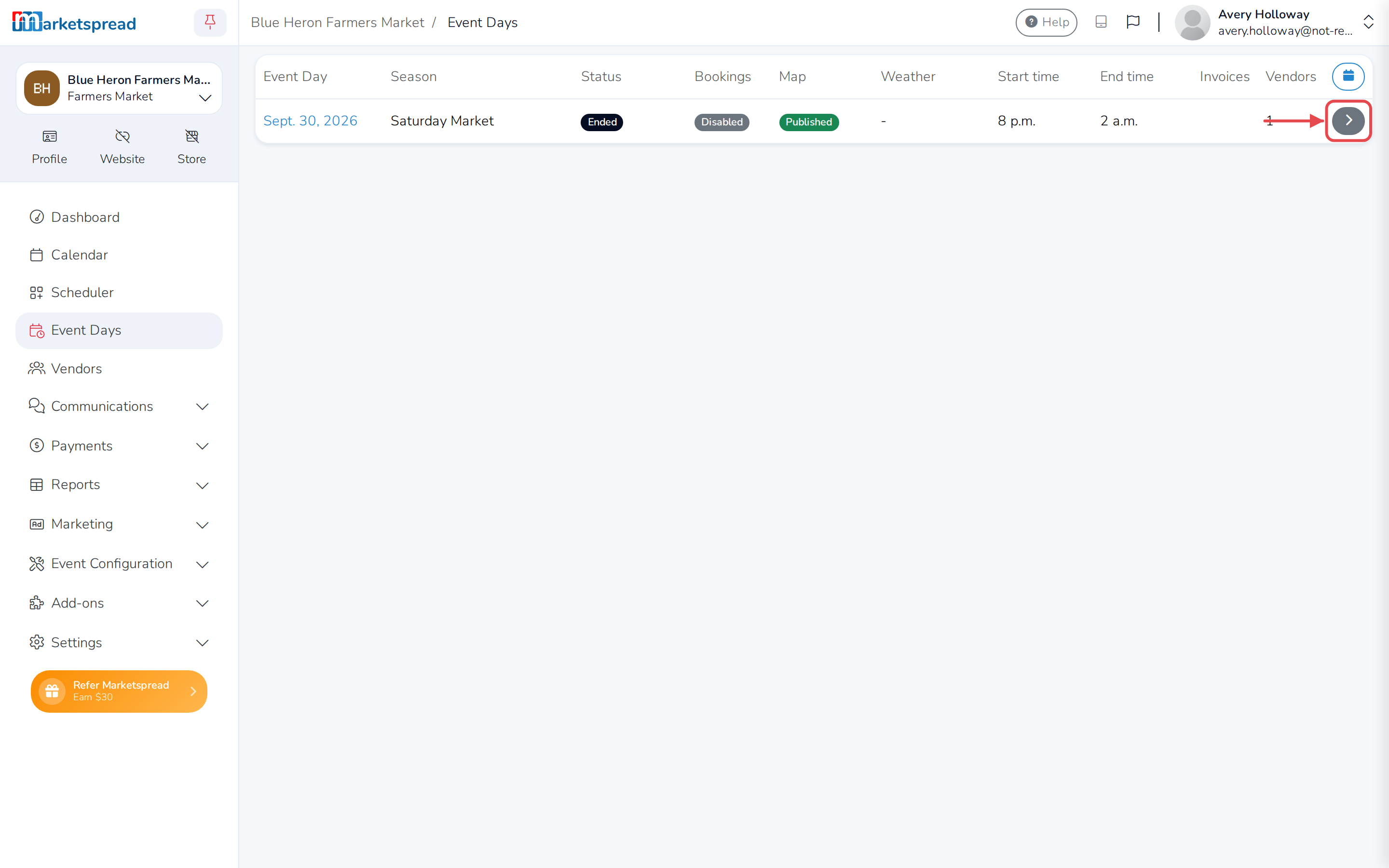
Open your Market Dashboard and click Event Days in the left menu.
-
Find the event day you want — its status shows Ended — and click the arrow on the right to open it.
-
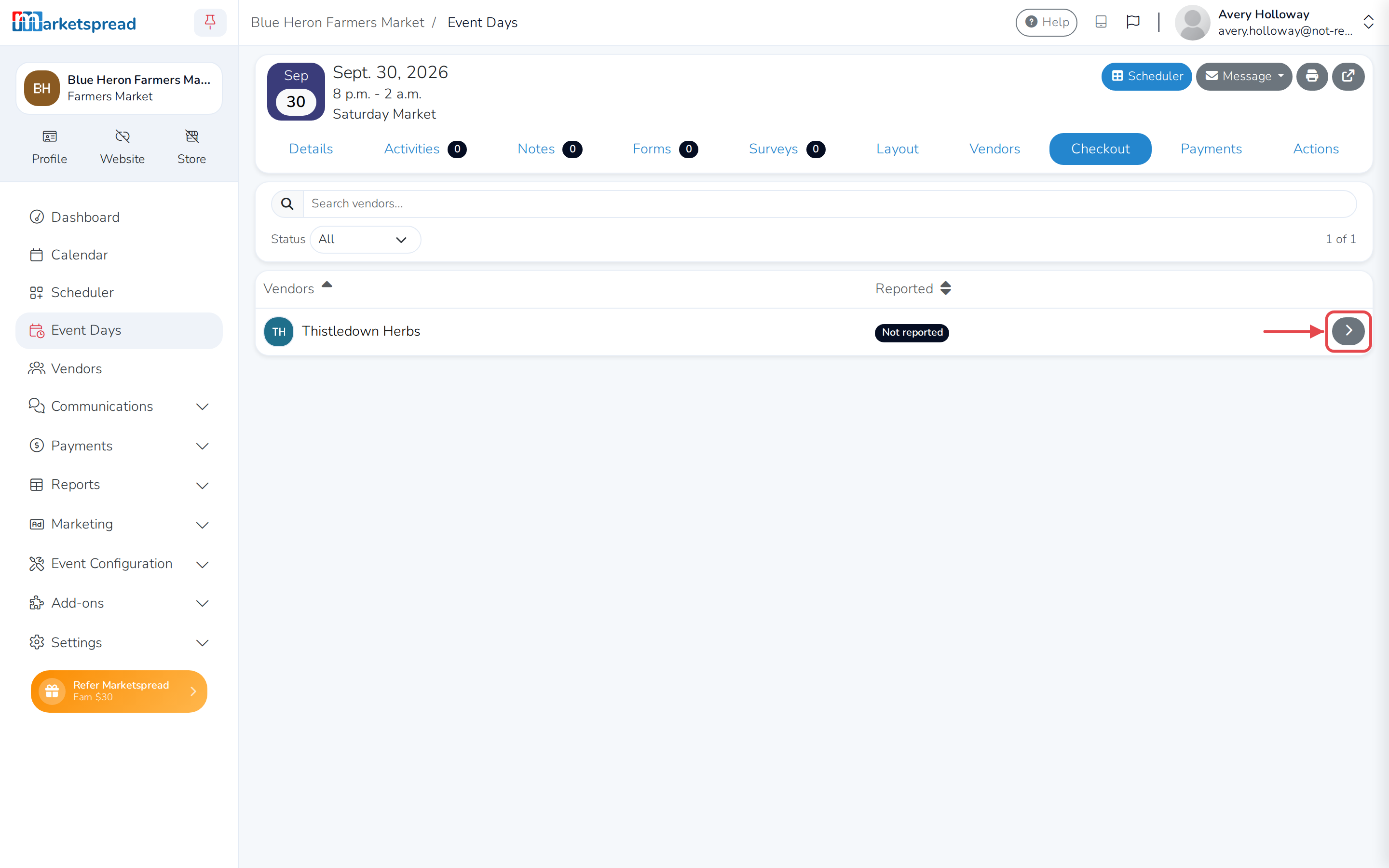
Click the Checkout tab.
-
Click the arrow next to the vendor you want to report sales for.
-
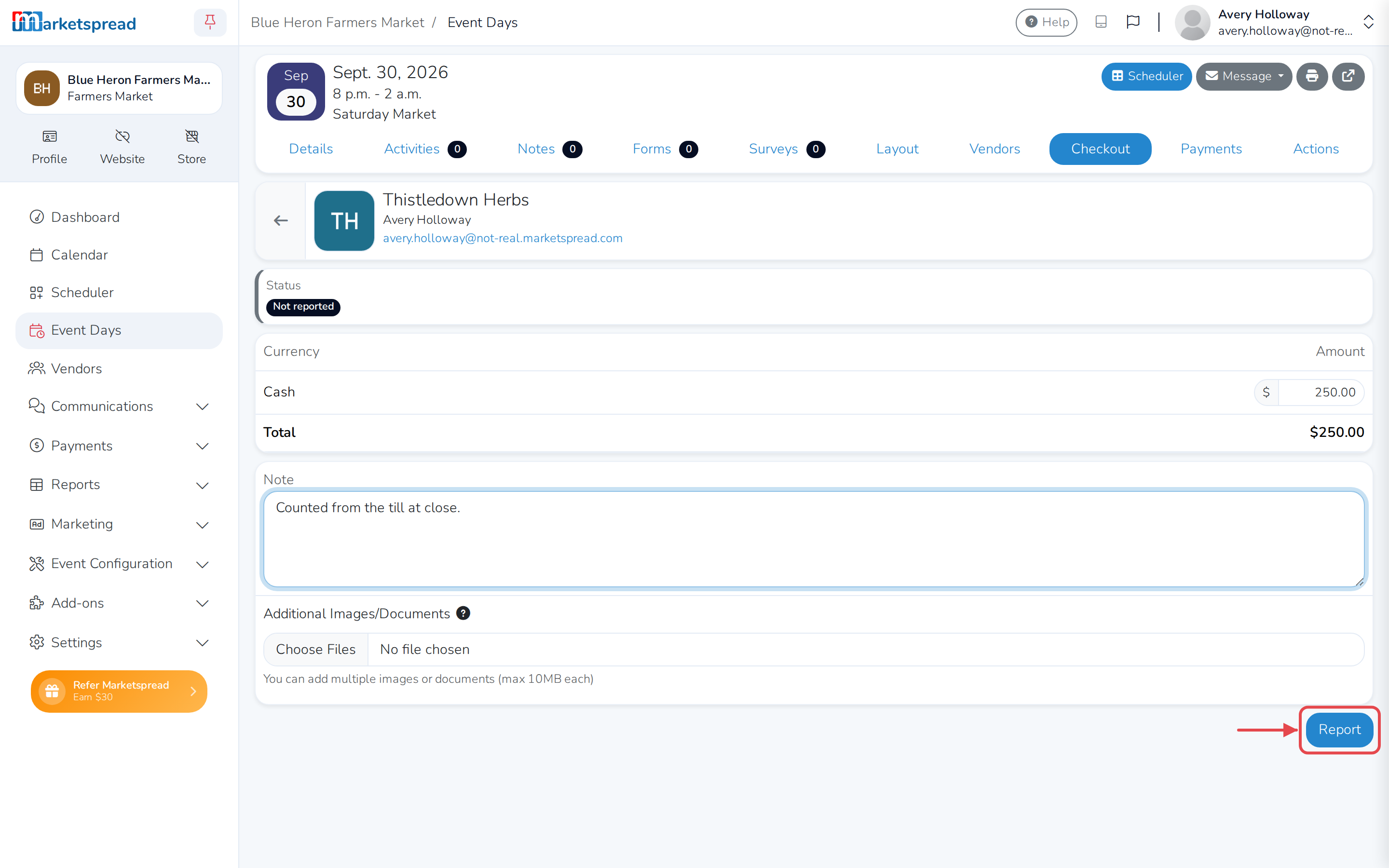
Enter the vendor's sales. If your market tracks more than one currency or program — like tokens or vouchers — there's a field for each. Enter 0 for any that don't apply.
-
To keep a record, add a note or attach a photo of the till or a receipt (optional).
-
Click the button at the bottom of the page. It's labeled Report, Create Draft Invoice, or Update, depending on whether this bills the vendor.
Note
A vendor with more than one booth still gets one sales report for the whole day. You don't need to report each booth separately.
Correct a sales report
- From the event day's Checkout tab, click the arrow next to the vendor again.
- Their last-reported amounts are already filled in. Change what needs correcting.
- Click Update.
Tip
The event day's Details tab shows everyone's sales added up, so you don't have to total them yourself.