


When you set up a new event, you pick its application from a dropdown. You can start a brand new one from a template, or link the event to an application another event already uses. Linking saves you time, and returning vendors get their previous answers filled in for them.
What's in an application
An application is what a vendor fills out to apply to your event. It sets out:
- Questions you want vendors to answer
- Documents you require vendors to upload
- Surveys vendors must complete
- Application fees
- Allowed vendor types and product categories
Templates and existing applications
The Application dropdown on an event has two sections:
| Section | What it holds |
|---|---|
| Templates | Fresh applications that have never been used. When you activate your event, the template becomes an existing application that future events can reuse. |
| Existing Application | Applications already used by at least one activated event. Several events can share one, so the questions match and answers carry over. |
Pick a template when:
- This is your first event and you haven't activated any applications yet
- You want to customize the questions for this event only
- You need different requirements than your other events
- You're testing a new application
Pick an existing application when:
- You want returning vendors to have their answers filled in
- You want the same questions across several events
- You're running a recurring event, like an annual market
- Several events should ask vendors for the same things
Tip
Use the same existing application for a recurring event and vendors only fill it out once. Their answers carry over to each new event.
Create your first application
Set this up before you create the event, with all the questions, documents and fees you need.
-
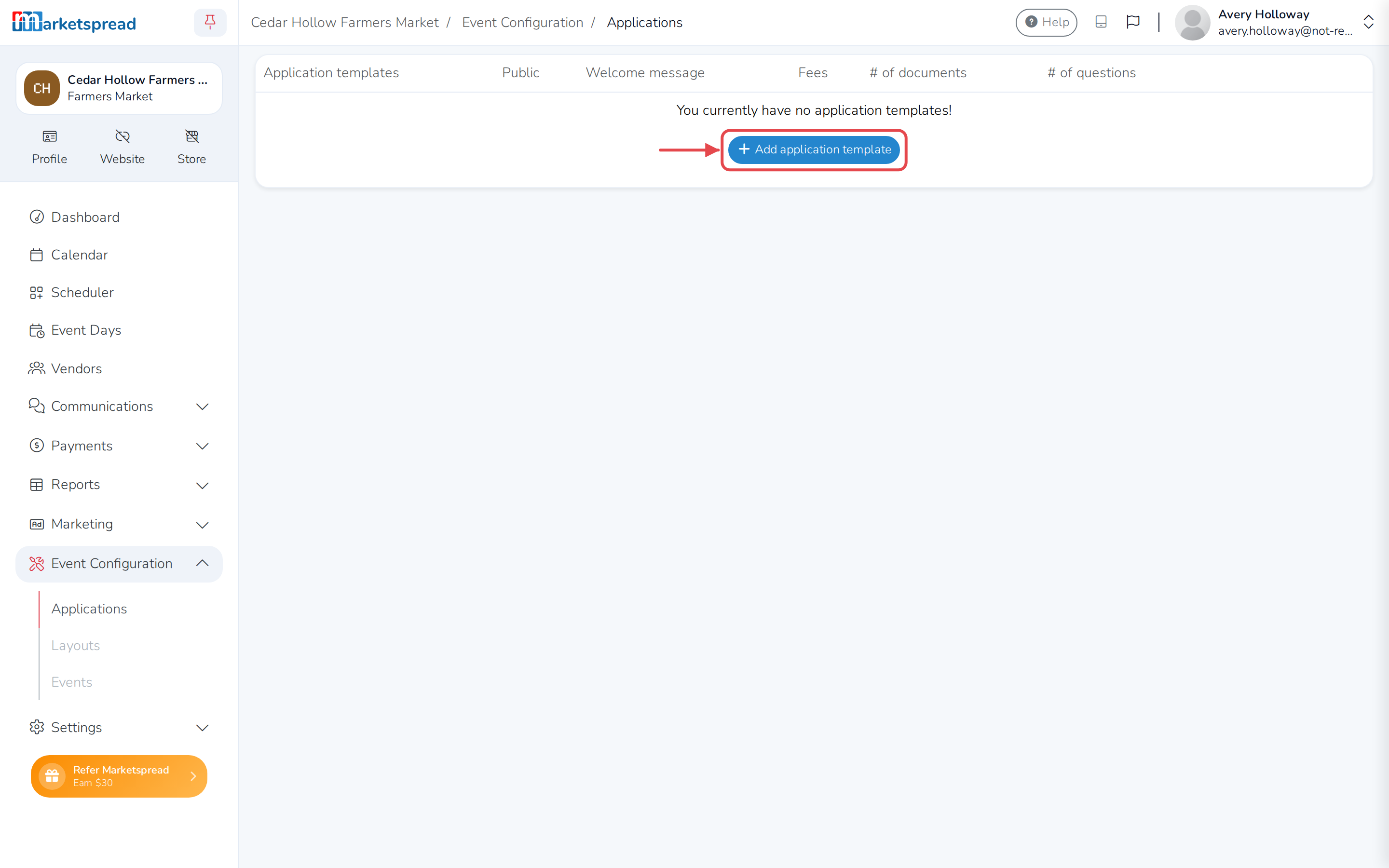
Open Event Configuration, then click Applications.
-
Click Add application template.
-
Add your questions, document requests and fees.
-
Save the application.
Pick the application when you create the event
-
Open Events, then click Add event.
-
Fill in the event details — name, dates and the rest.
-
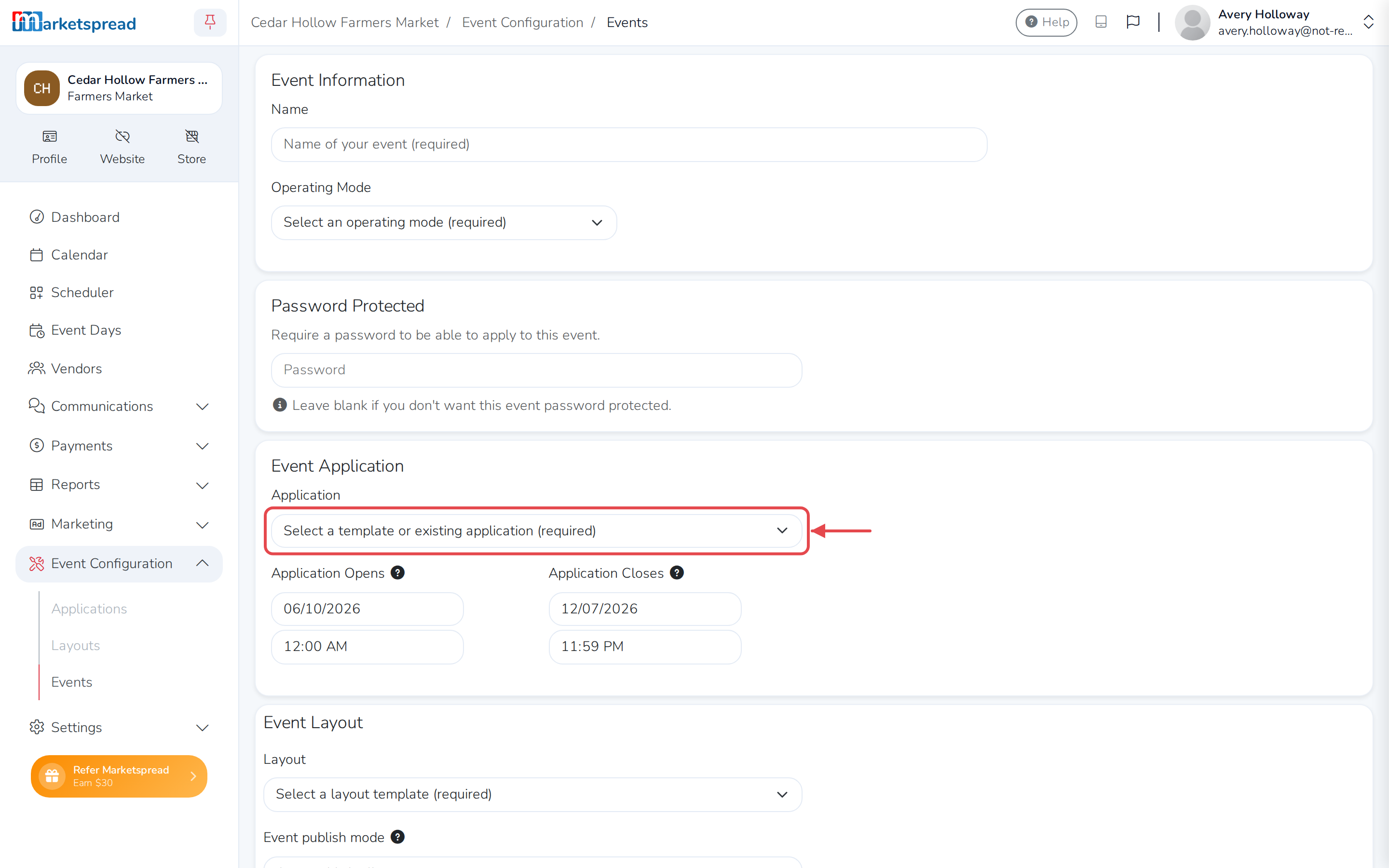
Open the Application dropdown.
-
Under Templates, pick one for your first event, or whenever you need a fresh application.
-
Under Existing Application, pick one to reuse an application from a previous event and get answer carry-over.
Activate the event
What happens next depends on which one you picked:
- A template becomes an existing application, ready for future events to reuse.
- An existing application is linked to the event straight away. No new application is created.
What vendors see when they apply
- If they've applied before using the same application, their answers are already filled in
- They can review and change any of it
- New questions are blank for them to answer
- What they submit is saved for their next application
How answer carry-over works
When a vendor applies, their previous answers appear wherever the question text matches. If they have answered that question before — on any earlier application to your market — the answer is filled in for them.
Important
Carry-over works on the question text matching exactly. Link several events to the same existing application and the questions are guaranteed to match, so vendor answers always carry over.
What carries over
| Item | Carries over? | Notes |
|---|---|---|
| Question answers | Yes | If the question text matches exactly |
| Yes/No responses | Yes | Carried over with the question |
| Multiple choice selections | Yes | If the same choices are available |
What does not
| Item | Carries over? | Notes |
|---|---|---|
| Uploaded documents | No | Must be re-uploaded each event |
| Survey responses | No | Surveys must be completed fresh |
| Application fees | No | Fees are charged per application |
| Booth selections | No | Made during event assignment |
Documents and surveys start fresh each event because they often need to be current — an up-to-date insurance certificate, a current health permit.
Common setups
An annual market, reusing the same application
You run a weekly farmers market and want returning vendors to re-apply easily each year.
- For your first year, create a template and activate your event
- Each following year, create a new event and pick last year's existing application
- Returning vendors see their previous answers filled in
- They review and submit, or make changes first
Several events sharing one application
You run several events through the year — Spring Market, Holiday Market, Autumn Harvest Market — and they all ask vendors for the same things.
- Create and activate your first event with a template
- For the events after it, pick the existing application from the dropdown
- Every event now shares the one application
- A vendor who applied to one event has their answers filled in on the others
Events that need different applications
You run different kinds of events with different requirements — a food truck festival and a craft fair.
- Create a separate template for each kind of event
- Activate each event with the right template
- You end up with one existing application per kind of event
- Future food truck festivals reuse the food truck application, and so on
Even across different applications, any question worded identically — "Describe your products", say — still carries its answer over.
Changing your questions for next year
You want to add or reword questions for next year's event, and still have returning vendors' answers carry over.
- Create a new template with your updated questions
- Keep the wording identical on every question you want answers to carry over
- Create your new event and pick the new template
- Previous answers carry over for the unchanged questions
- New and reworded questions are blank for vendors
Warning
Editing an existing application changes it for every event using it. Create a new template instead.
Question wording has to match exactly
Answers only carry over when the question text matches exactly. Even a small change stops it:
| Original question | Changed question | Carries over? |
|---|---|---|
| Describe your products | Describe your products | Yes |
| Describe your products | Describe your products. | No — a period was added |
| List your certifications | List any certifications | No — the wording changed |
Tip
The same existing application guarantees the questions match. If you do need different questions, keep the unchanged ones worded identically.
You can't change the application once vendors are assigned
Once vendors have been assigned to booths or spaces in an event, you can't change which application that event is linked to.
If you need a different application, you have two options:
- Remove every vendor assignment first, if you can
- Create a new event with the right application
Good to know
- Reuse an existing application where you can. It guarantees answer carry-over and keeps your events consistent.
- Plan your template carefully. Think about the questions you'll need long term before you create your first event.
- Keep question wording consistent. If you create a new template, word the unchanged questions identically.
- Test with a sample vendor. Before you launch a new event, run through the application yourself with a test vendor to check answers carry over.
- Tell your vendors. Let returning vendors know their previous answers are filled in, and that they should check them.
Quick reference
| Term | What it means |
|---|---|
| Template | A fresh application. Becomes an existing application when you activate your event. |
| Existing application | An application already used by at least one event. Pick it to reuse the same questions and get answer carry-over. |
| Answer carry-over | Happens when question text matches exactly. Guaranteed when you use the same existing application. |
| What doesn't carry over | Documents, surveys and fees are submitted fresh for each event. |