


A vendor with Auto Pay on has given you permission to charge their card
when a fee falls due. You get paid the moment you release the invoice, instead
of waiting for them to pay it.
You cannot turn Auto Pay on for a vendor. Each vendor turns it on themselves.
It covers every market your organization runs.
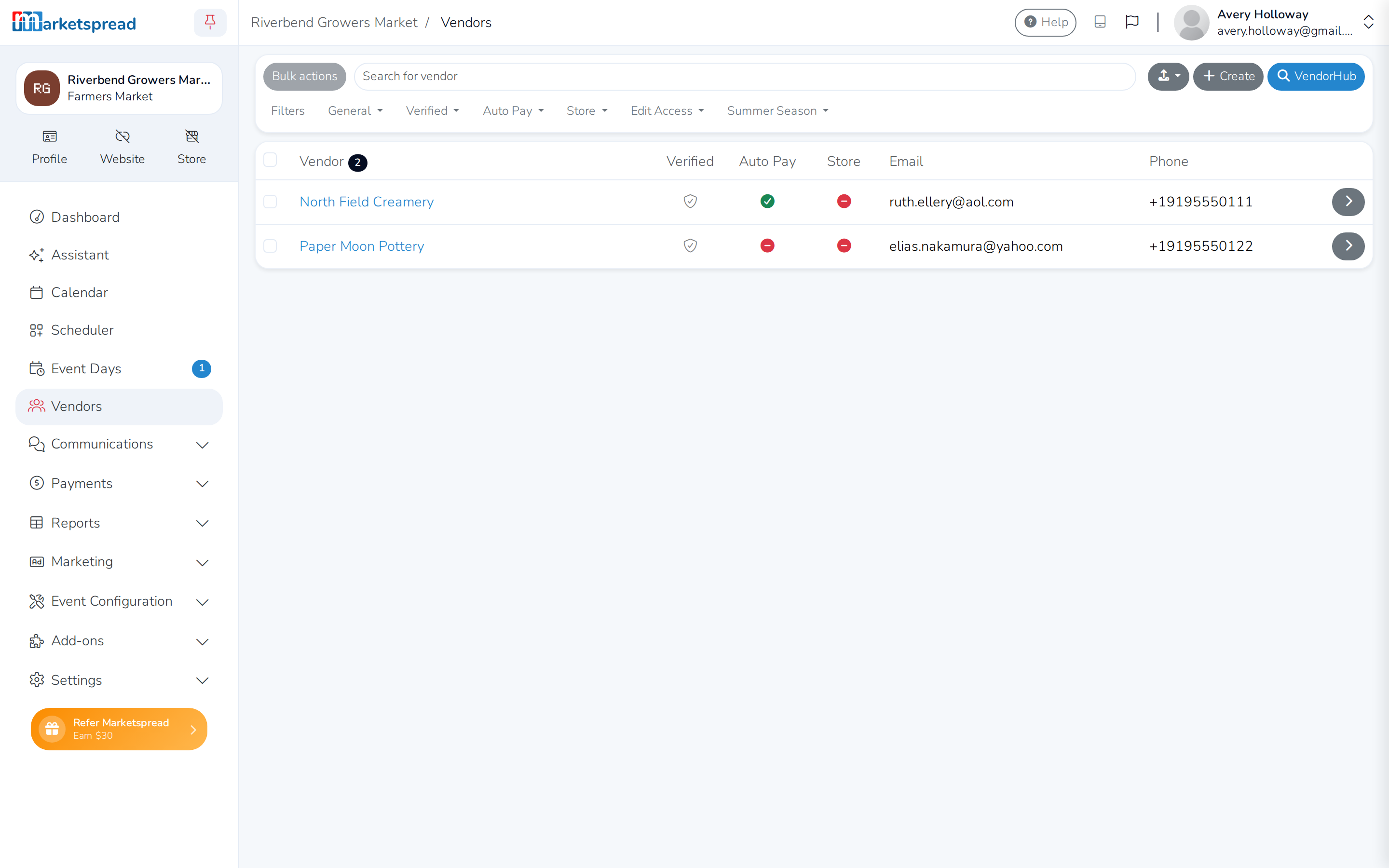
See who has it on
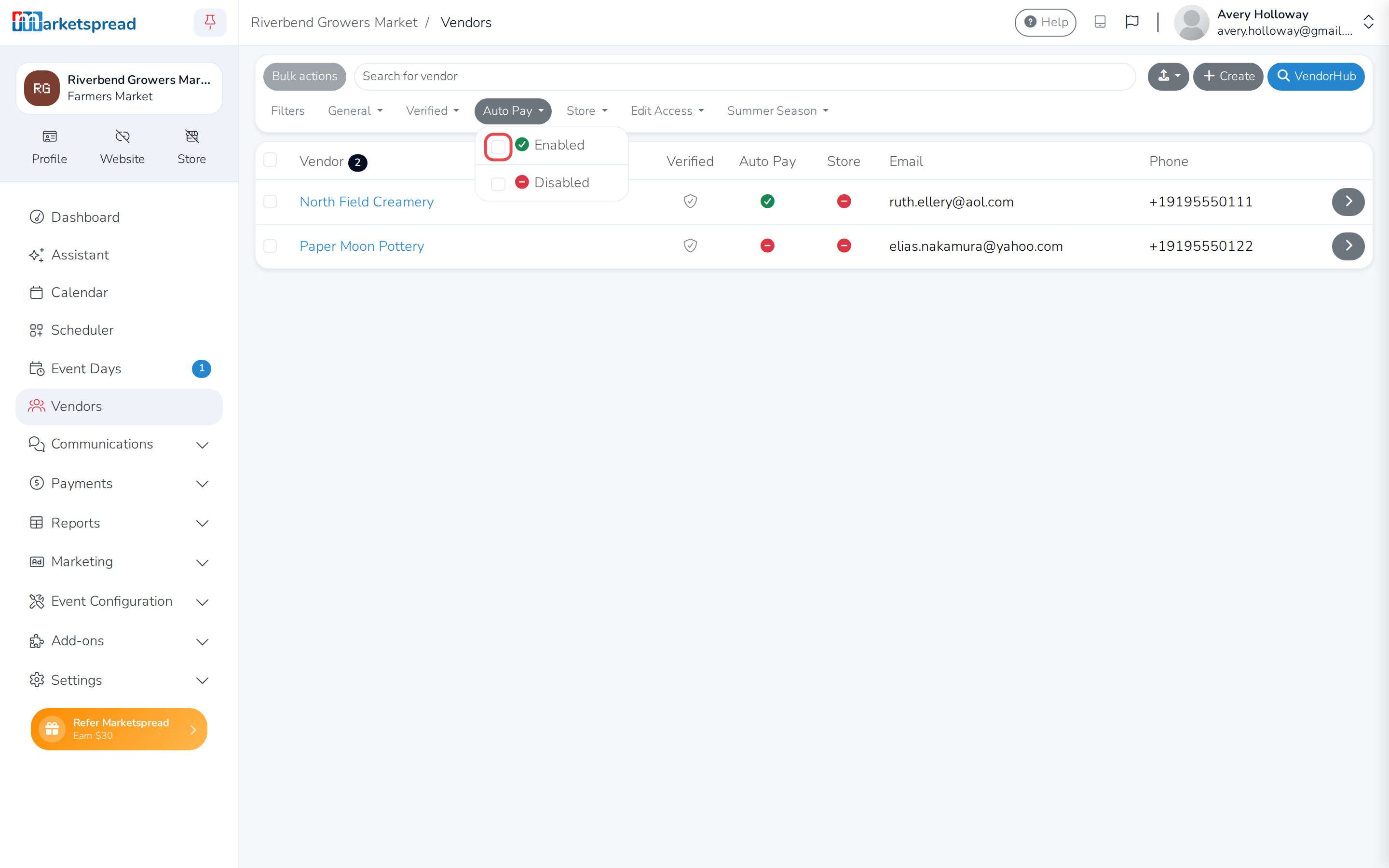
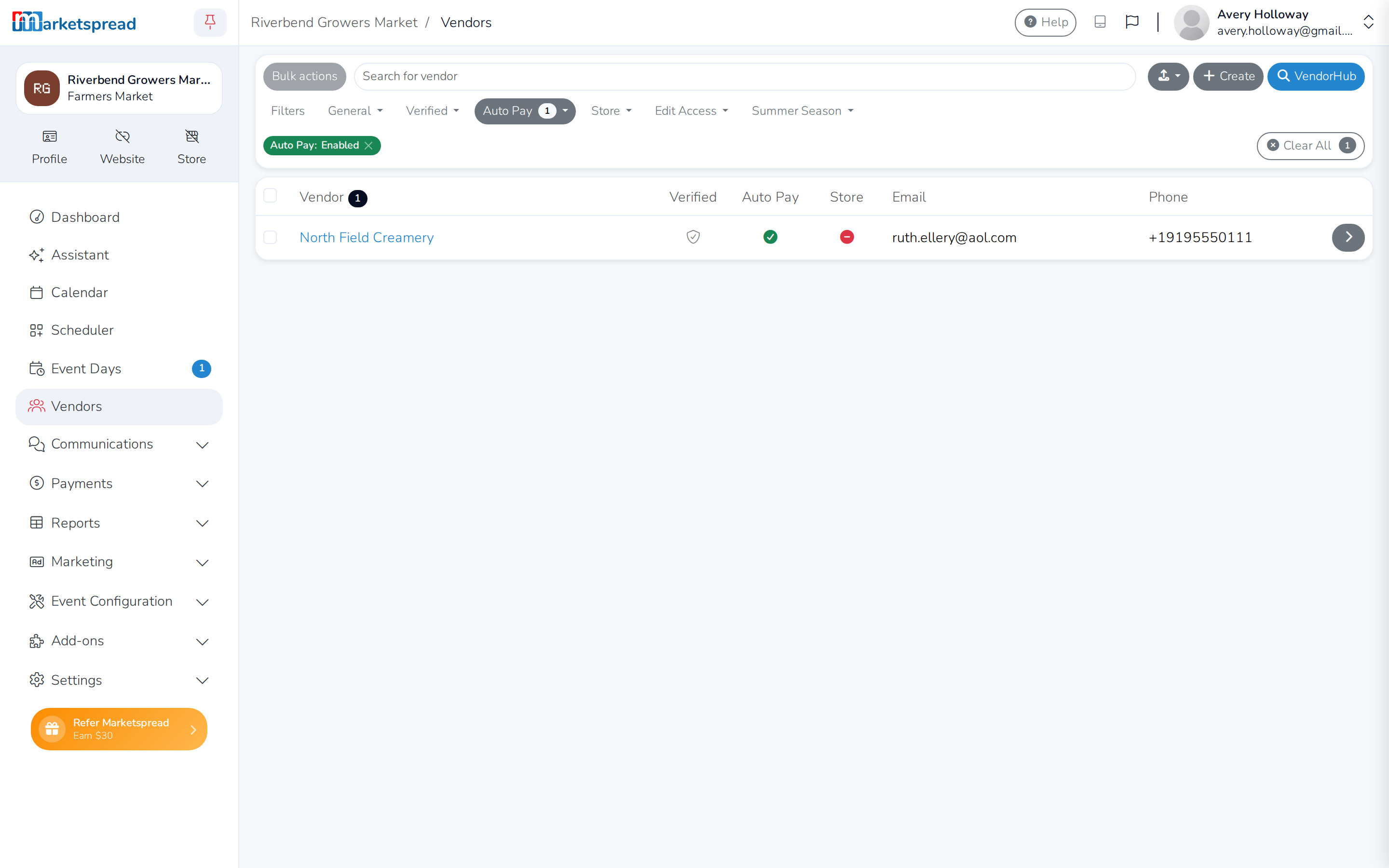
Open Vendors. Each vendor shows whether Auto Pay is on. On a long list,
click the Auto Pay filter button to see only those who have it.
Charge everyone for an event day
-
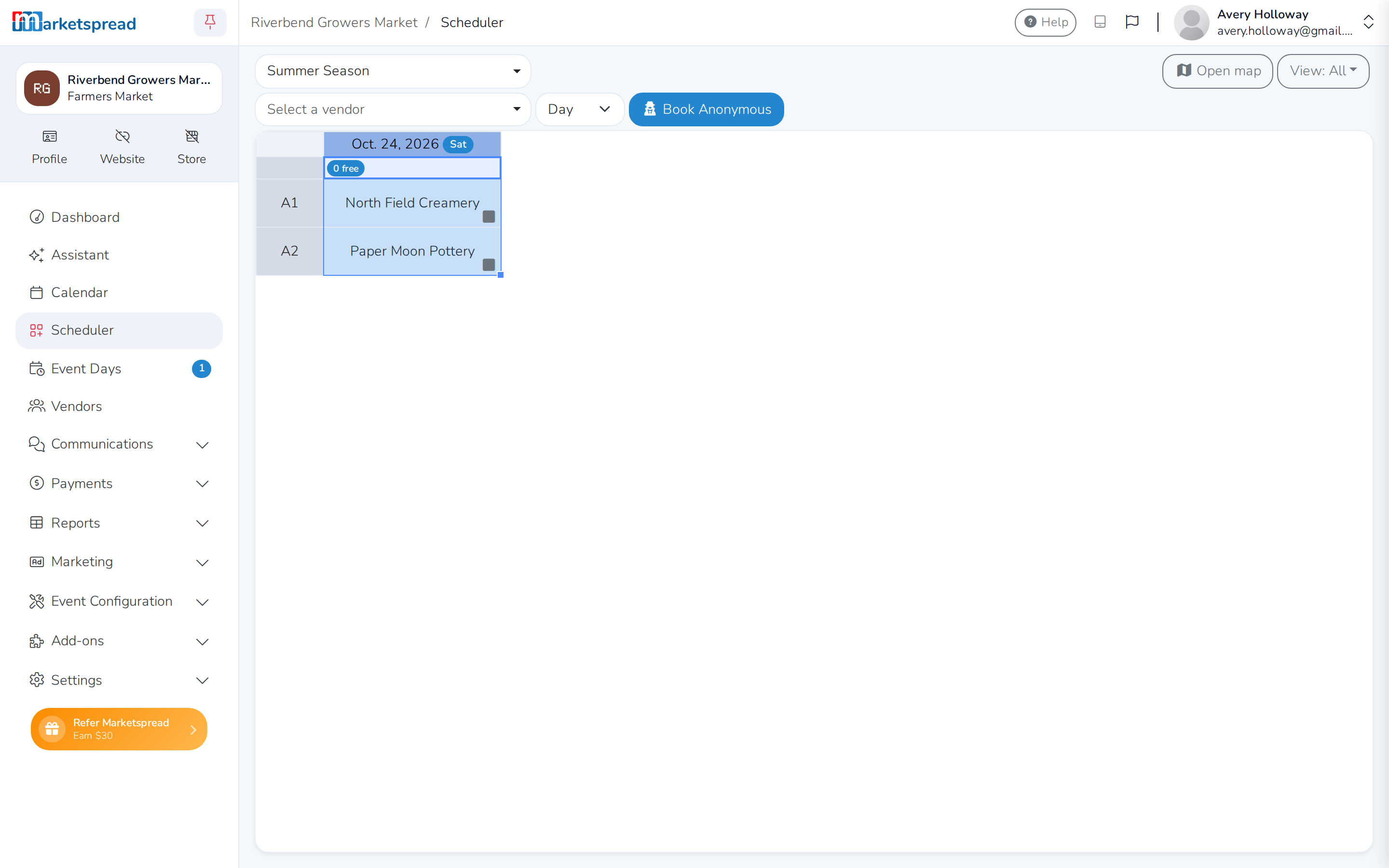
Open Scheduler.
-
Next to Select a vendor, set the term type to match how vendors are
booked for that day — usually Day. -
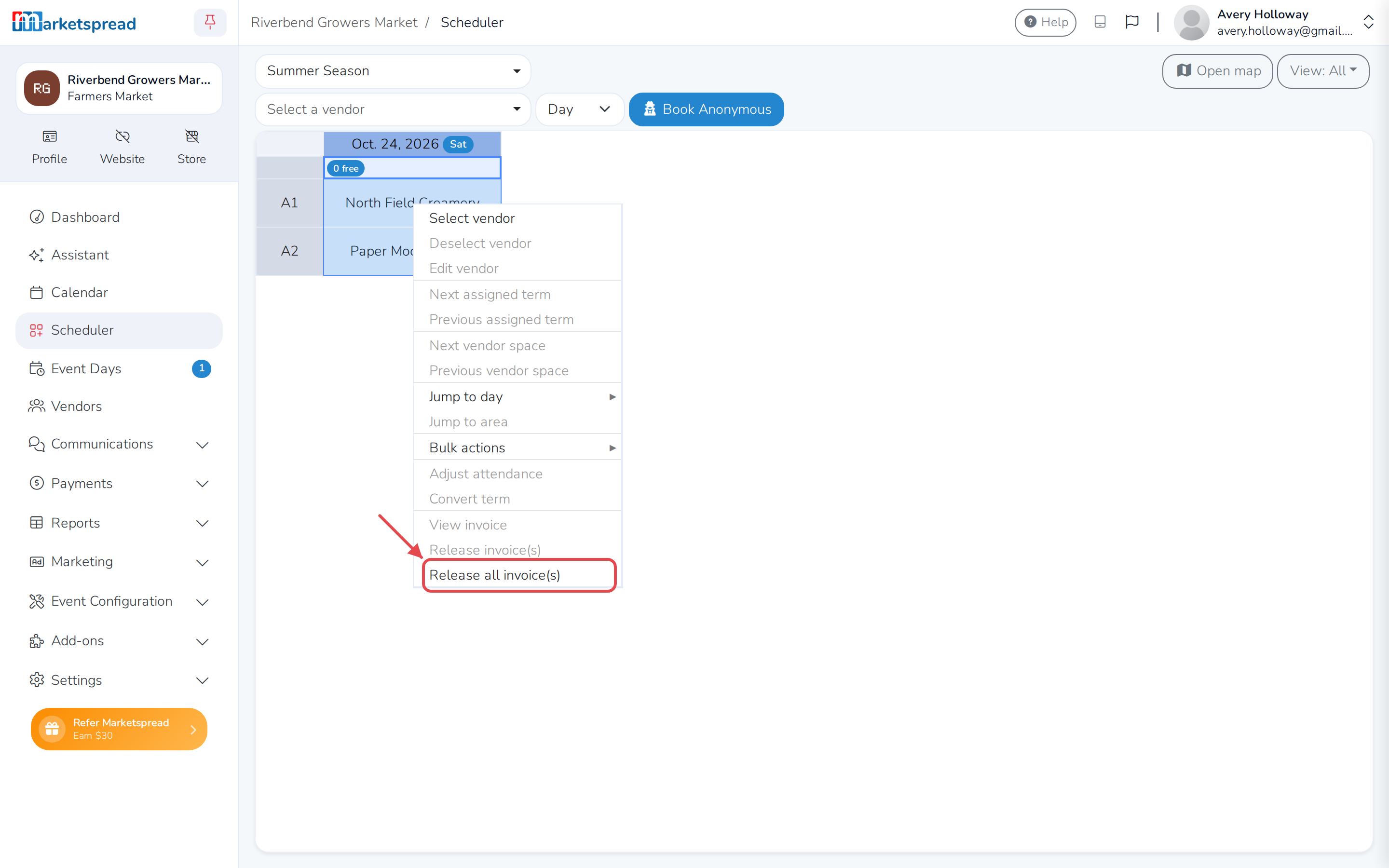
Click the day's column header to select every vendor booked that day.
-
Right-click the selection and choose Release all invoice(s).
-
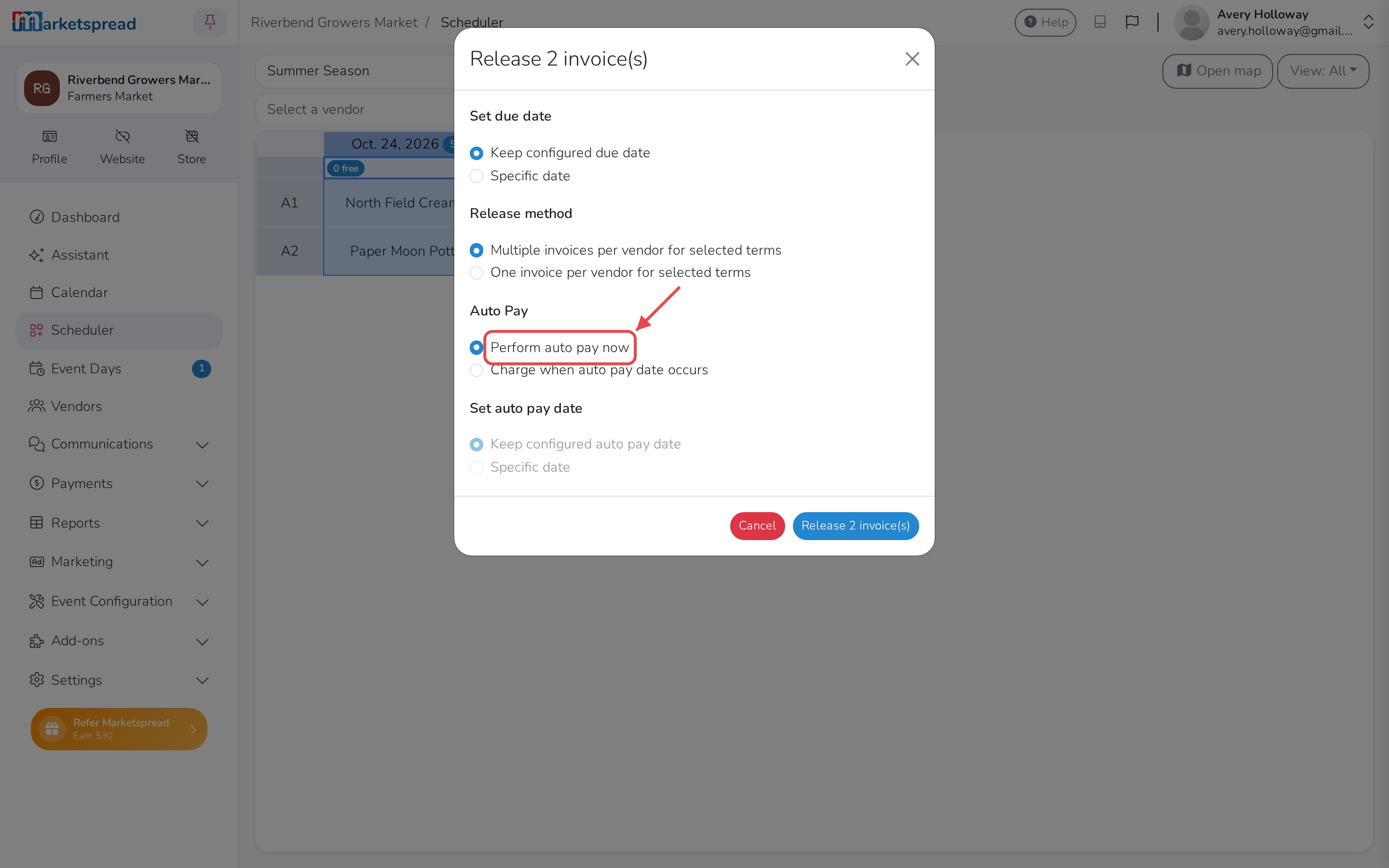
Under Auto Pay, leave Perform auto pay now selected.
-
Click Release invoice(s) at the bottom — its label counts how many are
about to go out.
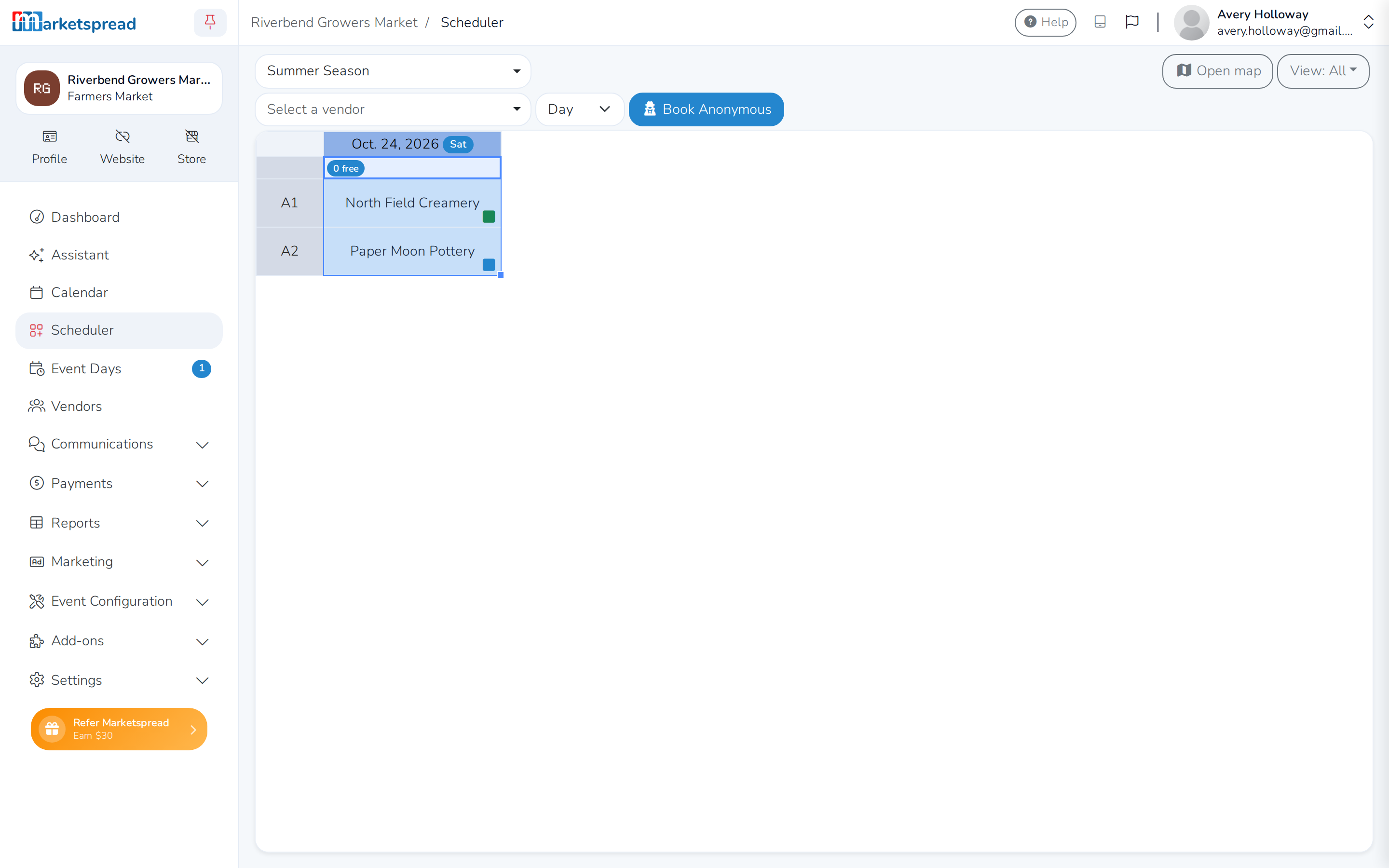
Every vendor gets their invoice. The ones with Auto Pay are charged straight
away; the rest have to pay theirs.
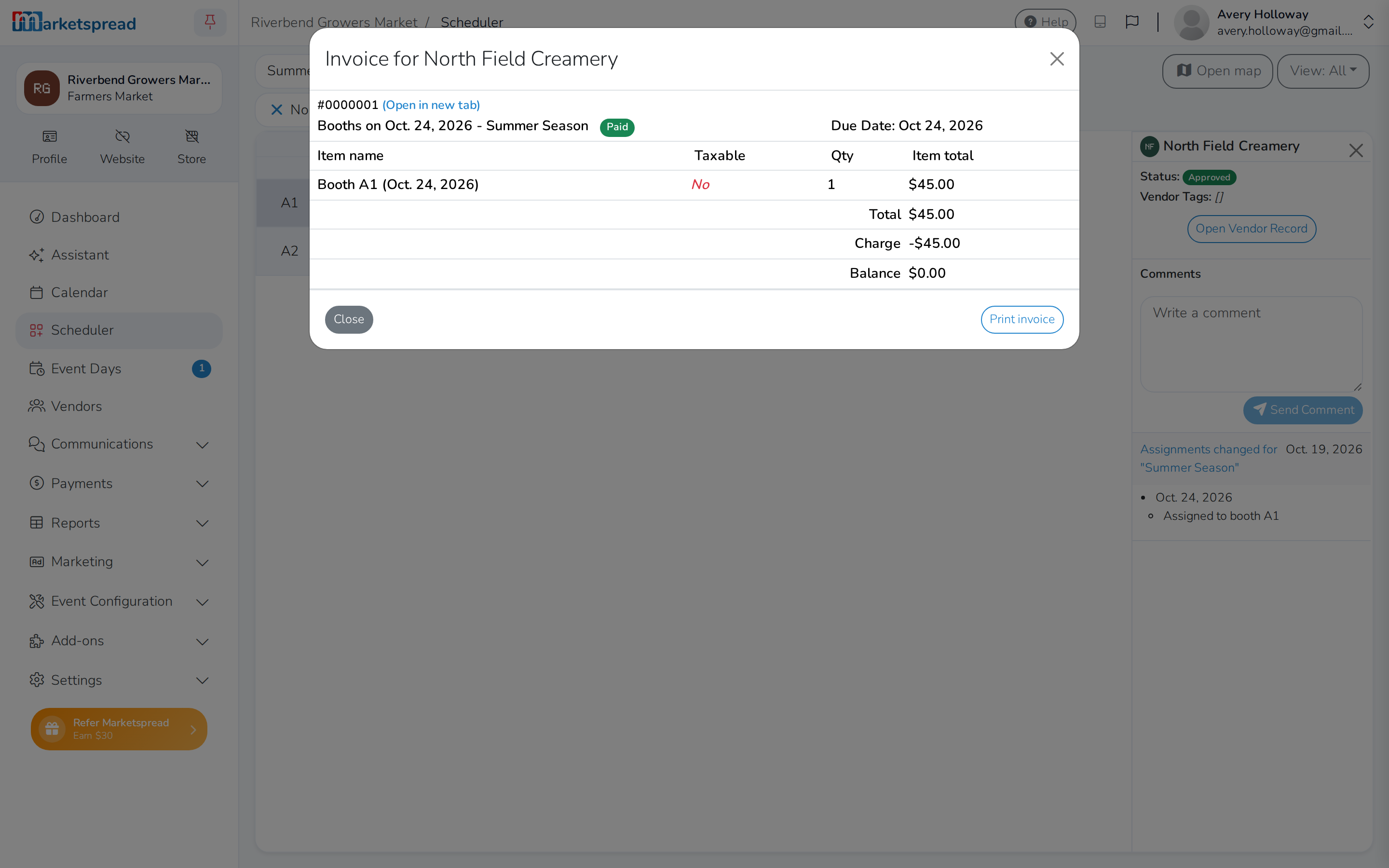
The square in the corner of each booking tells you which is which —
green means paid, blue means the invoice has gone out and you are
waiting. Right-click a cell and choose View invoice to see what happened.
To release more than one day at once, see
Bulk invoicing in Scheduler.
Charge a single invoice
-
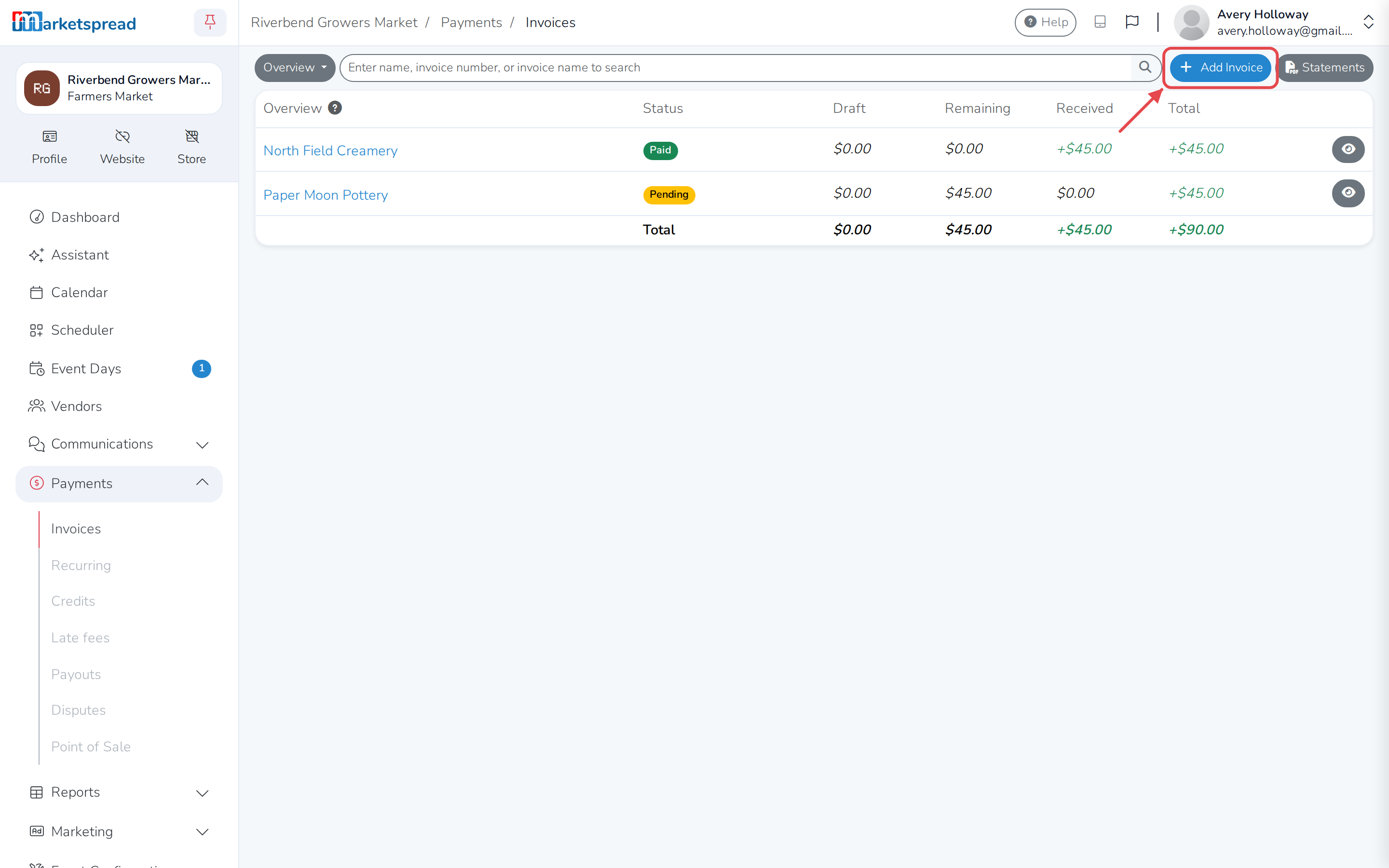
Open Payments, then Invoices.
-
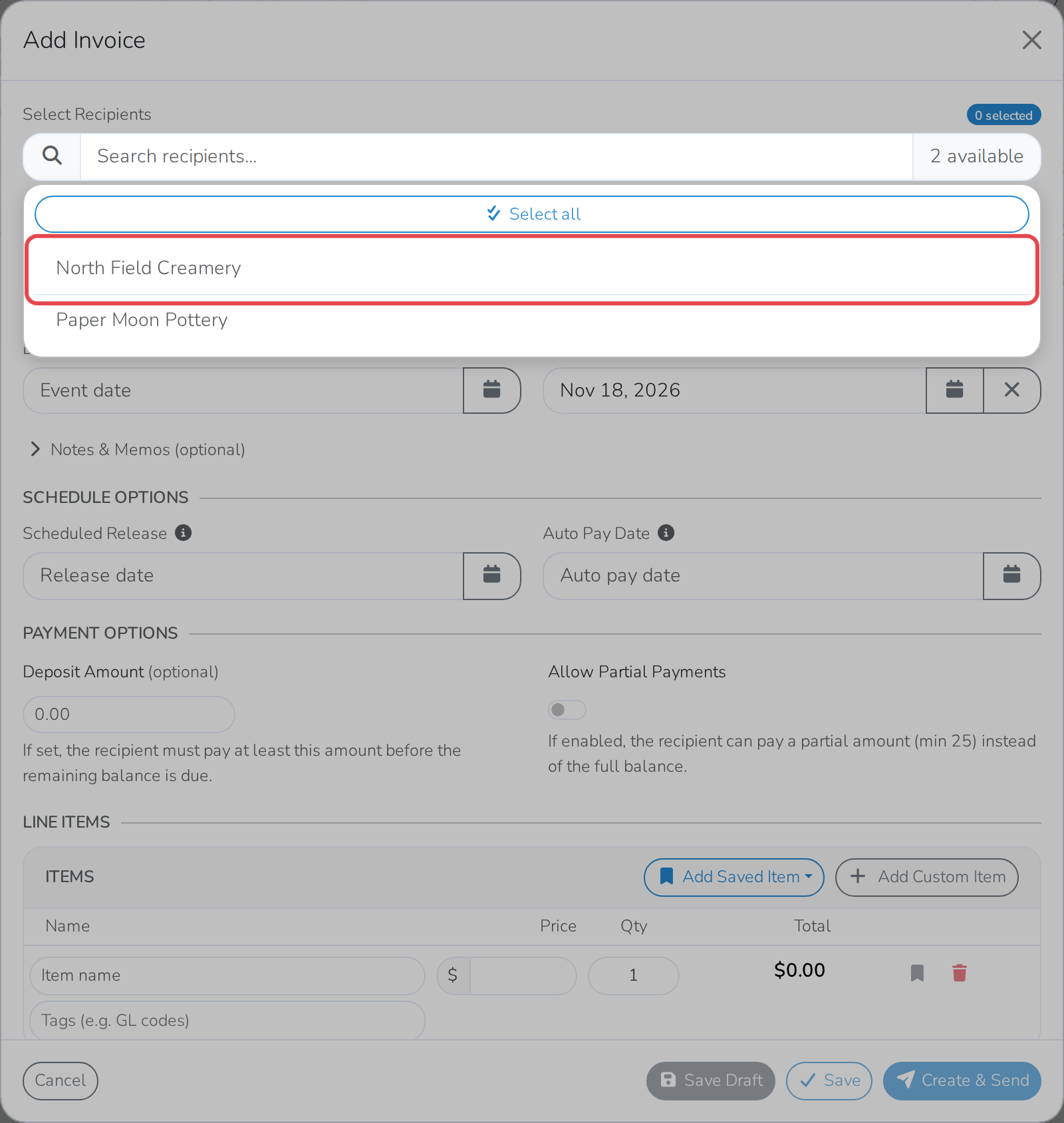
Click Add Invoice and choose the vendor.
-
Add what you're charging them for.
-
If the vendor has Auto Pay, click Send & Charge Auto Pay. If not,
click Create & Send and wait for them to pay.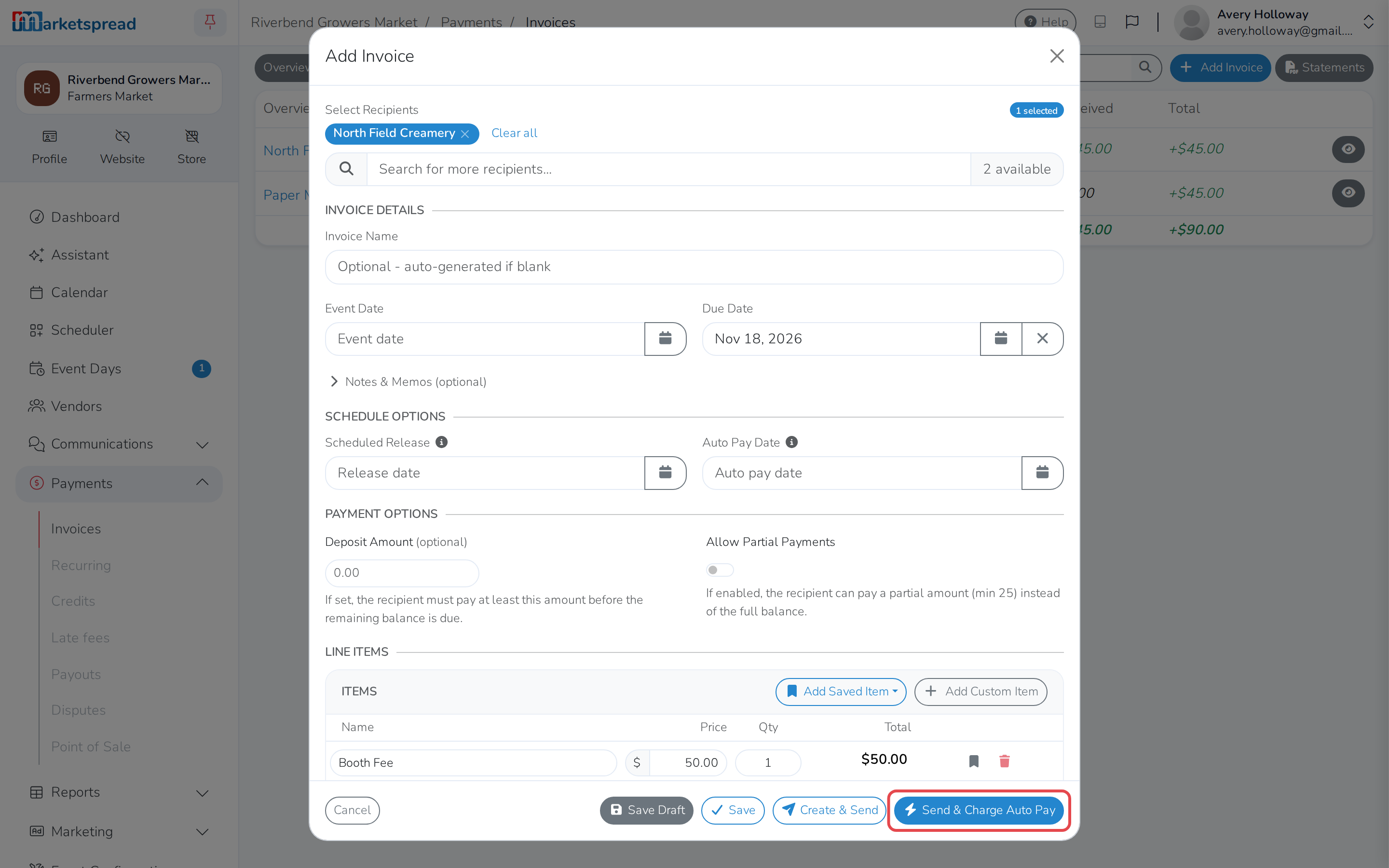
A vendor without Auto Pay has no Send & Charge Auto Pay button, so
sending their invoice is the only option.
Vendors turn it on, not you
If a vendor wants to be charged automatically, they enable it themselves
from their own applications list. Point them at
Turn on Auto Pay.