


An event's booth layout comes from a layout template. Once the event is live,
you don't edit that layout directly. Instead you change the template behind
it and push the change out, or swap in a different template entirely. Both
start from Layouts, under Event Configuration.
From there you can:
- Update the layout an event is using
- Swap in a different layout
- Bring back a template that was deleted
Only admins can do this
Managers can see the Layouts page, but only market admins can update,
swap, or recreate a layout.
Update the layout an event is using
-
Open Event Configuration, then click Layouts.
-
Under Activated Layouts, note the name in the Template column for
your event. -
Under Layout templates, find that same template and click its Edit
icon.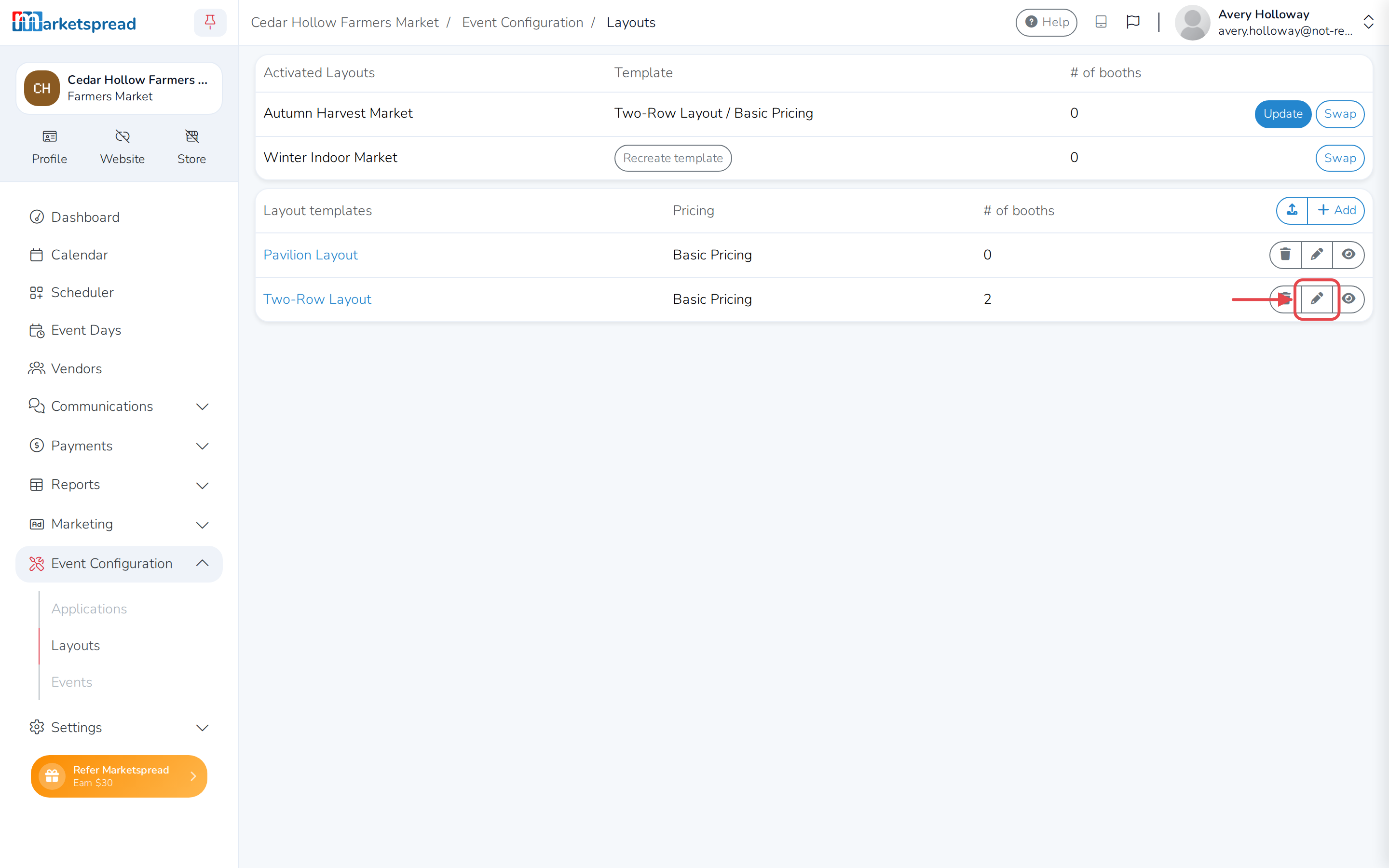
-
Make your changes in the Layout Editor — see
Build a map layout — then
click Save & Close. -
Back on Layouts, find your event again and click the blue Update
button next to it. -
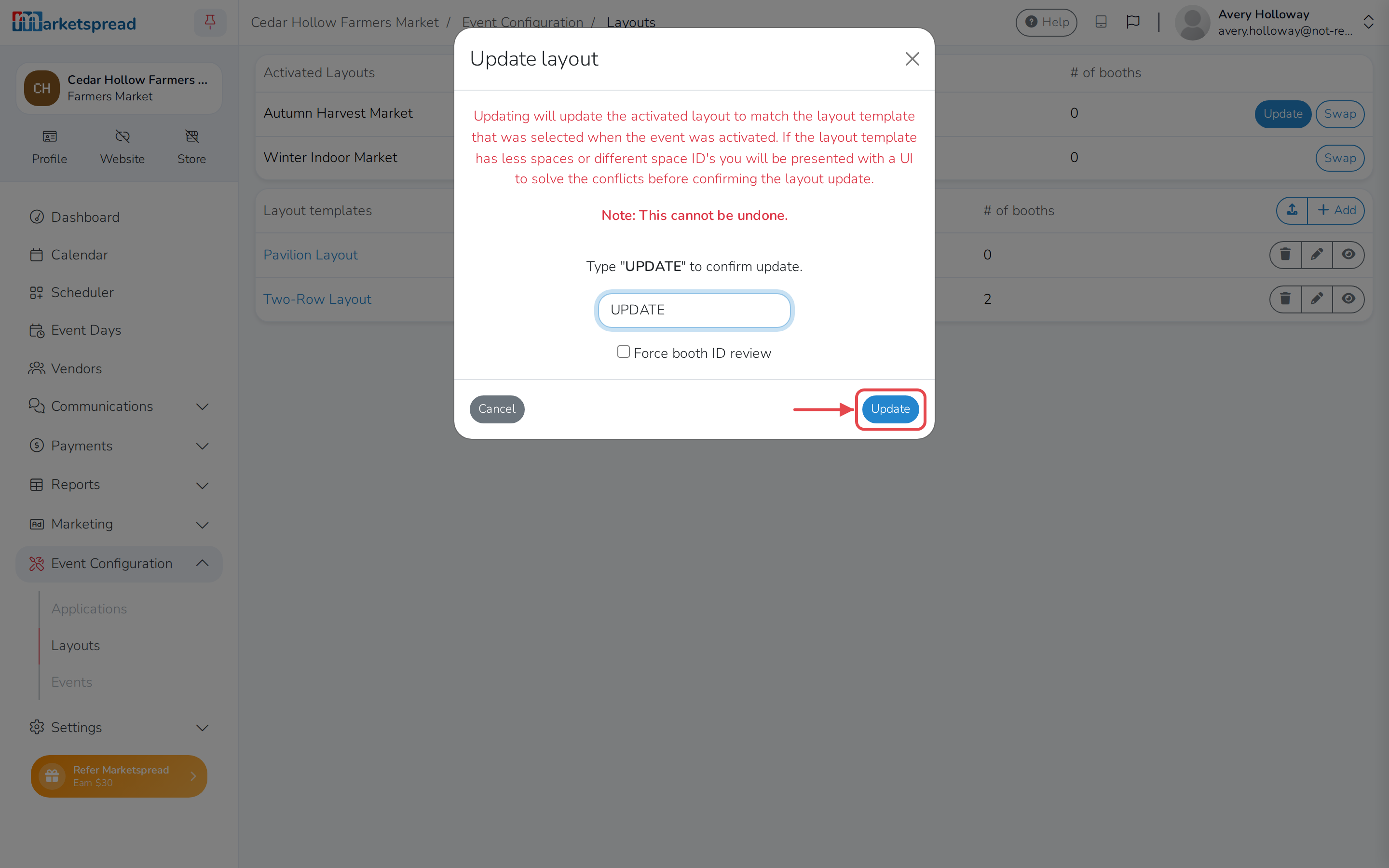
In the Update layout dialog, choose how:
- Update automatically (recommended) carries over any booths that
match, and only opens a screen to match the rest if it needs to. Type
UPDATE to confirm, then click Update. - Review the booth mapping first always opens that screen, with
matches already filled in for you to check. Click Continue.
- Update automatically (recommended) carries over any booths that
Matching old booths to new ones
If the booth count changed, or booths moved between areas, you land on a
screen to match each one yourself before the update finishes. A booth
with a vendor already booked into it has to be matched to something — it
can't just be dropped. Choosing Review the booth mapping first sends
you to this screen even when Marketspread could have matched everything
on its own.
This can't be undone
Once you confirm the update, the event's layout is replaced. There's no
way to go back to what it looked like before.
Swap in a different layout
Use this to replace an event's layout with a completely different template,
rather than editing the one it already uses.
-
Open Event Configuration, then click Layouts.
-
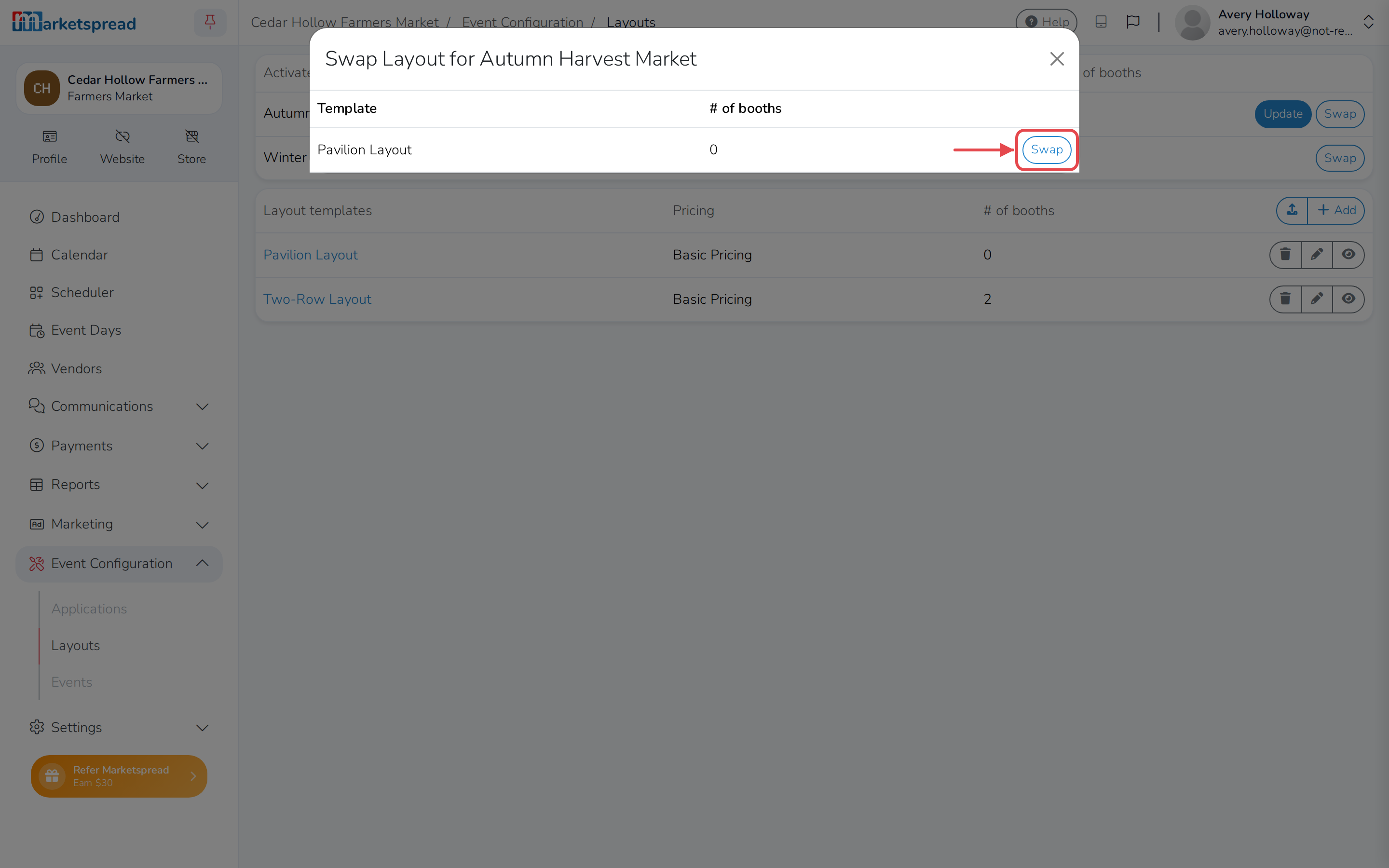
Under Activated Layouts, find your event and click its Swap icon.
-
Find the template you want and click its Swap icon.
Matching old booths to new ones
As with an update, Marketspread usually lines the two layouts up on its
own. If it can't, you land on a screen to match each old booth to a new
one. A booth with a vendor already booked into it has to be matched to
something in the new layout — it can't just be dropped.
This can't be undone
Once you confirm the swap, the event's layout is replaced. There's no way
to go back to the one you swapped out.
Bring back a deleted template
If the template a layout was built from has since been deleted, the
Template column shows Template removed instead of a name.
-
Open Event Configuration, then click Layouts.
-
Under Activated Layouts, find your event and click its Recreate
template icon.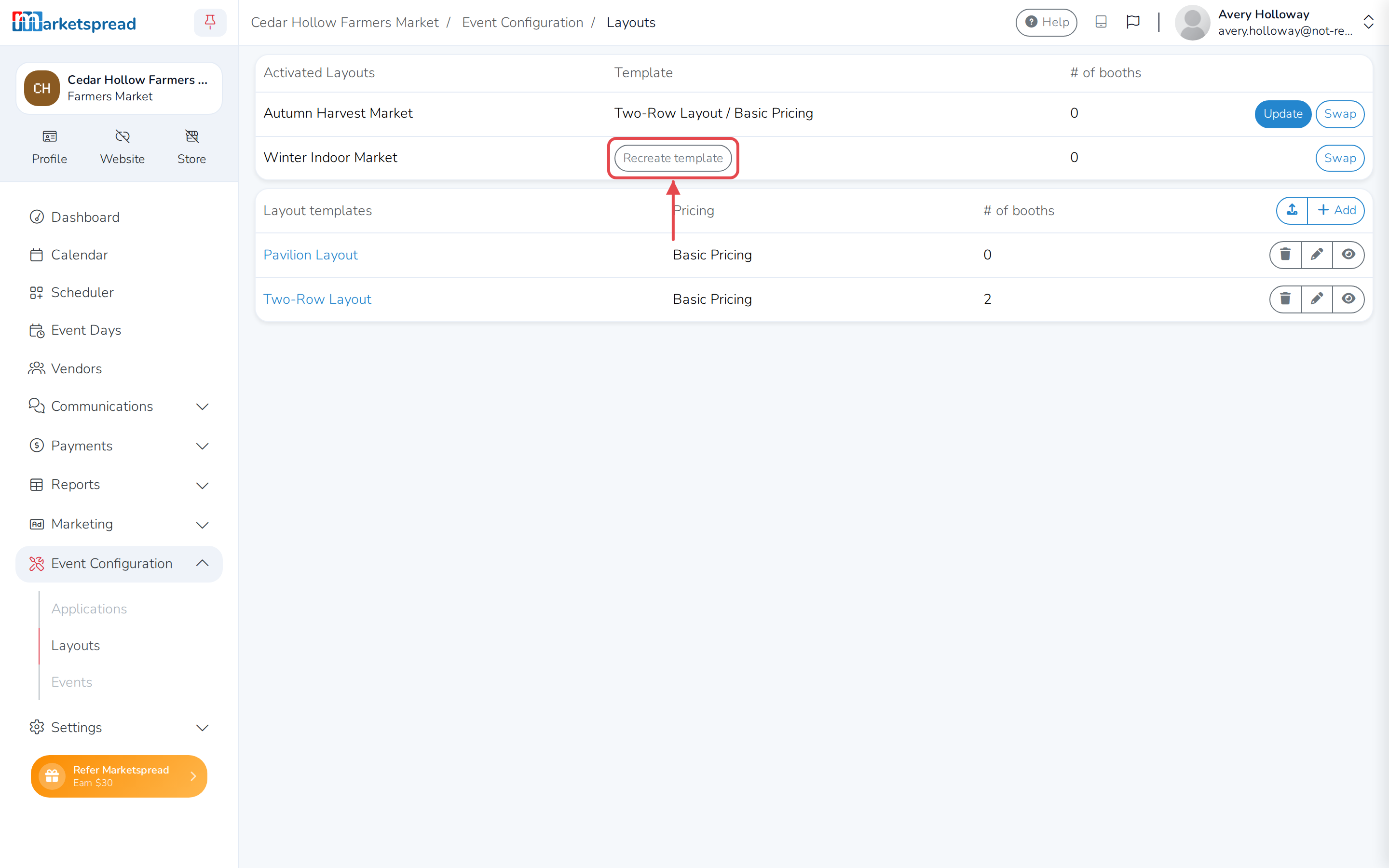
This creates a new layout template from what's currently live, so you have
something to edit going forward.