


Preview shows you exactly what a vendor sees when they open your application. It doesn't create a vendor account or save anything you enter.
You can:
- Preview an application
- Preview the full application from an event
Preview an application
-
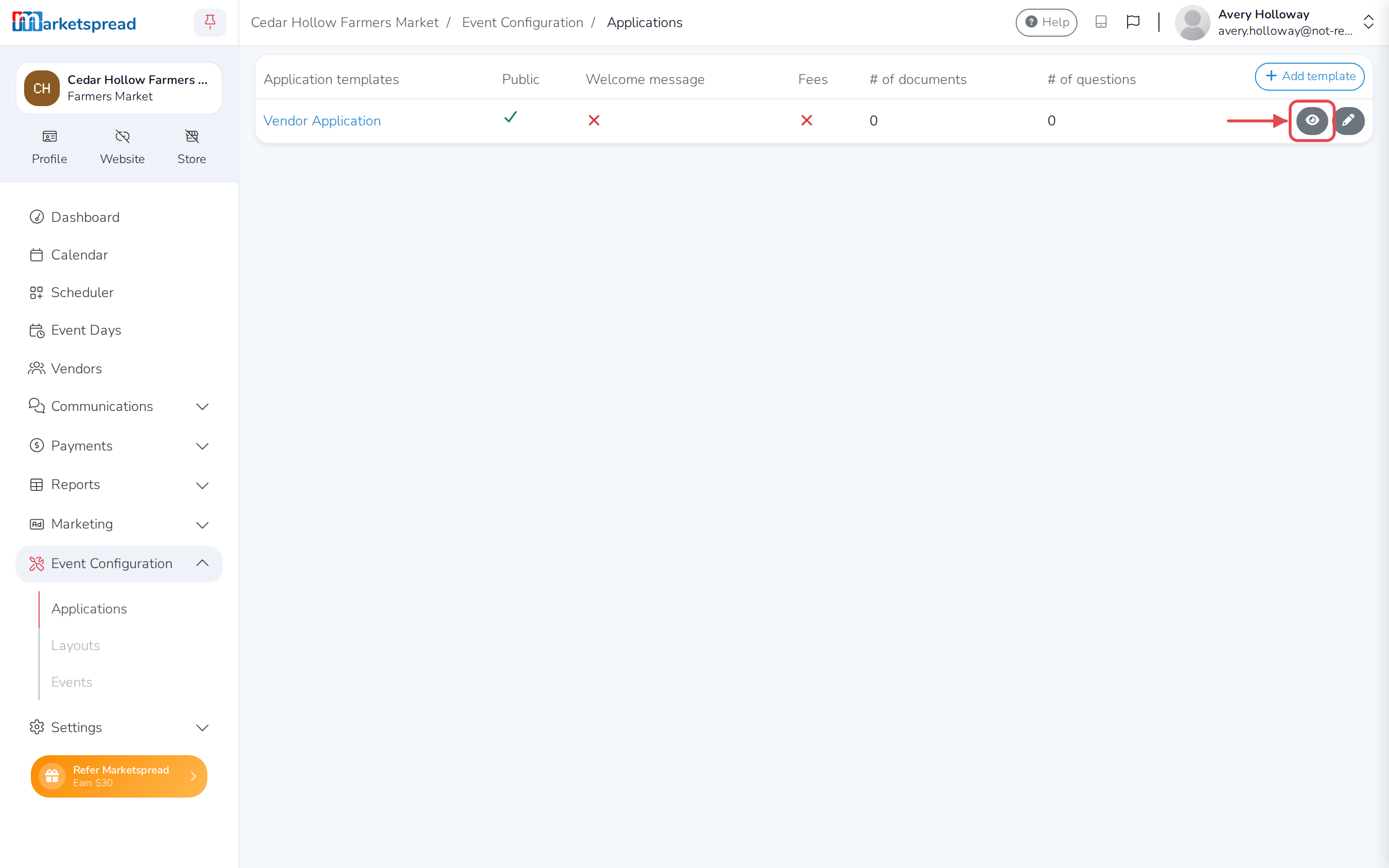
Open Event Configuration → Applications.
-
Next to the application, click the eye icon.
-
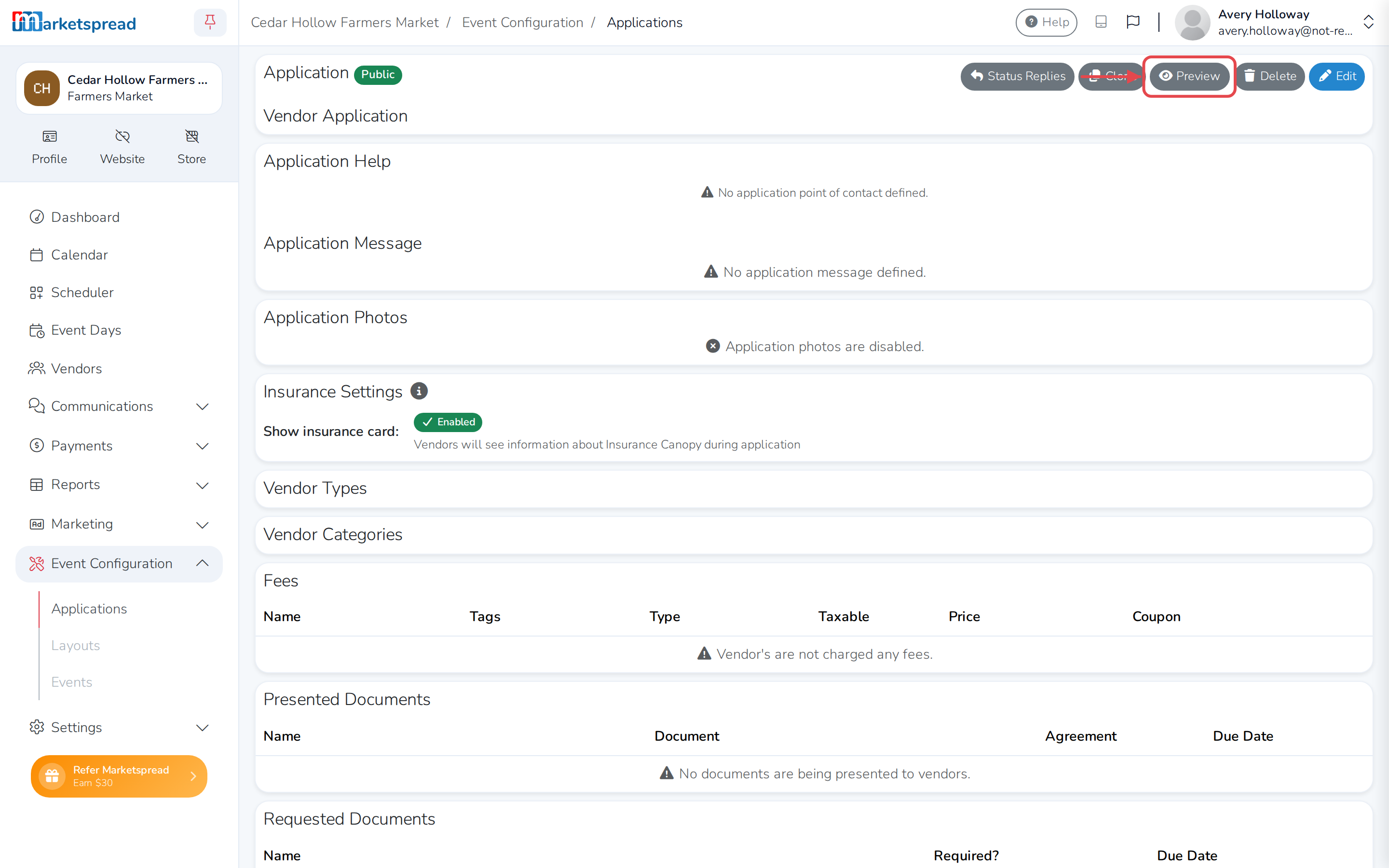
At the top of the page, click Preview.
-
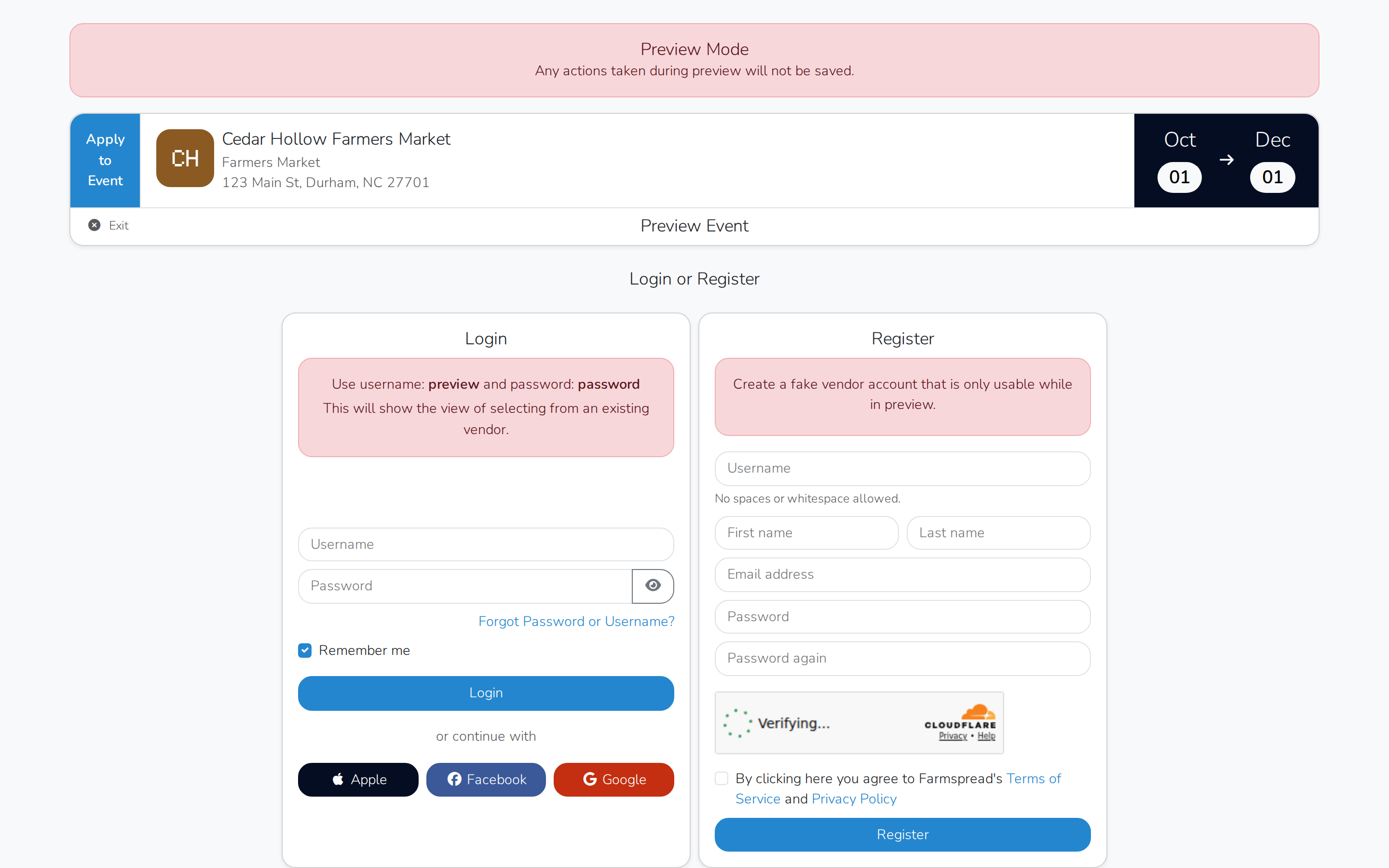
Log in with username preview and password password, or fill in the Register panel to create a fake vendor for this preview only.
-
Click through the application the way a vendor would.
Two preview vendors
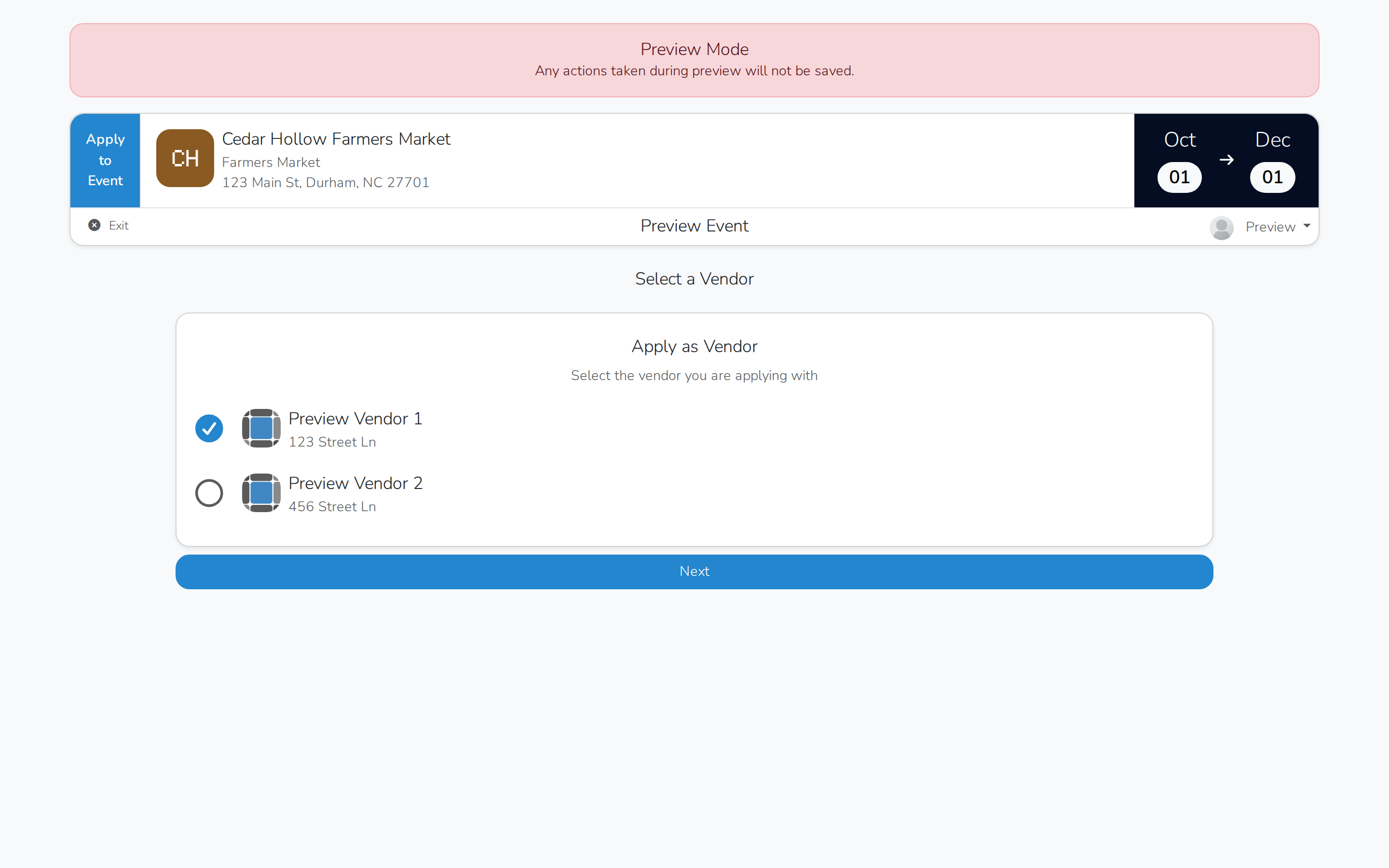
Logging in shows two vendors to choose from, Preview Vendor 1 and Preview Vendor 2. That's just to show what an account with more than one vendor profile looks like — most vendors only ever see one.
Some parts won't show here
This preview isn't tied to a real event, so Days to attend, Rentals and Products to Sell won't appear — the application pulls those from the event. Preview from the event itself to see them too.
Preview the full application from an event
- Open Event Configuration → Events.
- Click the event you want to preview.
- At the top of the page, click Preview.
- Log in or register a vendor the same way as above.
Note
If the event isn't currently open for applications, preview shows the same closed screen a vendor would see instead of the application.