


A vendor credit is money you owe a vendor that hasn't been paid out — usually
from refunding them as credit instead of cash, or from adding it yourself. By
default, a vendor's credit is used automatically the next time they owe you
money. From Payments, you can see every vendor's credit, apply it to an
invoice, add or remove it by hand, and turn off the automatic part.
See a vendor's credit
- Open Payments, then click Credits.
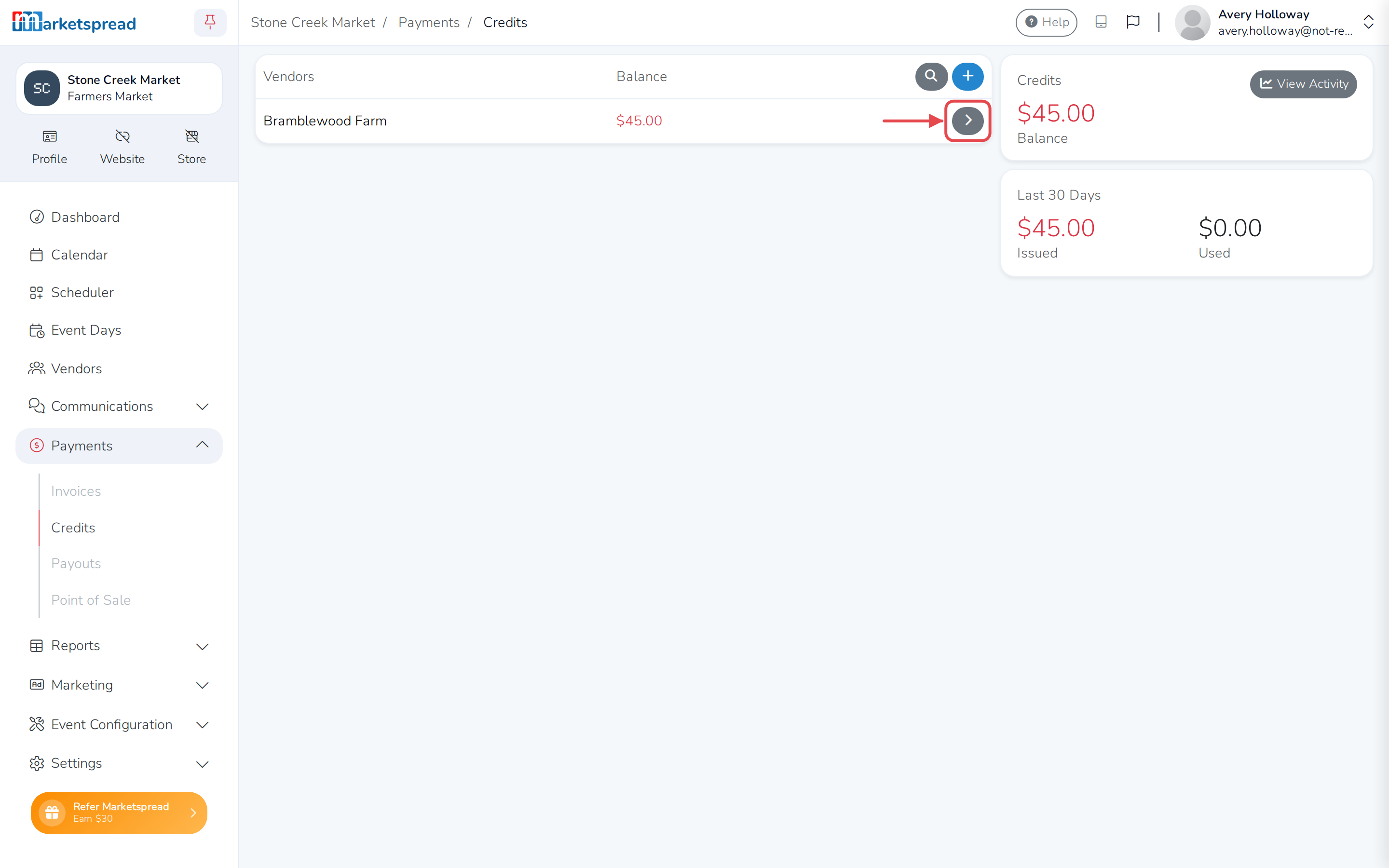
- Find the vendor in the list and click the arrow on their row.
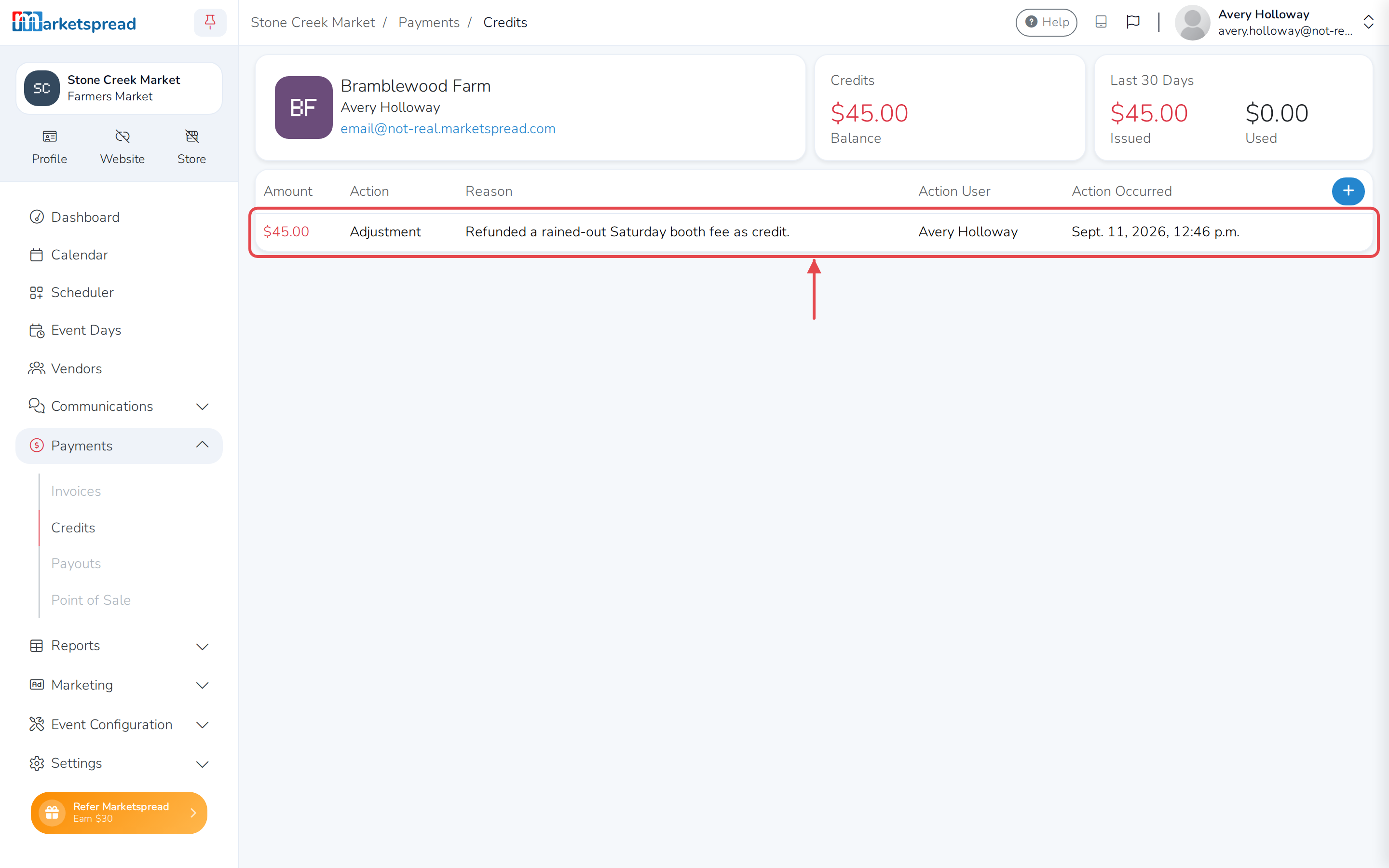
This opens their credit history: their balance, how much credit was issued
and used in the last 30 days, and every adjustment, payment and transfer
against it. If a credit came from a refund, click the invoice icon next to it
to open the invoice it was refunded from.
Find a vendor faster
On the main Credits page, click the magnifying glass above the list and
search for a vendor instead of scrolling.
Apply a credit to an invoice
- Open Payments, then click Invoices, and open the vendor's invoice.
- Click the green Credit button near the top of the invoice.
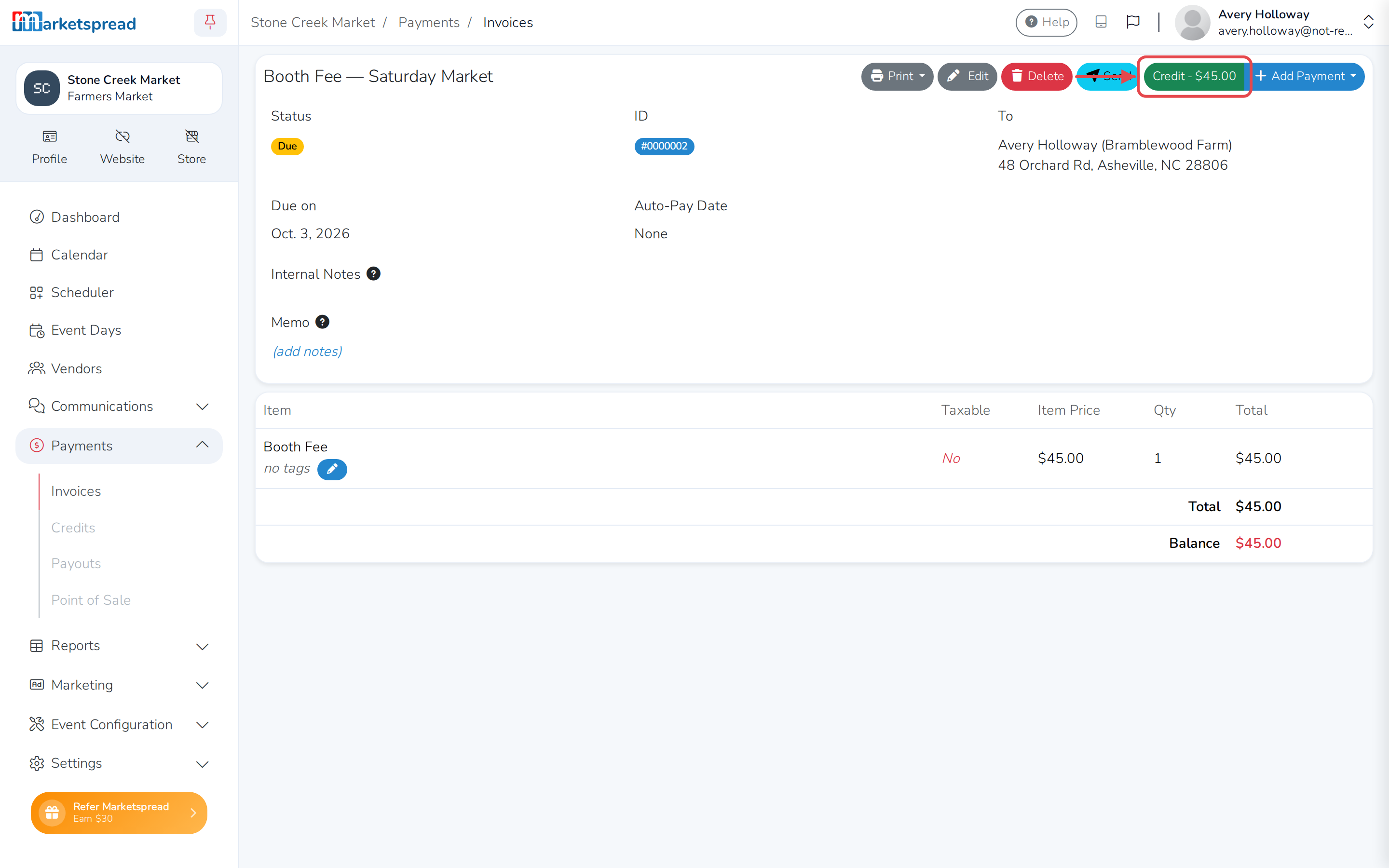
Credit also shows up as an option in the Add Payment menu, alongside the
vendor's other ways to pay, with how much they have available next to it.
Auto Pay uses credit first
If the vendor has Auto Pay turned on,
opening their invoice opens the Auto Pay window on its own. Any credit on
their account is applied before their card is charged for what's left.
Add or remove credit by hand
- Open Payments, then click Credits.
- Find the vendor in the list and click the arrow on their row.
- Click the blue + button.
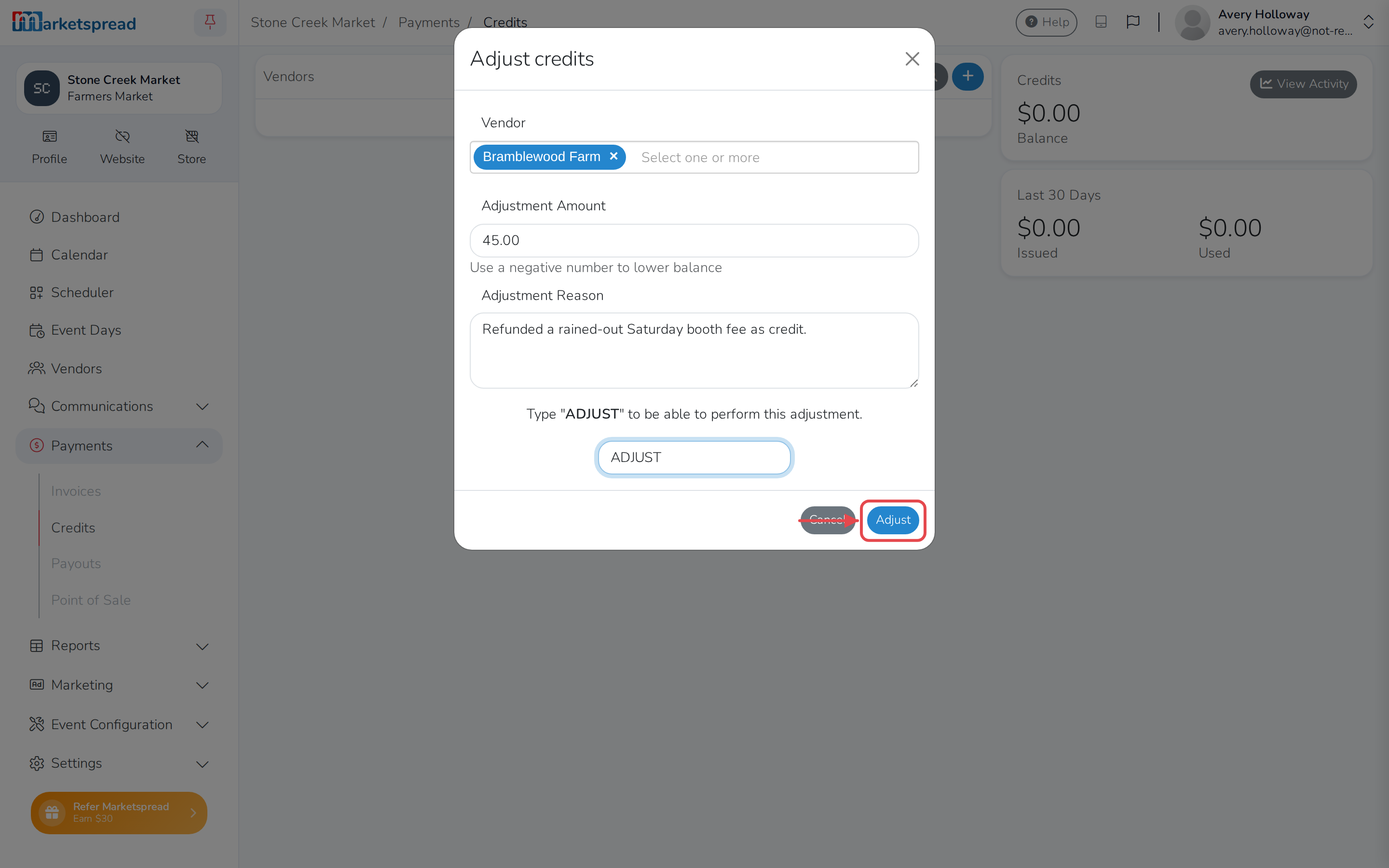
- Enter the amount in Adjustment Amount. Enter a negative number to
lower their balance. - Fill in Adjustment Reason.
- Type ADJUST to confirm the change.
- Click Adjust.
Adjust without opening their page
Click the blue + button on the main Credits page instead, then
choose the vendor under Vendor.
This changes what you owe a vendor
A positive amount gives them more credit to spend; a negative one takes
credit away. Check the vendor and the amount before you type ADJUST.
Turn off automatic credit use
By default, a vendor's credit is used automatically the next time they owe
you money, whether they pay it themselves or you charge them through Auto
Pay. To stop that:
- Open Settings, then click Advanced.
- Find Disable automatic credit usage and click the pencil icon.
- Turn the switch on.
- Click Save.
With this on, a vendor's credit sits on their account until you or they
apply it to an invoice by hand.