


A loading email tells the vendors booked for an event day what they need to know before they arrive — gate times, parking, any last-minute changes. You can include a link to that day's map so everyone knows where their booth is. Marketspread adds every vendor booked for the day automatically, so there's no one to add by hand.
Copy the link to the event day's map
-
Open Event Configuration, then click Events.
-
Click the arrow on the right of the event series.
-
Click the Days tab.
-
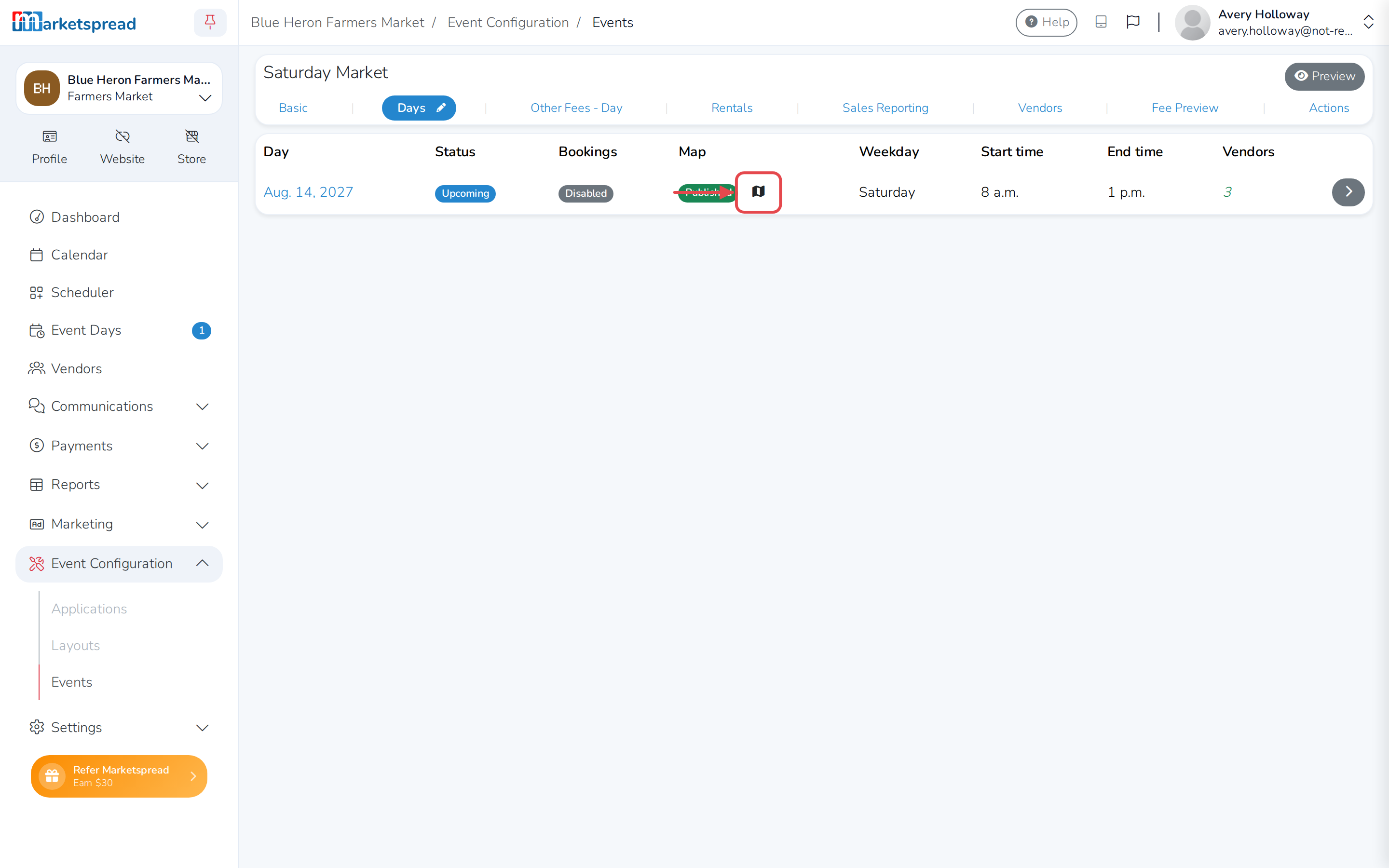
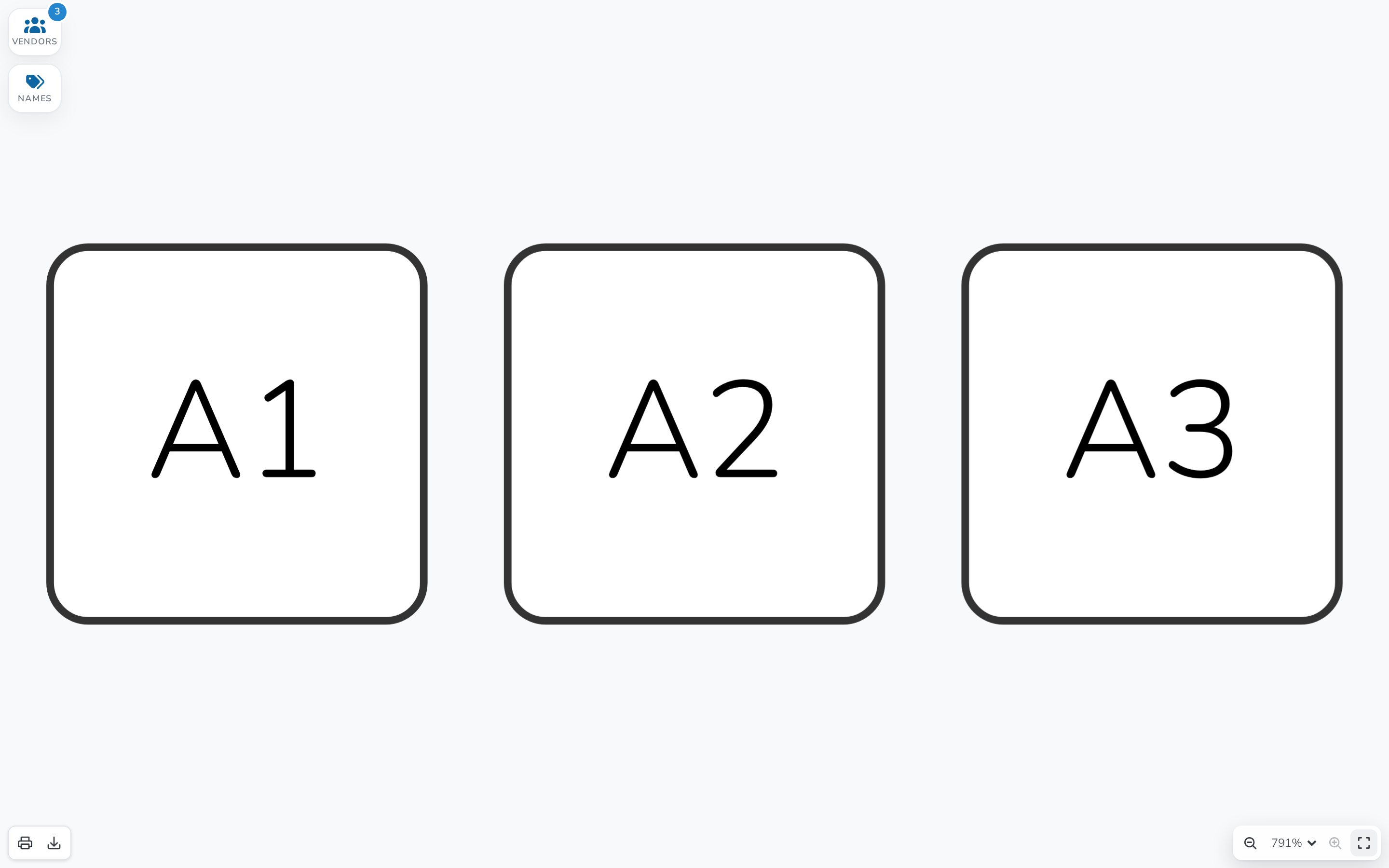
Find the day you're emailing, and click its map icon in the Map column. The map opens in a new tab.
-
Copy the address of that new tab from your browser's address bar. You'll paste it into the email in the next step.
No map icon?
The icon only shows once that day has a published map. See Choose how your event maps publish, or Publish or unpublish a map manually if your market publishes maps one at a time.
Send the loading email
-
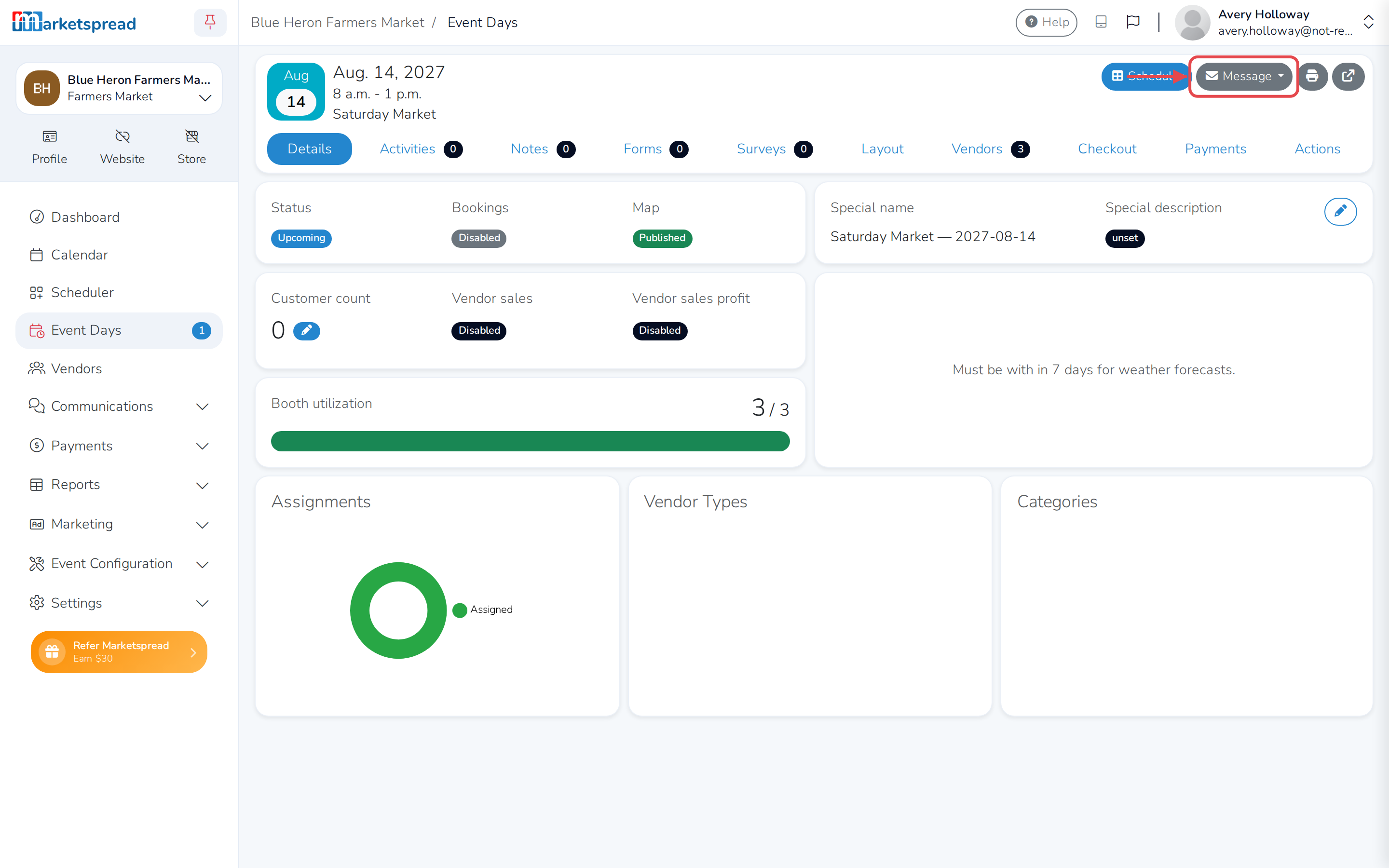
Back on the Days tab, click the arrow on the right of the same day to open its overview.
-
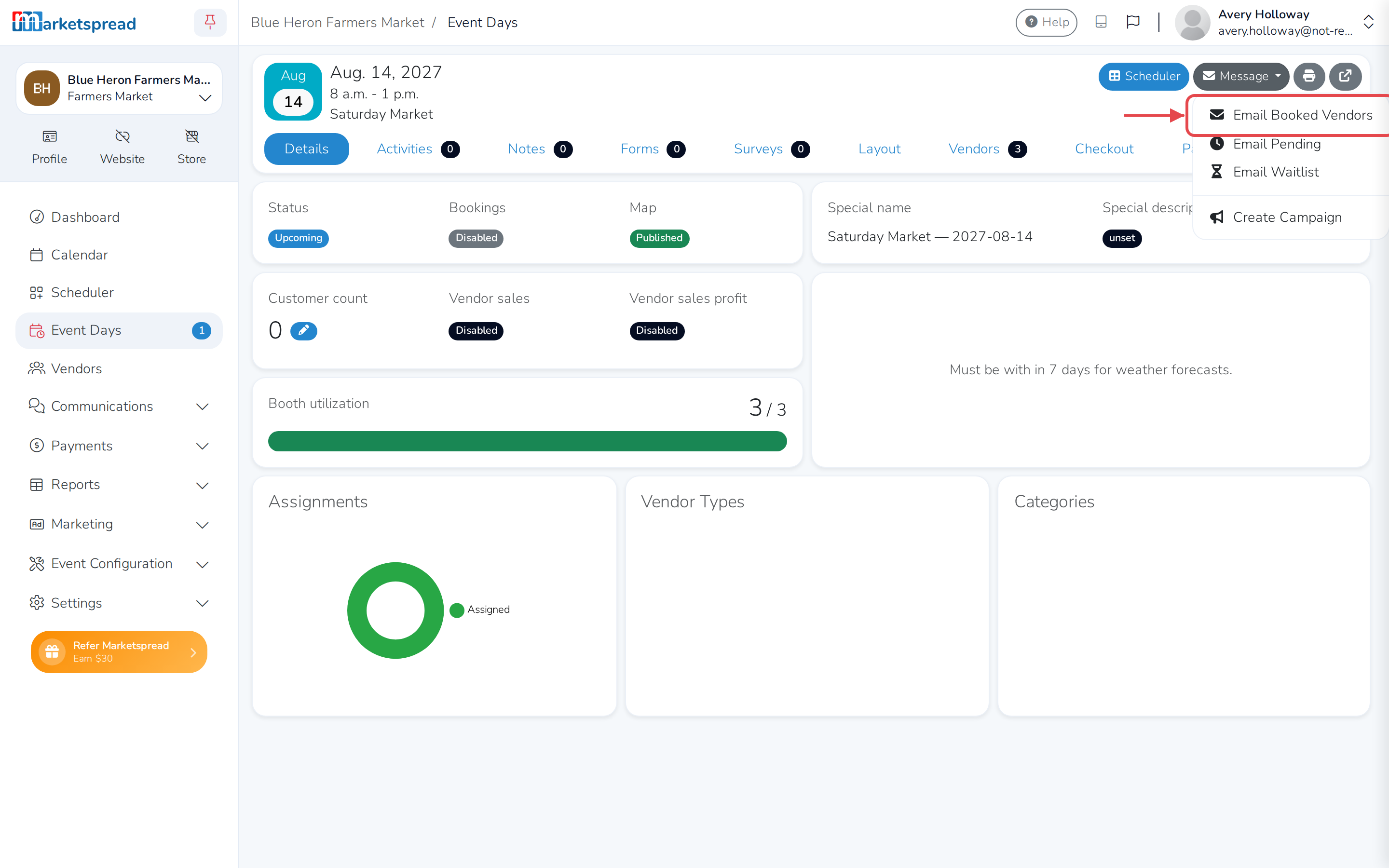
Click Message in the top right, then Email.
-
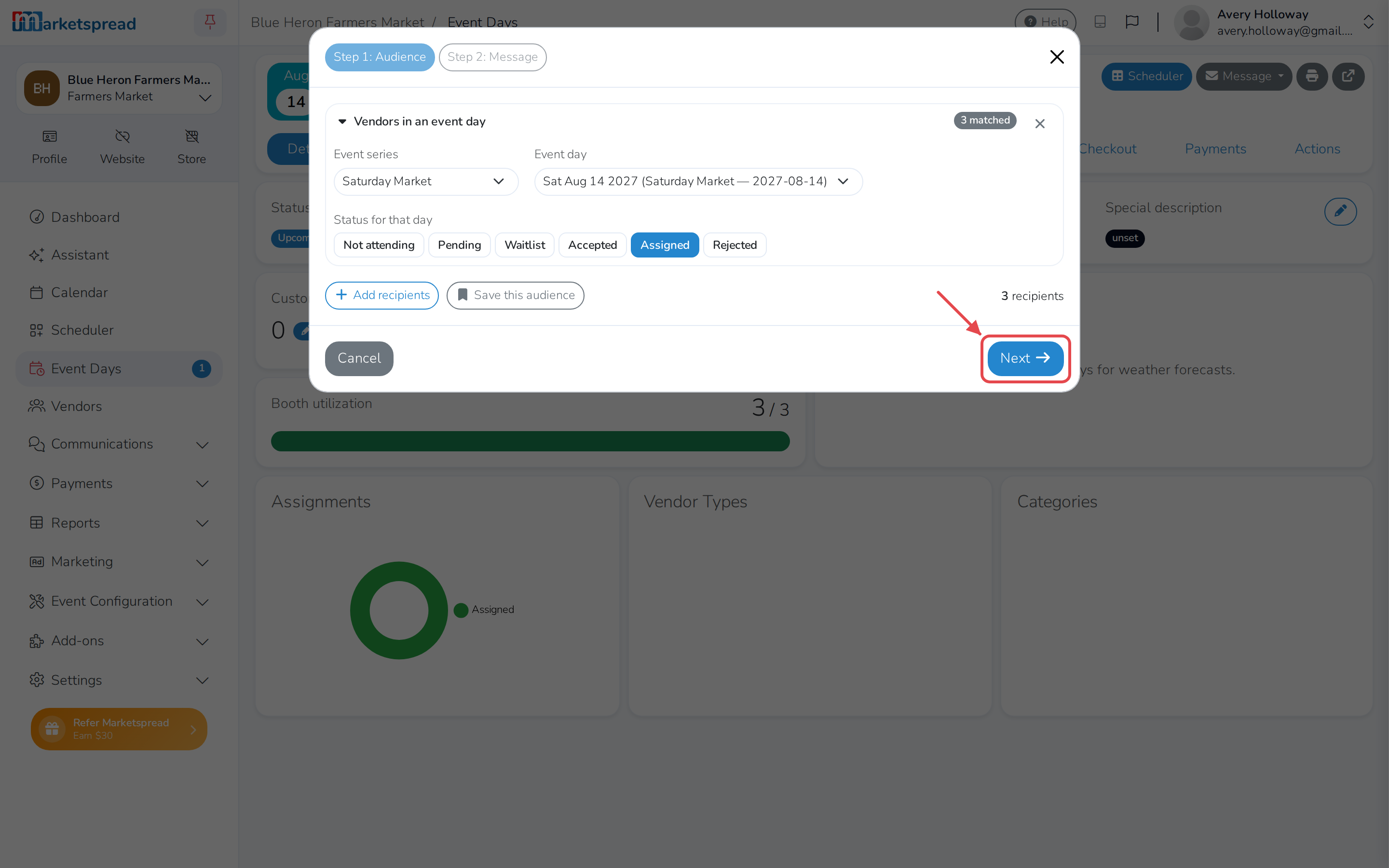
The vendors booked for that day are already added for you. Click Next.
-
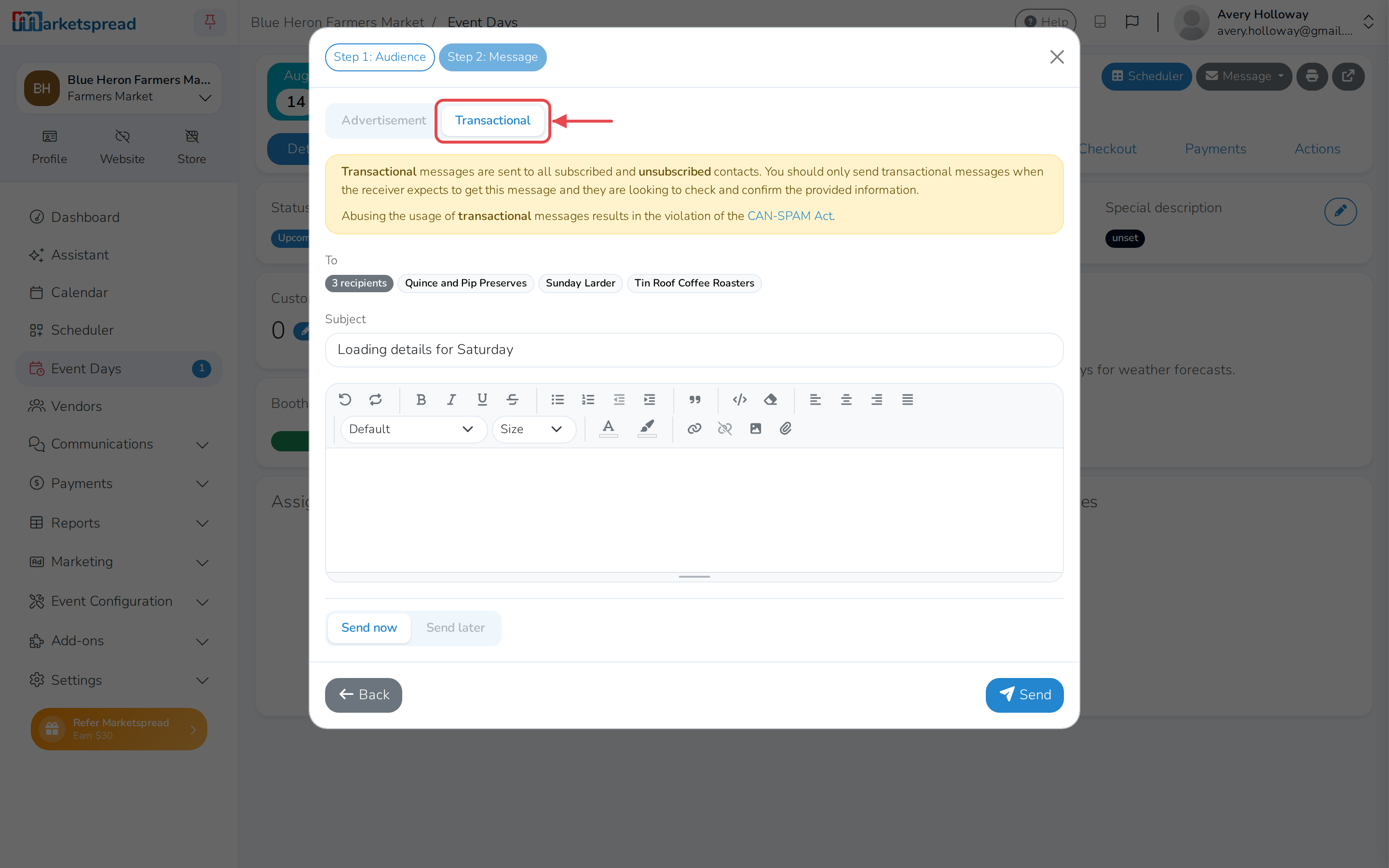
Fill in Subject and write your message.
-
Paste in the map link you copied earlier.
-
Click Send.
Choose Transactional, not Advertisement
Set the message type to Transactional, above the To field. Advertisement is the one already selected, and it can only reach vendors who have subscribed — a loading email is to vendors you already work with, not a marketing message.