


If you run the same event several times, your vendors should not have to fill
in the same application each time. Set the first one up, then clone it — and
point the clone at the application you already have. Vendors you approved
carry straight over, and only new vendors apply.
The step that makes this work is picking the right application on the clone.
Get it wrong and everybody reapplies.
Set up the first event
- Open Event Configuration, then Events, and click Add Event.
- Name it, then choose your application template and layout.
- Set the dates the application is open.
- Describe the event, and write the message vendors see after they apply.
- Set your booth fee.
- Click Save & add days.
- Under Days, click the calendar, pick the day, set the start and end
times, and click Save. - Click Activate, choose how it is paid for, and confirm.
Clone it
- In Events, click Overview on the event you just made.
- Open the Actions tab and click Clone.
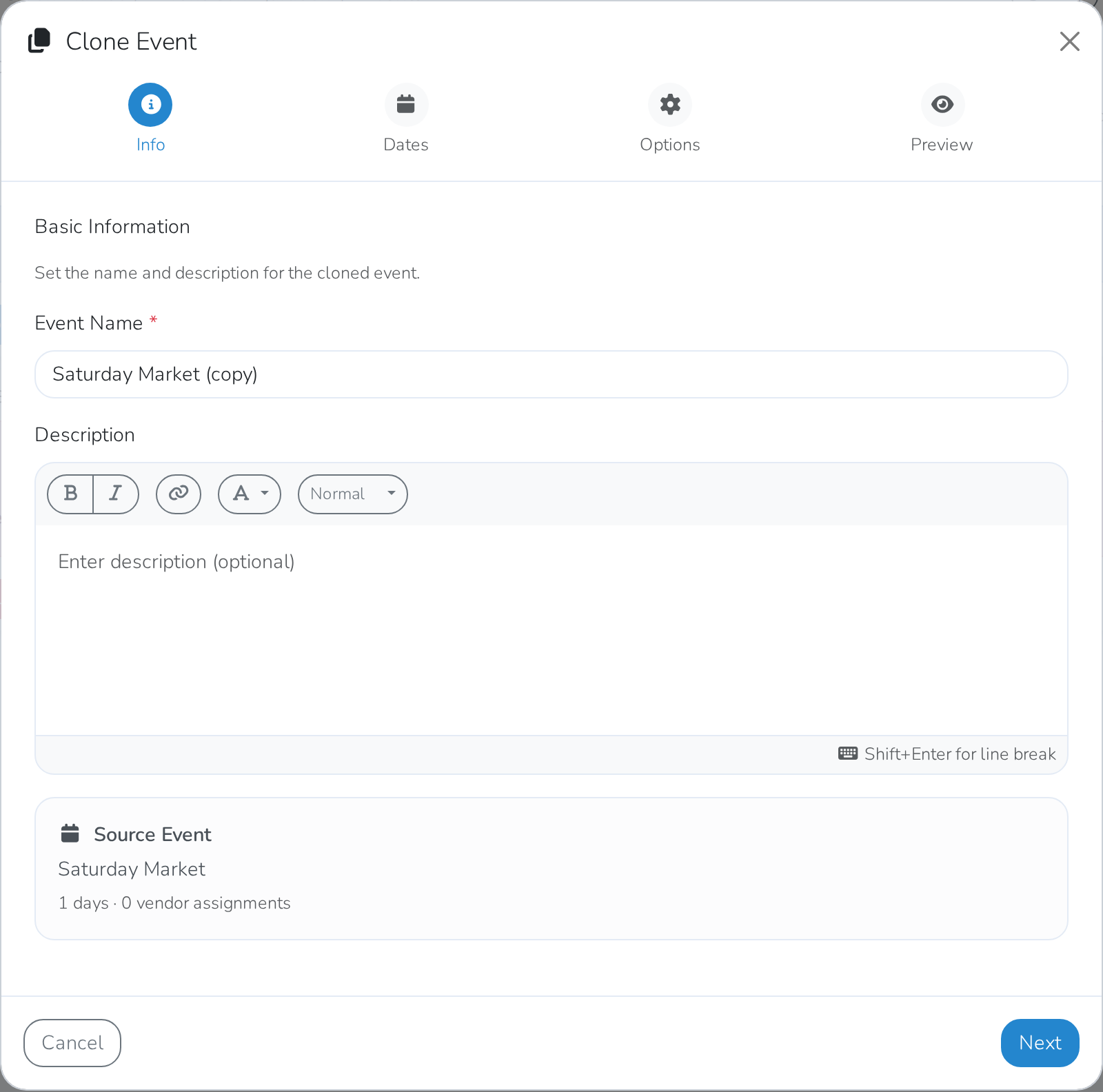
The clone wizard opens with four steps: Info, Dates, Options and
Preview.
-
On Info, name the new event.
-
On Dates, choose what happens to the event days. Shift moves the
old days to the new dates, Start new lets you pick fresh ones, and
None copies no days at all.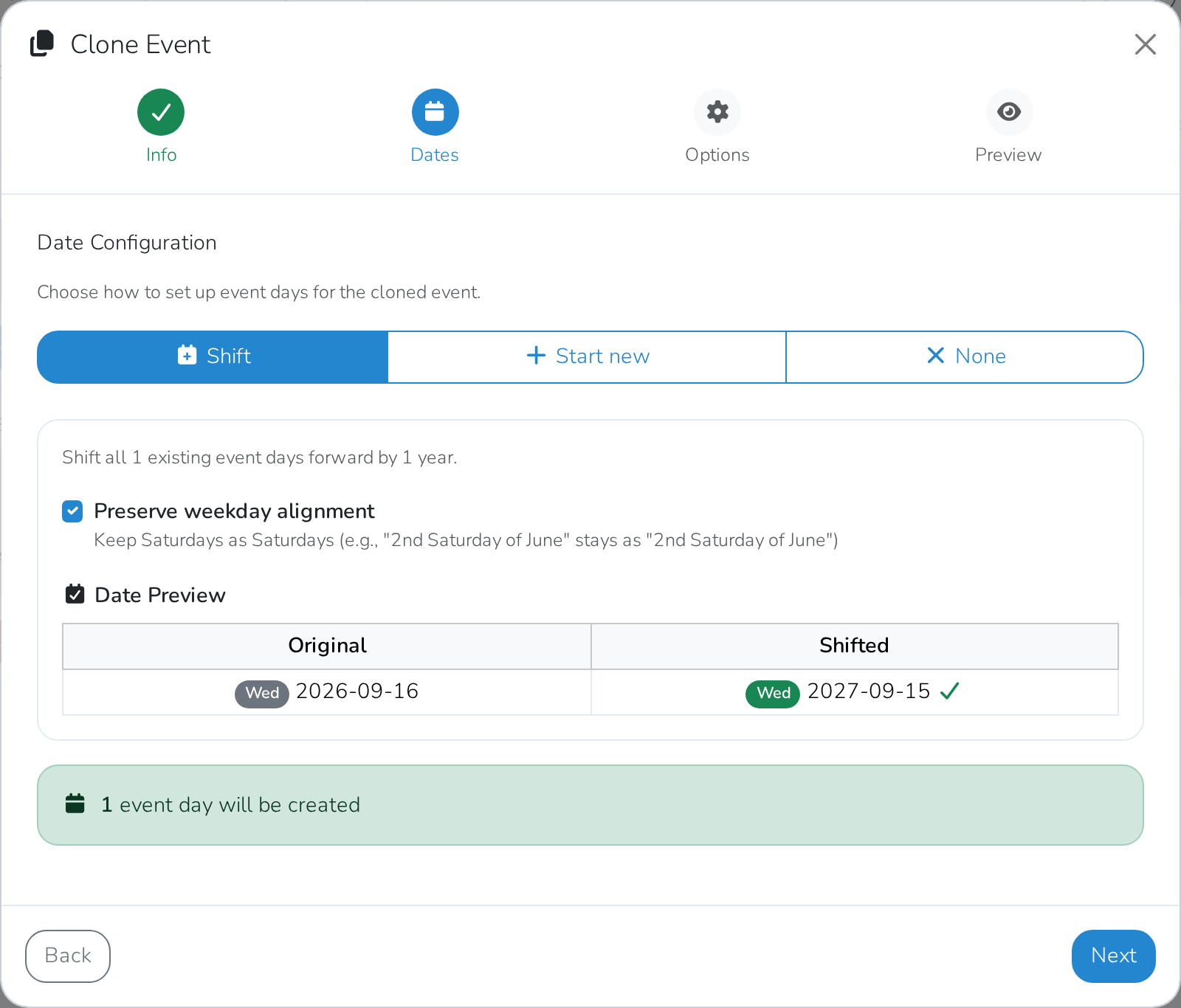
-
On Options, find Application Settings and choose
Use same application.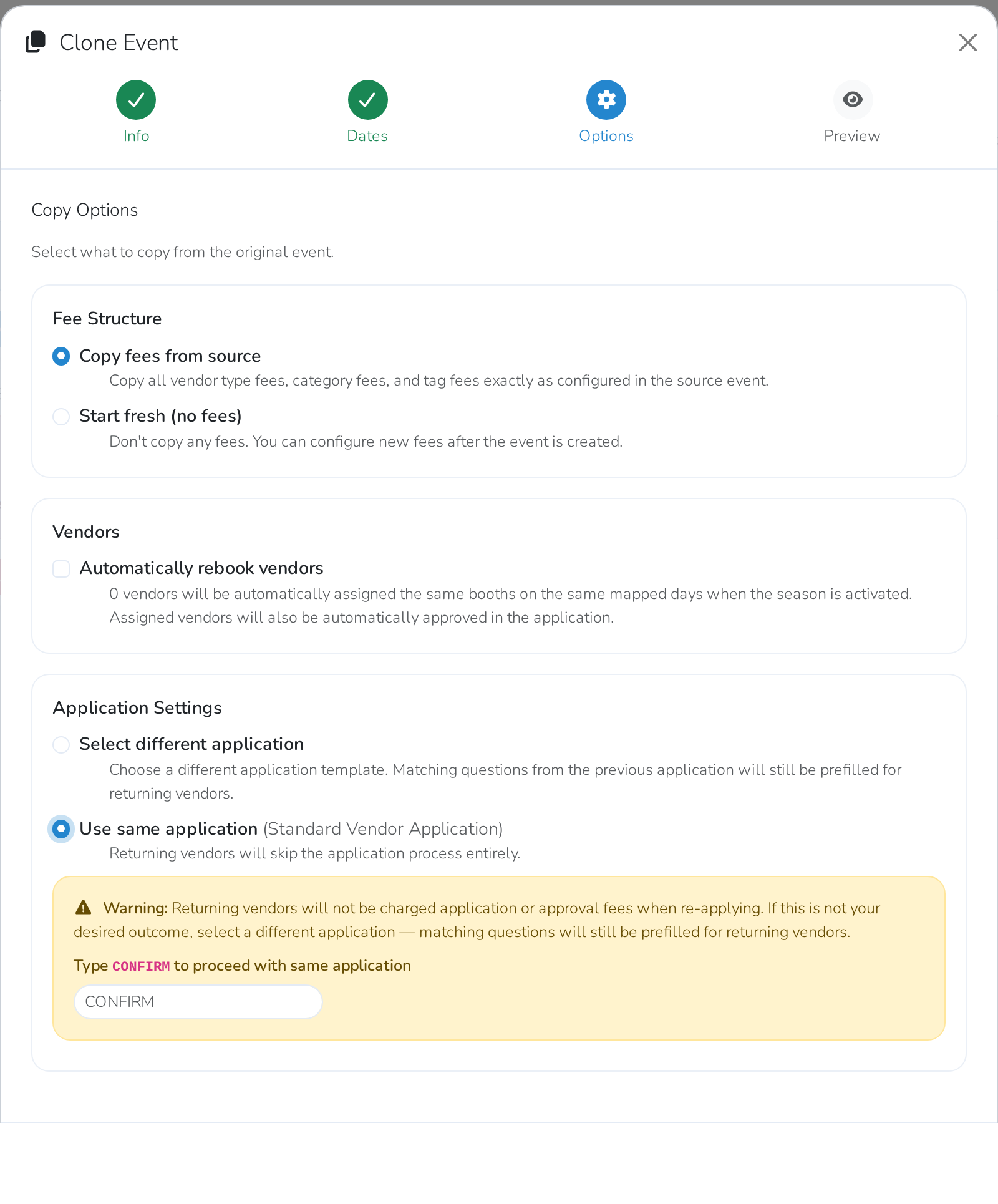
-
Type
CONFIRMin the box that appears. -
Check Preview, then finish the clone.
Use same application is the whole point
The other choice, Select different application, builds a new
application — and every vendor you already approved has to apply again from
scratch. That is why Use same application asks you to type CONFIRM
before it will continue: it is the choice that carries your vendors across.
Change which application an event uses
You can also point an existing event at a different application afterwards.
- Open the event and click the pencil beside Basic.
- Choose from the Application list.
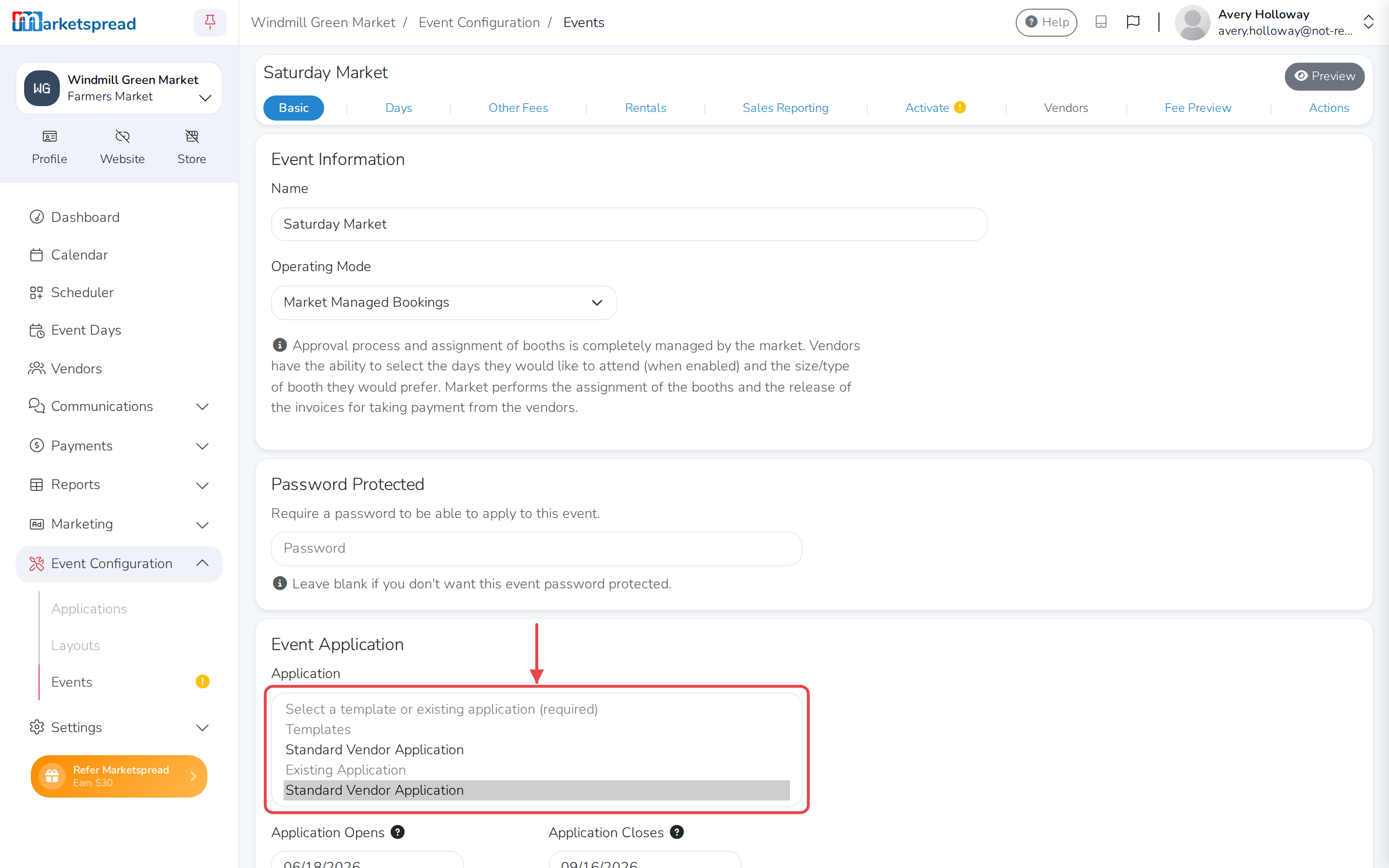
Pick it from Existing Application, not Templates
The same application appears twice: once under Templates and once under
Existing Application. Choose the one under Existing Application.
The template makes a fresh application, and everyone reapplies.
- Click Save.
Activating an event that shares an application warns you that it does. That is
what you want: every vendor approved on the other event is approved here too,
without lifting a finger.
Repeat the clone for as many events as you need. Click View Profile on your
dashboard to see them as the public does.