


Each day in an event has its own start and end time. Change any of them from the event's Days tab — whether you're fixing one day or updating several at once.
Change an event day's time
-
Click Event Configuration → Events in the left-hand navigation menu.
-
Click the event's name, or the overview arrow next to it, to open the event.
-
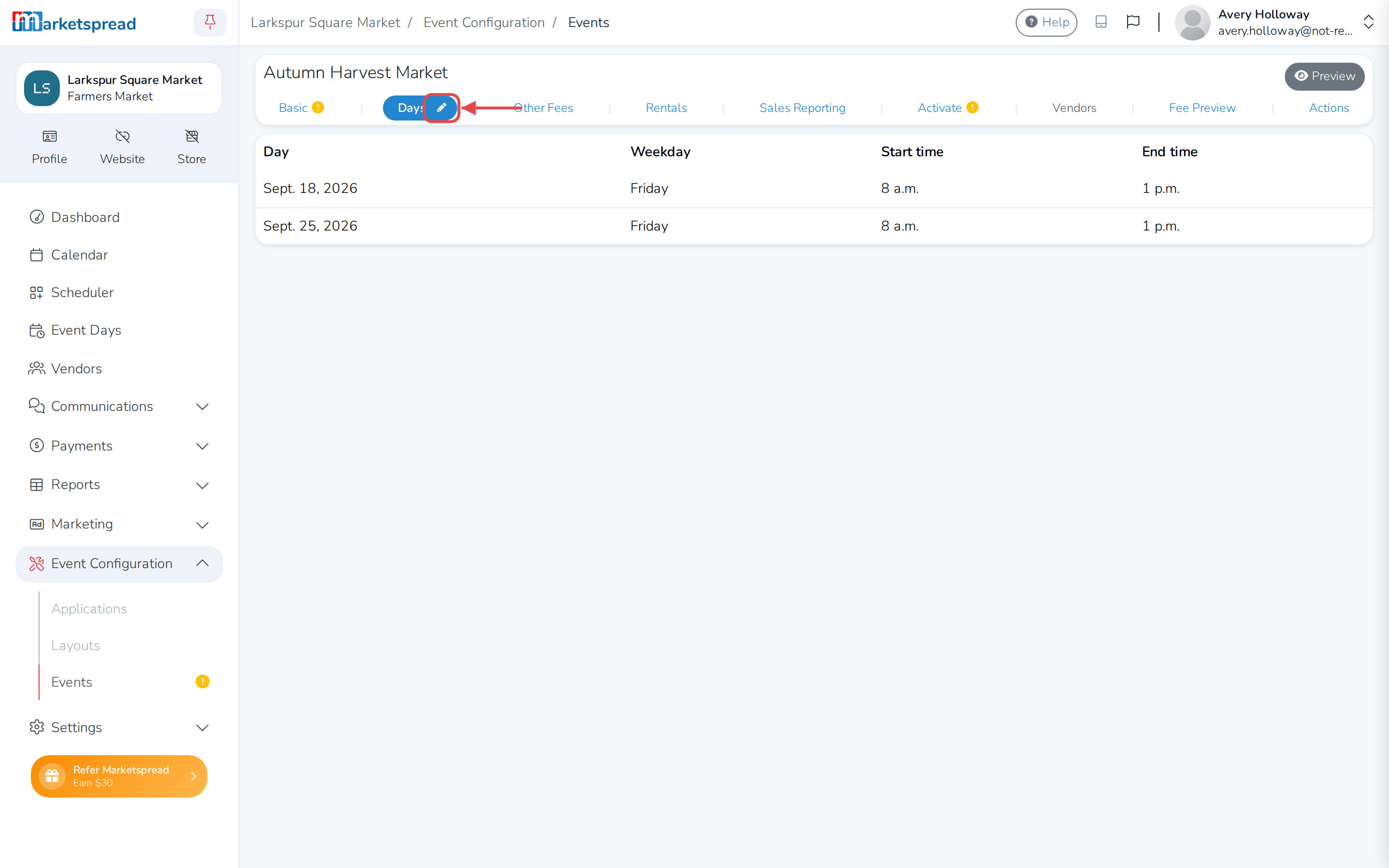
Click the Days tab.
-
Click the pencil icon next to Days.
-
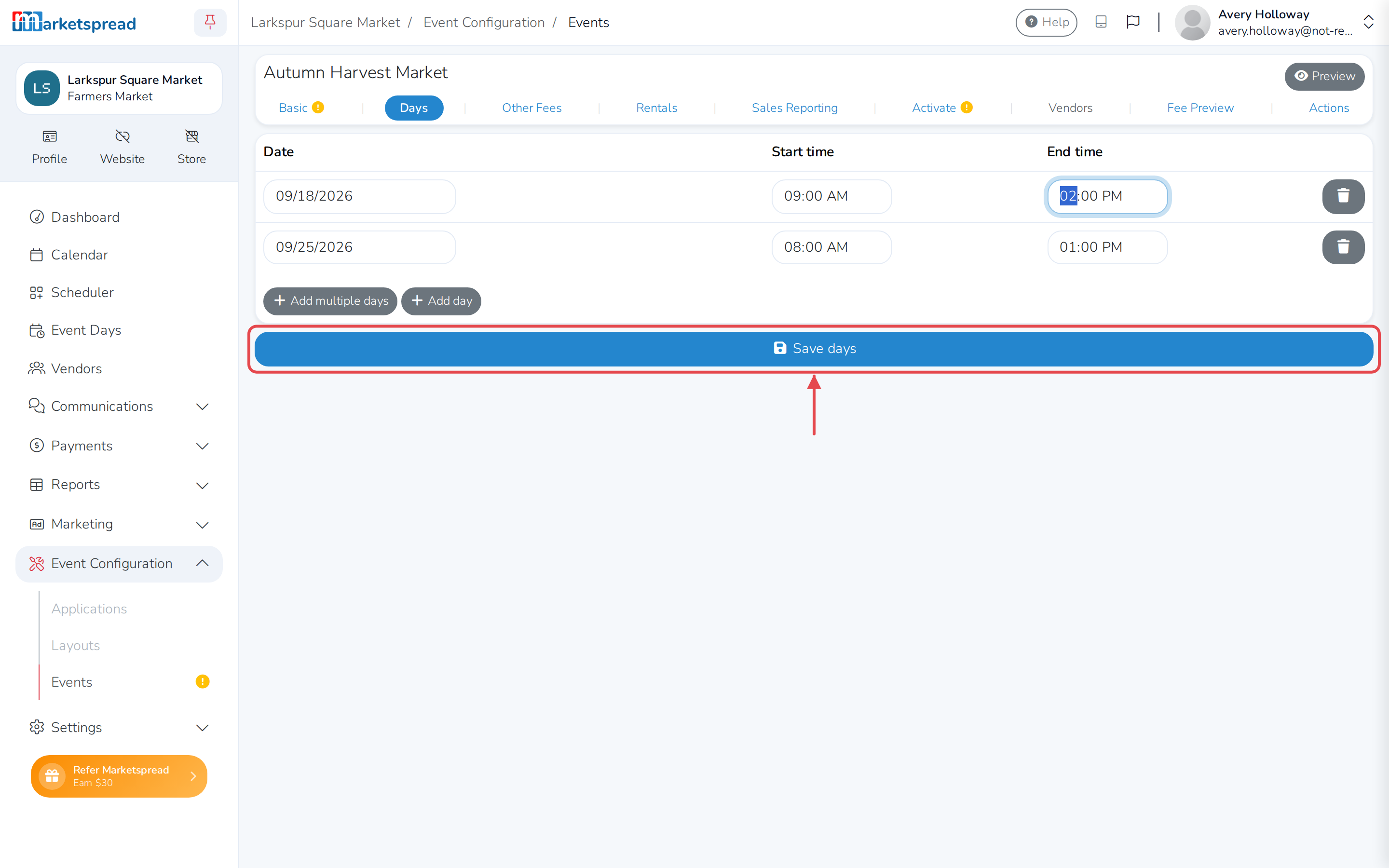
Update the Start time and End time for each day you want to change.
-
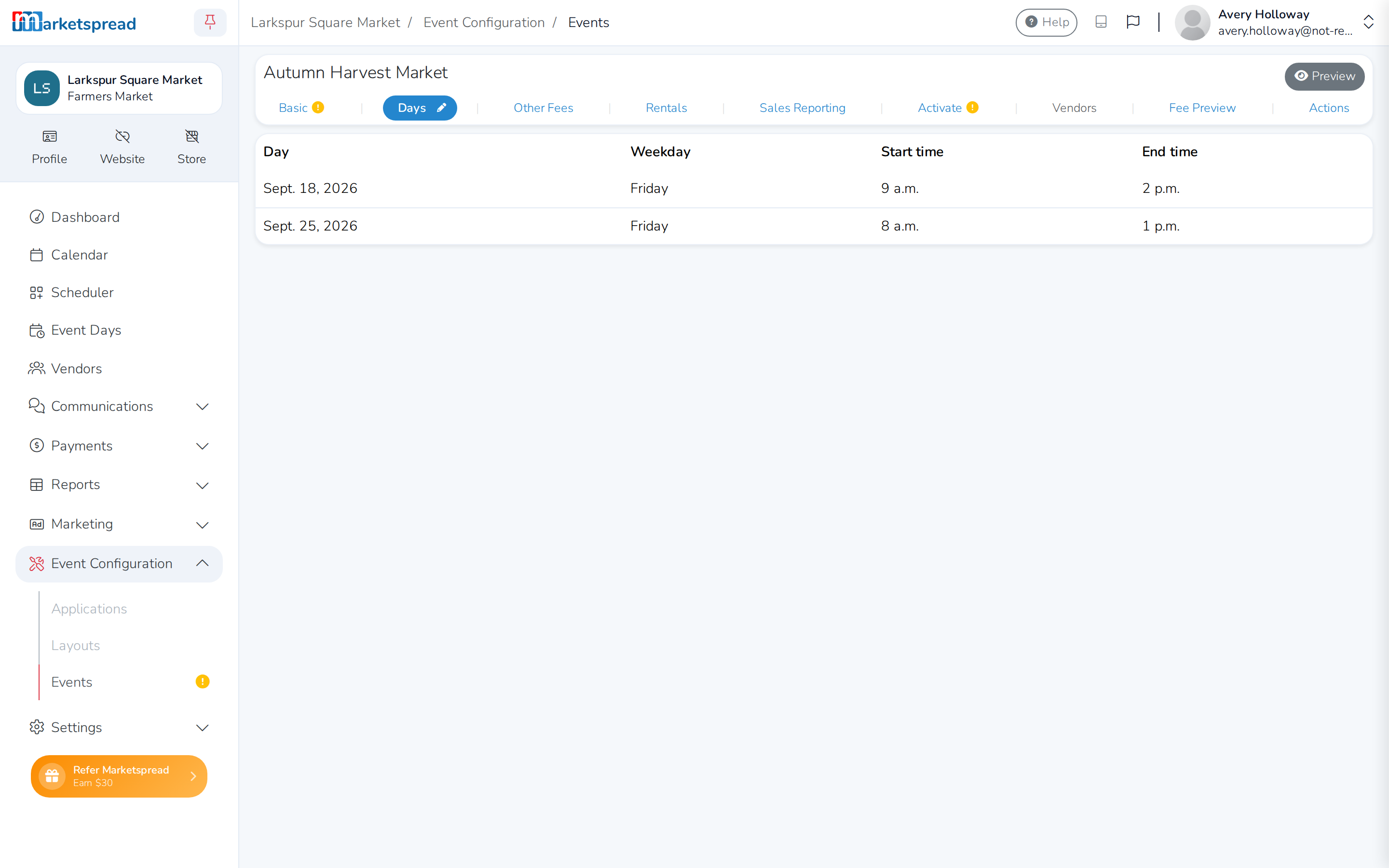
Click Save days.
Note
If vendors are already assigned to a day, you can't move it to a different date. You can still change its start and end time.