


Scheduler creates a draft invoice for every booth you assign, but it does not send anything until you release it. Releasing every vendor booked on a day in one step is faster than opening each vendor and releasing their invoice separately.
Release invoices for a day
-
Open Scheduler.
-
Next to the Select a vendor dropdown, set the term type to match how vendors are booked for that day — usually Day.
-
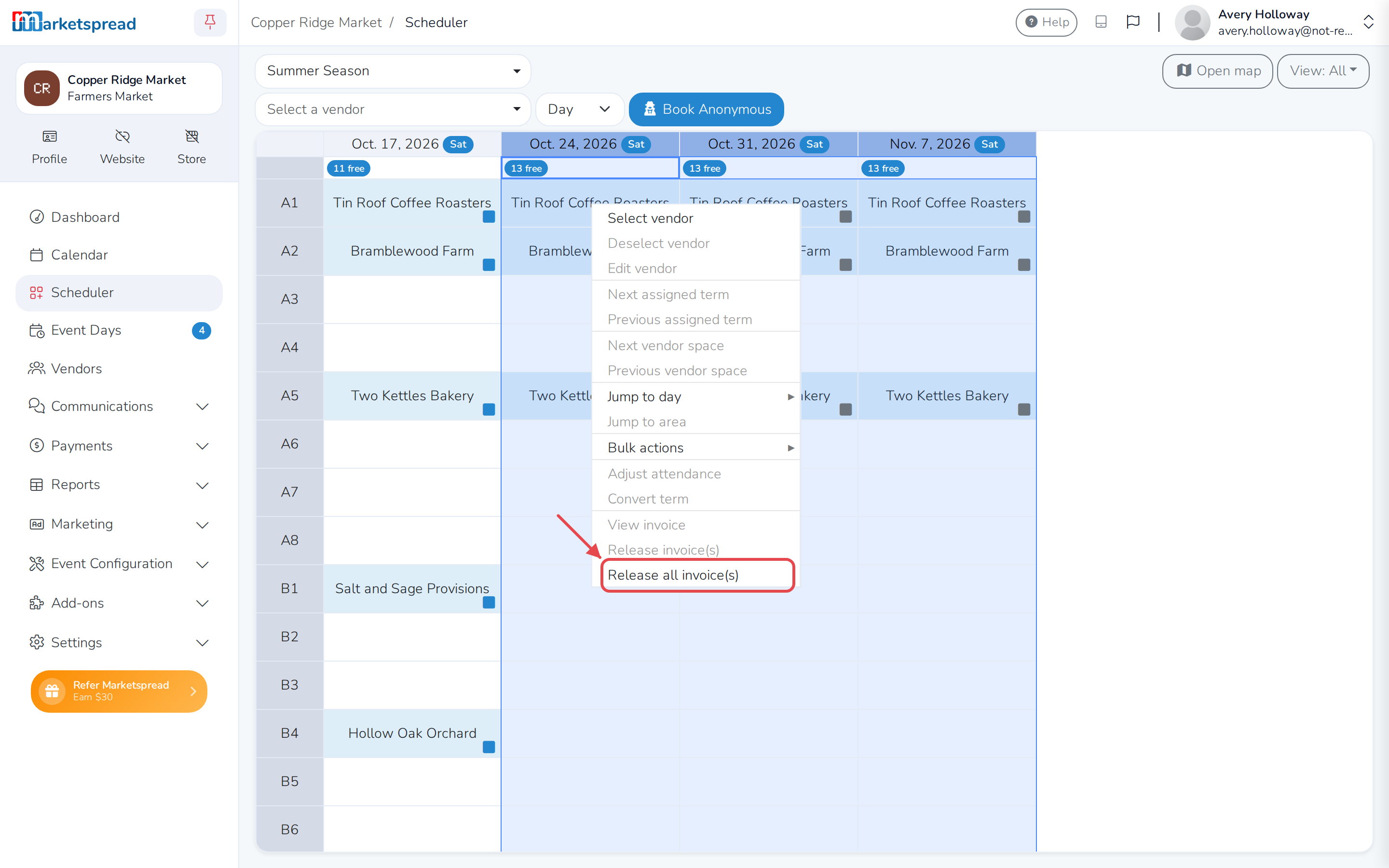
Click the column header for the day.
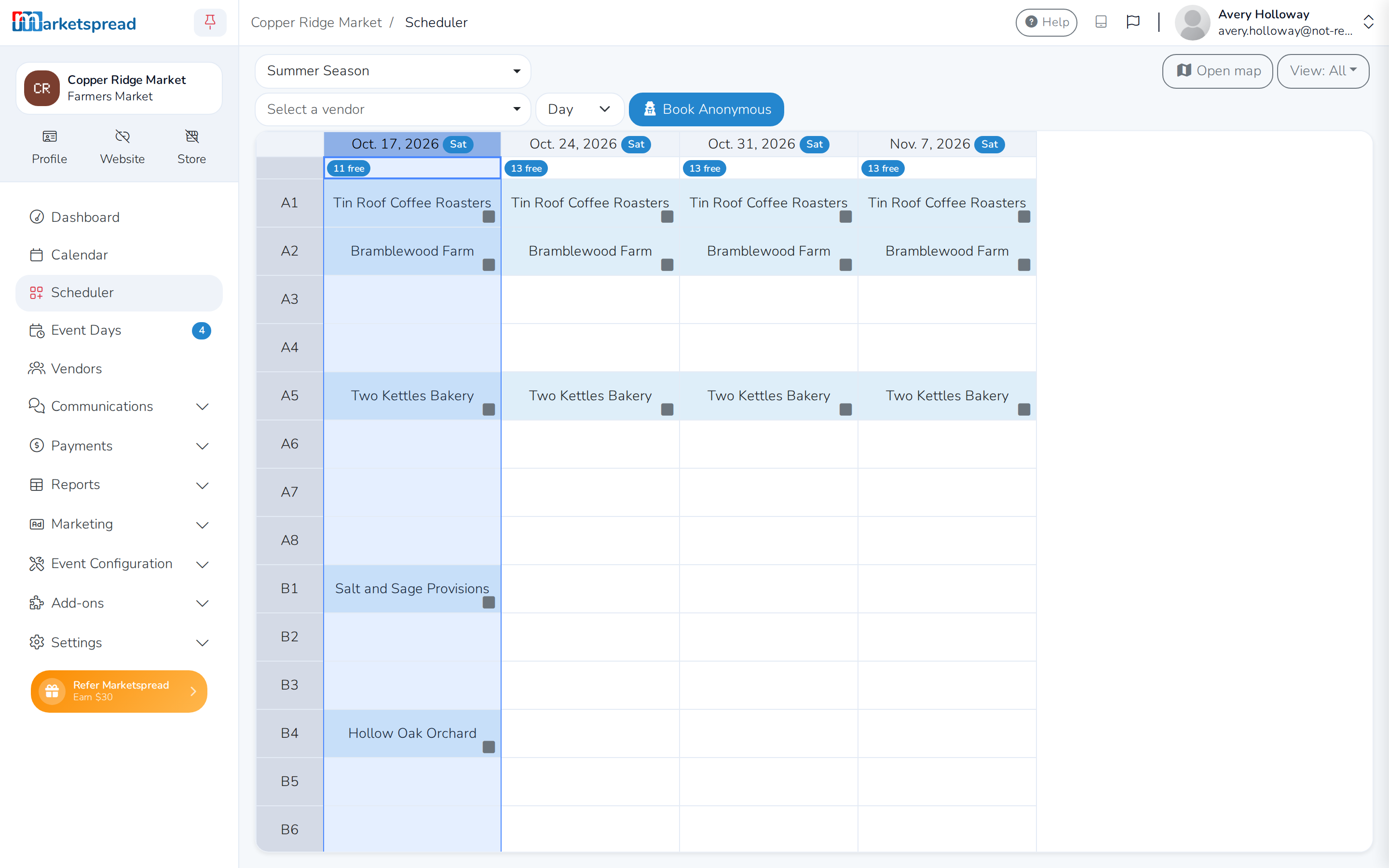
-
Right-click the selection and choose Release all invoice(s).
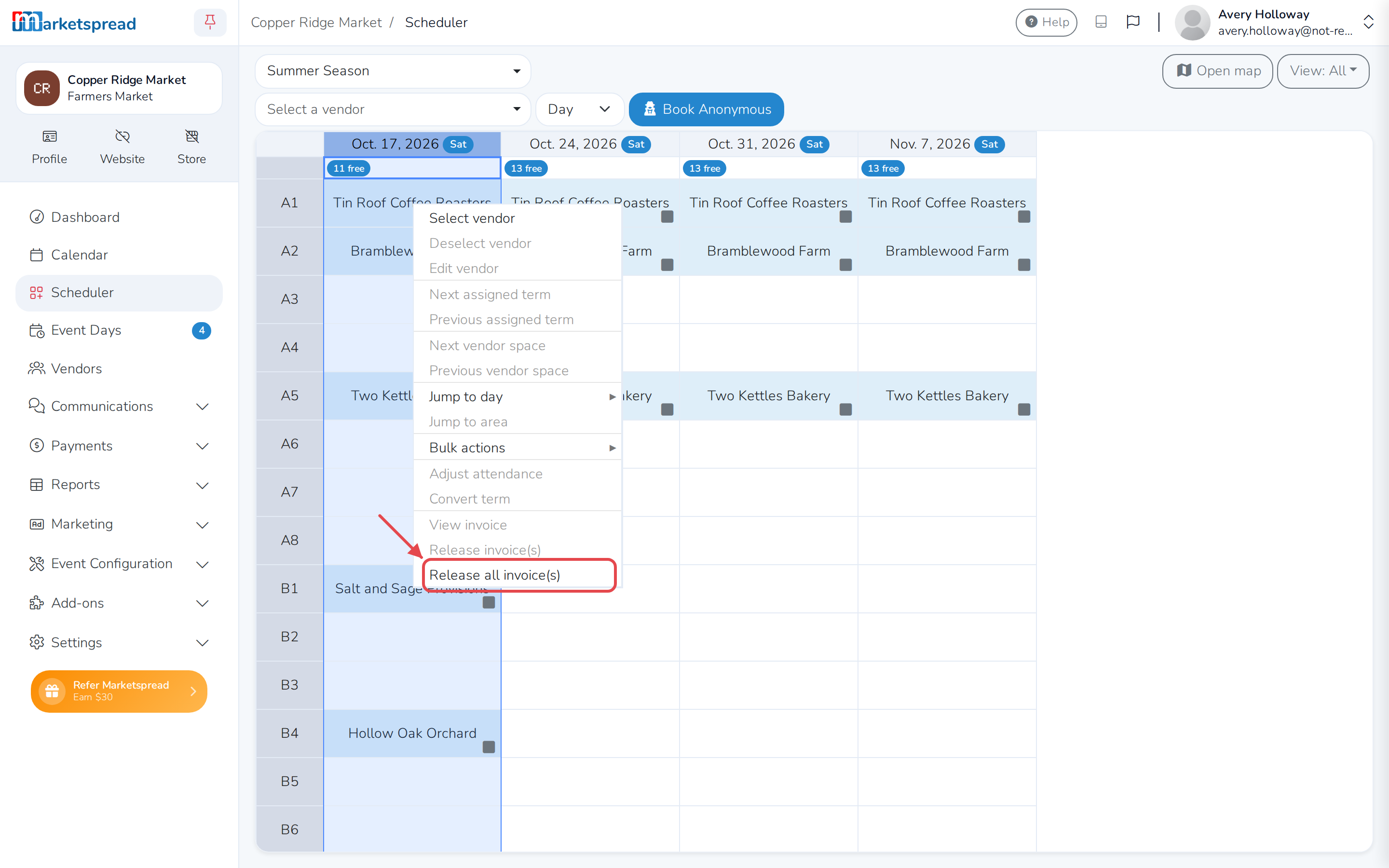
-
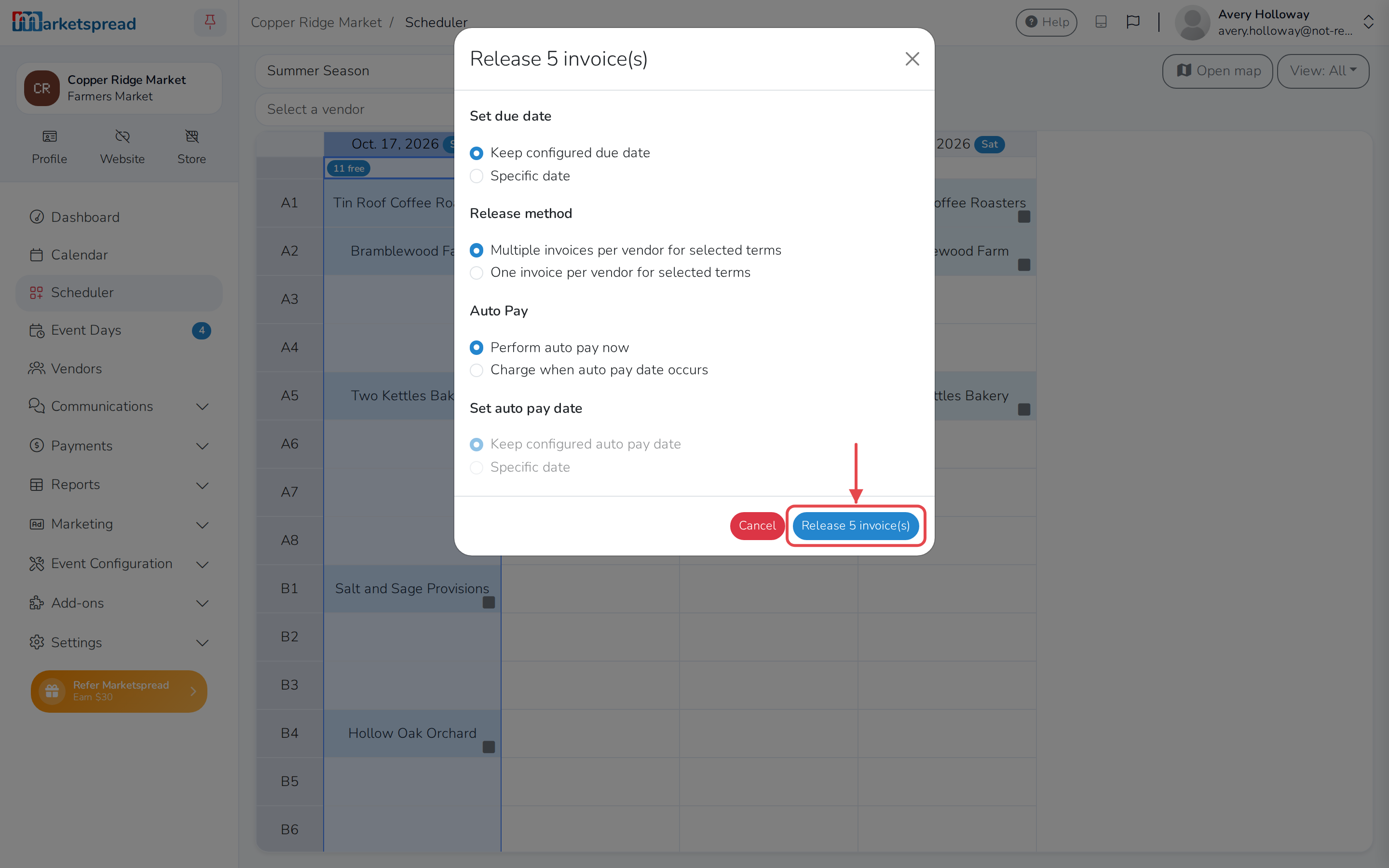
Under Set due date, choose Keep configured due date to keep each invoice's own due date. Choose Specific date instead to pick one due date for all of them.
-
Under Release method, choose how the invoices are grouped. Multiple invoices per vendor for selected terms gives each vendor one invoice per day. One invoice per vendor for selected terms combines everything you selected onto one invoice per vendor.
-
Under Auto Pay, choose when to charge vendors. Perform auto pay now charges anyone with Auto Pay turned on right away. Charge when auto pay date occurs waits for their own auto-pay date.
-
Click Release invoice(s) at the bottom — its label counts how many are about to go out.
Every vendor booked that day gets their invoice.
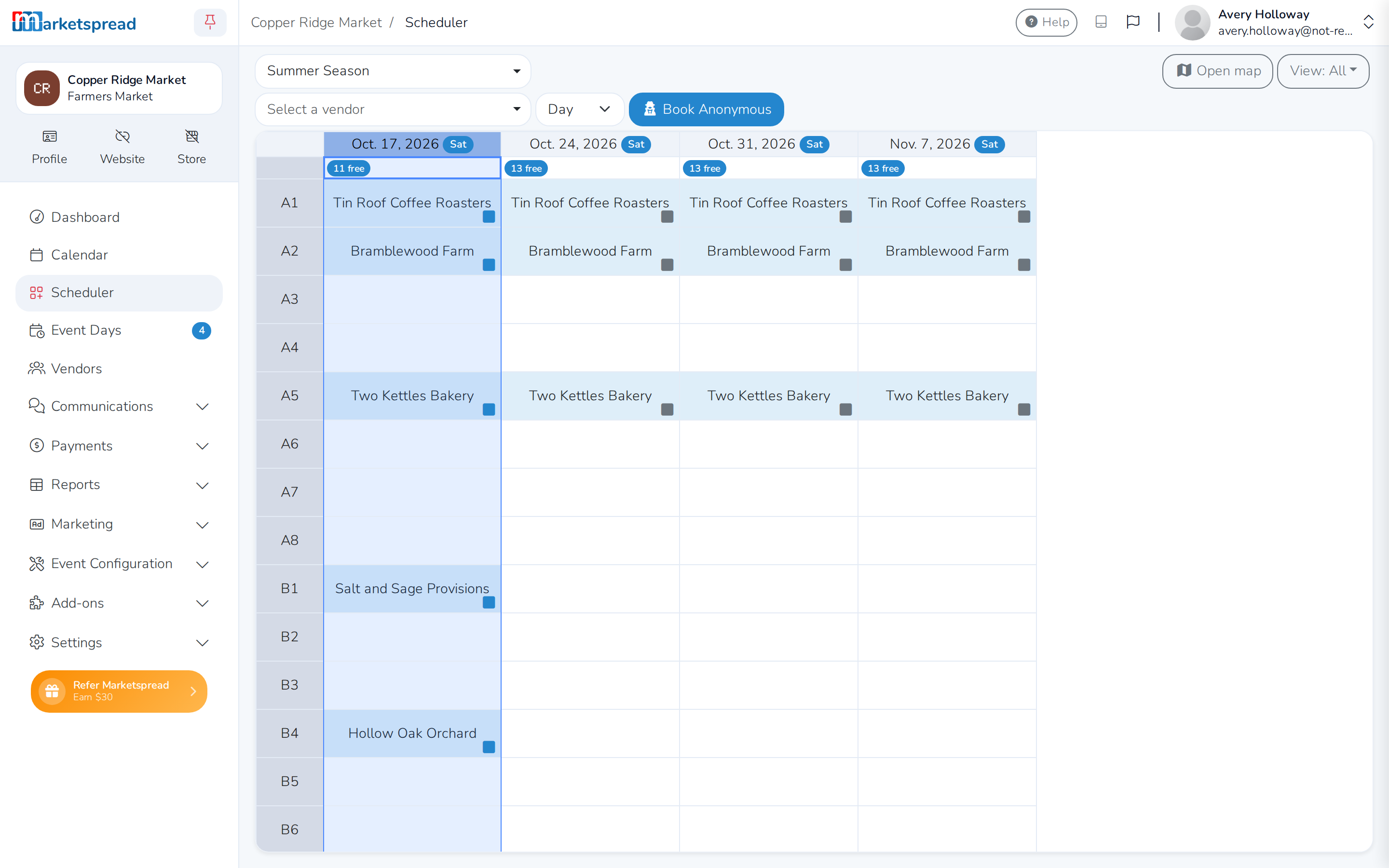
What the square in the corner of each booking means
Gray means no invoice has gone out yet. Blue means one has been sent and is unpaid. Green means it has been paid in full. Red means it is overdue. A clock means the invoice is still a draft, waiting for a scheduled release date.
Release several days at once
-
Click the column header for the first day.
-
Hold Shift and click another day's header to select every day in between, or hold Ctrl (Cmd on a Mac) and click a header to add one more day at a time.
-
Right-click the selection and choose Release all invoice(s).
-
Finish the same way as releasing a single day.
Each day gets its own invoice, so a vendor booked every day ends up with one invoice per day in their Invoices list.
Find a vendor's invoice afterward
-
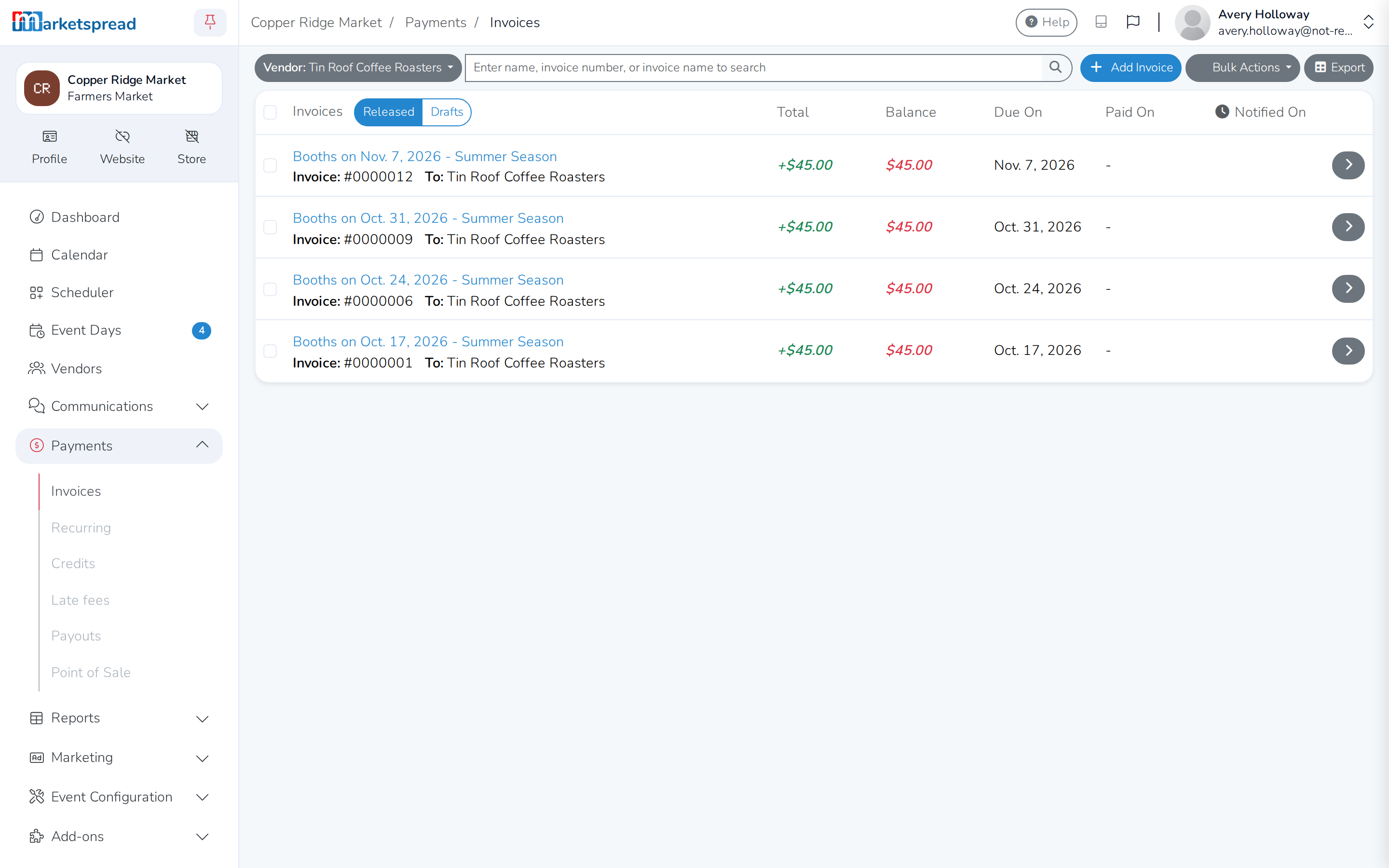
Open Payments, then Invoices.
-
Click the vendor's name. Their Invoices list shows each invoice's Due On and Balance, and fills in Paid On once they pay.
Combining several days onto one invoice
If you meant to send one invoice per vendor instead of one per day, see Merge invoices for a vendor — it works the same way, from the same release window.