This is your own direct online store, separate from selling through a
market's store. Before it can take an order it needs at least one way of
getting goods to the customer — pickup, delivery or shipping, in
any combination — and you can make it look like yours too. A new store shows
a red banner until you set one up. Click Add-ons, then Online Store.
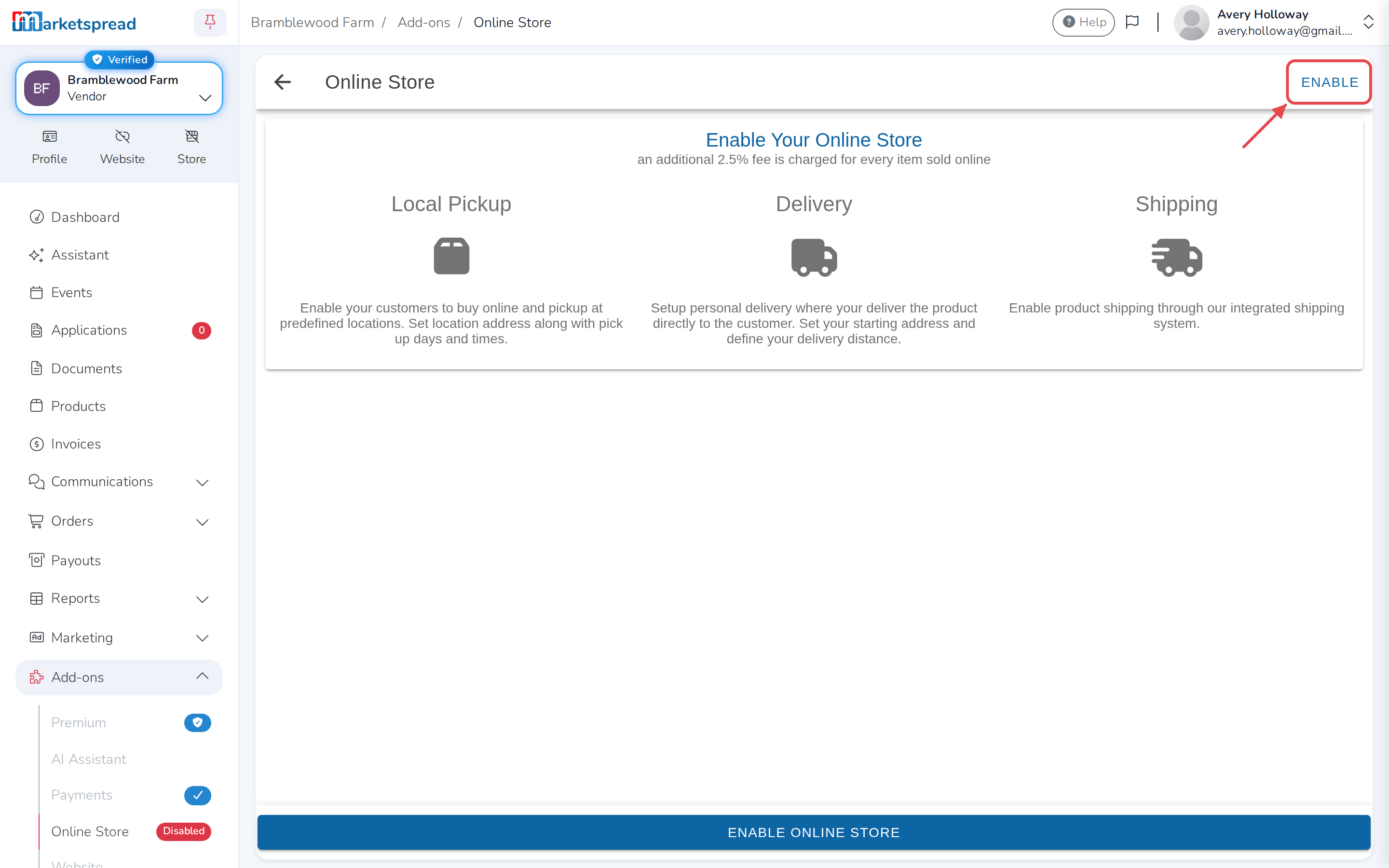
There's an extra fee
Every item sold through your online store carries an additional 2.5% fee.
Click Enable.
Pickup
Click Enable pickup.
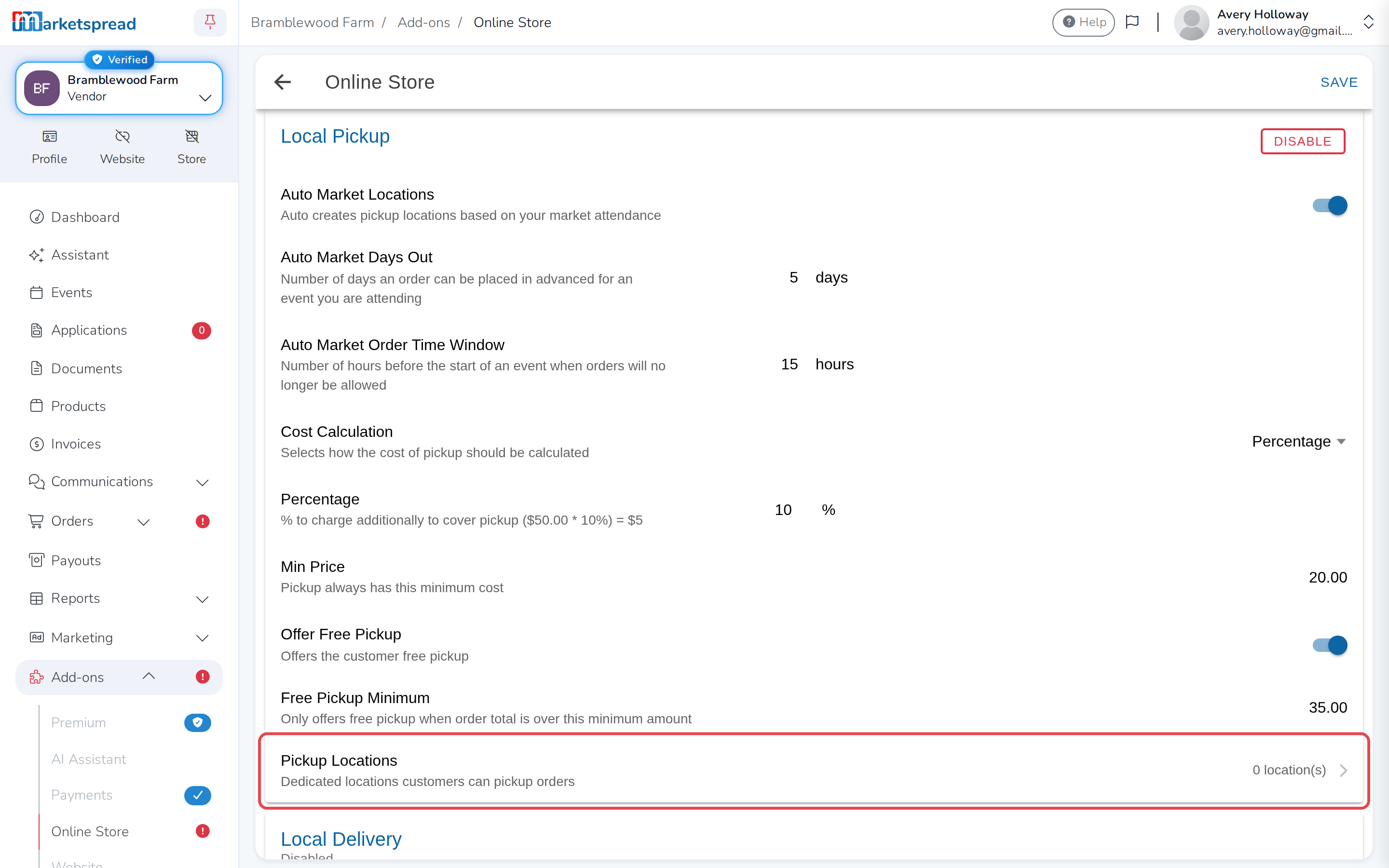
Auto Market Locations is on to start with, which keeps your pickup times
in step with the markets you're booked at. Two settings control the ordering
window around each one:
- Auto Market Days Out — how far ahead customers can order. It starts at
14 days. Set it to 5 and, for a Saturday 9am market, ordering opens the
Monday at 9am. - Auto Market Order Time Window — how long before the market you stop
taking orders, so you have time to pack. Set it to 15 and ordering closes
at 6pm the night before a 9am market.
You can charge for pickup. Choose a flat rate or a percentage under Cost
Calculation, then set the amount. Turn on Offer Free Pickup to waive it
over a certain order value, set under Free Pickup Minimum.
Your own pickup places
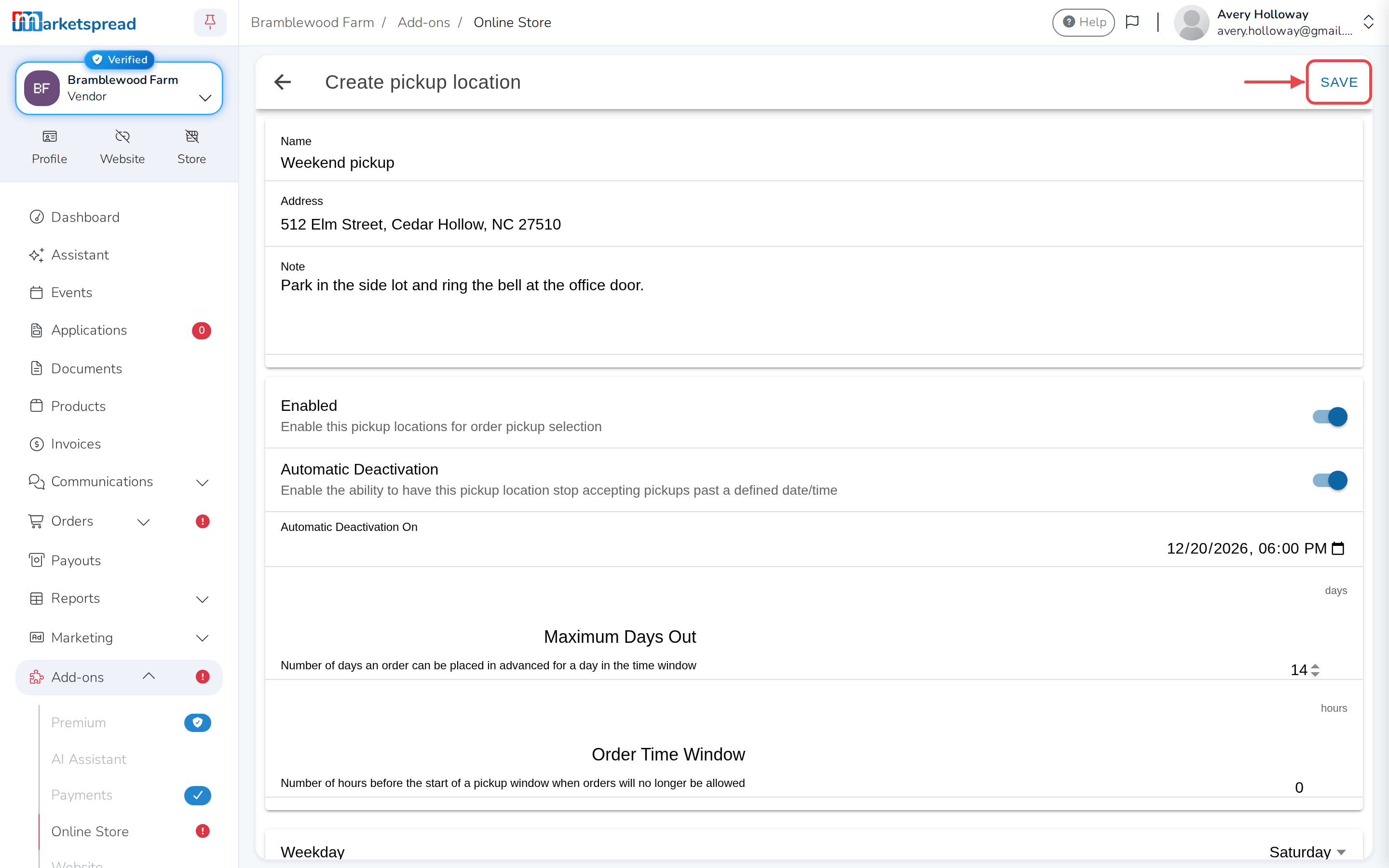
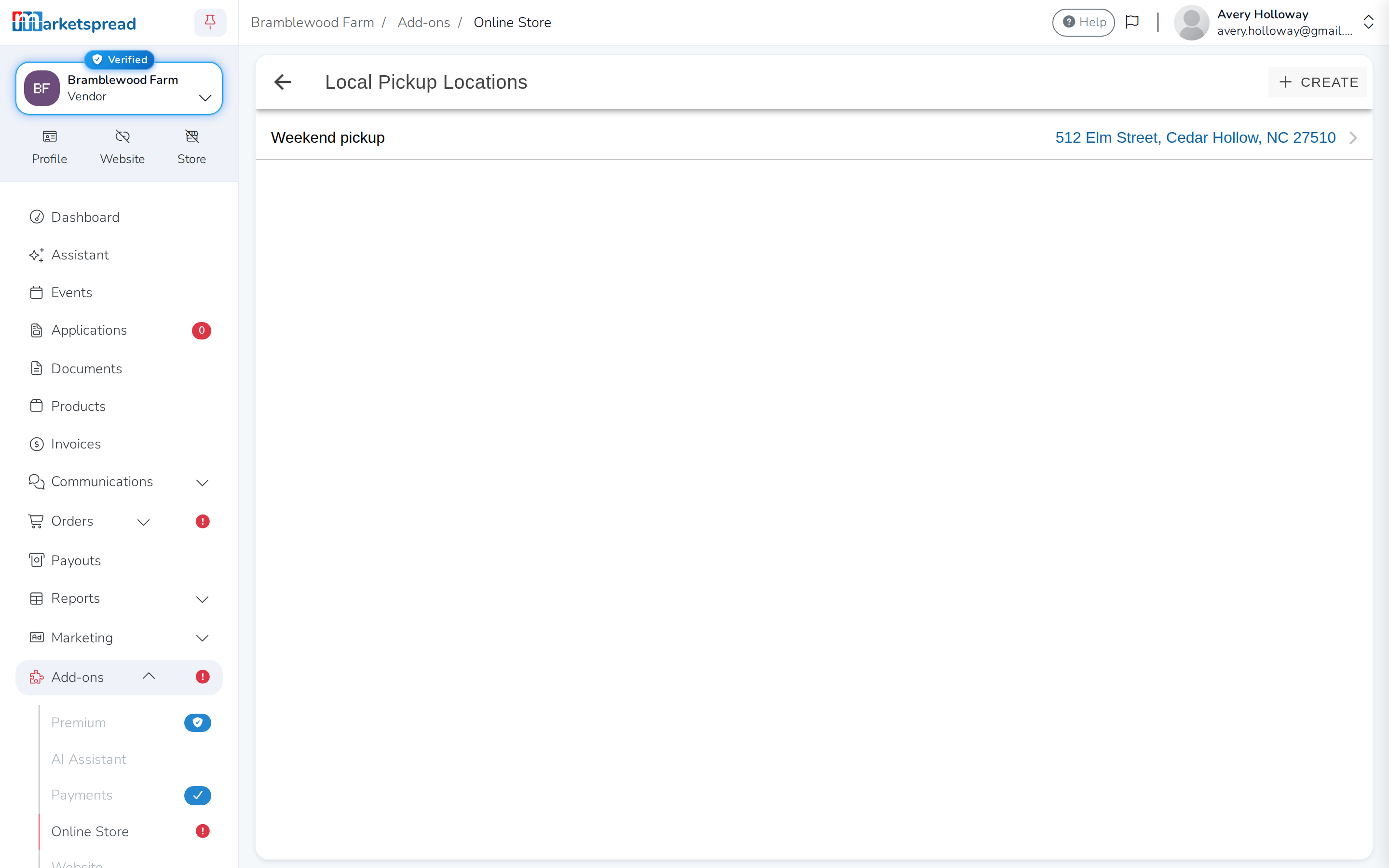
You don't have to be at a market to offer pickup. Click Pickup Locations,
then Create:
-
Name it, so customers recognize it.
-
Add the address.
-
Add a note — this is where collection instructions go.
-
Use Enabled to switch it on and off.
-
Set Automatic Deactivation to close ordering at a set time, handy if
you change what you sell each week. -
Add at least one day, with a start and end time. Click Add weekday for
more. -
Click Save.
Delivery
This is delivery you do yourself. Click Enable delivery.
Choose how you charge under Cost Calculation — Flat Rate, Per
Mile or Percentage — then set the amount. Per mile is worked out for
you. Turn on Offer Free Delivery to waive it over a certain order value,
set under Free Delivery Minimum.
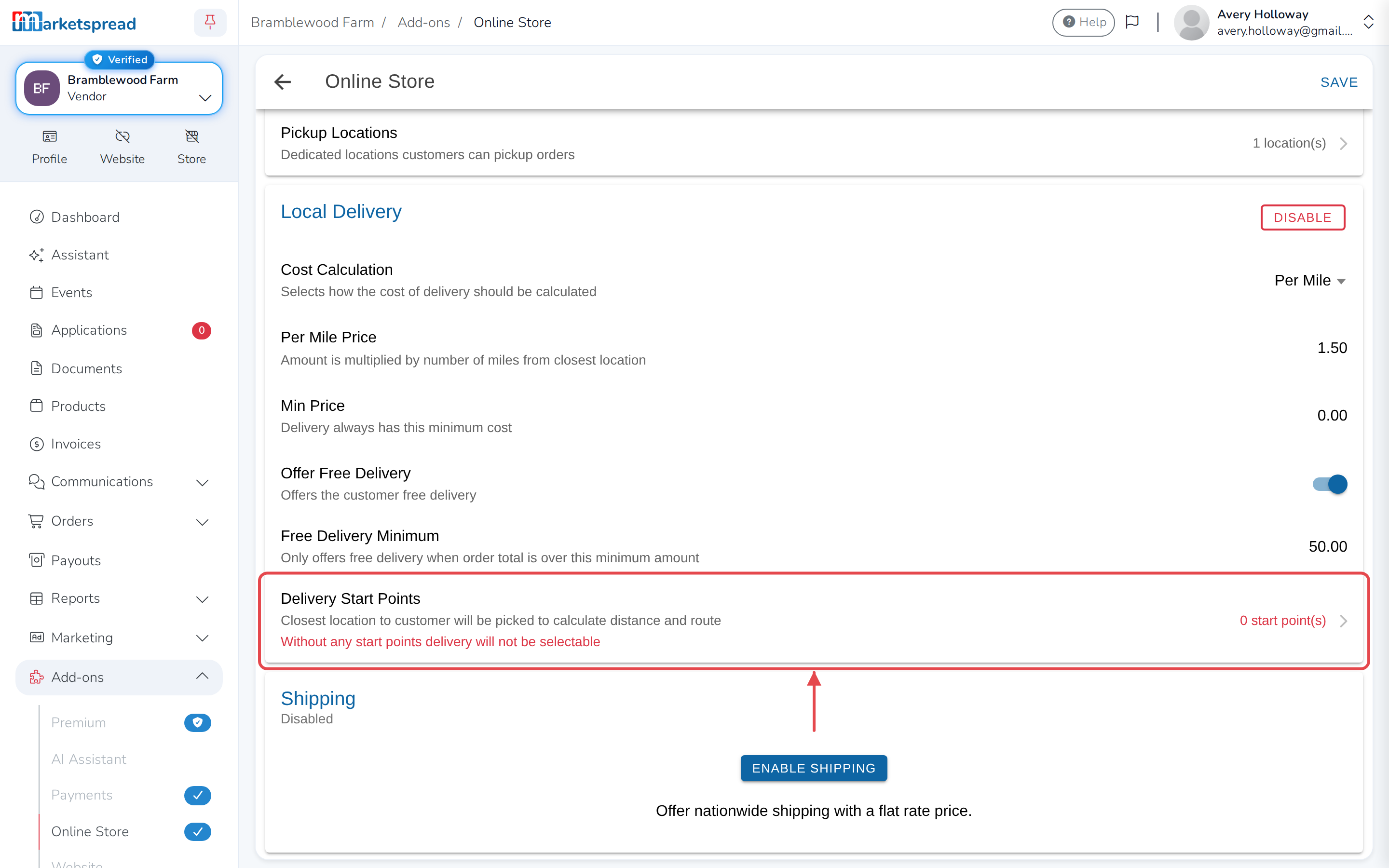
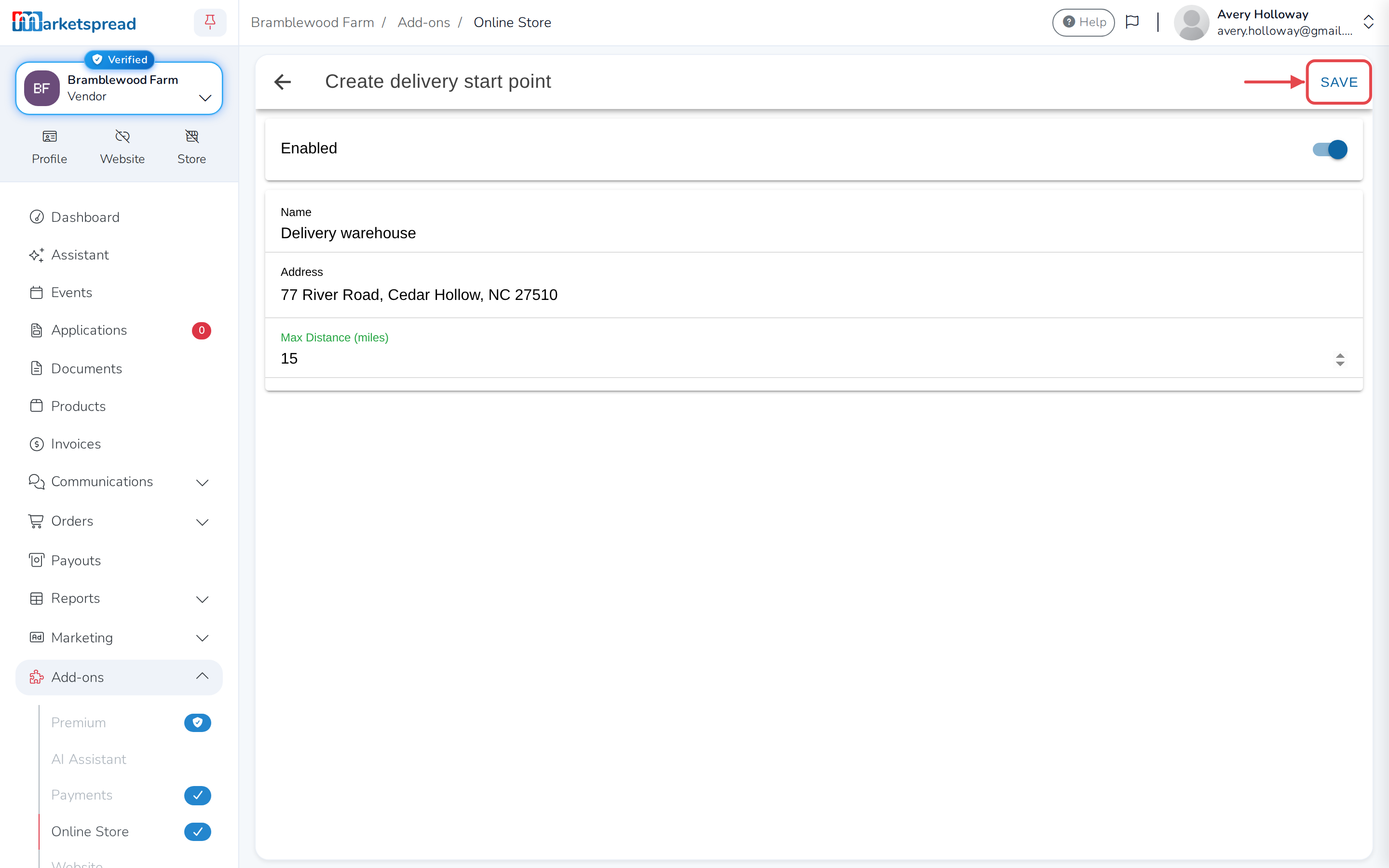
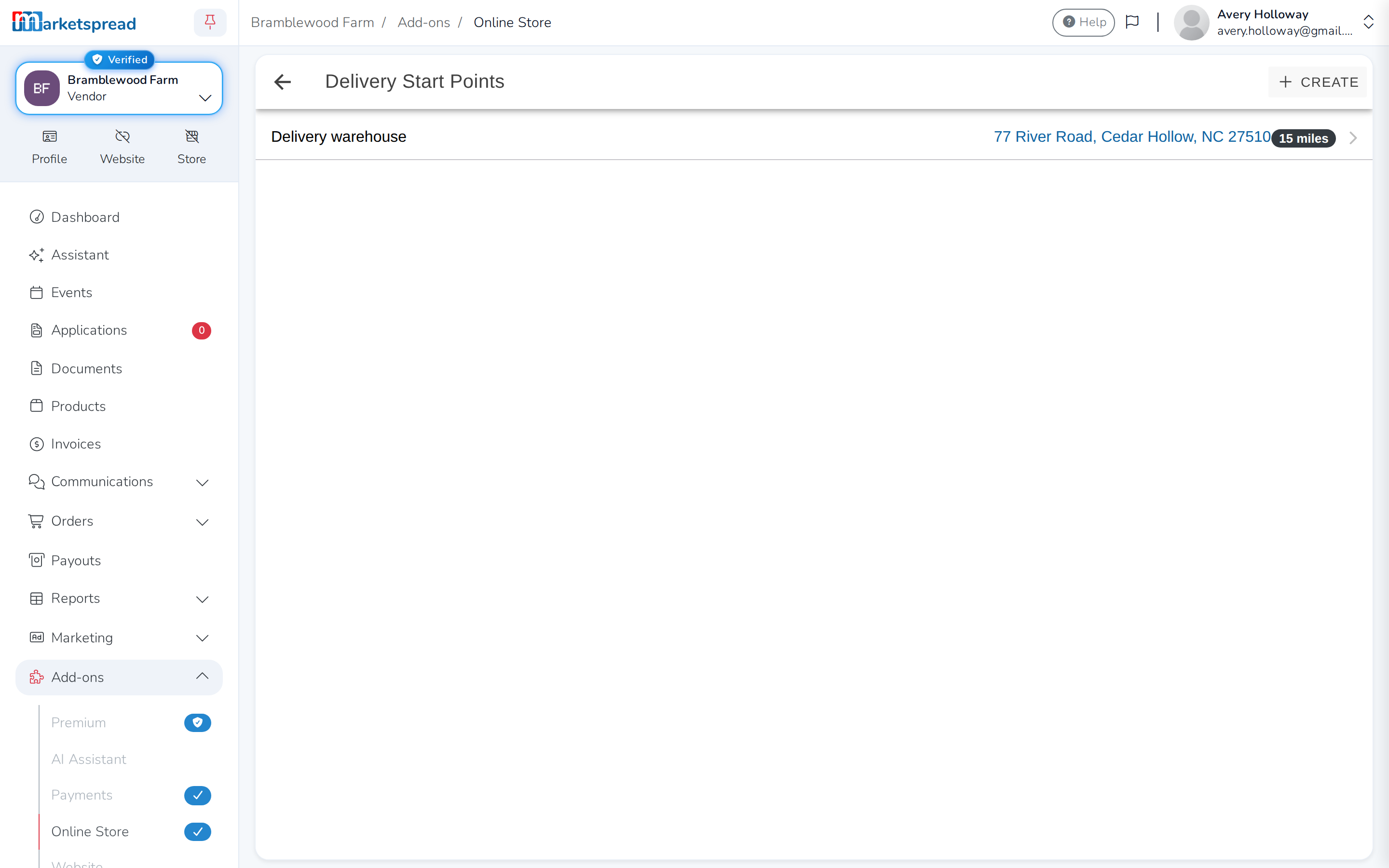
You also need a starting point, which customers never see. It is what
distances are measured from. Click Delivery Start Points, then
Create, and give it a name, an address and how far you are willing to
travel, under Max Distance. One is enough for almost everybody.
Shipping
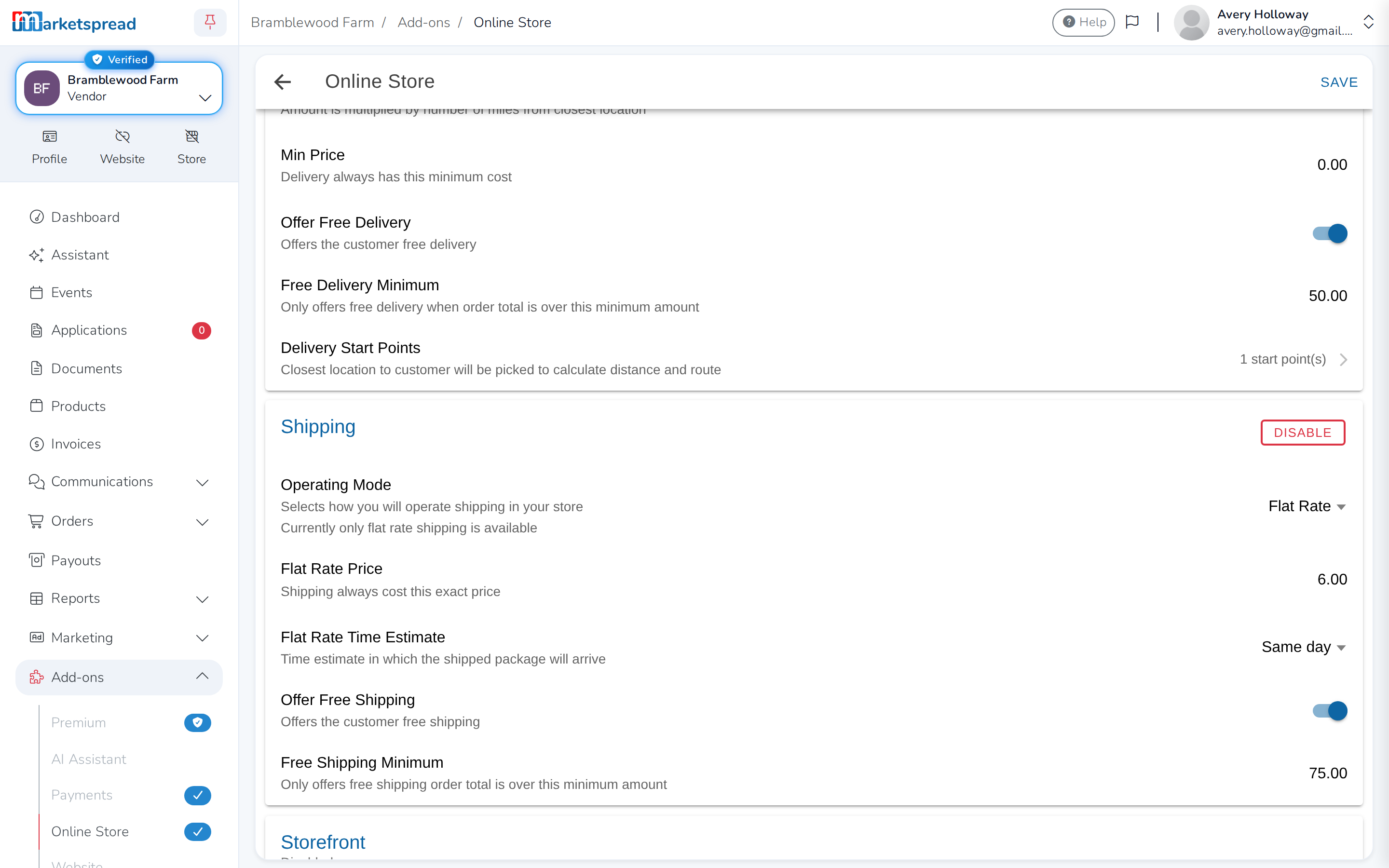
Click Enable shipping. Set a flat rate under Flat Rate Price, and
pick the delivery estimate customers see at checkout under Flat Rate Time
Estimate. Turn on Offer Free Shipping to waive it over a certain order
value, set under Free Shipping Minimum.
Products have to be marked shippable
The first time you save with shipping turned on, you're asked to Mark
all shippable, which turns it on for every product at once. Otherwise
you set it product by product, and anything not marked will not ship.
Make it look like yours
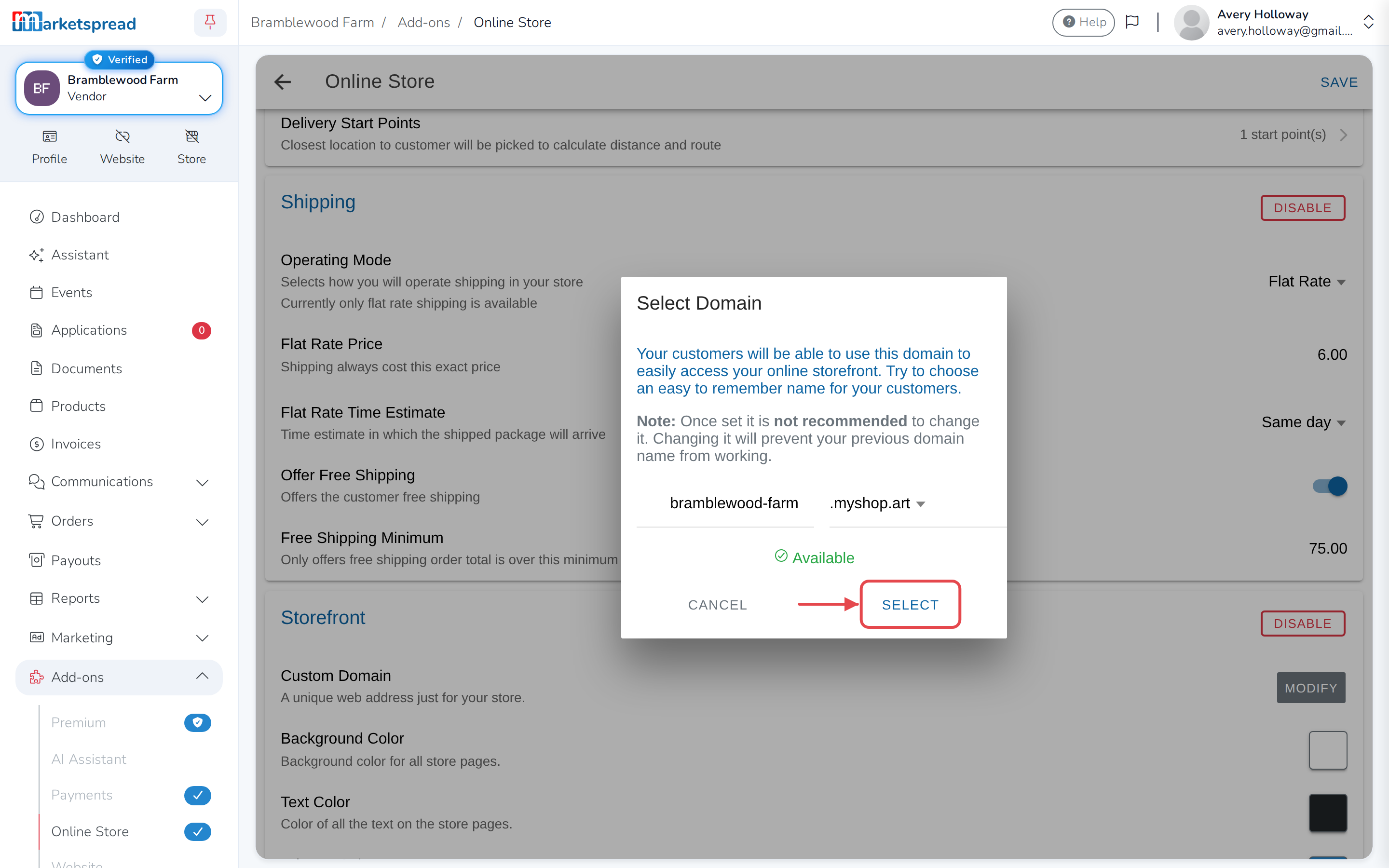
Open the Storefront card and click Enable storefront.
-
Type a name for your store's web address.
-
Choose an ending from the list.
-
Click Select.
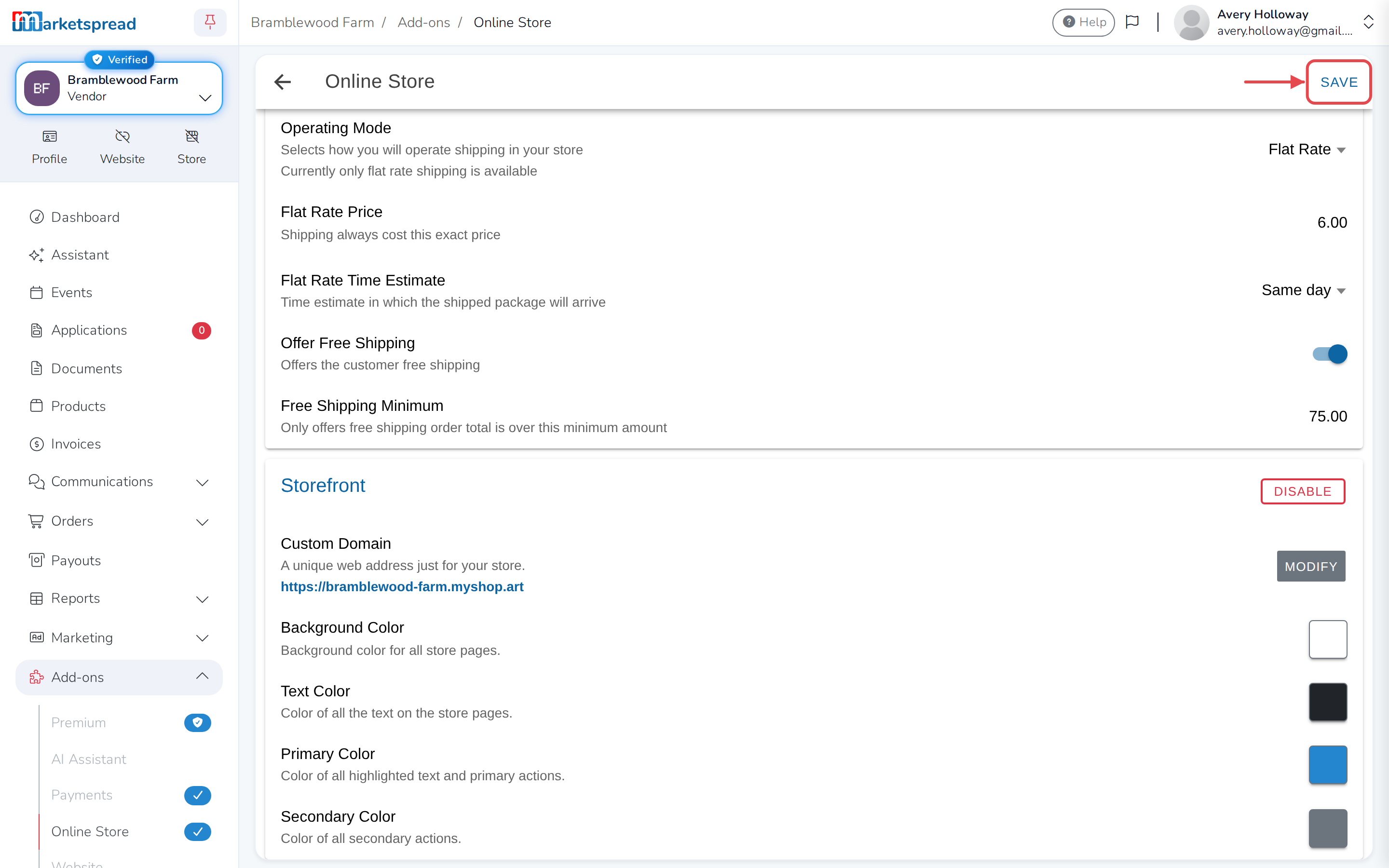
- Custom Domain — click Modify beside it to change your store's web
address. - Background Color, Text Color, Primary Color and Secondary
Color — set your own colors for the store.
Click Save when you are done.
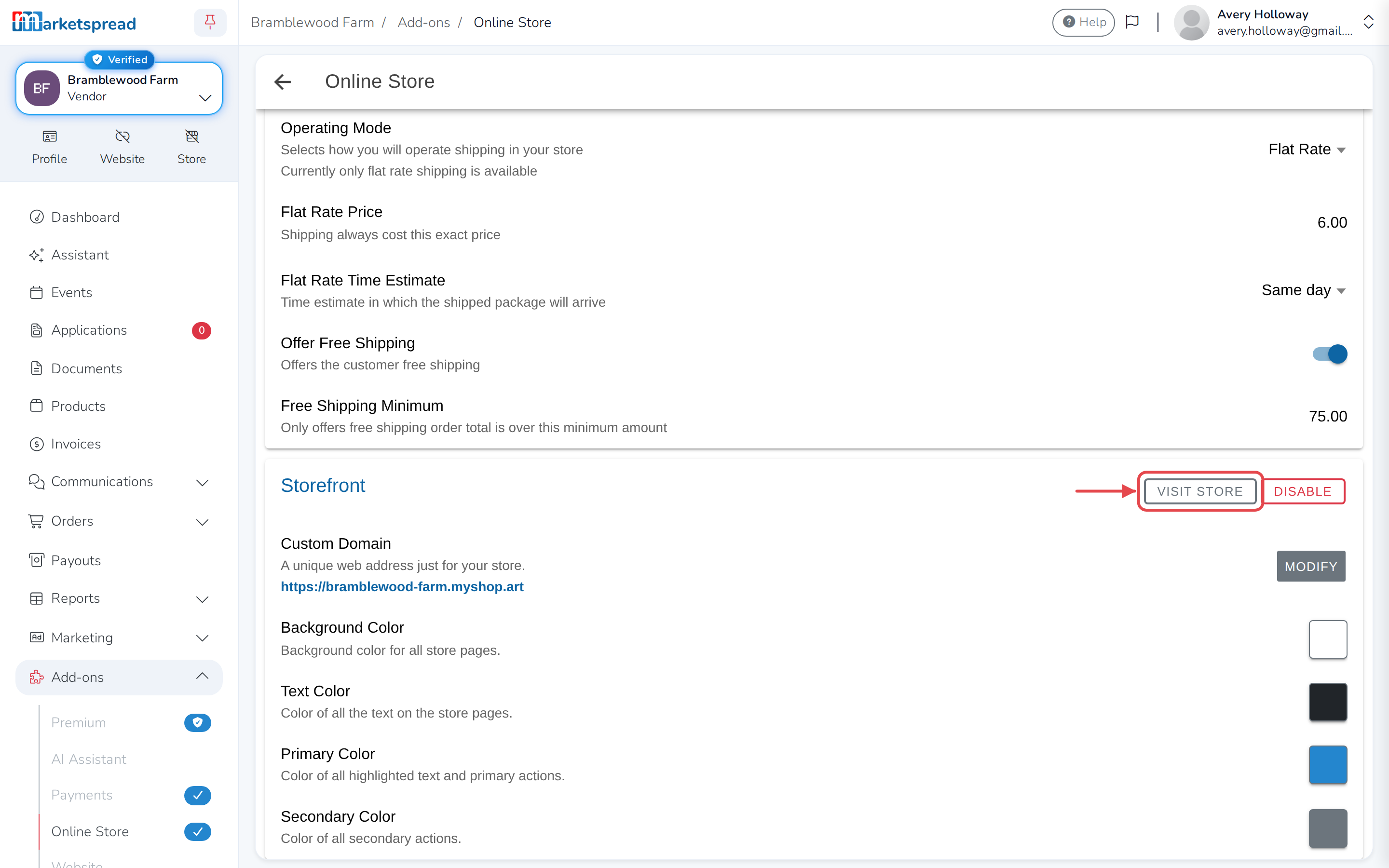
Once it's saved, click Visit Store to see what customers see — there is
no Marketspread branding on it, and search and category filters are built in.
You're still present in the regular marketplace as well.
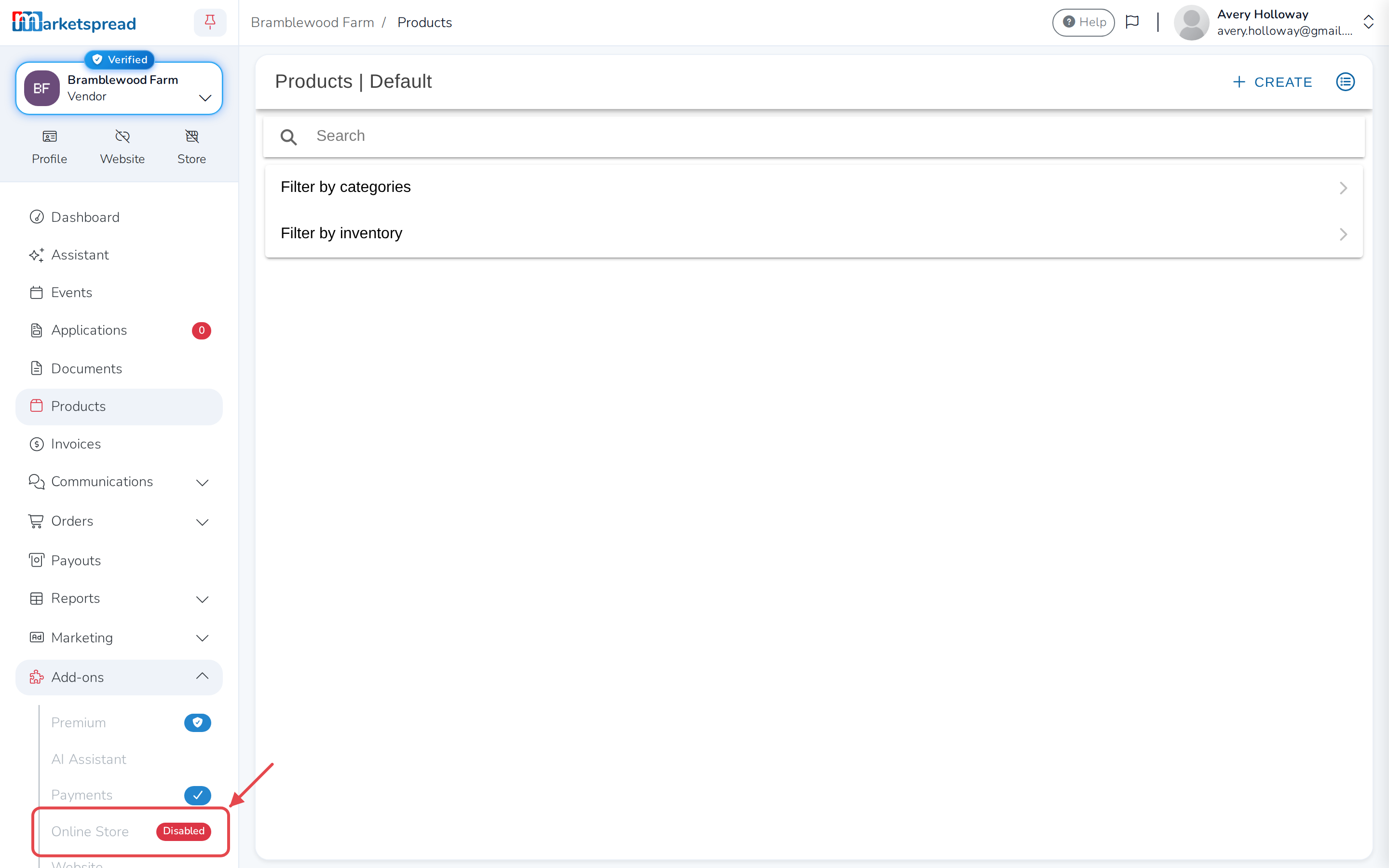
Turn off your online store
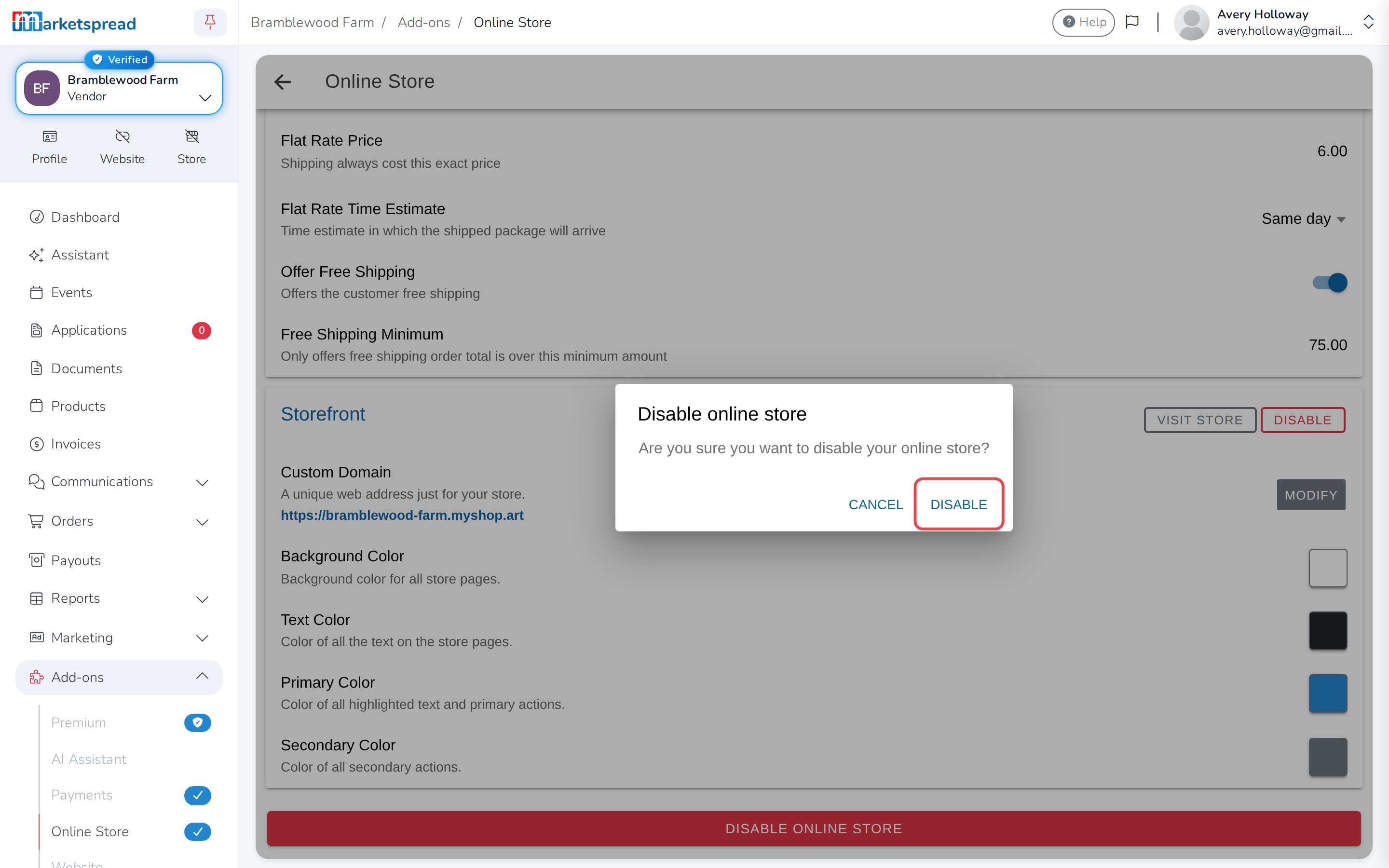
-
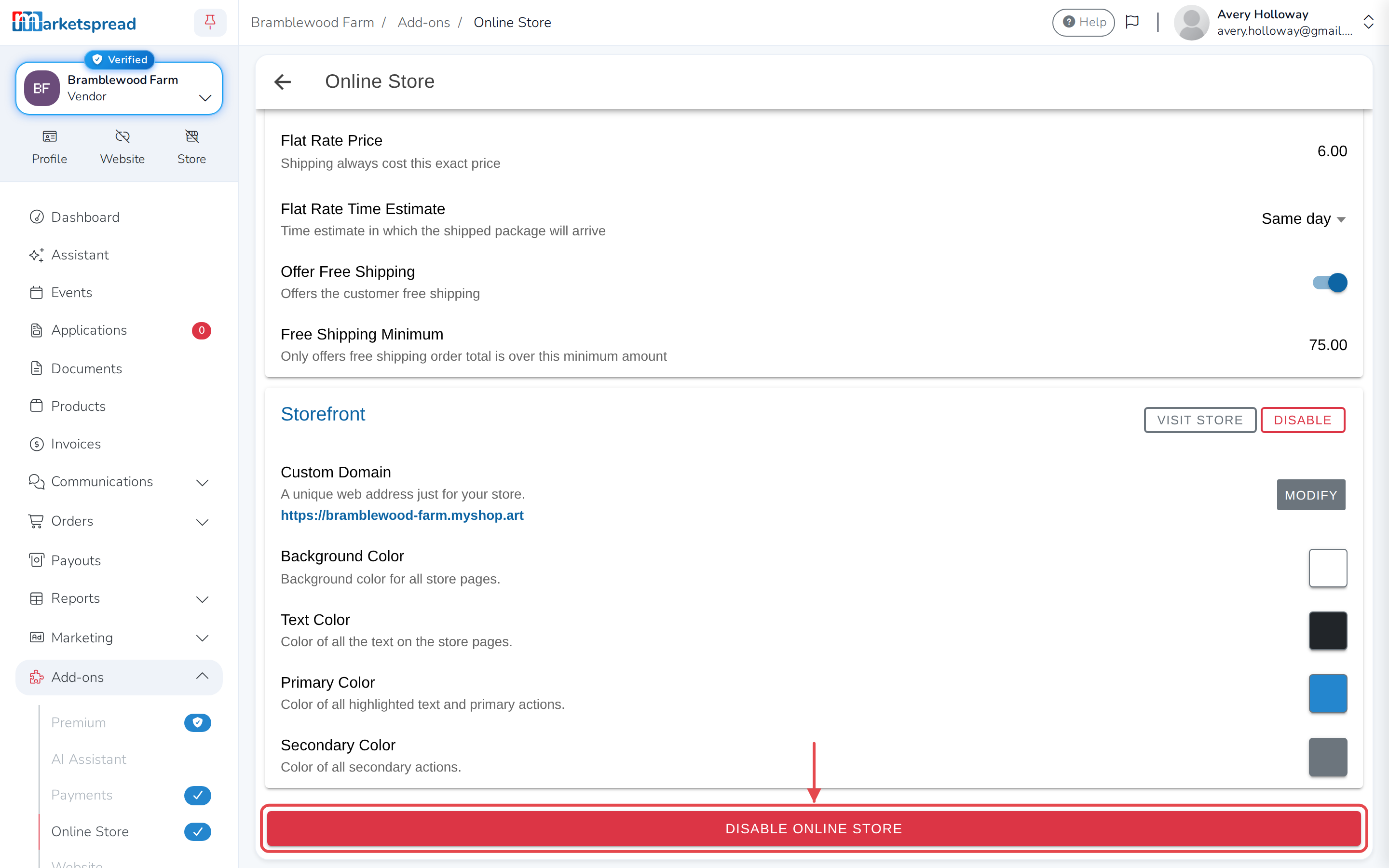
Click Disable online store.
-
Click Disable to confirm.