


Fee Preview shows what a vendor would actually pay for a booth on one of your events — your base booth price plus any Vendor Type, Category or Vendor Tag fees you've set up. Open it from an event's tab row to check your pricing before anyone books.
From here you can:
- See a worked-out price for any booth on the map
- Narrow the preview to one vendor type, category or tag
- Preview a specific day, week or month, to check a peak price
Note
Fee Preview doesn't book anything or send an invoice. It only shows what your current settings would charge.
See what a vendor pays
- Open Event Configuration, then Events.
- Click the event you want to preview.
- Click the Fee Preview tab.
- On the map, click a booth.
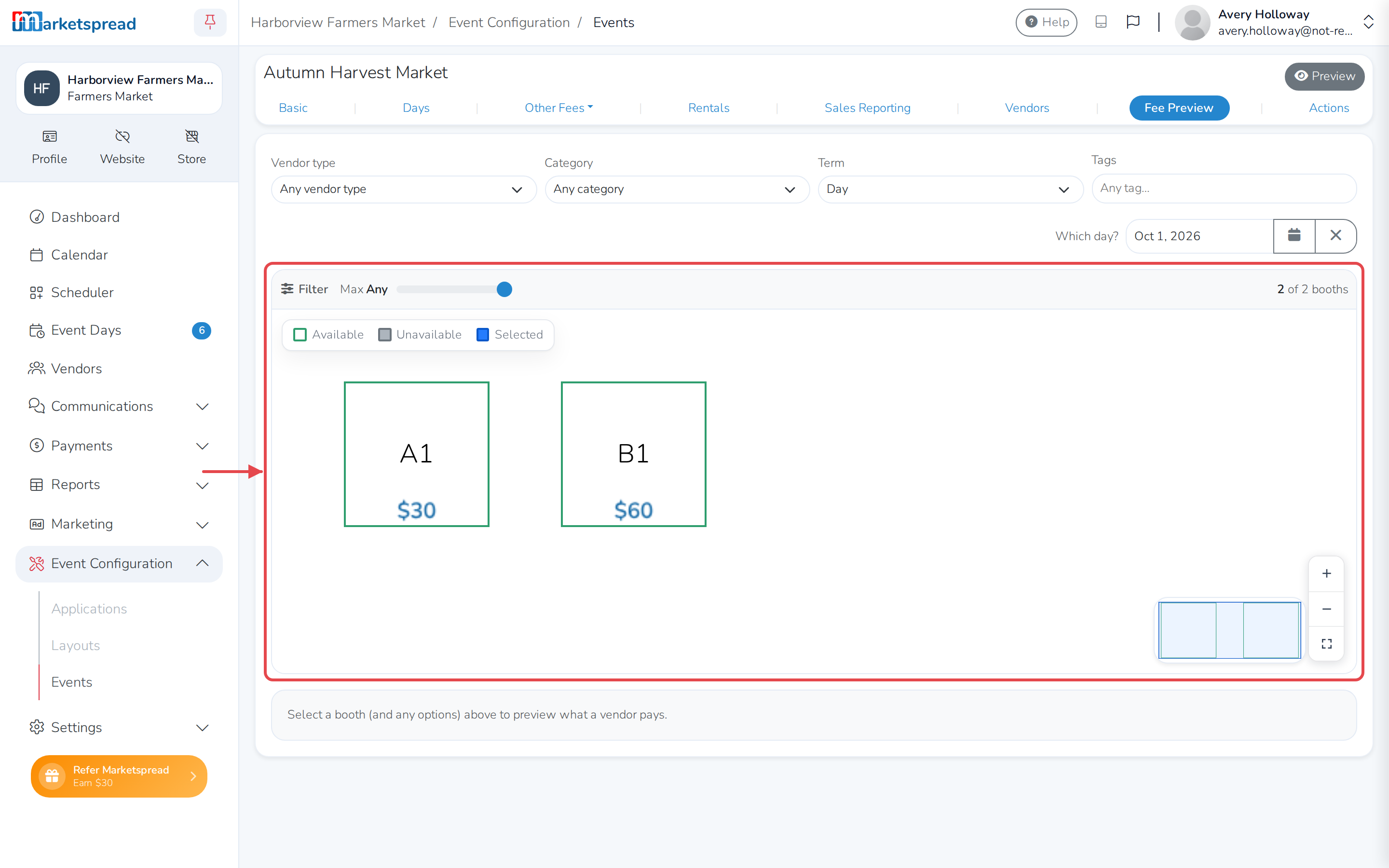
The price appears below the map, broken down fee by fee, with the total at the bottom. Click more booths to add them to the same preview.
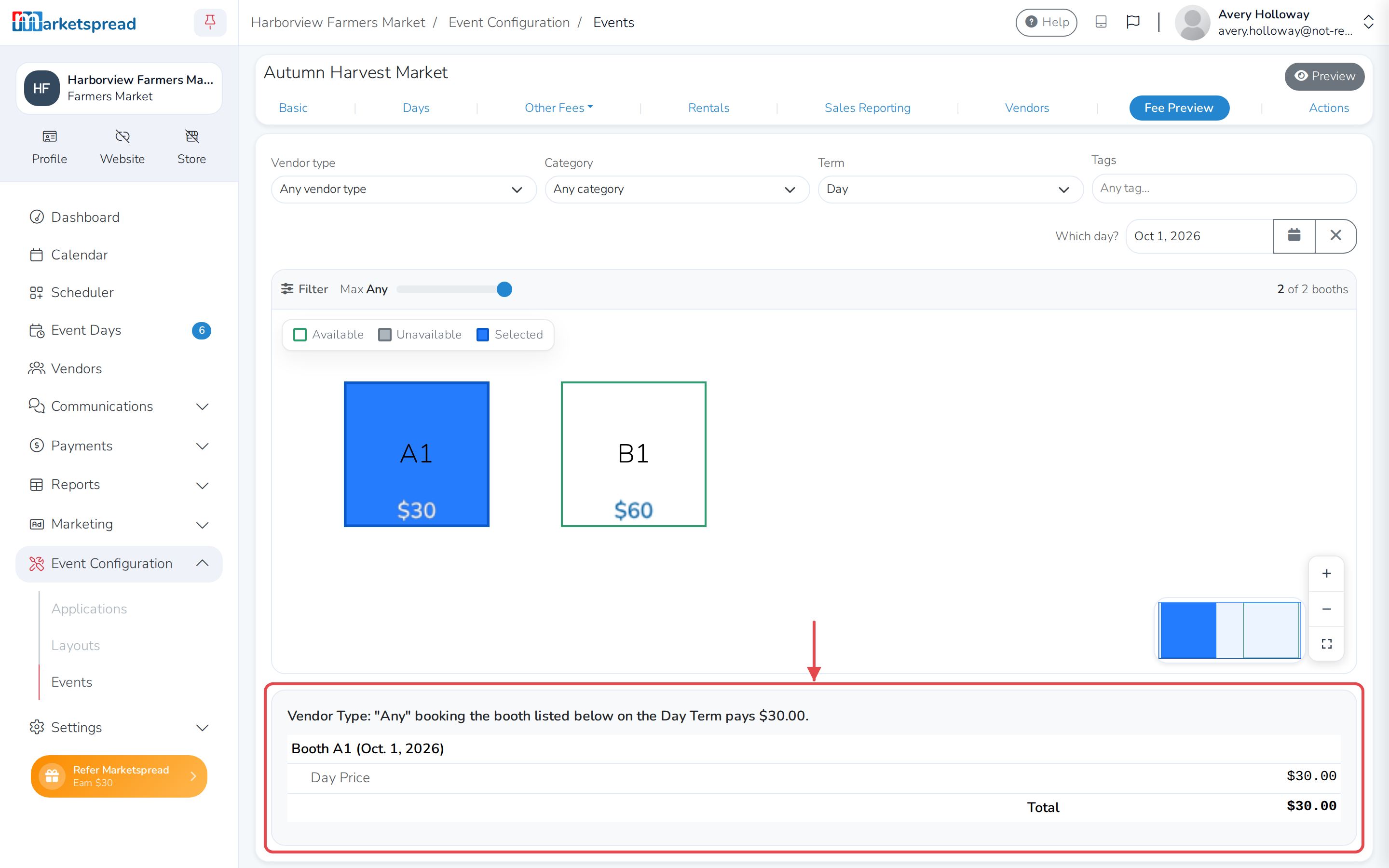
Tip
Every booth on the map already shows its price on its tile. Click one to see the full breakdown.
Preview by vendor type, category or tag
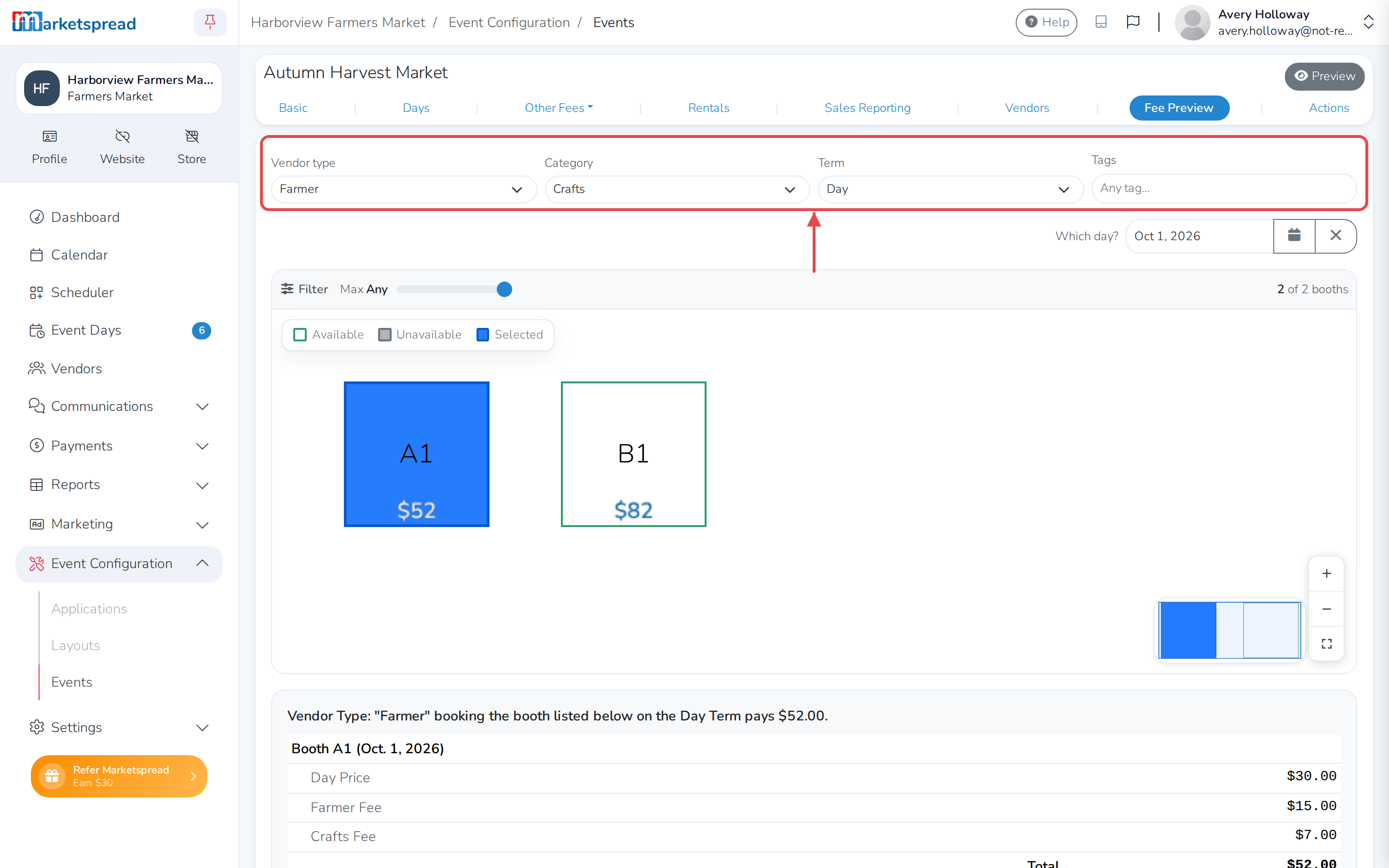
- On the Fee Preview tab, choose a Vendor type.
- Choose a Category.
- Add one or more Tags.
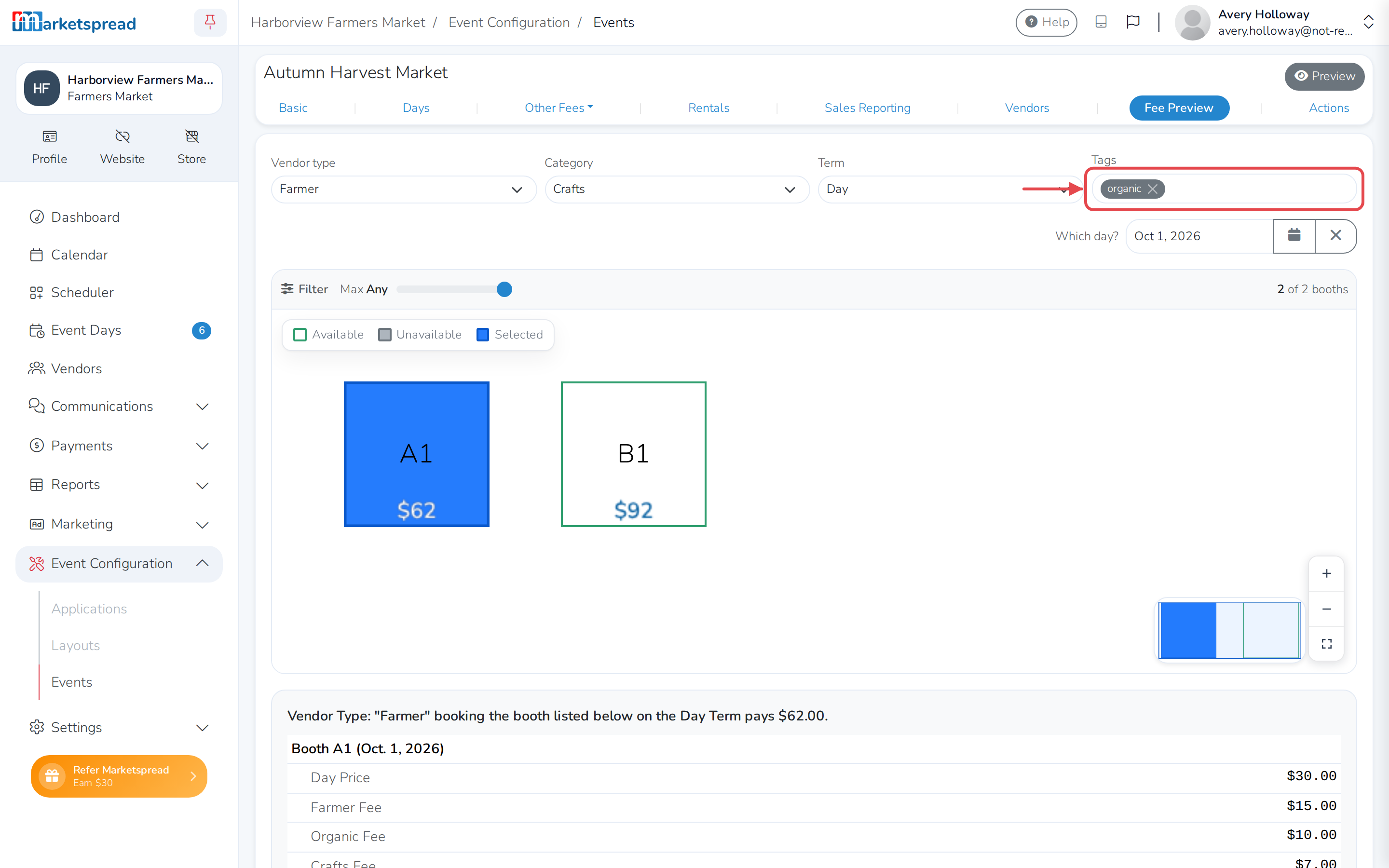
The price below updates for whichever booth is selected. Leave a filter set to Any to see the price with no fee from that dimension.
Preview a specific day, week or month
- On the Fee Preview tab, choose a Term — Day, Week, Month or Event.
- If you chose Day, click the date field and pick an event day. If you chose Week or Month, pick one from the dropdown that appears.
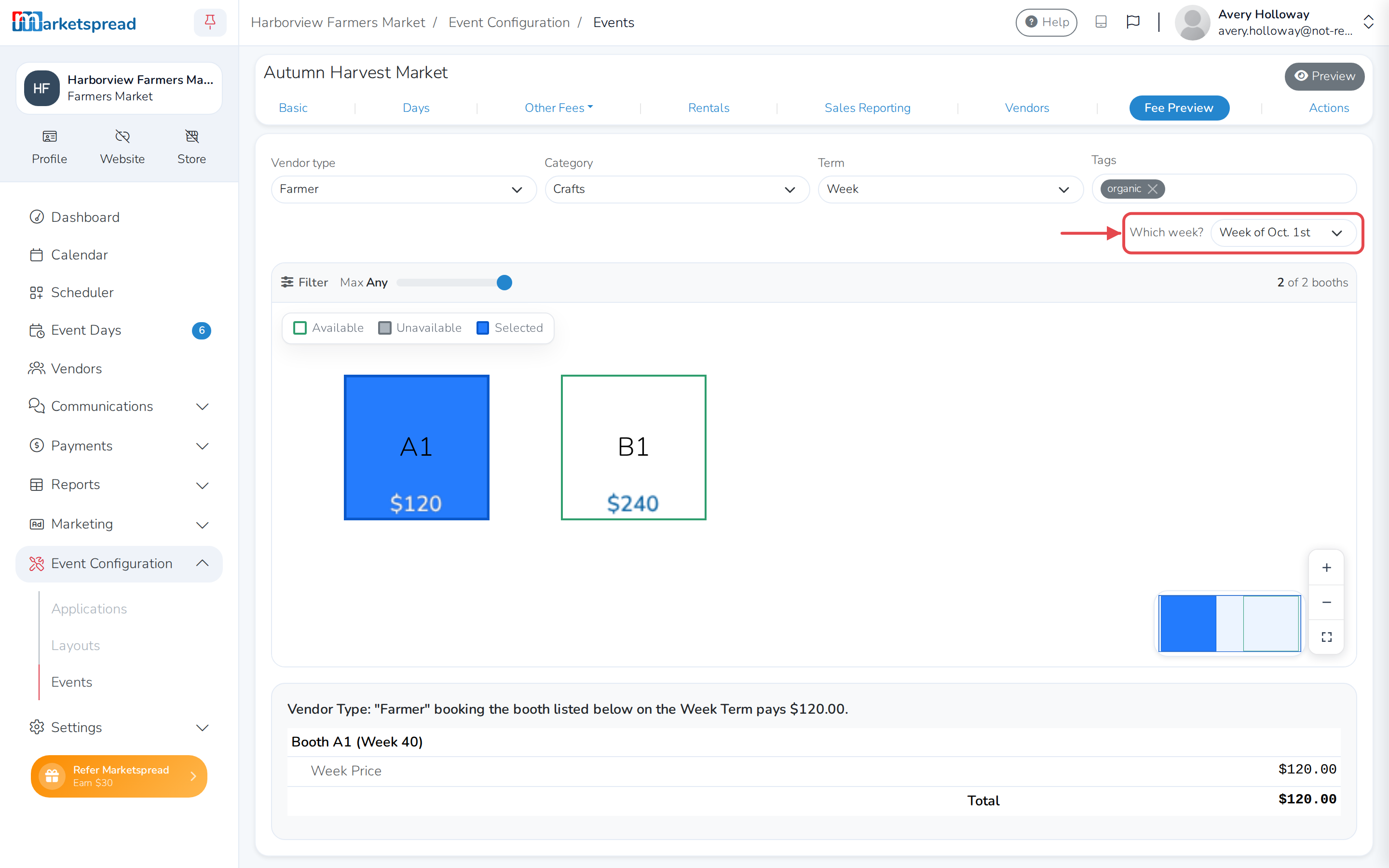
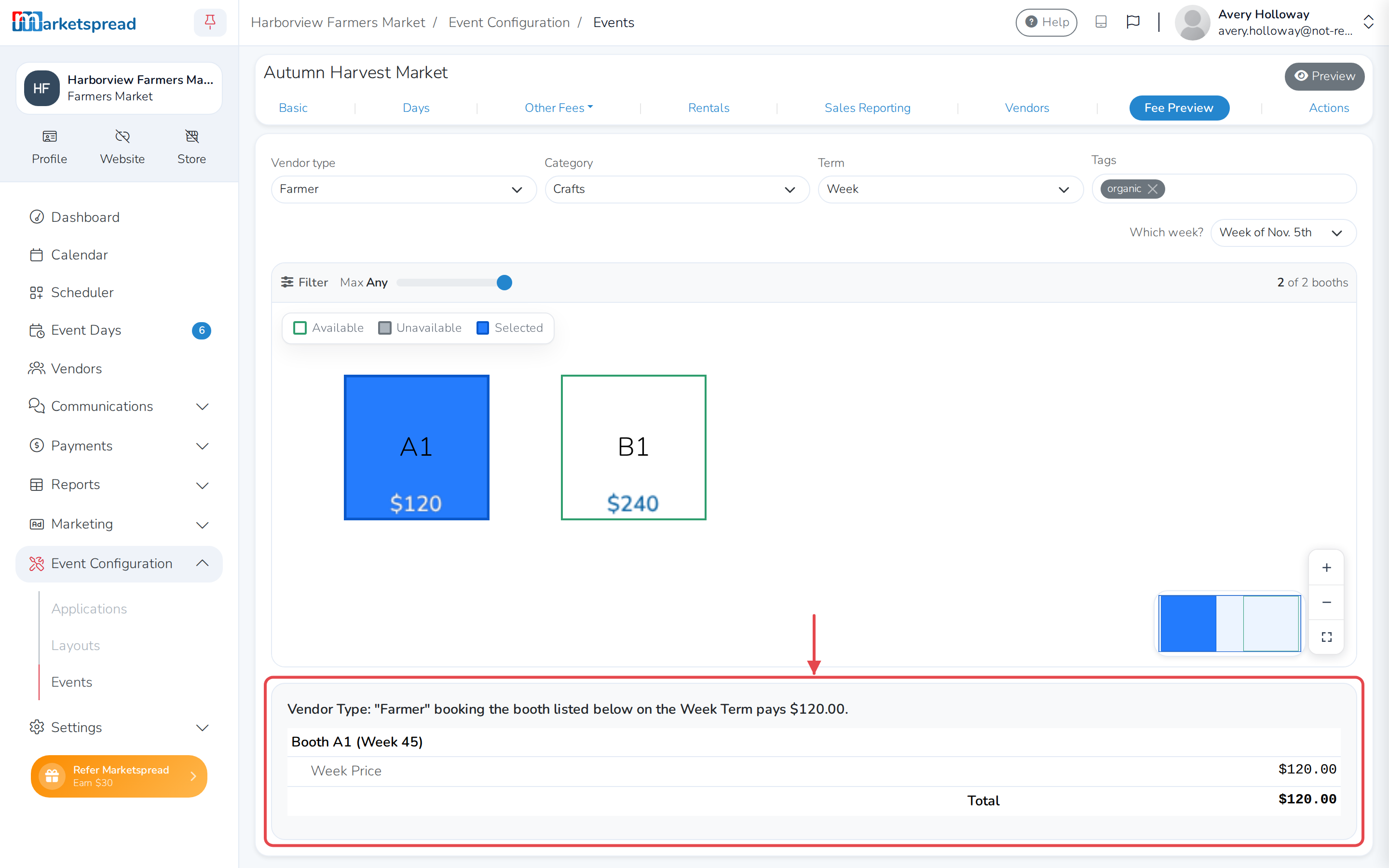
This is how you check a peak price for one specific day, or see what a vendor pays for the whole event at once.
If nothing shows
Fee Preview needs booths on your map, at least one published event day, and at least one fee set up before it can work out a price. If any of those are missing, the page stays blank.