


Every vendor application carries a status that says where it is in your review. You move an application between statuses as you work through it, and the vendor sees the status change on their end.
The eight statuses
| Status | What it means | Who controls it |
|---|---|---|
| Abandoned | Vendor started but never submitted, and it's sat long enough to show | Vendor |
| Applied | Vendor submitted, awaiting your review | Vendor |
| Received | You acknowledged receipt of the application | Market |
| Pre-approved | Provisionally accepted, pending final approval | Market |
| Approved | Fully accepted into your market | Market |
| Resubmit | You requested changes or more information | Market |
| Declined | Application was not accepted | Market |
| Withdrawn | Application was withdrawn | Either |
Tip
Most markets use Applied → Received → Approved, or just Applied → Approved. The other statuses handle special situations.
What each status means
Abandoned
The vendor started your application but hasn't submitted it. They may still be gathering documents, photos or answers.
| Visible to vendor | Yes — they see it on their dashboard |
| Vendor can edit | Yes — they can keep working on it |
| Market action needed | No — wait for the vendor to submit |
| Fees collected | No — application fees are collected on submit |
Note
An unfinished application only shows here once it's sat unsubmitted for a while — 7 days by default. Change the number of days under Settings, then Advanced.
You can send reminder emails to vendors who have not submitted, to nudge them to finish.
Applied
The vendor has finished and submitted their application. Application fees, if you charge them, have been collected. The application is now in your inbox waiting for review.
| Visible to vendor | Yes — status shows Applied |
| Vendor can edit | No — they wait for your response |
| Market action needed | Yes — review and take action |
| Fees collected | Yes — application fees charged at submit |
From here you review the application, then choose Receive, Pre-approve, Approve, Resubmit or Decline.
Received
You have acknowledged the application. This status is optional. It tells vendors their application is in your queue and being considered, which helps when you have a formal review process or a committee.
| Visible to vendor | Yes — status shows Received |
| Vendor can edit | No — still waiting for a final decision |
| Market action needed | Yes — complete your review |
| Common use | High-volume markets with review committees |
Use Received when you want to acknowledge an application before you decide. Skip it if you approve or decline straight away.
Pre-approved
The vendor is provisionally accepted, with final approval still to come. Use it when you need to collect acceptance fees, check insurance or finish other requirements first.
| Visible to vendor | Yes — status shows Pre-approved |
| Vendor can edit | No — waiting for final approval |
| Acceptance fees | Collected when pre-approved, if you charge them |
| Common use | Juried markets, insurance verification |
Pre-approved gives vendors a positive signal while you still ask more of them — for example, if you jury vendors before you check their insurance documents.
Approved
The vendor is fully accepted into your market. They can be assigned to events, added to the scheduler and take part. This is the final positive outcome for an application.
| Visible to vendor | Yes — status shows Approved |
| Vendor can edit | Limited — depends on your settings |
| Scheduler access | Yes — the vendor can be assigned booths |
| Acceptance fees | Collected if they weren't already taken at pre-approval |
Approved vendors appear on your vendor list and can be assigned to events. Where the application was for an event series, the vendor is linked to that series.
Resubmit
You've reviewed the application and want the vendor to change something or send more information. The vendor is notified and can edit their application to answer you.
| Visible to vendor | Yes — shows Resubmit Requested |
| Vendor can edit | Yes — they can update and resubmit |
| Reason required | Yes — you explain what's needed |
| After resubmit | The application goes back to Applied |
Common reasons: an incomplete product list, missing photos, an unclear vendor type, missing documents, or an answer that needs clarifying.
Declined
The application was not accepted, and the vendor is told. It is a final decision, but you can still move a declined application to approved later if things change.
| Visible to vendor | Yes — status shows Declined |
| Vendor can edit | No — the application is closed |
| Reason required | Yes — you give a reason |
| Reversible | Yes — you can approve later if needed |
Give a clear, professional reason. It helps the vendor understand the decision and whether they might qualify another time.
Withdrawn
The application has been withdrawn, either by the vendor pulling out or by the market withdrawing an approved vendor. A reason is required, to document why.
| Visible to vendor | Yes — status shows Withdrawn |
| Who can withdraw | Both the vendor and the market |
| Reason required | Yes — you document why |
| Reversible | Yes — it can be moved back to an active status |
Common uses: the vendor changed their mind, the vendor moved away, the market removed the vendor over a policy breach, or the event series ended without the vendor taking part.
Common workflows
Simple approval
For markets that approve quickly, with no formal review:
Applied → Approved
- The vendor starts the application.
- The vendor submits it.
- You review and approve.
Formal review
For markets with a review committee:
Applied → Received → Approved
- The vendor starts the application.
- The vendor submits it.
- You mark it received, so the vendor knows you have it.
- The committee reviews and approves.
Juried market with pre-approval
Jury first, then check documents:
Applied → Pre-approved → Approved
- The vendor submits the application with photos.
- The jury reviews and accepts the vendor.
- Your staff check insurance and documents, then approve.
Resubmission
When you need changes before you approve:
Applied → Resubmit → Applied → Approved
- The vendor submits the application.
- You request changes and give a reason.
- The vendor updates and resubmits, so the application is Applied again.
- You review and approve.
Decline
When the application doesn't meet your requirements:
Applied → Declined
- The vendor submits the application.
- You review and decide the vendor doesn't qualify.
- You give the vendor a reason.
Withdrawal
When the vendor or the market ends the relationship:
Approved → Withdrawn
- The vendor is approved and active.
- The vendor or the market withdraws, with a reason.
- The vendor no longer takes part.
Actions you can take
| Action | What it does | When to use it |
|---|---|---|
| Receive | Acknowledges you have the application | After reviewing, before deciding |
| Pre-approve | Provisionally accepts the vendor | After the jury, before final checks |
| Approve | Fully accepts the vendor | When you're ready to add them to your market |
| Resubmit | Asks the vendor to make changes | When the application needs updates |
| Decline | Rejects the application | When the vendor doesn't qualify |
| Withdraw | Removes an approved vendor | When you're ending the relationship |
Add a comment
You can add a comment to any application, either to talk to the vendor or to leave an internal note for your team. Comments appear in the application's activity log, and either side can mark one as read.
Request a document
You can ask a vendor for more documents after they've submitted. The vendor is notified and can upload the files. This is useful for insurance certificates, certifications and anything else that expires or needs updating.
Automatic status replies
Your market can send a custom email whenever an application's status changes, so vendors hear back promptly without you writing each message.
- You create a template for each status — Applied, Received, Approved and so on.
- When you change an application's status, the matching email goes out.
- A template can fill in details like the vendor's name and your market's name.
- You can set different templates for different vendor types.
Open Settings, then Status Replies, to set your templates.
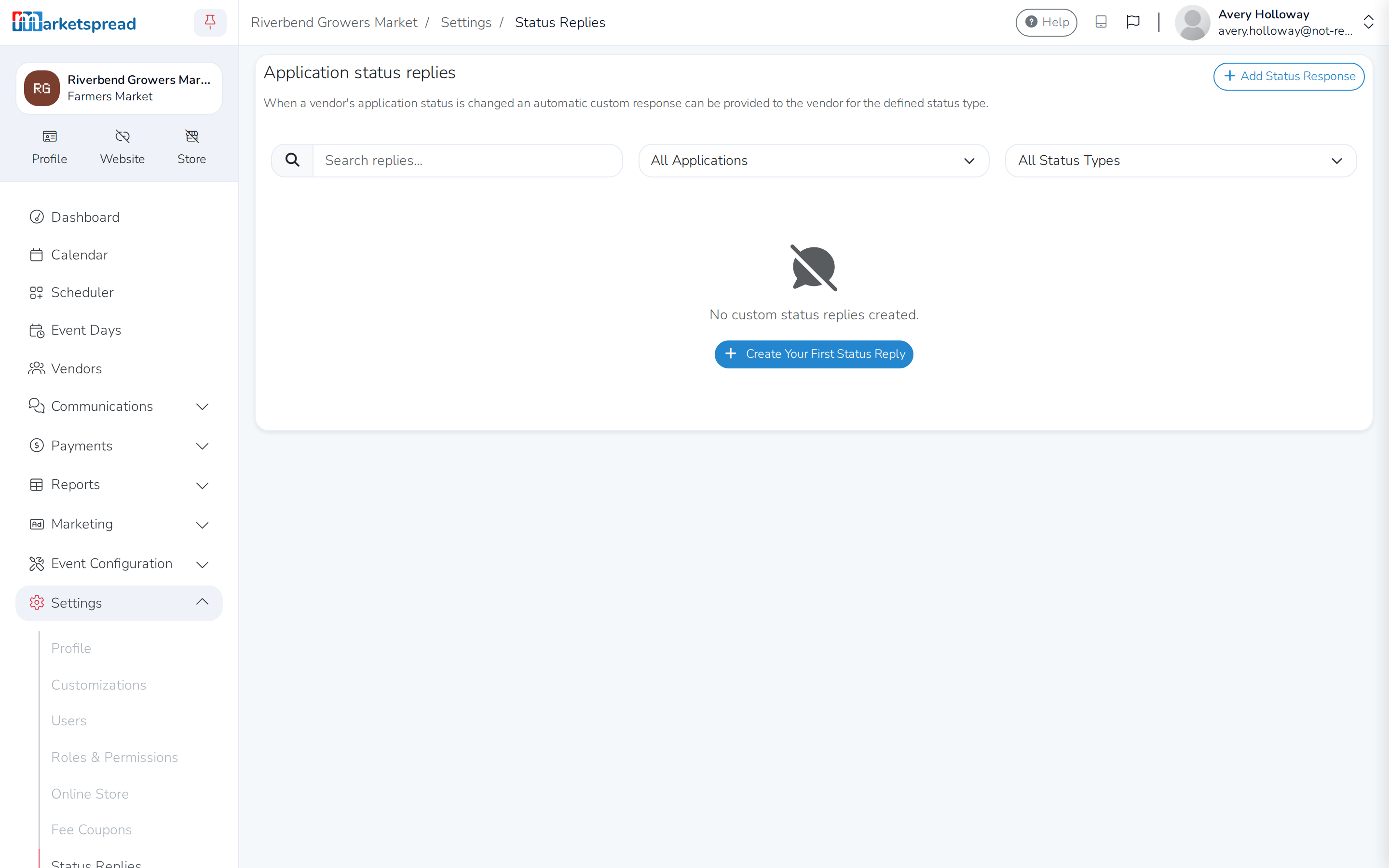
You can write a reply for each status:
| Status | Typical message |
|---|---|
| Applied | Thank you for applying, we'll review soon |
| Received | We've received your application and are reviewing it |
| Pre-approved | Congratulations! You're provisionally accepted |
| Approved | Welcome to our market! Here's what's next |
| Resubmit | We need some changes, with your reason included |
| Declined | Unfortunately we cannot accept at this time |
| Withdrawn | Your application has been withdrawn |
Application and acceptance fees
You can collect a fee at two points: when a vendor submits, and when you accept them.
Application fees are charged when the vendor submits, as the application moves to Applied.
- They cover the cost of reviewing applications.
- They are usually non-refundable.
- You can charge different amounts for different vendor types.
Acceptance fees are charged when the vendor is pre-approved or approved.
- They are charged once, the first time you accept the vendor.
- They are commonly used for membership fees or a pass for a whole event series.
Important
If you pre-approve first, the acceptance fee is collected then — not again when you approve.
How the fee is paid depends on the method you use:
| Method | When it's used |
|---|---|
| Credit card | Charged immediately at submission or approval |
| Invoice | An invoice is sent for later payment |
| Manual | Payment is handled outside the system |
Quick reference
Status summary
| Status | Meaning | Vendor can edit? | In review? |
|---|---|---|---|
| Abandoned | Started, never submitted | Yes | No |
| Applied | Submitted, awaiting review | No | Yes |
| Received | Acknowledged by market | No | Yes |
| Pre-approved | Provisionally accepted | No | Yes |
| Approved | Fully accepted | Limited | No |
| Resubmit | Changes requested | Yes | Yes |
| Declined | Not accepted | No | No |
| Withdrawn | Removed from process | No | No |
Where each status can go next
From Applied, you can:
- Receive — acknowledge the application
- Pre-approve — provisionally accept
- Approve — fully accept
- Resubmit — ask for changes
- Decline — reject the application
- Withdraw — take the application out of your review
From Resubmit, the vendor can:
- Resubmit, which returns the application to Applied
From Approved, you can:
- Resubmit — ask for updates, which is rare
- Withdraw — remove the vendor from your market
Statuses that need a reason
For these three you give the vendor a reason:
- Resubmit — what changes or information you need
- Declined — why the application wasn't accepted
- Withdrawn — why the vendor was removed