


Scheduler is the grid where you assign vendors to booths, day by day. If a vendor has already paid for a day, you can give some or all of that money back here. Lower their price for the day, or take them off the booth entirely.
Refund a vendor by changing their price
-
Open Scheduler.
-
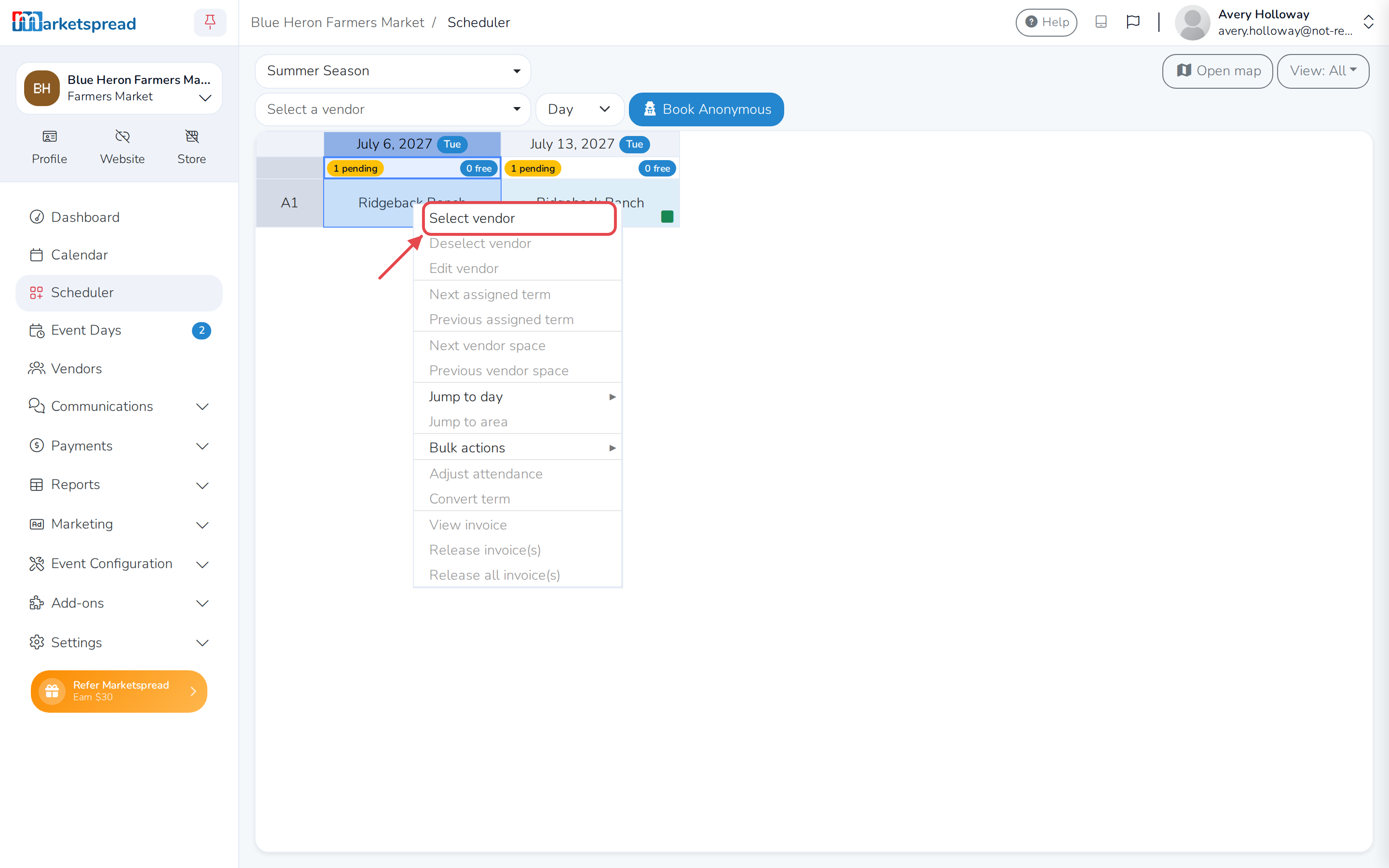
Right-click the booth cell for the vendor and day you're refunding, then click Select vendor.
-
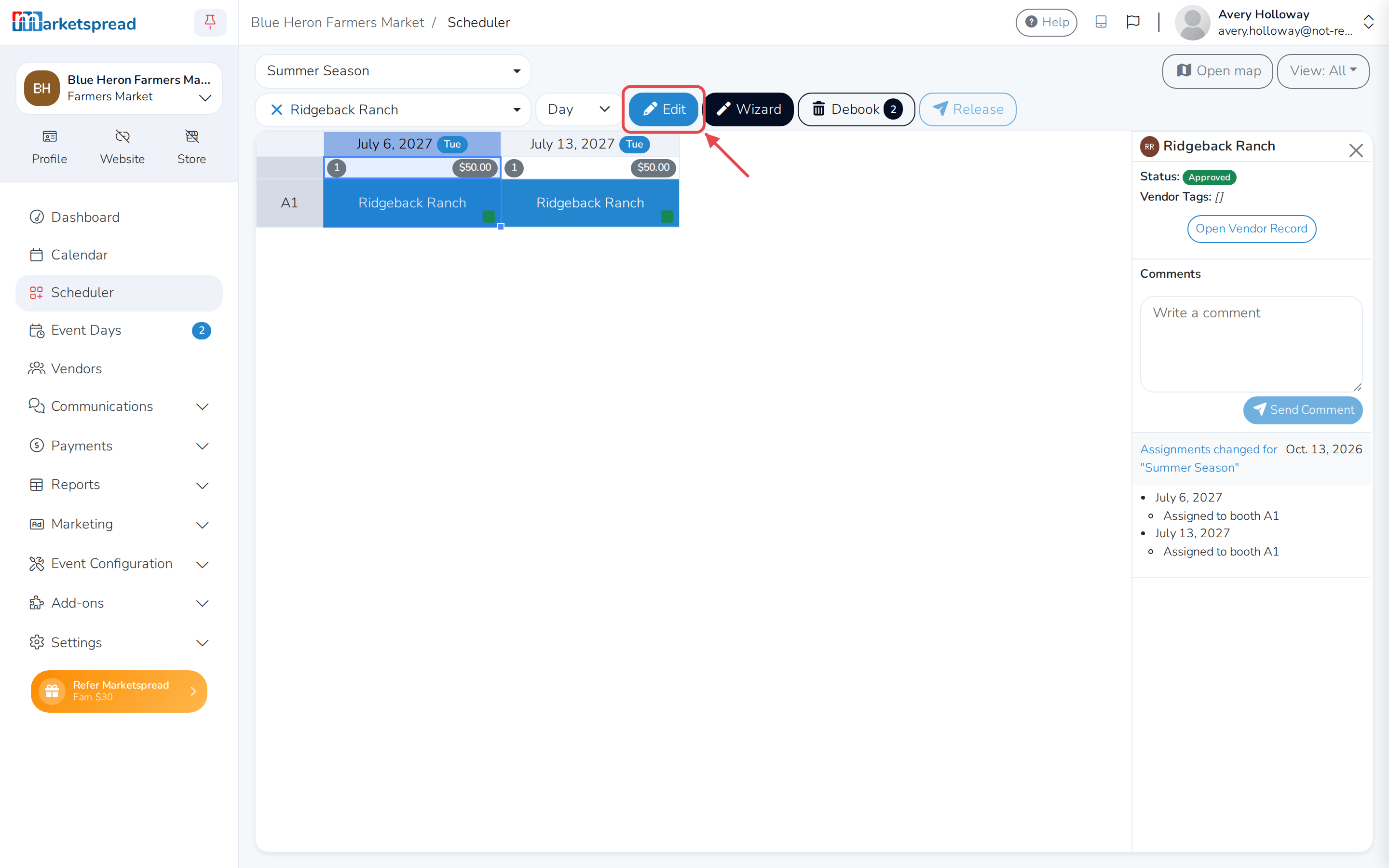
Click Edit.
-
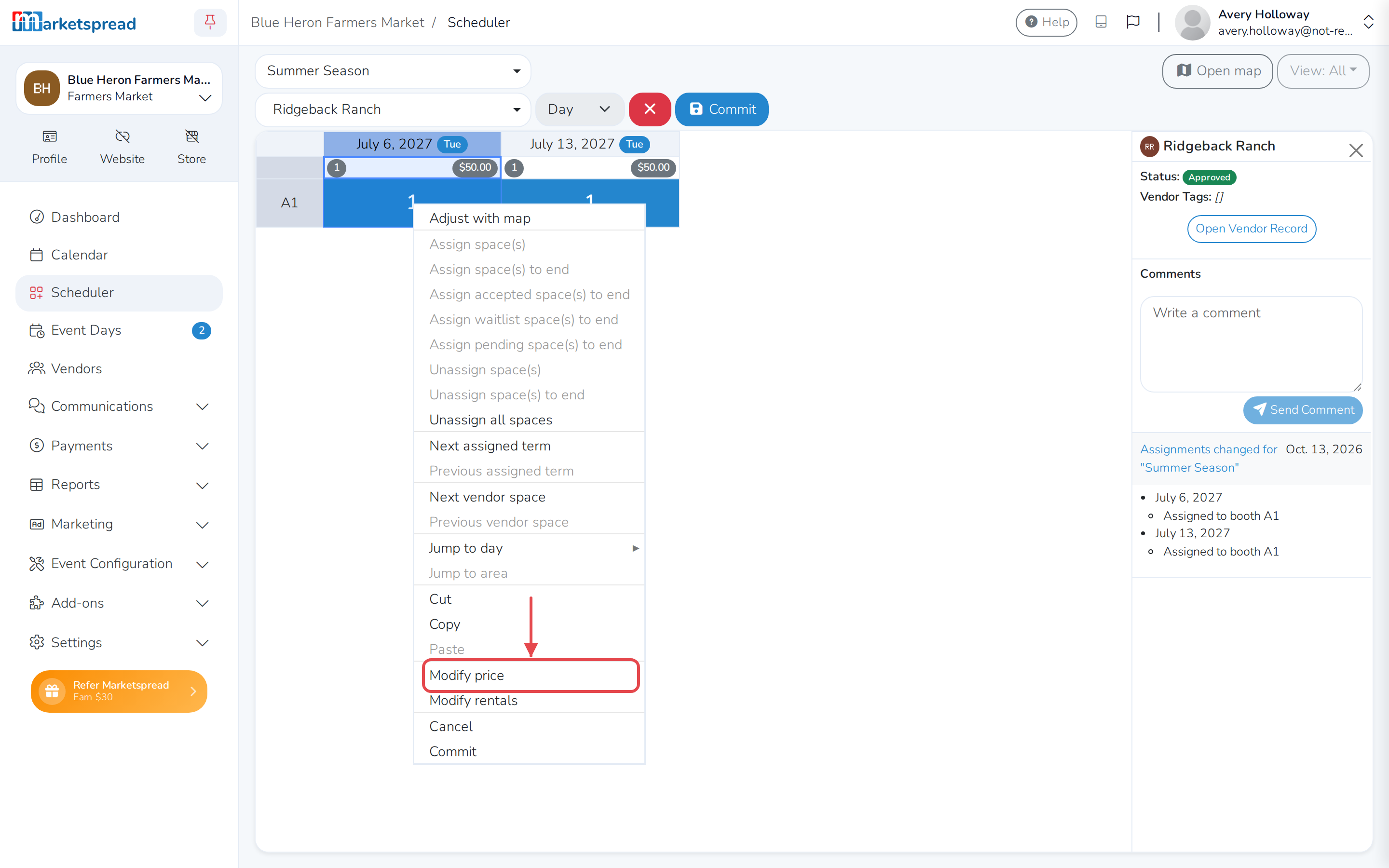
Right-click the same cell again and click Modify price.
-
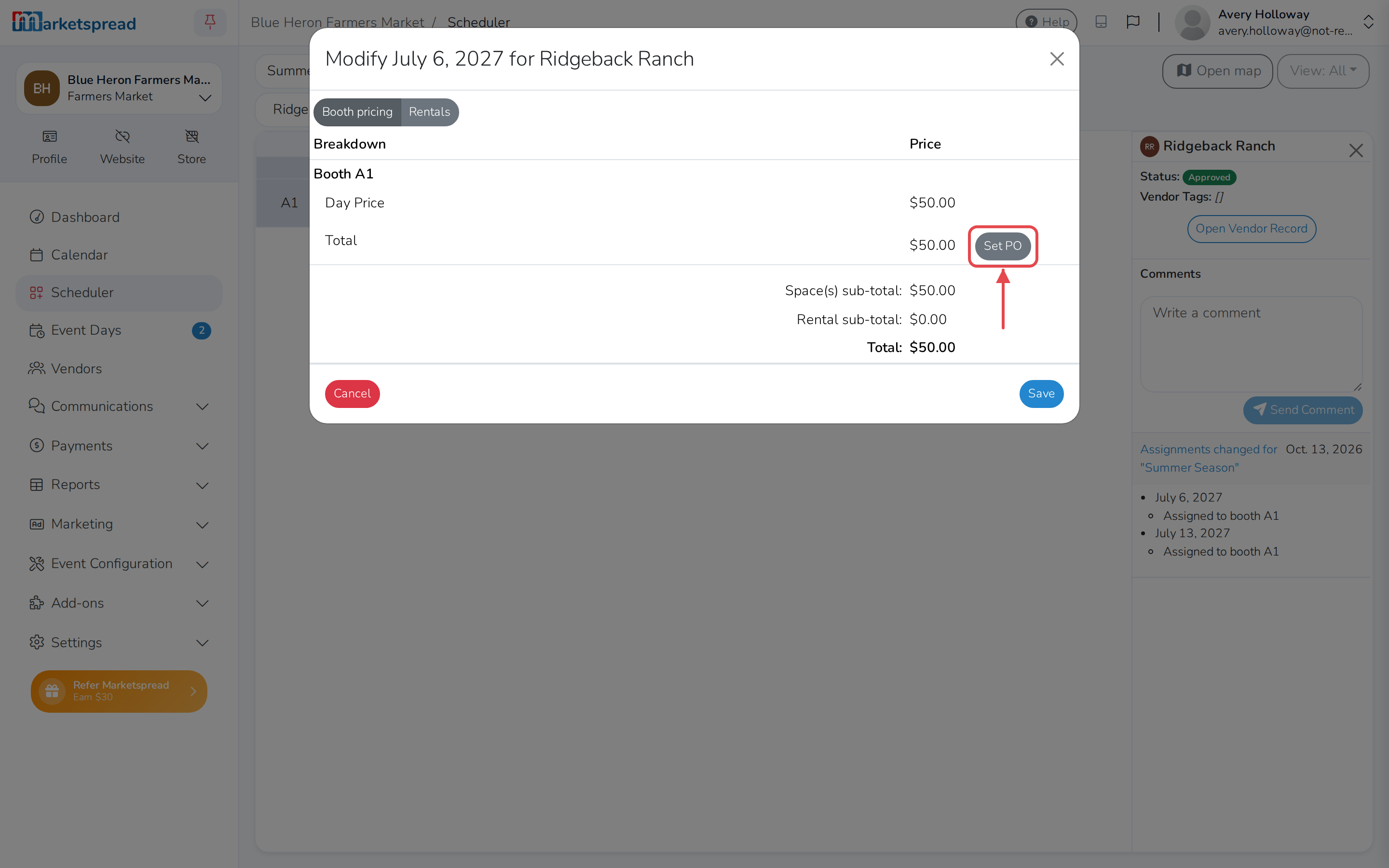
Click Set PO next to the booth. If the vendor has more than one booth that day, click it for each one you're refunding.
-
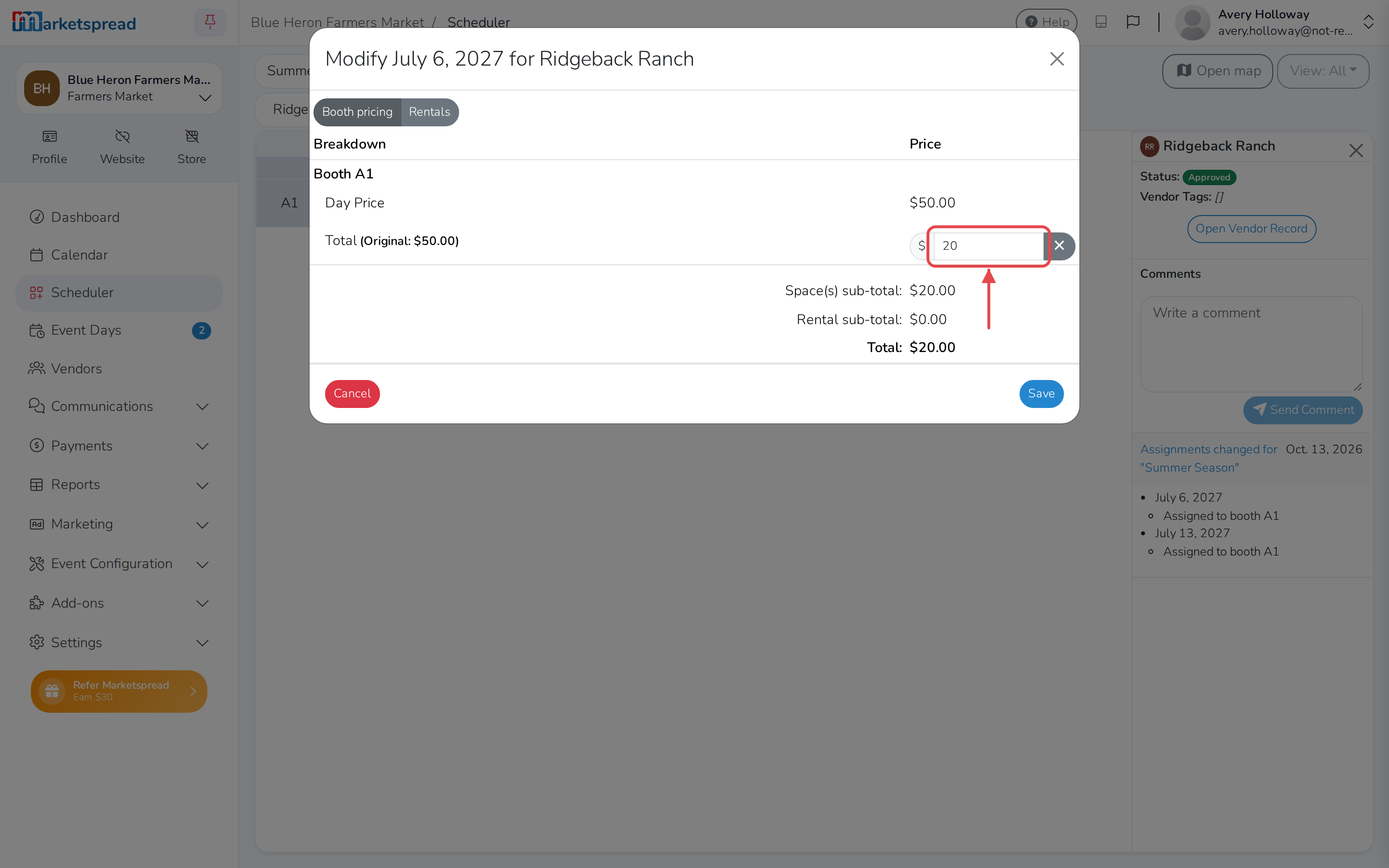
Enter the new amount — 0 for a full refund, or any lower amount for a partial refund.
-
Click Save. The vendor's invoice is still paid in full until you commit — nothing changes yet.
-
Click Commit.
-
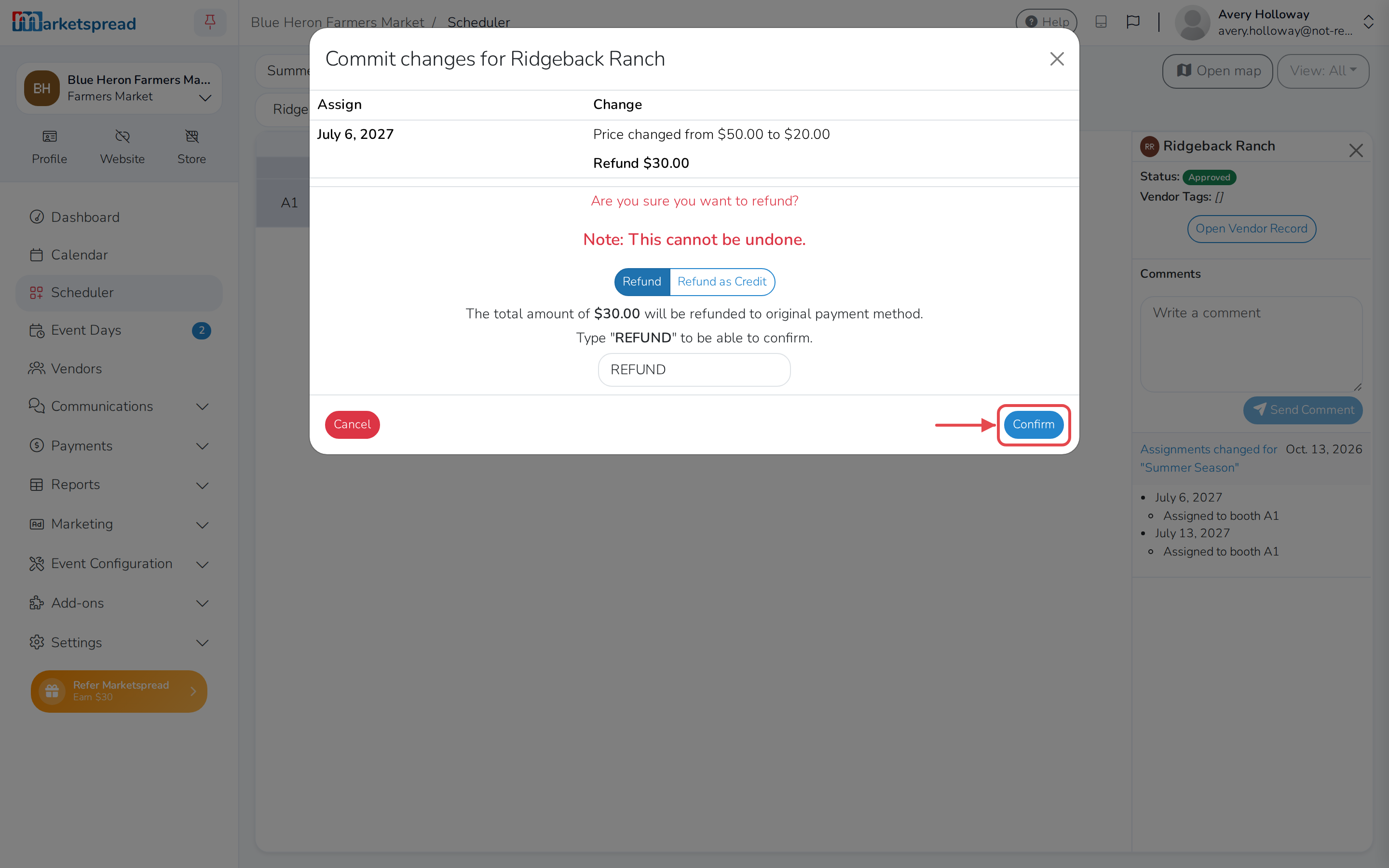
Choose Refund to send the money back the way the vendor paid, or Refund as Credit to add it to their market credit instead. If they paid by cash or check, Refund only records it — you still have to hand the money back yourself.
-
Type REFUND (or CREDIT, if you chose Refund as Credit) into the box, then click Confirm.
-
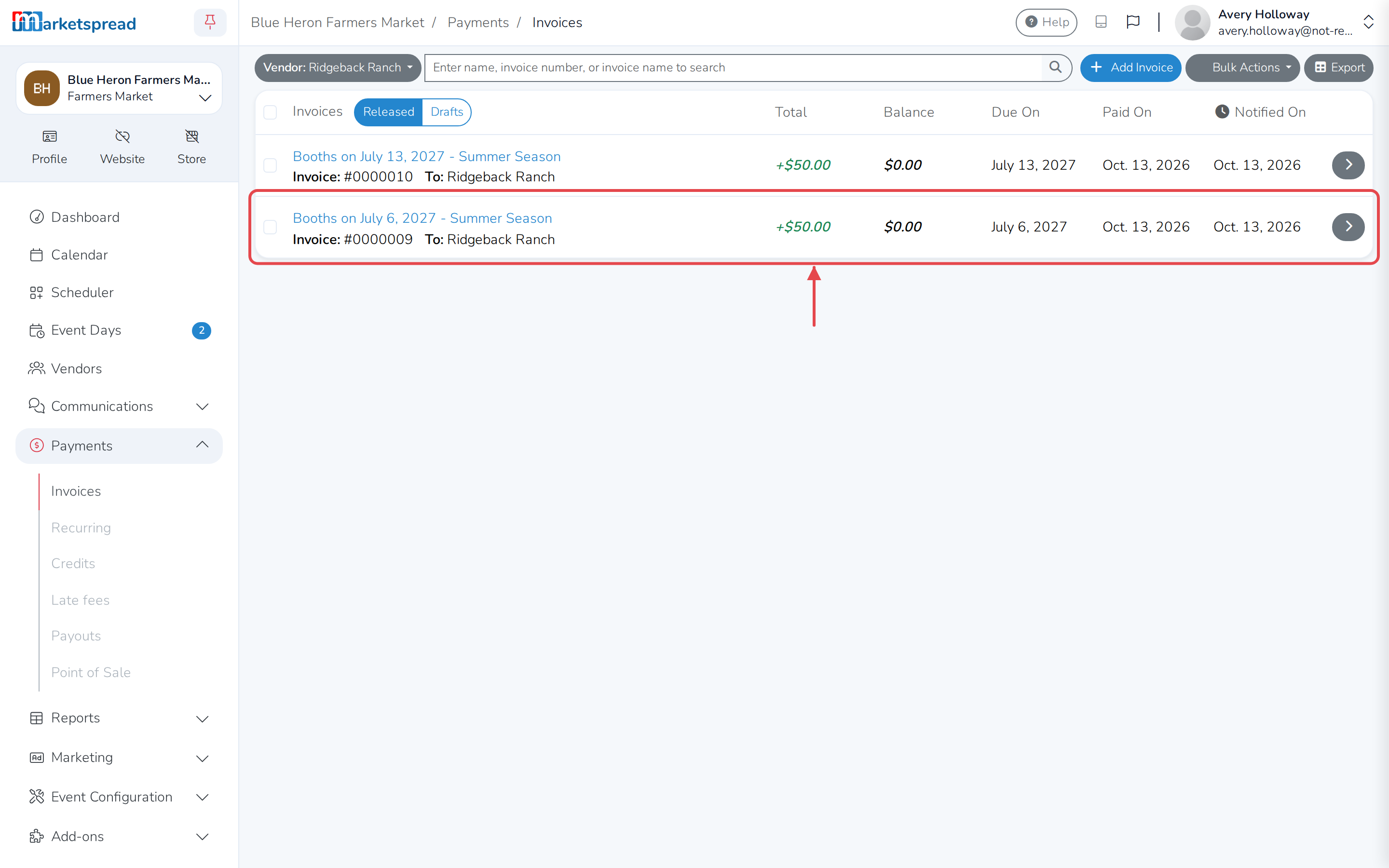
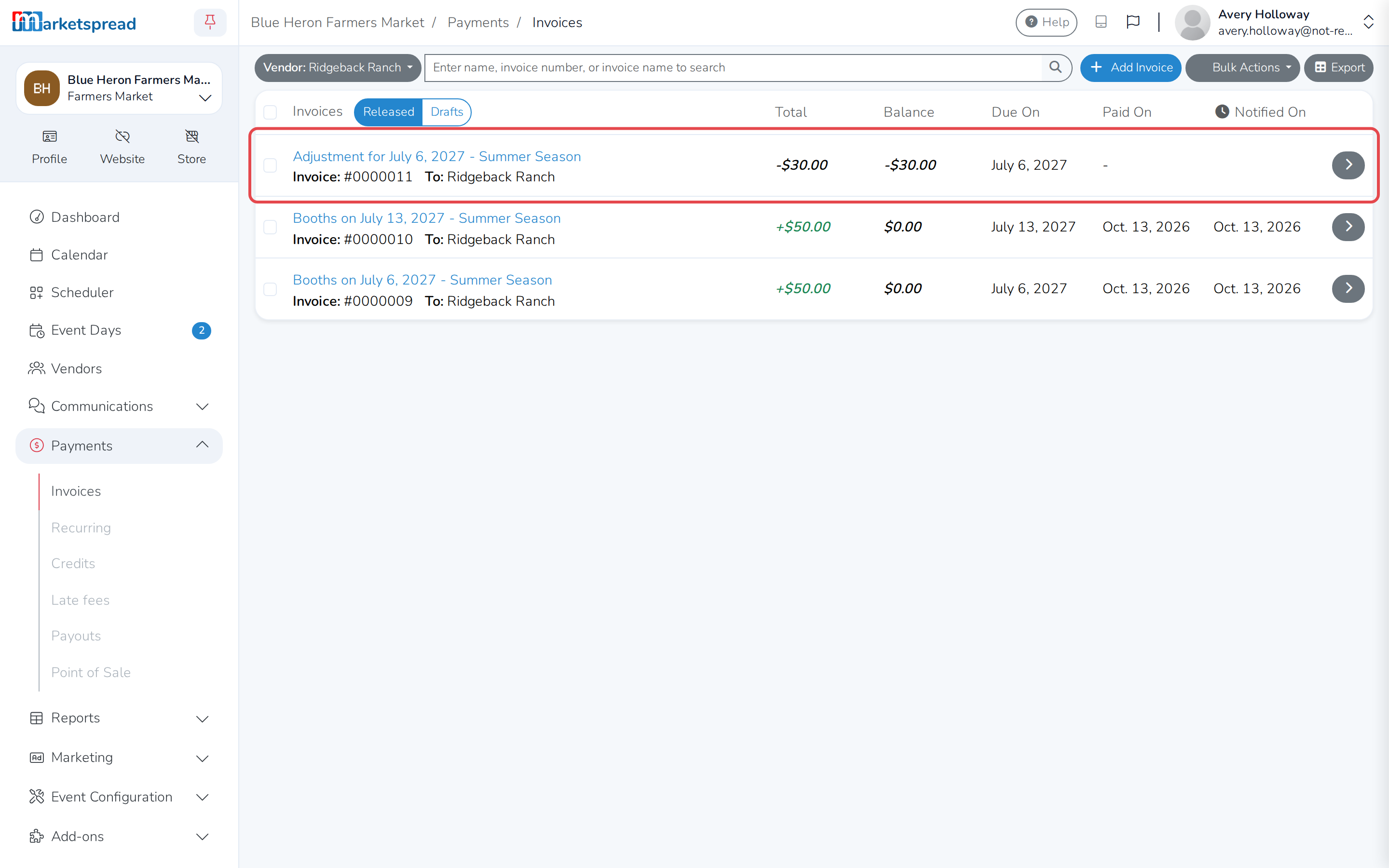
Open Payments, then Invoices, and click the vendor's name to see the refund as a new line on their invoices.
Set PO is not for everyone
If you don't see Set PO, your account doesn't have permission to override prices in Scheduler. Ask a market administrator.
This cannot be undone
Once you confirm a refund, Scheduler cannot reverse it. Check the amount before you click Confirm.
Refund a vendor by unassigning them from a booth
If a vendor can't make it and you're taking them off a booth entirely, unassigning them refunds any invoice already paid for that day.
-
Open Scheduler.
-
Right-click the booth cell for the vendor and day, then click Select vendor.
-
Click Edit.
-
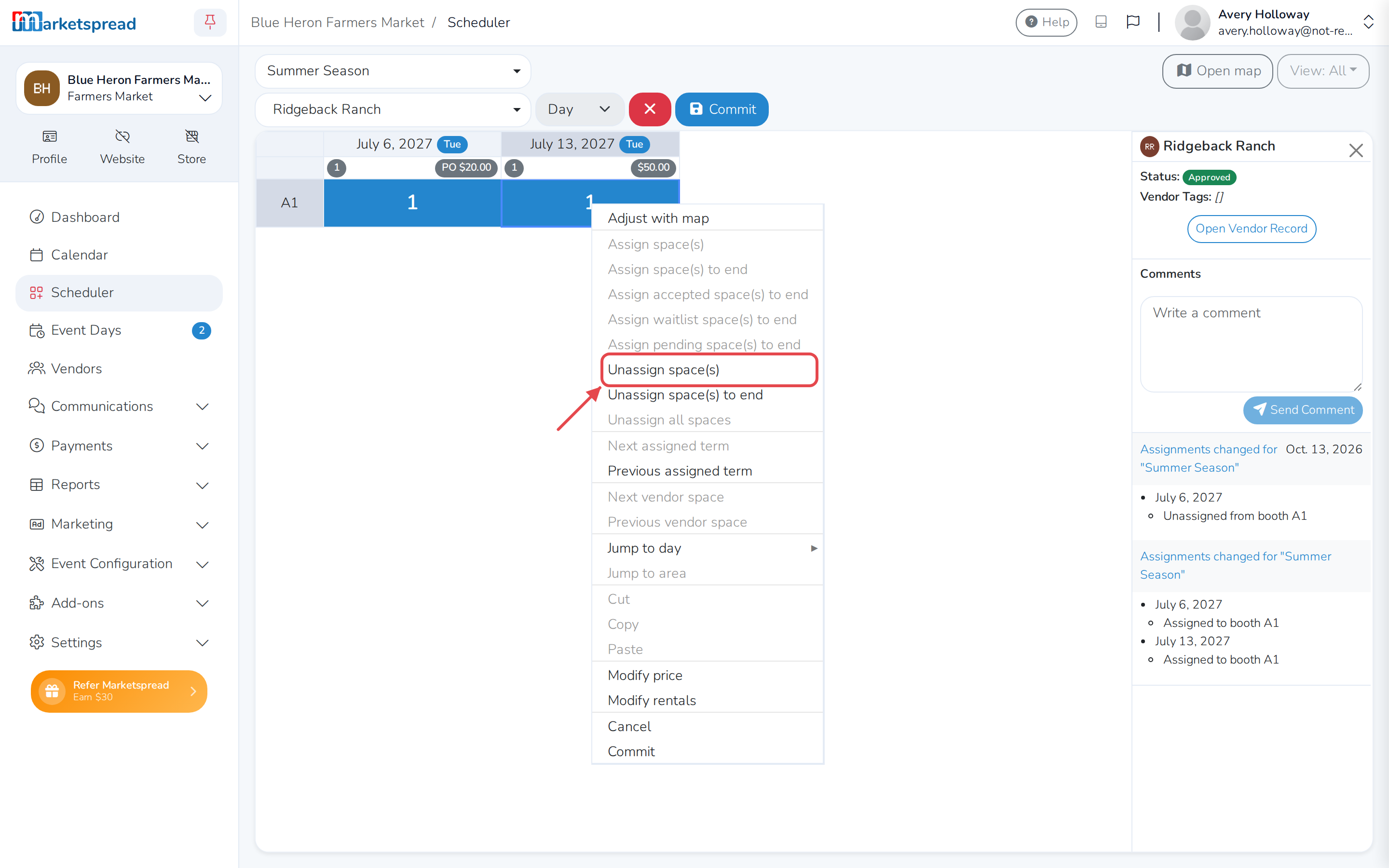
Right-click the same cell again and click Unassign space(s).
-
Click Commit.
-
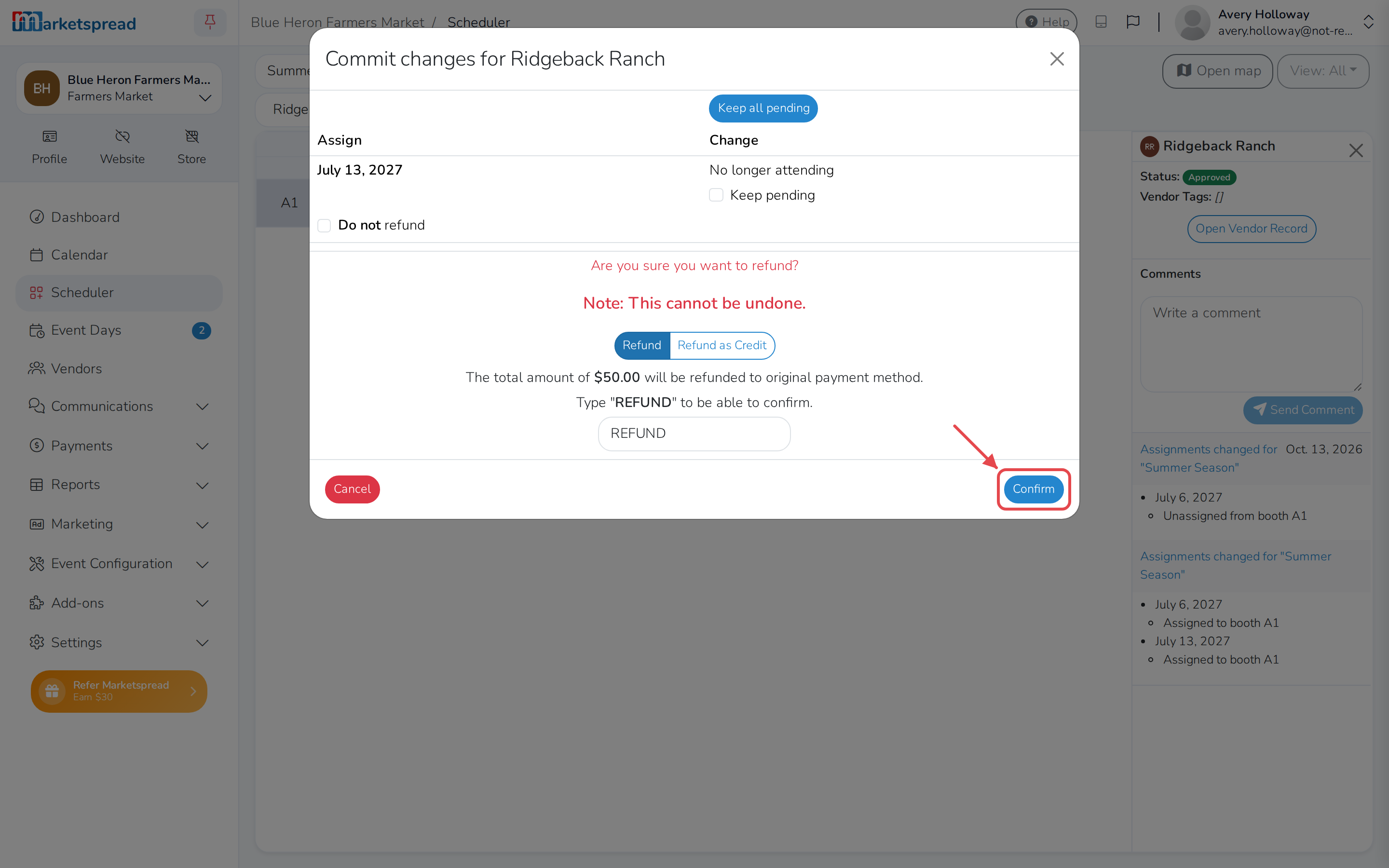
To hold the vendor's spot for a future day instead of losing it, check Keep pending.
-
Choose Refund to send the money back the way the vendor paid, or Refund as Credit to add it to their market credit instead. To not refund them at all, check Do not refund instead. If they paid by cash or check, Refund only records it — you still have to hand the money back yourself.
-
Type REFUND (or CREDIT, if you chose Refund as Credit) into the box, then click Confirm.
-
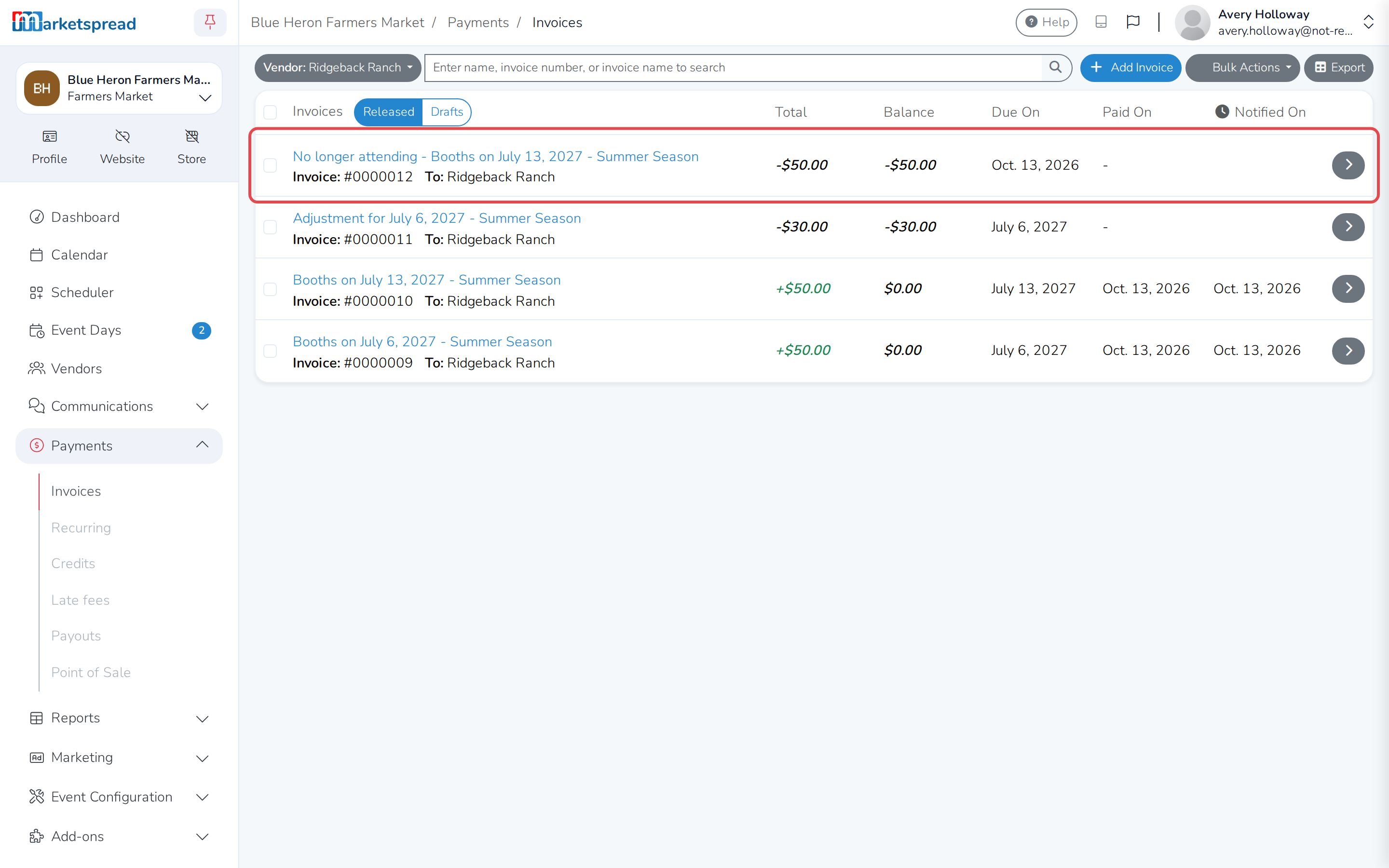
Open Payments, then Invoices, and click the vendor's name to see the refund reflected on their invoices.
This cannot be undone
Once you confirm a refund, Scheduler cannot reverse it. Check the amount before you click Confirm.