


Add an Auto-Tag question to your application. Marketspread tags a vendor with their answer as soon as they apply — no extra work for you.
Add an Auto-Tag question
-
Open Event Configuration > Applications, then click Edit on the application you want to change.
-
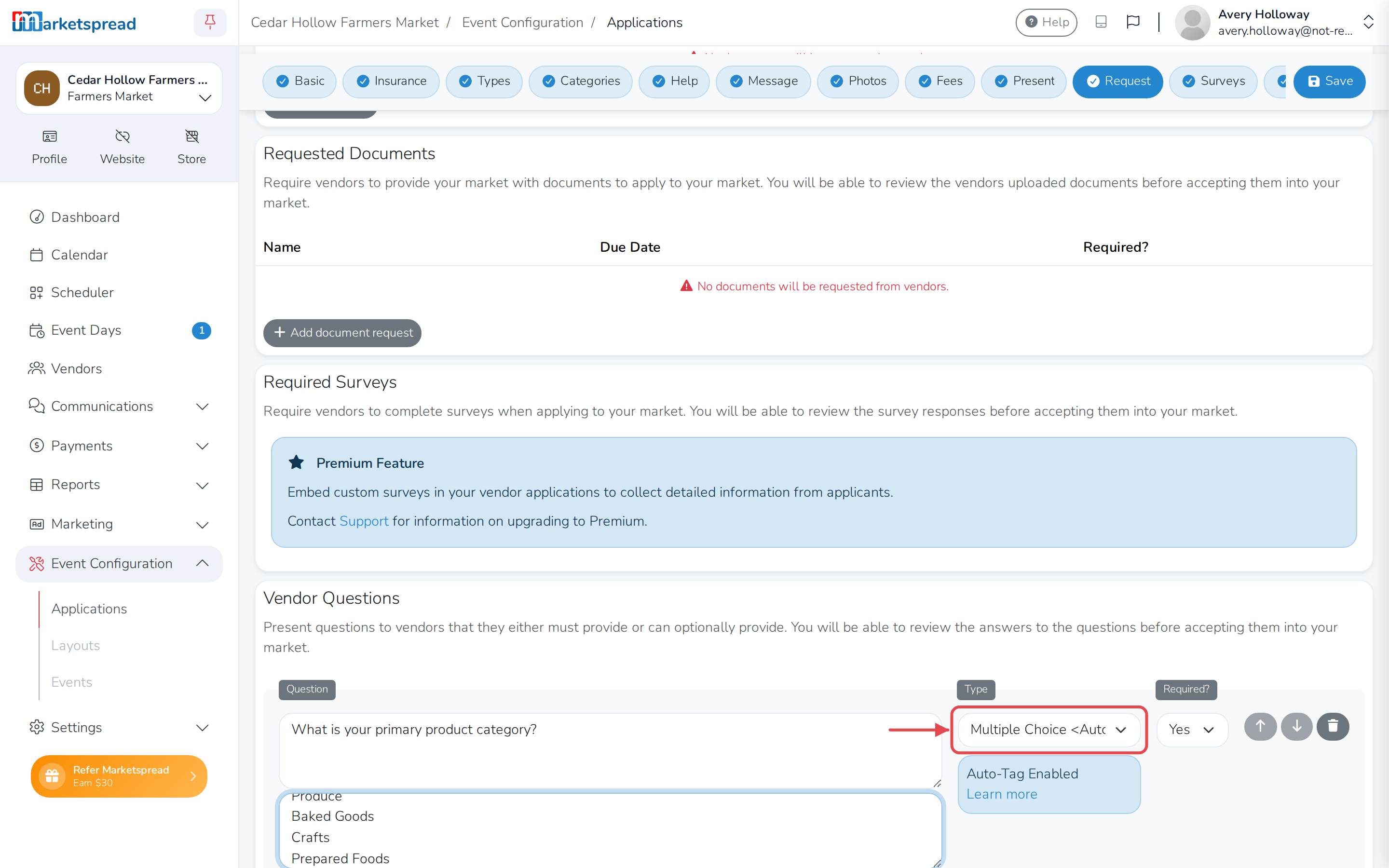
Under Vendor Questions, click Add question.
-
Write your question, then set Type to one of the three Auto-Tag choices: Multiple Choice <Auto-Tag>, Multiple Choice (Dropdown) <Auto-Tag>, or Multiple Select <Auto-Tag>.
-
Enter the choices a vendor can pick from, one per line. Each one becomes a tag if a vendor picks it.
-
Click Save application.
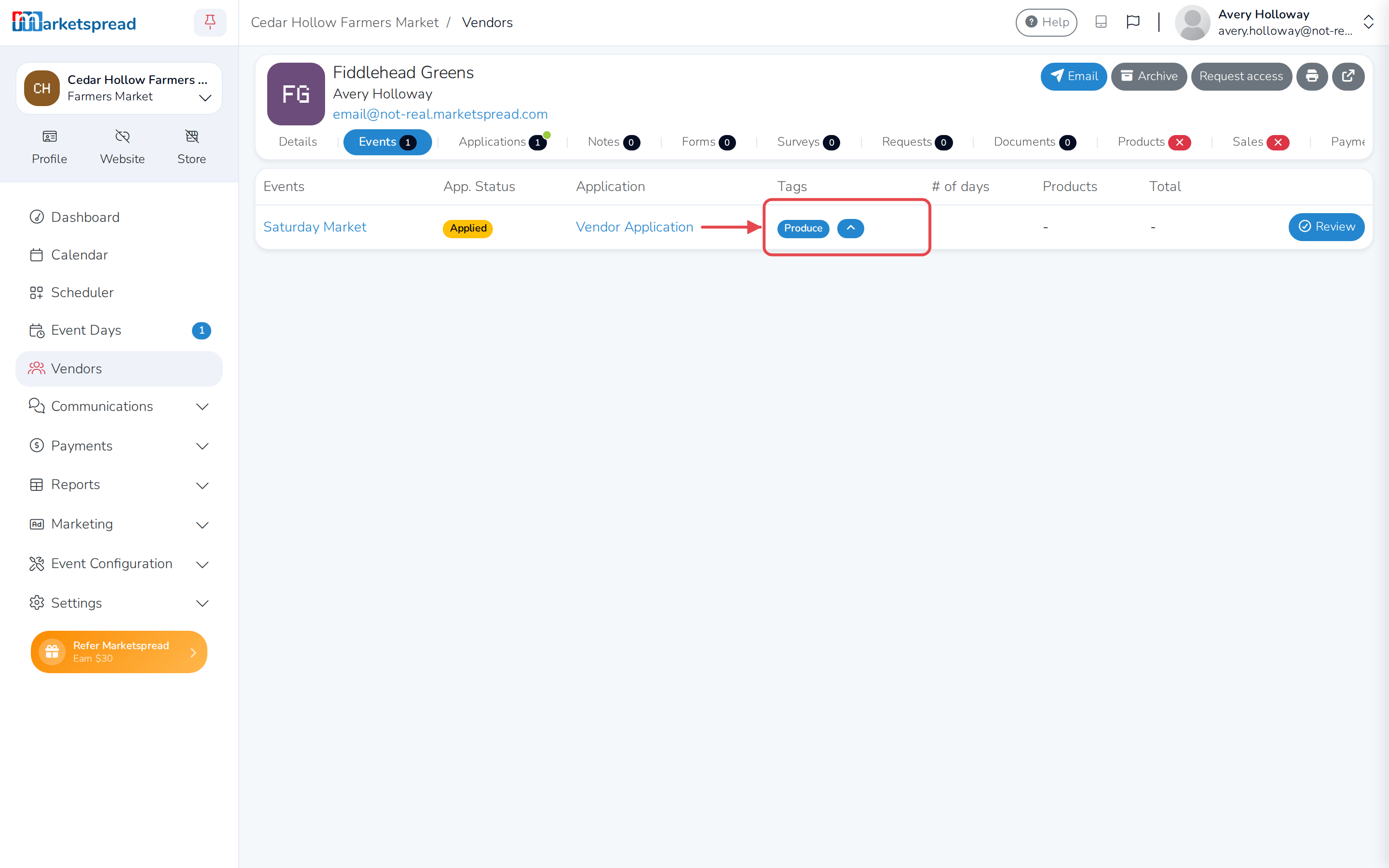
See the tag on a vendor's event
When a vendor applies and answers the question, their answer shows up as a tag on that vendor's Events tab. It isn't on their profile yet.
Promote a tag to the vendor's profile
A tag from an application answer only applies to that one event, until you promote it.
-
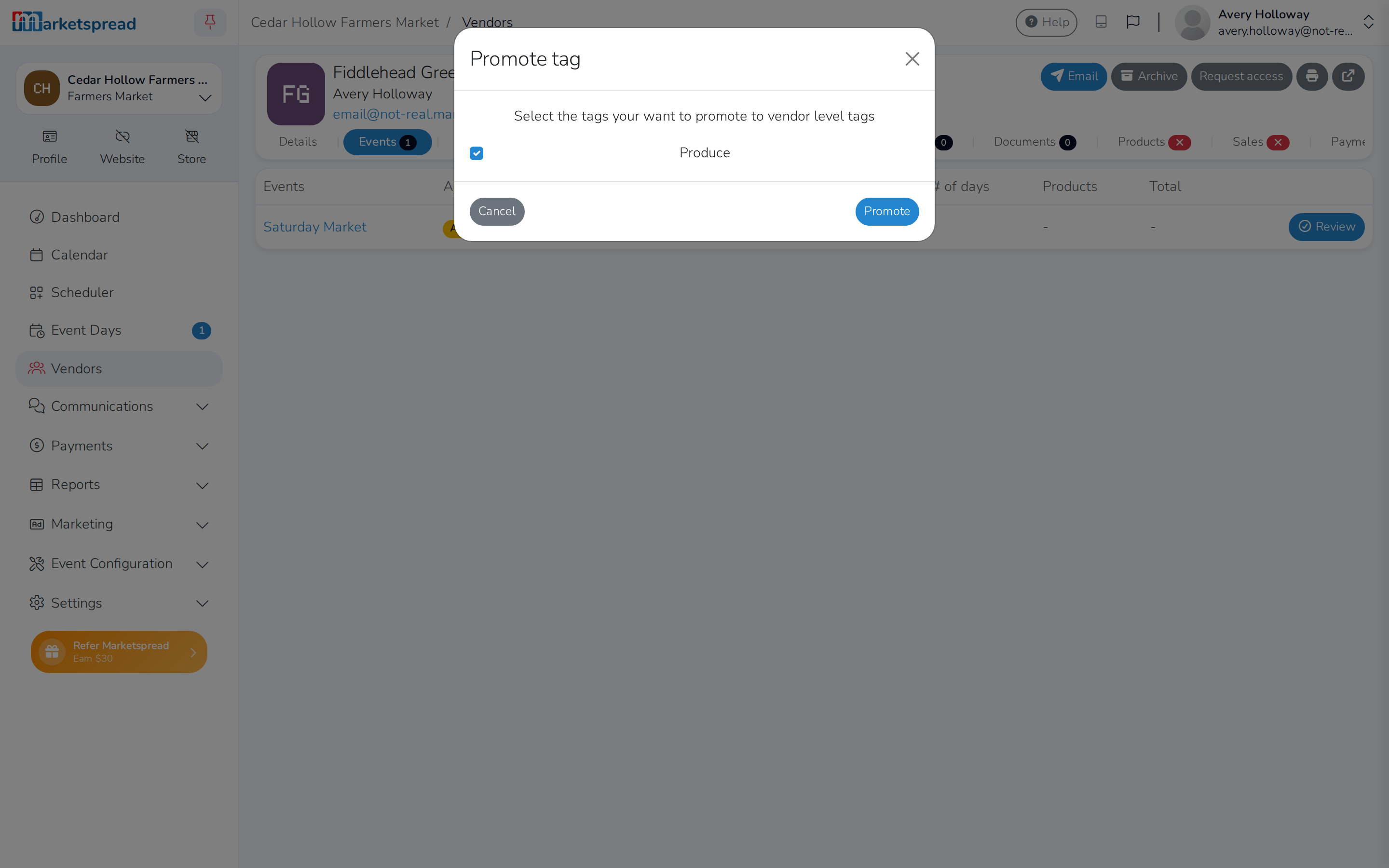
On the vendor's Events tab, click the promote button (the up arrow) next to the tag.
-
Check the tags you want to promote, then click Promote.
-
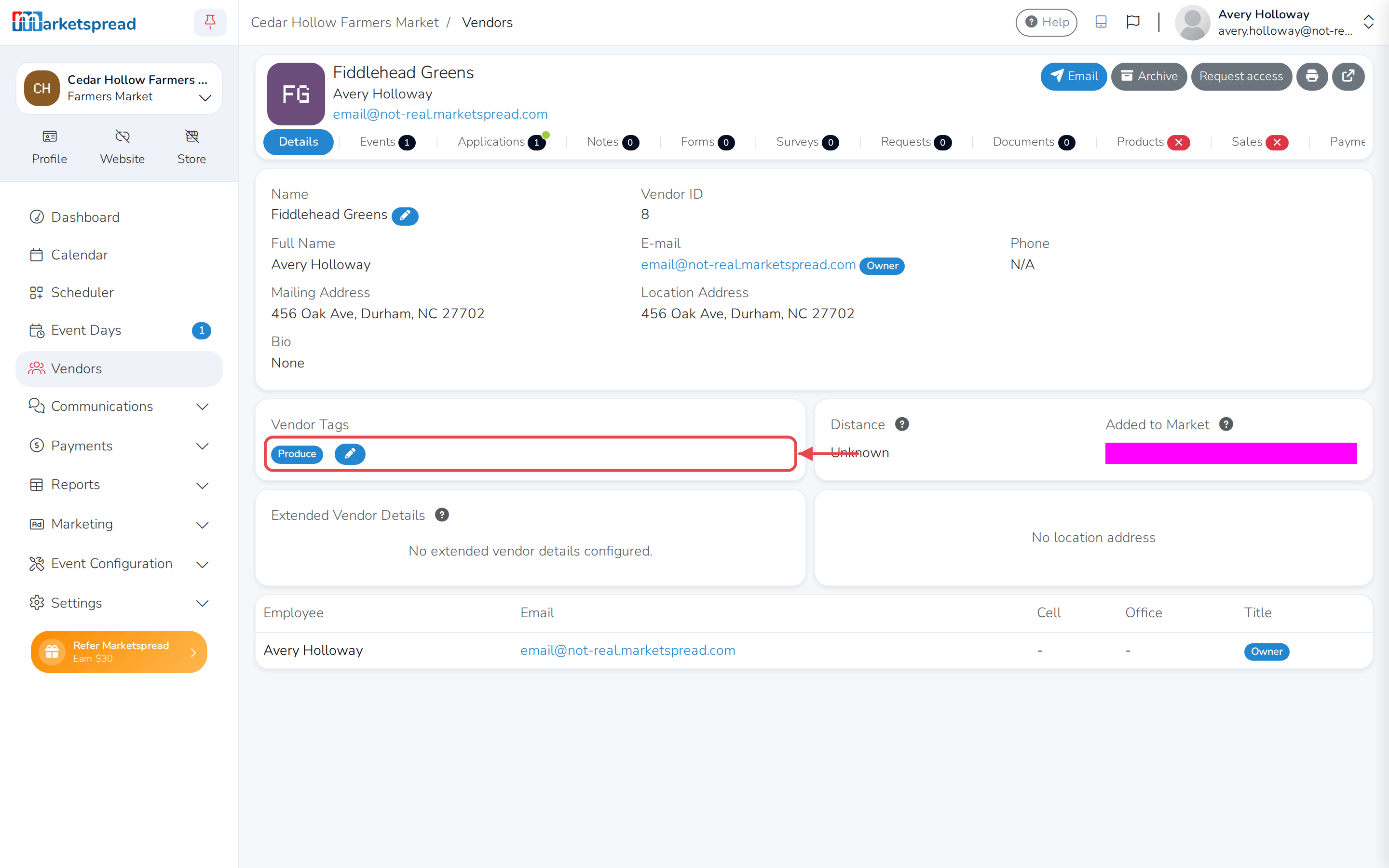
Open the vendor's Details tab. The tag now shows under Vendor Tags.
Event tags and profile tags aren't the same
A tag on a vendor's profile (Vendor Tags) follows that vendor across every market in your organization. A tag still sitting on one event only applies there. You can't promote it once you archive the event, so promote it first if you want it on the vendor's profile.
Fee rules see both
An automatic tag fee (under Other Fees) applies whether the vendor's tag is on their profile or still on the event. See Tag based vendor fees to set one up.