


A booking term bundles one or more of your events together so they can be priced and invoiced as one thing. When you assign a vendor to booth spaces in the scheduler, you pick a term type, and that decides how those events are grouped, what the vendor pays and how the invoice is built.
There are four term types — Day, Week, Month and Event — each a different level of commitment. Longer terms let you offer a better rate, group several events onto one invoice, and give you a clearer picture of what is coming in. Shorter terms give the vendor more flexibility.
The four term types
- Day — a single market day. Most flexible, usually the highest rate per day.
- Week — every event in a calendar week, together. Moderate commitment.
- Month — every event in a calendar month, together. Longer commitment.
- Event — every event, together. The biggest commitment, usually the best rate.
Day terms
Day terms are the smallest booking unit. Each one covers exactly one event. Good for vendors who want maximum flexibility, or who are trying your market out.
| Events included | A single market day |
| How events are grouped | Each event gets its own term |
| Best for | Occasional vendors, new vendors, fill-in bookings |
| On the invoice | One item per day term |
Week terms
Week terms group every event in a calendar week — Sunday through Saturday — into one booking unit.
| Events included | All events in the same calendar week |
| How events are grouped | Events in the same calendar week go in one term |
| Best for | Vendors attending several days a week |
| On the invoice | One item per week term |
Note
If your market runs on a Saturday and the following Sunday, those two days land in different week terms, because they fall in two calendar weeks.
Month terms
Month terms group every event in a calendar month into one booking unit. A good balance between commitment and flexibility.
| Events included | All events in the same calendar month |
| How events are grouped | Events in the same calendar month and year go in one term |
| Best for | Regular vendors committing by the month |
| On the invoice | One item per month term |
Event terms
Event terms are the largest booking unit, covering all your events. This usually gives the best rate per day, but asks the most of the vendor.
| Events included | All events |
| How events are grouped | One group for everything |
| Best for | Committed vendors who attend every market day |
| On the invoice | One item for all events |
Compare the four
| Term type | Events included | What happens if you debook one day |
|---|---|---|
| Day | Single day | The term is deleted and that day goes back to pending |
| Week | All events in the week | The whole week term is deleted and every day goes back to pending |
| Month | All events in the month | The whole month term is deleted and every day goes back to pending |
| Event | All events | The whole event term is deleted and every day goes back to pending |
Assign booths with a term
The steps are the same whichever term type you pick.
-
Pick the vendor from the Select a vendor dropdown above the scheduler grid.
-
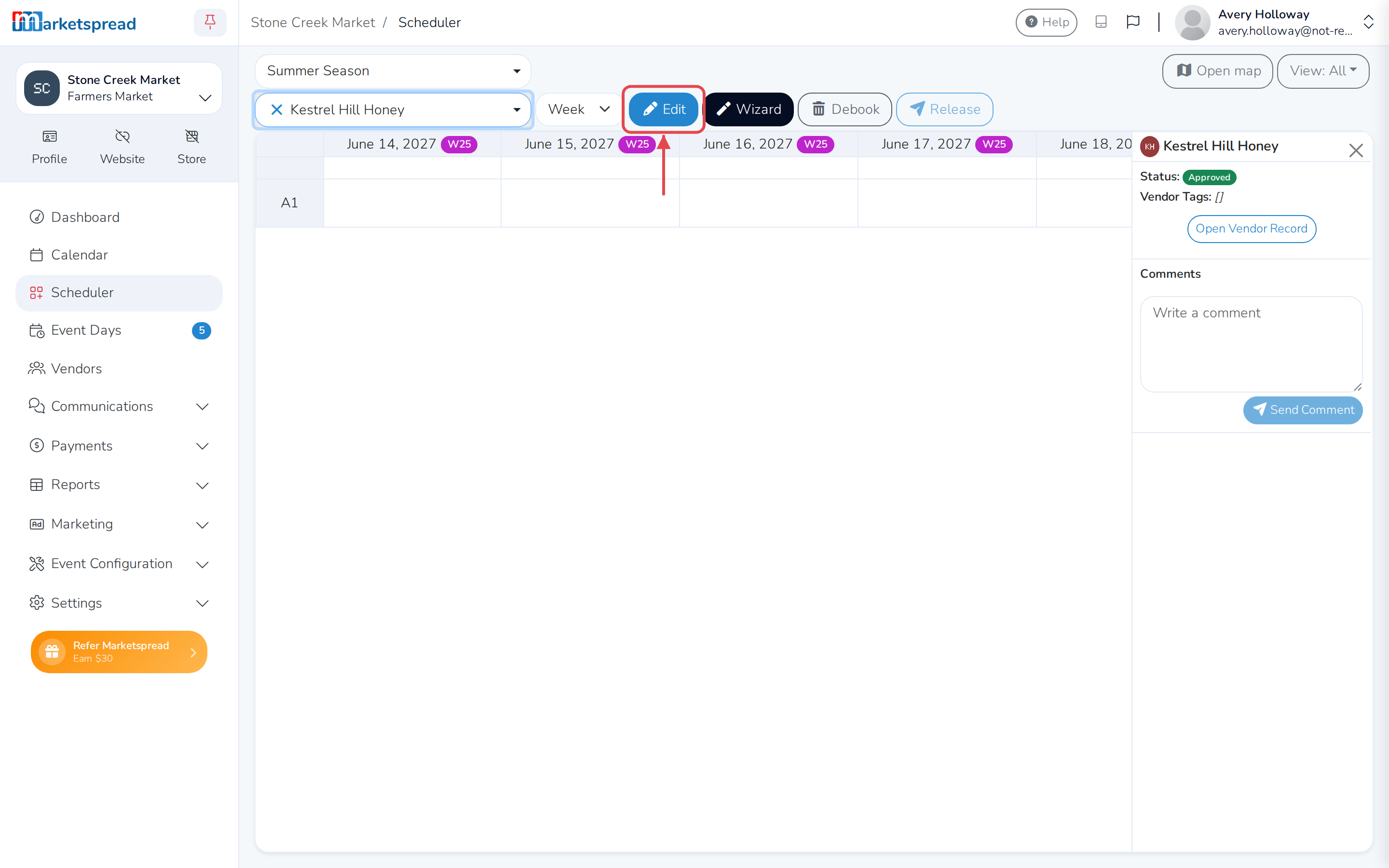
Choose the term type that matches the vendor's commitment — Day, Week, Month or Event. Do this before you click Edit — you cannot change it once you start editing.
-
Click Edit.
-
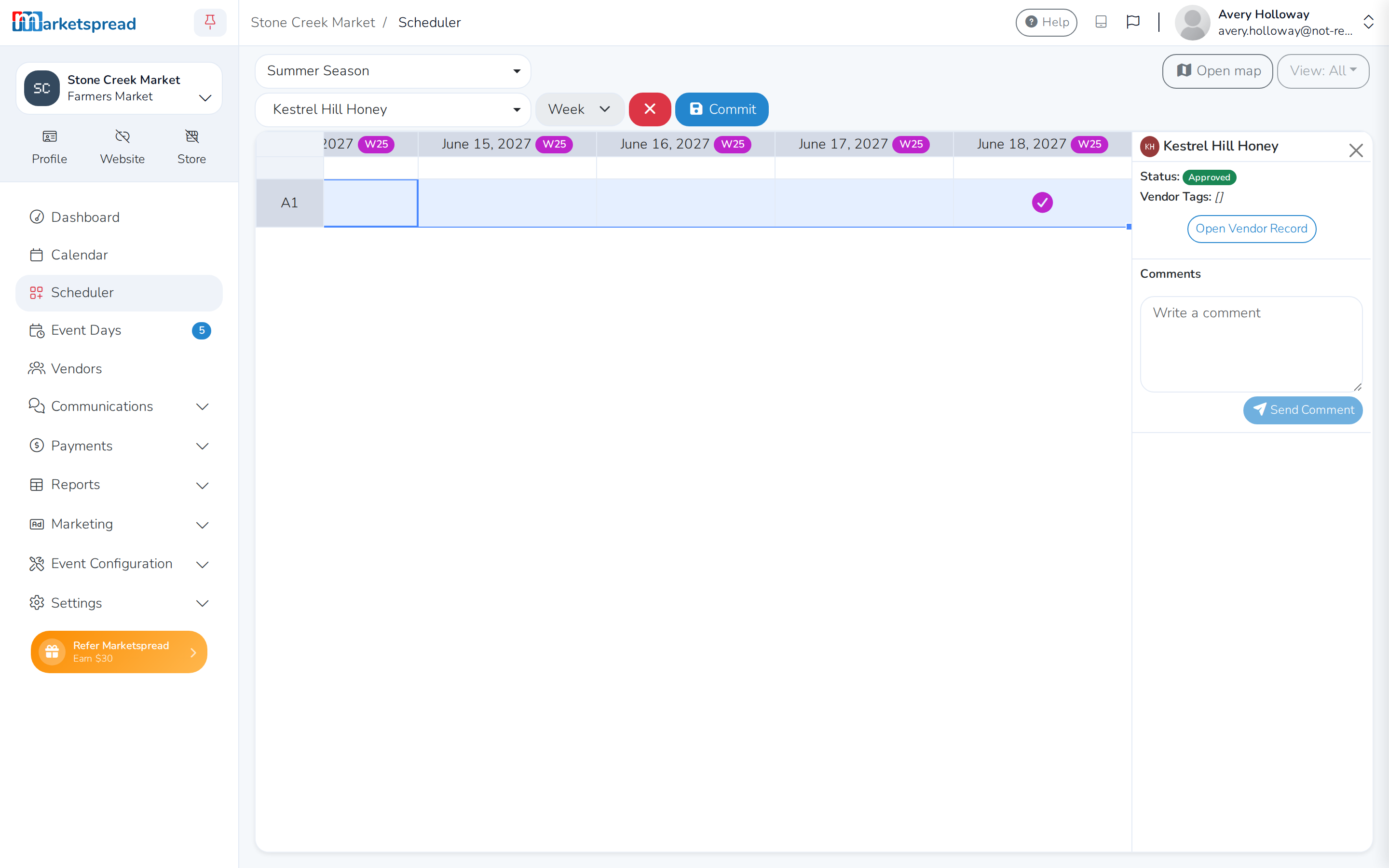
In the scheduler grid, select the cells for the booth spaces and days you want to book for the vendor. Click and drag to select several, or hold Ctrl (Cmd on a Mac) and click them one at a time.
-
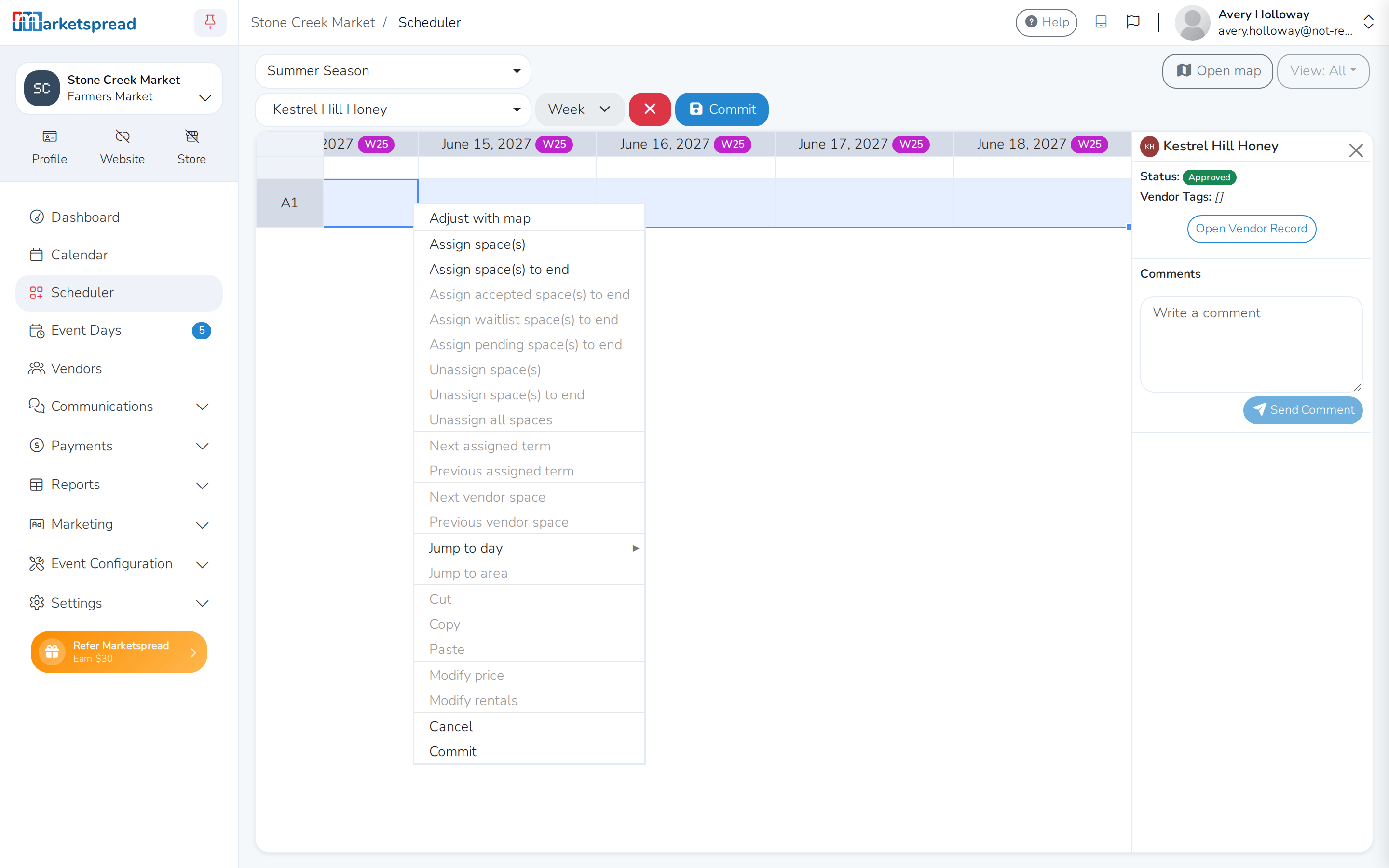
Right-click the selection and choose Assign space(s).
-
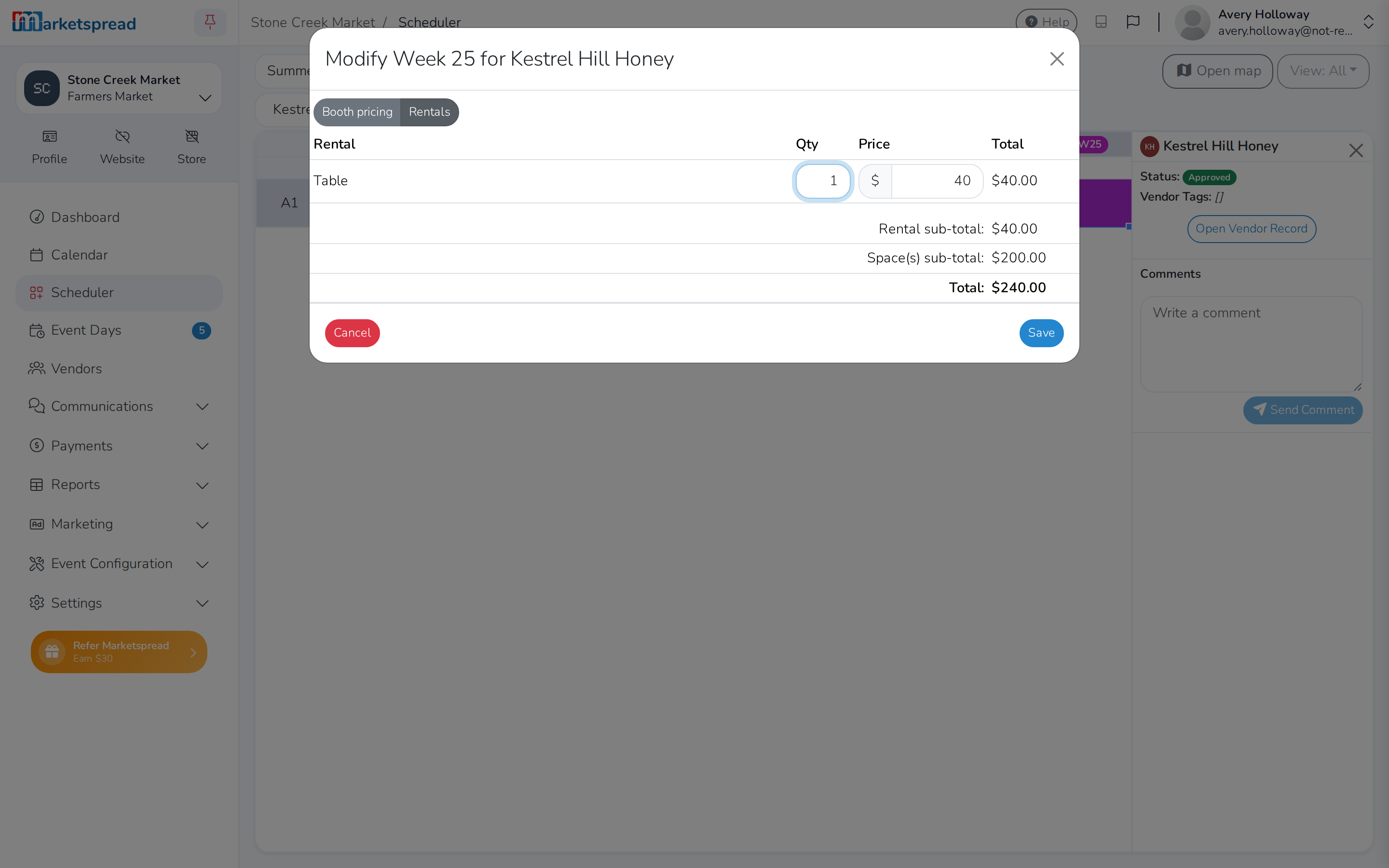
If the vendor needs rentals — tables, tents, electricity and so on — right-click the assigned cells and choose Modify rentals. Rentals are priced by term type and go on the same invoice.
-
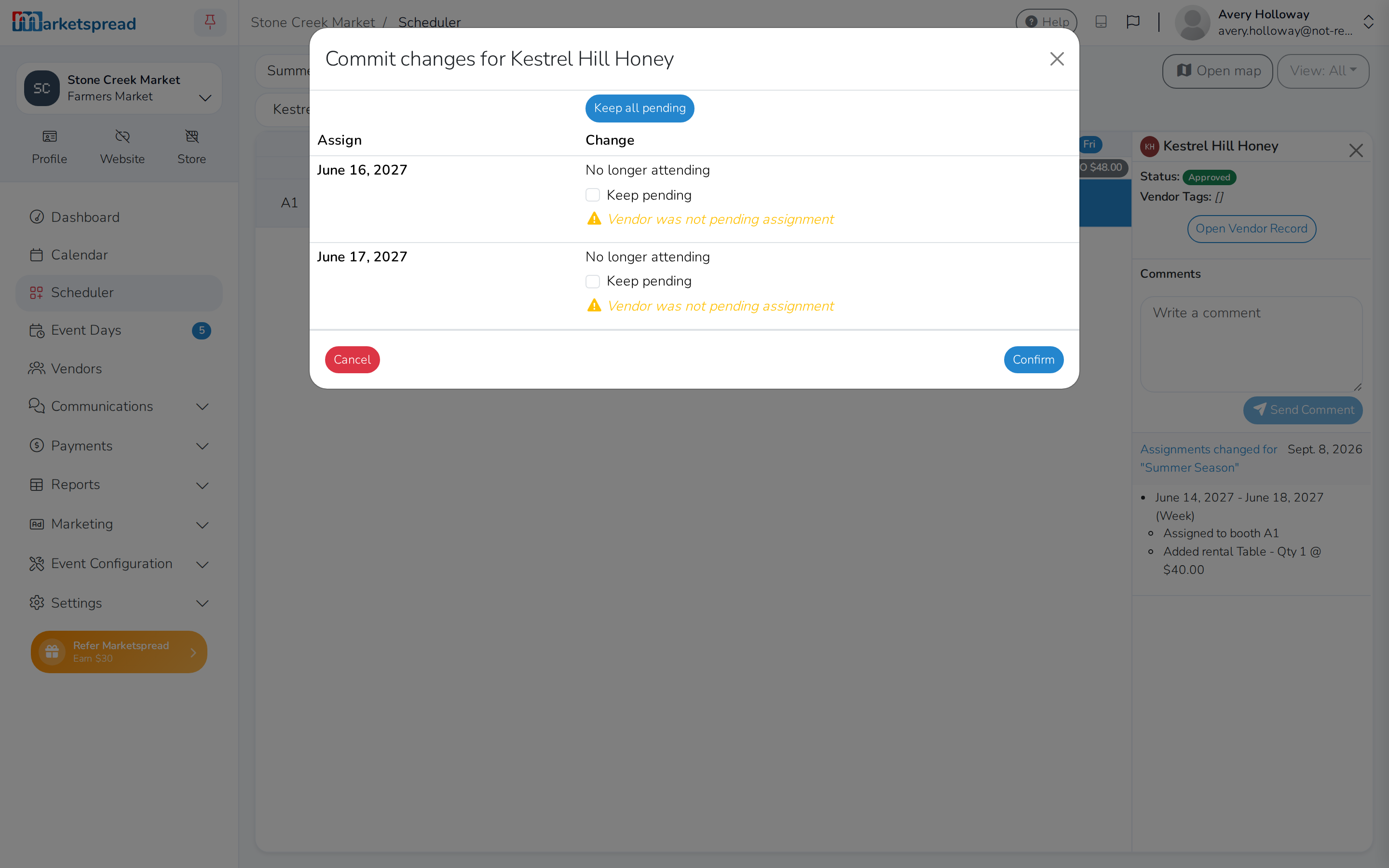
Click Commit.
-
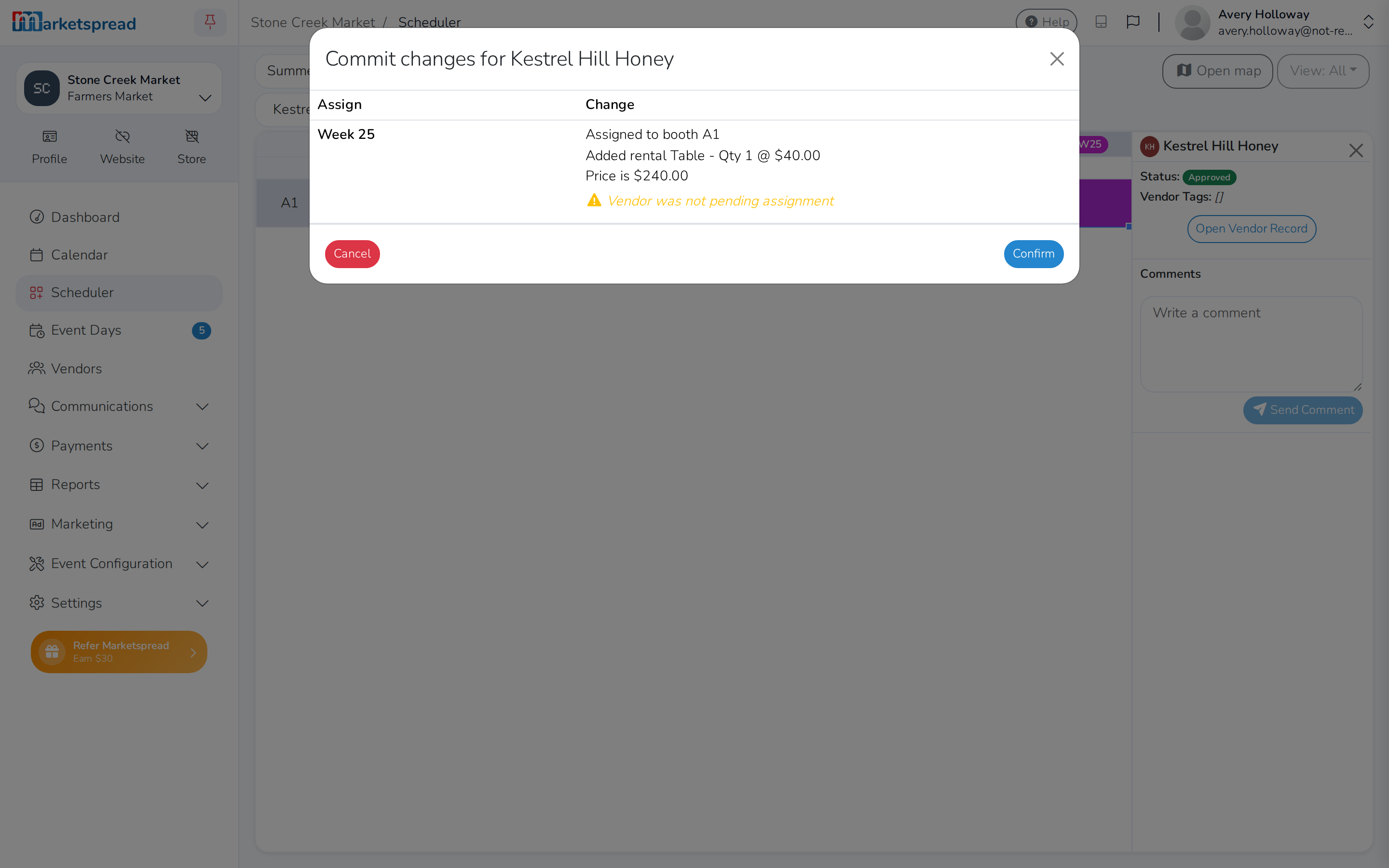
Check the summary. It shows what is changing for the vendor and, if anything is being removed, the refund it creates.
-
Click Confirm.
Important
The term type you pick sets the price and decides how the events are grouped. Choose it based on the vendor's commitment and your market's pricing — changing it later means converting or debooking the term.
What happens when you confirm
Confirming an assignment does five things:
- Creates one or more booking terms, based on the term type you chose
- Puts each selected event into the right term
- Works out the price from that term type's pricing rules
- Creates draft invoices with items for the spaces and the rentals
- Updates the scheduler grid to show the booking
Events are grouped like this:
| Term type | How events are grouped | Example |
|---|---|---|
| Day | Each event on its own | Each event is one term |
| Week | By calendar week | Every event in one week is one term |
| Month | By calendar month and year | All of June's events are one term |
| Event | Everything together | All events are one term |
Each term gets a draft invoice containing:
- Space items — one per booth space assigned
- Rental items — one for each piece of equipment added
- Amounts — worked out from your market's pricing for that term type
- A due date — based on the term type, so a week term is due at the start of its week
Note
Draft invoices are not sent to vendors. They stay in draft until you release them, so you have time to check them and make changes before anyone is billed.
How prices are worked out
Prices come from your market's fee settings. Each term type can have its own rate, which is how you offer a discount for a longer commitment.
For example, your pricing might be:
- Day rate: $50 per day
- Week rate: $200 per week — $50 less than five day rates
- Month rate: $700 per month — $100 less than four week rates
- Event rate: $2,500 for all events — $300 less than four month rates
Whichever term type you pick during assignment, that rate is the one applied.
Invoices and terms
The scheduler always creates invoices as drafts. A draft invoice:
- Is not visible to the vendor
- Can be edited freely — add items, remove them, change amounts
- Can be deleted with no consequences
- Sends no notifications
A released invoice is the opposite:
- The vendor sees it in their dashboard
- Releasing it sends them an email
- It cannot be edited directly — a change creates an adjustment invoice instead
- Cancelling it needs a refund invoice
What the invoice items mean
Every item on the invoice points back to part of the term.
| Item type | Where it comes from | How it reads |
|---|---|---|
| Space | The booth assignment | "Corner Booth - Week 23" |
| Rental | An equipment rental | "Table (x2) - Week 23" |
| Adjustment | A change made after release | "Adjustment: added table" |
That link is what lets a refund be worked out automatically when a booking changes.
Release a draft invoice
You have three ways to release drafts:
- One at a time — good for checking each one before it goes, or handling a special case.
- Merged — combine several drafts for the same vendor into one invoice. The vendor gets fewer emails and one payment to make.
- Auto-pay — if the vendor has auto-pay turned on with a saved card, releasing the invoice charges the card and the invoice goes straight to paid.
Tip
Check every draft before you release a batch. Once an invoice is released, any change has to go through an adjustment invoice.
When the invoice is due
The due date comes from the term type and your market's settings.
| Term type | Typical due date |
|---|---|
| Day | The day of the event, or a set number of days before |
| Week | The start of that week, or the Monday of it |
| Month | The first day of the month |
| Event | The date of the first event, or a date you set |
Adjust an existing booking
You can change a booking without changing its term structure.
Add a booth
- Select the extra space or spaces for the same events.
- Assign them using the same term type as the existing booking.
New items are added to the existing term's invoice. If that invoice has already been released, an adjustment invoice is created instead.
Remove a booth
- Select the space you want to remove.
- Choose Remove Space — not a full debook.
The space becomes available to other vendors, and any credit or adjustment needed is created for you.
Change rentals
Rental equipment can be changed after the booking is made. You can add rentals to the term, remove ones the vendor no longer needs, change quantities, or change the pricing to apply a discount or fix a mistake.
What a change does to the invoice
| Invoice status | What happens |
|---|---|
| Draft | Items are added, removed or changed on the invoice itself |
| Released, unpaid | An adjustment invoice is created for the difference |
| Paid | An adjustment invoice is created for the difference |
An adjustment invoice on a paid booking is either positive — the vendor owes more, because you added space or rentals — or negative — the vendor gets a credit, because you removed something. It references the original invoice and is released and paid like any other invoice.
Tip
Make your changes while the invoice is still a draft. Once it is released, every change means another adjustment invoice to keep track of.
Fix a mistake: debook or convert
Two ways to correct a term.
| Action | Use it when | What you get |
|---|---|---|
| Debook | Wrong vendor, wrong booth, or the booking is cancelled | The term is deleted and the days go back to pending |
| Convert | The wrong term type was picked | The events are regrouped and repriced |
Debooking is the more drastic of the two — it removes the booking entirely. Converting keeps the booking and changes how it is grouped and priced.
Convert a term to a smaller one
Converting changes a booking from one term type to another without debooking and rebooking it. The vendor keeps the space; only the grouping and the price change.
Common reasons to convert:
- An event term to month terms, because the vendor cannot commit to every event
- A month term to week terms, because the vendor needs more flexibility
- A week term to day terms, because the vendor is missing some days that week
What you can convert to
A term can only be converted to a smaller term type.
| From | Can convert to |
|---|---|
| Day | Nothing — it is already the smallest |
| Week | Day |
| Month | Day, Week |
| Event | Day, Week, Month |
Note
You cannot convert up to a larger term, because that would mean pulling in events that may already be booked by other vendors. Debook and rebook with the larger term type instead.
What it does to the price
Prices are worked out again using the new term type's rates. That usually costs more in total, because smaller terms have a higher rate per day.
Converting a $200 week term to five day terms at $50 a day:
- Week term: $200
- Five day terms: 5 × $50 = $250
- Difference: $50 more to pay
An adjustment invoice is created for the difference.
Splitting the draft invoice
If the term still has a draft invoice, you can split it into several invoices matching the new terms. Converting a month term with one draft invoice into week terms, for example, can give you four draft invoices — one per week.
That is worth doing when you want to release invoices on different schedules, when the vendor wants to pay a week at a time, or when different weeks have different payment arrangements.
Convert a term
-
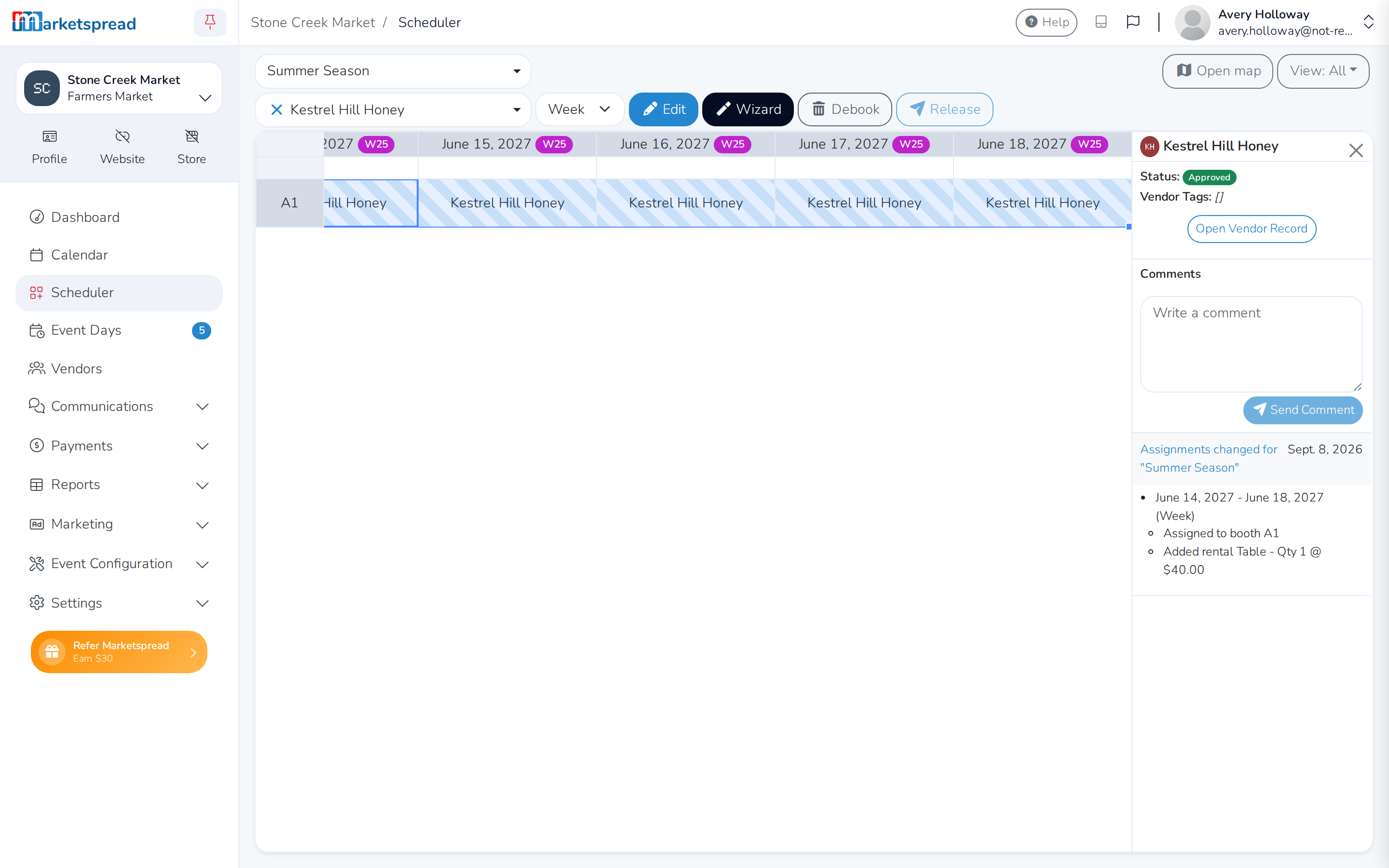
In the scheduler grid, select the booked events you want to convert.
-
Right-click and choose Convert term.
-
From the submenu, choose the new, smaller term type.
-
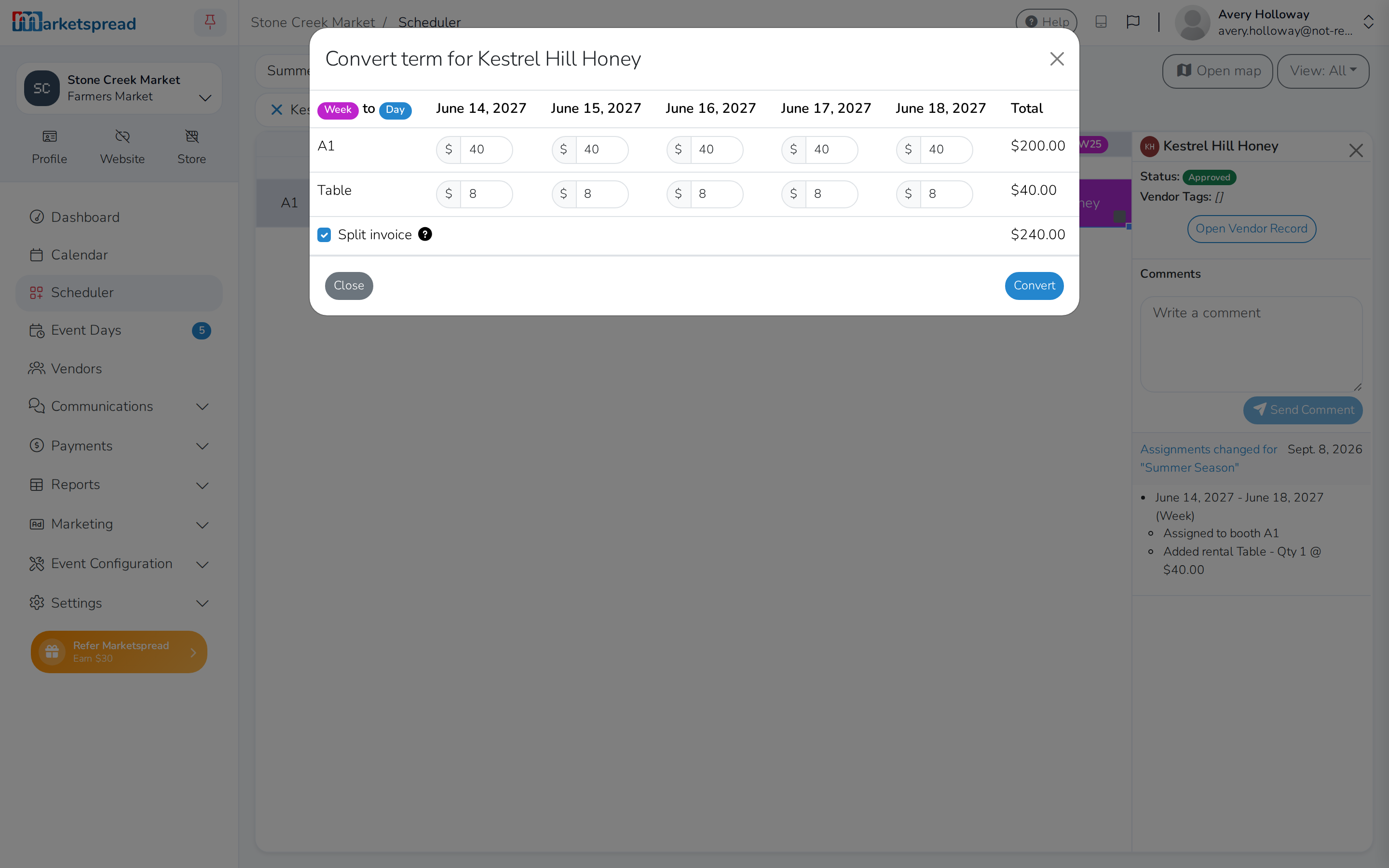
Check the summary showing the old and new term structure, and the price for each.
-
Check the price difference at the bottom of the summary — the old and new totals have to match before you can convert.
-
Tick Split invoice if you want the draft invoice split to match the new terms.
-
Click Convert.
Debook a booking
Important
Debooking even a single day removes the whole term that day belongs to — not just that one day. This is how term-based booking works.
Terms are priced as a unit. A week term has a week price, not seven day prices, so a term cannot be part-filled: the vendor has the whole term or none of it.
When a vendor needs to miss a day that sits inside a week, month or event term, the way to handle it is to debook the whole term, rebook the days they can attend with the right term types, and let the refund or credit go through.
Debook events
-
Pick the vendor from the Select a vendor dropdown above the scheduler grid.
-
Click Debook.
-
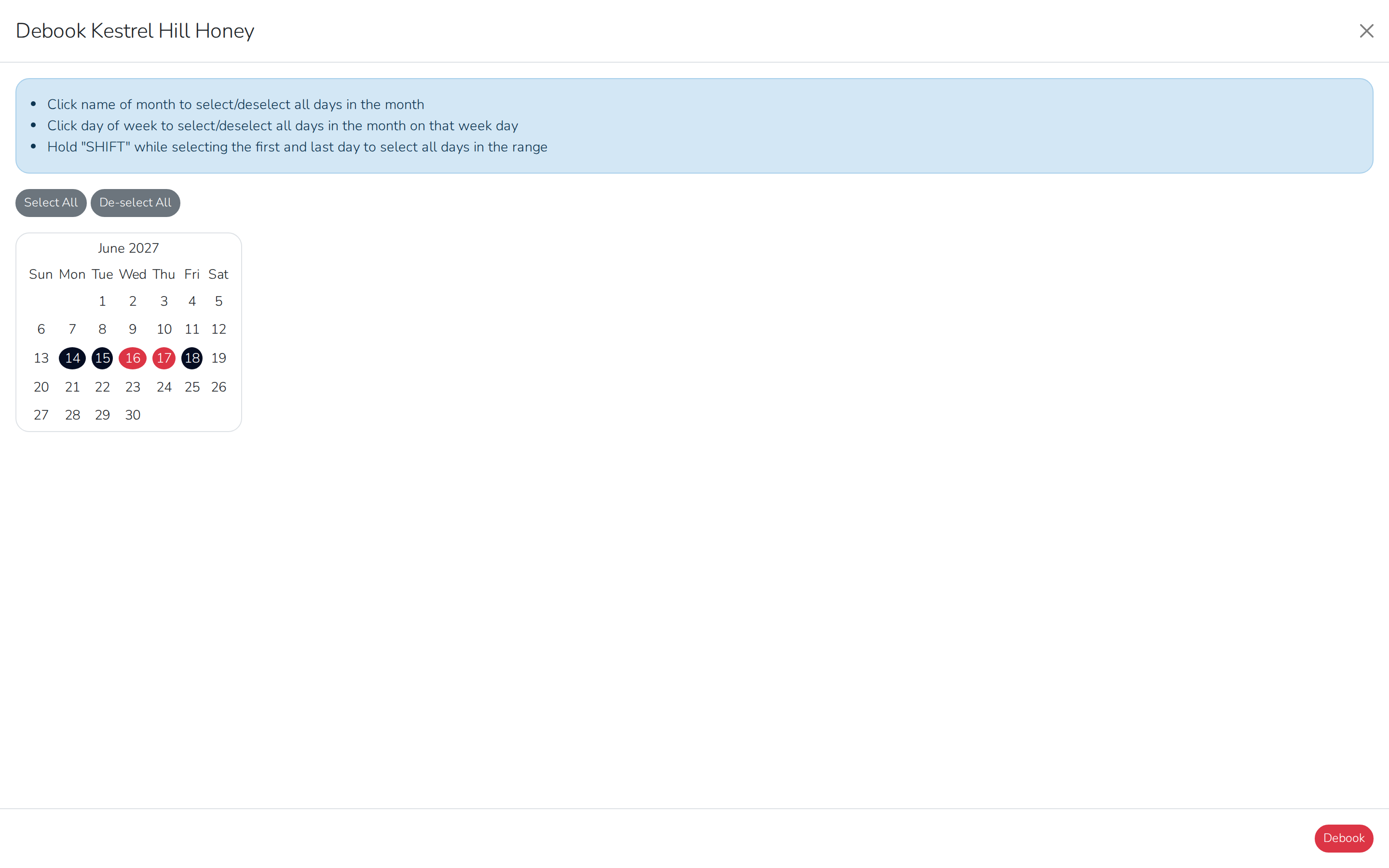
In the calendar, click the days you want to remove. Click a month's name to select or deselect every day in it, click a day-of-week name (Sun, Mon, and so on) to select or deselect that weekday across the month, or hold Shift while selecting a first and last day to select everything between.
-
Click Debook.
-
Check the list of events. It shows every event in the affected terms, not just the ones you selected, so you can see the full impact. Selecting one Wednesday from a week term shows all five of that week's market days, all of which go back to pending.
-
Check the refund amount that will be created.
-
Click Confirm.
What it means for each term type
- Day terms — only that day is affected. It goes back to pending and can be reassigned.
- Week terms — the whole week goes. Every day in that calendar week goes back to pending. To keep some of them, rebook those days as day terms.
- Month terms — every day in that calendar month goes. That is a big change if the month is already part way through.
- Event terms — every event goes. This is the biggest change of the four, so take care with it.
Warning
Debooking a month term partway through the month marks every remaining day as pending, including days that have already happened. Check the timing before you debook a month term.
What happens to the days
Every event from a debooked term goes back to pending. They show as empty cells in the scheduler and can be assigned to any vendor with any term type. The scheduler view keeps no record of the old assignment, though it is still in the history.
From there you can rebook the same vendor with a different term type, rebook individual days as day terms, give the space to a different vendor, or leave it debooked.
Refunds
If you debook a term whose invoice has already been released or paid, a refund invoice is created for you. It is a negative invoice that cancels out the original charge, with negative amounts on its items and a reference back to the original invoice. If the original invoice was never paid, it may be voided instead.
How the money comes back depends on your market's settings:
- Credit — the amount is added to the vendor's account as a credit, and comes off their next invoices automatically. This is what happens unless you have changed it.
- Refund — if it is turned on, the amount goes back to the payment method the vendor used. This takes a few more steps and may cost payment processing fees.
Quick reference
| Day | Week | Month | Event | |
|---|---|---|---|---|
| Number of events | 1 | All in the week | All in the month | All events |
| Flexibility | Highest | High | Medium | Lowest |
| Typical price | Highest per day | Moderate | Lower | Lowest per day |
| Debooking removes | 1 day | The full week | The full month | All events |
| Can convert to | — | Day | Day, Week | Day, Week, Month |
Common situations
A vendor needs to miss one day of a week term. Convert the week term to day terms, then debook the day they are missing. An adjustment invoice covers the price difference.
The wrong vendor was assigned. Debook the assignment, delete the draft invoice if it has not been released, then assign the right vendor.
A vendor wants to move from month terms to an event term. Debook the month terms and rebook with an event term. The credits from the debooked months go against the new invoice.
A vendor needs a table rental partway through. Edit the existing term to add the rental and set the date it starts from. An adjustment invoice is created for the remaining dates.
If it does not work
You cannot convert to a larger term type. That is not supported, because it could clash with other vendors' bookings. Debook the smaller terms and rebook with the larger one.
Debooking removed more days than you expected. That is how it works — debooking removes the whole term, not one day. Rebook the days you want to keep with the right term types.
The invoice shows the wrong price. On a draft invoice, edit the items directly. On a released invoice, add a manual adjustment. Then check your market's fee settings have the right price for each term type.
A vendor has overlapping terms. This should not happen in normal use. Check whether the assignments were made with different term types, then convert or debook the terms that clash.