


When you change a vendor's application status — to Approved, Declined and so on — Marketspread can email them automatically. A status reply is the message in that email. Write one for each status, and vendors get it the moment their application reaches it.
Open Settings, then Status Replies, from your market dashboard to see and manage them.
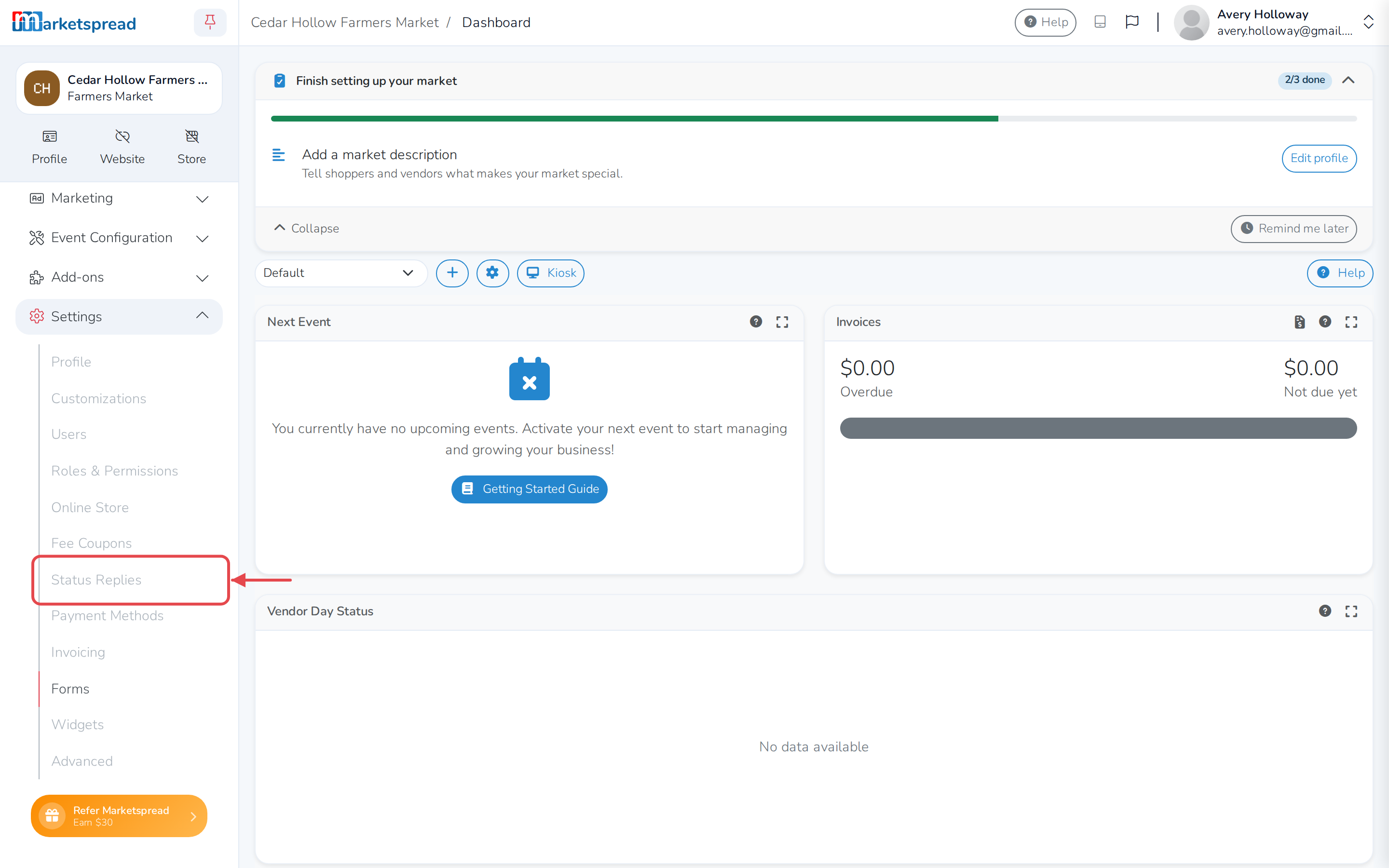
From here you can:
- Create a reply for a status
- Edit a reply
- Set a different reply for one application
- Delete a reply
Note
If you don't write a reply for a status, vendors still get a message when their application reaches it — a plain default, not one you wrote.
Create a status reply
-
Open Settings, then Status Replies.
-
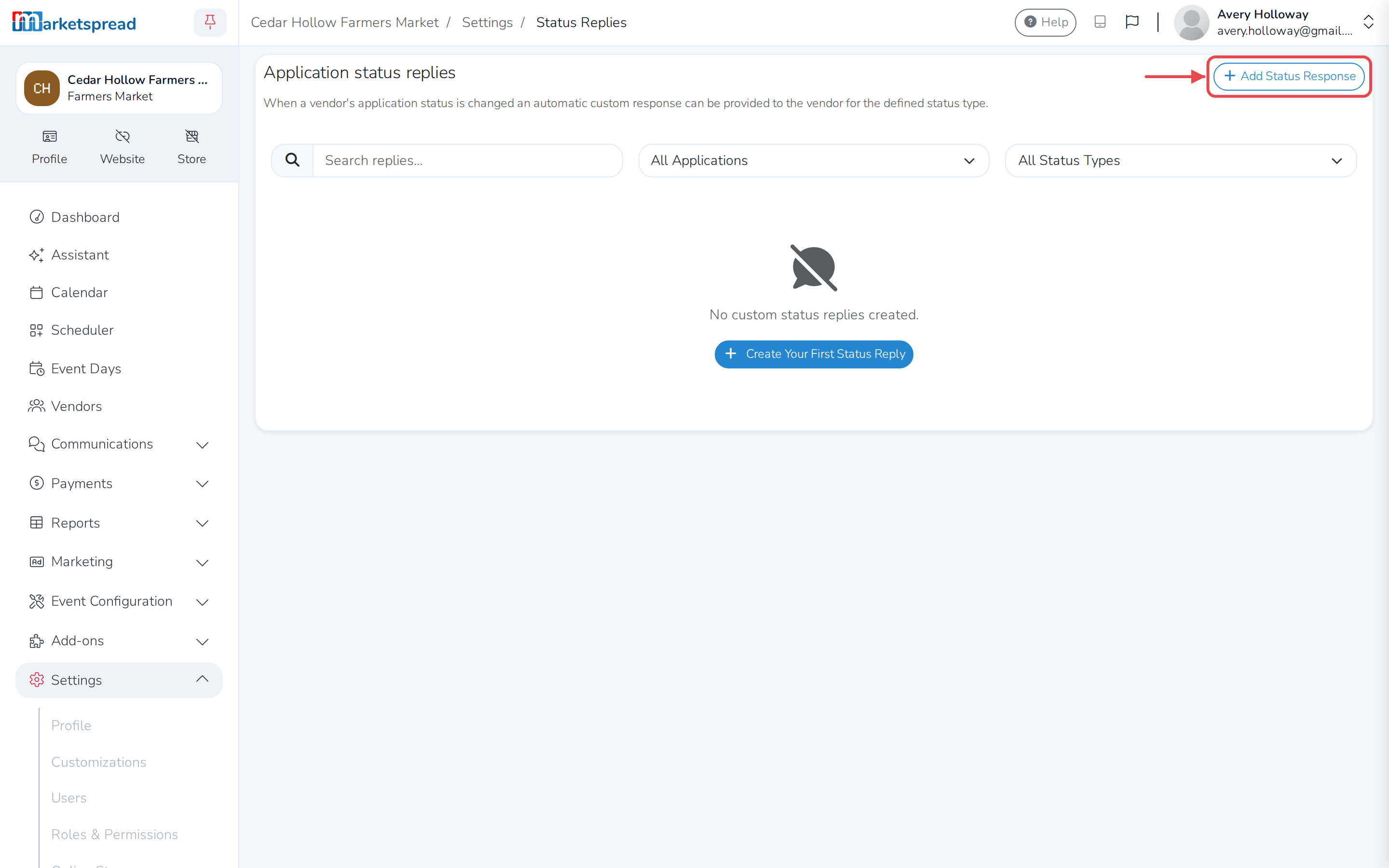
Click Add Status Response.
-
Choose the Status Type this reply is for. See Vendor application status guide if you're not sure what a status means.
-
Fill in Subject and Message.
-
Optional: click Email Preview, above the message box, to check how it'll look before you save.
-
Under Vendor Types, check who this reply applies to. At least one is required.
-
Optional: under Tags, check any vendor tags to narrow it further.
-
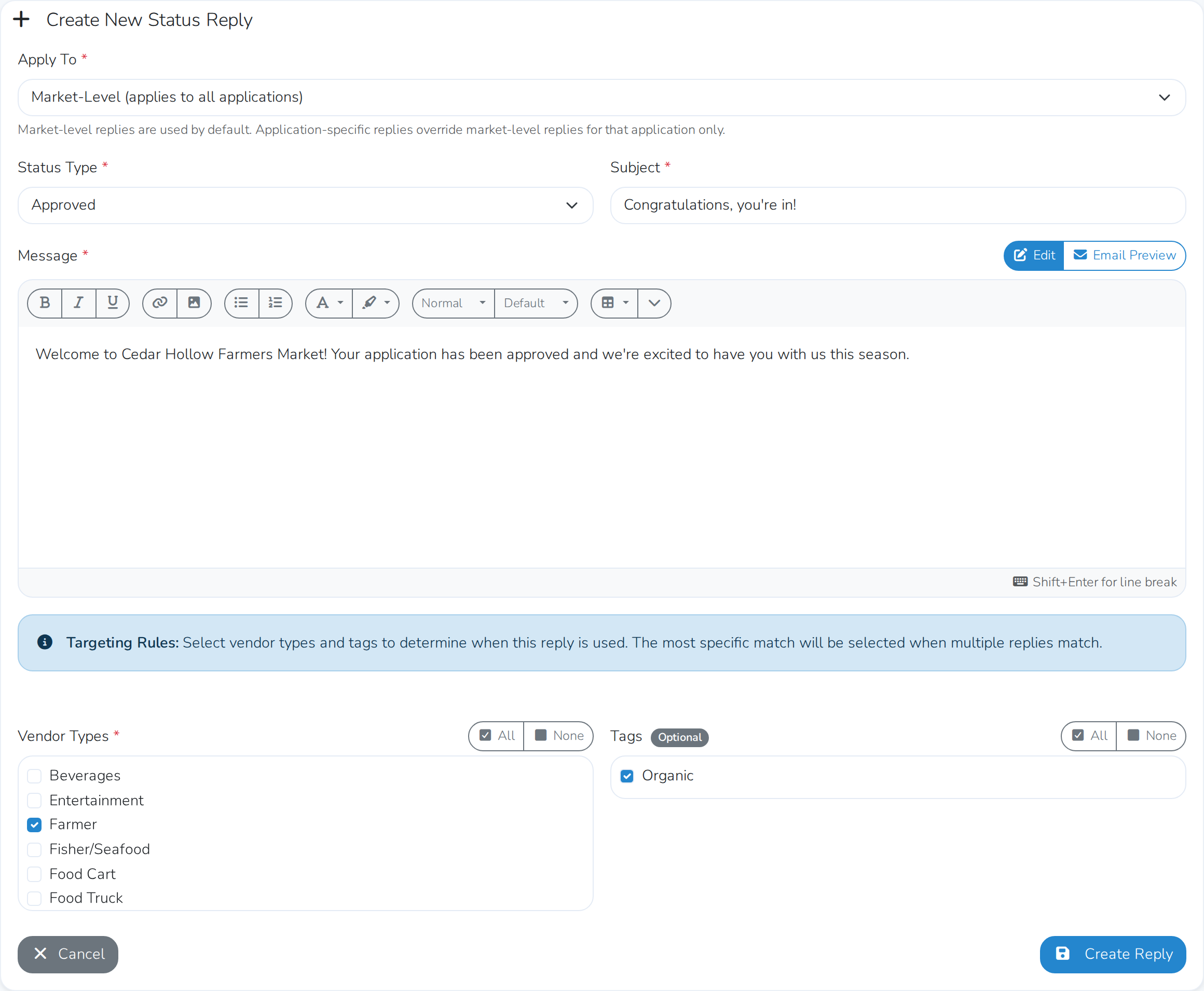
Click Create Reply.

Edit a status reply
-
Open Settings, then Status Replies. If you have a lot of replies, use the search box or the filters above the list to find the one you want.
-
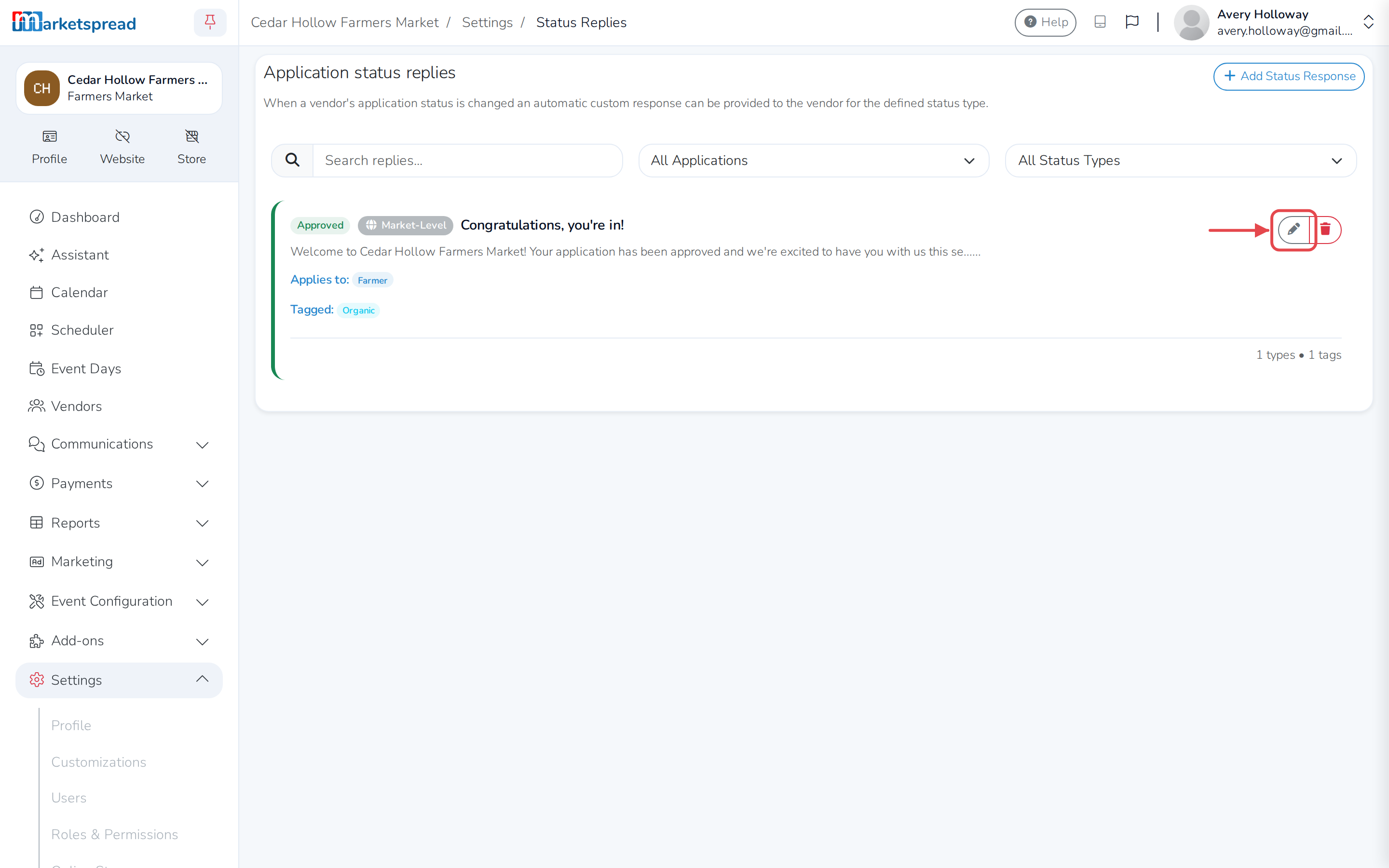
Click the pencil icon next to the reply.
-
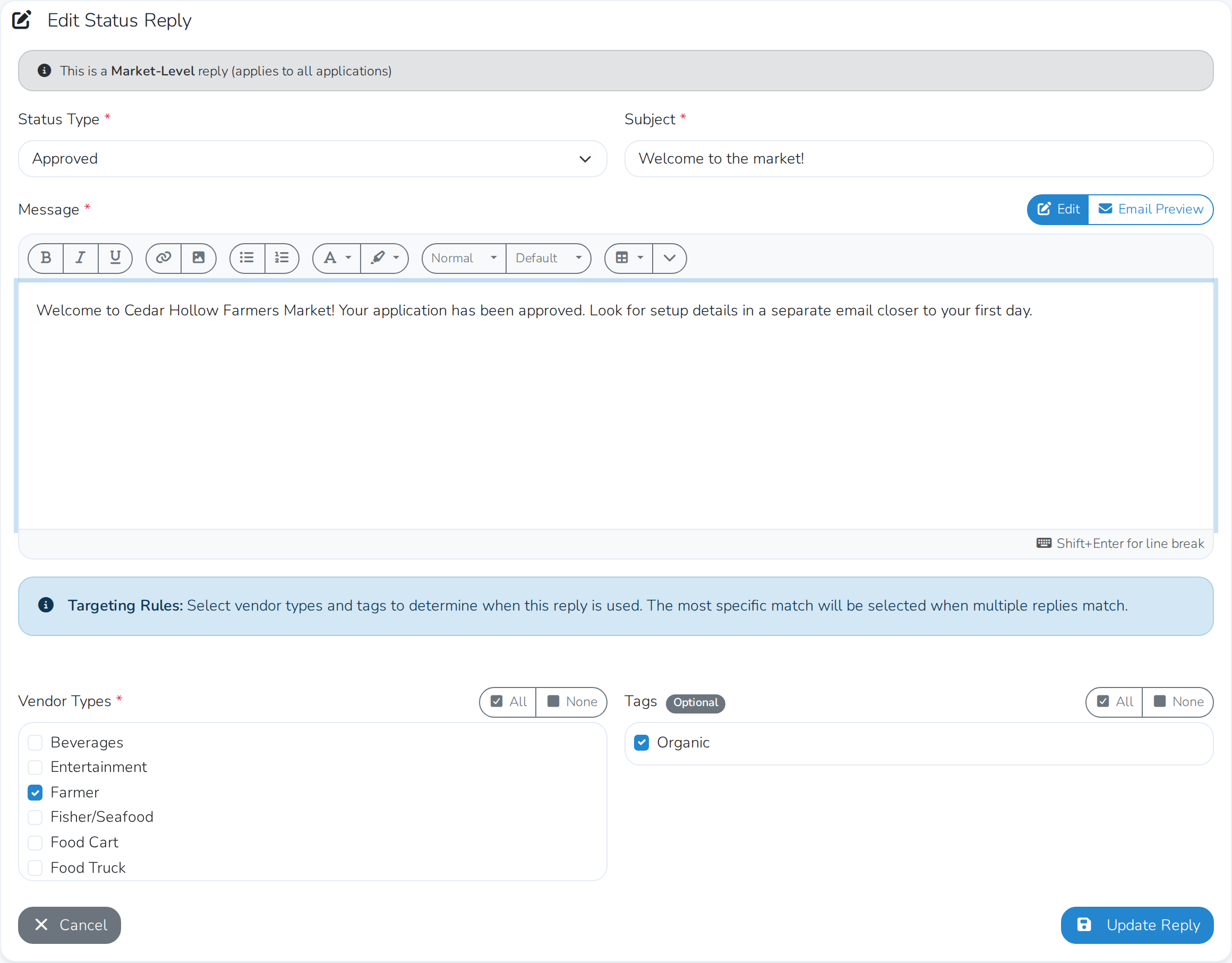
Update the Subject, Message, Vendor Types or Tags.
-
Click Update Reply.

Important
You can't change whether a reply is market-level or for one application once you've created it. Delete it and create a new one instead.
Set a different reply for one application
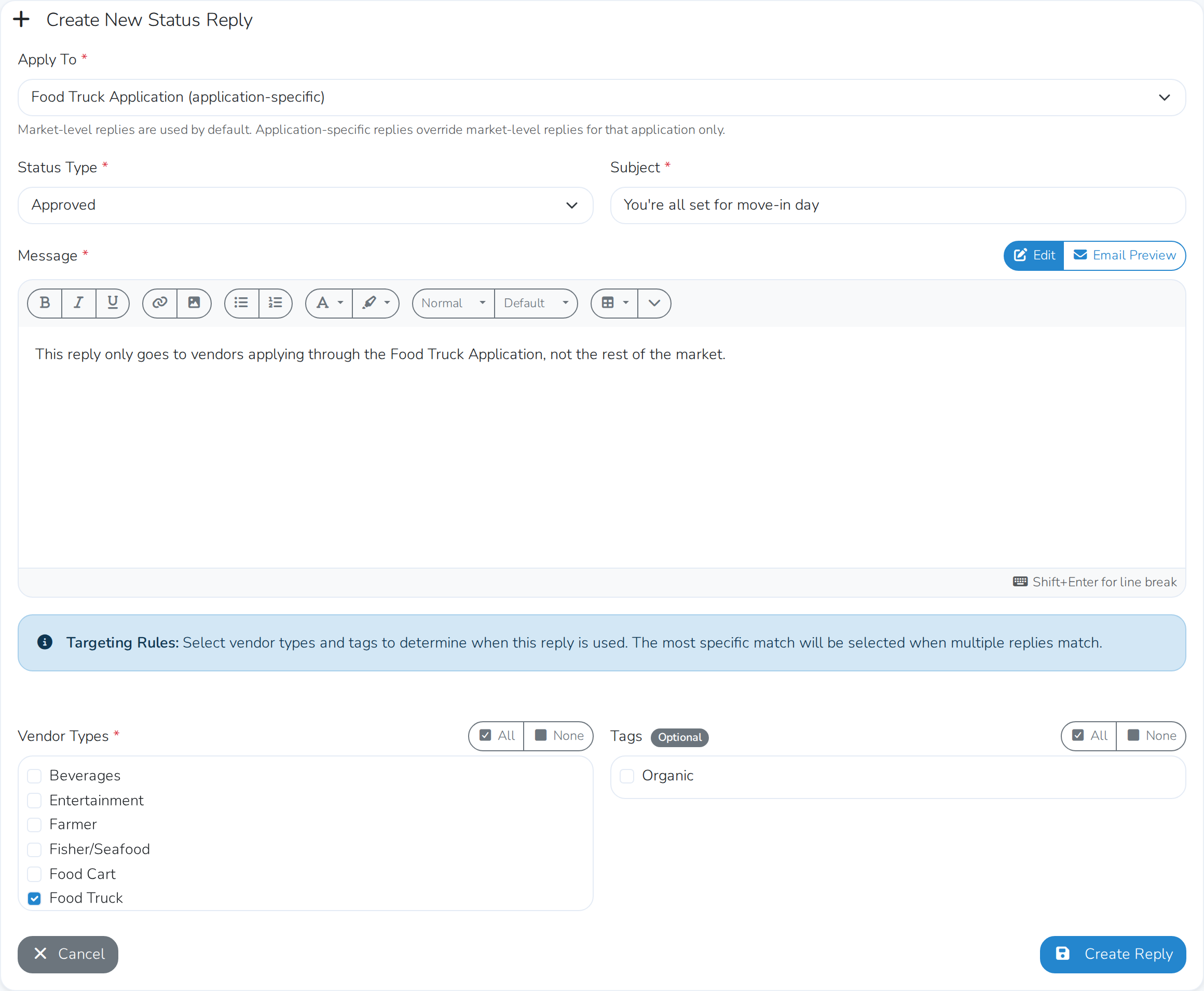
Market-level replies are the default for every application. Set one up for a single application instead when you want different wording just for its vendors.
-
Open Settings, then Status Replies.
-
Click Add Status Response.
-
Under Apply To, choose the application instead of Market-Level.
-
Fill in the rest of the form the same way as a market-level reply, then click Create Reply.
Tip
You can also get here from an application itself — click Status Replies on the application, then Manage Status Replies.
Delete a status reply
- Open Settings, then Status Replies.
- Click the trash icon next to the reply you want to remove.
- Click Delete Reply to confirm.
Caution
Deleting a reply can't be undone. Vendors will get the market's default message for that status instead.