


If you add or delete booths in a layout over time, they can end up listed out of order in Scheduler. Fix it by reordering the booths in your layout template, then updating your live map to match.
Open Layouts, under Event Configuration. Under Activated Layouts, the Template column names the layout template your event or season is using — that's the one to edit.
Reorder your booths
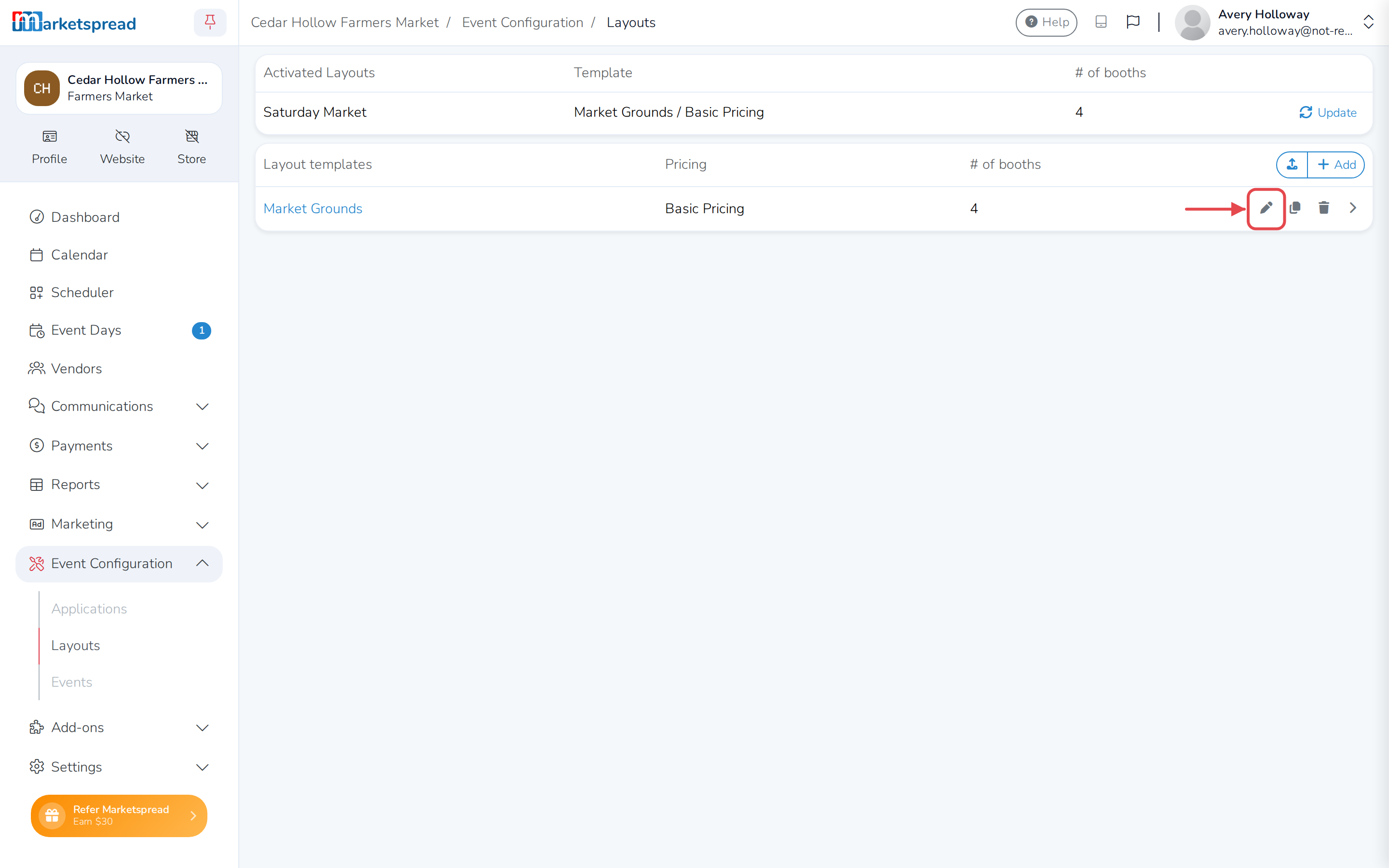
- Scroll down to Layout templates and find that template.
- Click the pencil icon (Edit) next to it.
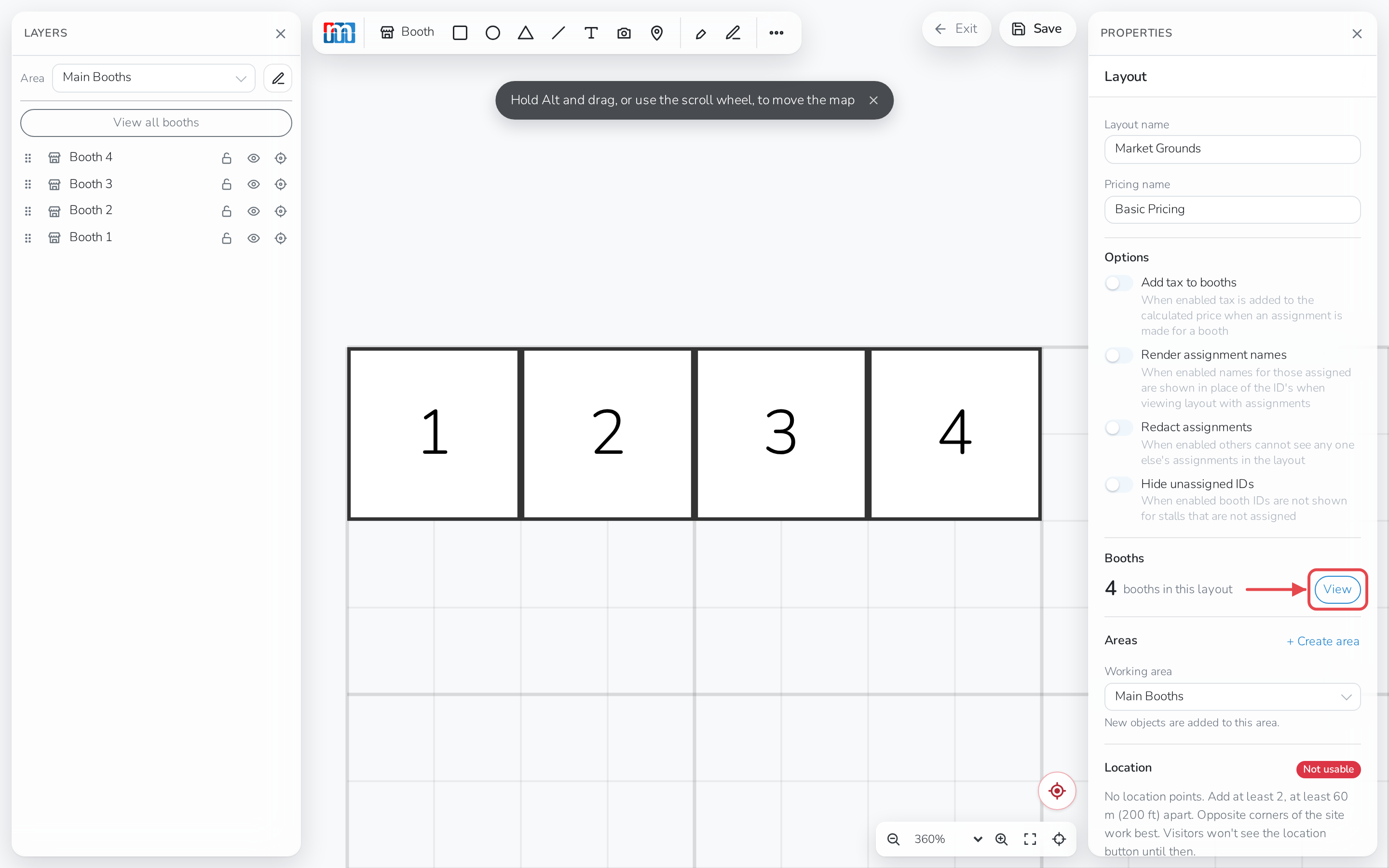
- In the editor, click View next to Booths. This opens a list of every booth in the layout.
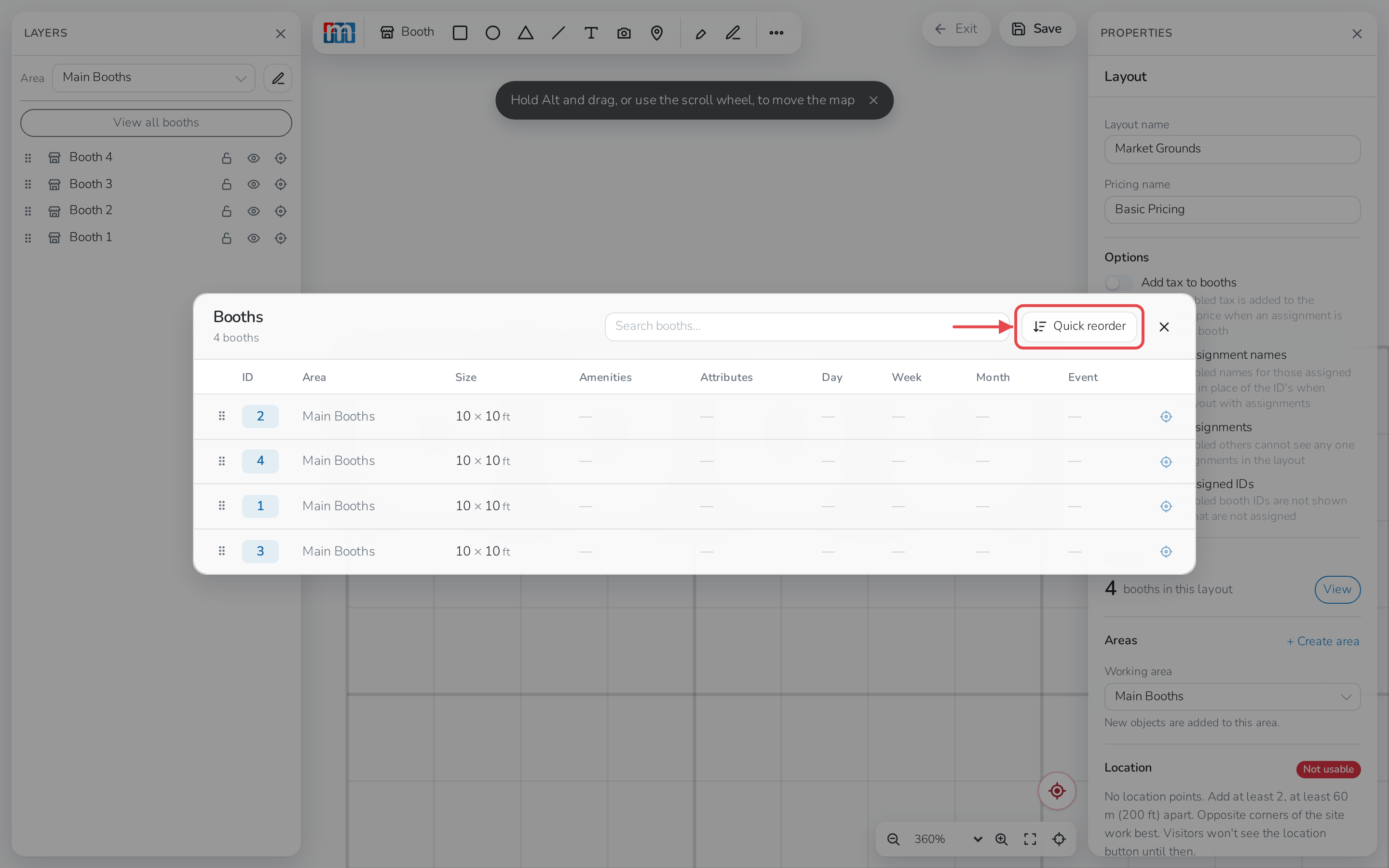
- Click Quick reorder. This puts your booths back in order, lowest first.
- Click Close.
- Click Save, then Exit, at the top of the editor.
Update your live map
Reordering the template doesn't change your live event until you update it to match.
- Back on Layouts, find your event's row under Activated Layouts.
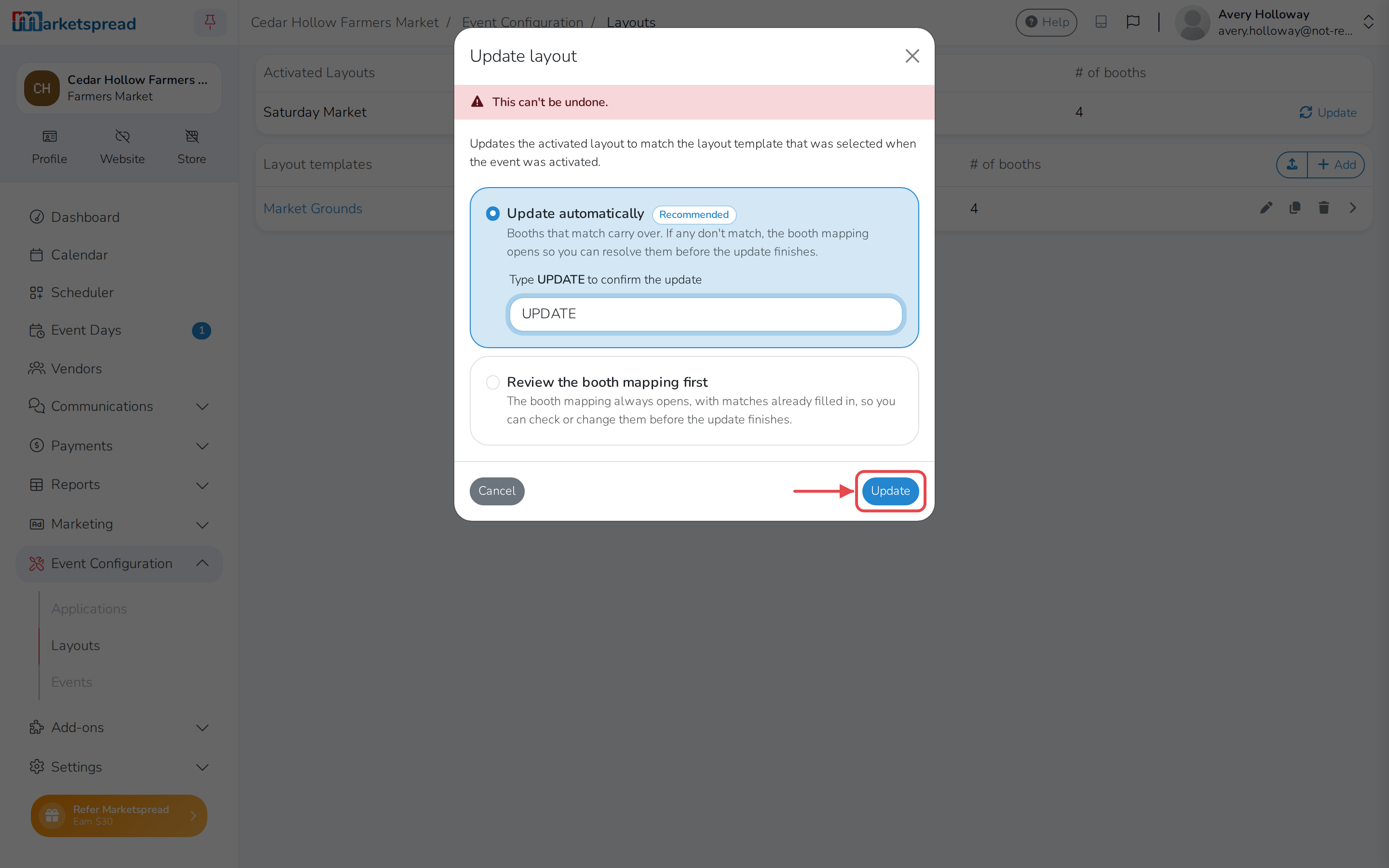
- Click Update.
If your booth count changed
If the template now has a different number of booths than your live map, choose Review the booth mapping first instead of Update automatically. That lets you match old booth IDs to new ones yourself, instead of Marketspread doing it automatically.
- Type UPDATE to confirm.
- Click Update.
Your booths now show in the new order in Scheduler.
This can't be undone
Updating replaces the booths on your live map with the ones from the template.
For everything else you can do in the editor, see Build a map layout.