


The menu down the left side of your dashboard is how you get around — Calendar, Vendors, Payments, Settings, and everything else your market uses. It's open next to the page by default on a computer, and tucked behind a button on a phone or tablet.
From the menu you can:
- Open any page in your dashboard
- Open a section to see the pages inside it
- Show or hide the whole menu
Open a section
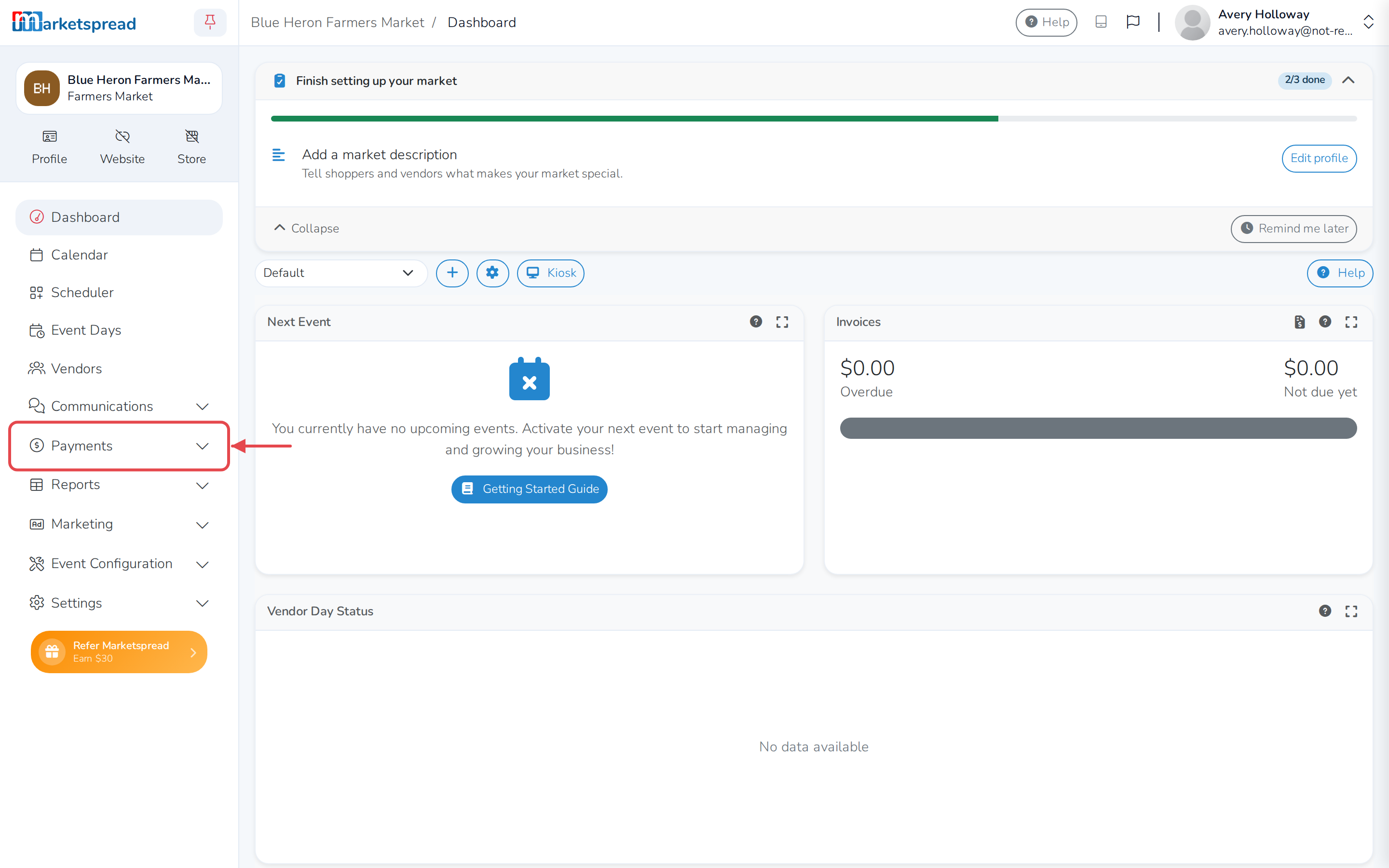
Some items in the menu, like Payments and Settings, are sections rather than single pages. An arrow next to the name shows there's more inside.
-
Click the section's name, for example Payments.
-
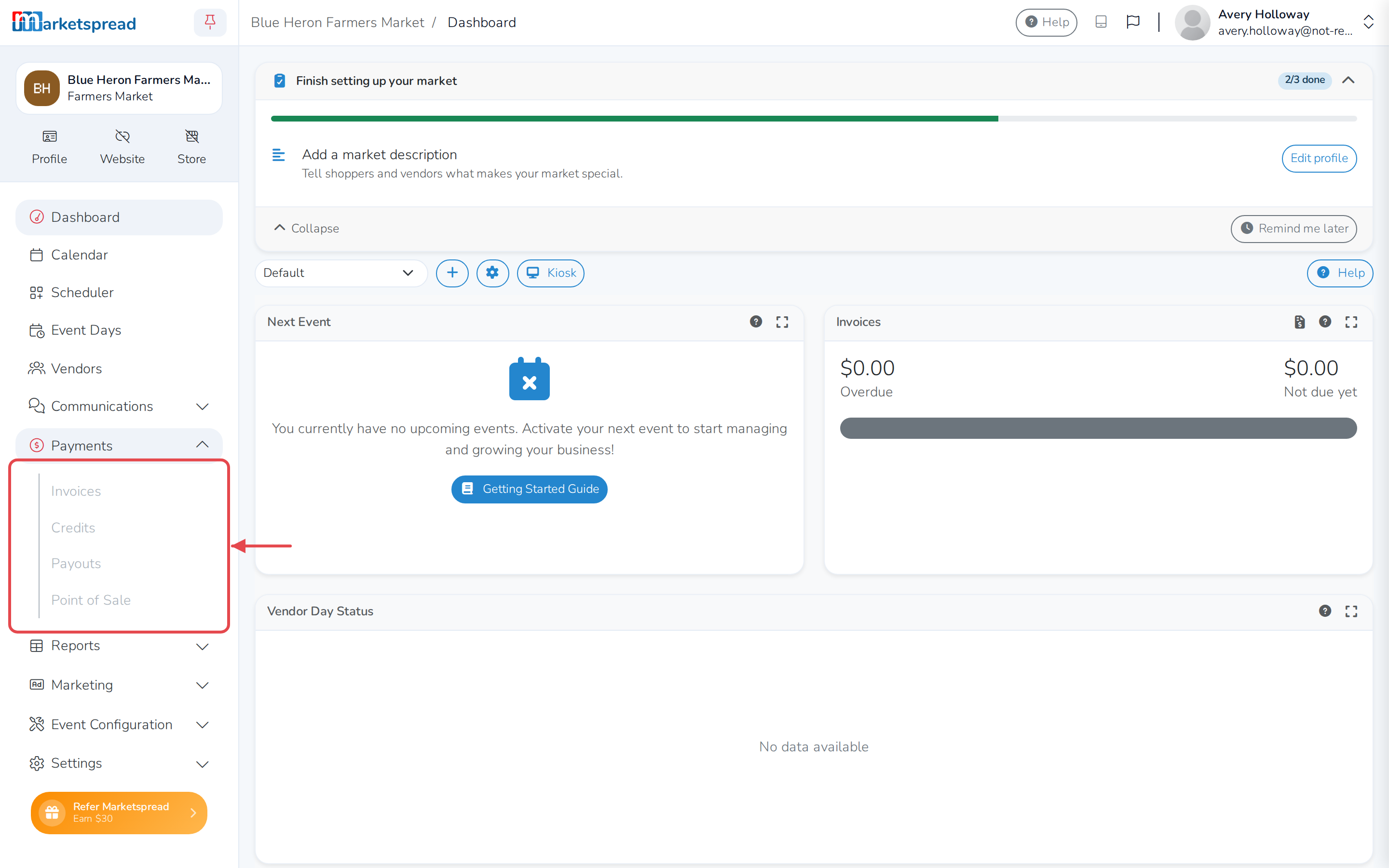
Find its pages, like Invoices and Payouts, listed underneath it.
-
Click the section's name again to close it.
Show or hide the menu
On a computer, the menu stays open next to the page by default.
-
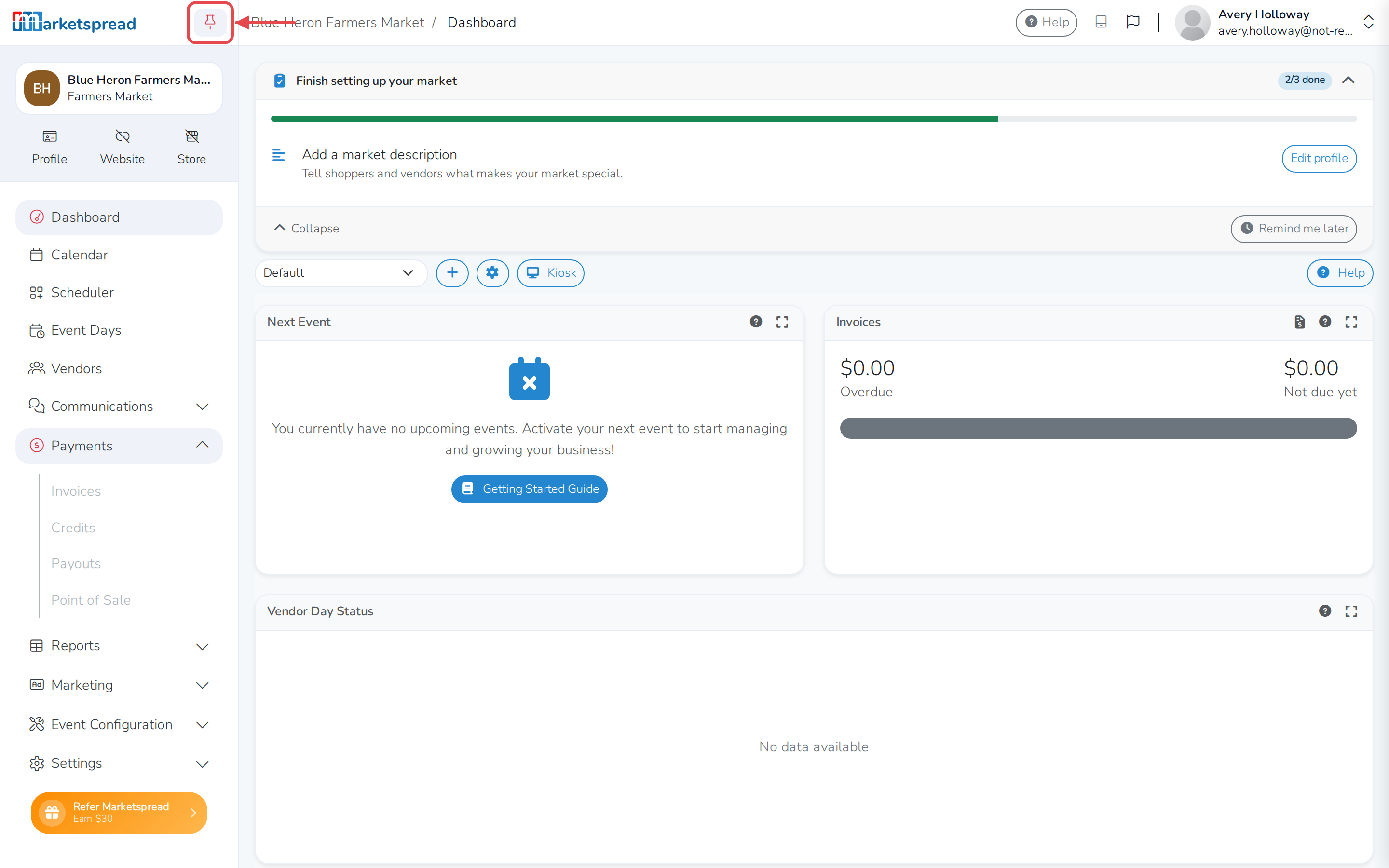
Click the pin icon at the top of the menu to hide it. The page then has more room to show.
-
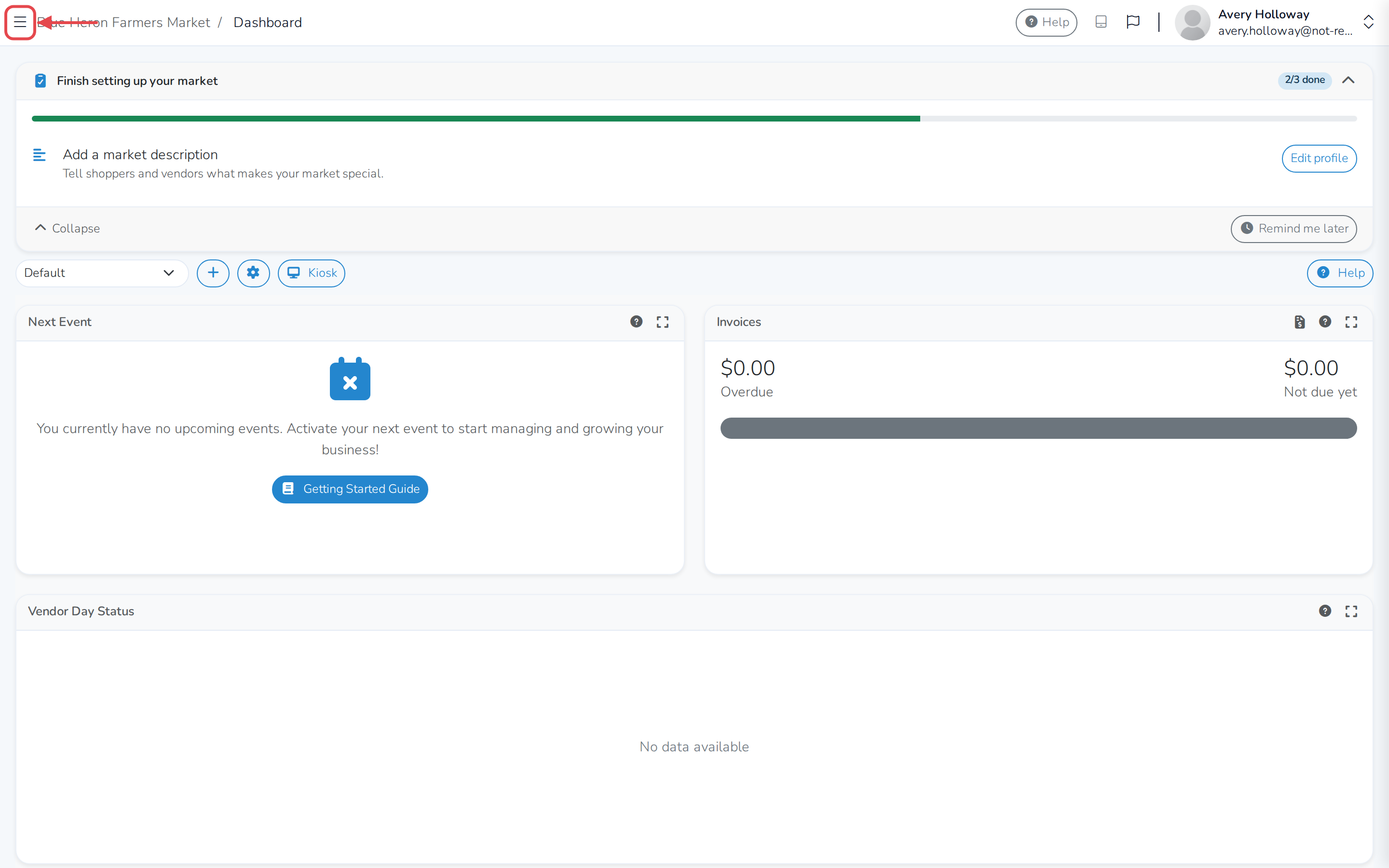
Click the menu icon at the top of the page to bring the menu back when you need it.
-
Click the pin icon again to keep the menu open all the time.
Note
Marketspread remembers whether you keep the menu pinned open, so it opens the same way the next time you sign in.
On a phone or tablet, tap the menu icon to open the menu. Tap the X to close it again.
Good to know
A lock icon next to a page means your account doesn't have access to it. Ask a market admin to give you access.