


The Vendor Sales report lists every vendor's reported sales, broken down by currency — your market's own list of how a vendor was paid, like Cash, Credit or SNAP, not a money currency like USD. Open it from Reports → Data.
Open the Vendor Sales report
- Click Reports in the left-hand navigation, then click Data.
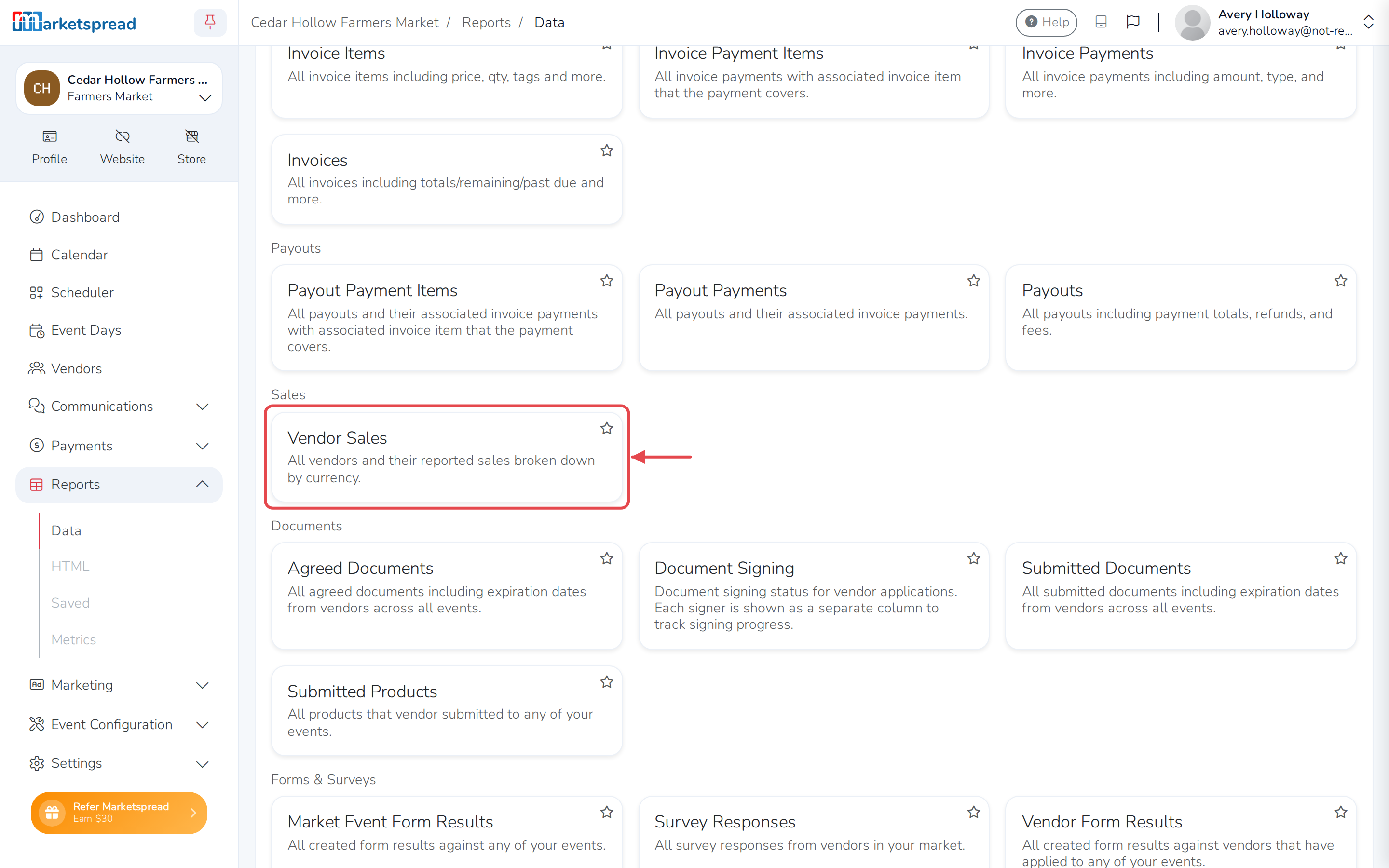
- Under Sales, click Vendor Sales.
View sales by currency
- Click Columns on the right side of the report.
- Drag Currency into Row Groups.
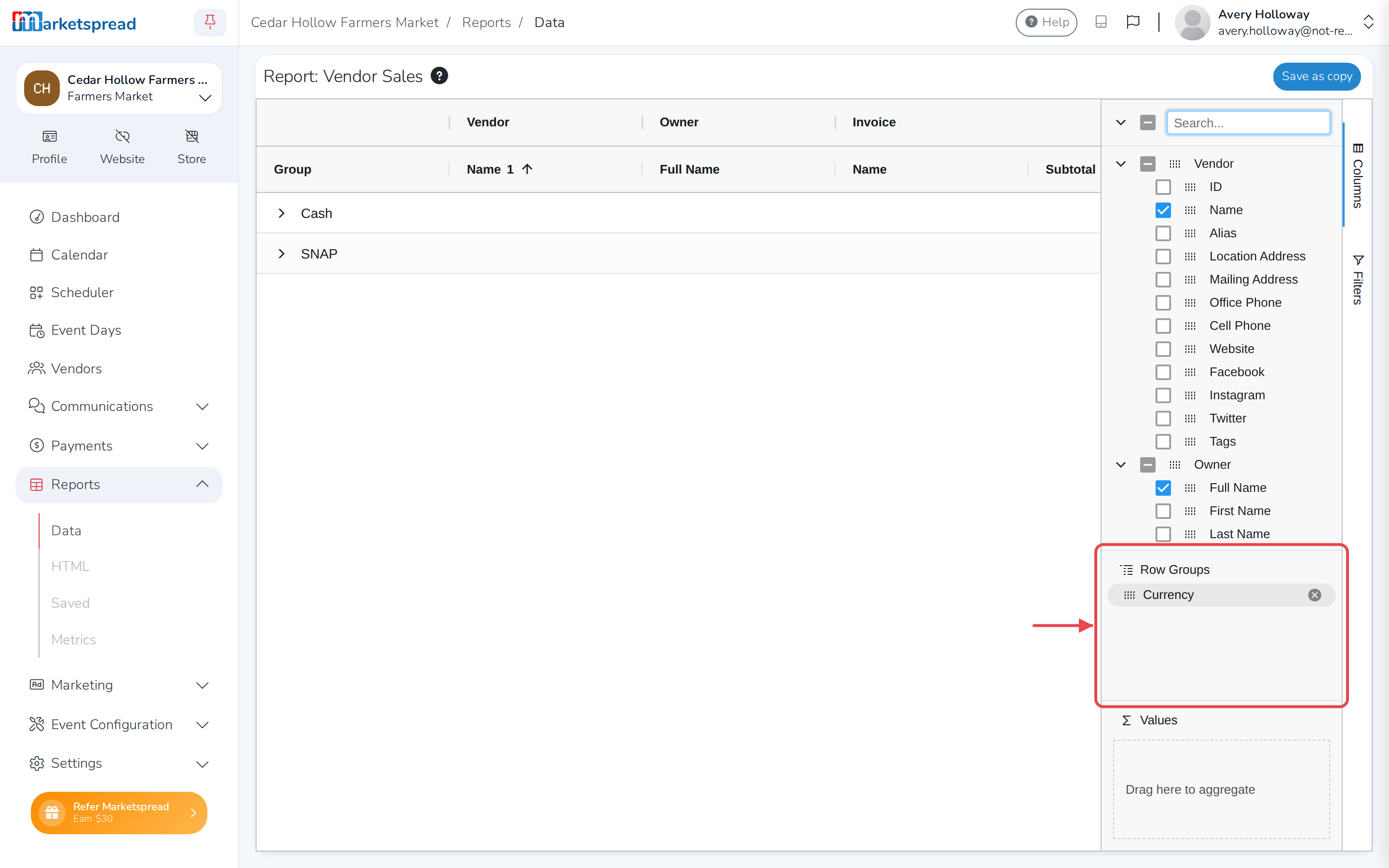
- Drag Amount into the values area below it, so each currency shows its total.
- Untick every other column, so only Currency and Amount show.
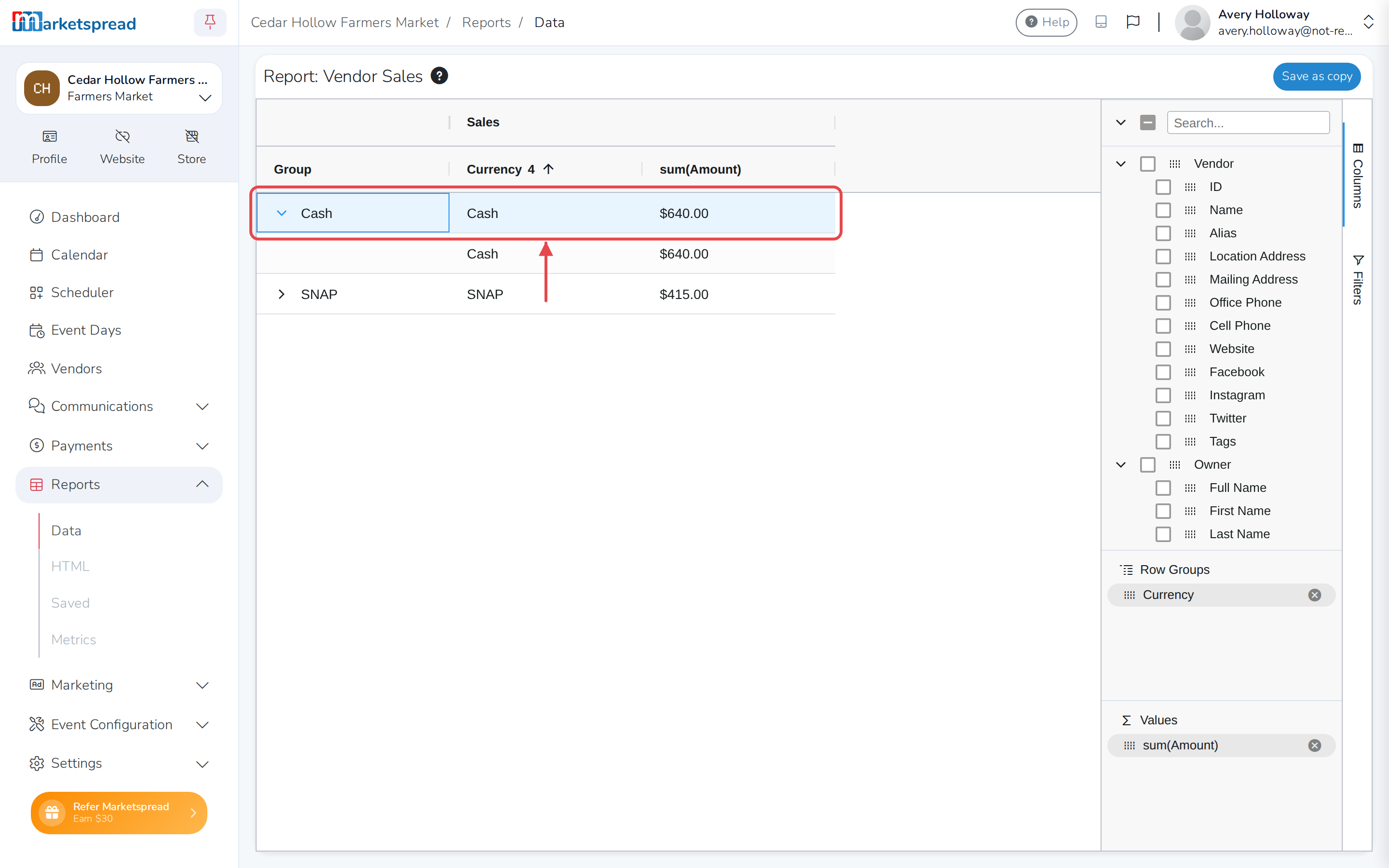
- Click a currency to see the sales that make up its total.
For more on choosing columns, filtering, grouping and exporting a report, see Use reports.