


Print a full invoice on any printer connected to your computer, or a receipt
on a connected Marketspread Terminal or cloud printer. Do either from
Scheduler, or from the invoice under Payments.
- Print an invoice from Invoices
- Print an invoice from Scheduler
- Print a receipt
Print an invoice from Invoices
- Open Payments, then click Invoices.
- Click the vendor's name.
- Click the invoice.
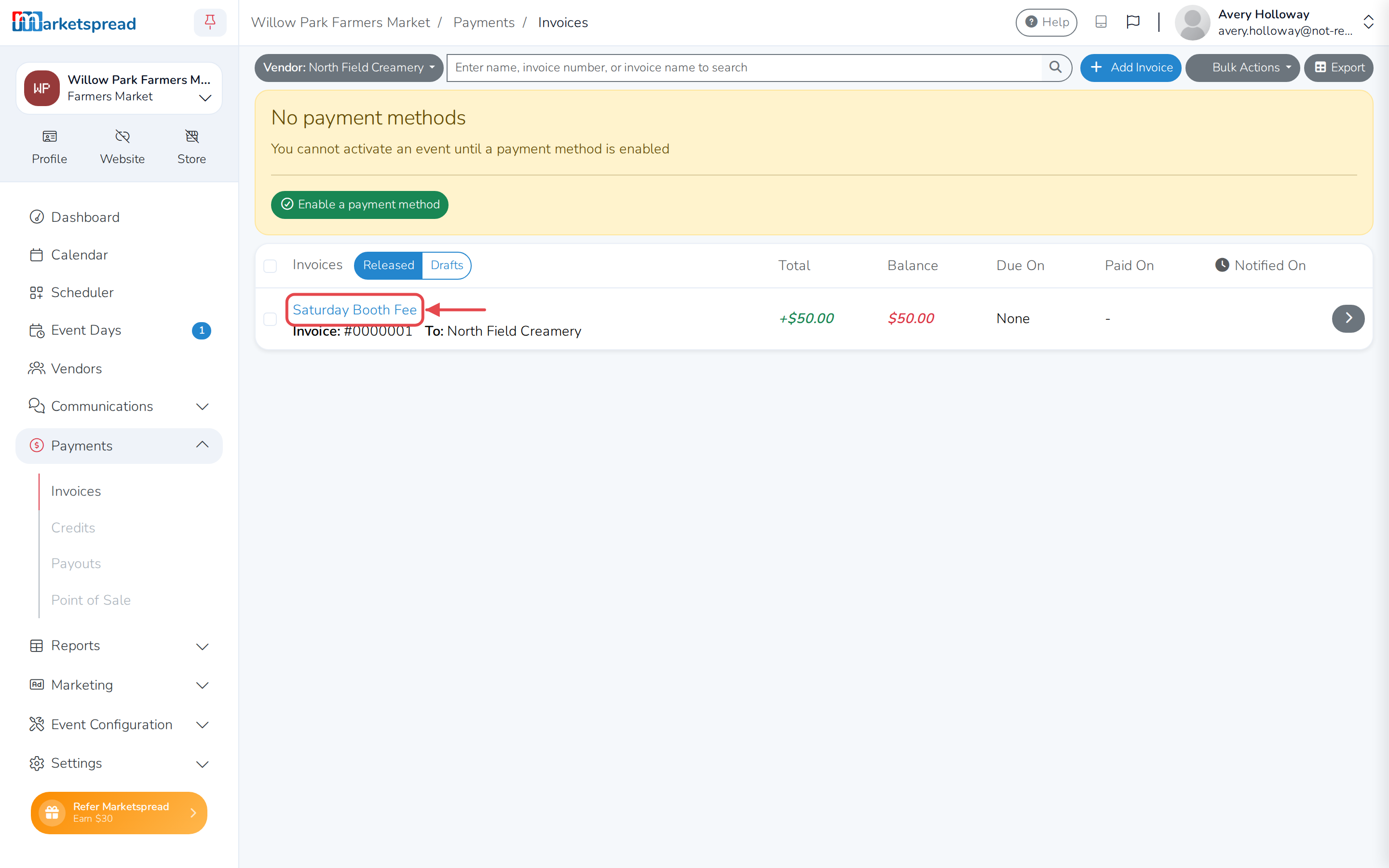
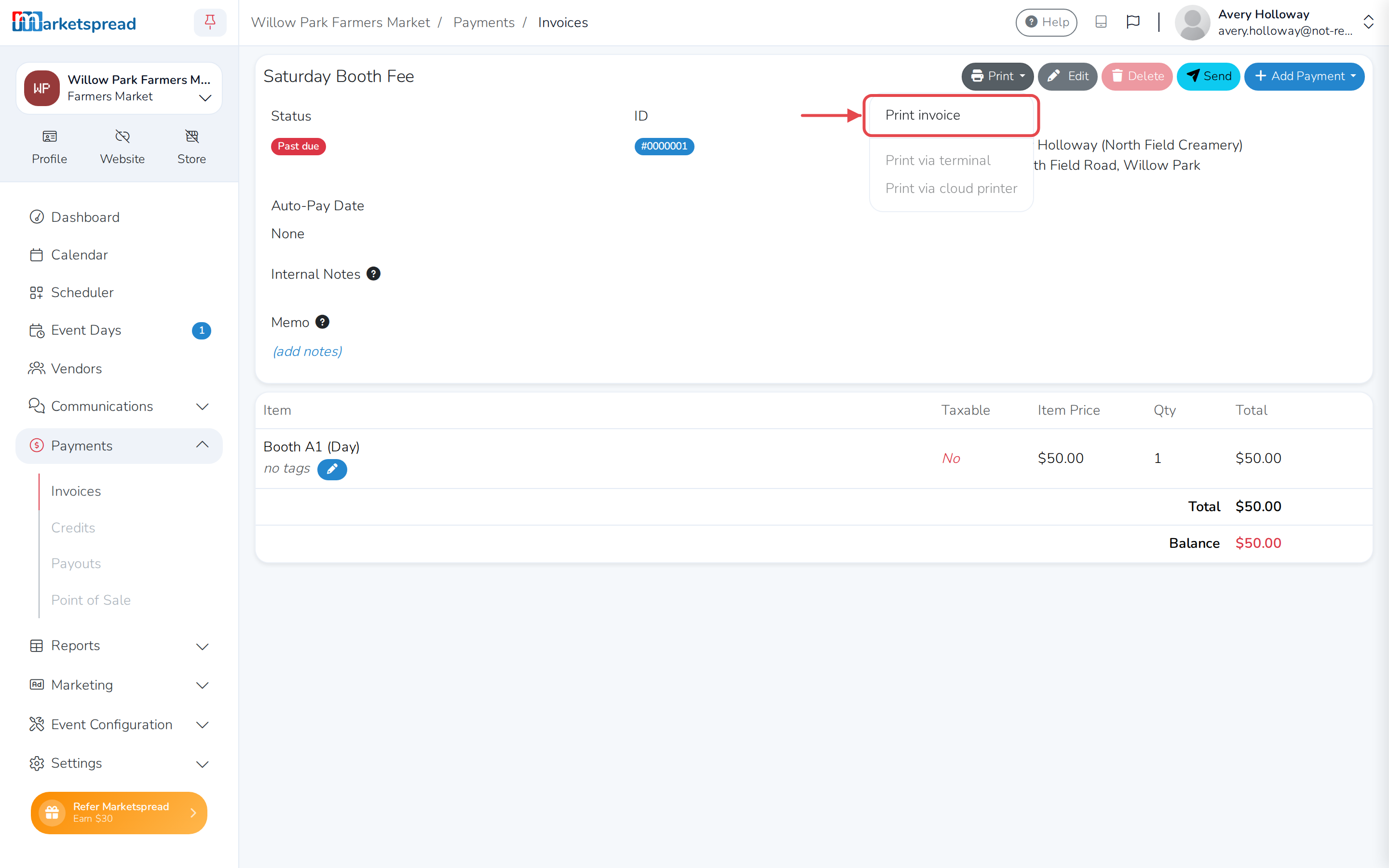
- Click the grey Print button at the top, then click Print invoice.
Print an invoice from Scheduler
- Open Scheduler.
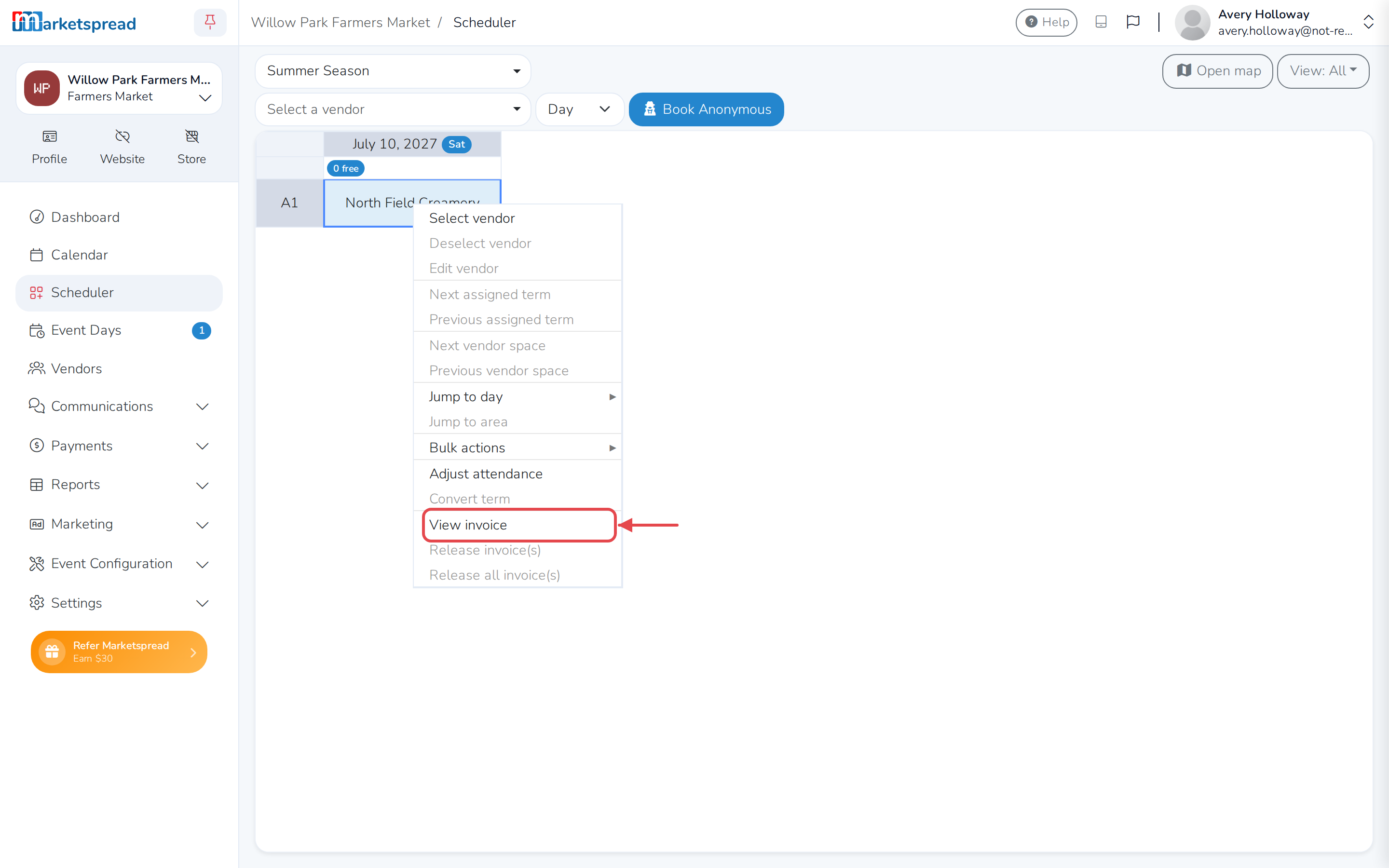
- Right-click the vendor's booking cell — two-finger click on a Mac.
- Click View invoice.
- Click Print invoice at the bottom of the window.
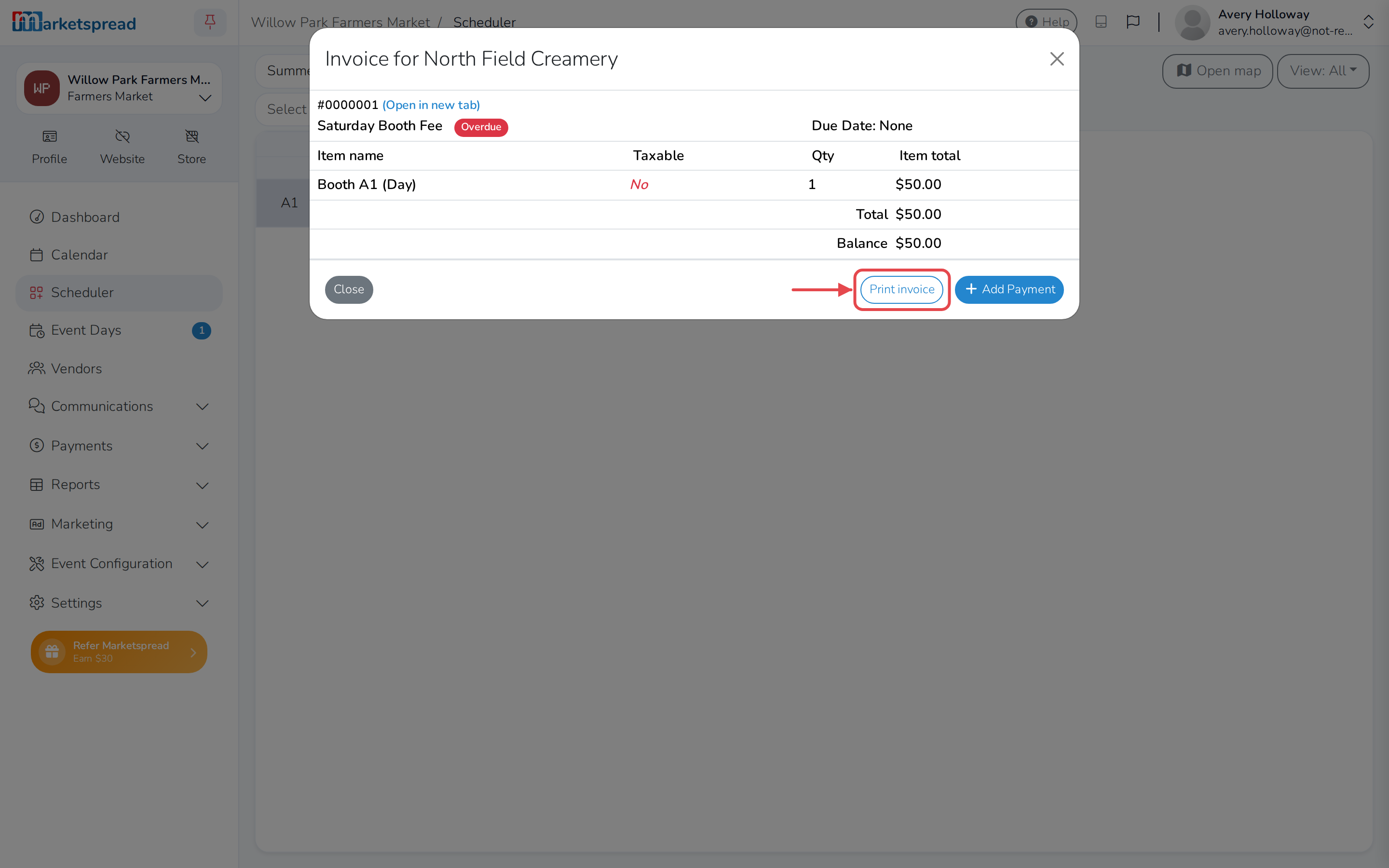
This opens your browser's print window, ready to print the invoice on any
printer connected to your computer.
Note
View invoice stays greyed out until that booking has an invoice.
Print a receipt
- Open Payments, then click Invoices.
- Click the vendor's name.
- Click the invoice.
- Click the grey Print button, then click Print via terminal or
Print via cloud printer.
Note
Both stay greyed out until you connect a Marketspread Terminal or a cloud
printer. See Using Marketspread Terminal
to set one up.