


Every stall assignment and reassignment you make is logged on the vendor's own Comments tab, marked as new. If you're moving several vendors around for the same day, that can add up to a run of new items for them to notice.
To stop a vendor from seeing which day or stall changed while you're still working on it, unpublish the event day. Publish it again when you're ready, and the details of everything you changed show up there at once.
Set an event to publish manually
Unpublishing a day only holds if the event publishes manually. You only need to check this once per event.
- Open Event Configuration → Events.
- Find the event and click the arrow on the right.
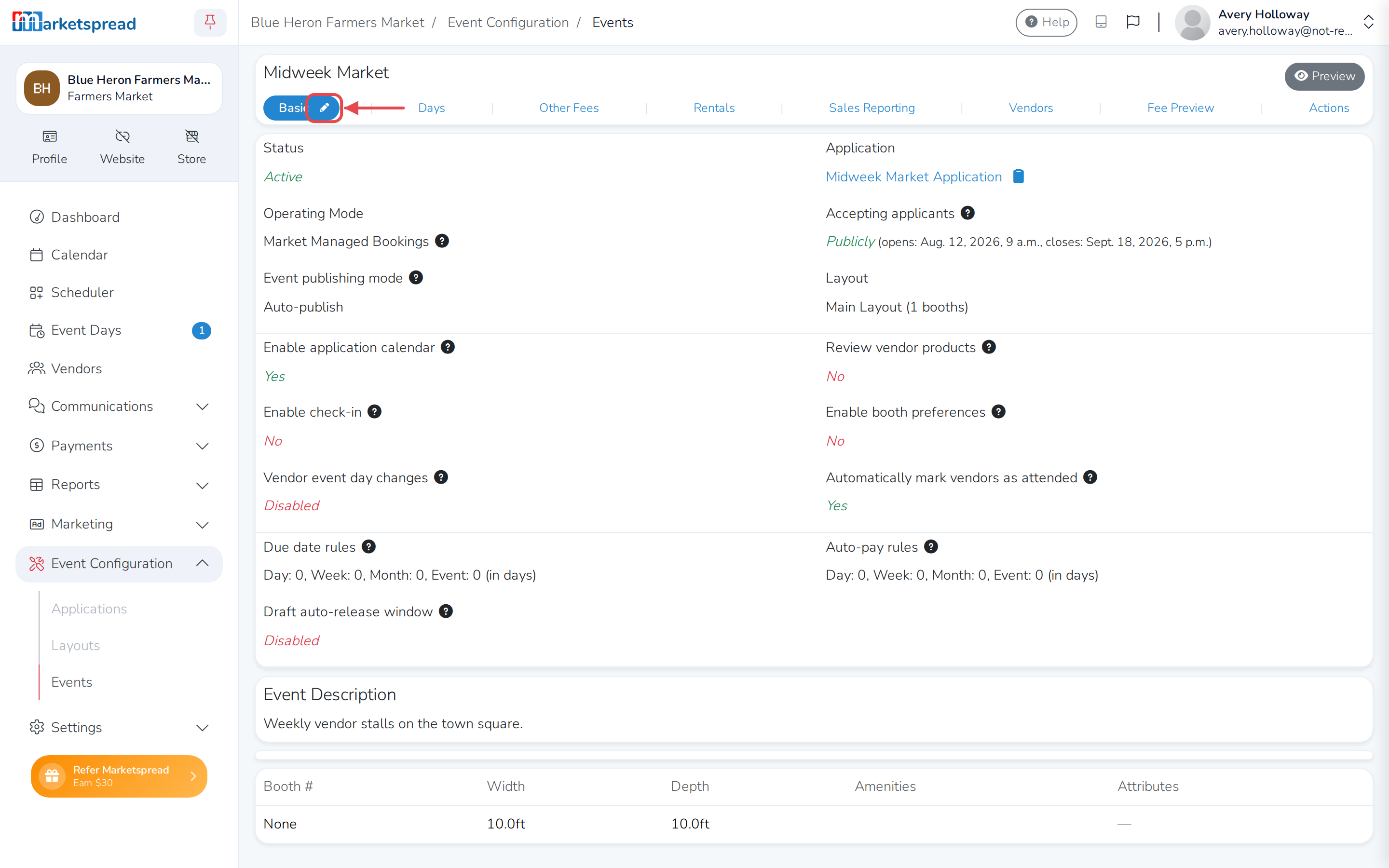
- Look at Event publishing mode on the Basic tab. If it already says Manual, you're done here.
- Click the pencil icon next to Basic.
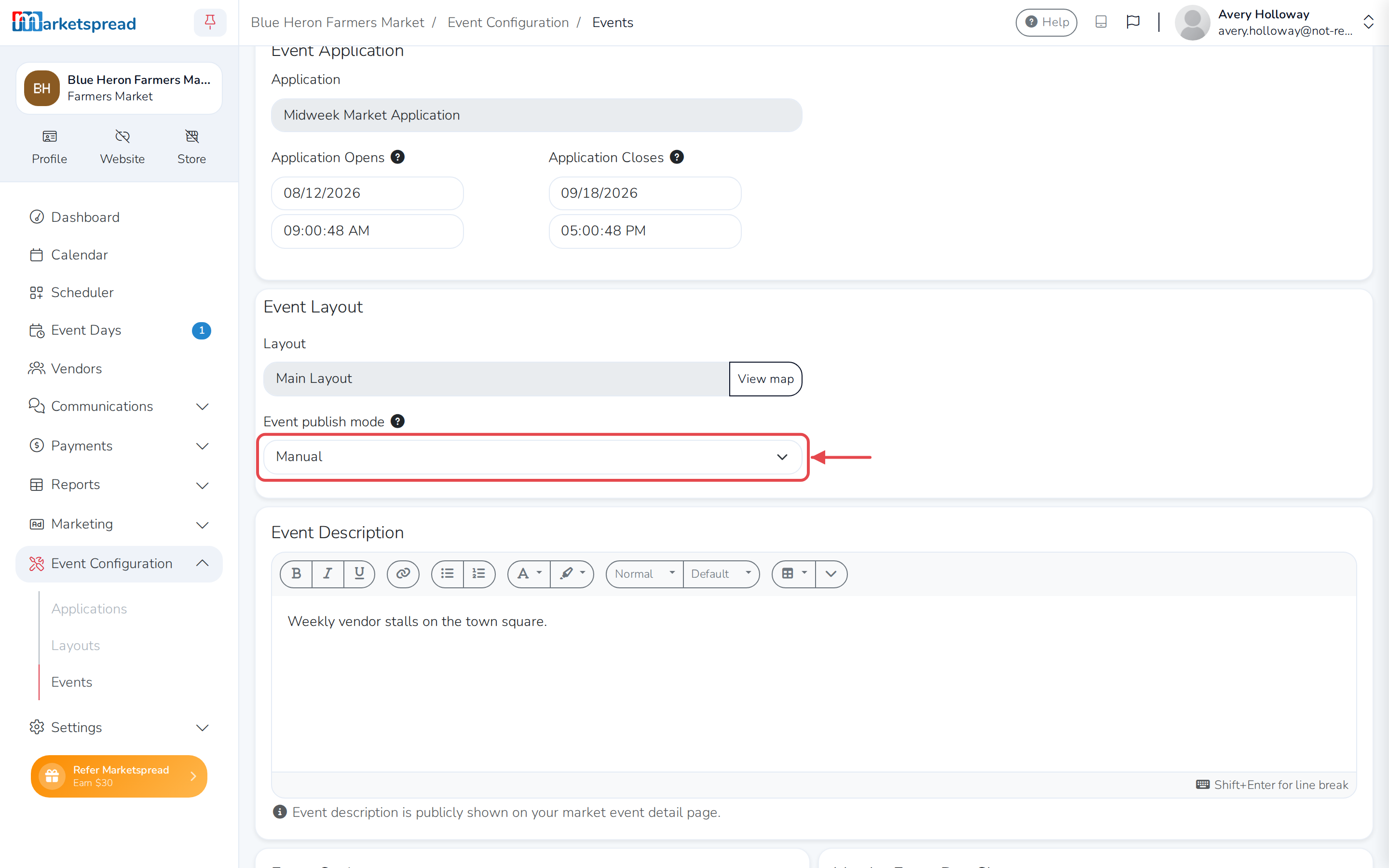
- Under Event Layout, set Event publish mode to Manual.
- Scroll down and click Save basic.
Publish or unpublish a day
- From the event's overview, open the Days tab.
- Click the day you want to change.
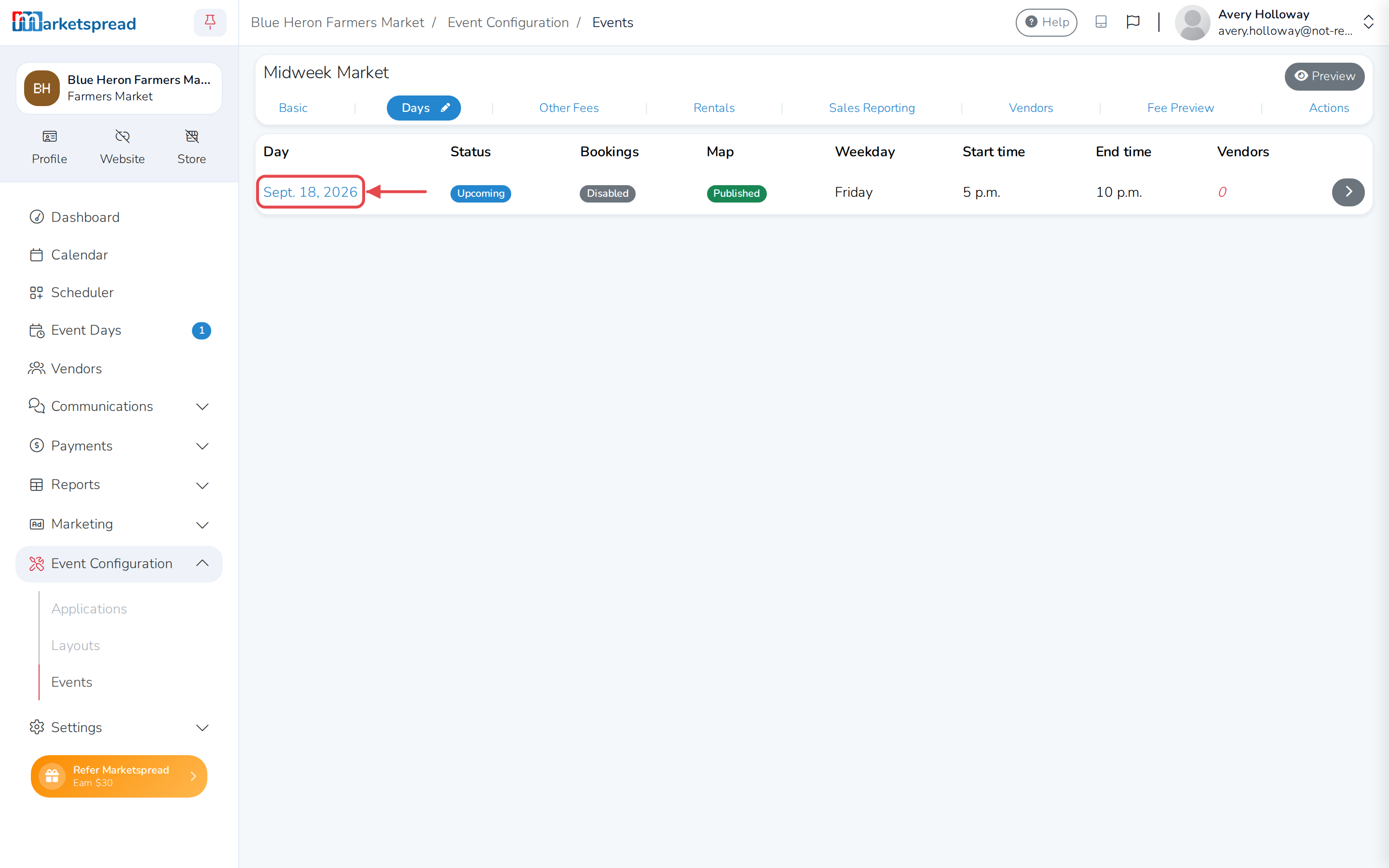
- In the Map field, click the pencil icon.
- Choose Unpublished or Published.
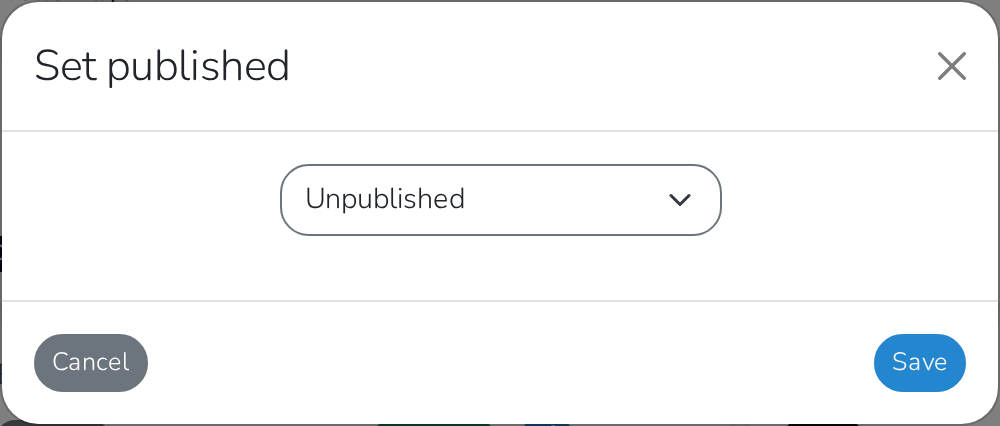
- Click Save.
Note
Unpublishing a day also takes it off your market's public page — its vendor lineup and booth map disappear until you publish it again, and any vendor already assigned there sees TBD in place of their booth number.
Important
This only works while Event publish mode is Manual. On the other two modes, Marketspread publishes the day again on its own — within about 15 minutes for a day that's already started or is coming up next.