


Once you approve a vendor, you don't need them to fill out a new application for every event. If you do want a vendor to apply again — between event series, or once a year — ask them to resubmit their application.
Resubmit one vendor's application
-
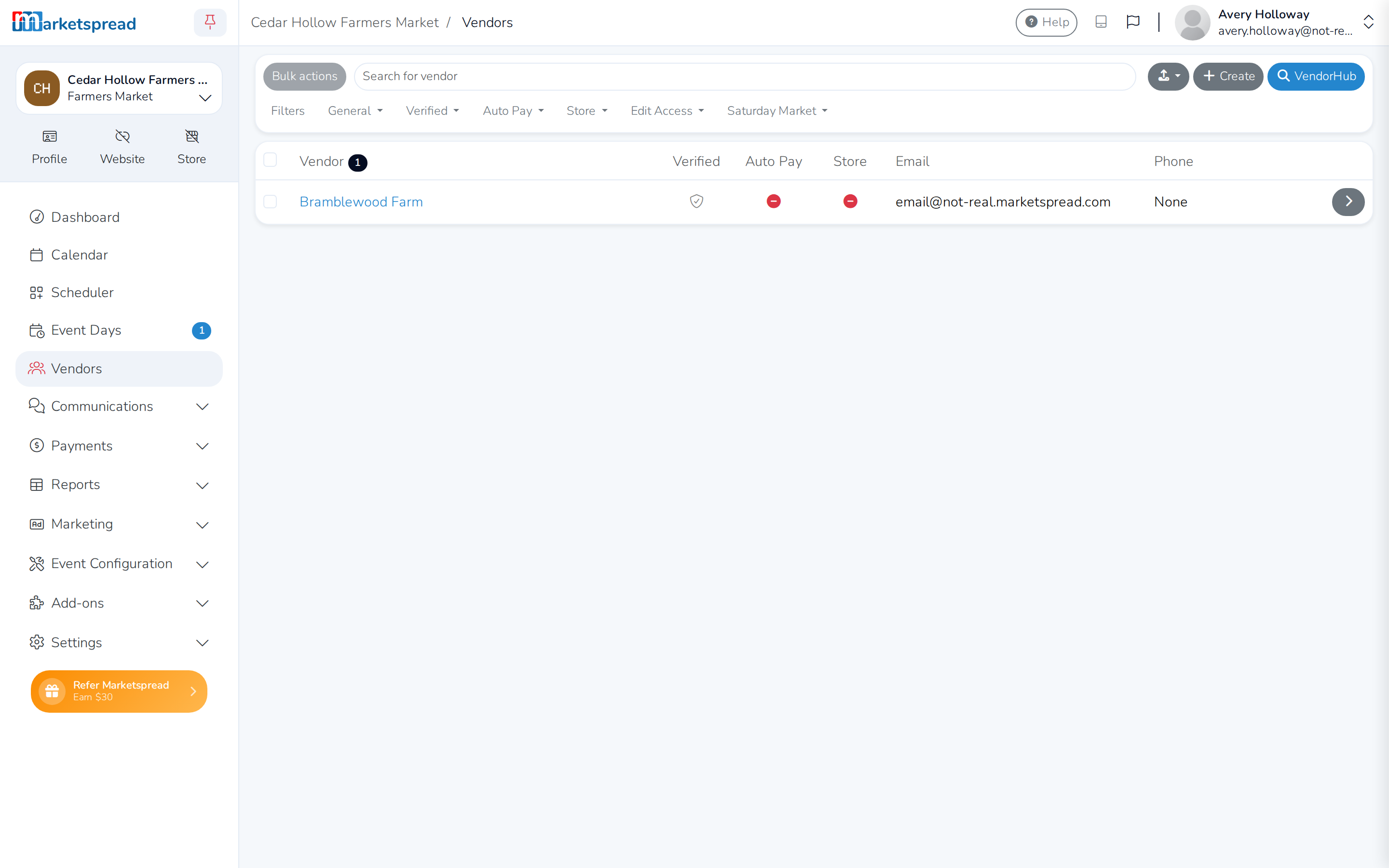
Click Vendors in your side navbar.
-
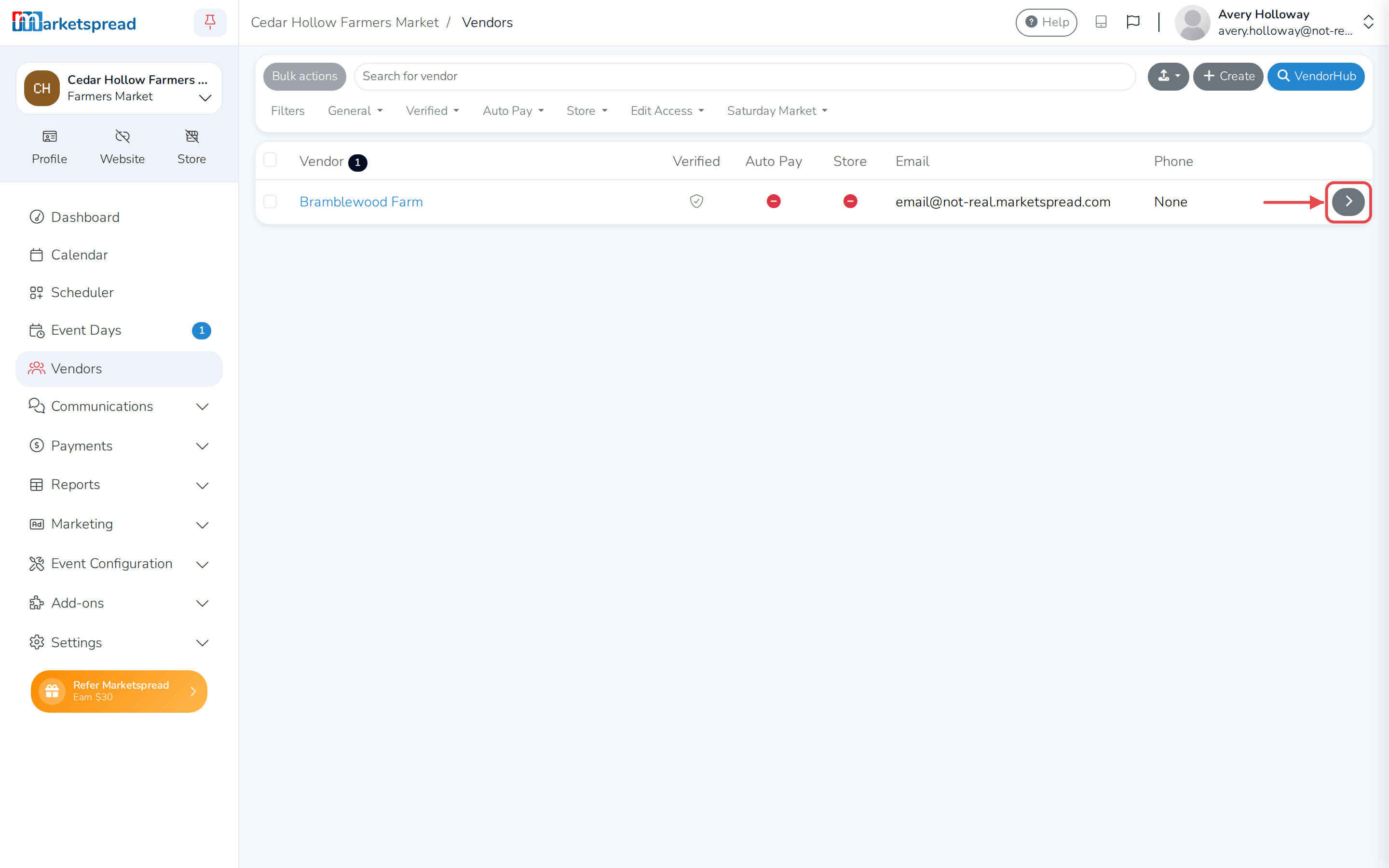
Find the vendor and click the > button on the right of their row.
-
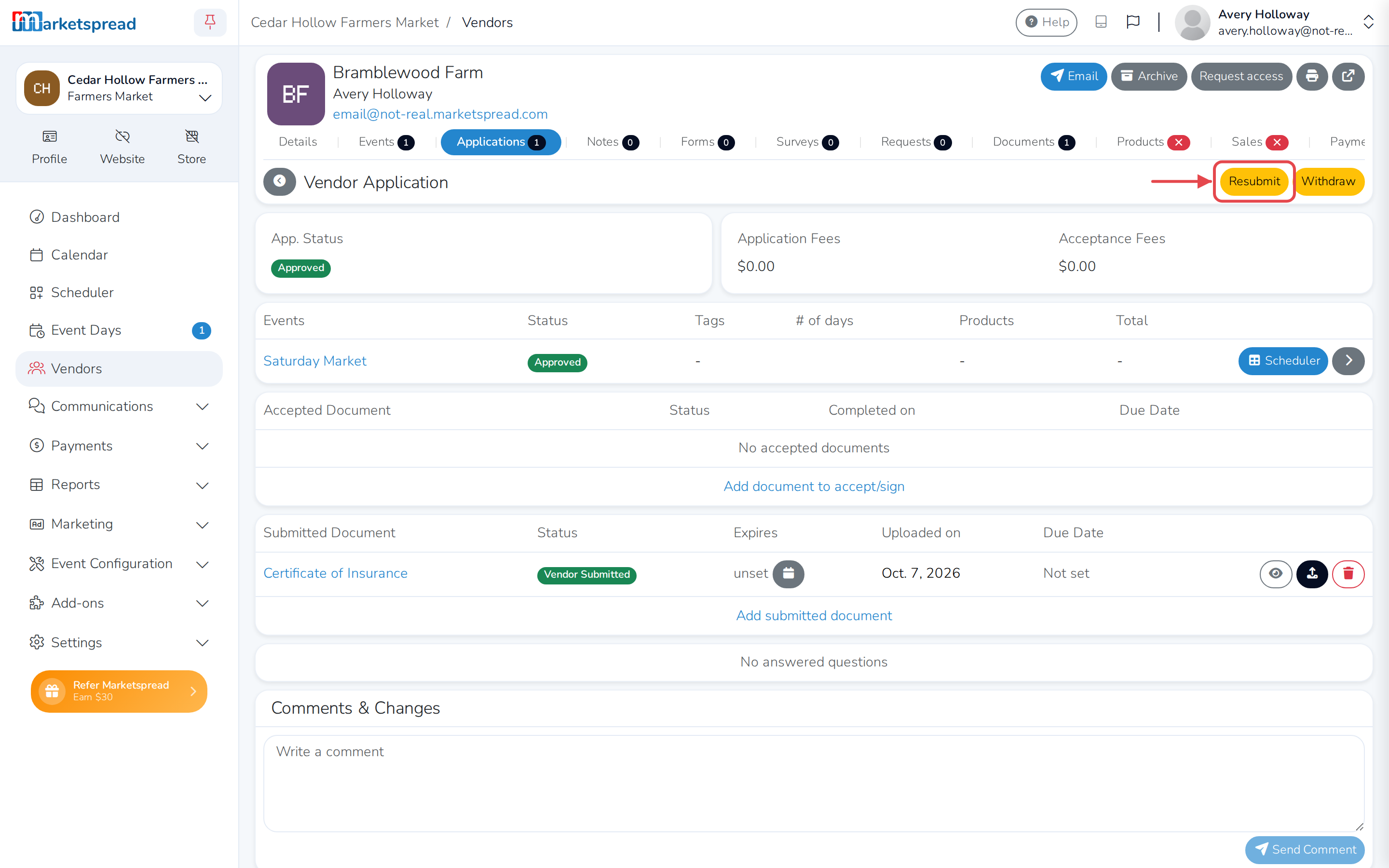
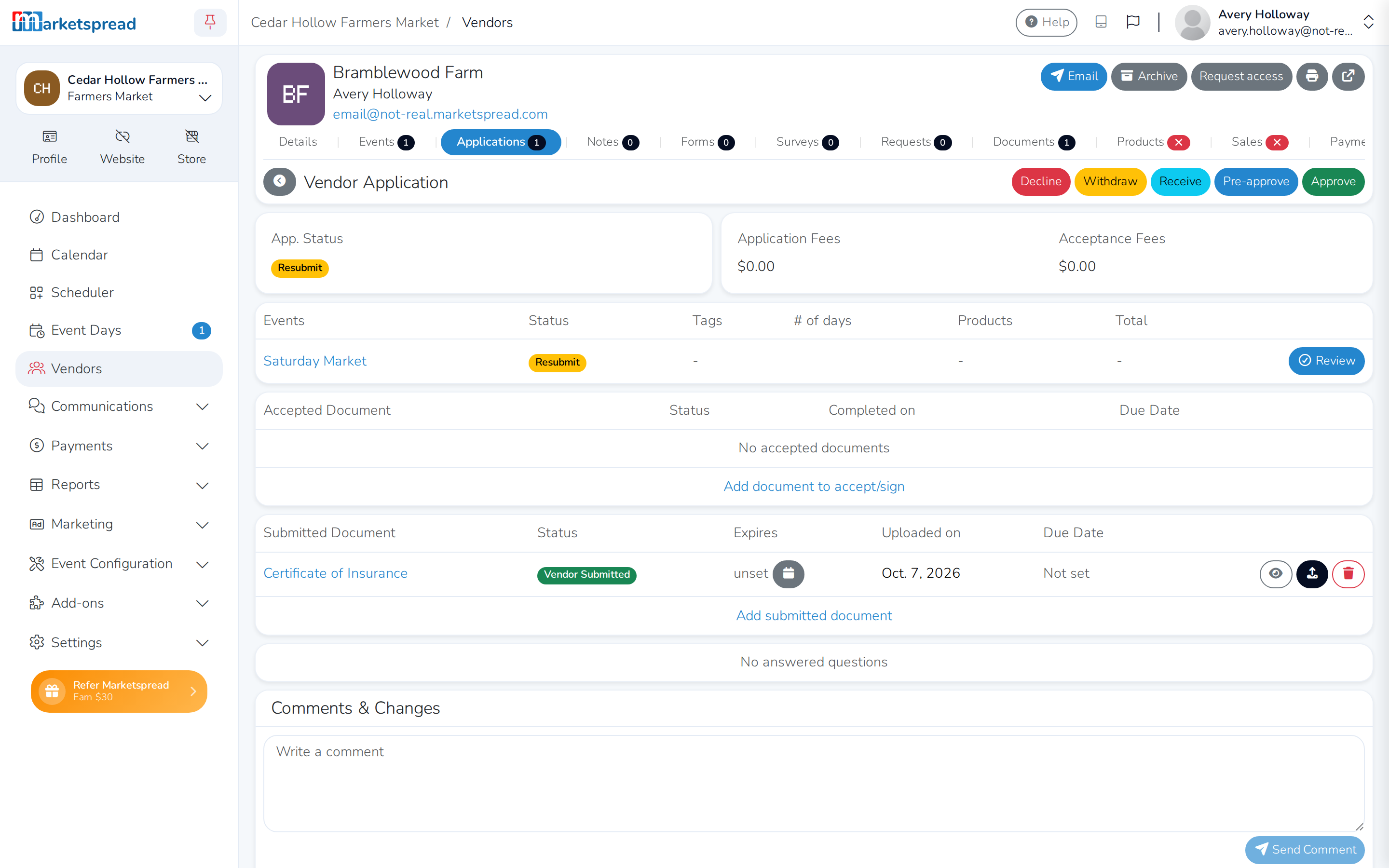
Click the Applications tab, then click the application you want them to resubmit.
-
Click Resubmit.
-
Fill in Reason for resubmission to tell the vendor why, then click Resubmit.
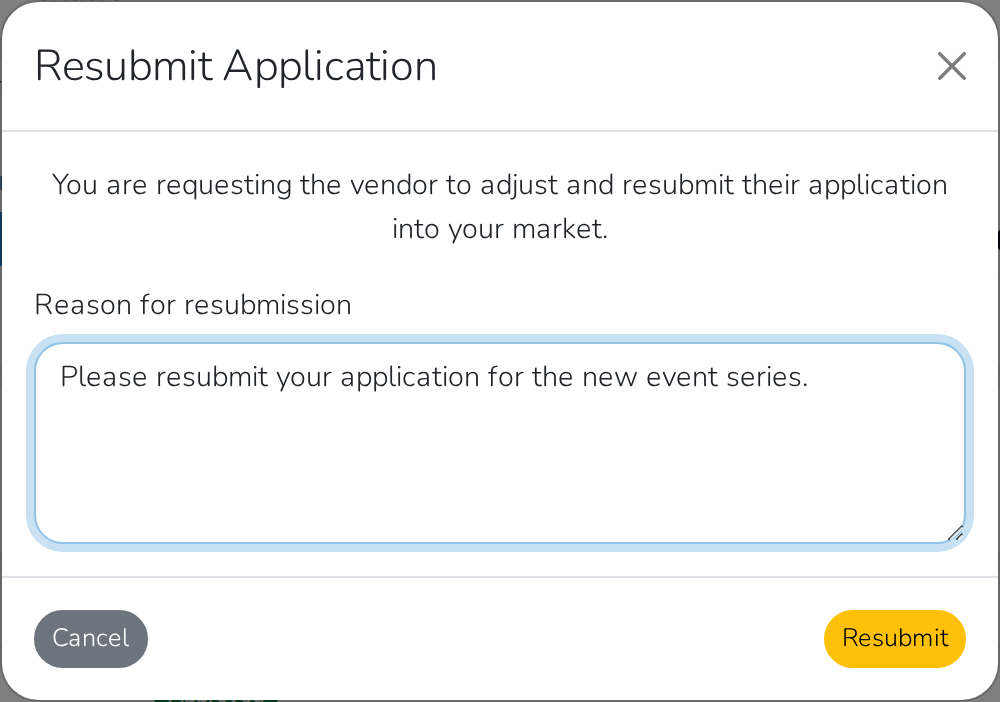
Their application now shows Resubmit, and the vendor gets an email with your reason asking them to fix and resend it.
Resubmit several vendors at once
To ask more than one vendor to resubmit, use Bulk actions instead of opening each vendor one by one.
-
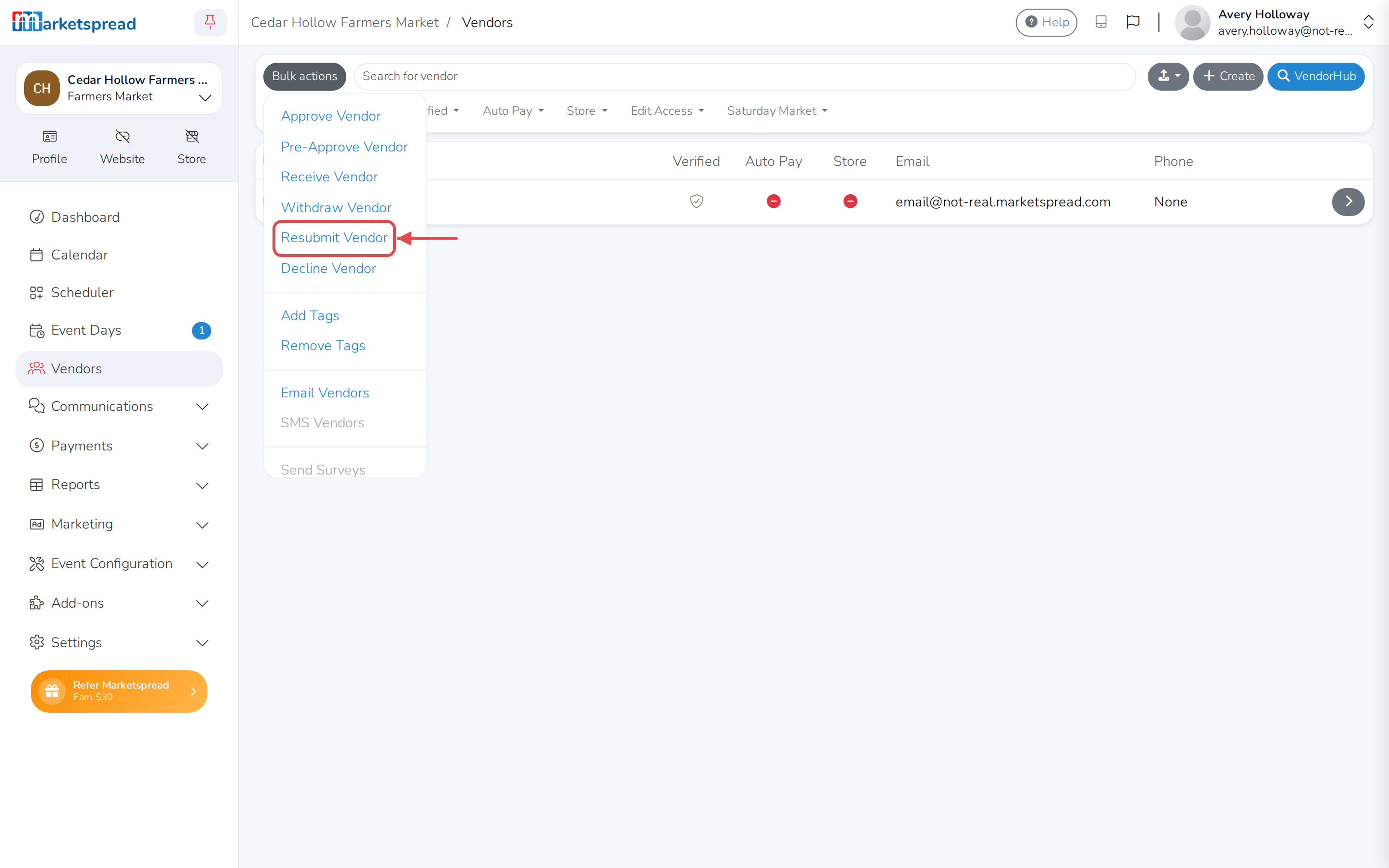
On the Vendors list, check the box next to each vendor you want to resubmit.
-
Click Bulk actions, then click Resubmit Vendor.
-
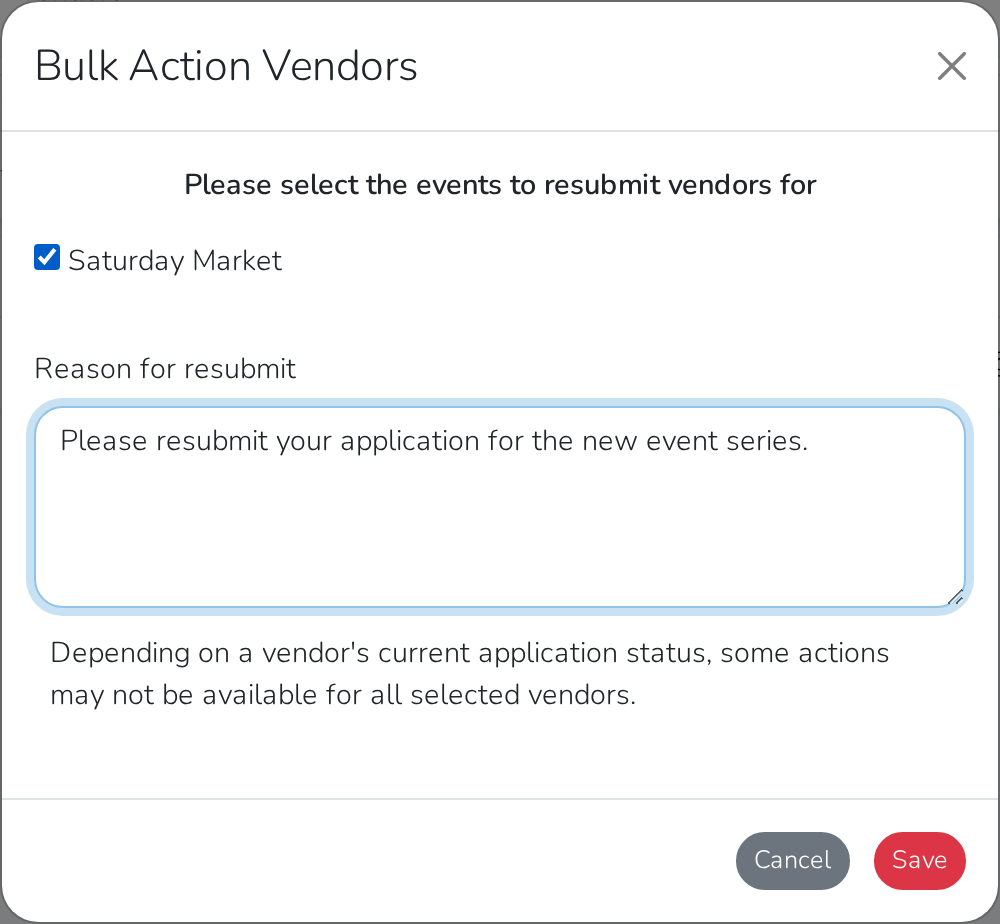
Check the event this applies to, fill in Reason for resubmit, then click Save.
Good to know
- Resubmitting a vendor does not remove them from your Vendors list. It only
changes their application's status, so you can still find them. - Depending on a vendor's current application status, some actions may not be
available for every vendor you selected.