


Your market's online store automatically lists every product from every vendor selling there. Open Online Store, then Products, in your dashboard menu to see them all. The Store status column shows whether each one is Online, Offline or Ineligible.
From here you can find a product, and take it offline or bring it back online.
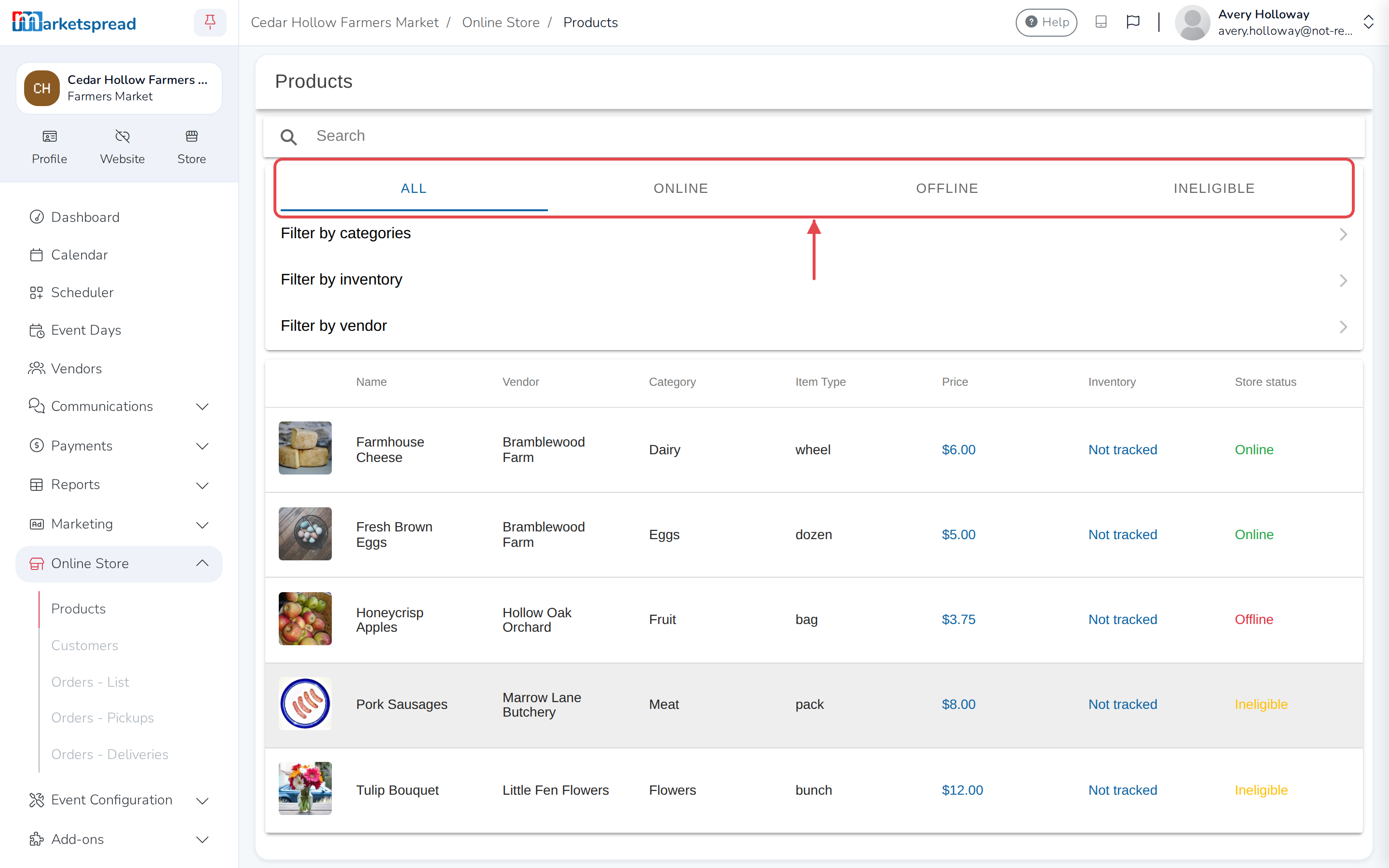
Find a product
- Type into the search bar to search by product name.
- Click Online, Offline or Ineligible to show only products in that state.
- Click Filter by categories or Filter by inventory, tick the ones you want, then click Save.
- Click Filter by vendor and choose a vendor to show only their products.
Click Clear filters to start over.
Take a product offline or online
-
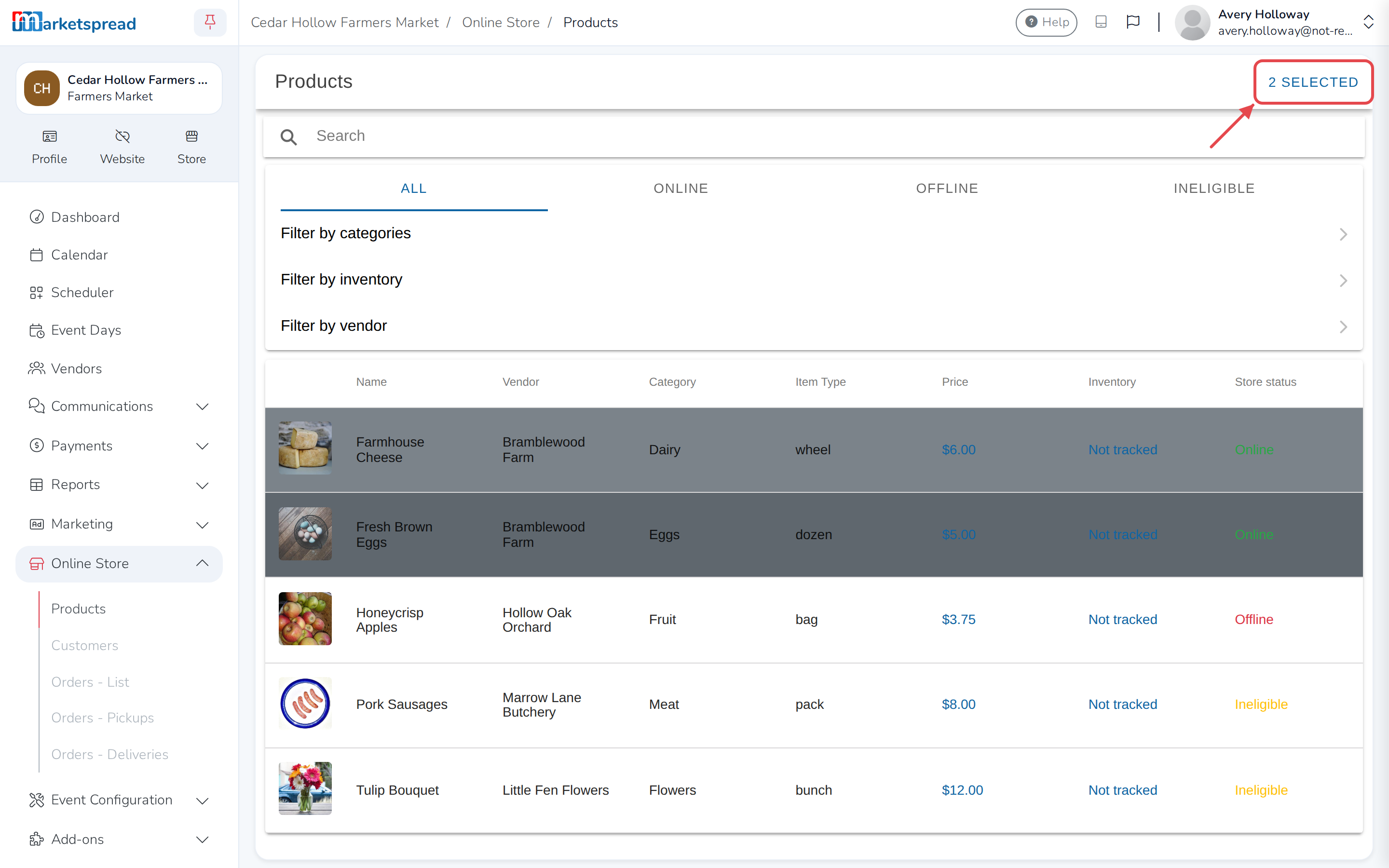
Click each product you want to change. Selected rows are highlighted; click a row again to remove it from the selection.
-
Click the Selected button at the top of the page — it shows how many products you picked, for example 3 Selected.
-
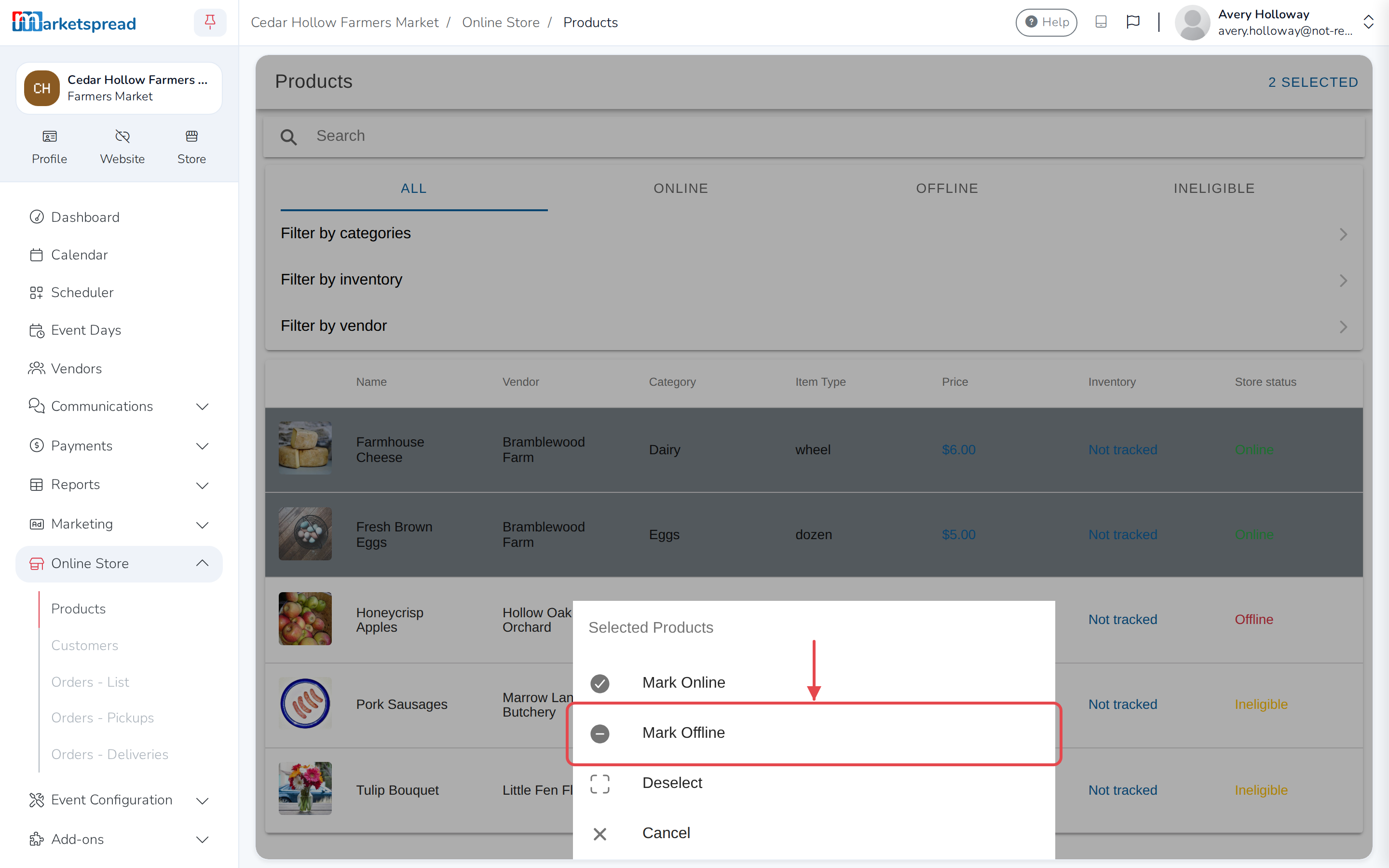
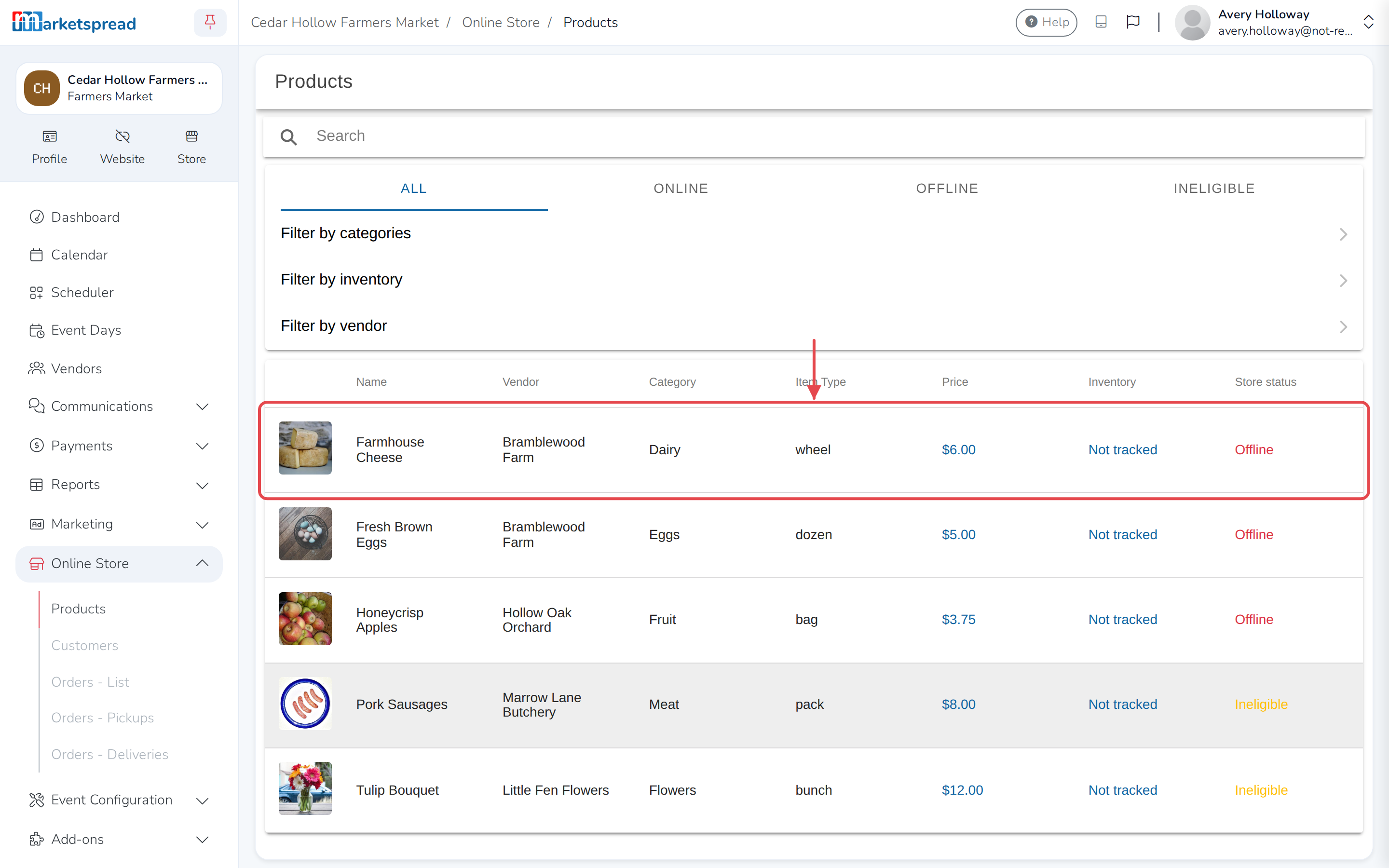
Click Mark Offline to take the selected products off your online store, or Mark Online to put them back on.
Selecting a mix of statuses
If you select products that are already Online along with ones that are Offline, Mark Online only changes the ones that were Offline, and Mark Offline only changes the ones that were Online.
About Ineligible products
A product shows Ineligible when its vendor hasn't turned on their own online store yet. There's nothing to change here until they do.