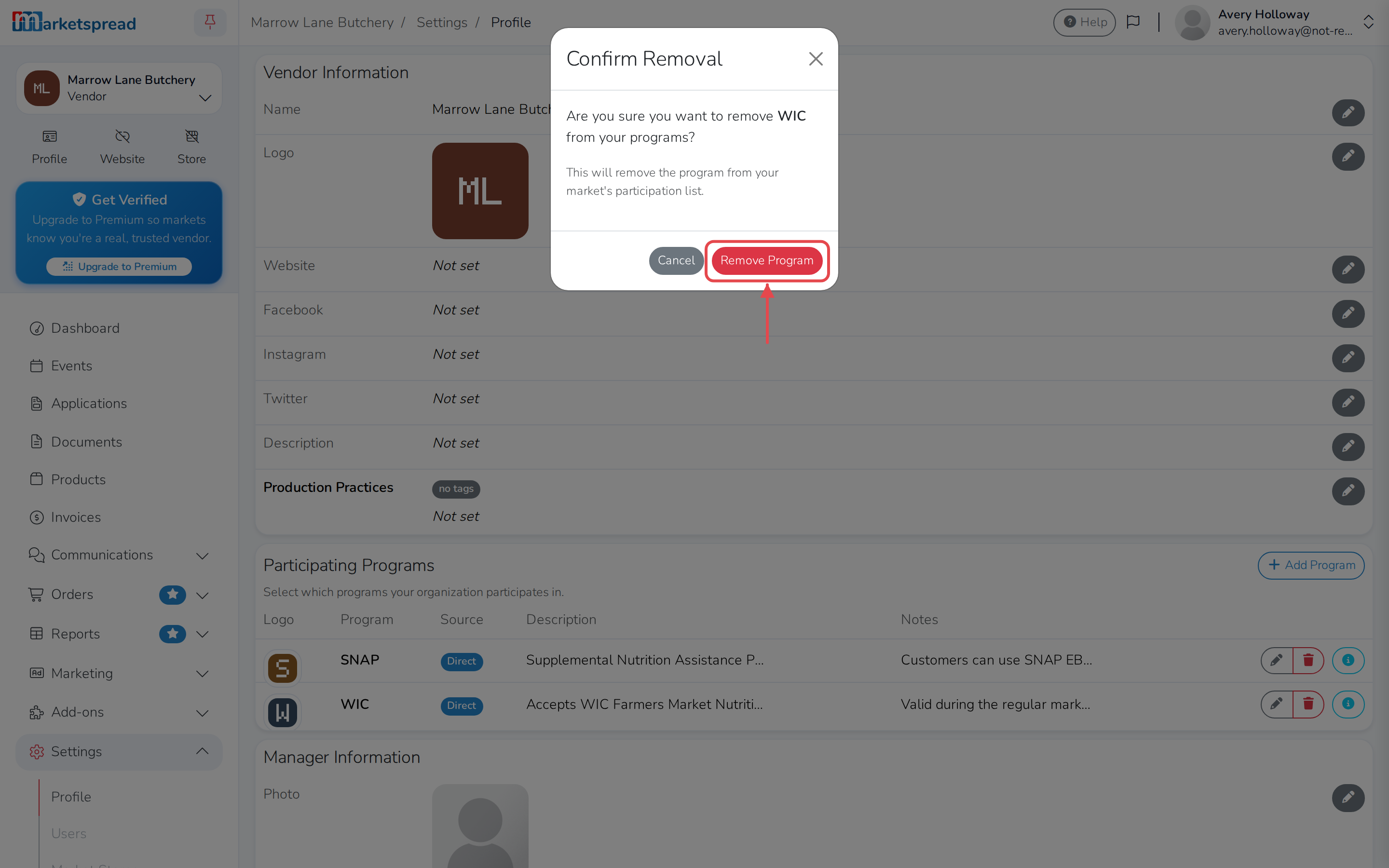
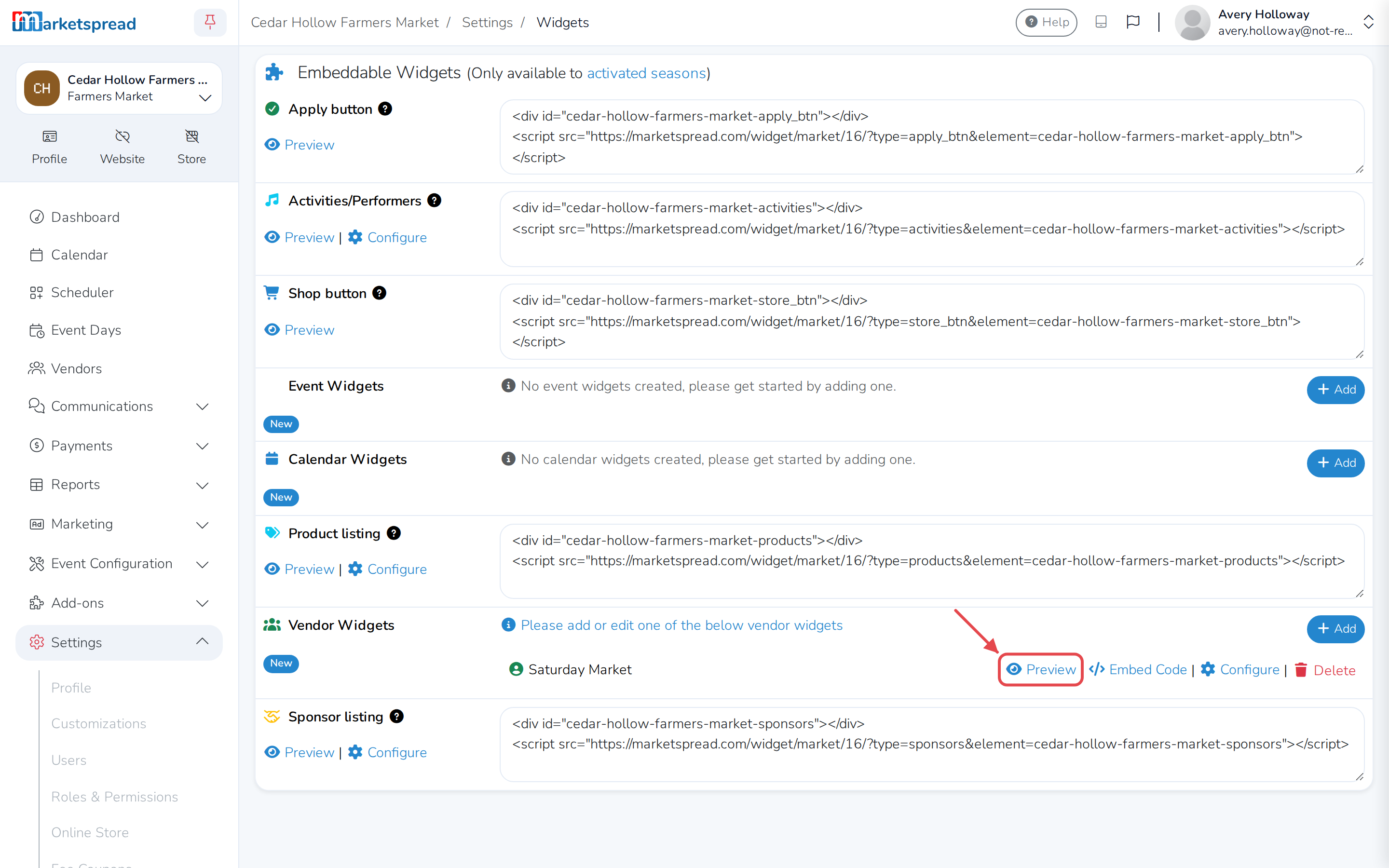
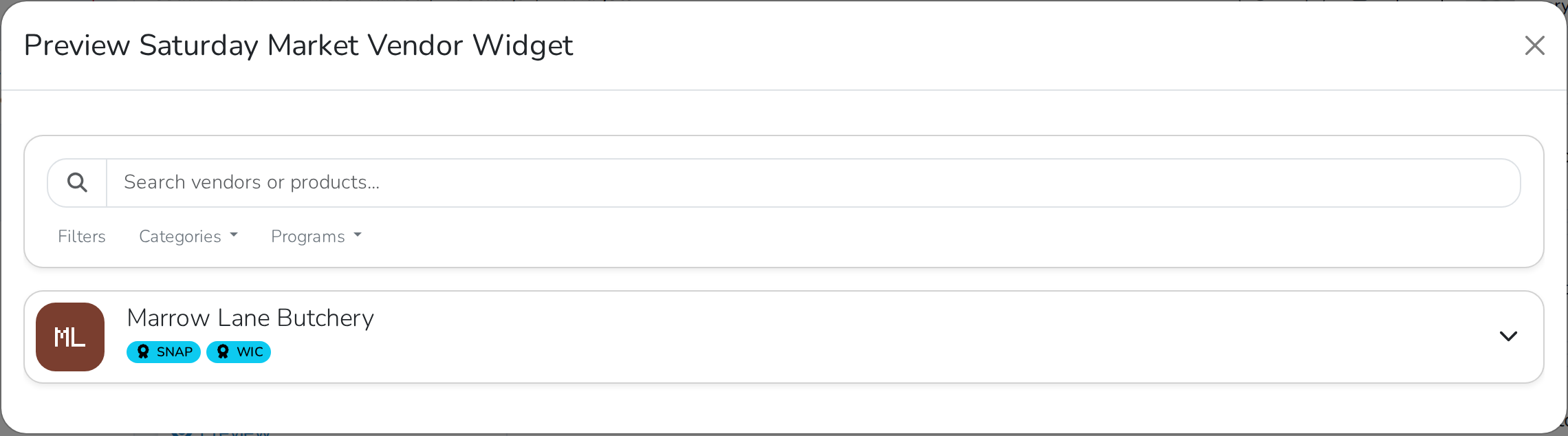
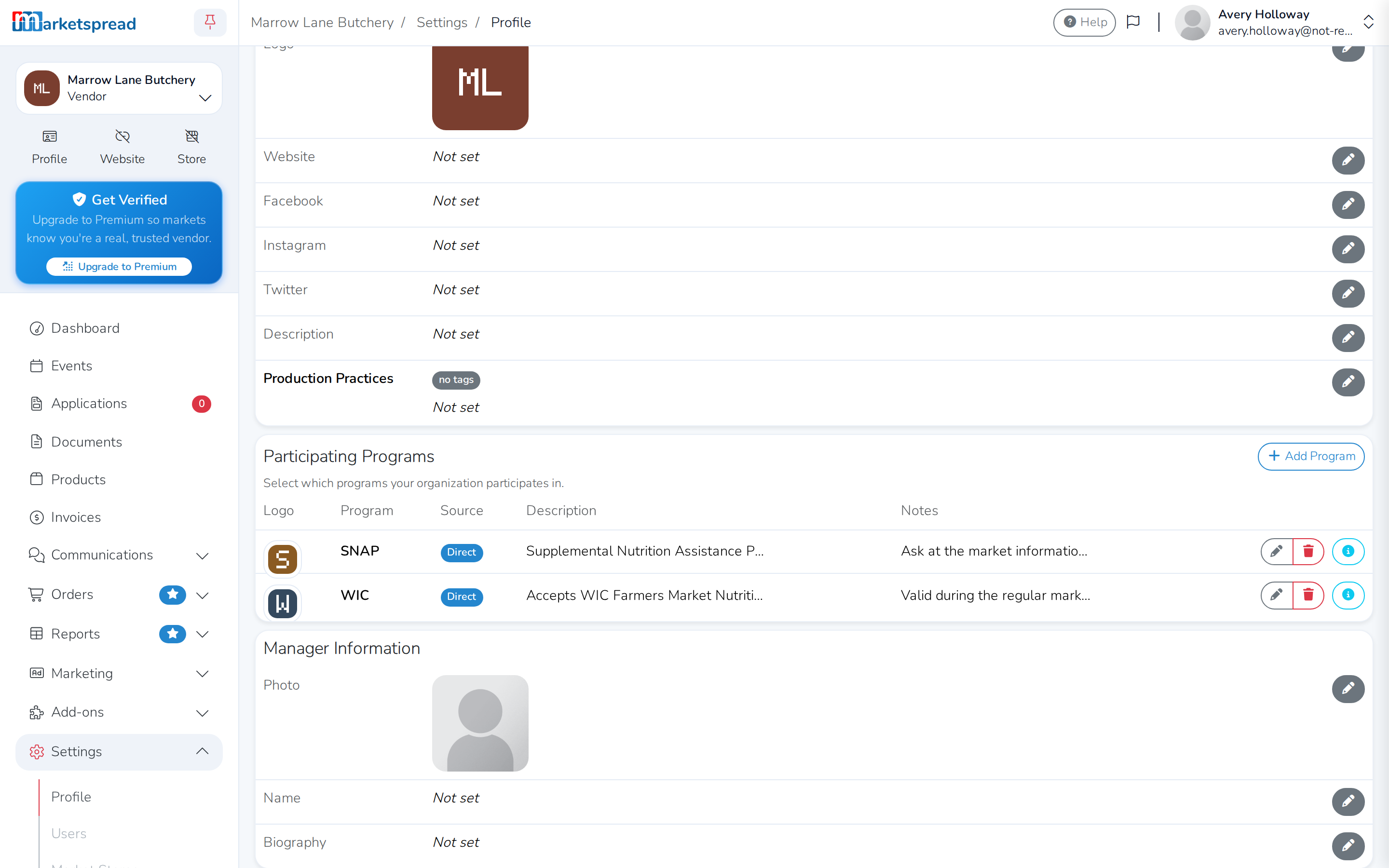
Vendors can tell shoppers which assistance programs they accept — SNAP, WIC, Double Up Food Bucks, tokens and the like — by adding them to their profile. Every program they add shows on their public profile. It also shows on any Vendor Widget on your website, as a badge on the vendor's card and in a Programs filter shoppers can use to narrow the list.
From the Participating Programs card on a vendor's profile, you can:
- Add a program a vendor accepts
- Edit a program's details
- Remove a program
To show this off, add a Vendor Widget to your website if you haven't already.
Tip
Each vendor types their own program name, so SNAP and Snap would show as two different programs in the Programs filter. Tell your vendors the exact wording to use, and send them a logo, to keep it consistent across your market.
Note
You can only do this for a vendor once they've given your market edit access to their profile — see Granting or revoking market access to your account. As a market manager, open Vendors, click the vendor, then click Modify vendor to land on their Profile settings directly.
Add a program a vendor accepts
-
From the vendor's dashboard, open Settings, then Profile.
-
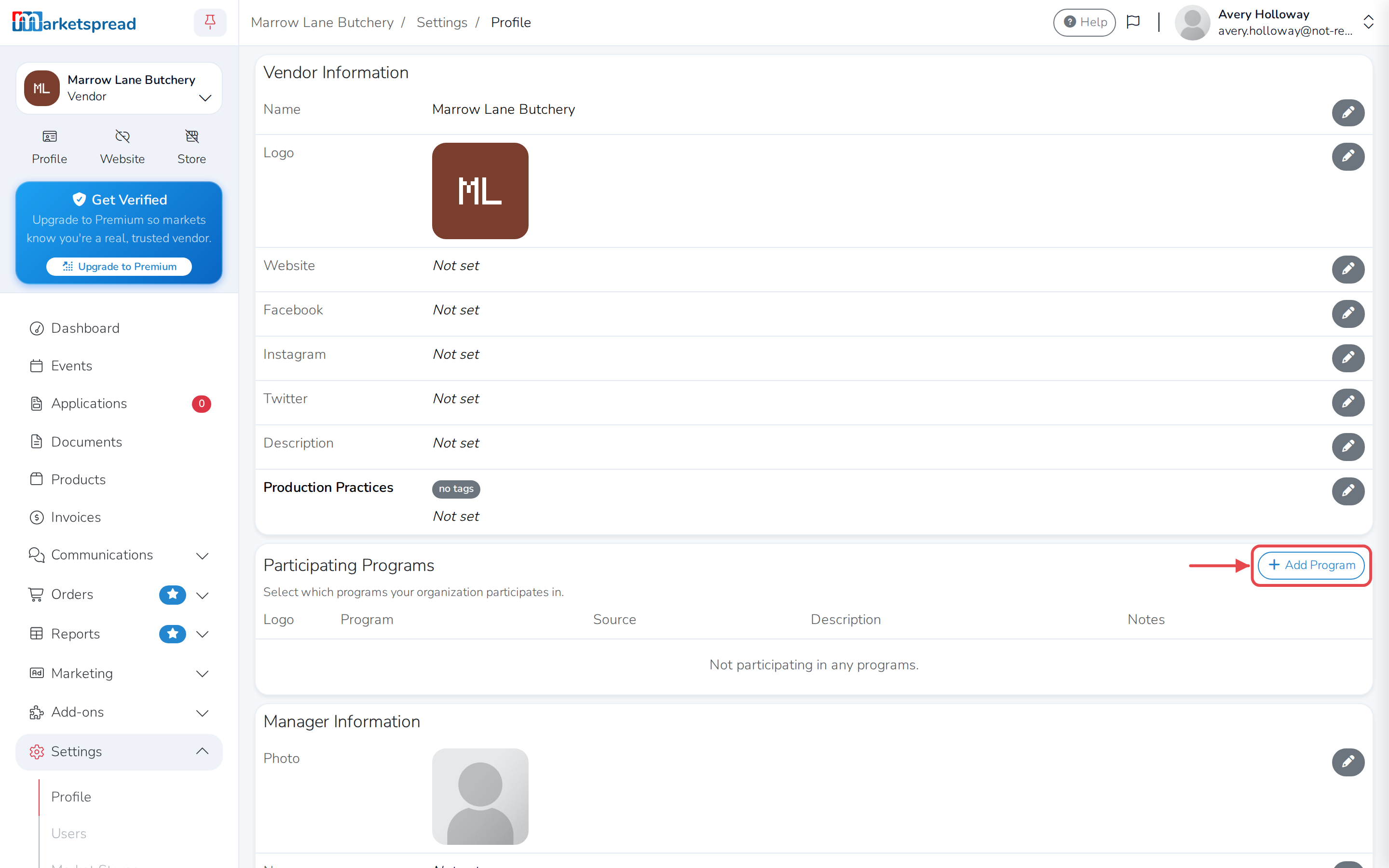
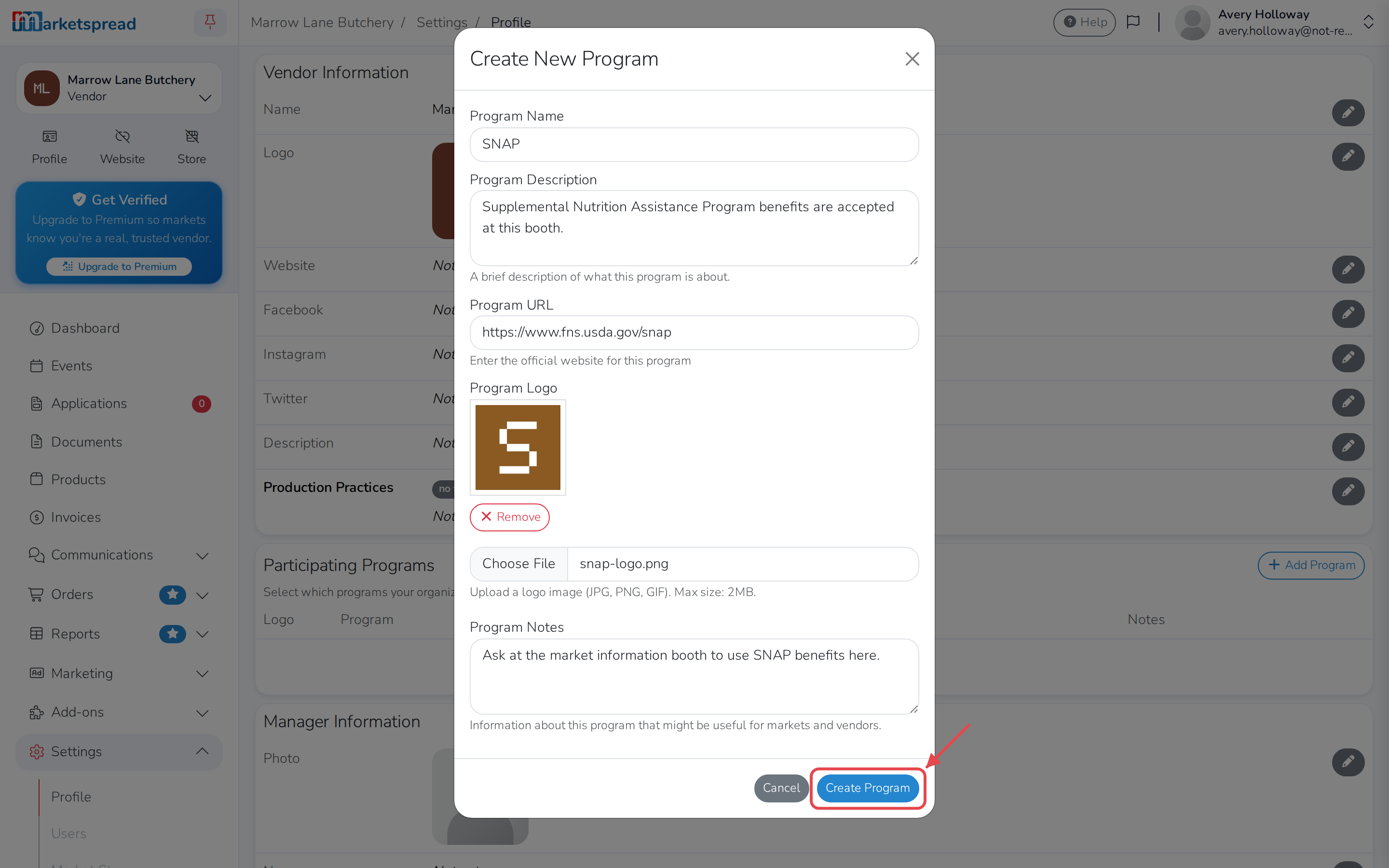
Under Participating Programs, click Add Program.
-
Fill in Program Name.
-
Add a Program Description, Program URL, Program Logo or Program Notes if you want them.
-
Click Create Program.
Edit a program's details
-
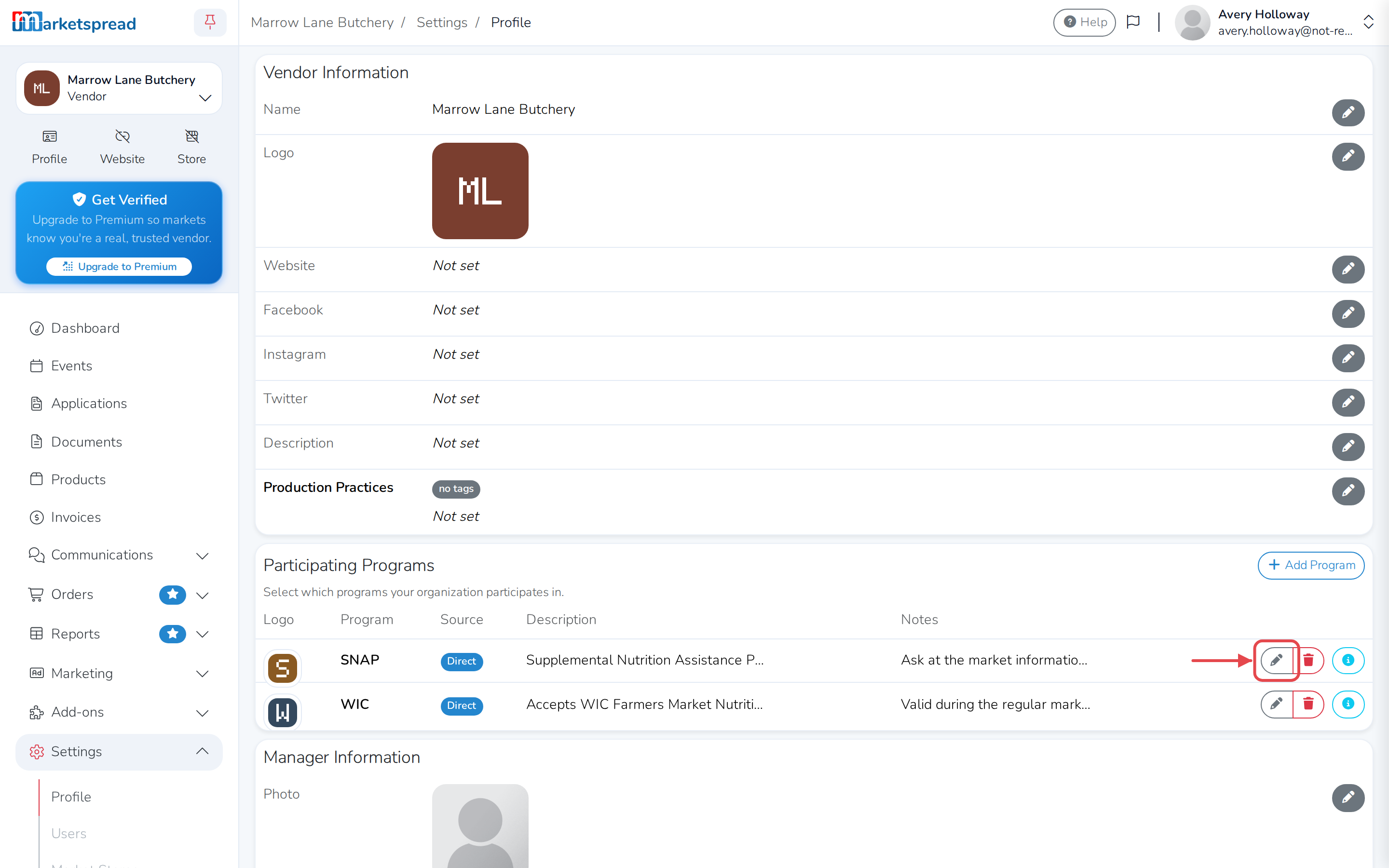
Under Participating Programs, click the pencil icon next to the program.
-
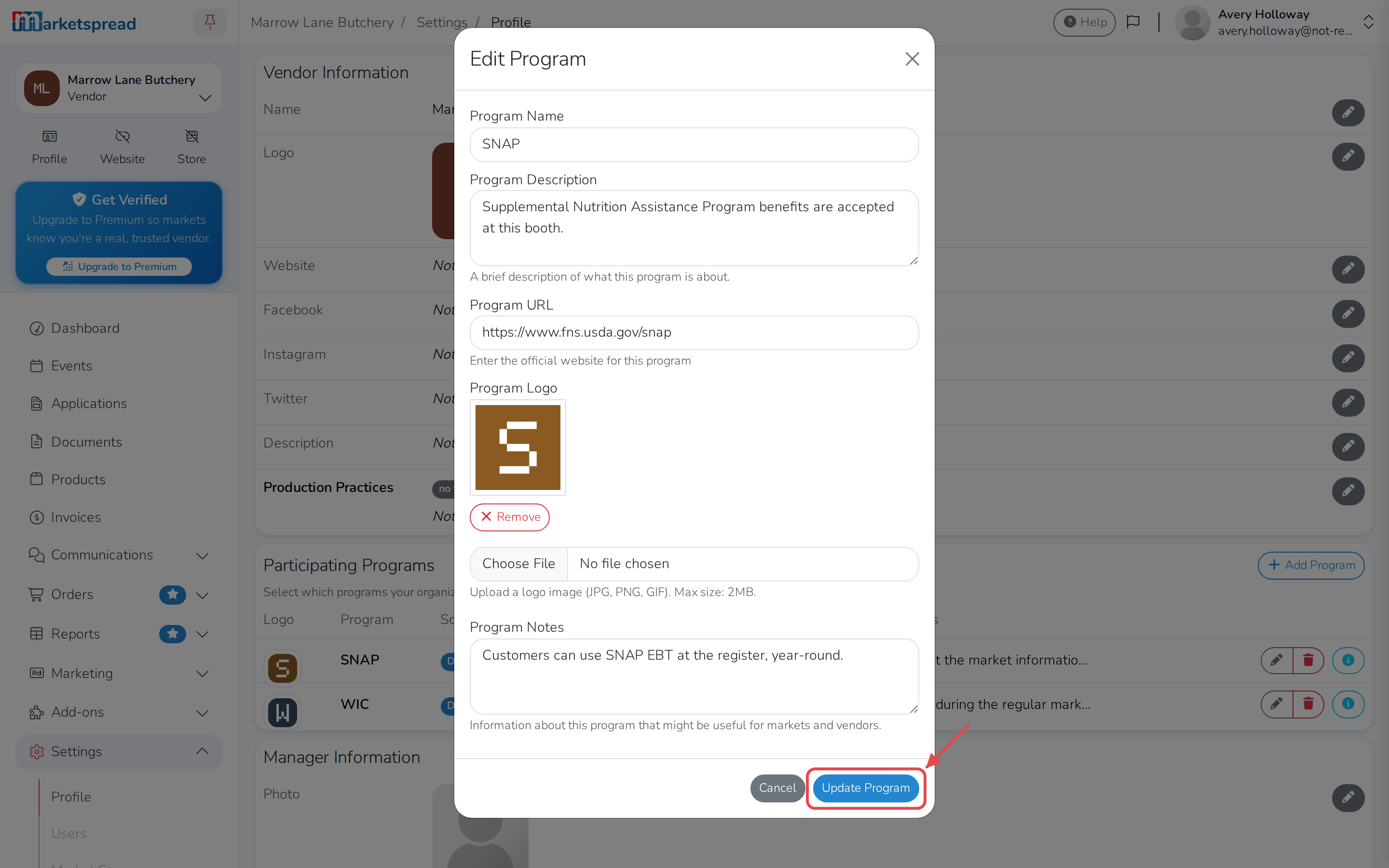
Make your changes.
-
Click Update Program.
Remove a program
-
Under Participating Programs, click the trash icon next to the program.
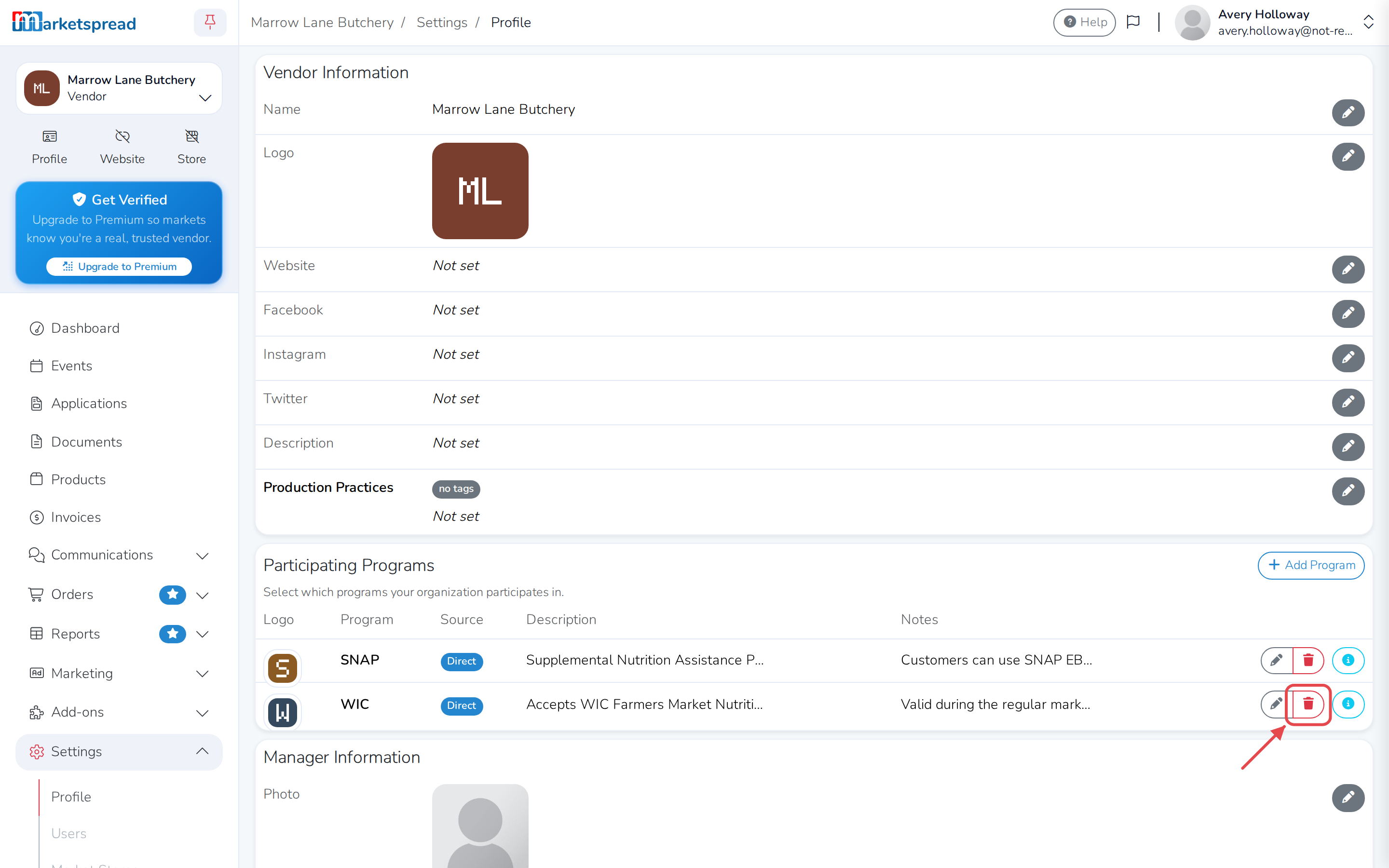
-
Click Remove Program to confirm.