A vendor booked for a week, month or event might tell you they can't make one day of it. Instead of removing them from the whole booking, mark them as not attending for that one day. That frees up their booth for the day, so you can book a different vendor into it without touching the rest of the original booking. This is a double booking, and Scheduler keeps a record of both vendors.
Mark a vendor as not attending for one day
-
Open Scheduler.
-
Set the term dropdown to Day. Adjust attendance only works for a
single day, even if the vendor is booked for a week, month or event.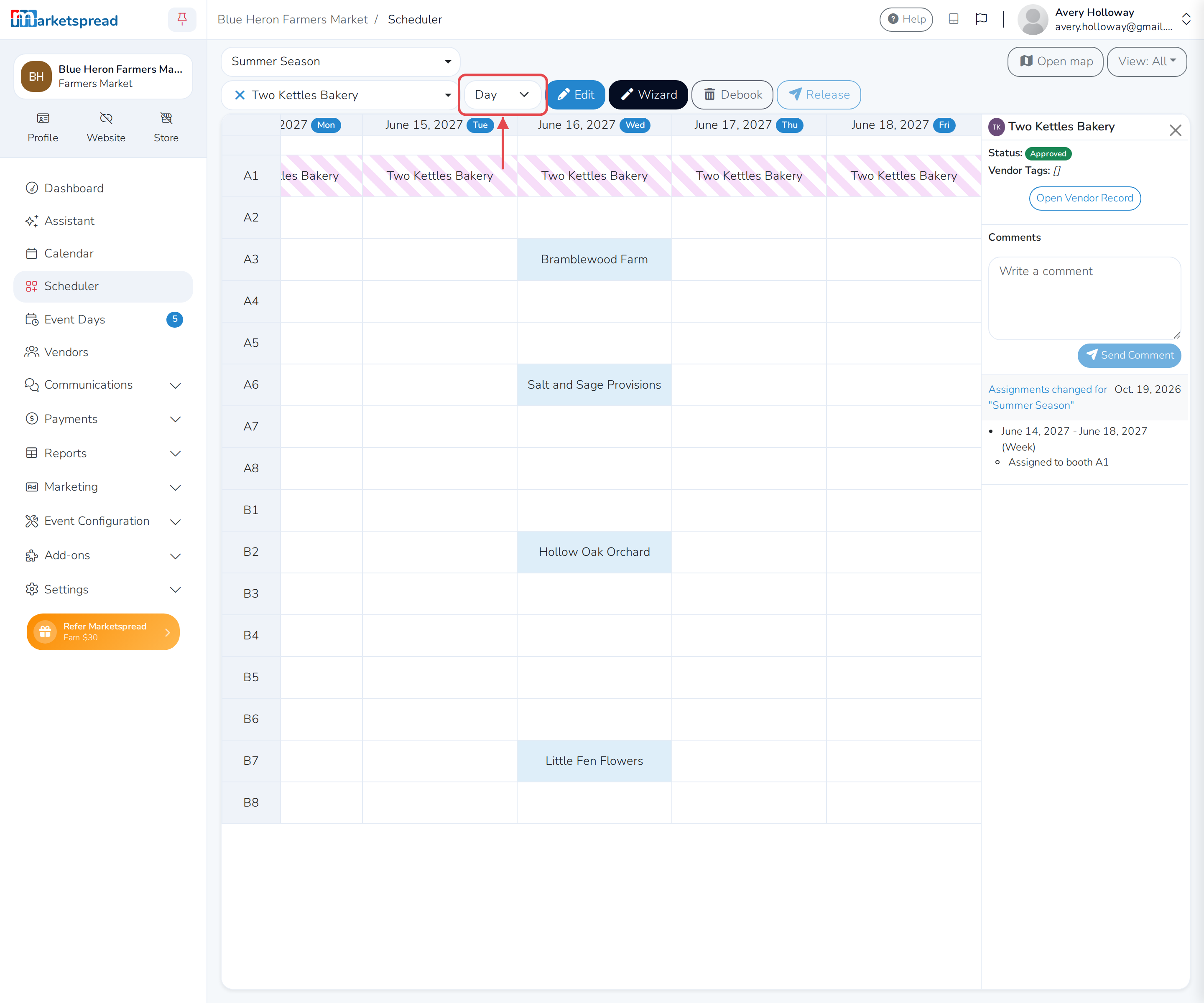
-
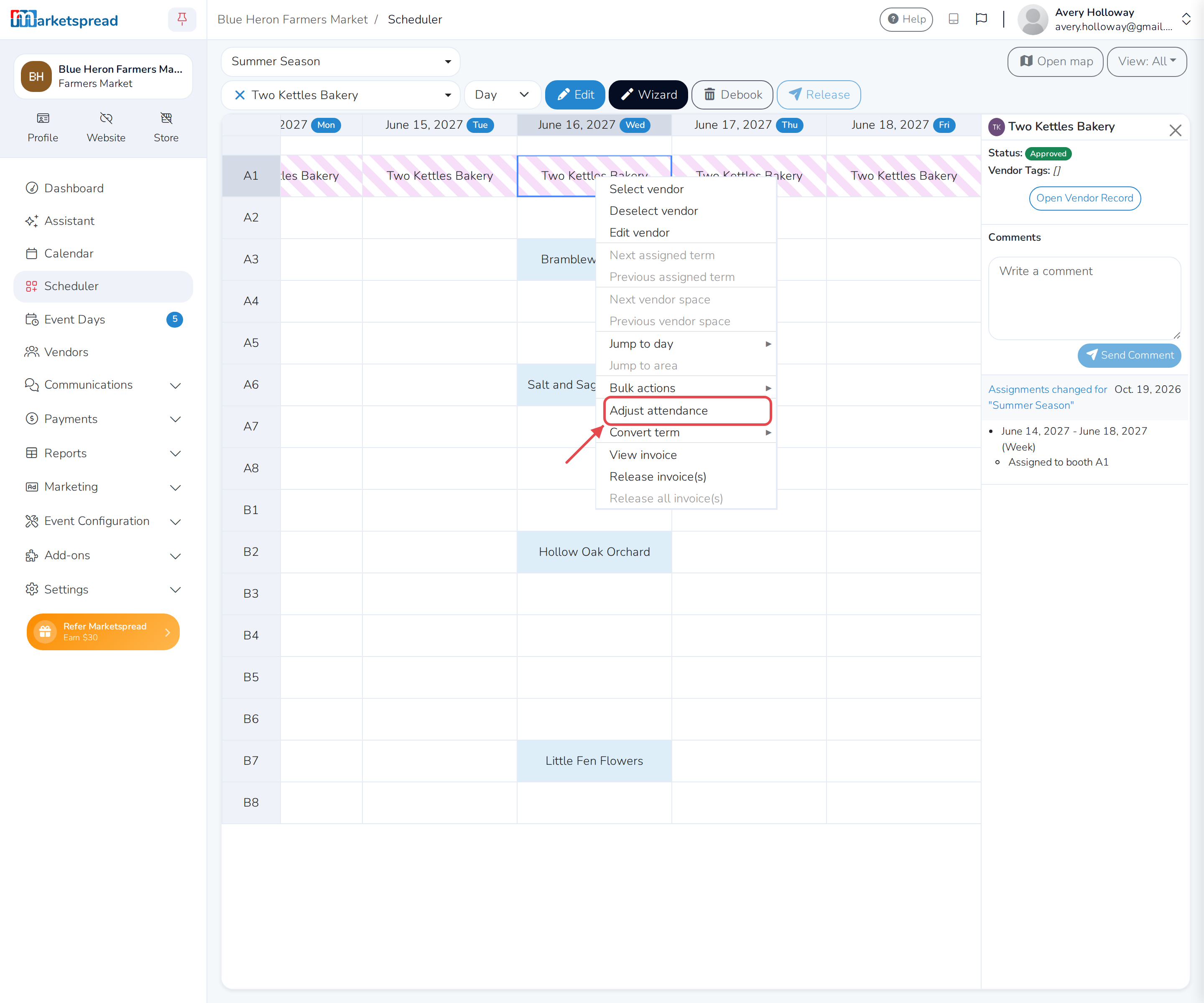
Right-click the vendor's booth on the day they can't make it.
-
Select Adjust attendance.
-
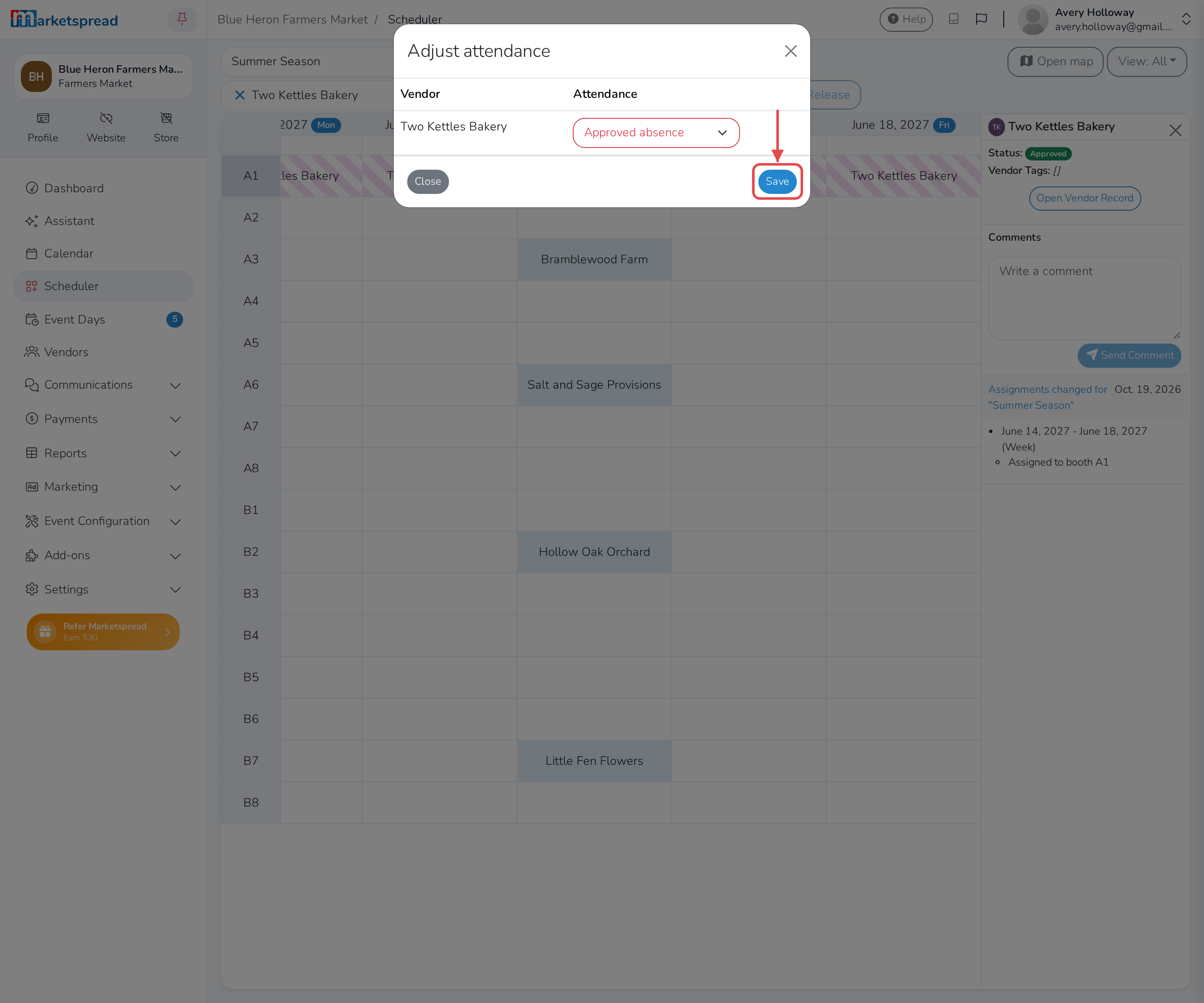
Set their attendance to Approved absence, Unapproved absence, or No show.
-
Click Save.
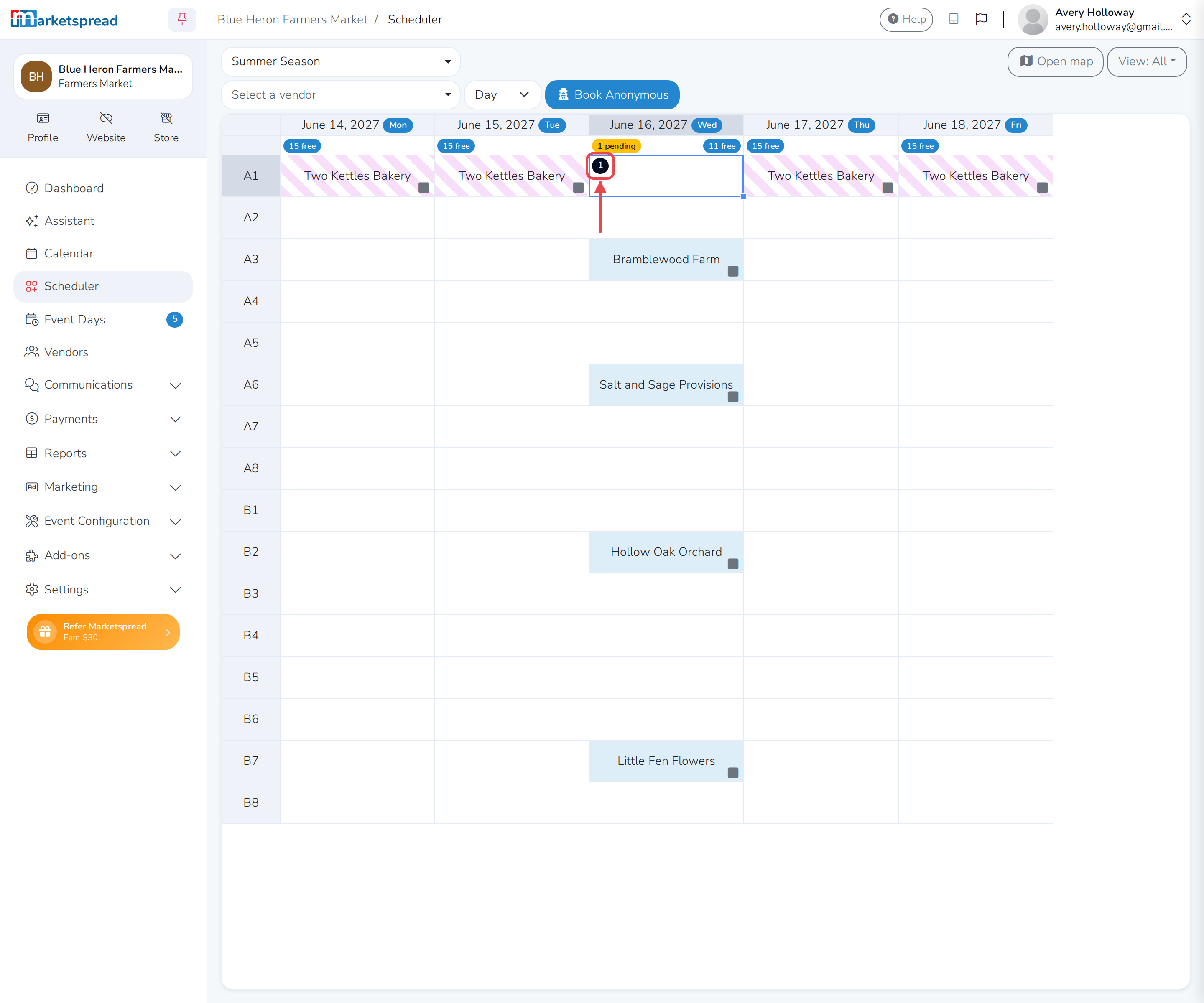
The booth now shows as empty for that day, with a small number in its top-left corner — that's how many bookings it has.
Book a different vendor into that day
-
Set the term dropdown to Day, so you only book the one day.
-
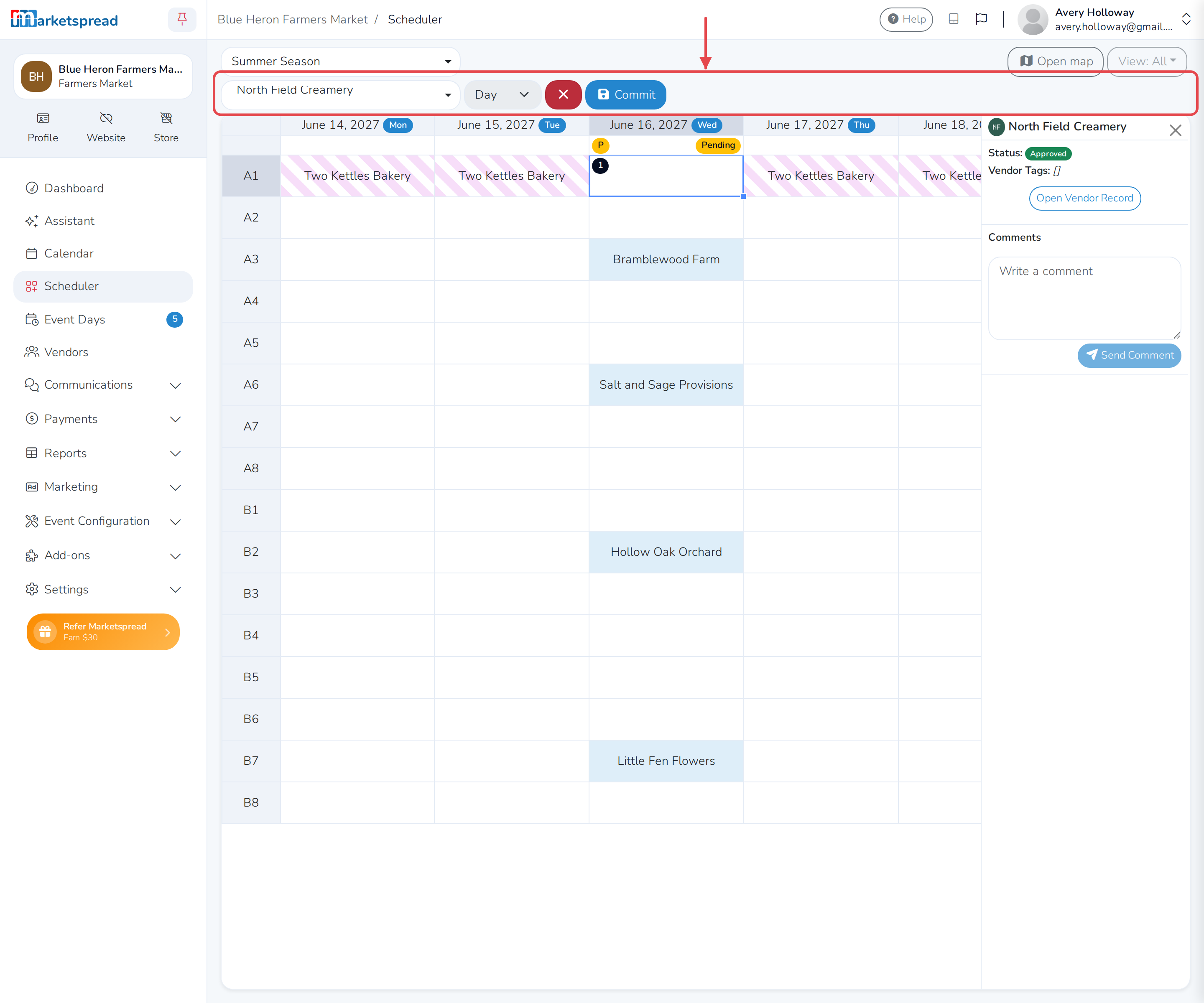
In Select a vendor, search for and select the vendor you want to book in.
-
Click Edit.
-
Hover over the empty booth for that day and click the checkmark.
-
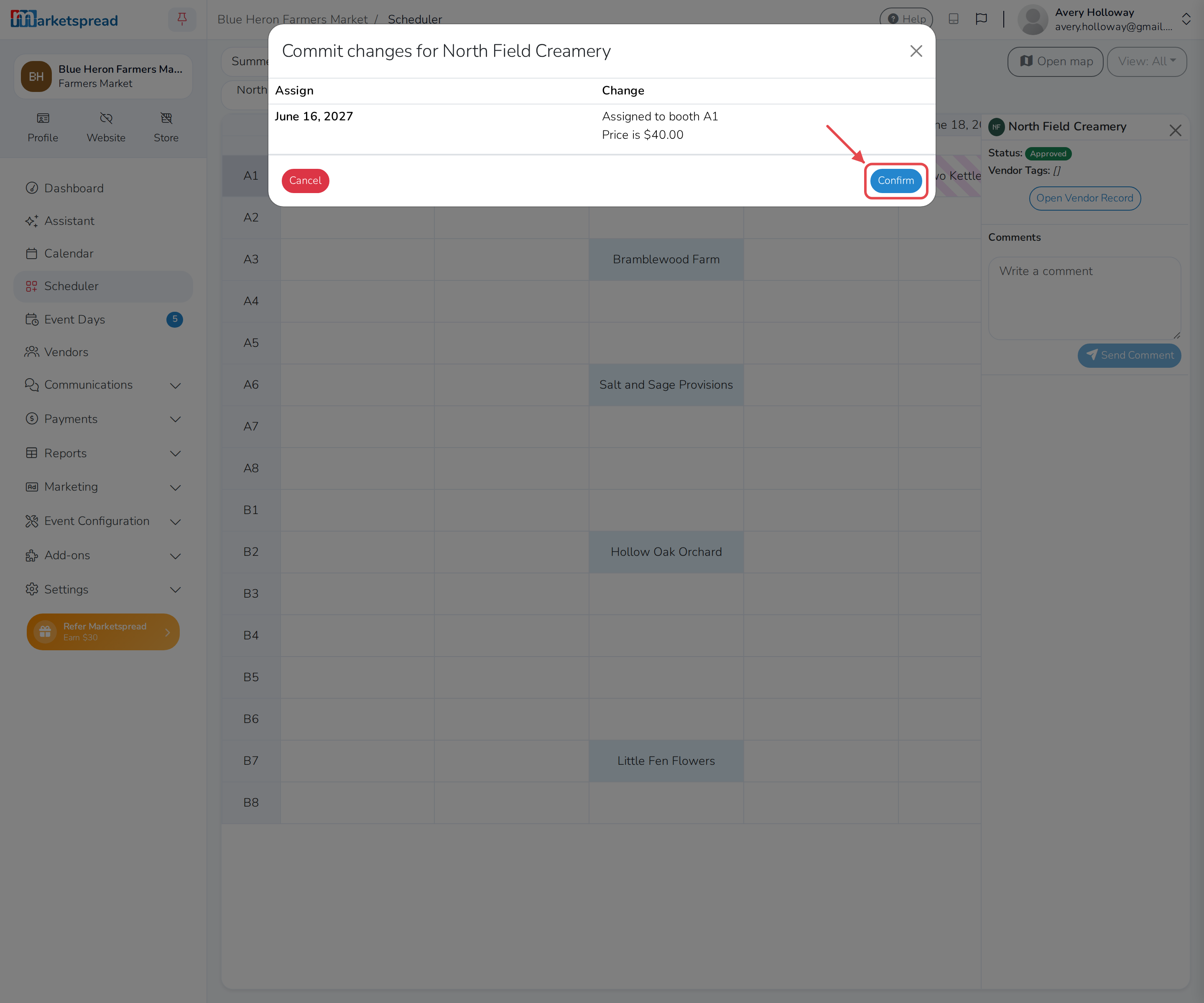
Click Commit.
-
Click Confirm.
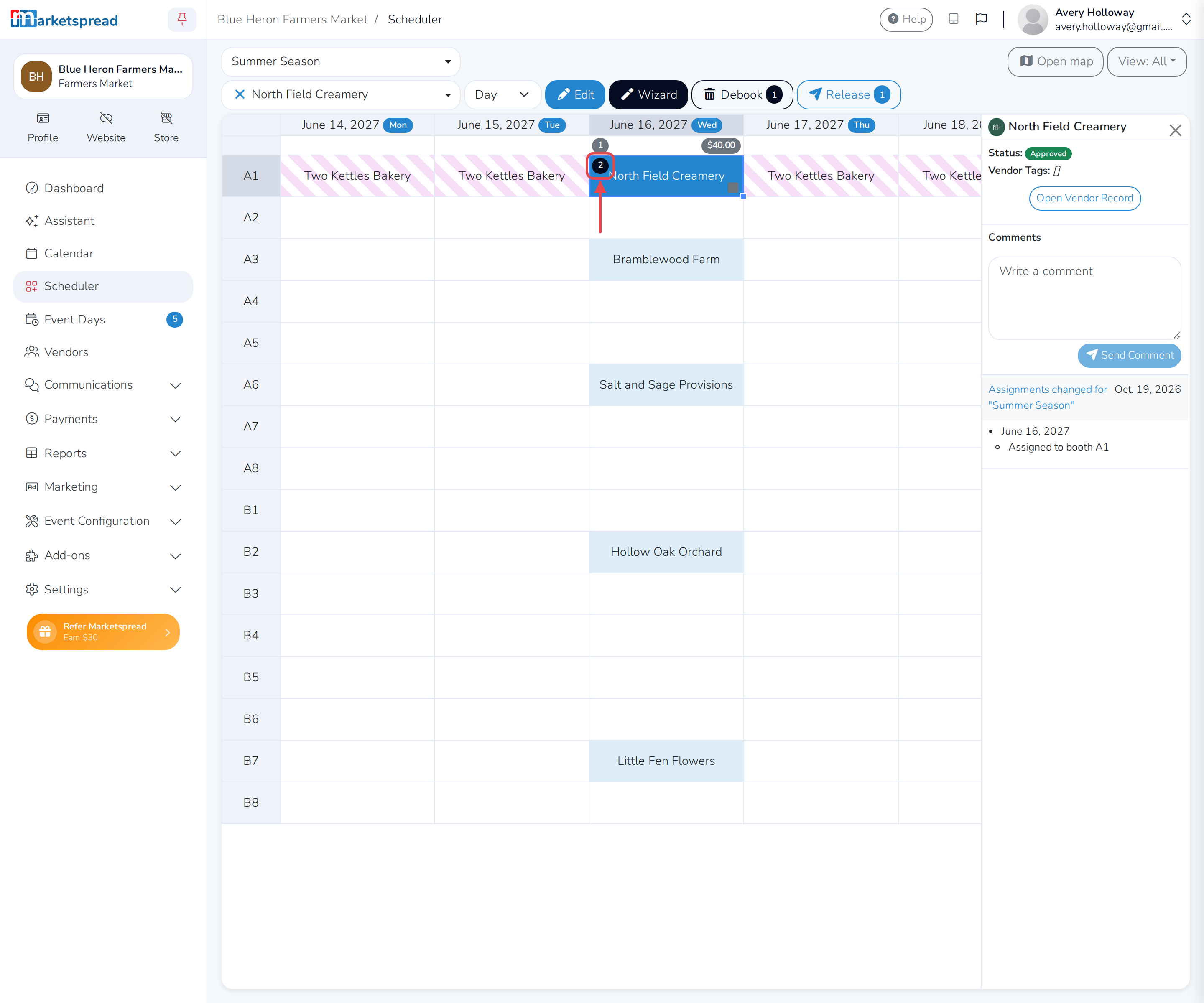
The booth's counter now shows two bookings for that day: the vendor marked not attending, and the vendor you just booked.
Note
A booth isn't limited to two bookings. Mark the new booking as not attending too, and you can book a third vendor in for the same day, and so on.
See every booking for a booth
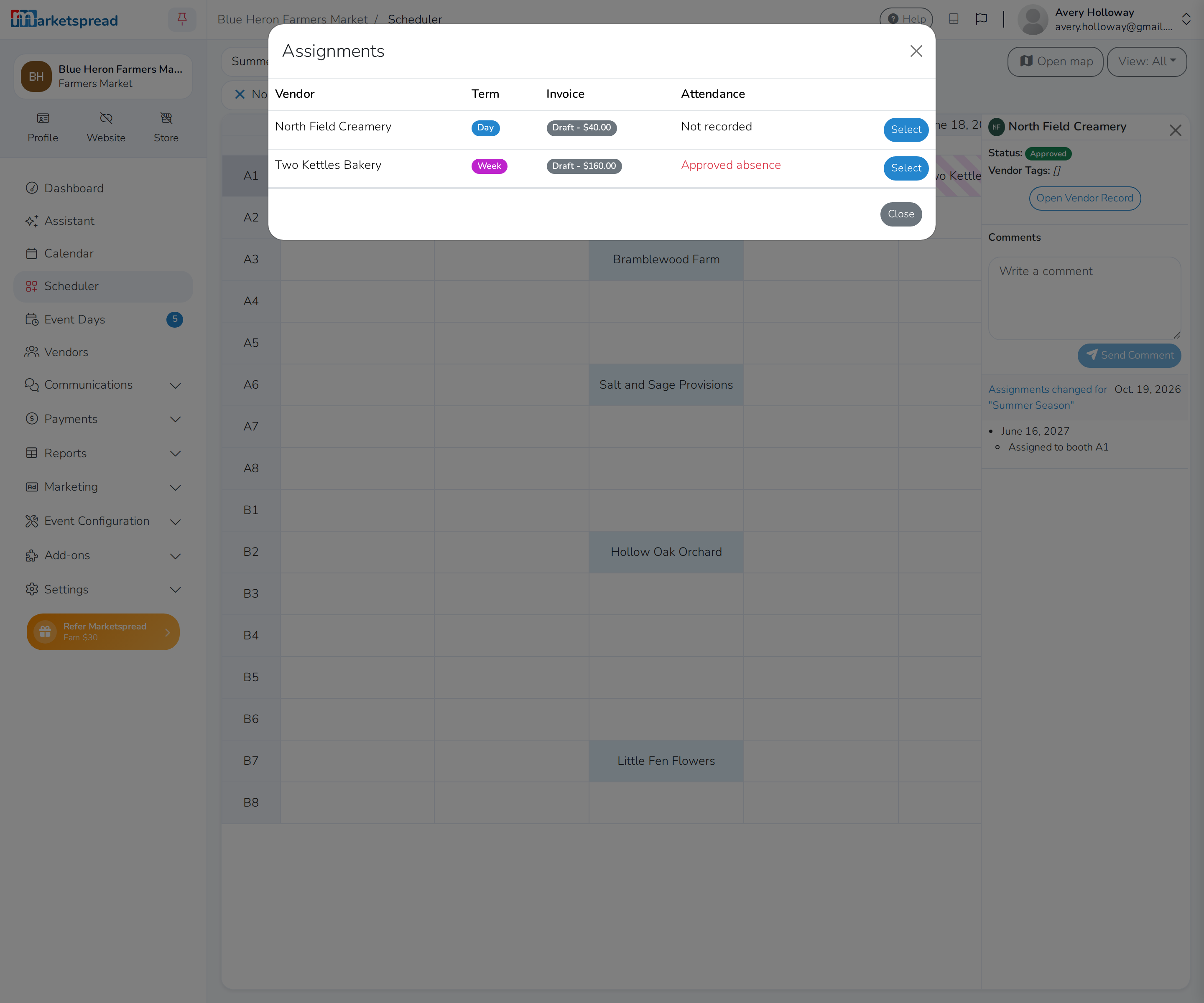
- Click the number in the top-left corner of the booth.
This opens Assignments, listing every vendor booked into that booth for the day, along with their term, invoice and attendance.
See a double booking from Event Days
- Open Event Days.
- Click the day.
- Click Vendors.
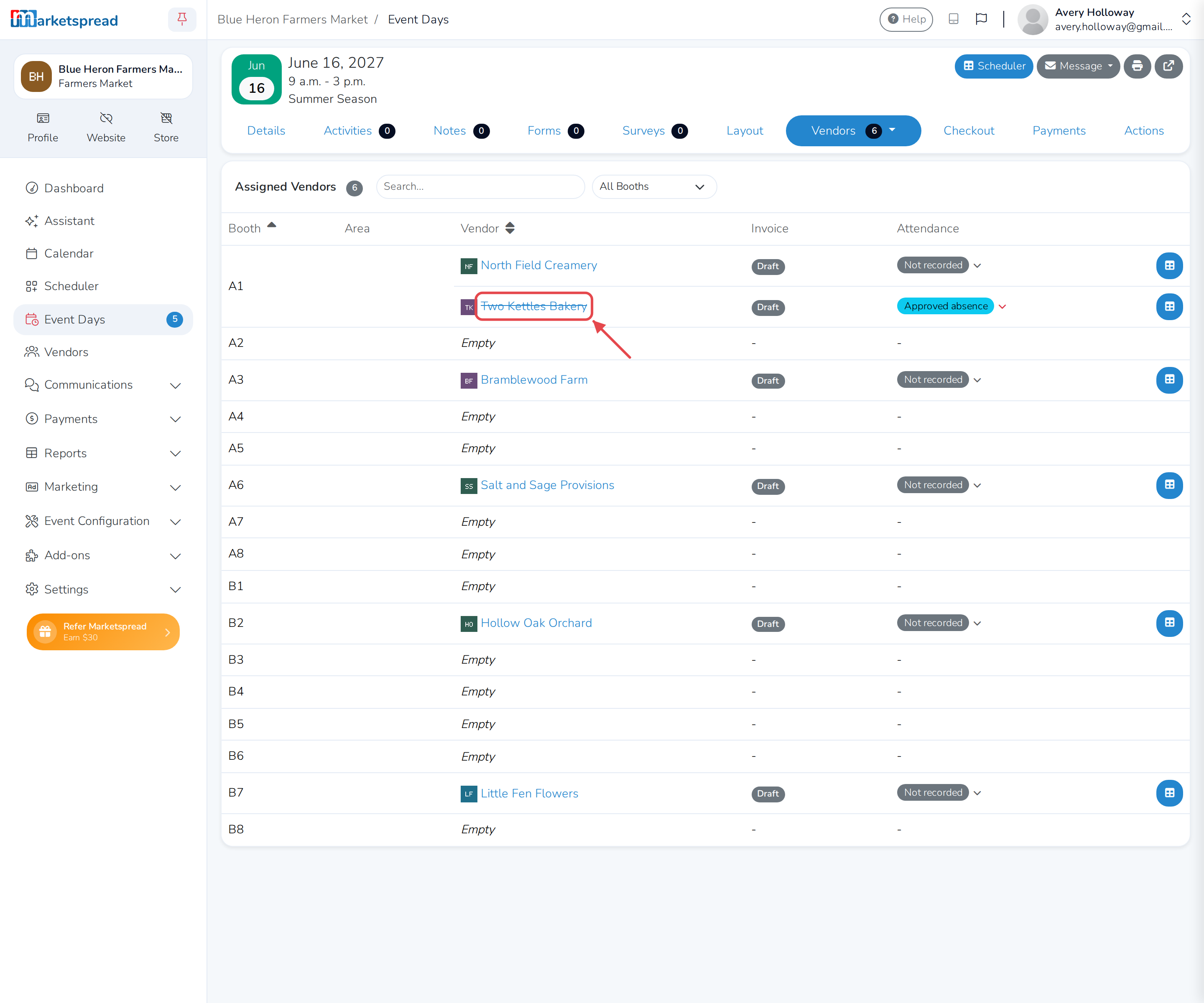
The vendor marked not attending shows with their name crossed out. The vendor you booked in their place shows as usual, in the same booth.