


Cloning copies an event or event series into a new one, so you don't have to
set everything up again for your next one. A wizard walks you through naming
the copy, setting its dates, and choosing what to carry over — fees, vendors
and the application.
Clone an event or event series
-
In the left-hand navigation, click Event Configuration, then Events.
-
Click the event or event series you want to clone.
-
Click the Actions tab.
-
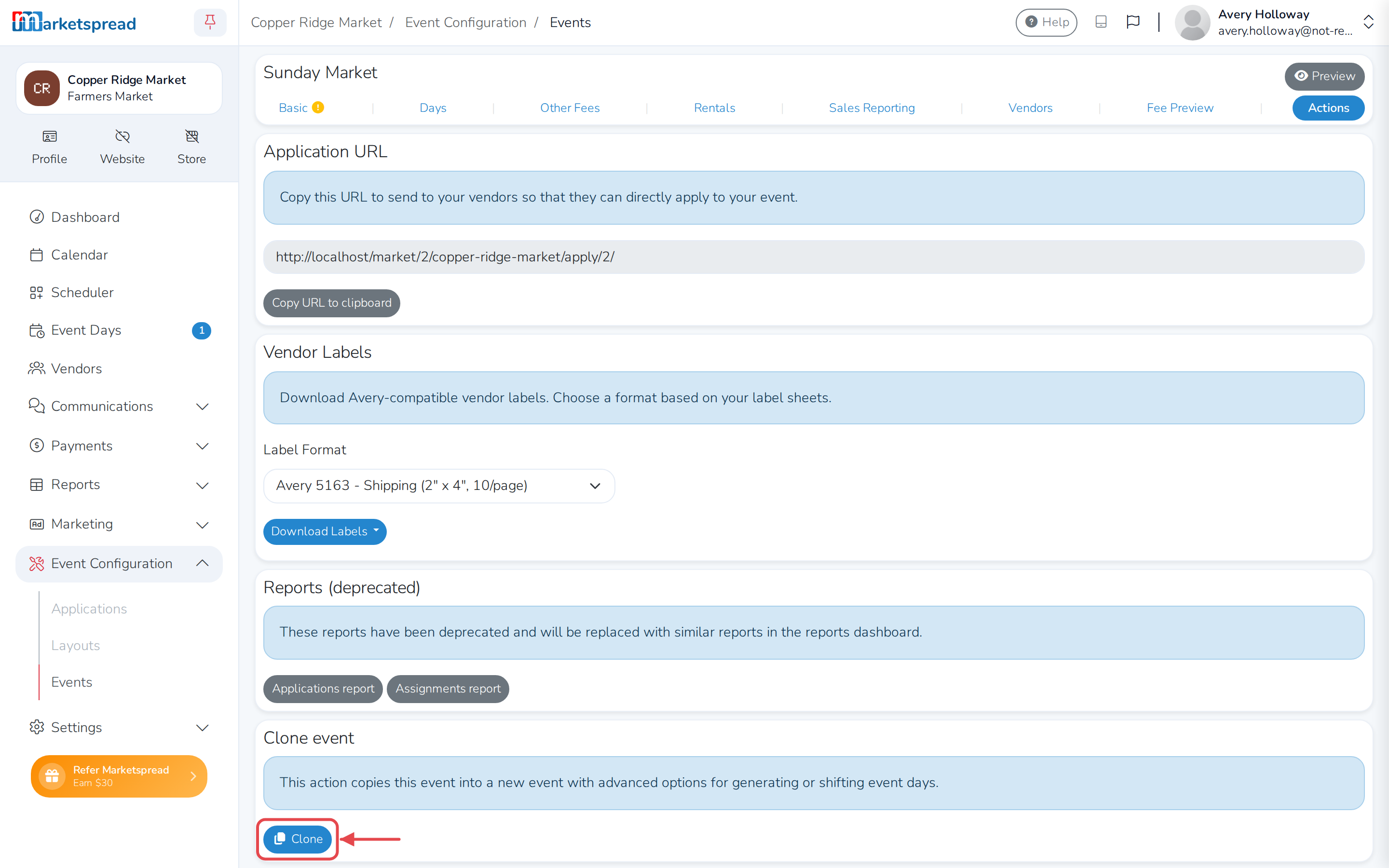
Under Clone event, click Clone.
-
Type a name for the new event. Marketspread suggests one based on the
original, so edit it if you want something else. -
Click Next.
-
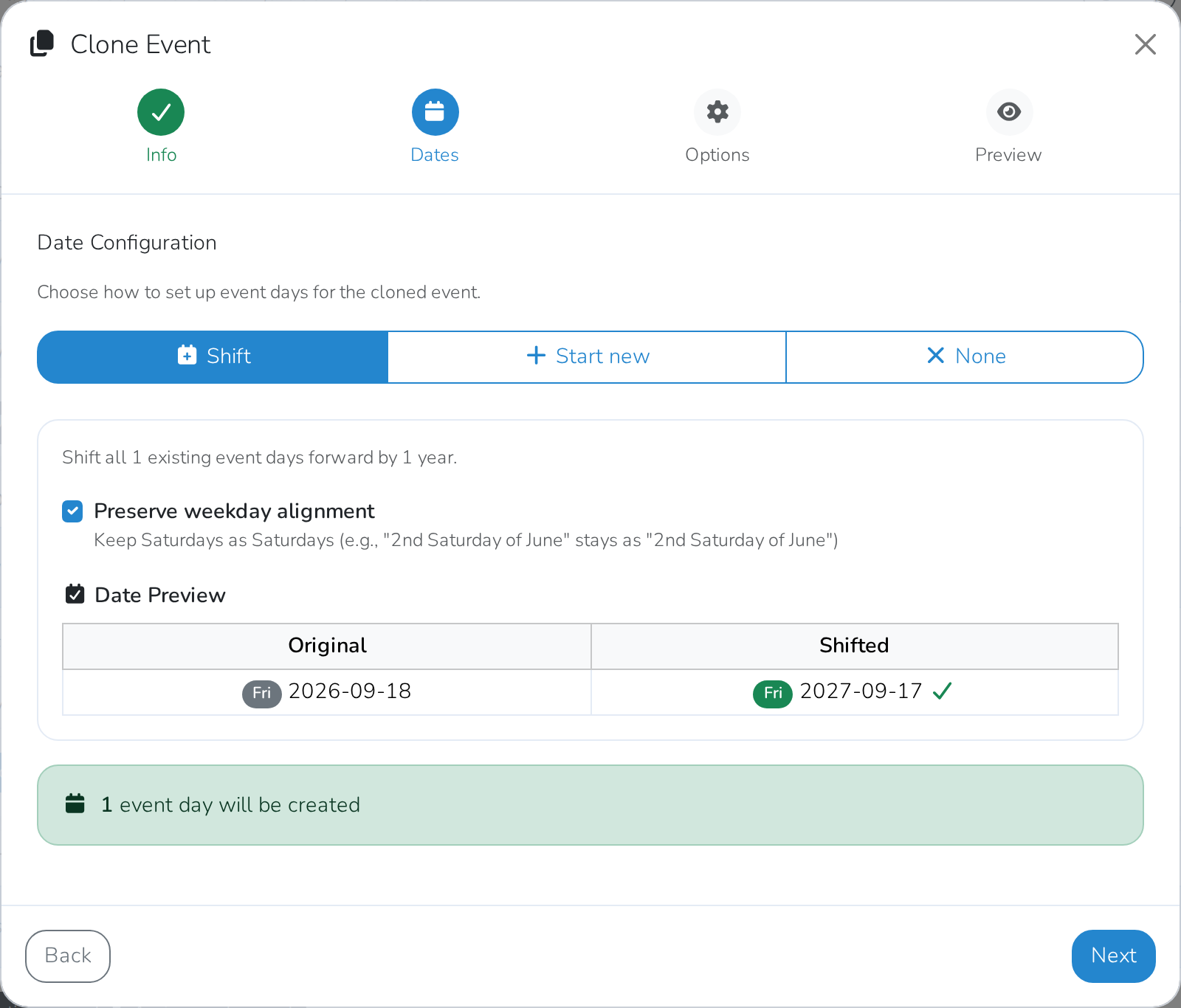
Choose how to set up days for the new event:
- Shift copies all of the original's days forward by exactly one
year. Turn on Preserve weekday alignment to keep the same day of
the week — a Saturday event stays on a Saturday. - Start new lets you pick a Start Date, End Date, the
weekdays it runs on, and a start and end time. - None creates no days. Add them yourself after cloning.
- Shift copies all of the original's days forward by exactly one
-
Click Next.
-
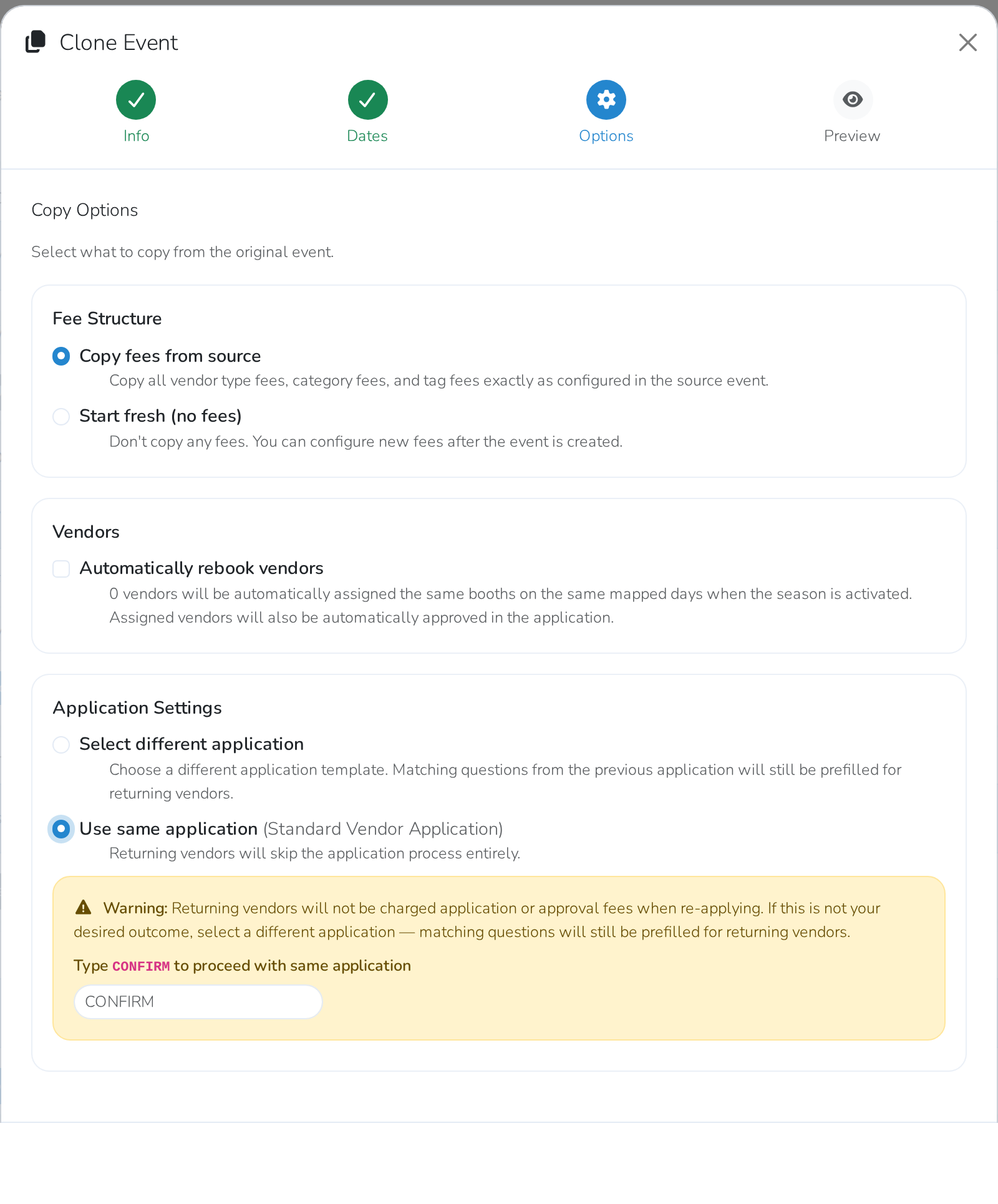
Choose what to copy from the original event:
- Under Fee Structure, choose Copy fees from source to bring over
every fee exactly as it's set up now, or Start fresh (no fees) to
set new fees afterwards. - Under Vendors, turn on Automatically rebook vendors to assign
the same vendors to the same booths once the new event is activated.
They're approved automatically too. - Under Application Settings, choose Select different application
to use a different template, or Use same application to reuse the
one from the original event.
- Under Fee Structure, choose Copy fees from source to bring over
-
Click Next.
-
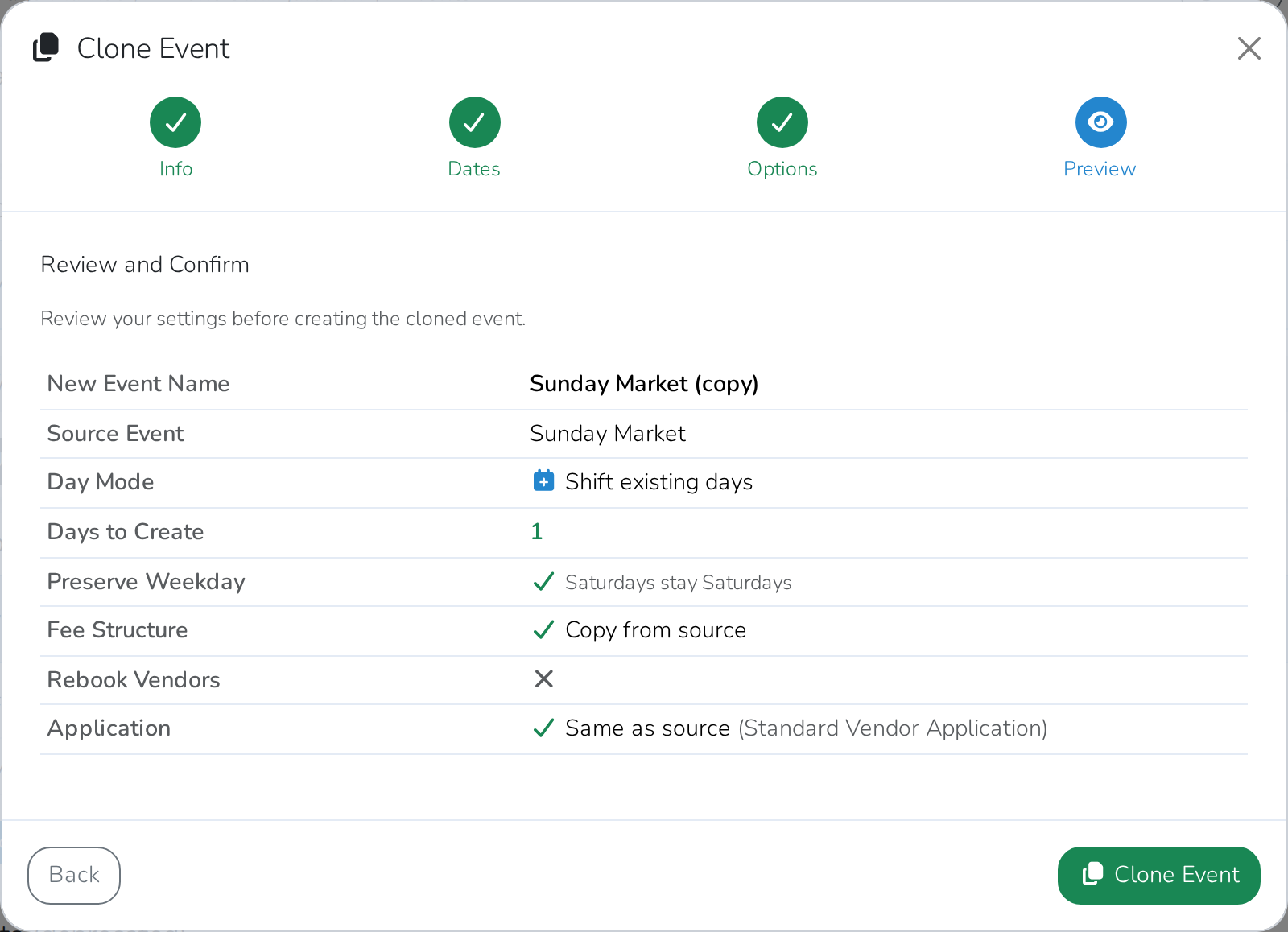
Review the summary.
-
Click Clone Event.
Note
If the new dates make for a very different kind of event than the one you
started from — for example, turning an event series into a single day —
Marketspread warns you that copied fees may not fit, and suggests
starting fresh instead.
Warning
Choosing Use same application means returning vendors skip applying
again — and aren't charged an application or approval fee. Type
CONFIRM to continue, or choose Select different application
instead.
Note
Cloning doesn't make the new event live. Find it under Pending Events
on the Events page, then follow Activate your next event.