


You don't need a vendor to reapply just because you rejected them once. If you
want to let them in after all, you can reverse the decision from their
application. That brings them straight into the market.
Find the application
- Open Vendors.
- Search for the vendor and click their name to open their record.
- Click the Applications tab.
- Next to the declined application, click Review.
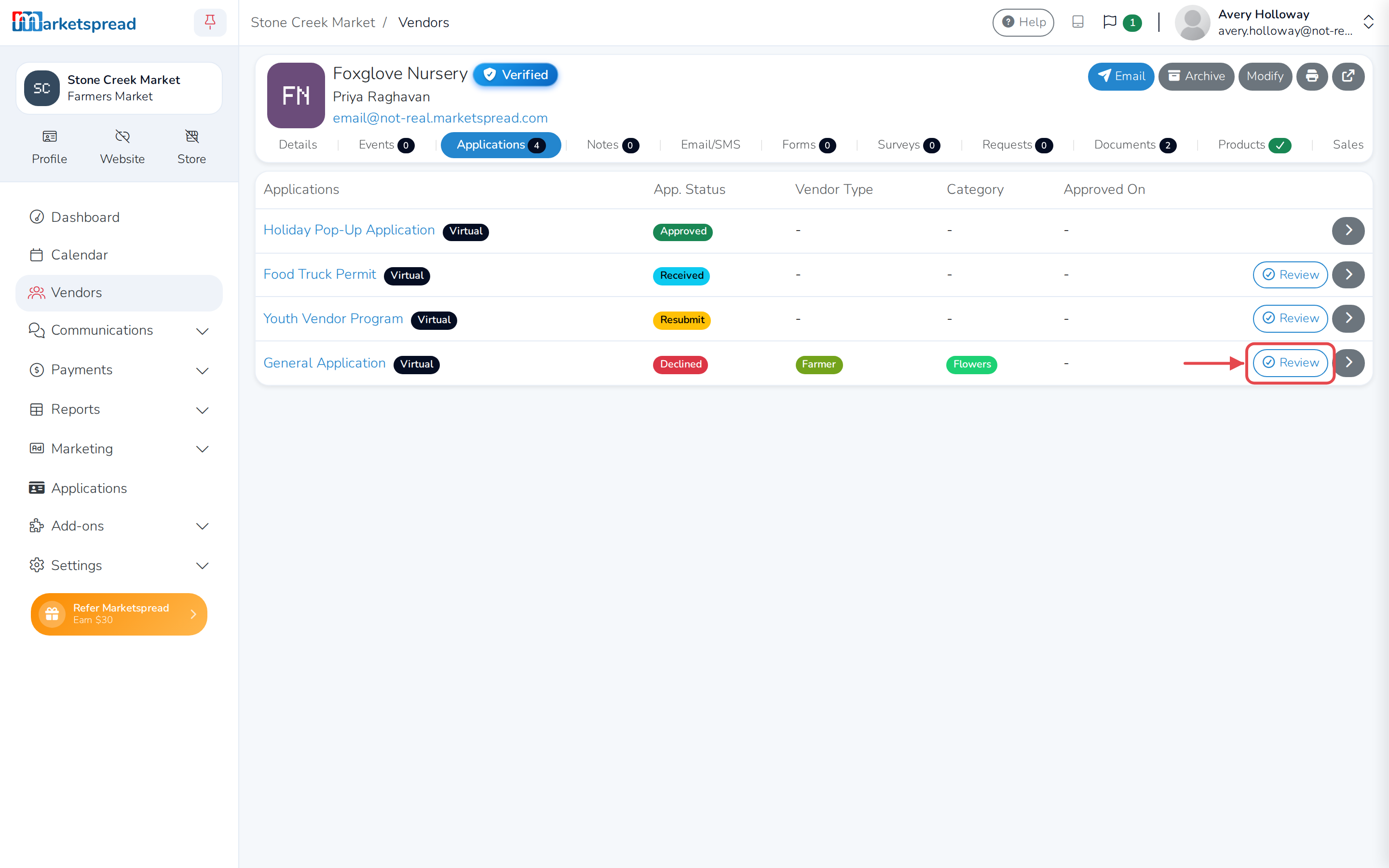
The application's status shows Declined.
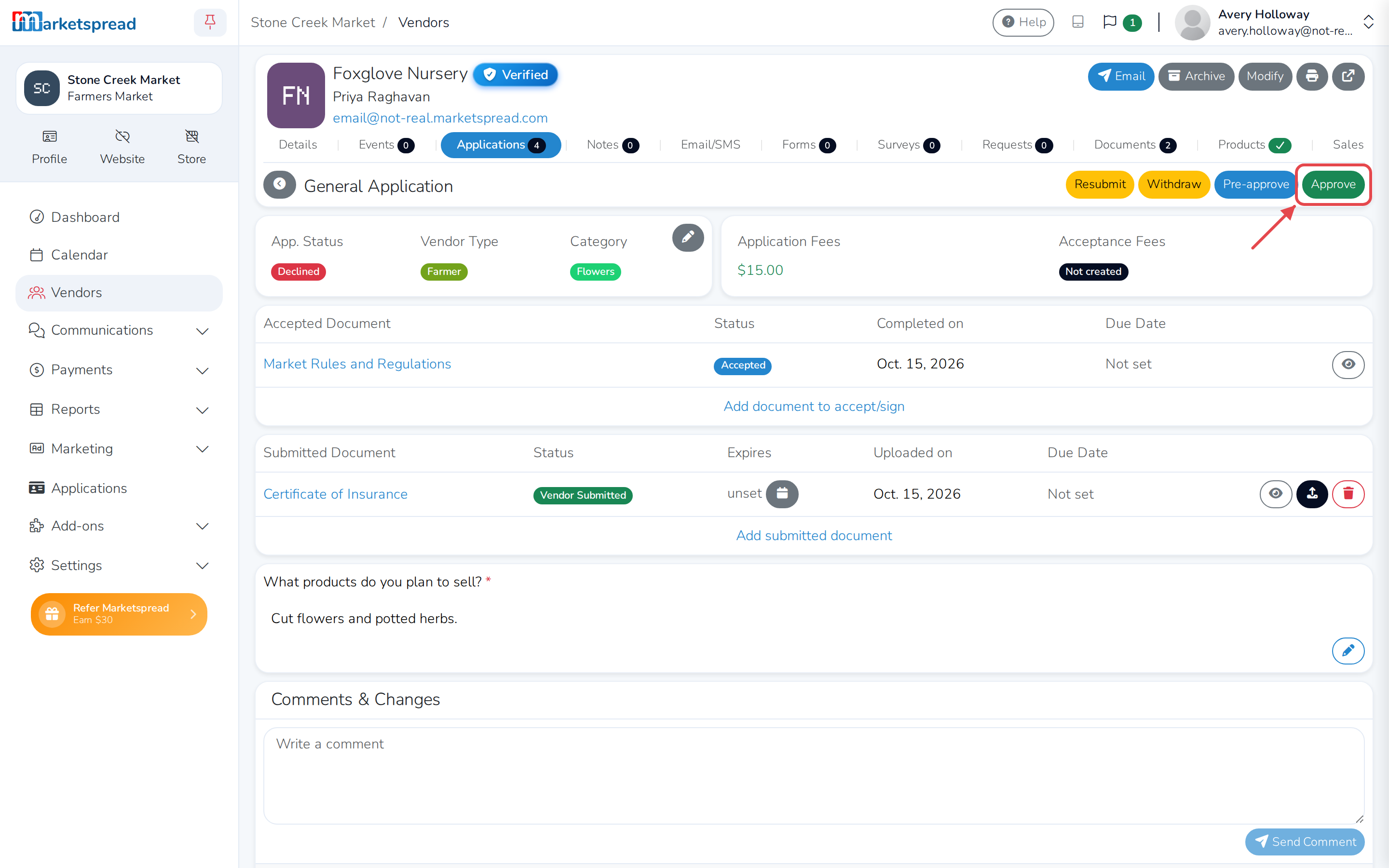
Approve the vendor
- Click Approve.
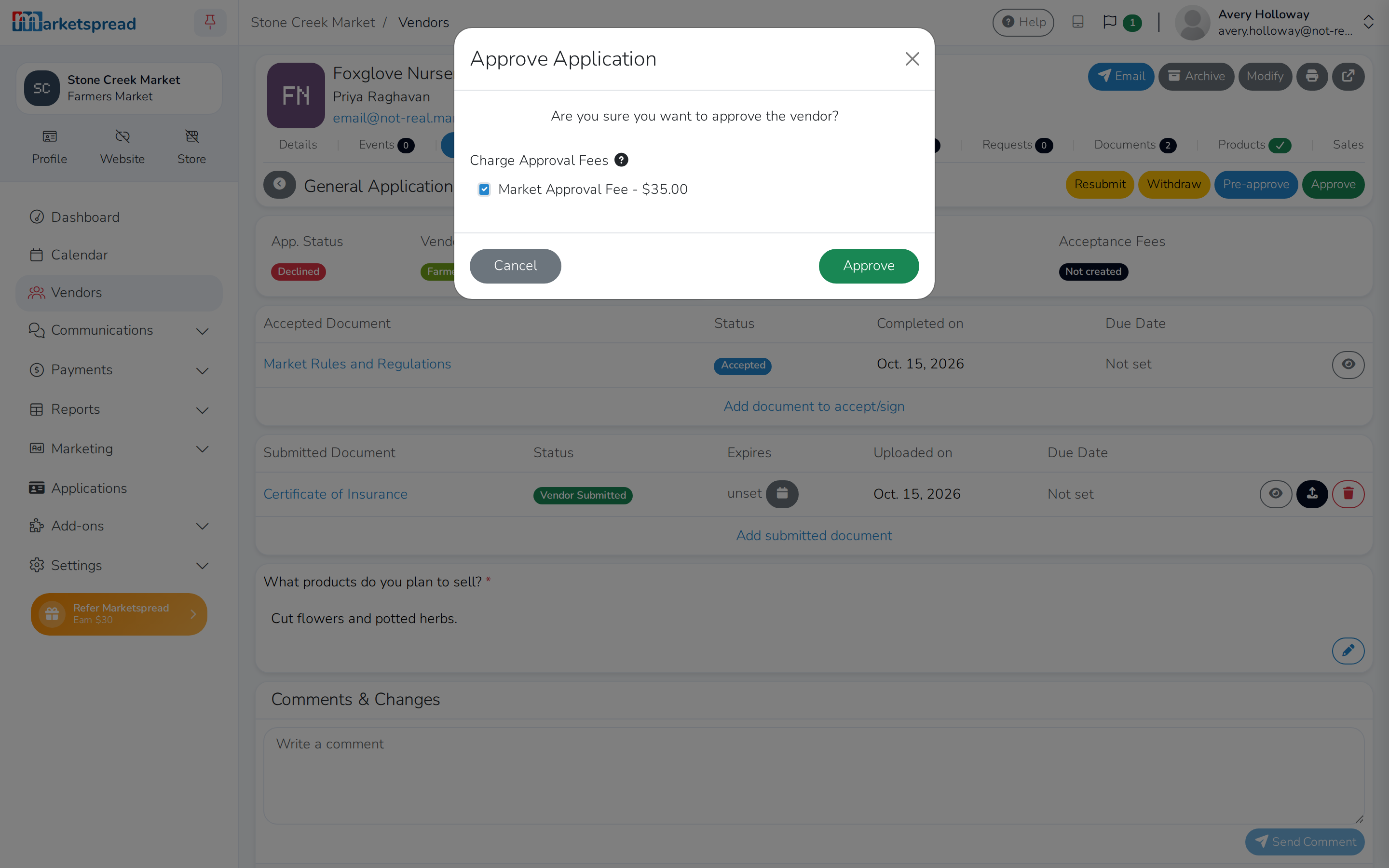
- If your market charges approval fees, they're listed under Charge
Approval Fees. Clear the checkbox next to any fee you don't want to
charge this vendor. - Click Approve to confirm.
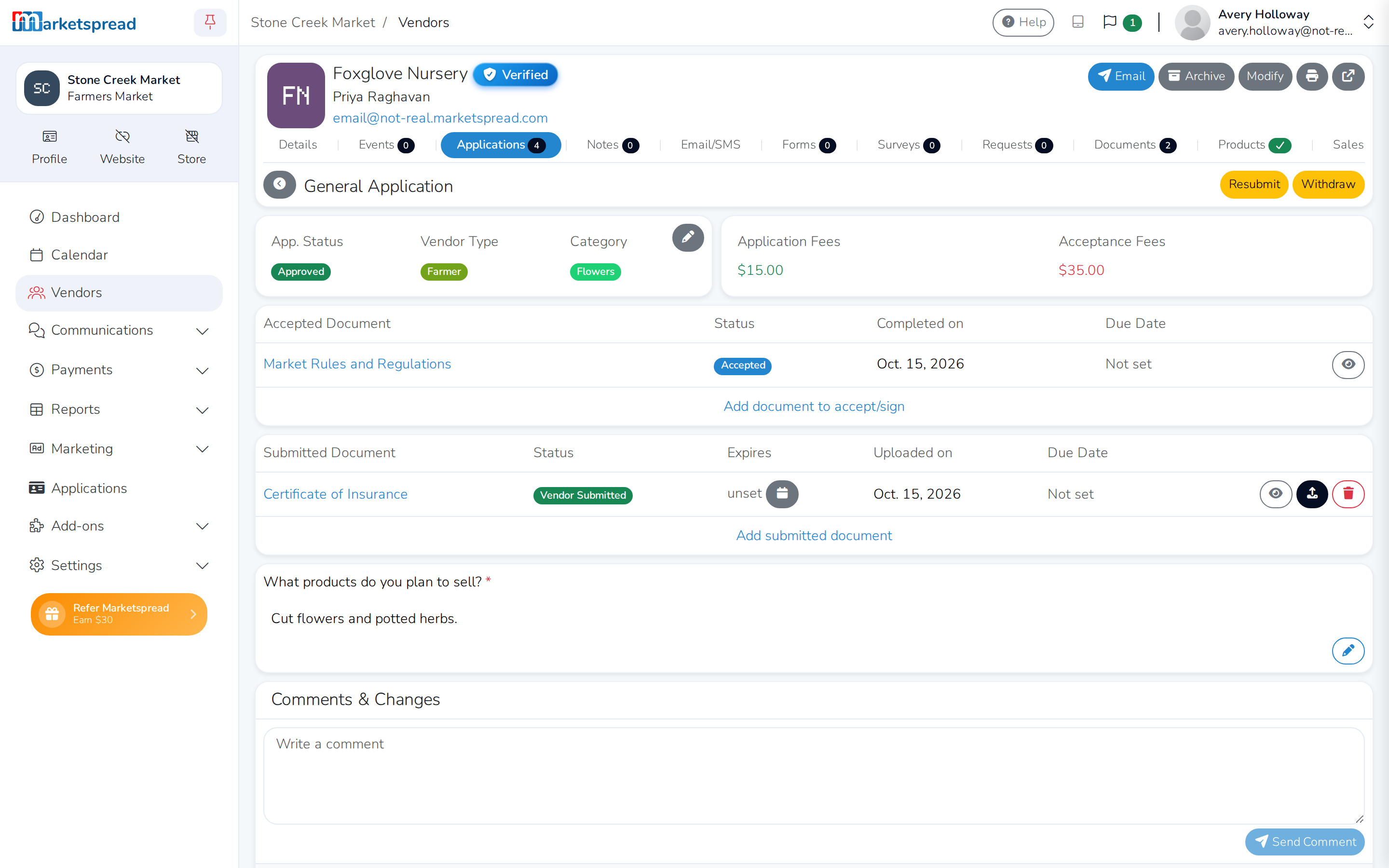
The application's status changes to Approved.
Event days don't come back on their own
Declining an application also turns off any of the vendor's upcoming
event days. Approving it again doesn't turn them back on — add the
vendor to those events yourself.