


Editing a form doesn't reach anyone you've already sent it to as a survey --
they keep seeing the version they were sent. Sync to Latest brings an
active survey up to date with your form's newest questions, for anyone who
hasn't finished it yet.
Find the survey and open Sync to Latest
- Open Communications in the left sidebar, then click Surveys.
- Click View next to the survey you want to update.
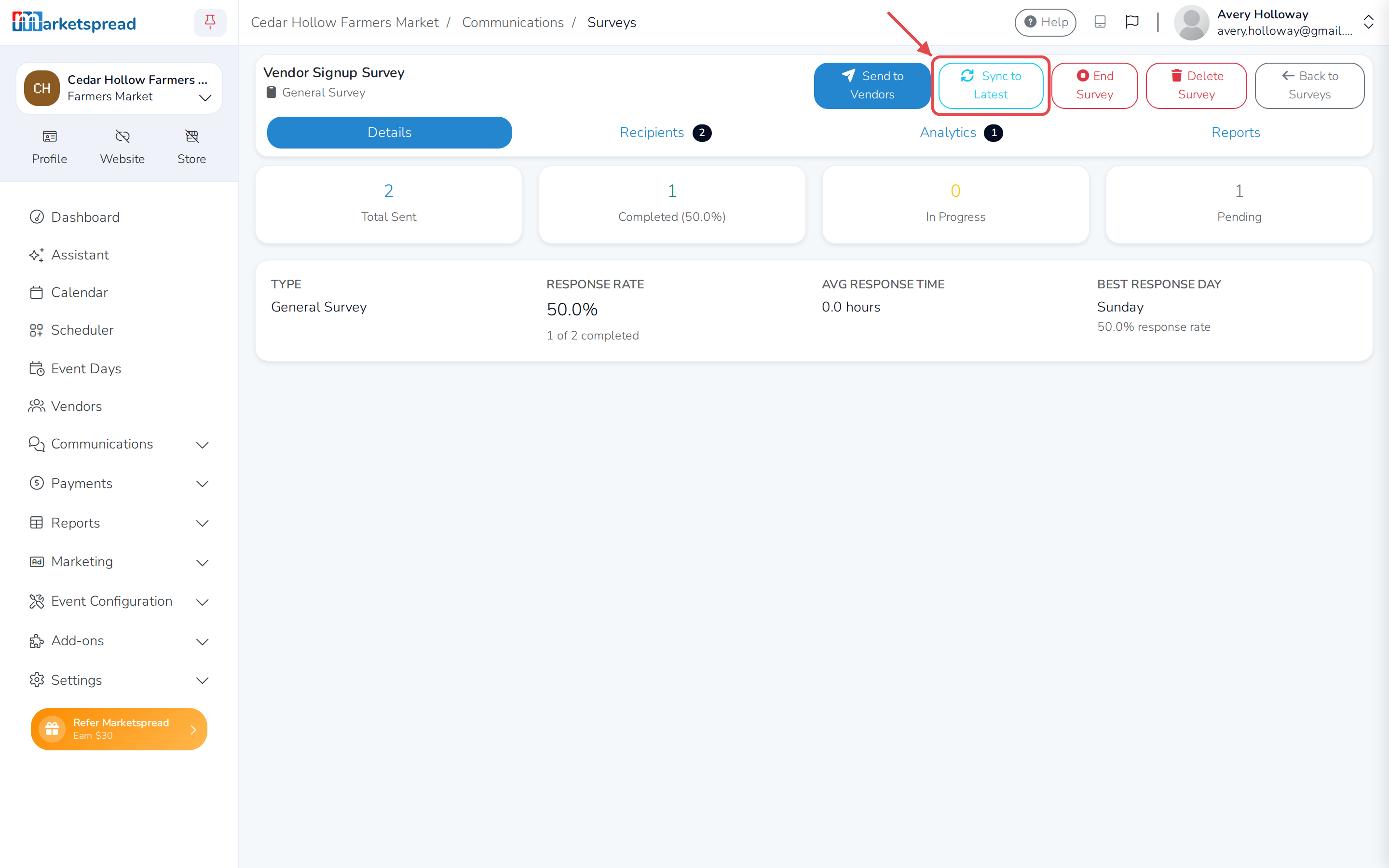
- Click Sync to Latest, in the action bar at the top of the page.
Note
Sync to Latest only shows up when the form has changed since this
survey last used it, and only for staff who can manage surveys. If you
don't see it, the survey already matches the latest version.
Review what will change
The Sync Survey to Latest Form Version dialog compares what the survey is
using now with the form's newest version:
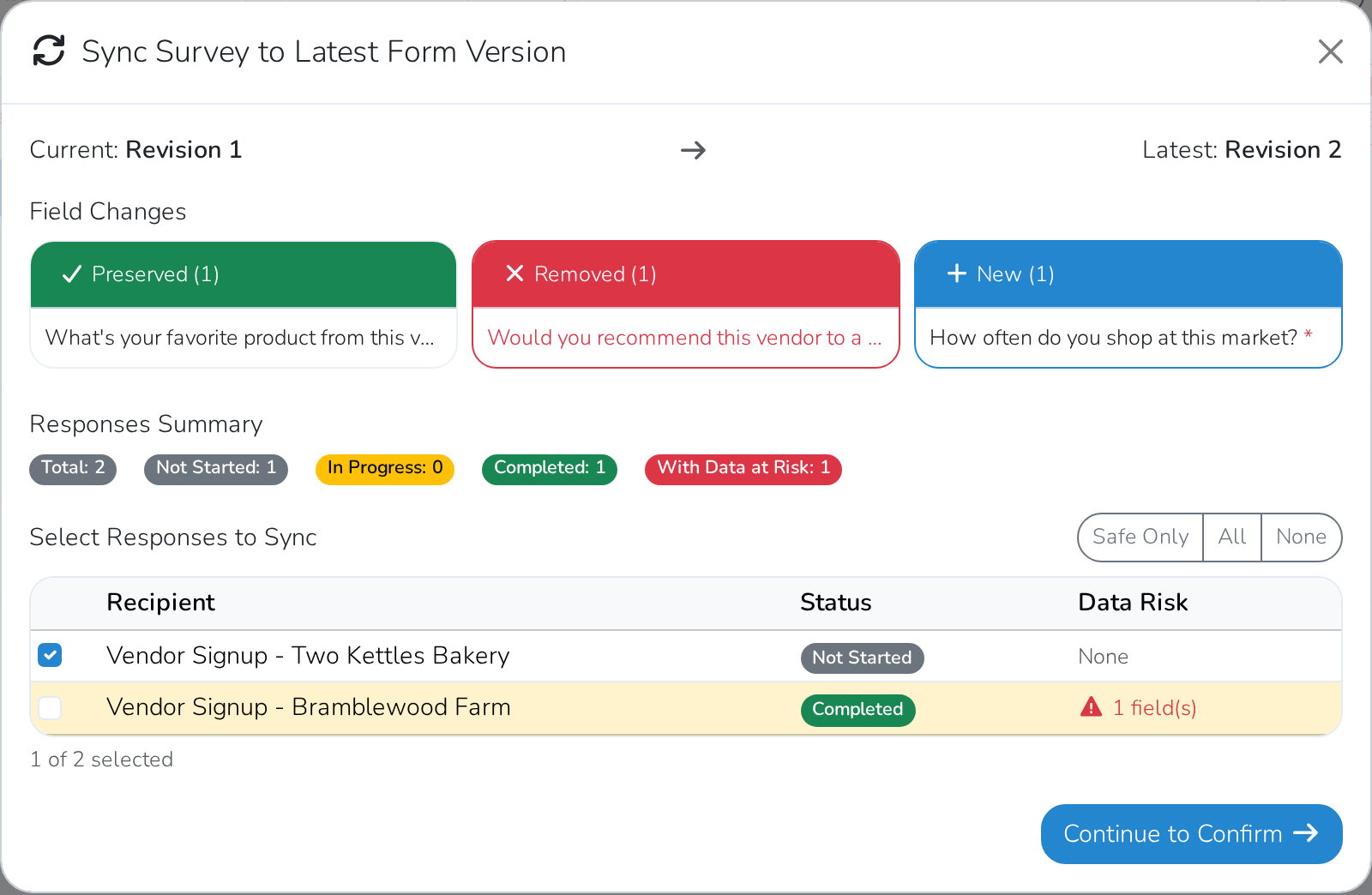
- Preserved -- questions in both versions. Answers already collected for
them are kept. - Removed -- questions taken out of the newest version.
- New -- questions added in the newest version, which recipients will see
for the first time once you sync.
Under Select Responses to Sync, every recipient is listed with their
Status and Data Risk.
- Click Safe Only to select just the recipients who haven't started yet --
there's nothing in their response to lose. - Click All to select everyone, or None to clear the selection.
- Check or uncheck a recipient yourself.
Data Risk shows None, or how many of a recipient's answers are in a
question that was removed or changed -- syncing those responses can hide that
data.
When you're happy with your selection, click Continue to Confirm.
Confirm and sync
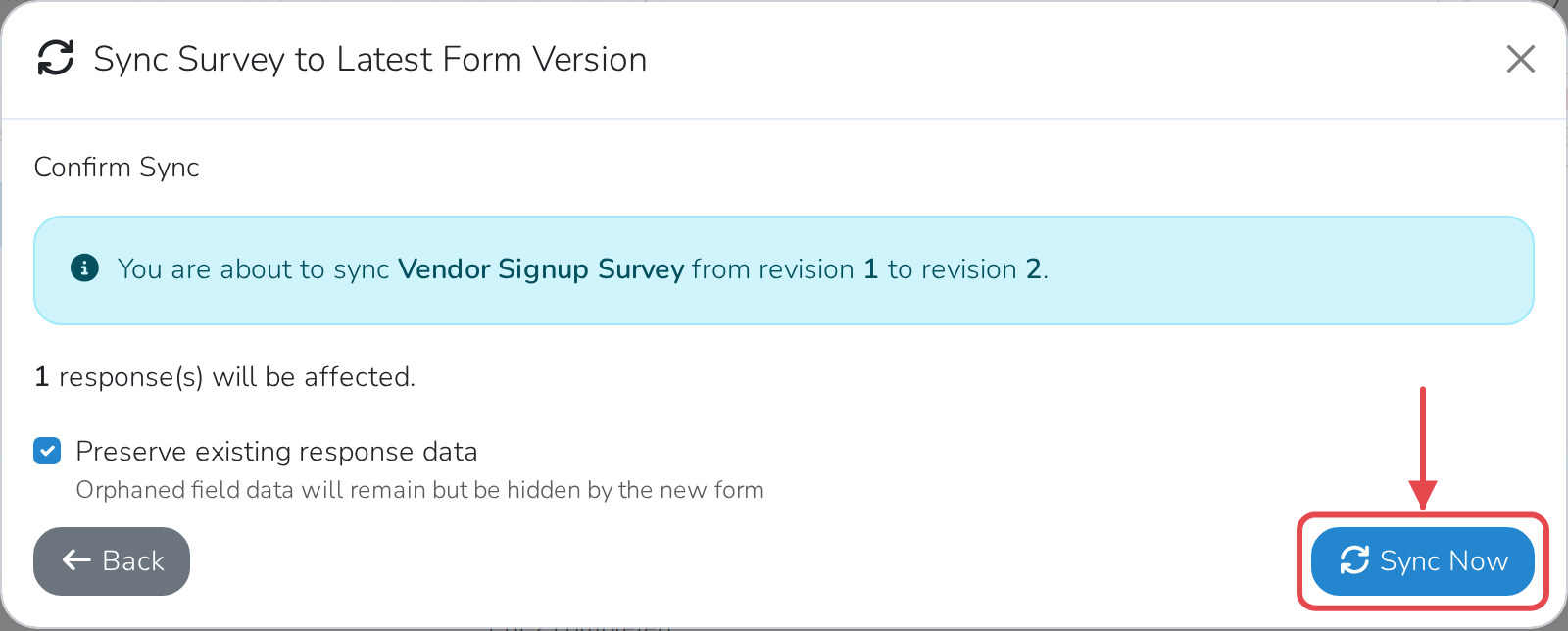
- Check the summary of how many responses will be updated.
- Leave Preserve existing response data checked to keep answers to
removed questions -- they're hidden from the form, not deleted. - Click Sync Now.
Warning
If you turn off Preserve existing response data for a recipient whose
answers are at risk, you'll need to confirm you understand the data may be
lost before Sync Now works.
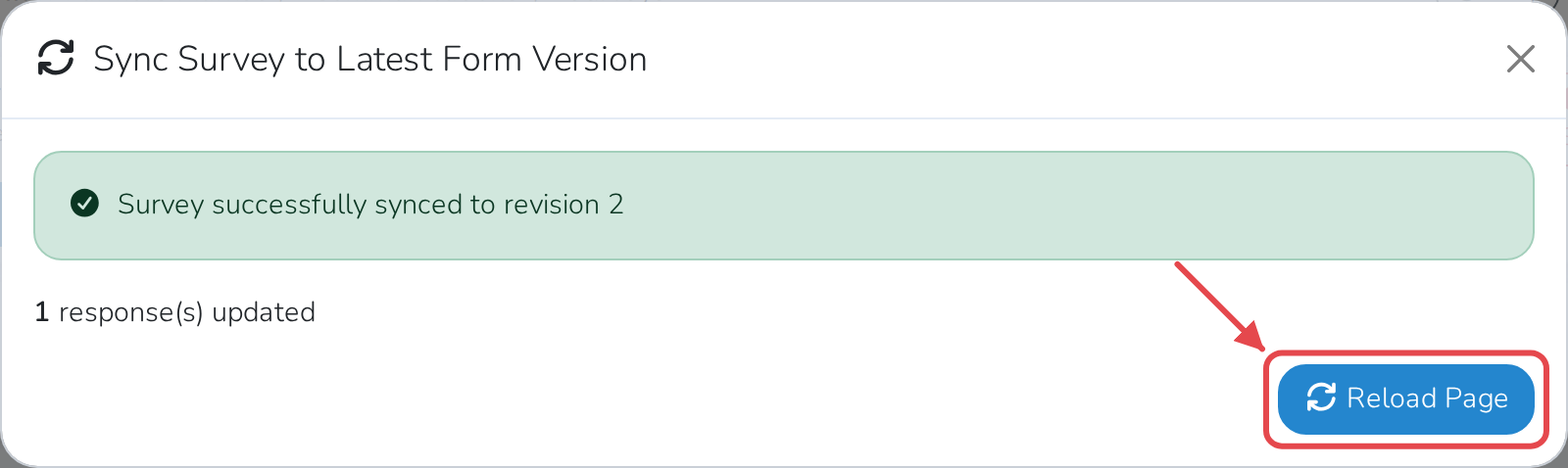
Once the sync finishes, you'll see how many responses were updated. Click
Reload Page to see the survey with the current data.
Good to know
- Syncing can't be undone, so review the changes before you confirm.
- Publishing changes to a form doesn't update surveys already sent from it --
you have to sync each one yourself. - A completed response can still be synced if you select it; its existing
answers stay if Preserve existing response data is checked.
See Surveys: The Complete Guide for how to build and
send a survey in the first place.