Your market can run its own online store, selling what your vendors have for
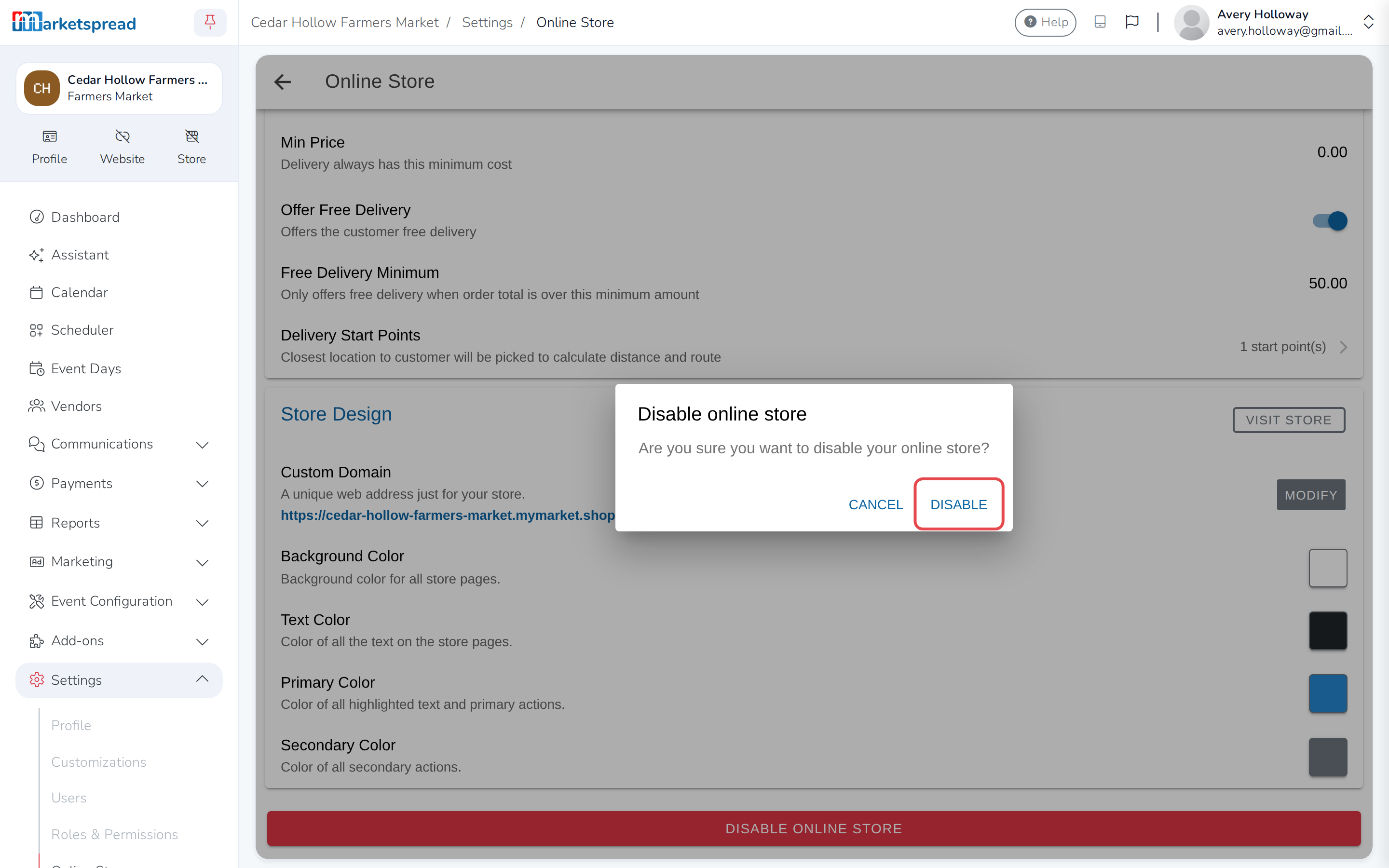
sale. Open Settings, then Online Store. From here you can turn the
store on, offer pickup and delivery, take a cut of what vendors sell through
it, and change how it looks.
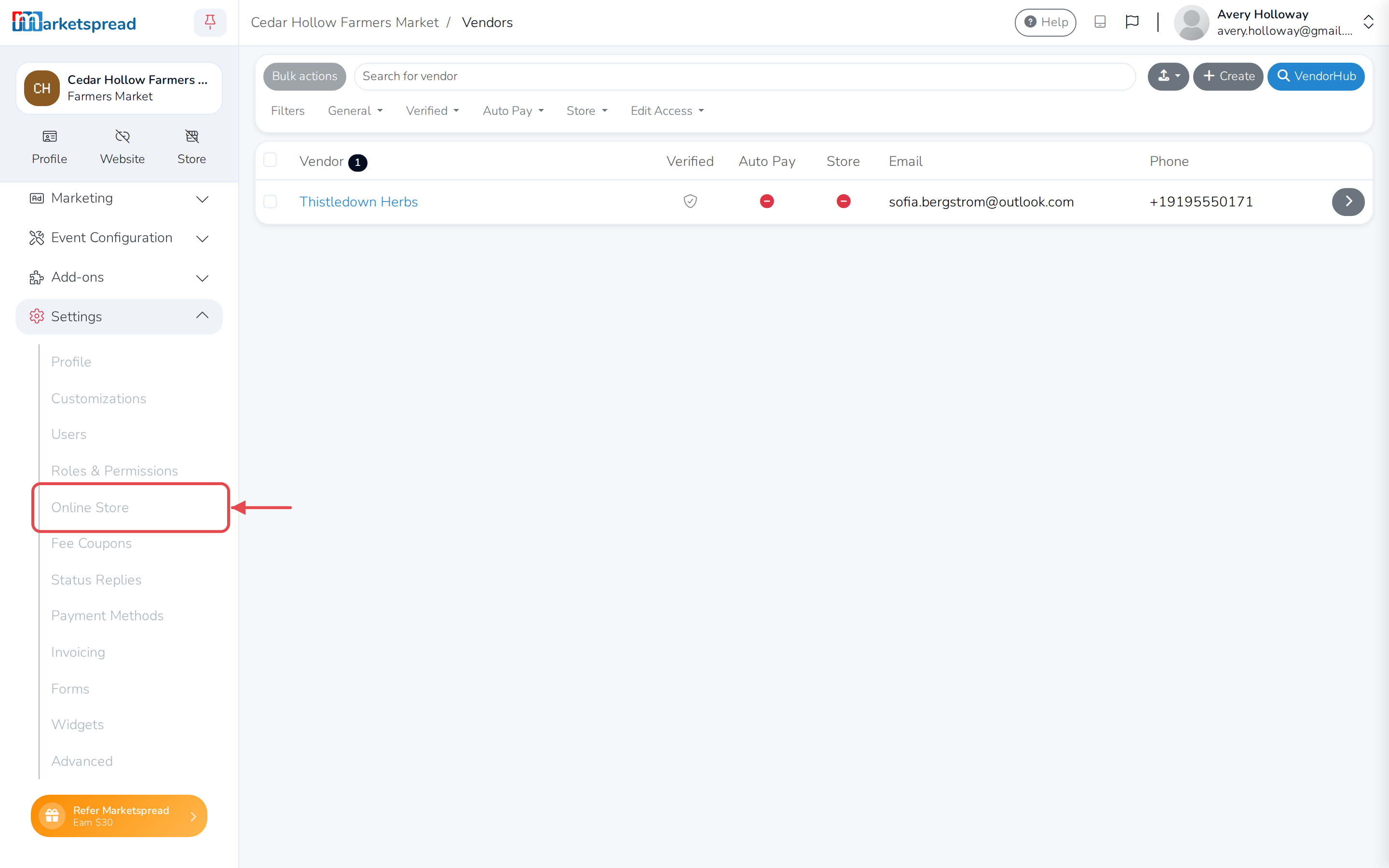
Turn on your online store
There's an extra fee
Every item sold through your online store carries an additional 2.5% fee.
-
Click Enable.
-
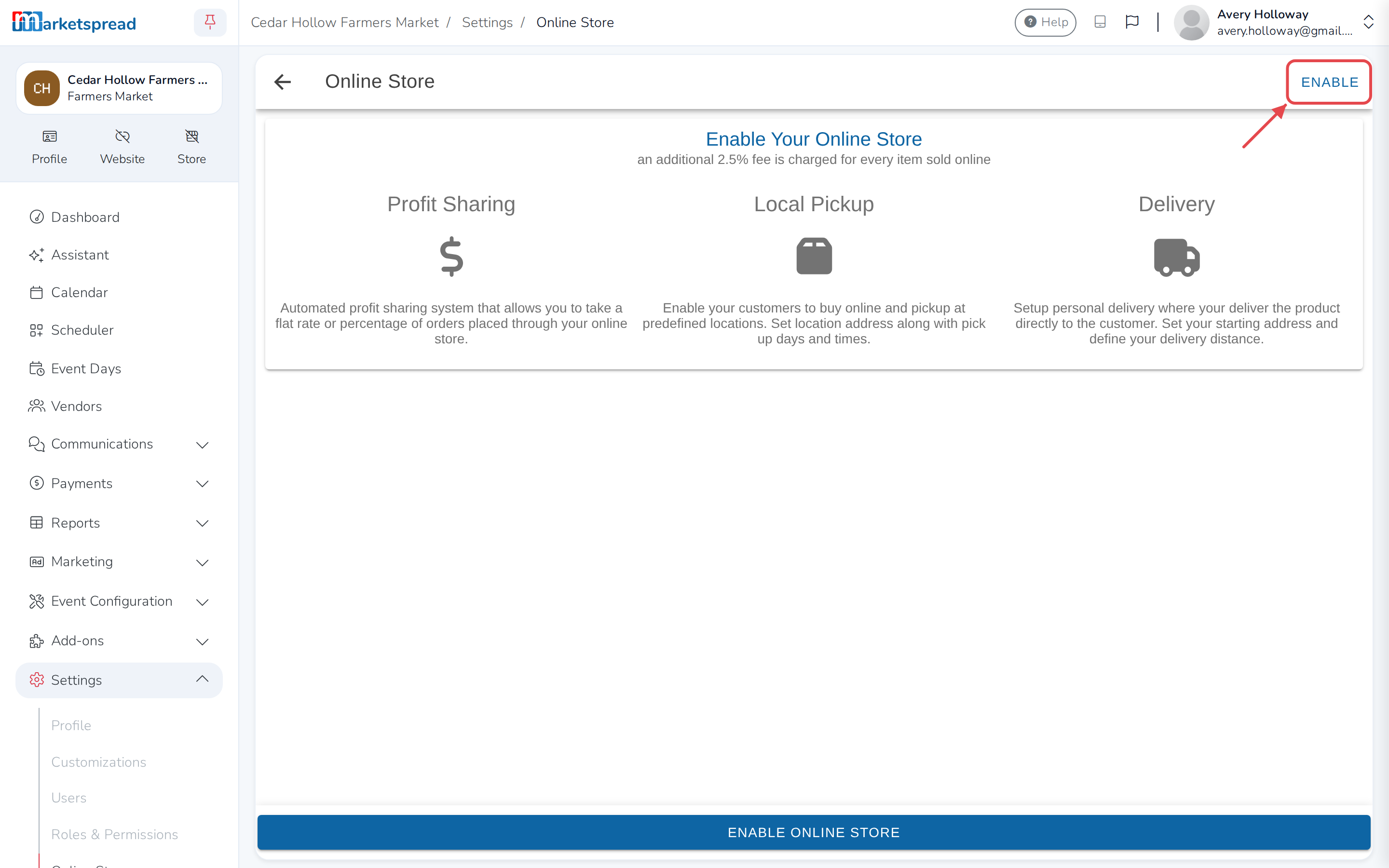
Type a name for your store's web address.
-
Click Select.
Who handles orders
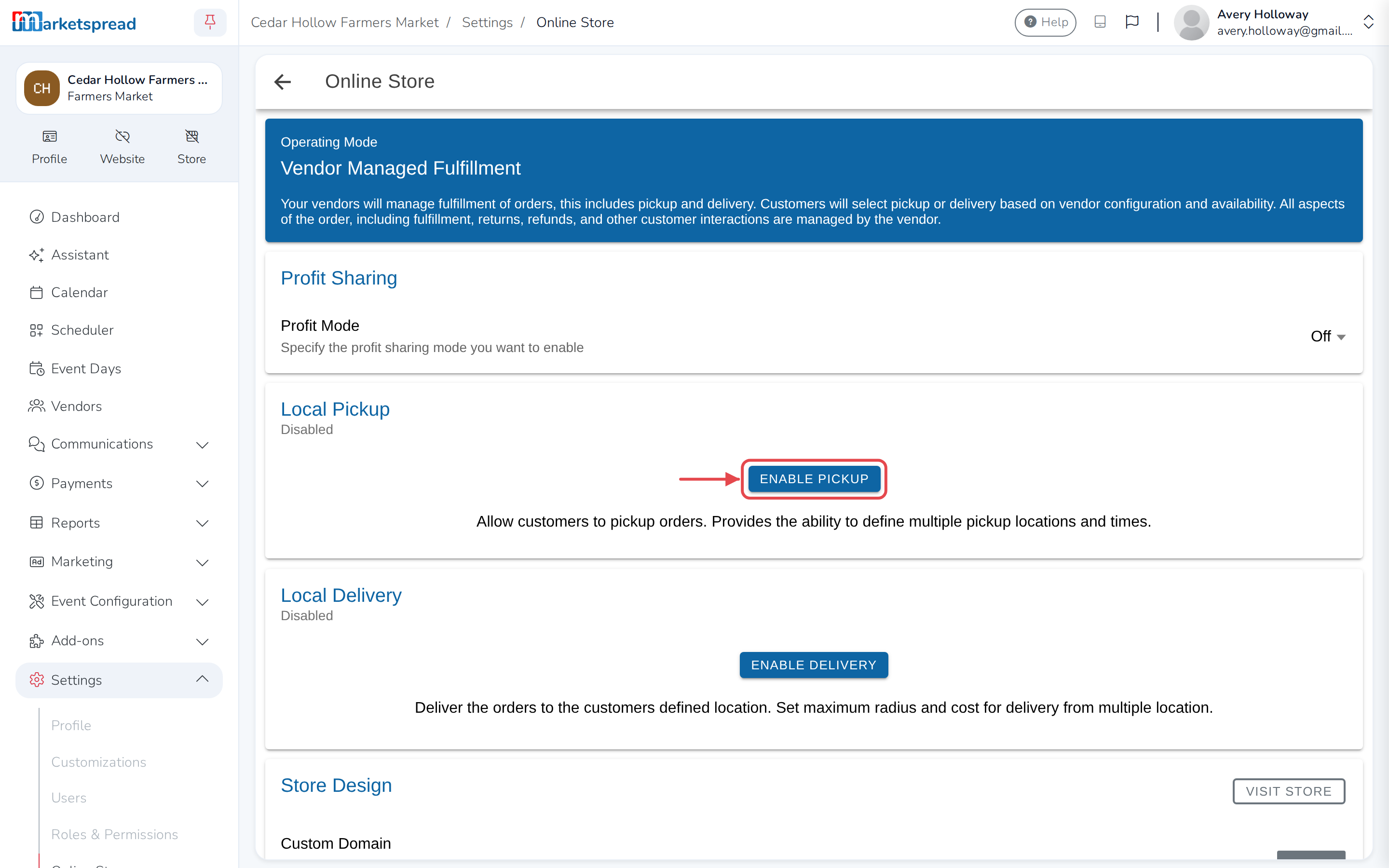
Operating Mode, near the top of the page, shows who is in charge.
It says Vendor Managed Fulfillment while pickup and delivery are both
off — each vendor handles their own fulfillment, returns and refunds. Turn
either one on and it switches to Market Managed Fulfillment: you
handle every order instead.
Pickup
Click Enable pickup.
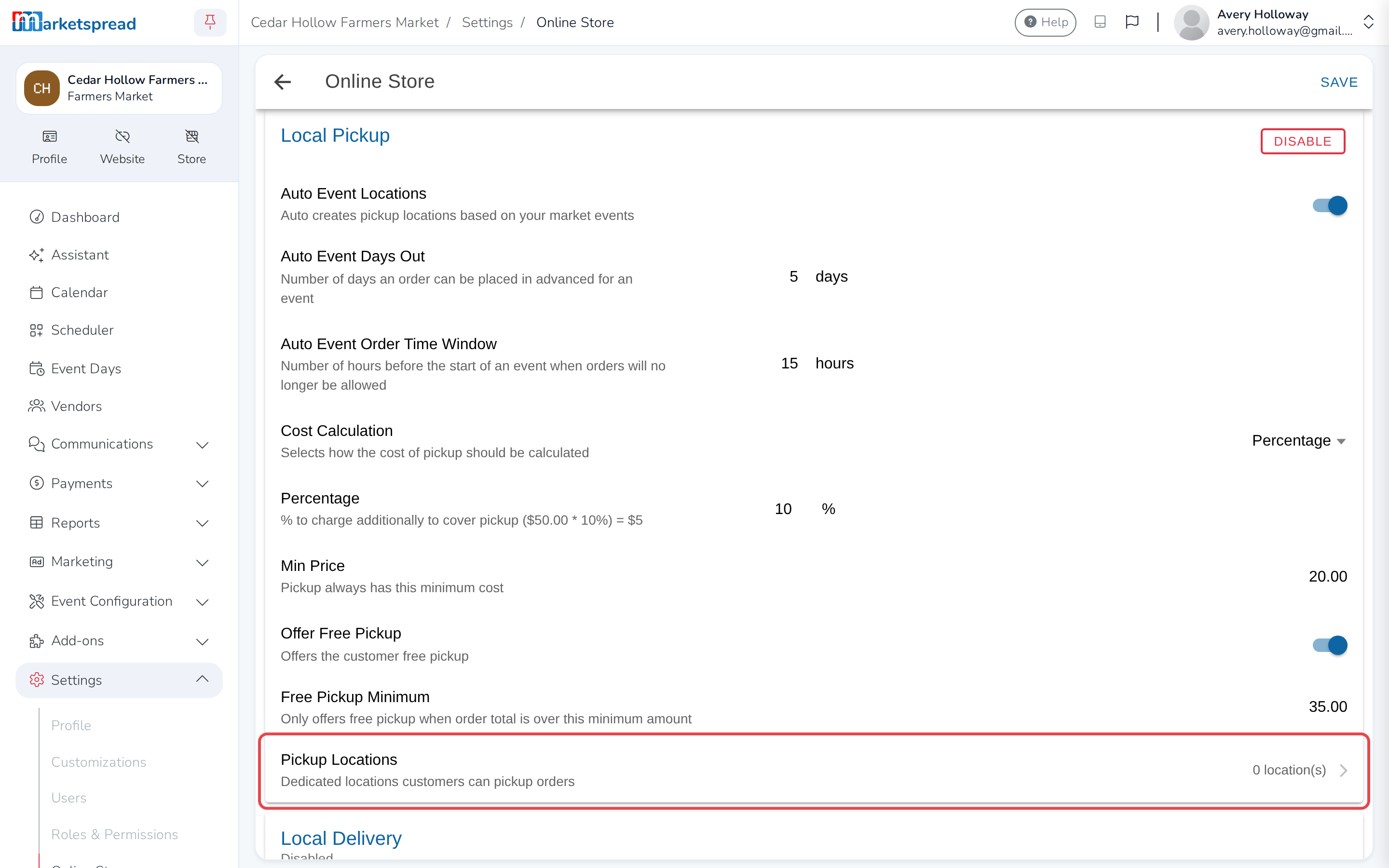
Auto Event Locations is on to start with, which keeps your pickup times in
step with your own events. Two settings control the ordering window around
each one:
- Auto Event Days Out — how far ahead customers can order. It starts at
14 days. Set it to 5 and, for a Saturday 9am event, ordering opens the
Monday at 9am. - Auto Event Order Time Window — how long before the event you stop
taking orders, so you have time to pack. Set it to 15 and ordering closes
at 6pm the night before a 9am event.
You can charge for pickup. Choose a flat rate or a percentage under Cost
Calculation, then set the amount. Turn on Offer Free Pickup to waive it
over a certain order value, set under Free Pickup Minimum.
Your own pickup places
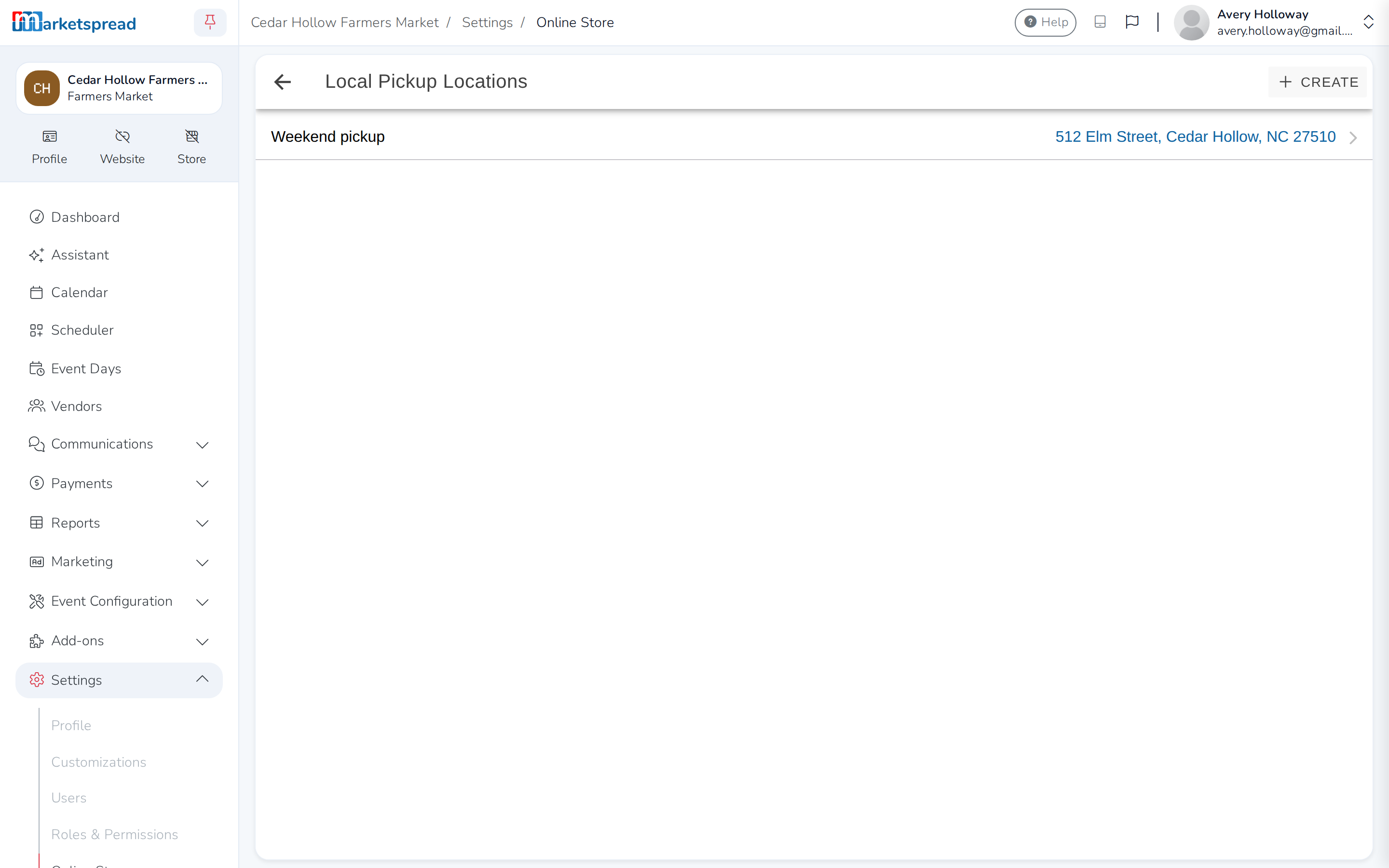
You do not have to rely on your events to offer pickup. Click Pickup
Locations, then Create:
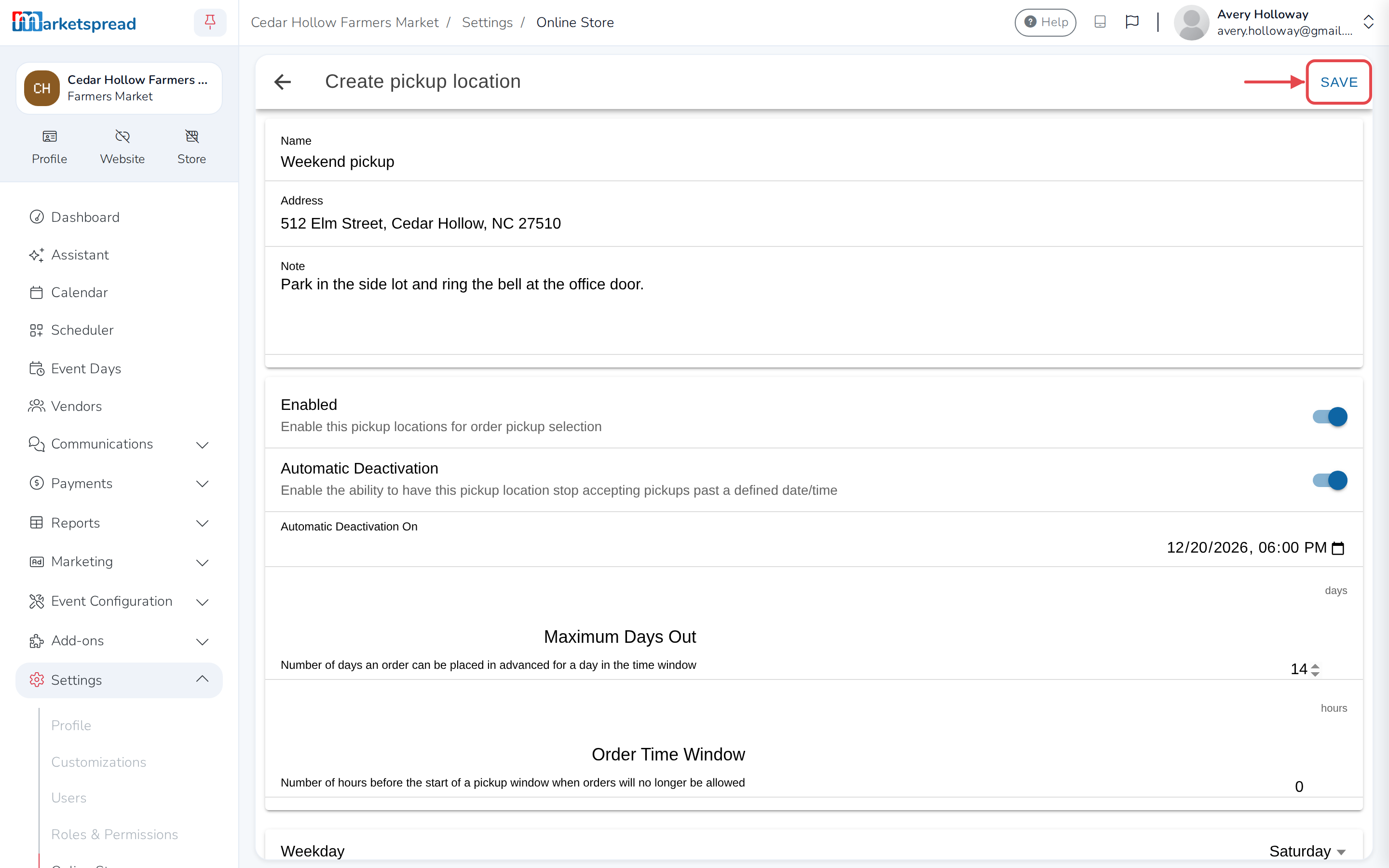
-
Name it, so customers recognize it.
-
Add the address.
-
Add a note — this is where collection instructions go.
-
Use Enabled to switch it on and off.
-
Set Automatic Deactivation to close ordering at a set time, handy if
you change what you sell each week. -
Add at least one day, with a start and end time. Click Add weekday for
more. -
Click Save.
More control over one location
Maximum Days Out and Order Time Window set the same limits as
Auto Event Days Out and Auto Event Order Time Window, just for
this location. Click Add override day to close it, or change its
hours, for a single date — a holiday, for example.
Delivery
This is delivery you do yourself. Click Enable delivery.
Choose how you charge under Cost Calculation — Flat Rate, Per
Mile or Percentage — then set the amount. Per mile is worked out for
you. Turn on Offer Free Delivery to waive it over a certain order value,
set under Free Delivery Minimum.
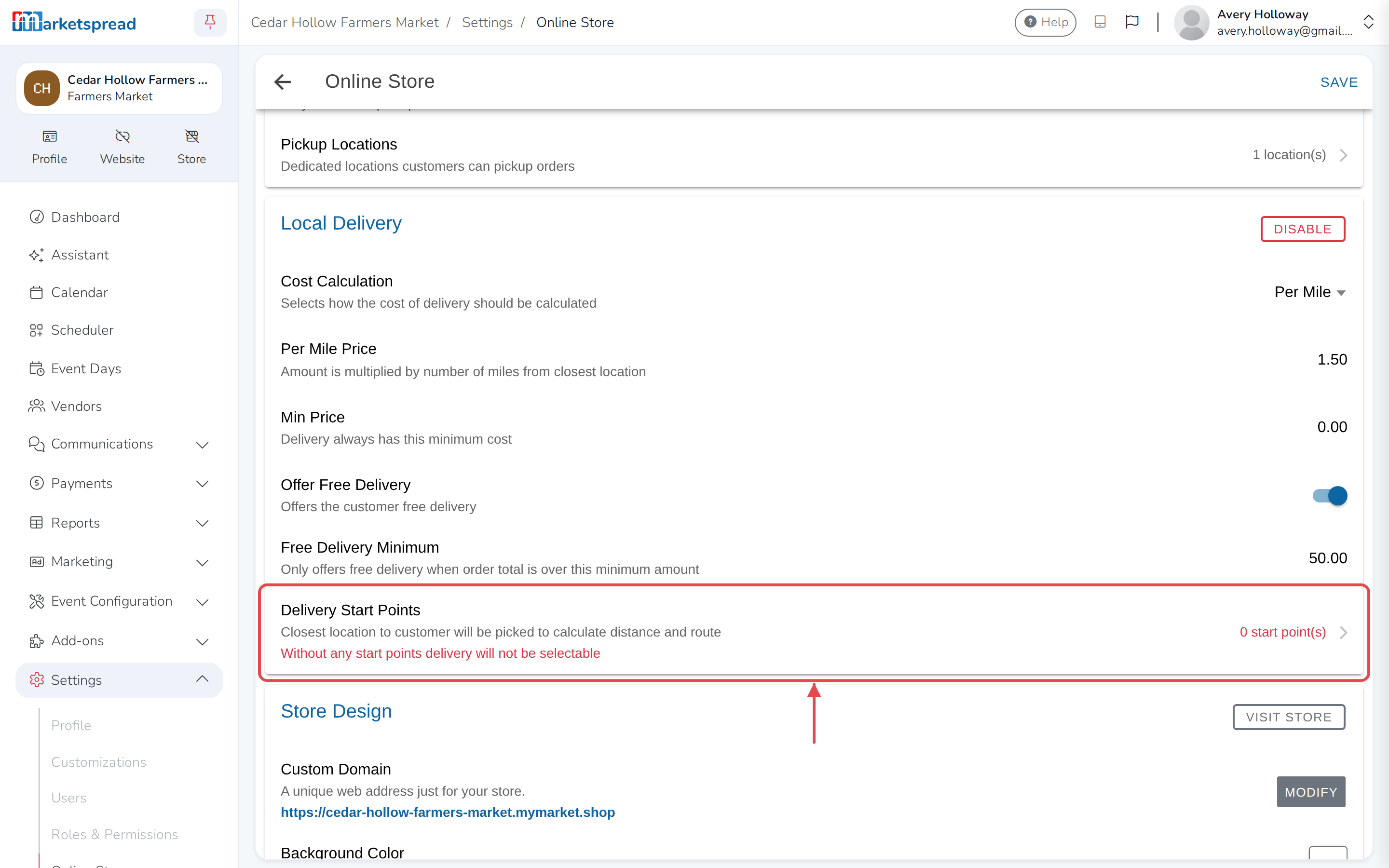
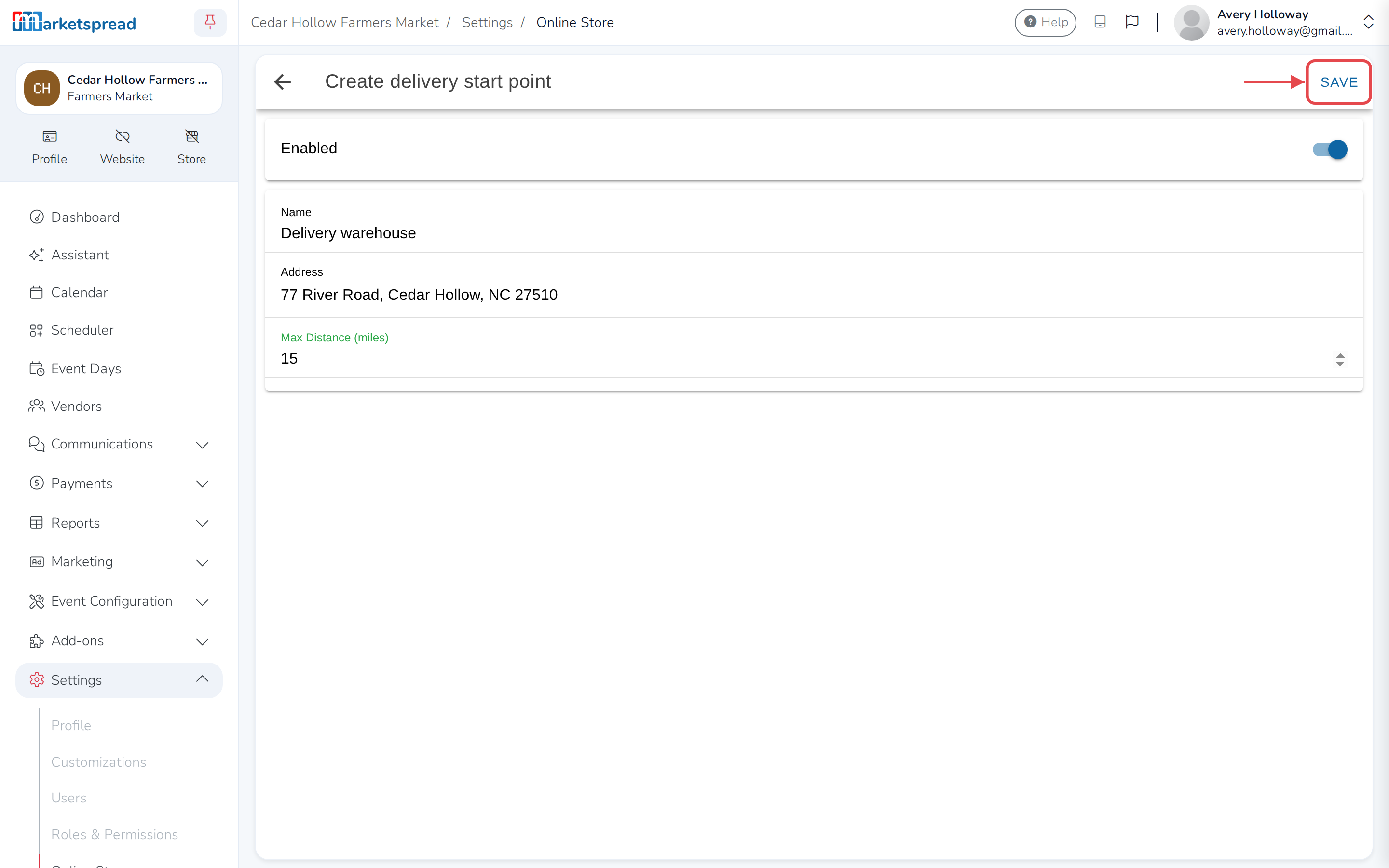
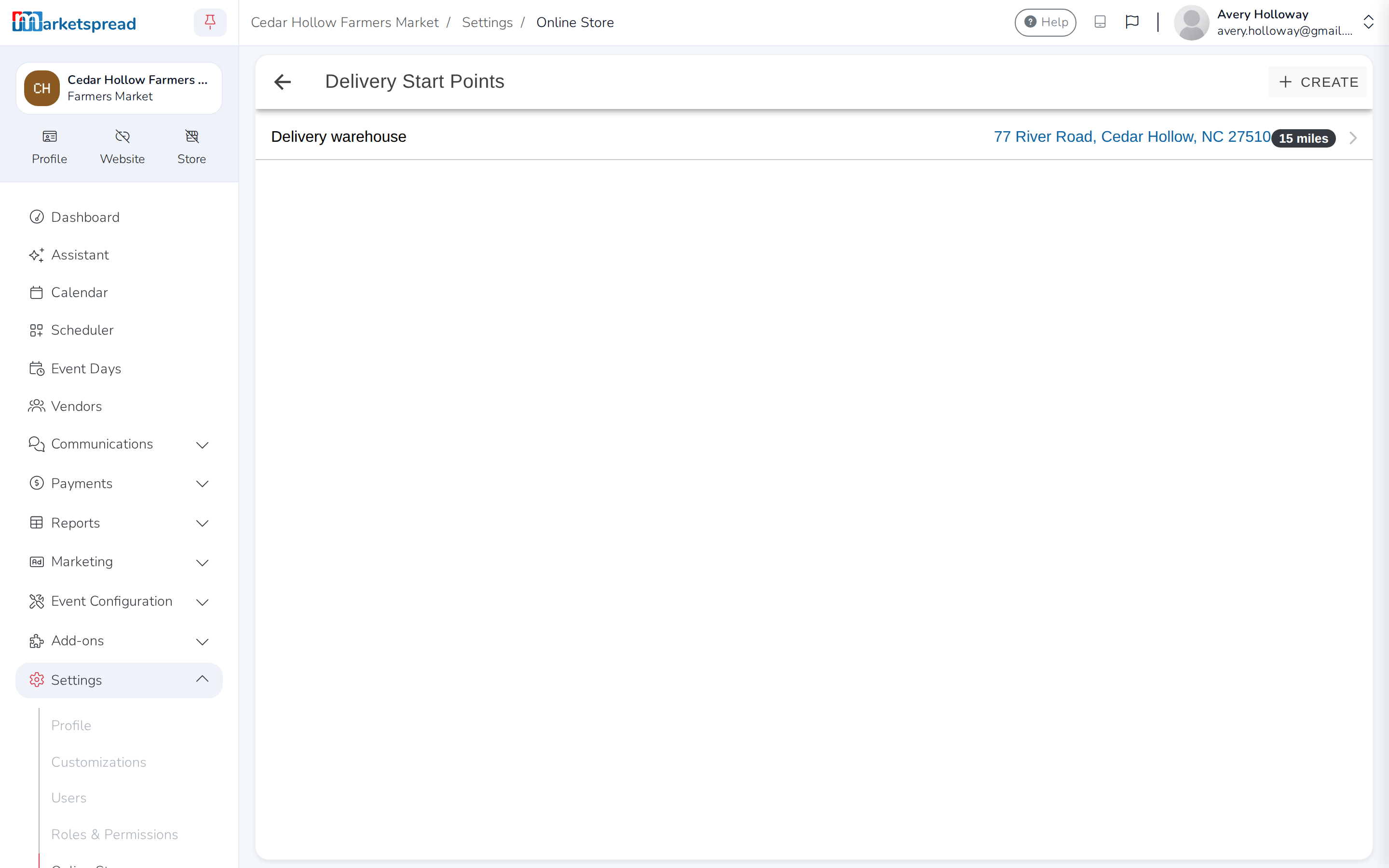
You also need a starting point, which customers never see. It is what
distances are measured from. Click Delivery Start Points, then
Create, and give it a name, an address and how far you are willing to
travel, under Max Distance. One is enough for almost everybody.
Take a cut of what vendors sell
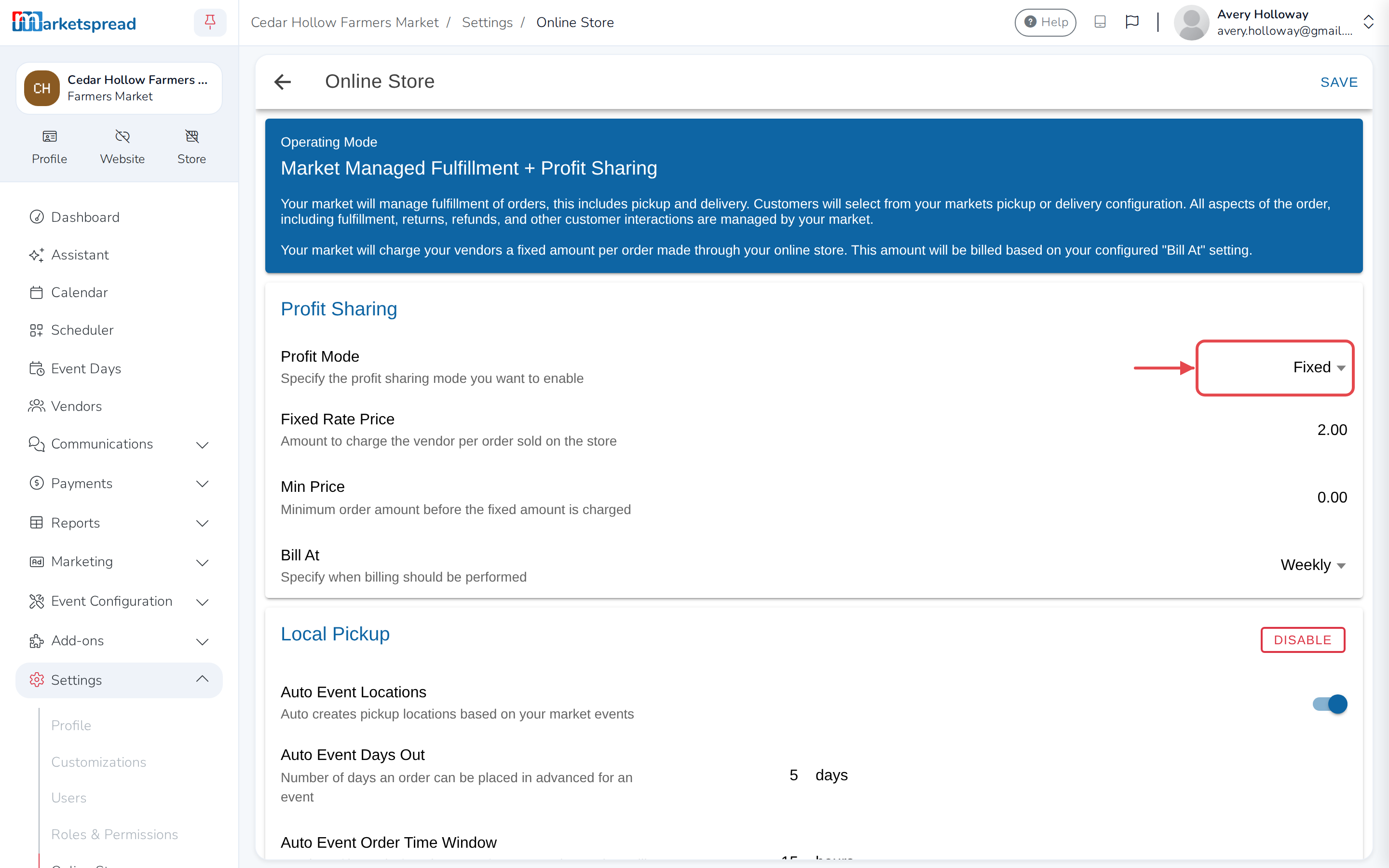
Open the Profit Sharing card. Set Profit Mode to Fixed to charge
vendors a set amount per order, or Percentage to take a share of each
order. Leave it Off to take nothing.
- Fixed — set the amount under Fixed Rate Price.
- Percentage — set it under Percentage, plus a Min Price the
order has to reach first.
Choose when you get paid under Bill At — at the end of the event, weekly,
every two weeks or monthly.
Make it look like yours
Open the Store Design card. Click Visit Store to see what customers
see — there is no Marketspread branding on it, and search and category
filters are built in.
- Custom Domain — click Modify beside it to change your store's web
address. - Background Color, Text Color, Primary Color and Secondary
Color — set your own colors for the store.
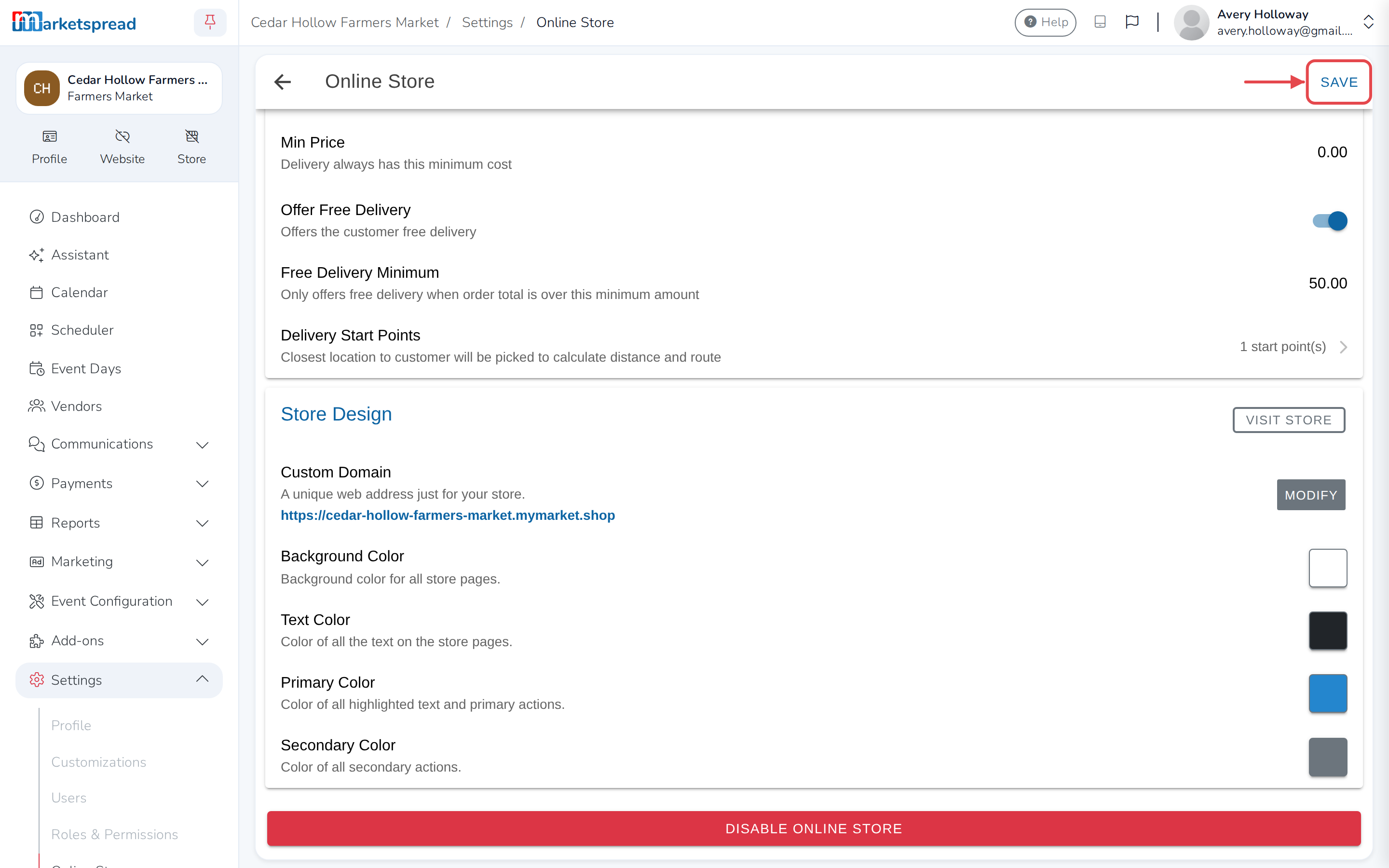
Click Save when you are done.
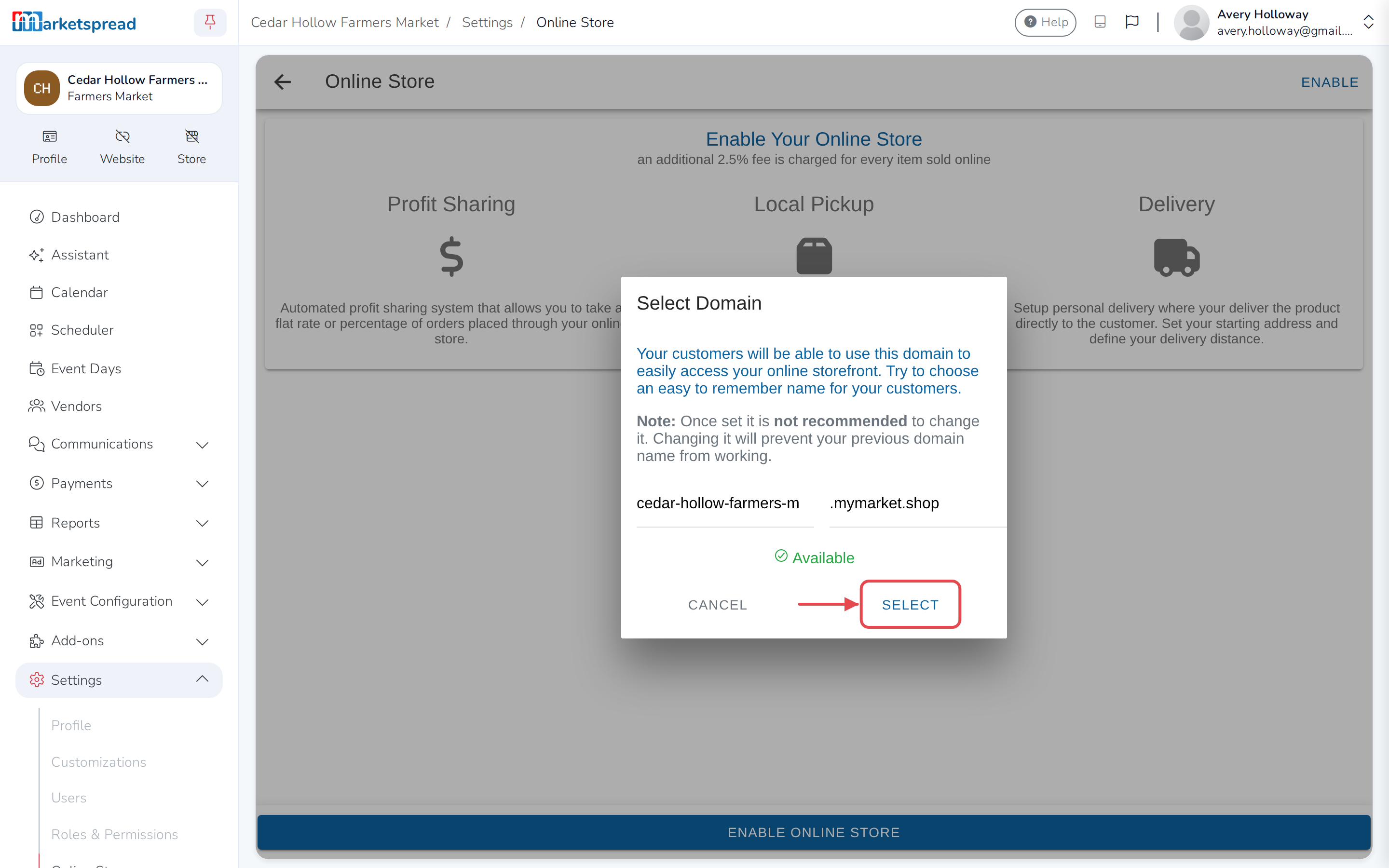
Turn off your online store
-
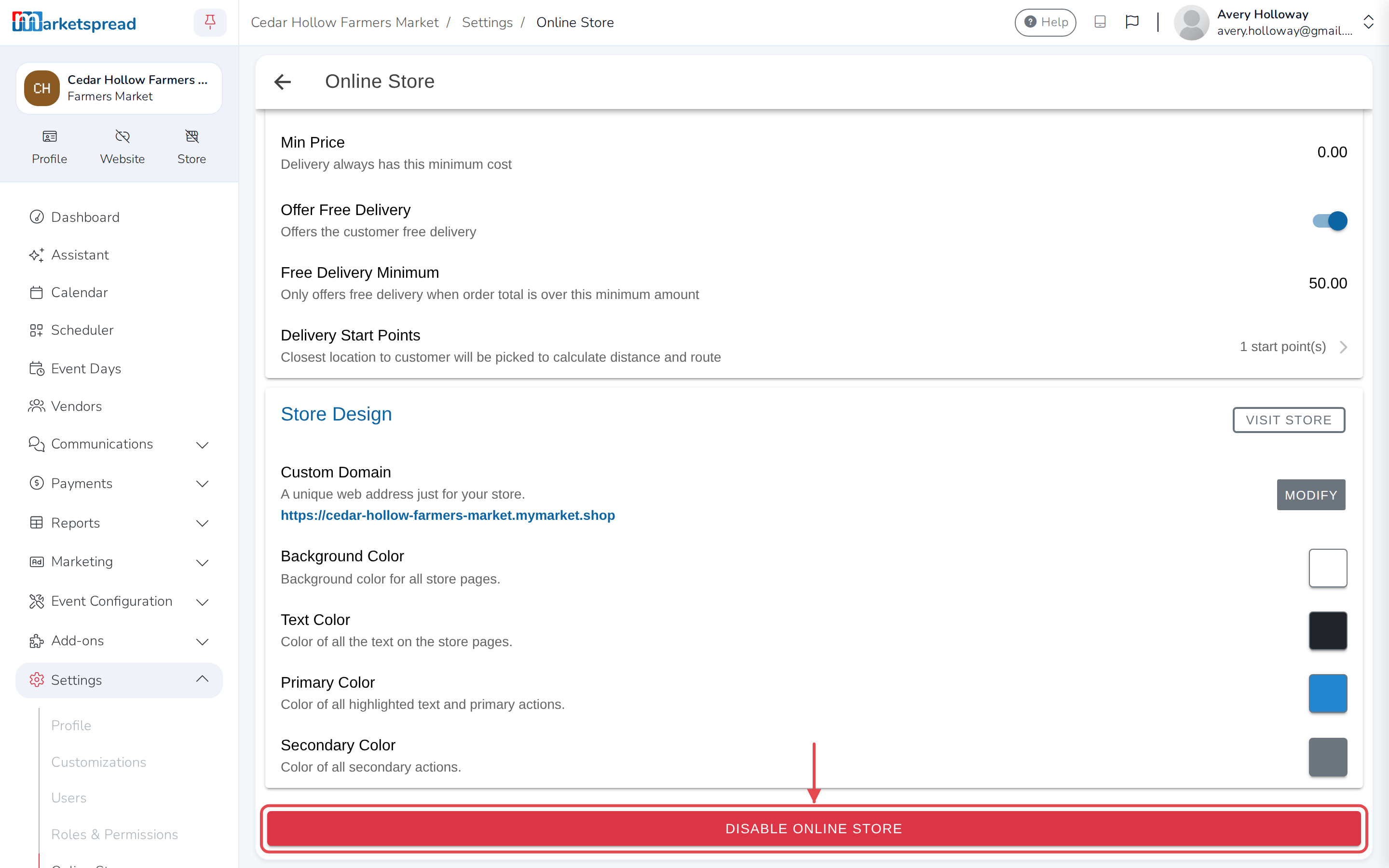
Click Disable online store.
-
Click Disable to confirm.