


Every event map has a Print map button that builds a printable sheet: your
market's details at the top, the map, and a legend of which vendor is in which
booth. Choose what the sheet shows, then save it as a PDF from your browser's
print screen — a file you can print, email or hand to a vendor.
Open the print options
-
Open Event Configuration, then click Events.
-
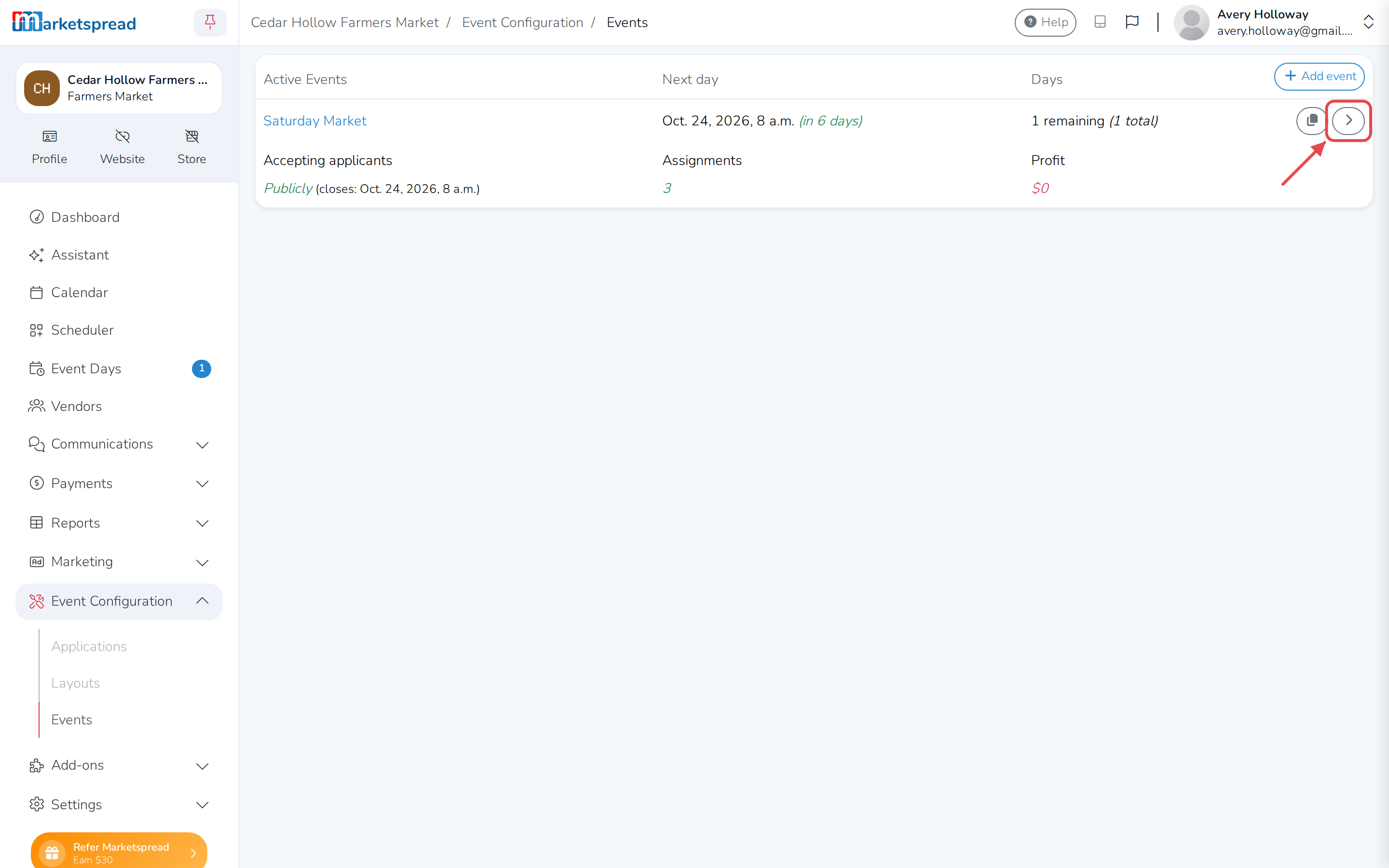
Click the arrow on the right of the event or event series.
-
Click the Days tab.
-
Click the map icon in the Map column for the day you want. The map
opens in a new tab.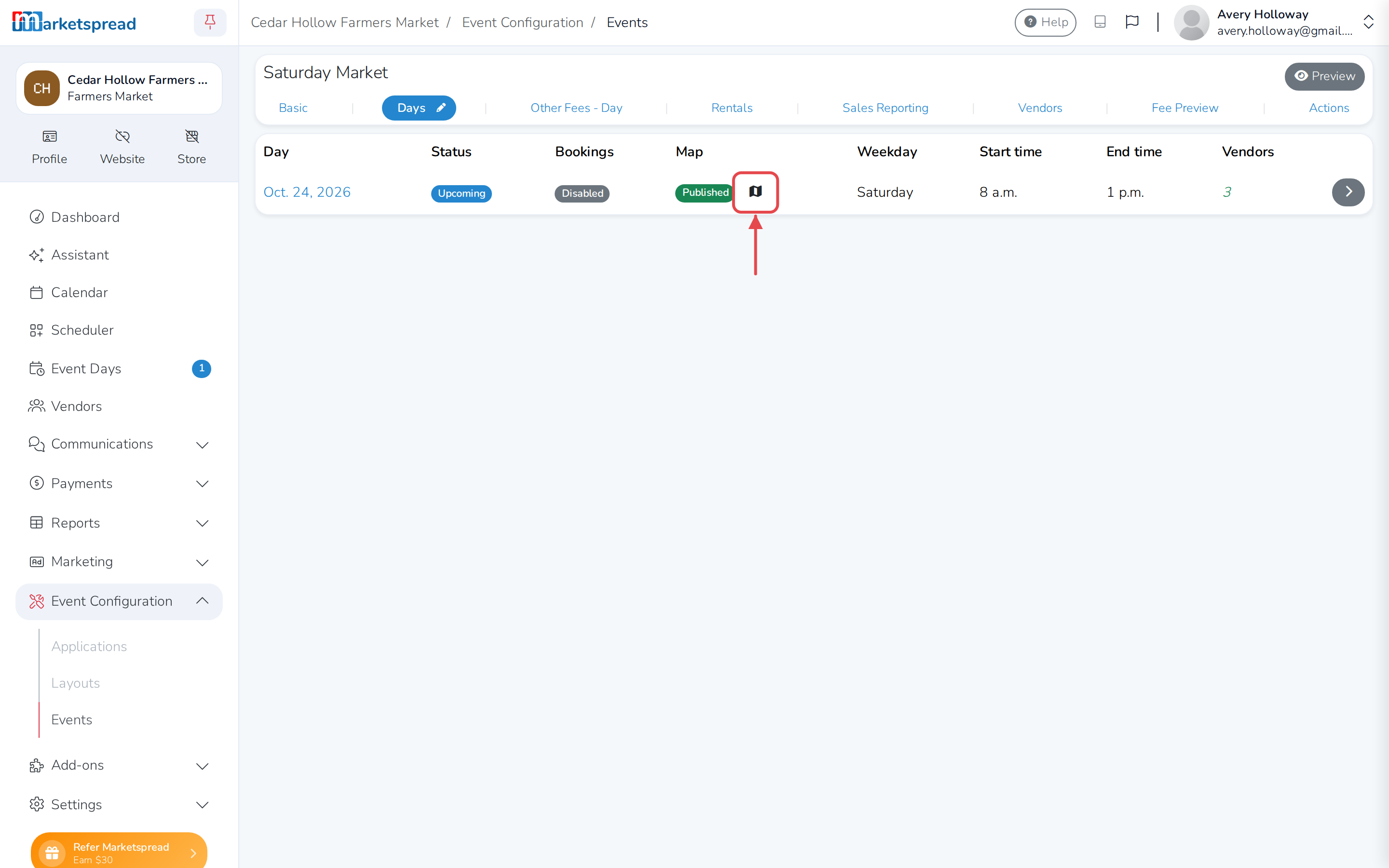
-
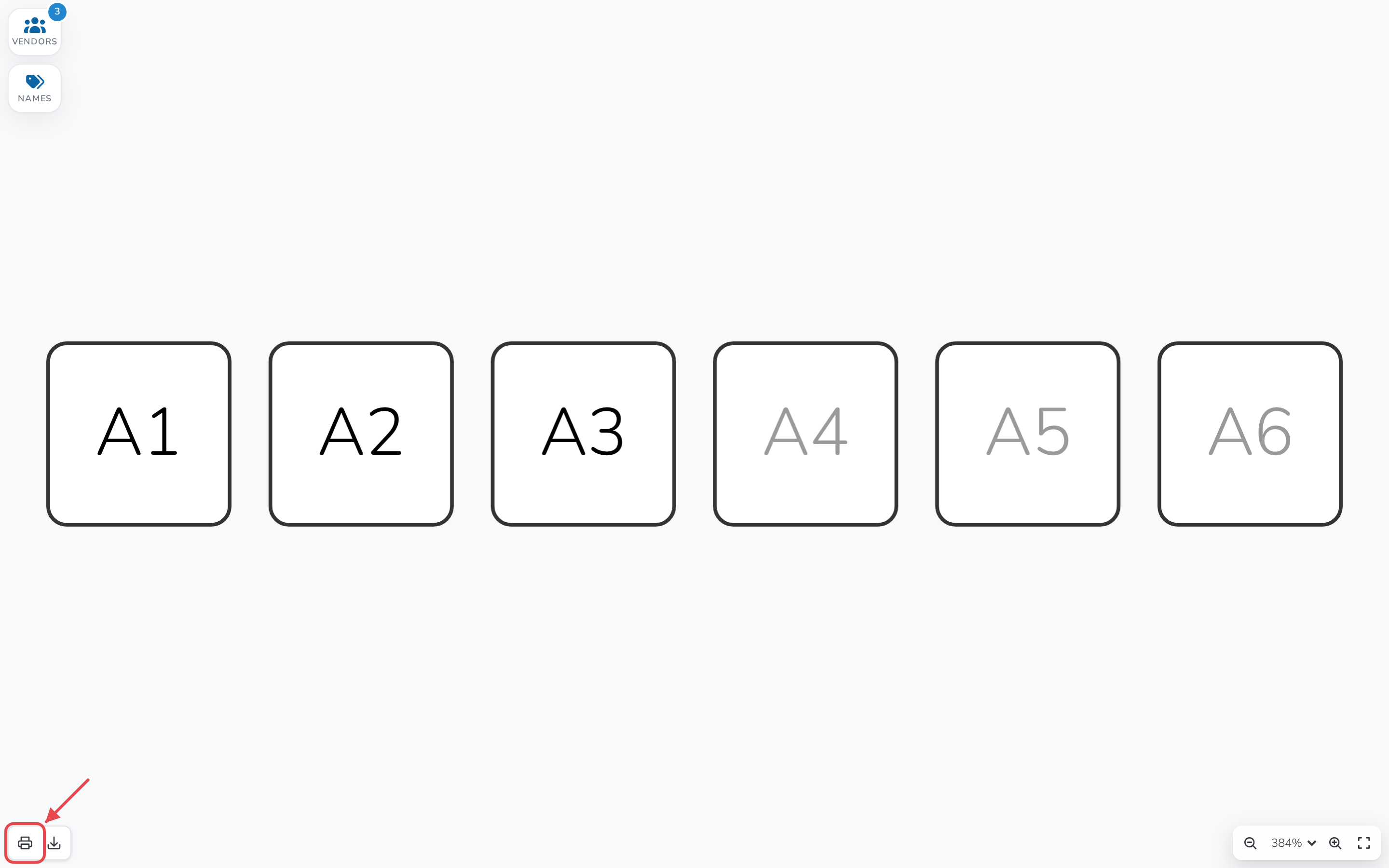
On the map, click the Print map icon in the bottom-left corner.
Just want an image?
Download map, next to Print map, saves the map itself as a PNG or
SVG file instead of a printable sheet.
No map icon?
The icon only shows once that day has a published map. See
Choose how your event maps publish,
or Publish or unpublish a map manually
if your market publishes maps one at a time.
Choose what to include
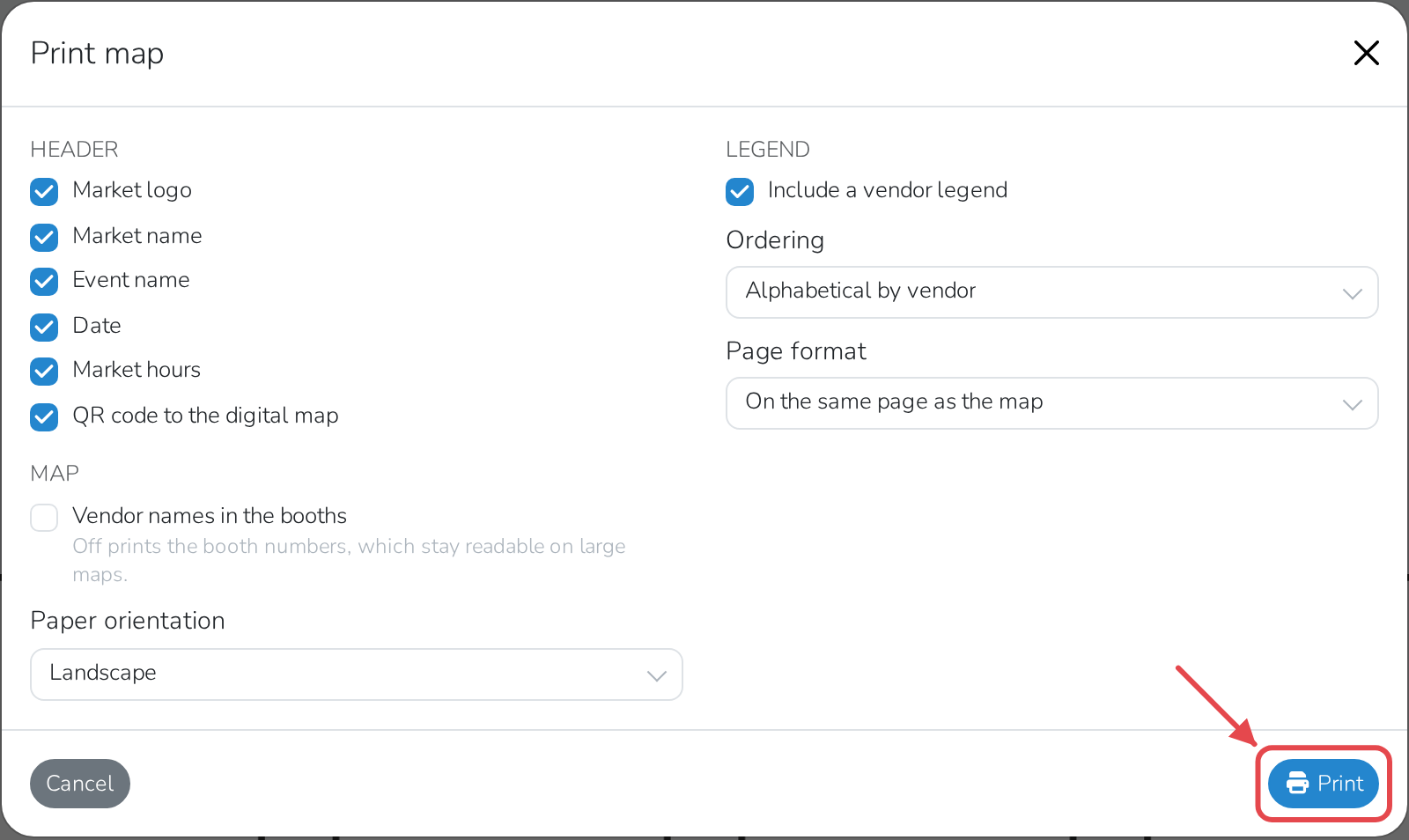
Under Print map, pick what the sheet shows:
- Header — tick any of Market logo, Market name, Event name,
Date, Market hours or a QR code to the digital map. Only the
ones your market has are offered. - Vendor names in the booths — turned on, each vendor's name prints in
their booth. Turned off, the booth number prints instead, which stays
readable on a large map. - Paper orientation — Landscape or Portrait.
- Include a vendor legend — a list of who is booked into which booth,
under the map. Choose whether it's ordered Alphabetical by vendor or
By booth number, and whether it prints On the same page as the map
or On a separate page.
More than one area
If your layout has more than one area, each one prints on its own page.
Click Print when you're ready.
Save it as a PDF
- In the print window your browser opens, choose Save as PDF where it
asks which printer to use. - Click Save, name the file, and save it.
You now have a PDF you can open, print or email like any other file.
The steps above are for Chrome. Every browser can do this, but the print
option sits in a different place in each one.