


Your market profile is what shows on your public market page — what customers and vendors see when they search for your market. From your market dashboard, open Settings, then Profile to update it.
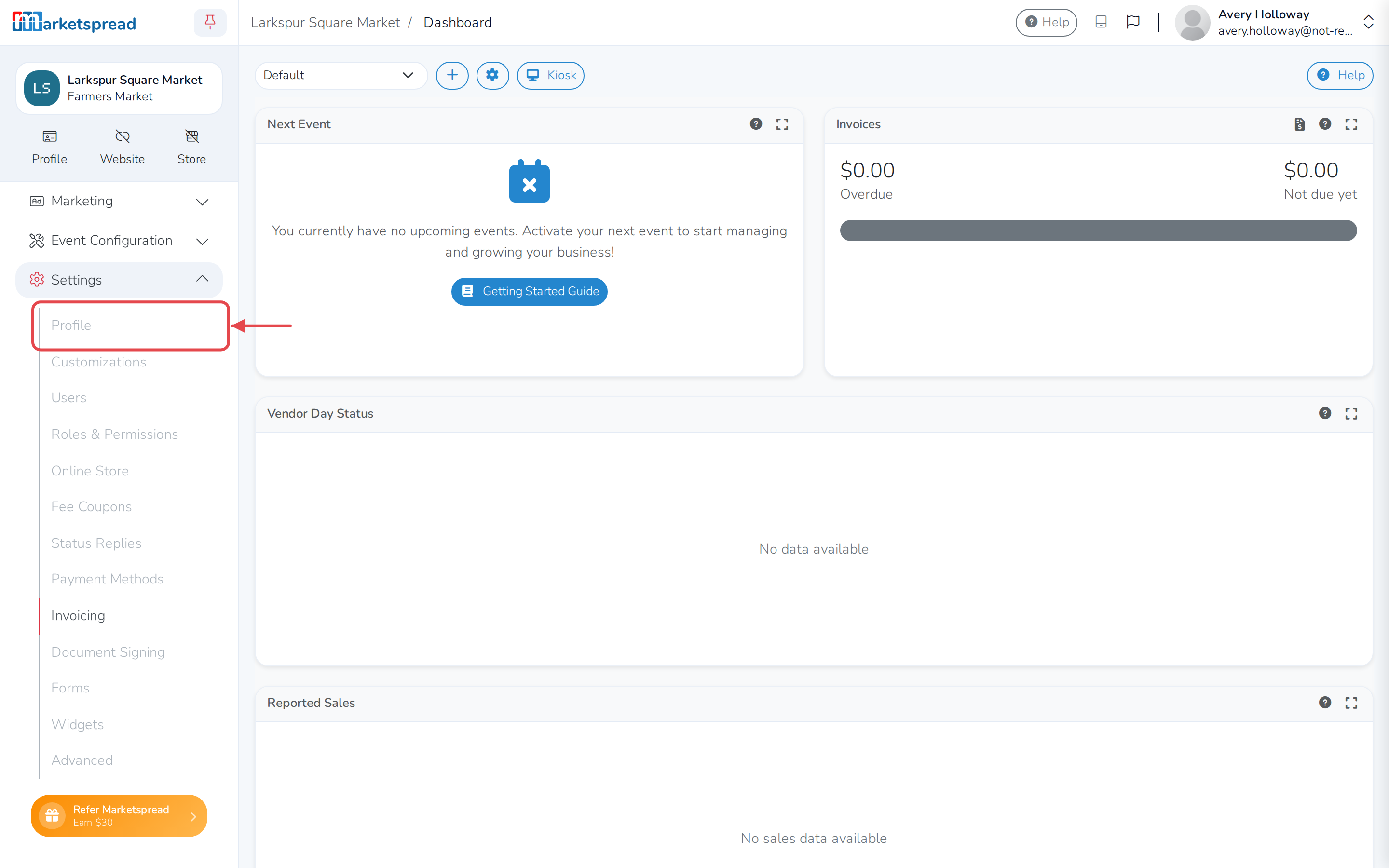
From here you can:
- Update your market information
- Choose what shows on your public profile
- Add manager information
- Update your location and contact information
- View your public profile
Note
Only market admins can make changes here. Other roles can view this page but can't edit it.
Update your market information
- Under Market Information, click the pencil icon next to the field you want to change — Name, Type, Website, Facebook, Instagram, Twitter or Description.
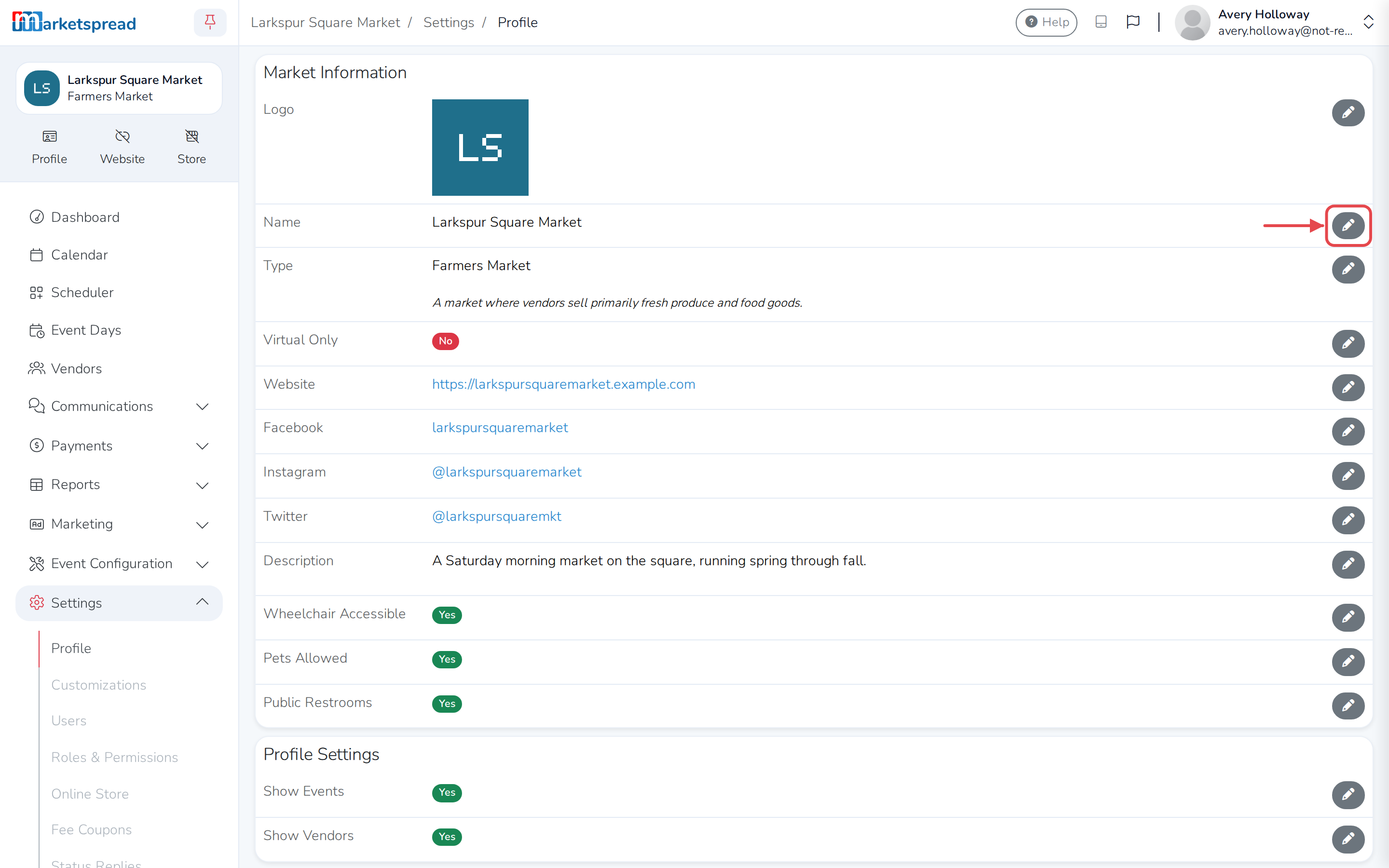
- Make your change.
- Click Save.
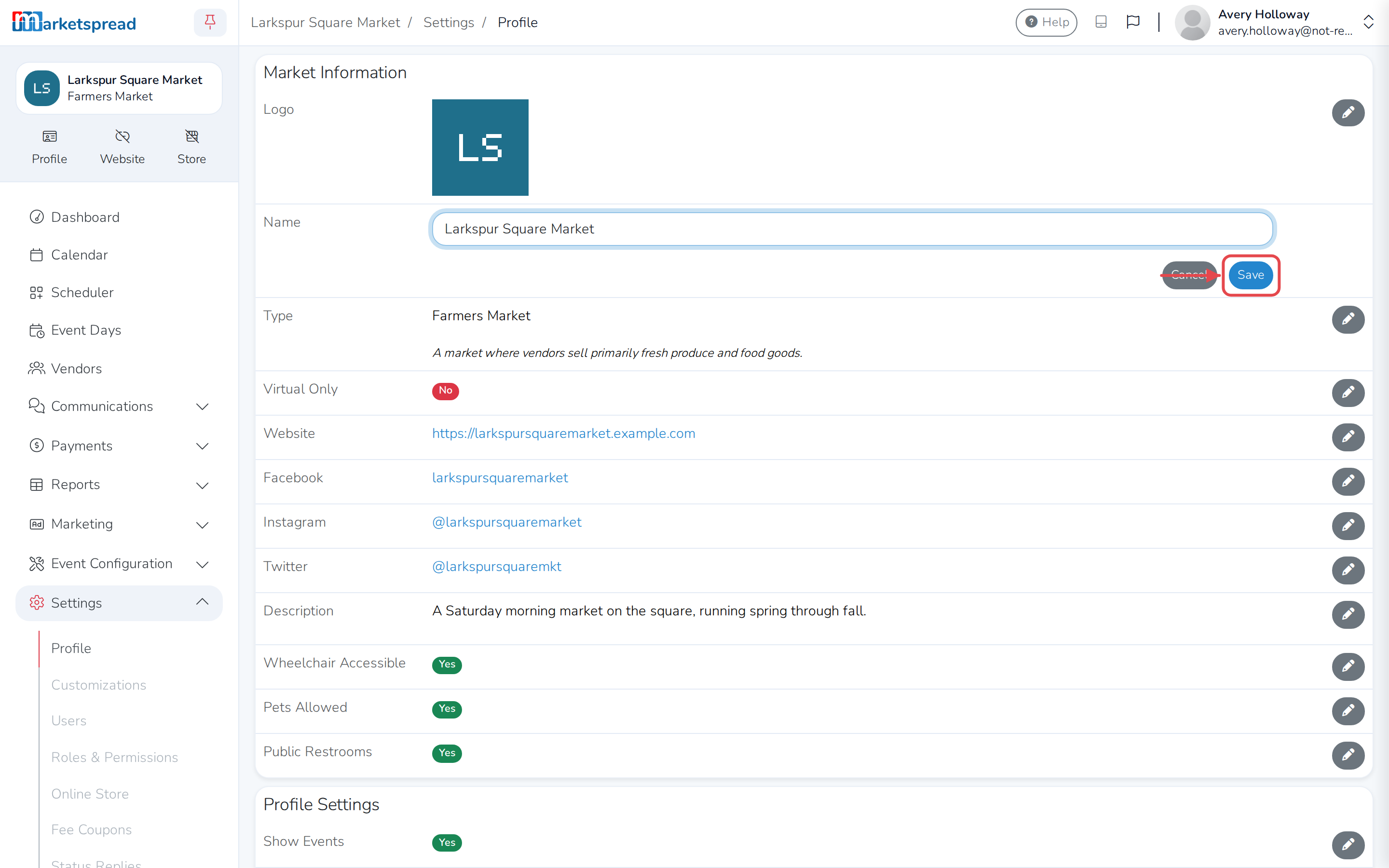
To change your logo, click Edit below it, choose an image, then click Upload.
You can also turn Wheelchair Accessible, Pets Allowed and Public Restrooms on or off — click the pencil icon next to each one.
Choose what shows on your public profile
- Under Profile Settings, click the pencil icon next to Show Events or Show Vendors.
- Turn the switch on or off.
- Click Save.
Add manager information
- Under Manager Information, click Edit below the photo to add a picture of your market's manager.
- Click the pencil icon next to Name or Biography to add their details.
- Click Save.
Update your location and contact information
- Under Location Information, click the pencil icon next to Address or Address desc.
- Under Contact Information, click the pencil icon next to Address, Office phone or Cell phone.
- Make your change.
- Click Save.
Use Publish office phone and Publish cell phone to choose whether those numbers show on your public profile.
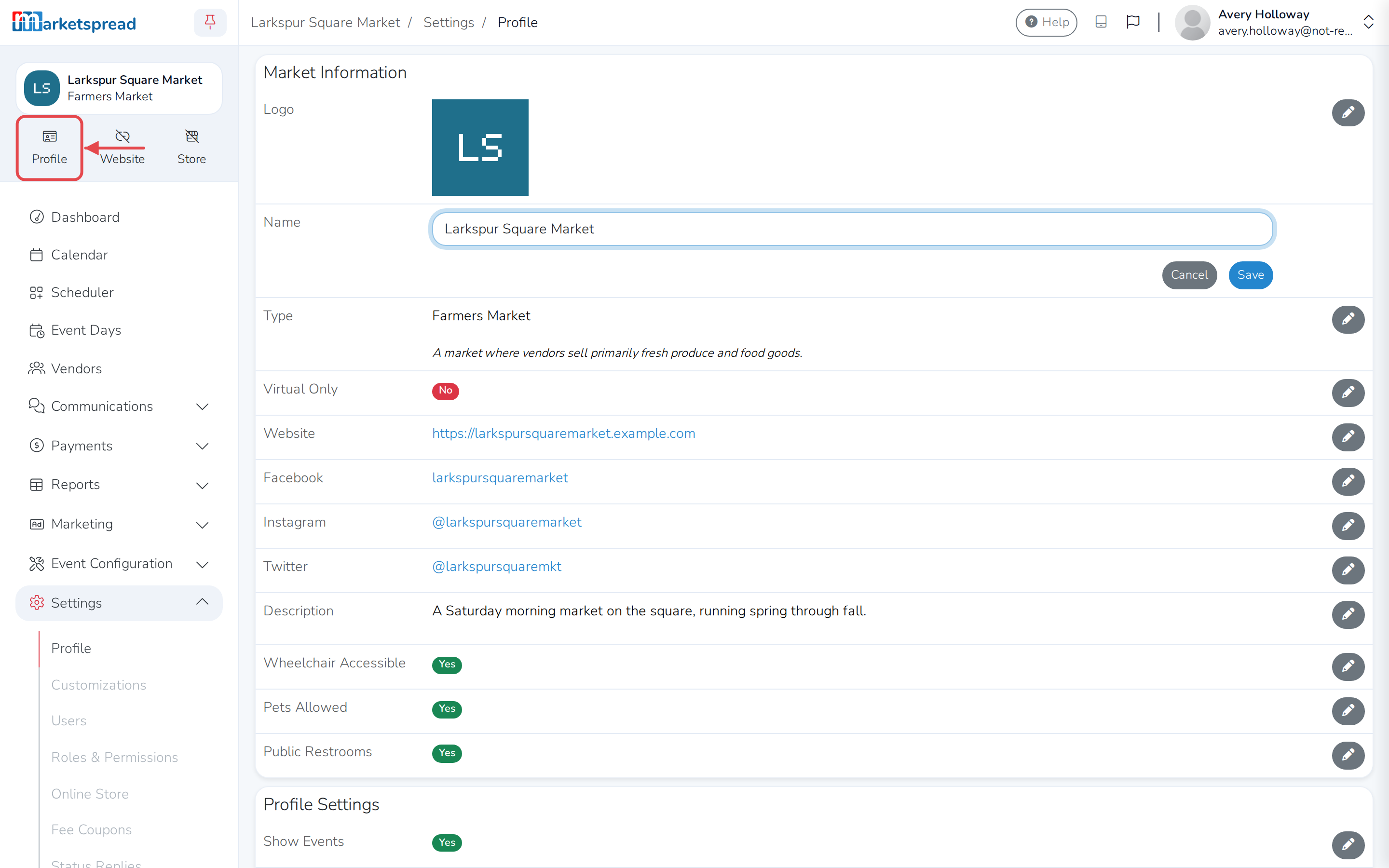
View your public profile
Click Profile, below your market name near the top of your dashboard.
Important
Any change you make on this page shows up immediately on your public profile.