


Deliveries work in runs. You set up a run for a day and a time, add orders to
it, then work through it marking each one delivered.
Orders you are delivering yourself carry a Delivery tag on your dashboard.
Set up a delivery run
-
Click Online Store, then Orders - Deliveries.
-
Click Create in the top right.
-
Set Delivery on to the day and start time.
-
Set Time window to how long you are giving the run.
-
Choose a starting point for the run — this is where distances are
measured from, and customers never see it. -
Click Save.
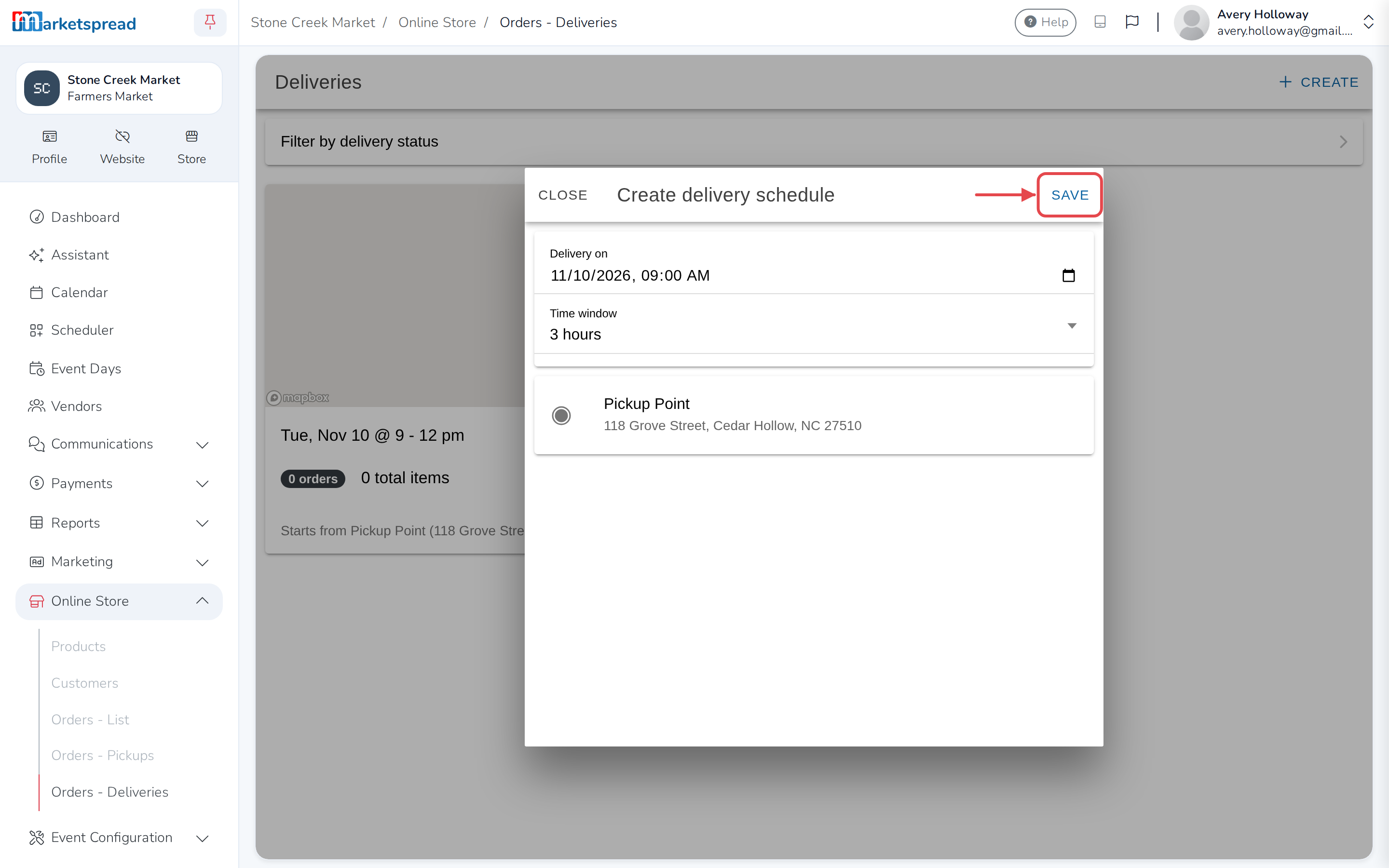
No starting points listed?
Add one first. See Set up your online store.
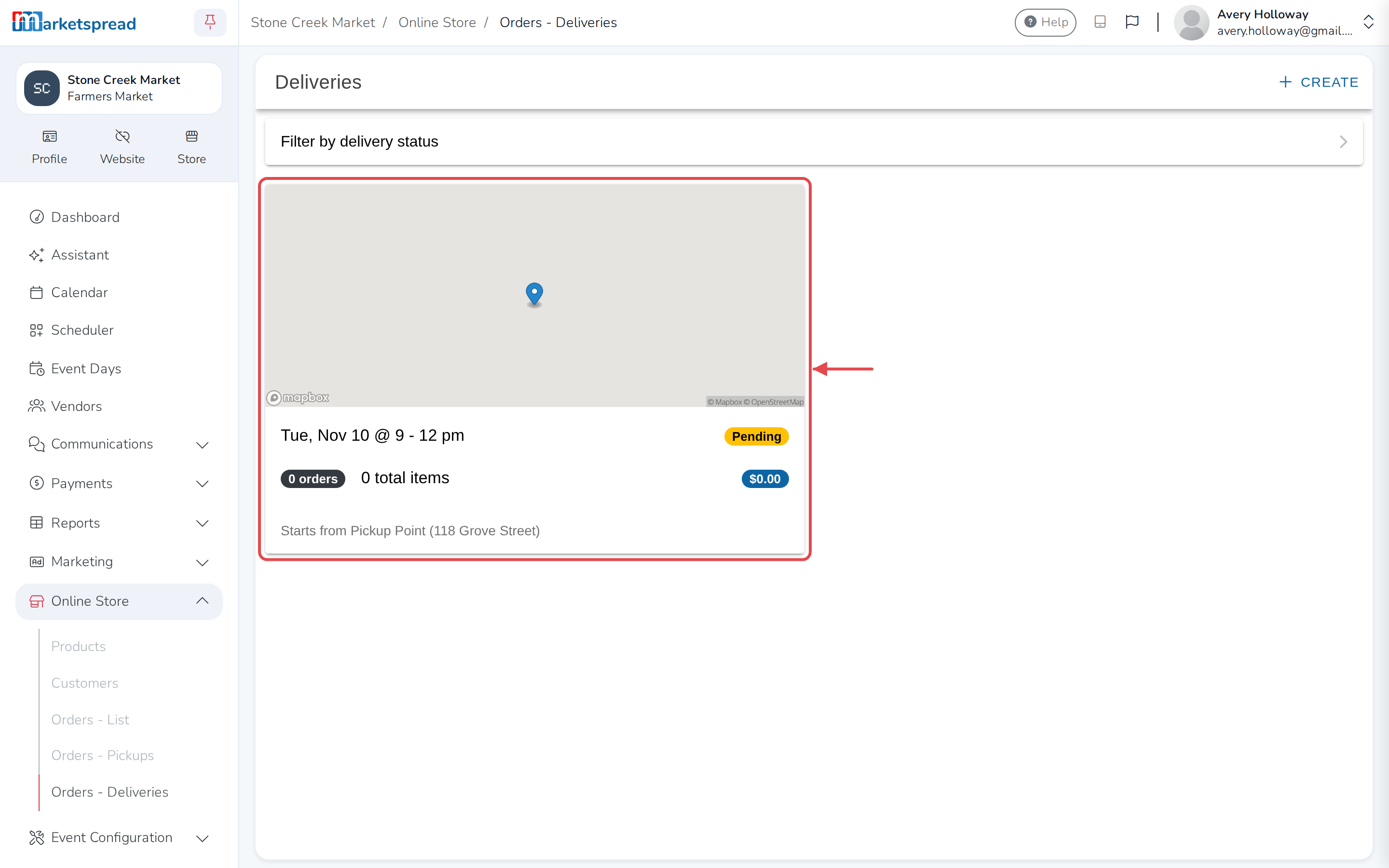
The run appears as a card in your list. You can set up as many as you like in
advance.
Add orders to it
-
Go to Online Store, then Orders - List, and open an order.
-
Click Schedule for delivery.
-
Choose a run from the list and click Select.
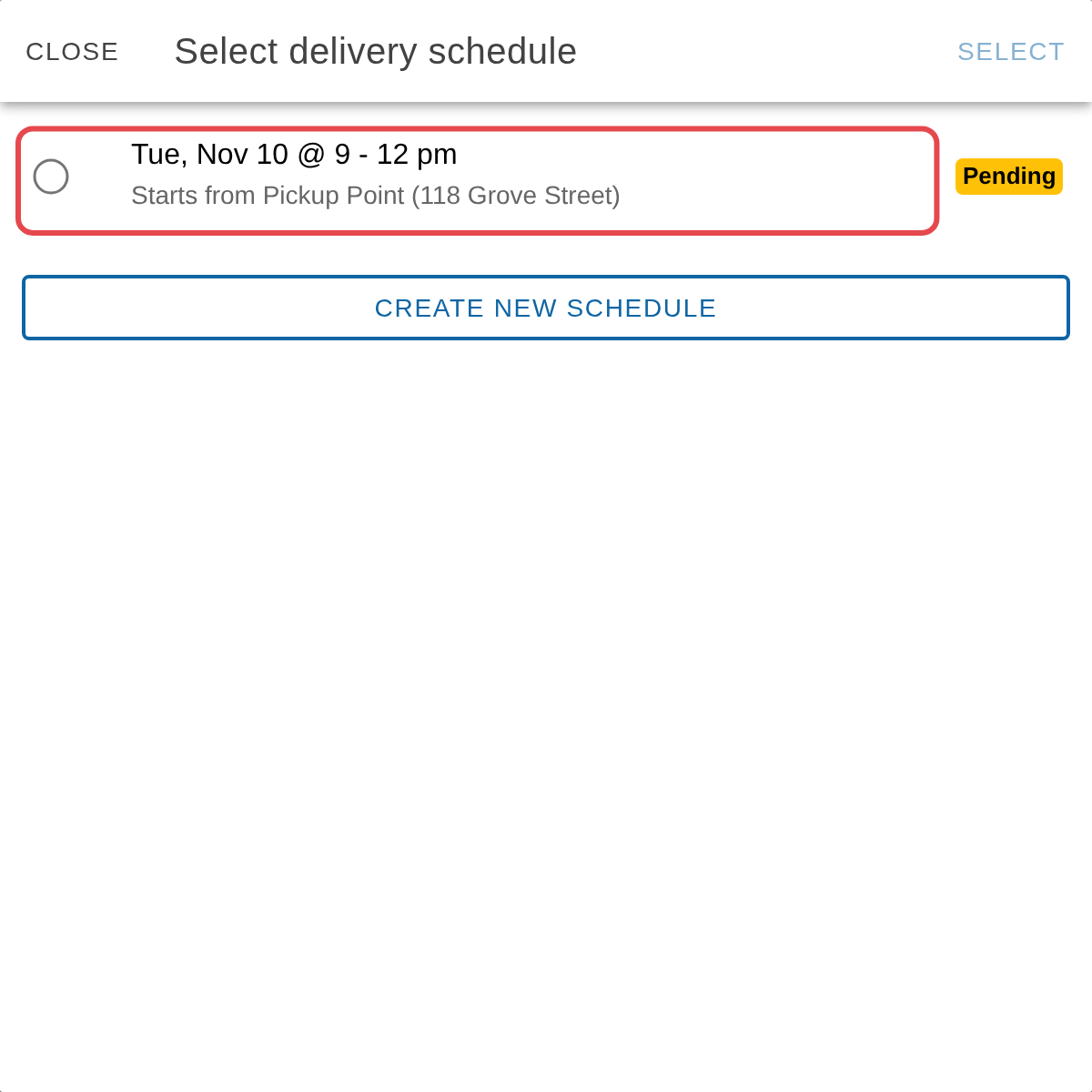
If none of them fit, click Create new schedule instead. If you have no
runs at all yet, click Create to make your first one.
Repeat for each order. To find them quickly, filter the order list by type
Delivery and status Pending.
Do the run
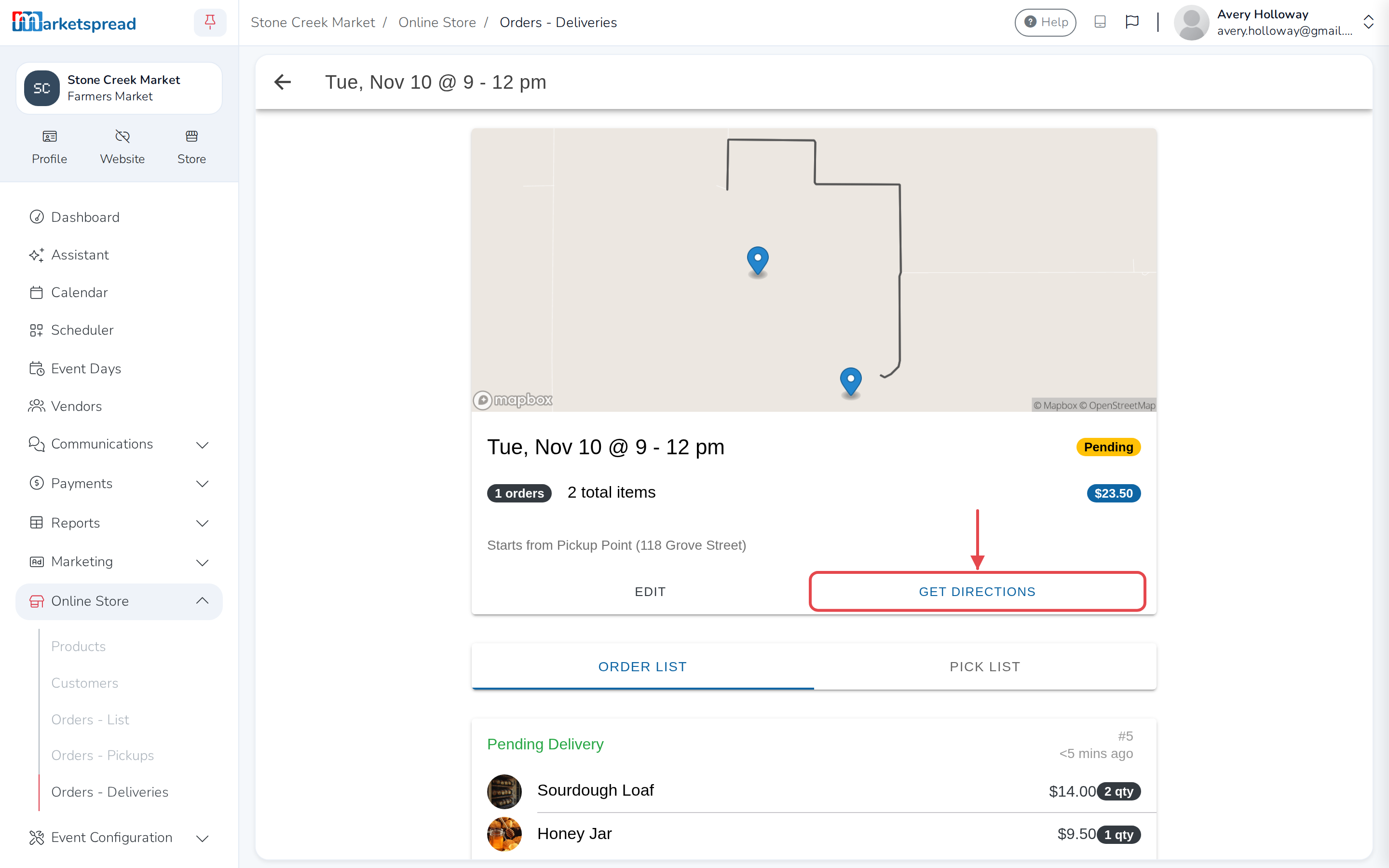
Click the run's card to see its details and every order on it, item by item.
Click Get Directions to open the whole run as an optimized route in Google
Maps. Route planning is included, at no extra cost.
At each stop, click Mark delivered.
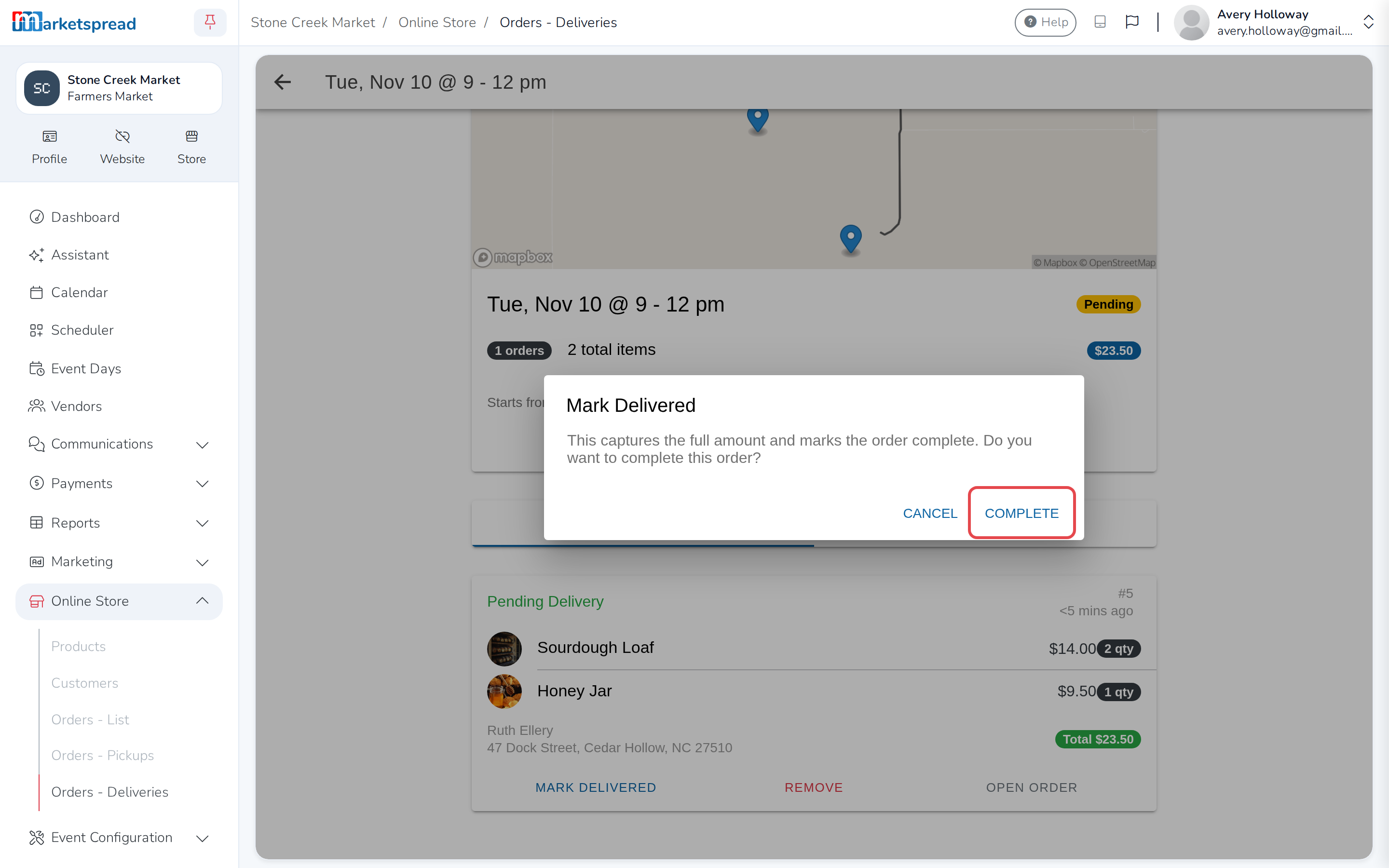
This takes the money
Marking an order delivered completes it and charges the customer's card.
You are asked to confirm.
When the last one is done, the run shows as complete.
Use the app on the road
The phone app looks and works the same, and is far easier to use while you
are out. There, the button is called Start Navigation, and opens your
map app directly.