


If you already have your vendors' details somewhere else — a spreadsheet, or another system — you can import them into your market instead of adding each one by hand. Importing creates an account for every vendor in the file and adds them to your market.
Import vendors from a spreadsheet
-
Open Vendors in the left-hand navigation.
-
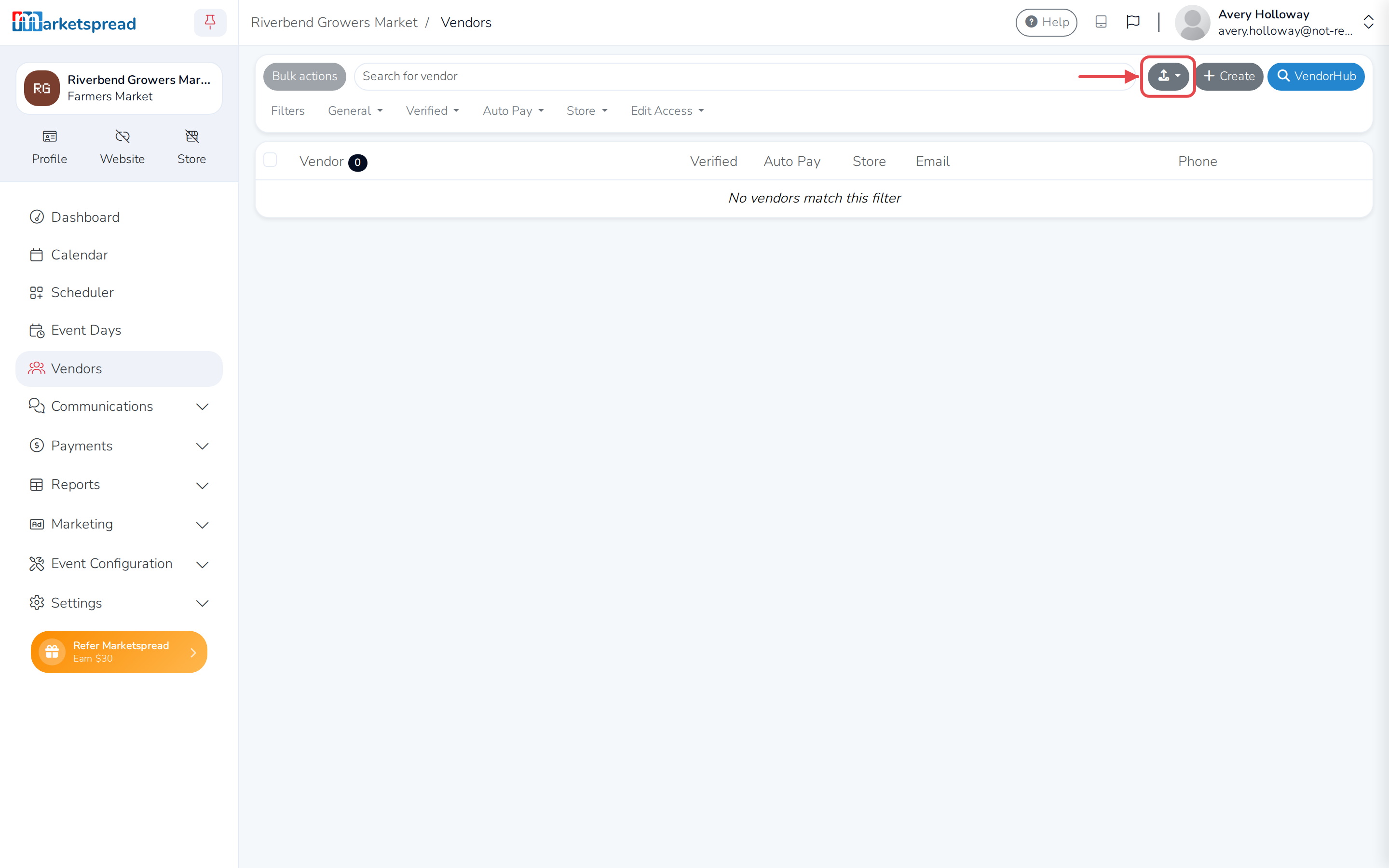
Click Import vendors above the vendor list.
-
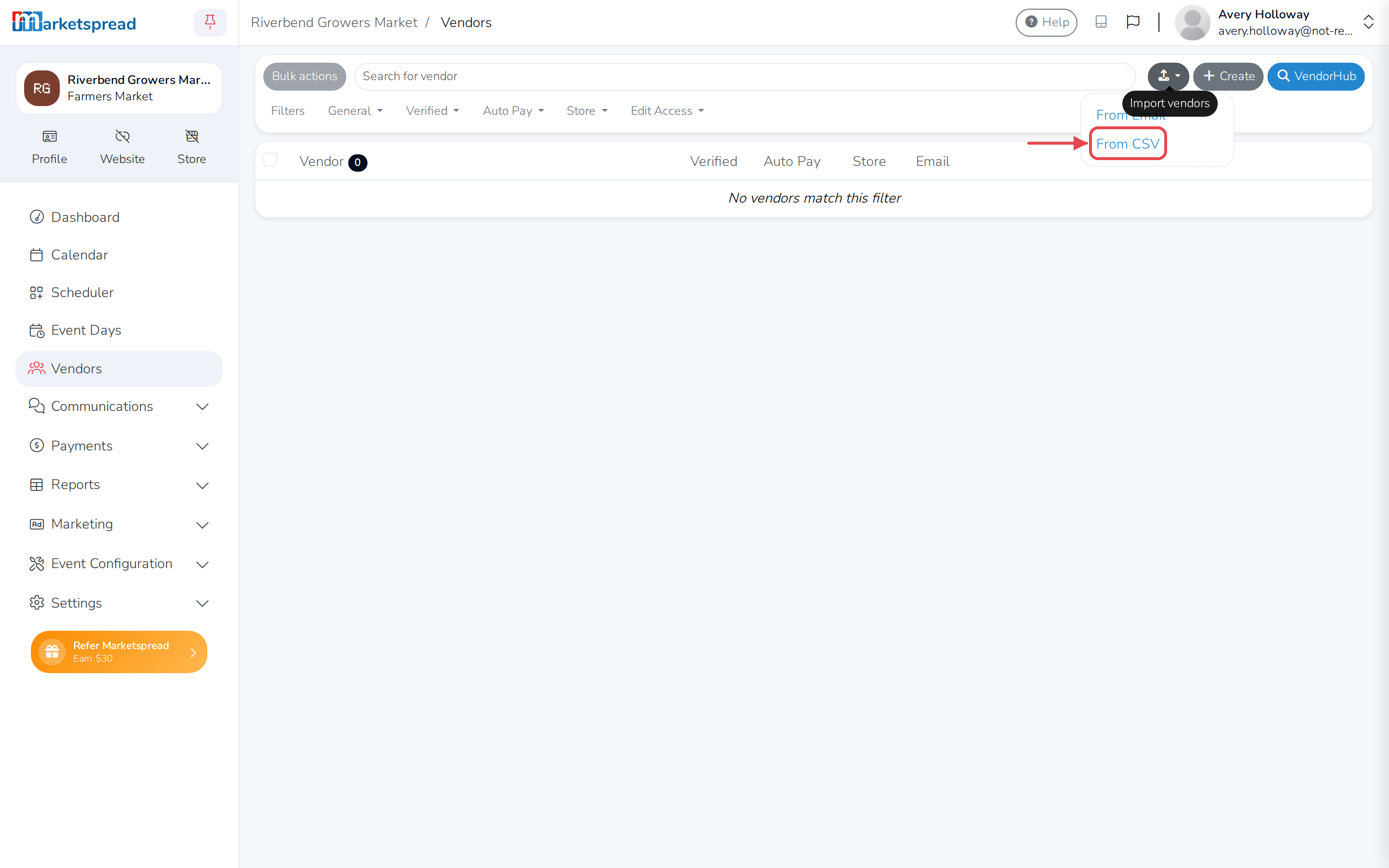
Click From CSV.
-
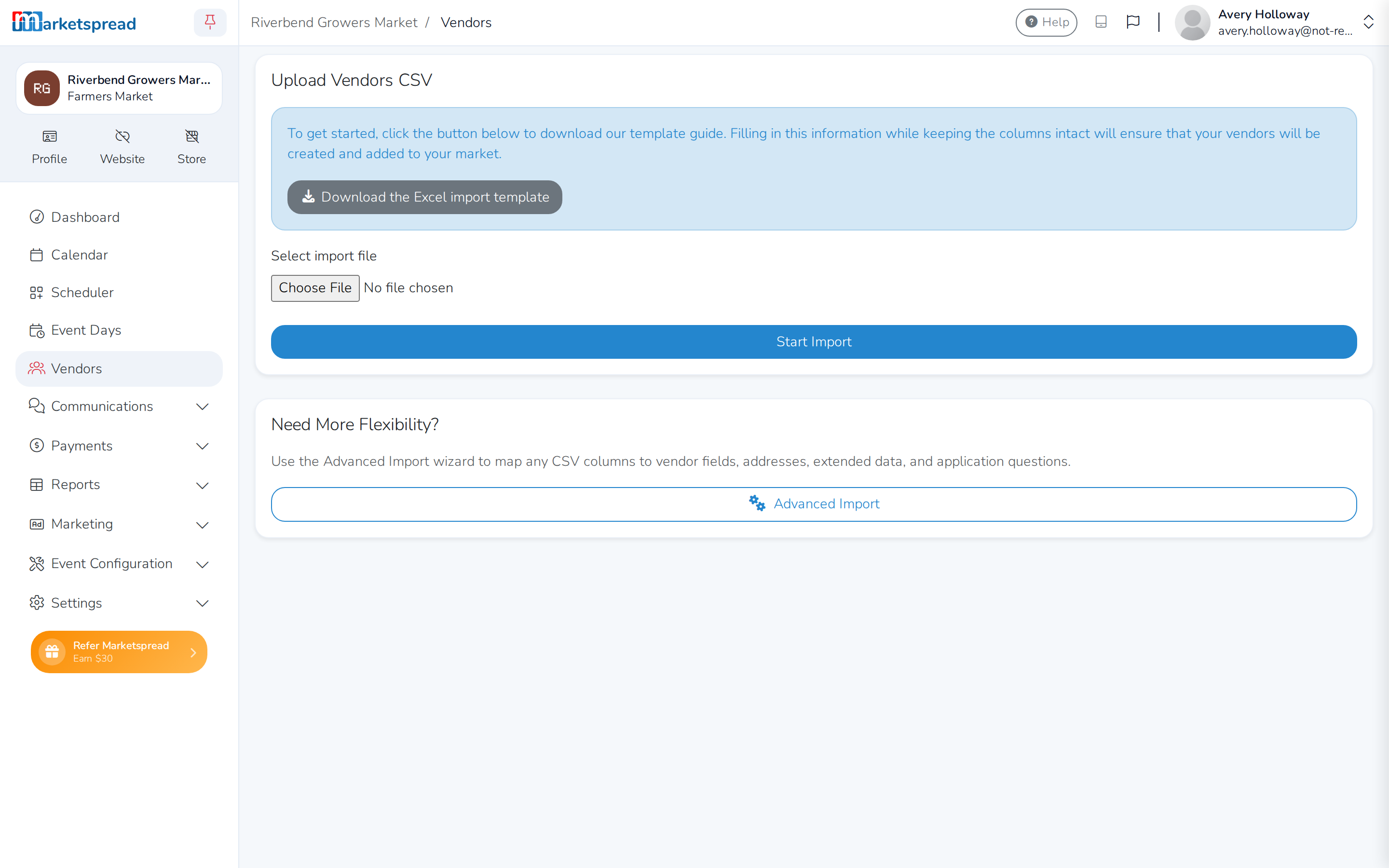
Click Download the Excel import template.
-
Fill it in, keeping the columns exactly as they are.
-
Under Select import file, choose your completed spreadsheet.
-
Click Start Import.
Important
Every row needs an address — rows without one are rejected. If a row includes an email address, it has to be valid, and no two rows can use the same one.
Note
Vendors are imported in the background, not instantly. Refresh the Vendors page after a moment to see them appear.
Tip
If your spreadsheet's columns don't match the template, click Advanced Import on the same screen to map its columns to vendor fields yourself.