


An order placed through your online store for pickup goes through two steps.
You accept it, which tells the customer when it will be ready, and you mark
it picked up when they collect it.
Your dashboard's Orders - Pickups screen groups orders waiting by pickup
day and time. The same orders show up on Orders - List too, with a
Pickup tag.
Find the day's pickups
- Click Online Store in the left-hand menu.
- Click Orders - Pickups.
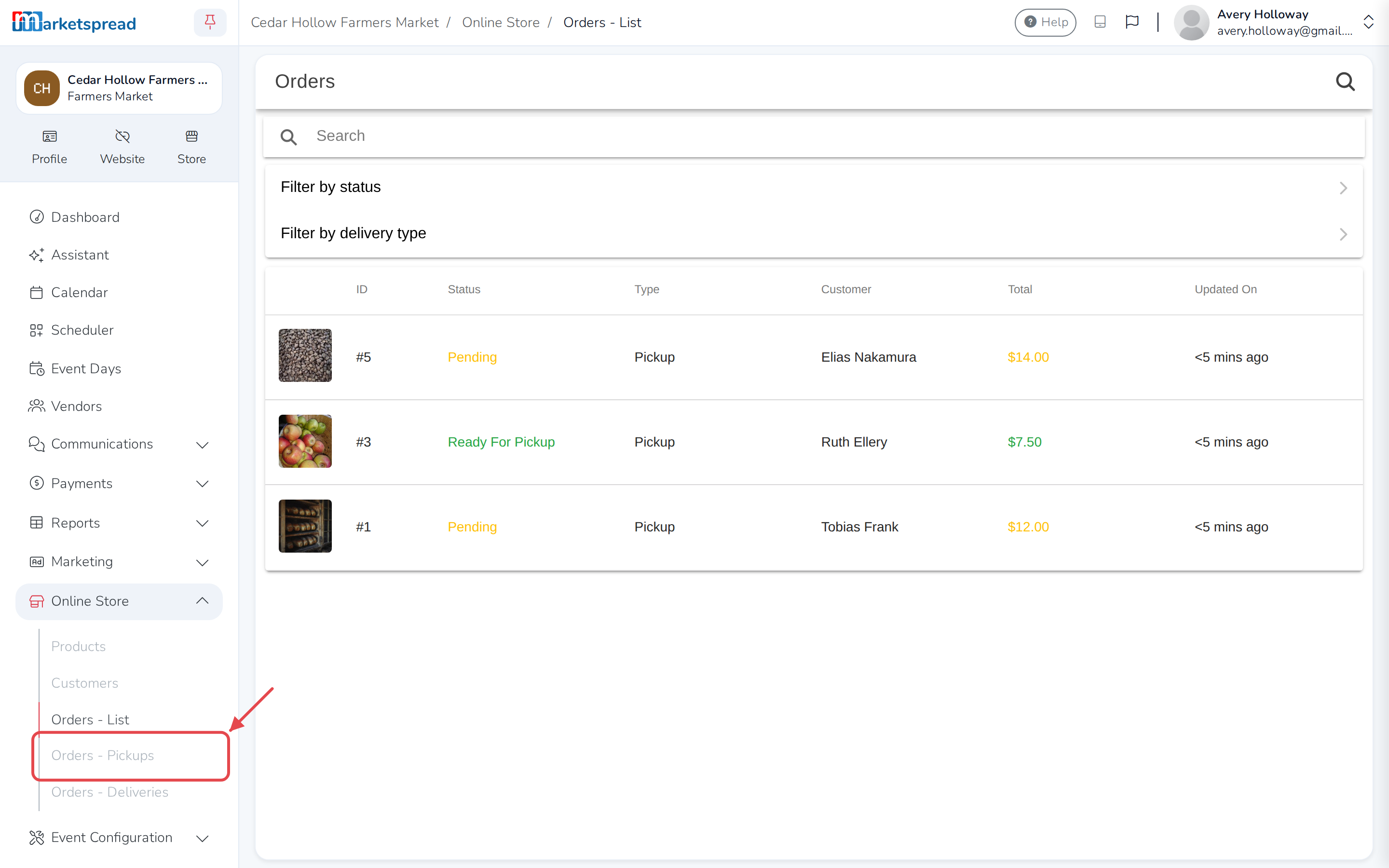
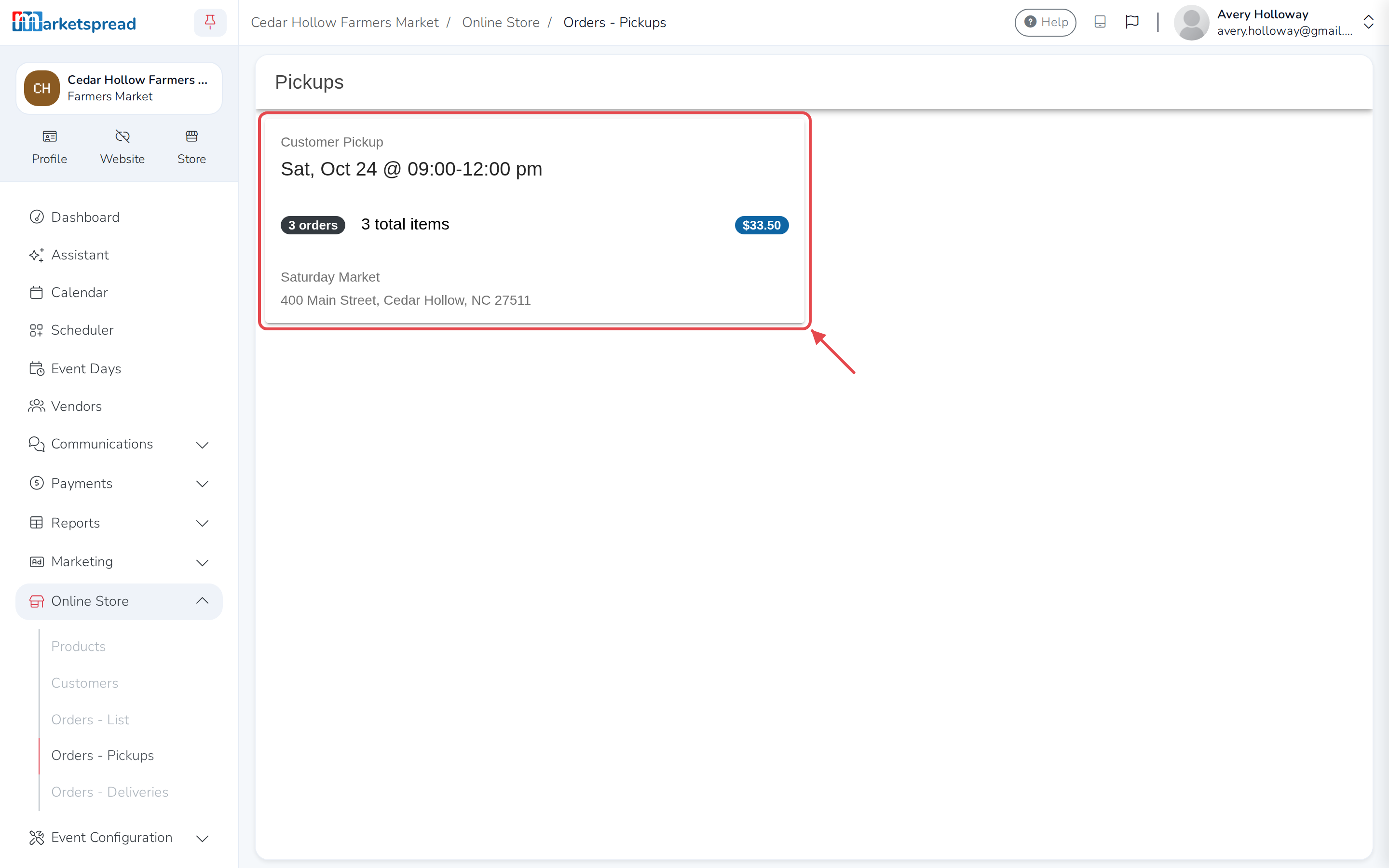
You get one card per pickup window with orders waiting. Each one shows the
date and time, the place, how many orders and items there are, and the
total. Click a card to open it.
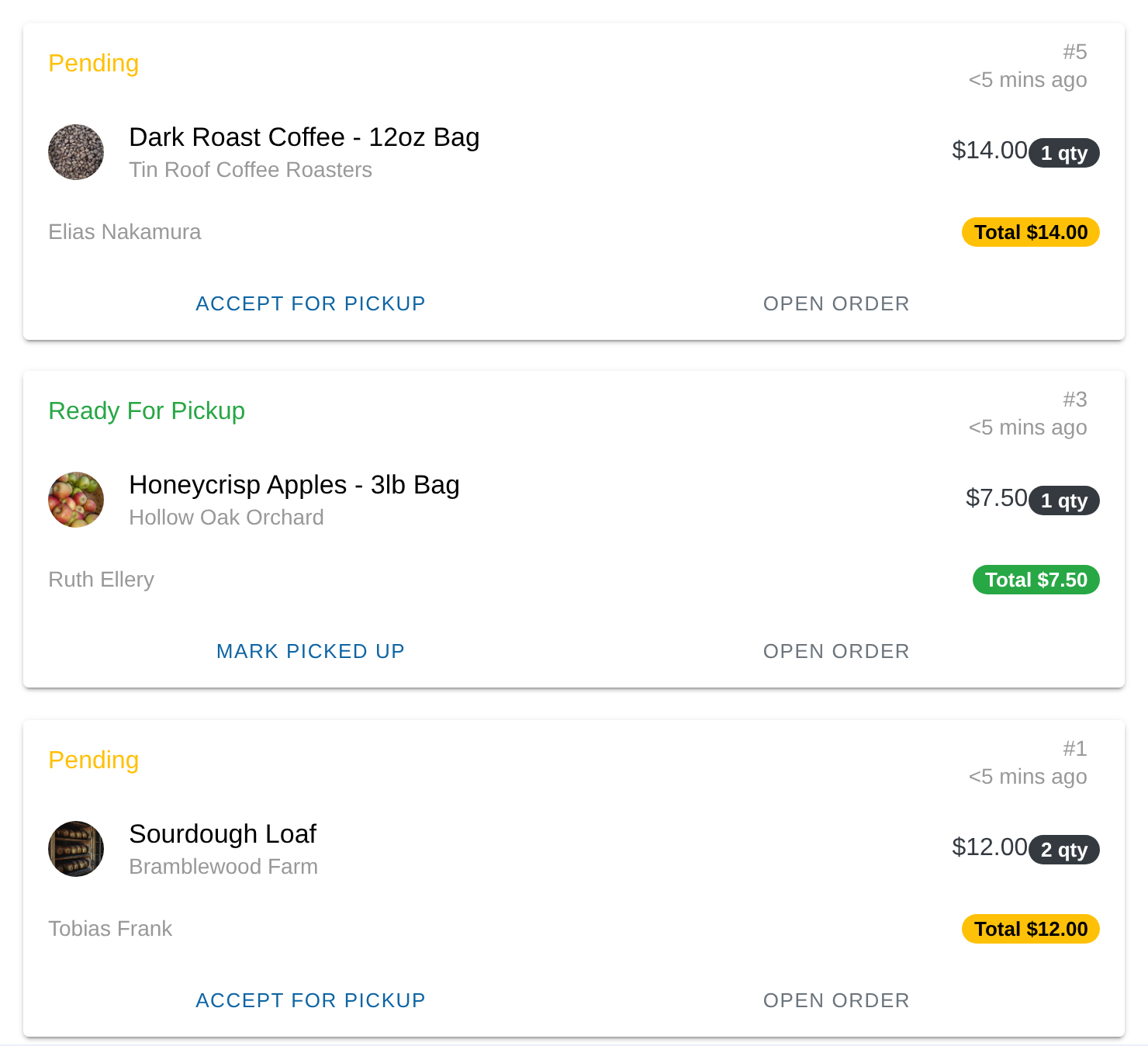
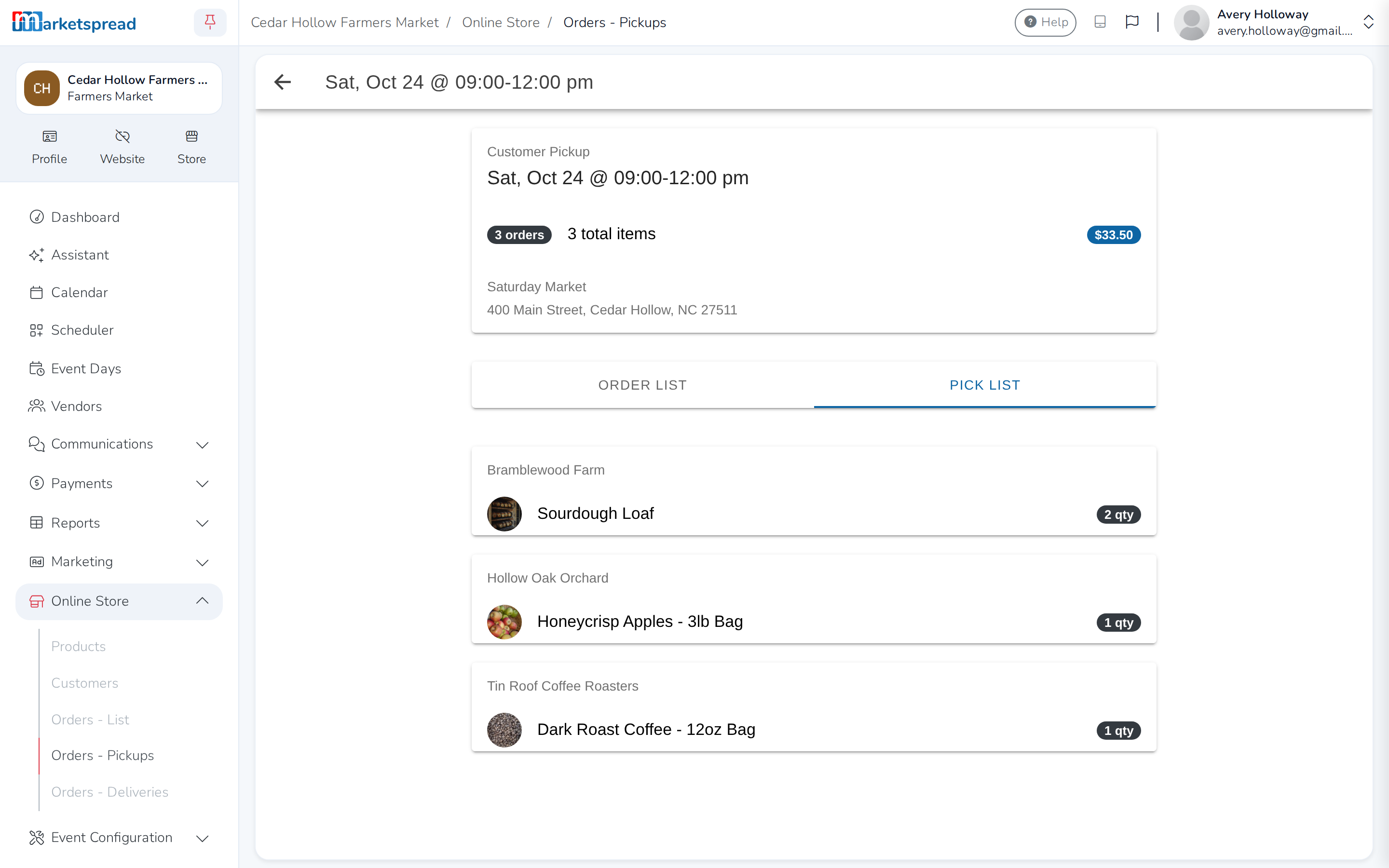
Inside, the Order list tab shows each order. The Pick list tab groups
every item in the window by vendor, so you can pull it all before anyone
arrives.
Click Orders - List in the same menu to see every order in one list,
with Filter by status and Filter by delivery type to narrow it down
when the list gets long.
Accept an order
-
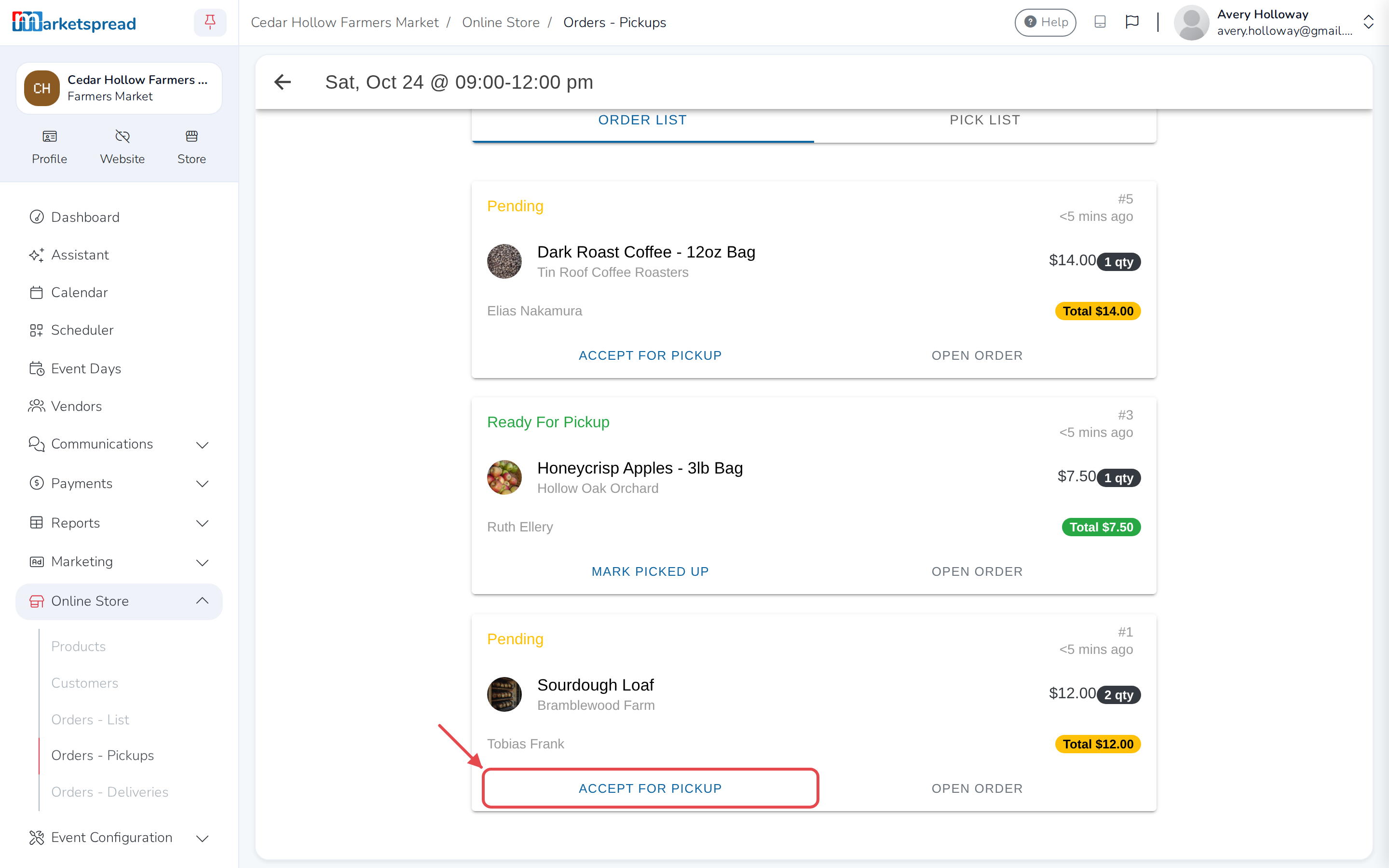
Open the pickup window the order is in.
-
On the Order list tab, click Accept for pickup on the order.
-
Click Accept.
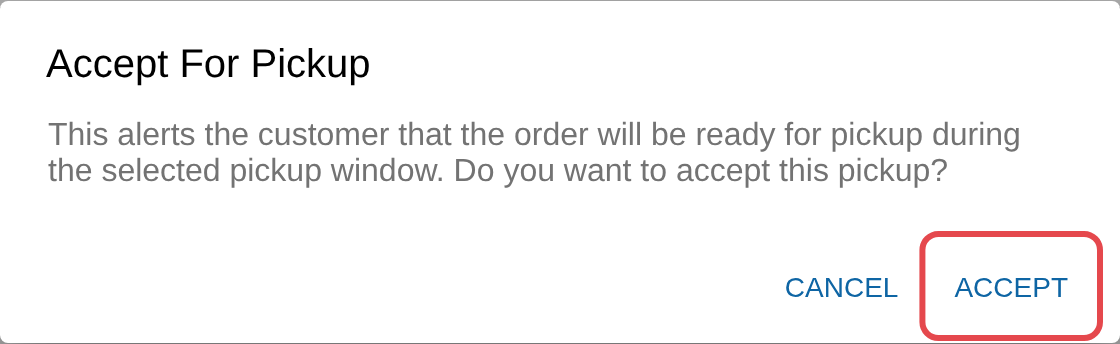
Accepting emails the customer to say their order is ready, with the date, time
and place to collect it. So accept an order once you are confident you can
fulfil it.
Hand the order over
-
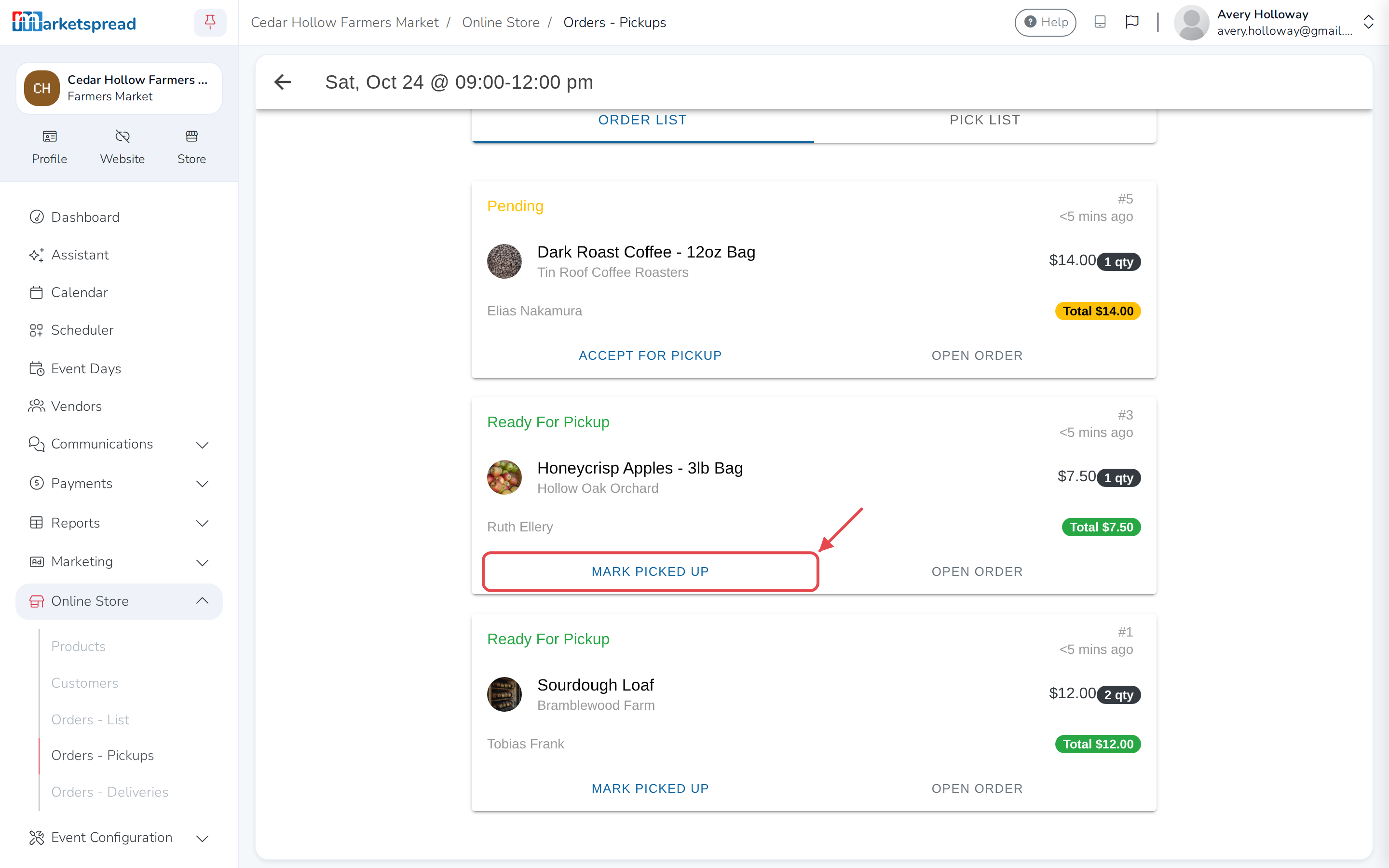
When the customer arrives, open the pickup window their order is in.
-
On the Order list tab, click Mark picked up on their order.
-
Click Complete.
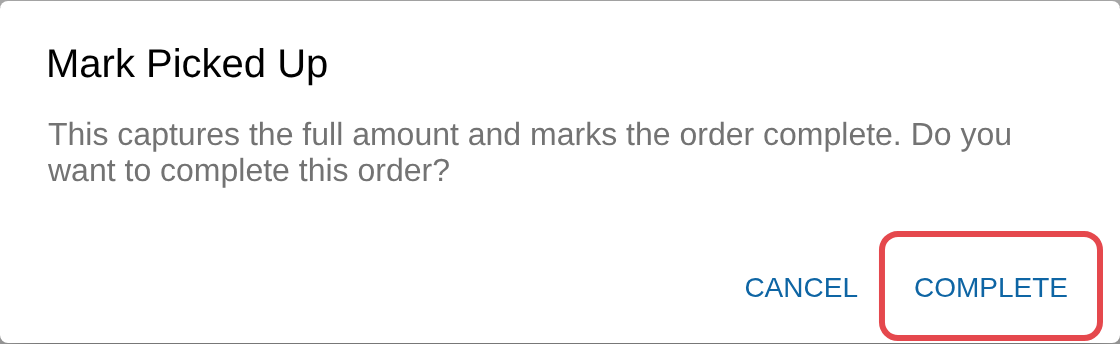
The order disappears from the pickup list, which leaves you looking at only
what is still outstanding. It is still there under Orders - List.
This takes the money
Until you mark it picked up, the customer's card is only held. Marking it
picked up completes the payment.
Decline an order
-
Open the pickup window the order is in.
-
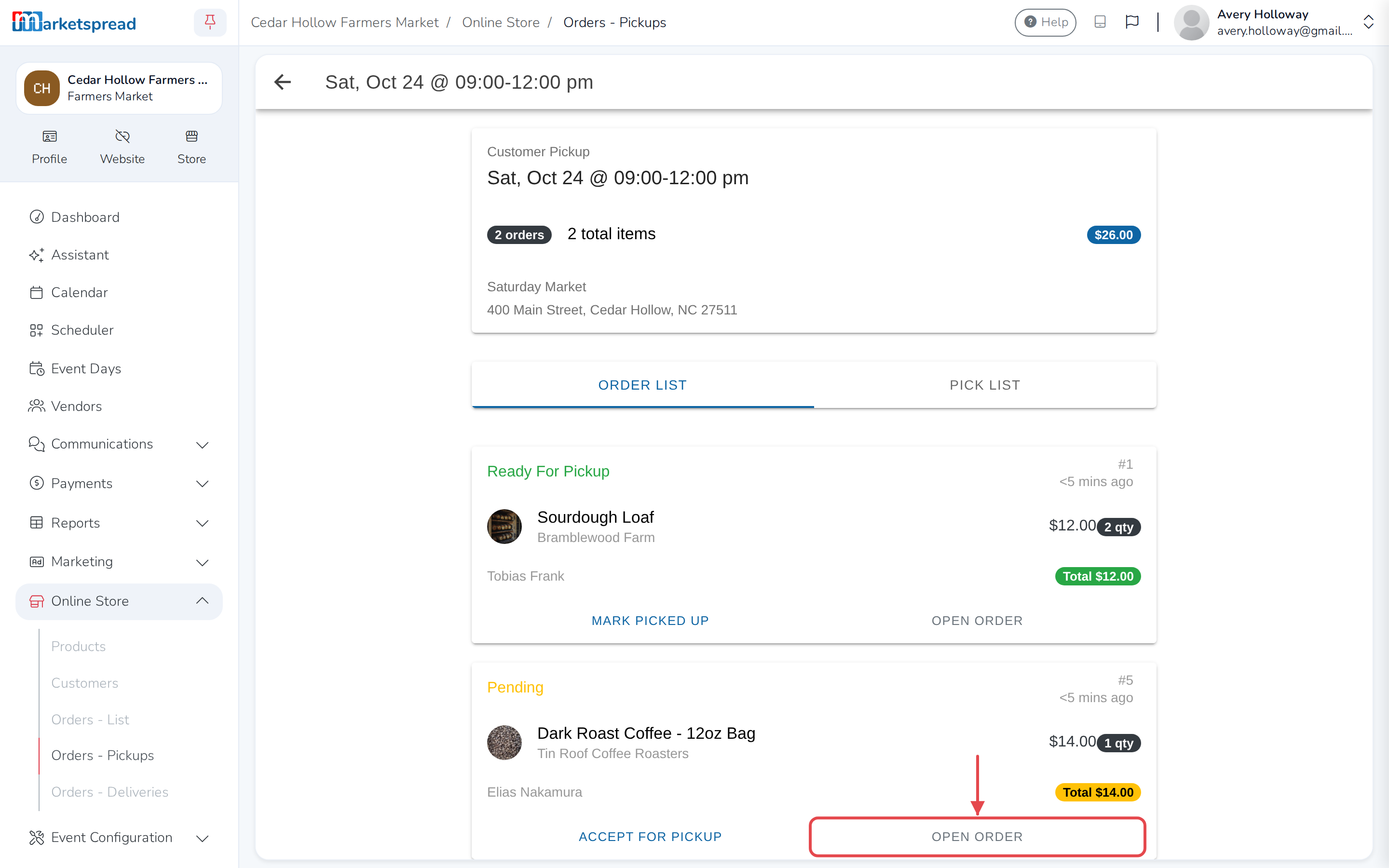
On the Order list tab, click Open order.
-
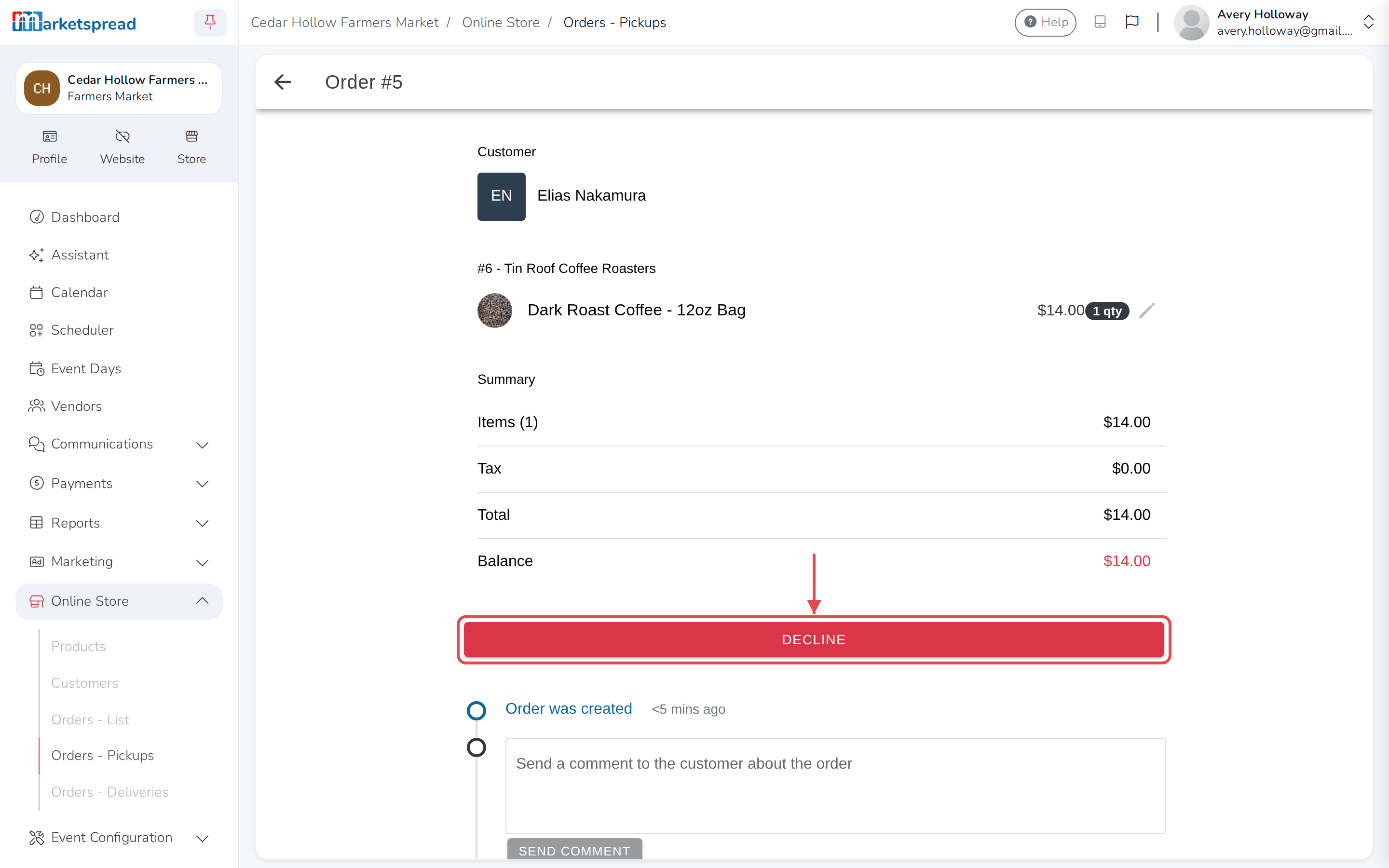
Click Decline.
-
Type a reason for declining.
-
Click Decline again to confirm.
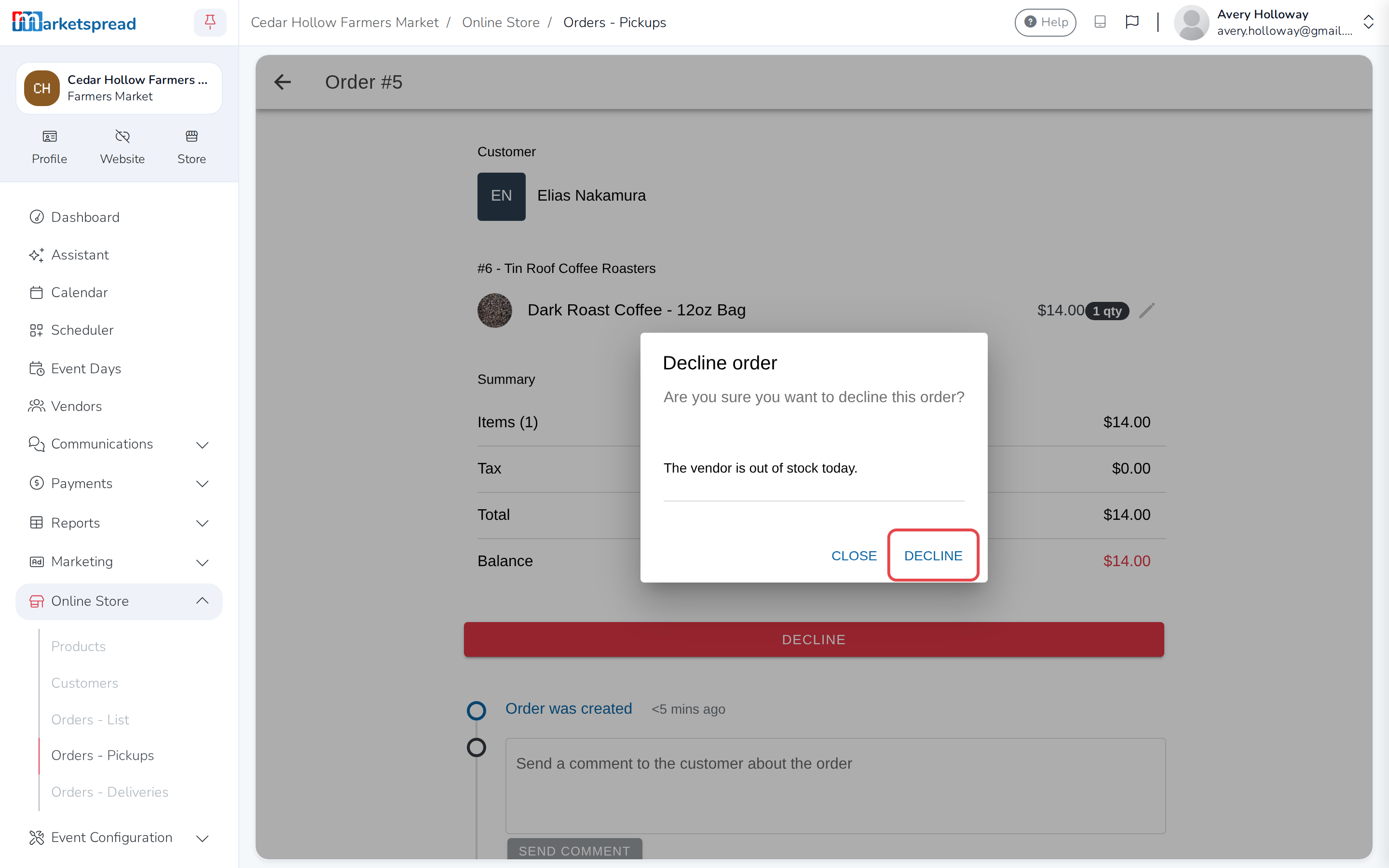
Declining emails the customer, with the reason you gave.
Use the app on the day
The phone app works the same way and is easier to carry. It also scans the
QR code from the customer's order email to bring their order straight up.