


Your reports can feed an Excel workbook directly. Instead of exporting a file
every time you want current numbers, the workbook pulls them itself using
Excel's own Power Query tool.
You set up a link on the Marketspread side, then paste it into Excel.
Get the link
-
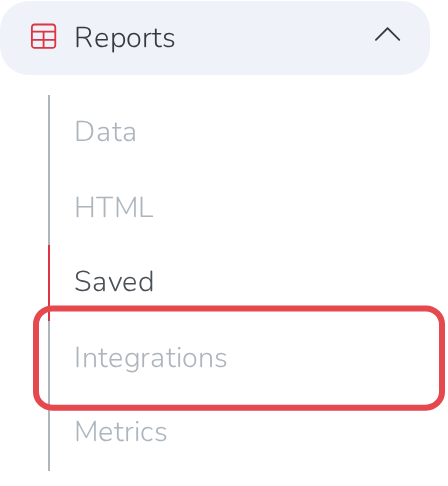
Open Reports, then Integrations.
-
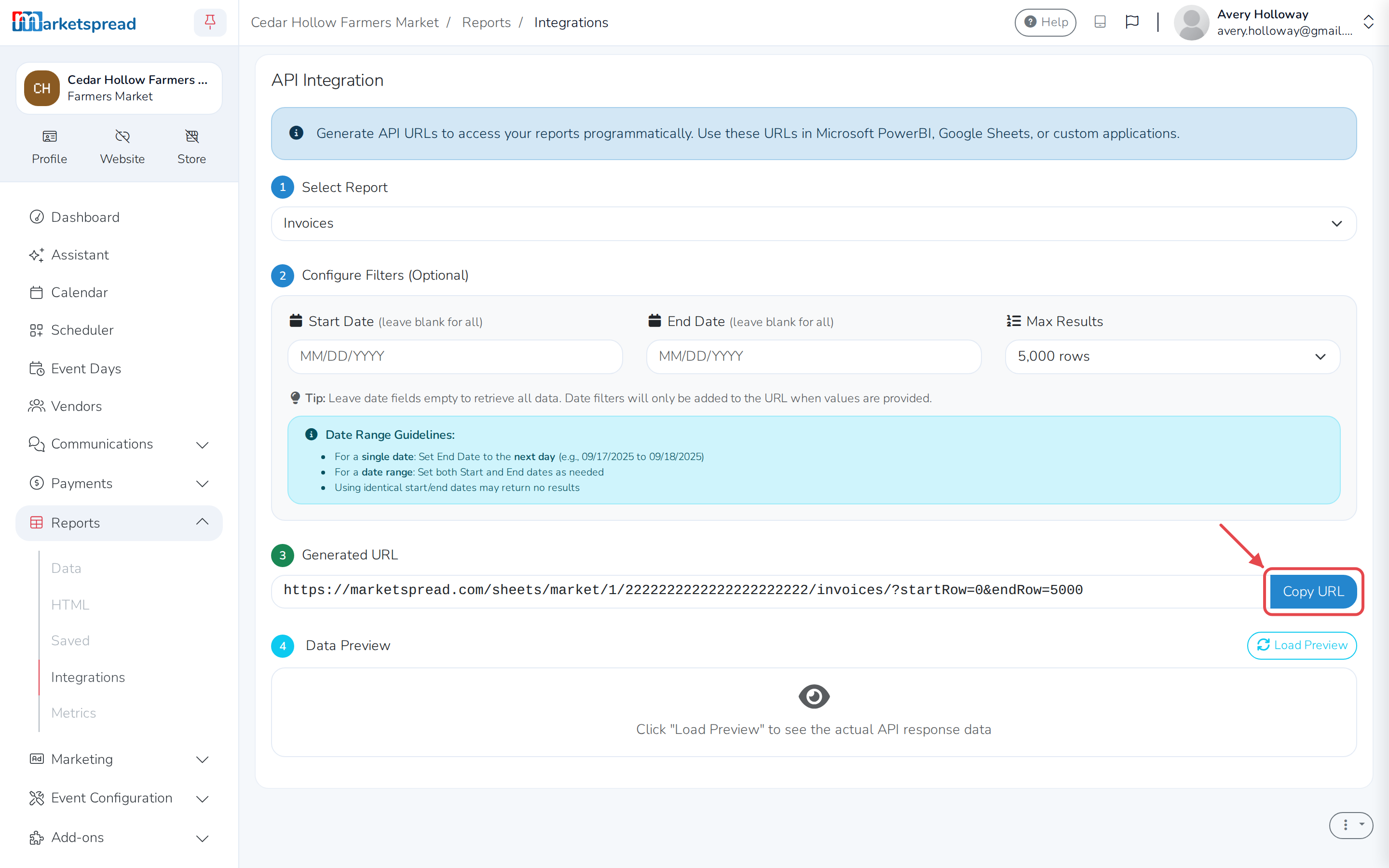
Choose the report you want, such as Invoices.
-
Choose the date range you want covered.
-
Choose how many rows to return, up to 5,000.
-
Click Copy URL.
Treat the link as private
The link opens your report data without asking anyone to sign in, so treat
it the way you would a password. Do not post it or share it outside the
people who should see those numbers.
It doesn't expire on its own, and turning it off breaks every report link
your market has copied — not just this one.
Load it into Excel
-
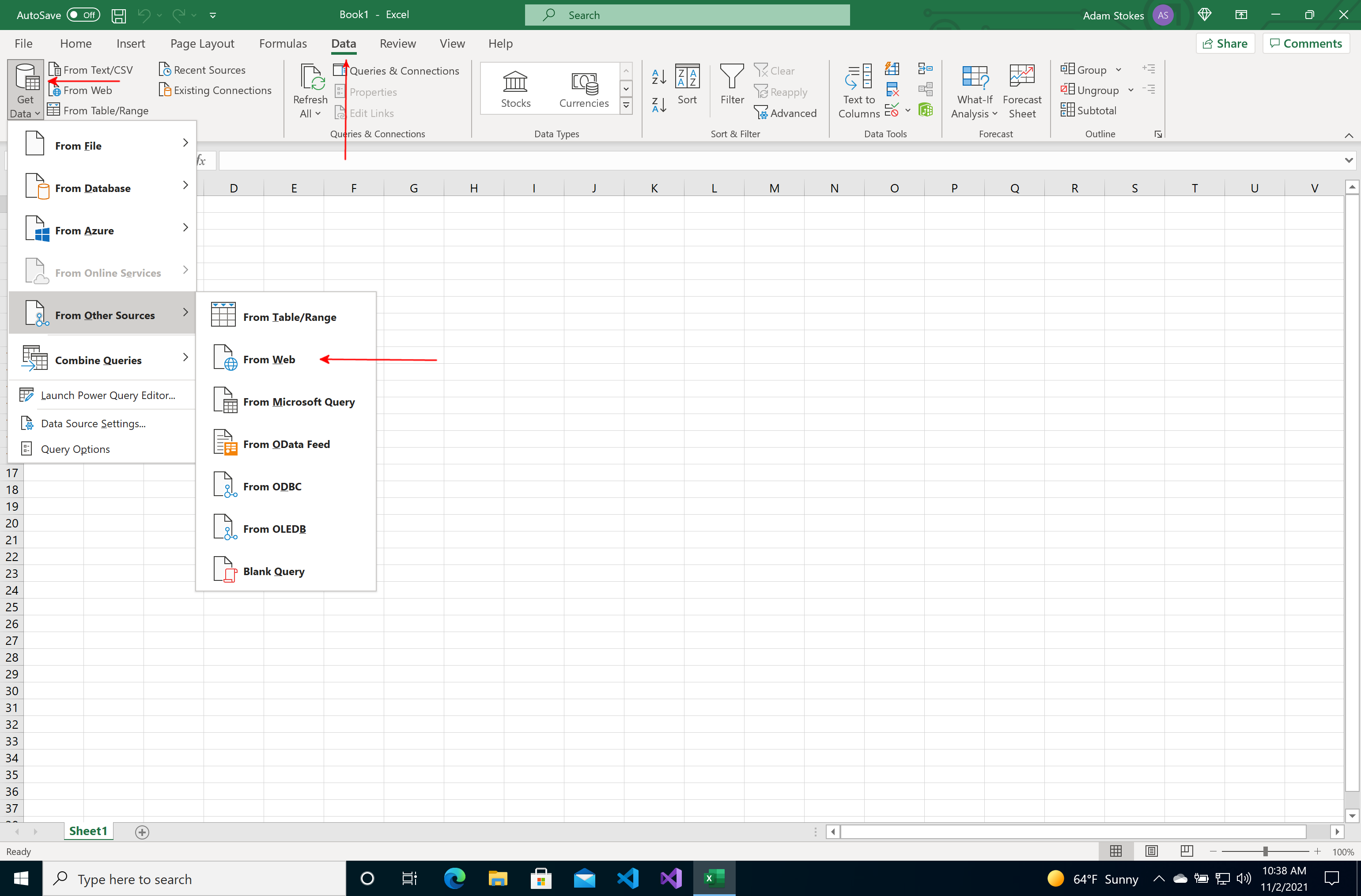
In Excel, open the Data tab, click Get Data, then choose From Other Sources and From Web.
-
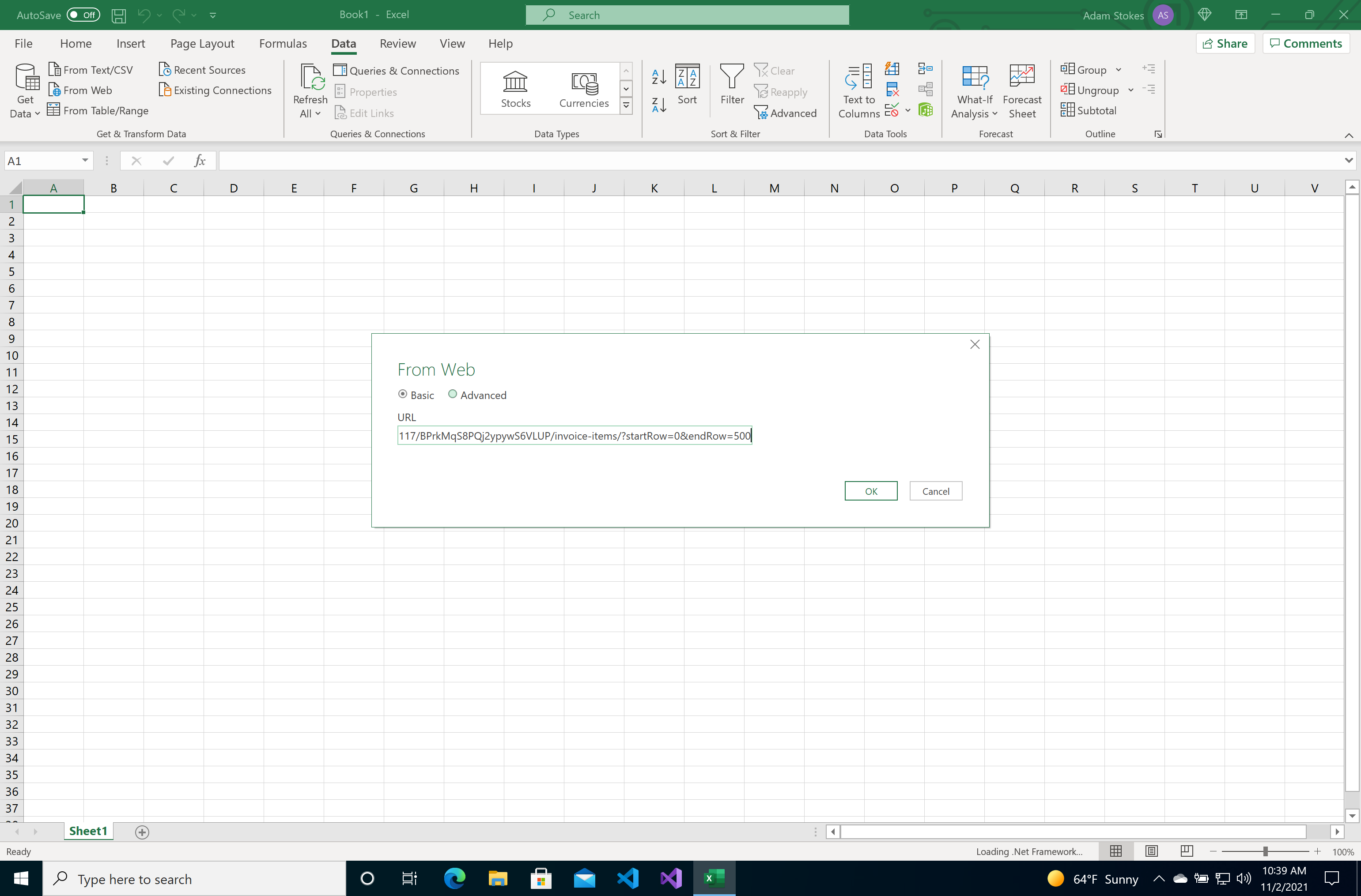
Paste your link into the box.
-
Click OK.
-
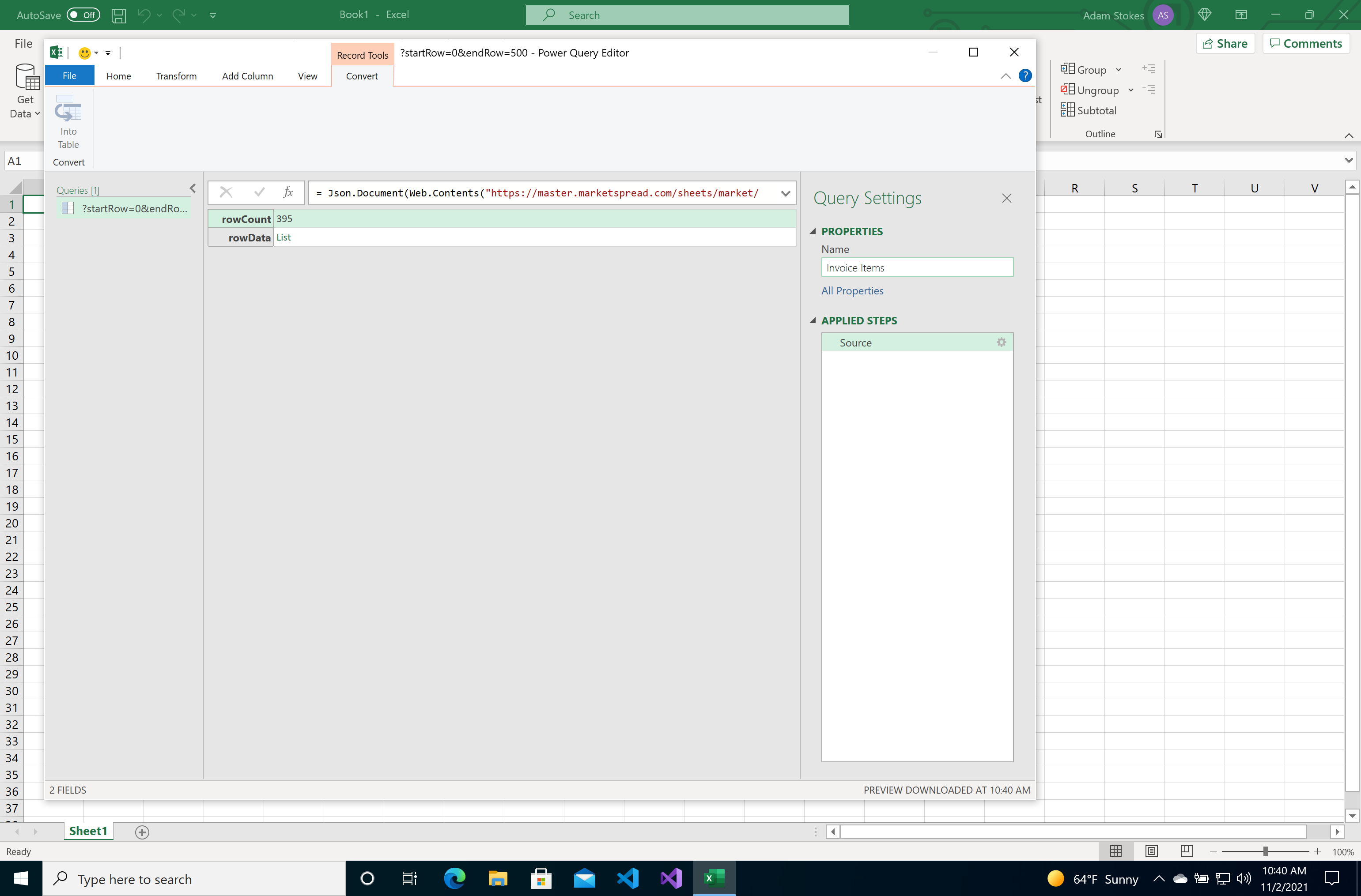
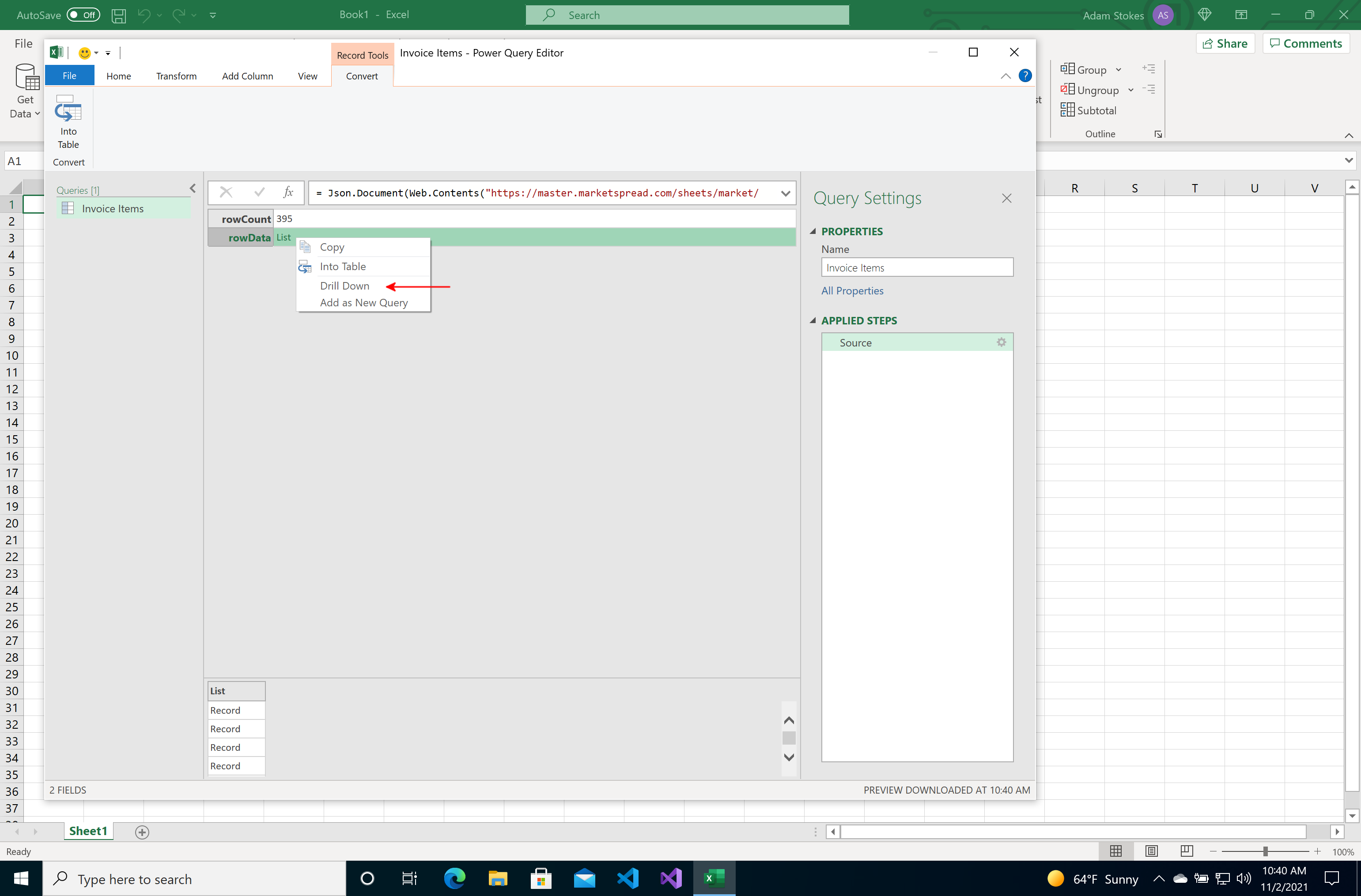
In the Power Query Editor, right-click the List next to rowData, then choose Drill Down.
-
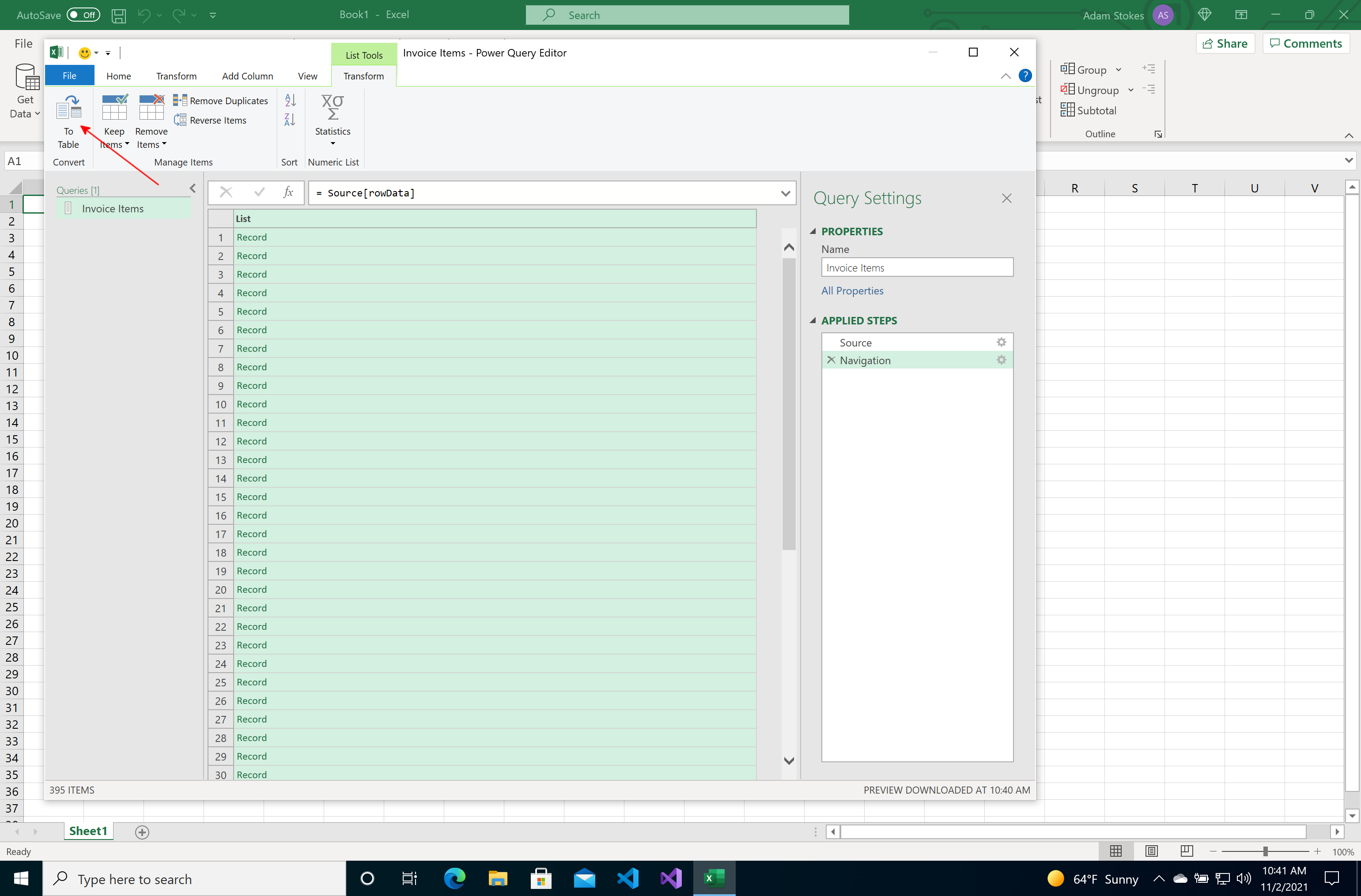
On the Transform tab, click To Table.
-
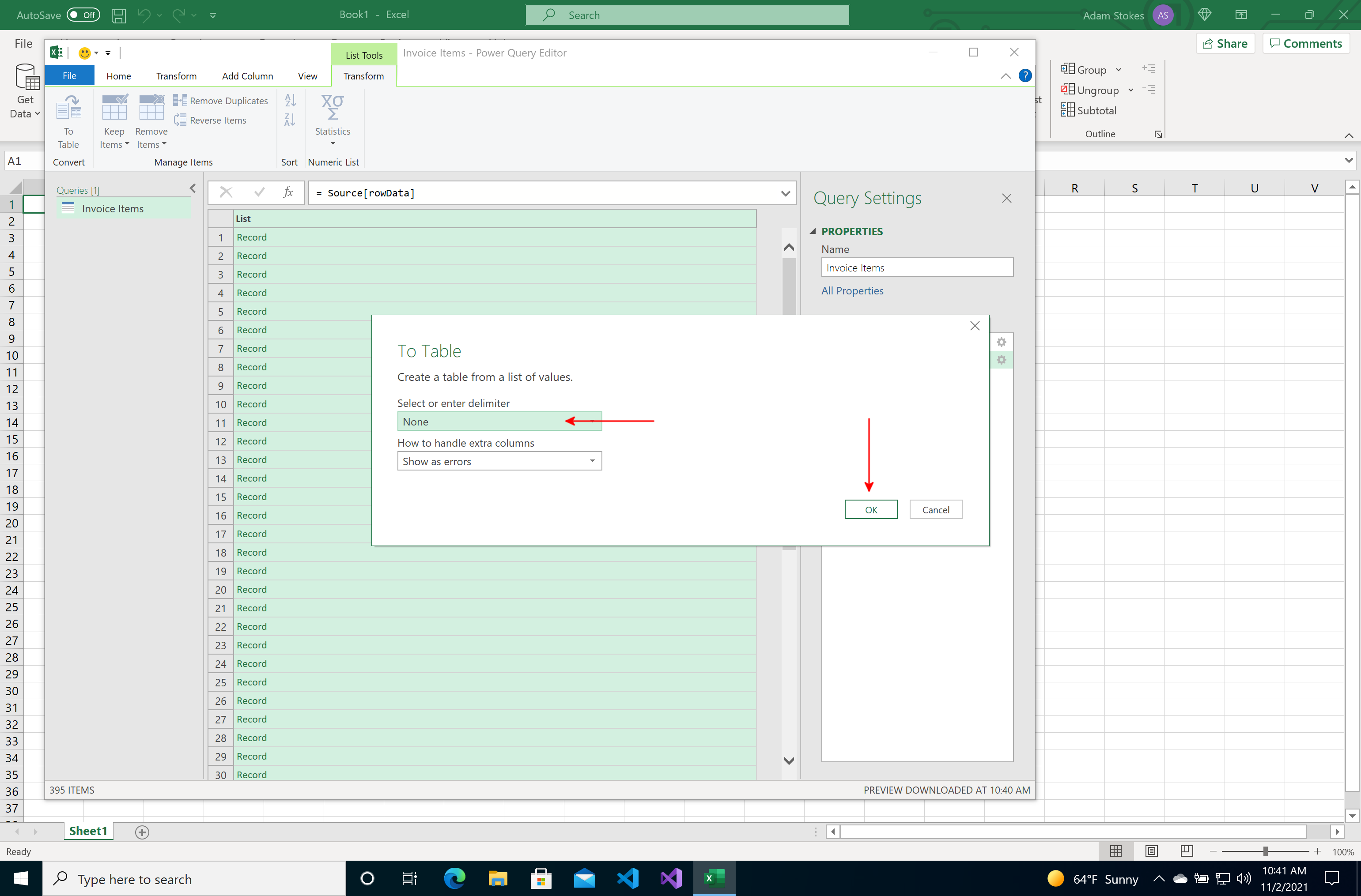
Click OK.
-
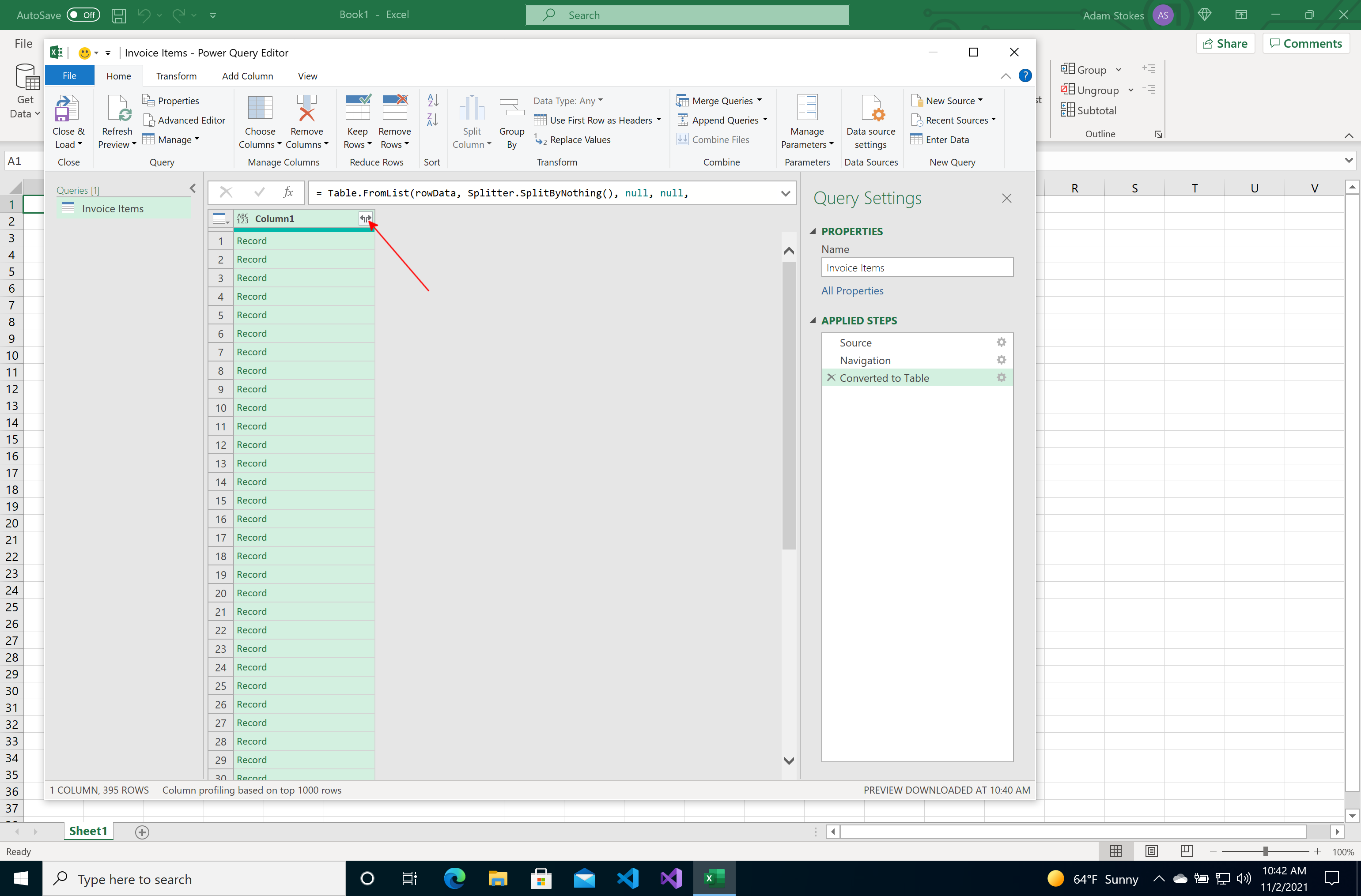
Click the expand arrows on the column header.
-
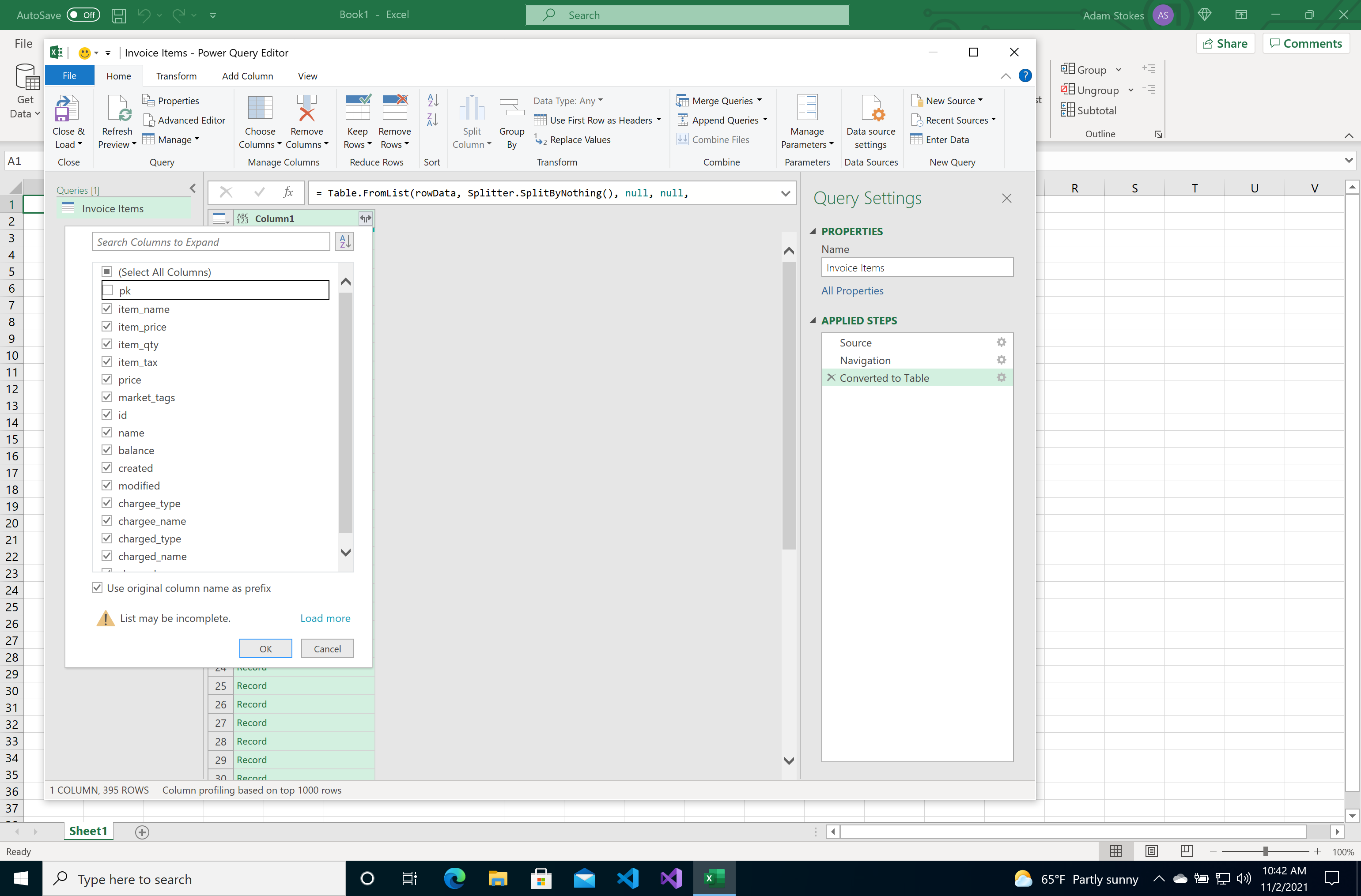
Choose the fields you want.
-
Click OK.
-
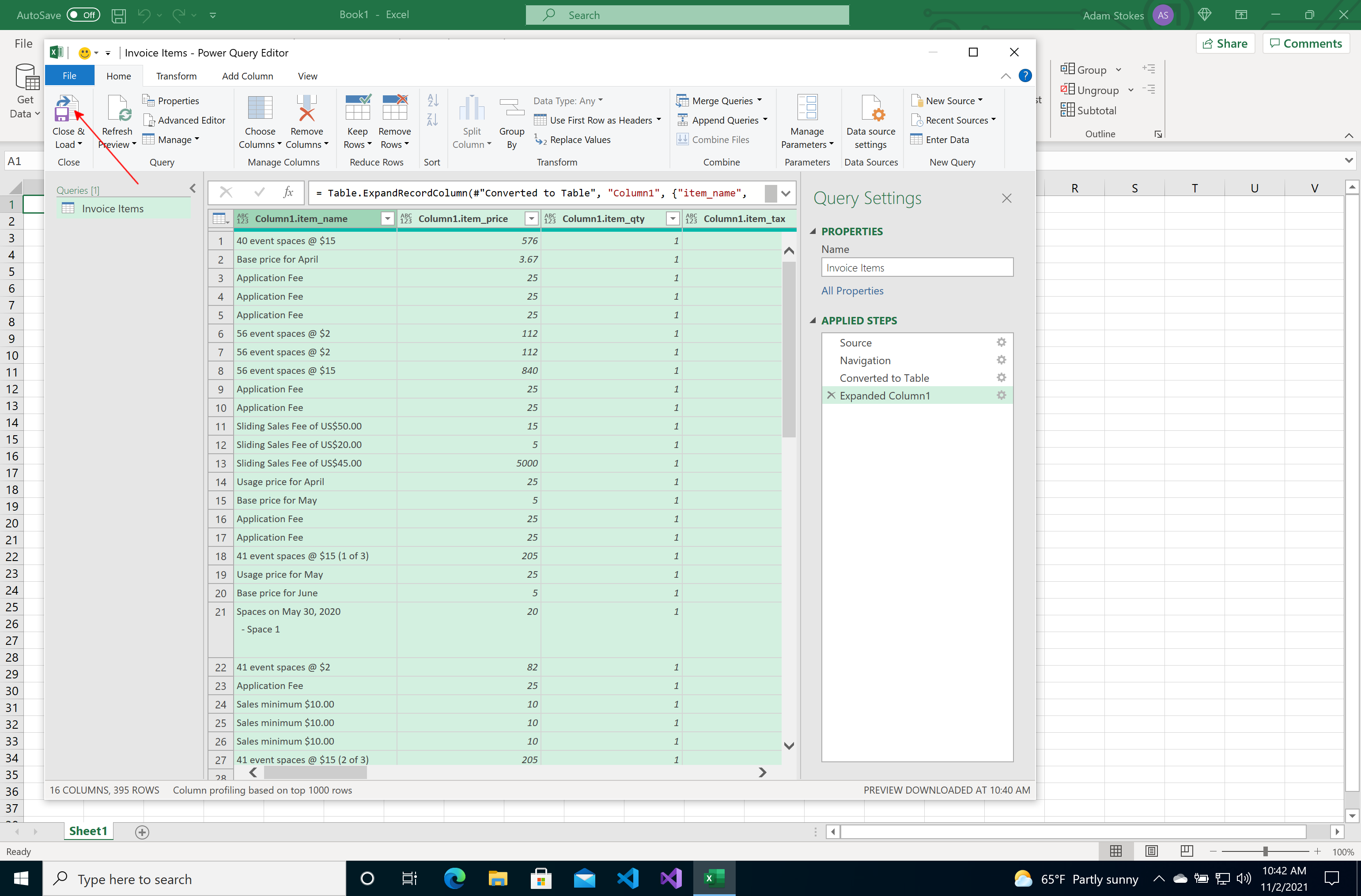
Click Close & Load.
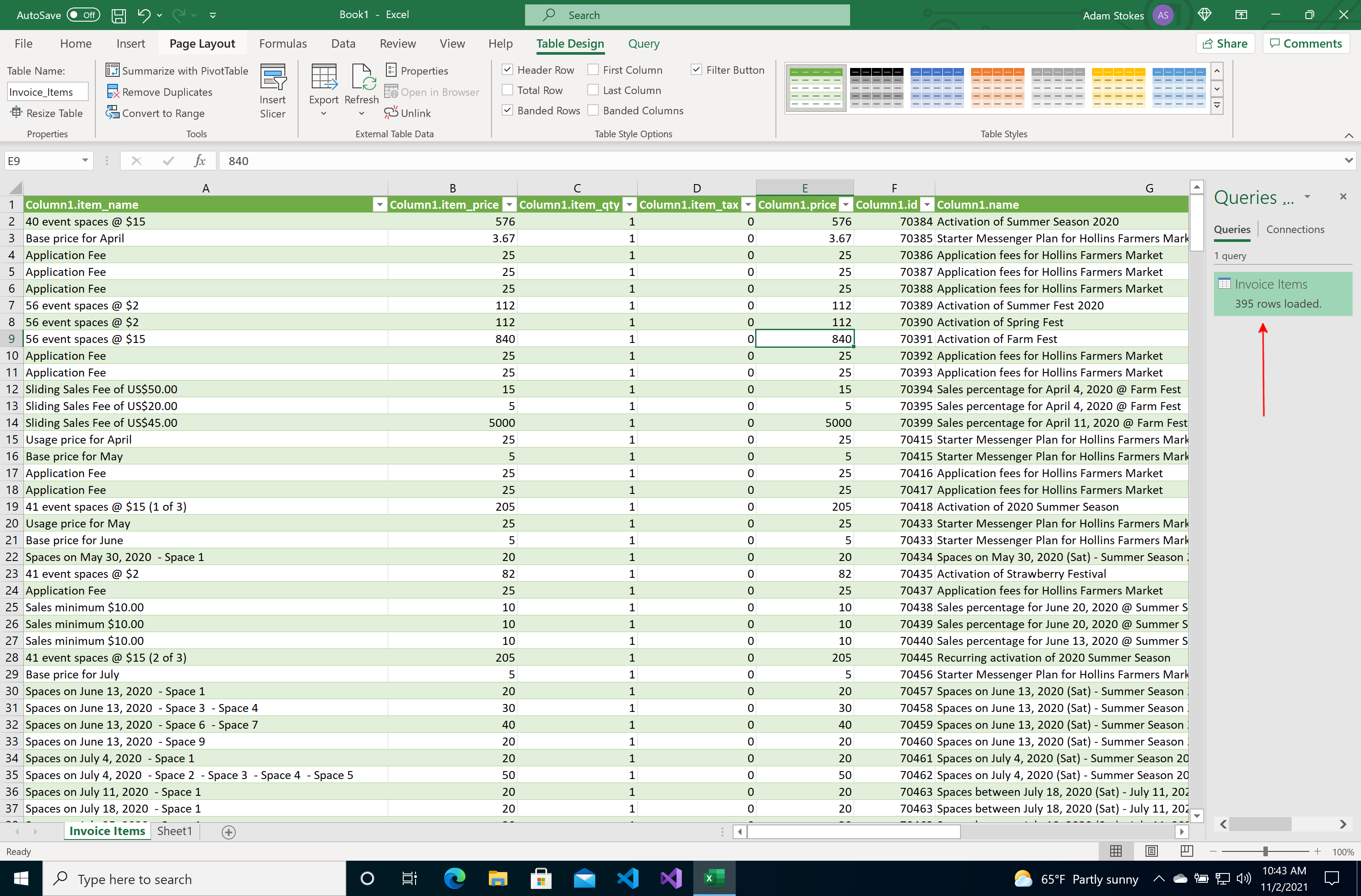
Your report lands in a new sheet, one column per field. There is a query
attached to that sheet, so any formulas you build on it keep working the next
time the data changes.
Keep it updated
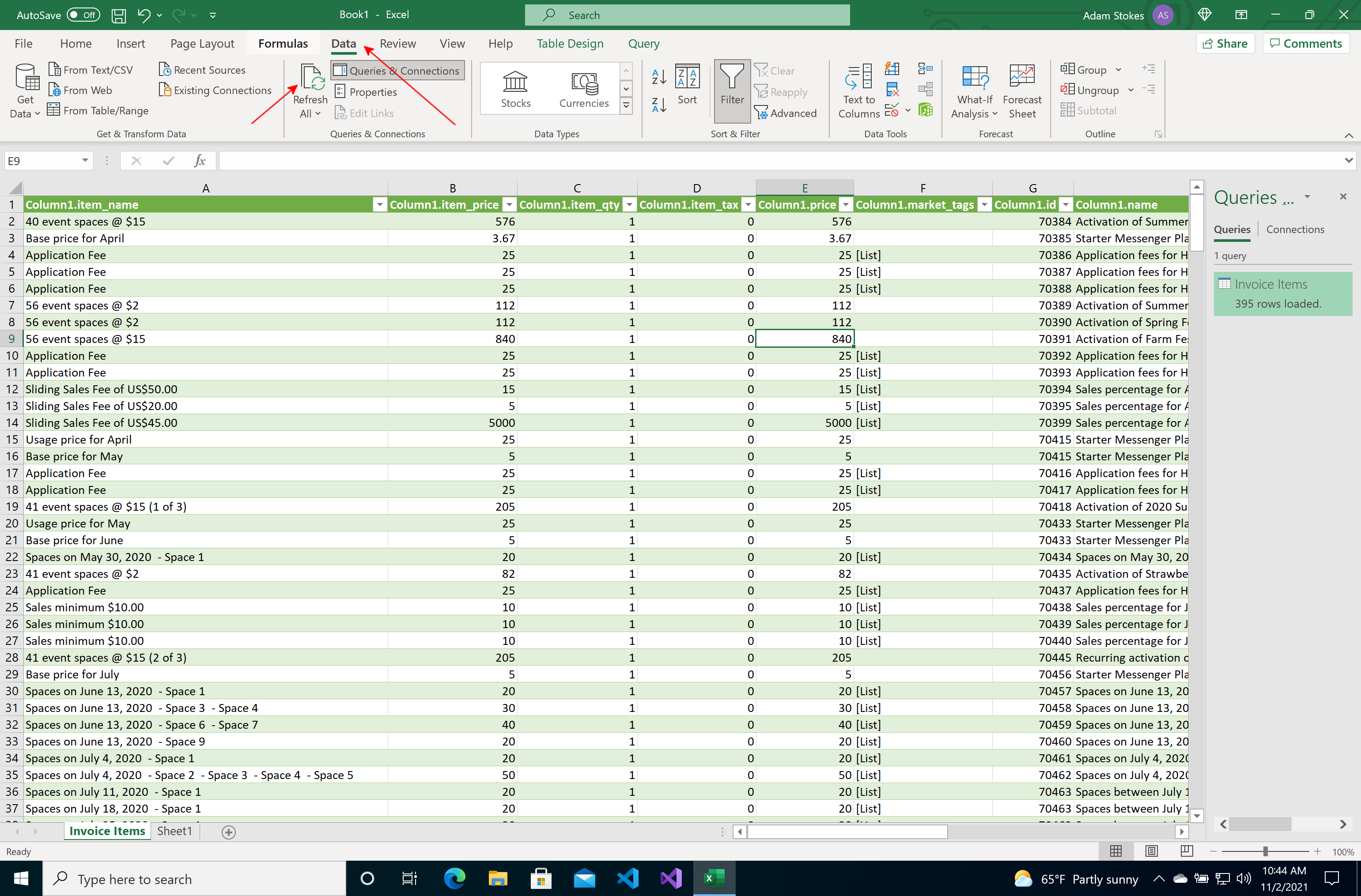
Open the Data tab and click Refresh All. Excel fetches the latest
numbers from Marketspread, using the same link — nothing else to set up.
Set this up once per report
Repeat both sections for each report you want in Excel. Every report gets
its own link and its own query.