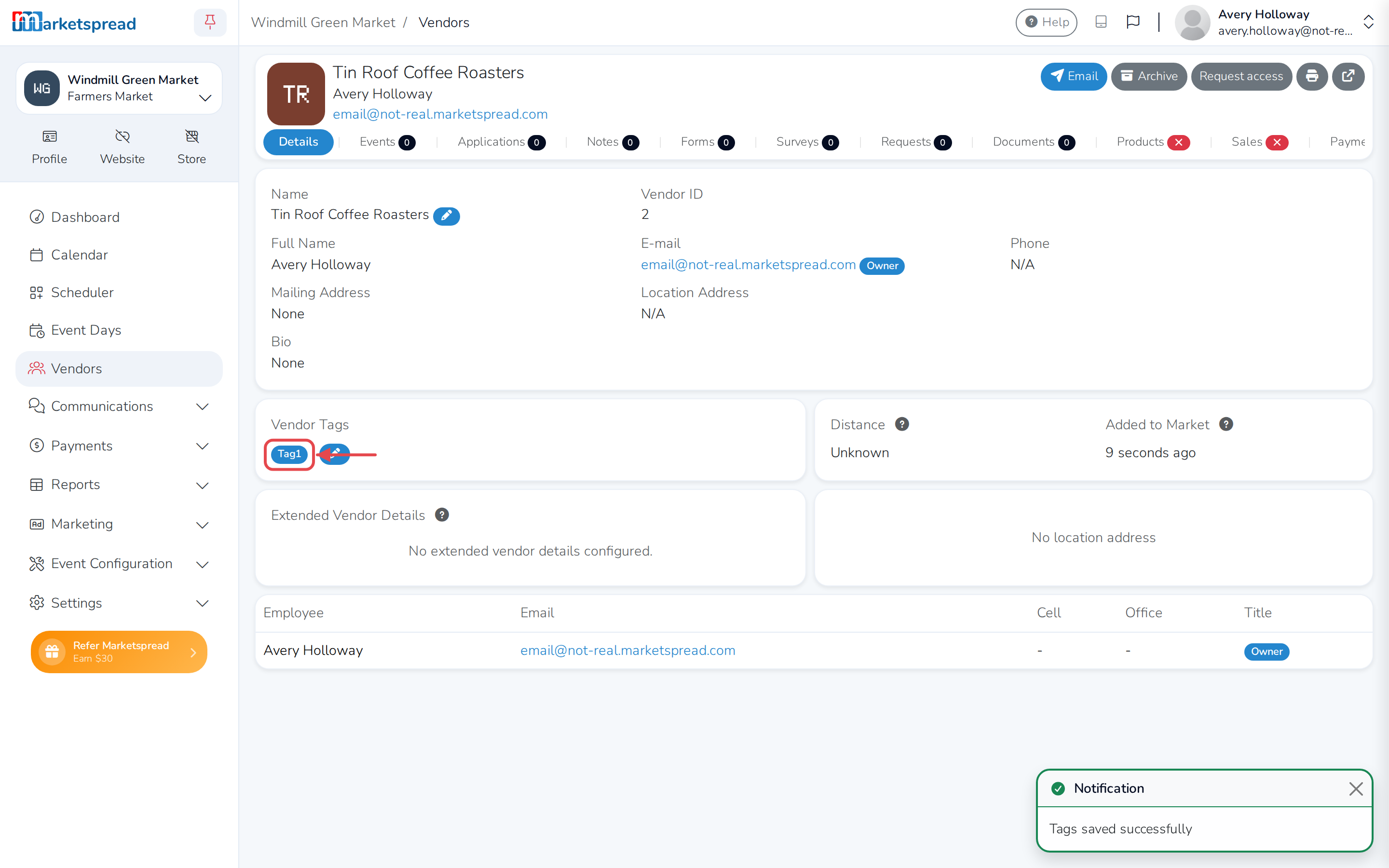
By default, you can tag a vendor with anything. Set up a list of approved
tags, and only tags from that list can be added to a vendor from then on.
Set your approved tags
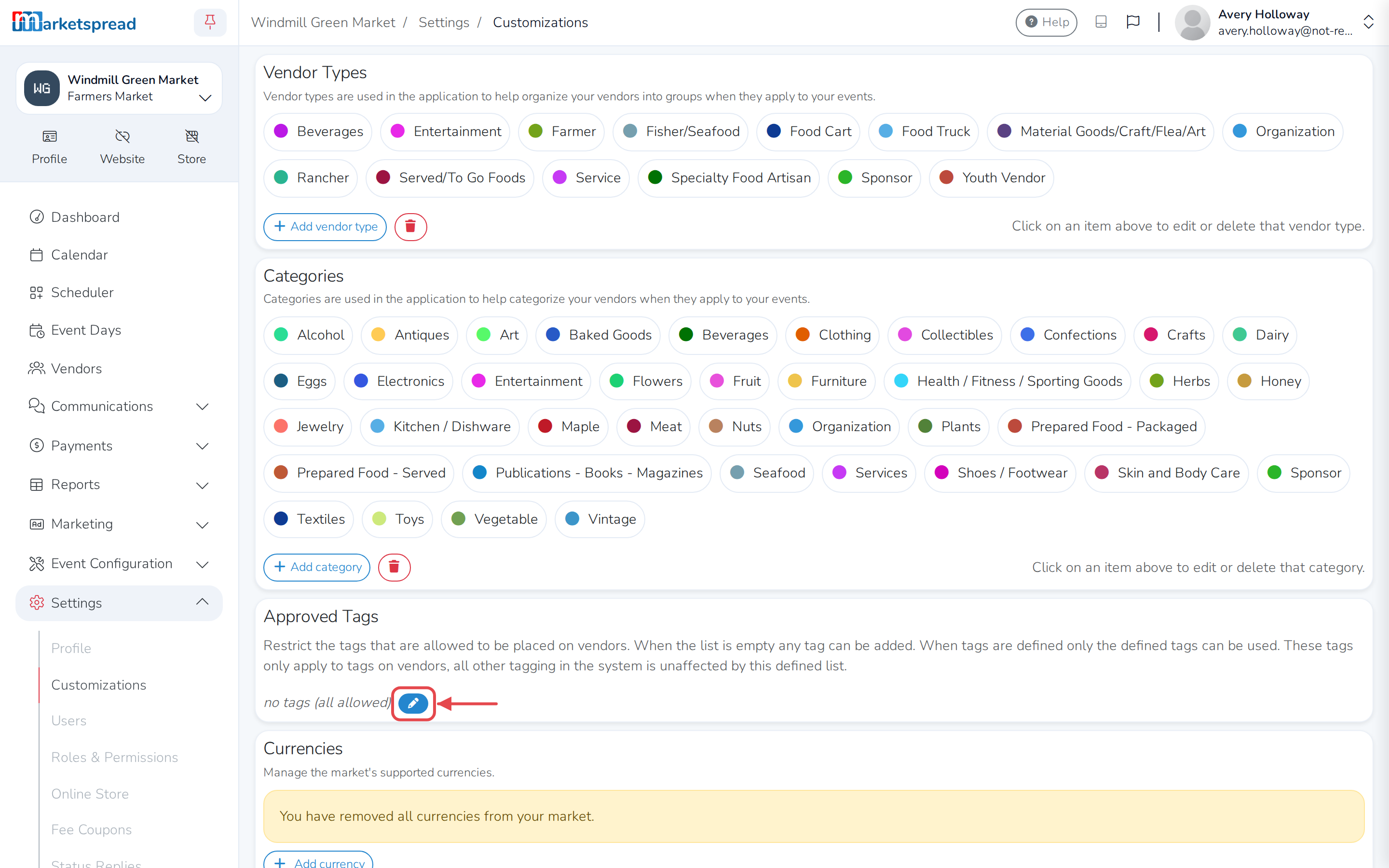
- Open Settings, then click Customizations.
- In the Approved Tags card, click the blue pencil icon.
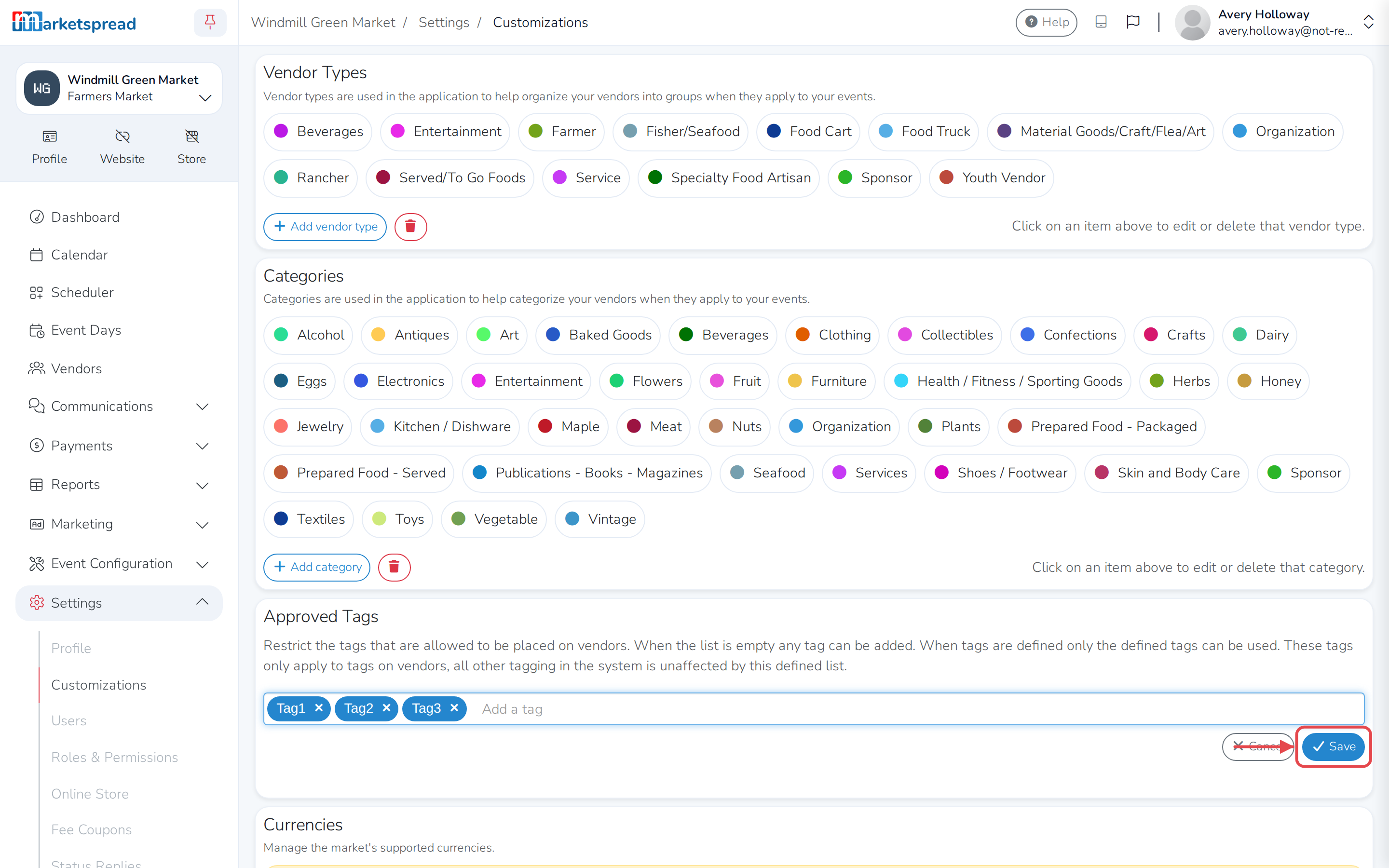
- In Add a tag, type a tag and press Enter. Repeat for each tag you
want to allow. - Click Save.
Tag a vendor
- Open Vendors and click the vendor you want to tag.
- In the Vendor Tags card, click the blue pencil icon.
- Start typing a tag, then click one of the suggestions.
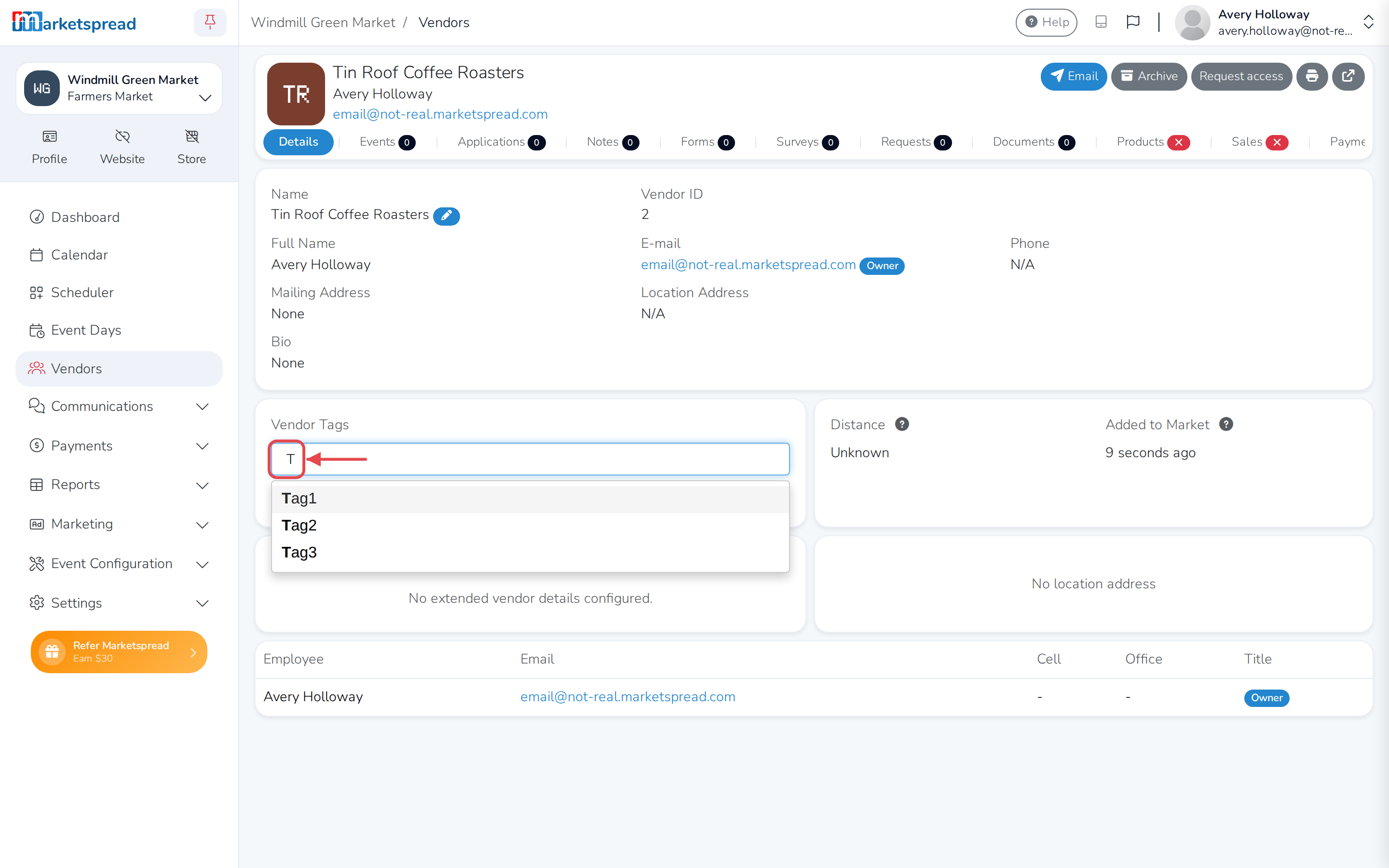
- Click Save.