


Marketspread Terminal turns a phone or tablet into a card reader and cash register. Use it to take payments from vendors in person instead of only online. You'll need a cash drawer, a receipt printer, a Bluetooth card reader, and a phone or tablet with the Marketspread app installed. Once your hardware is connected, you can take a card payment or a cash payment on any vendor's invoice.
Set up your hardware
- Connect the cash drawer to the receipt printer.
- Connect the printer to your network.
- Turn on the Bluetooth card reader.
- Pair the card reader with your phone or tablet.
- Open the Marketspread app on the device and sign in with your Marketspread username and password.
- Pair the card reader and printer from the app.
Note
A device only shows up to connect once it's paired with its card reader and printer and ready to take payments. The connect step below calls this Kiosk Mode.
Note
You can buy the cash drawer, printer and card reader from https://store.marketspread.com/. Email [email protected] if you have questions about the hardware.
Connect your device
-
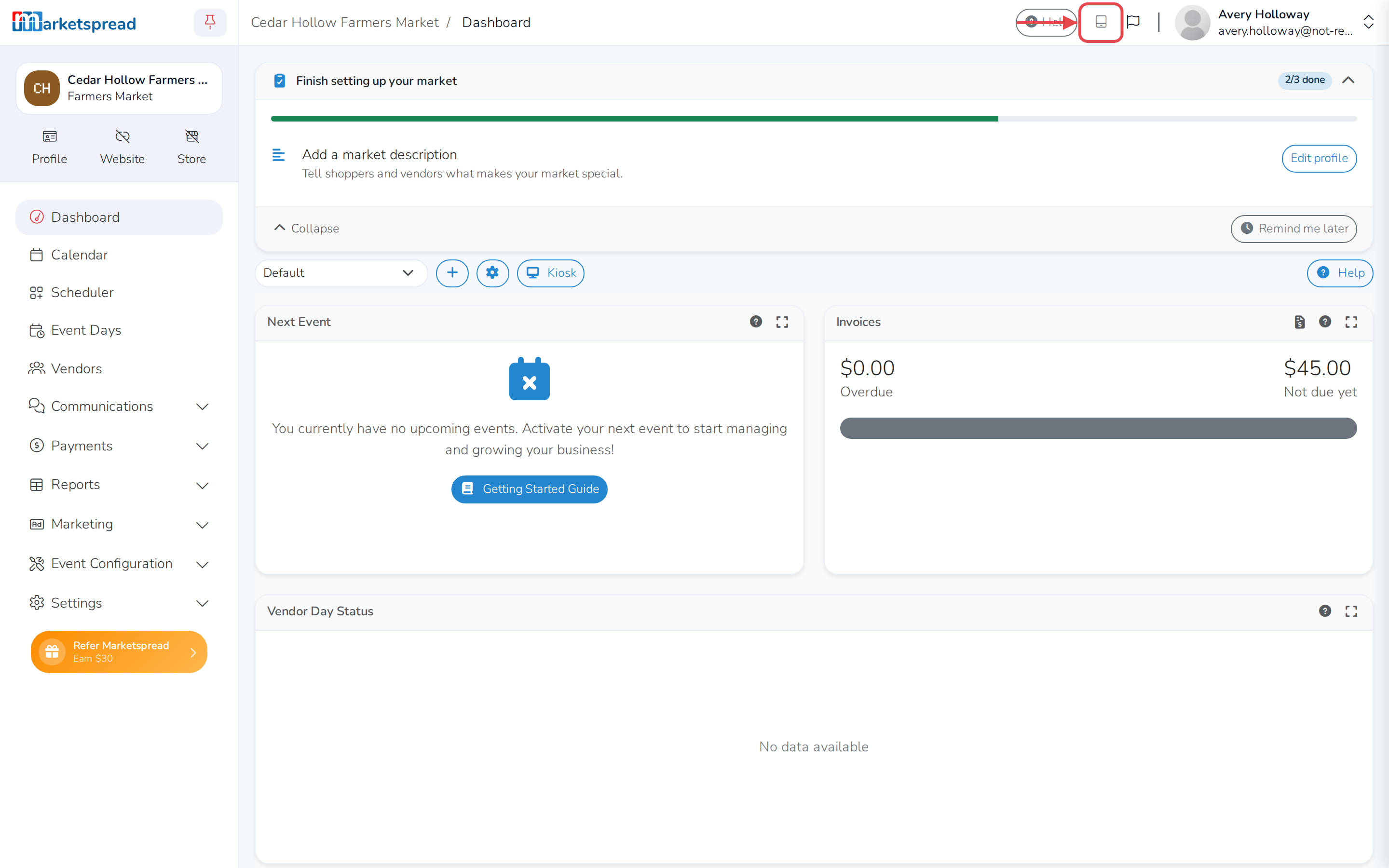
On your dashboard, click the tablet icon in the top toolbar.
-
Click Select device.
-
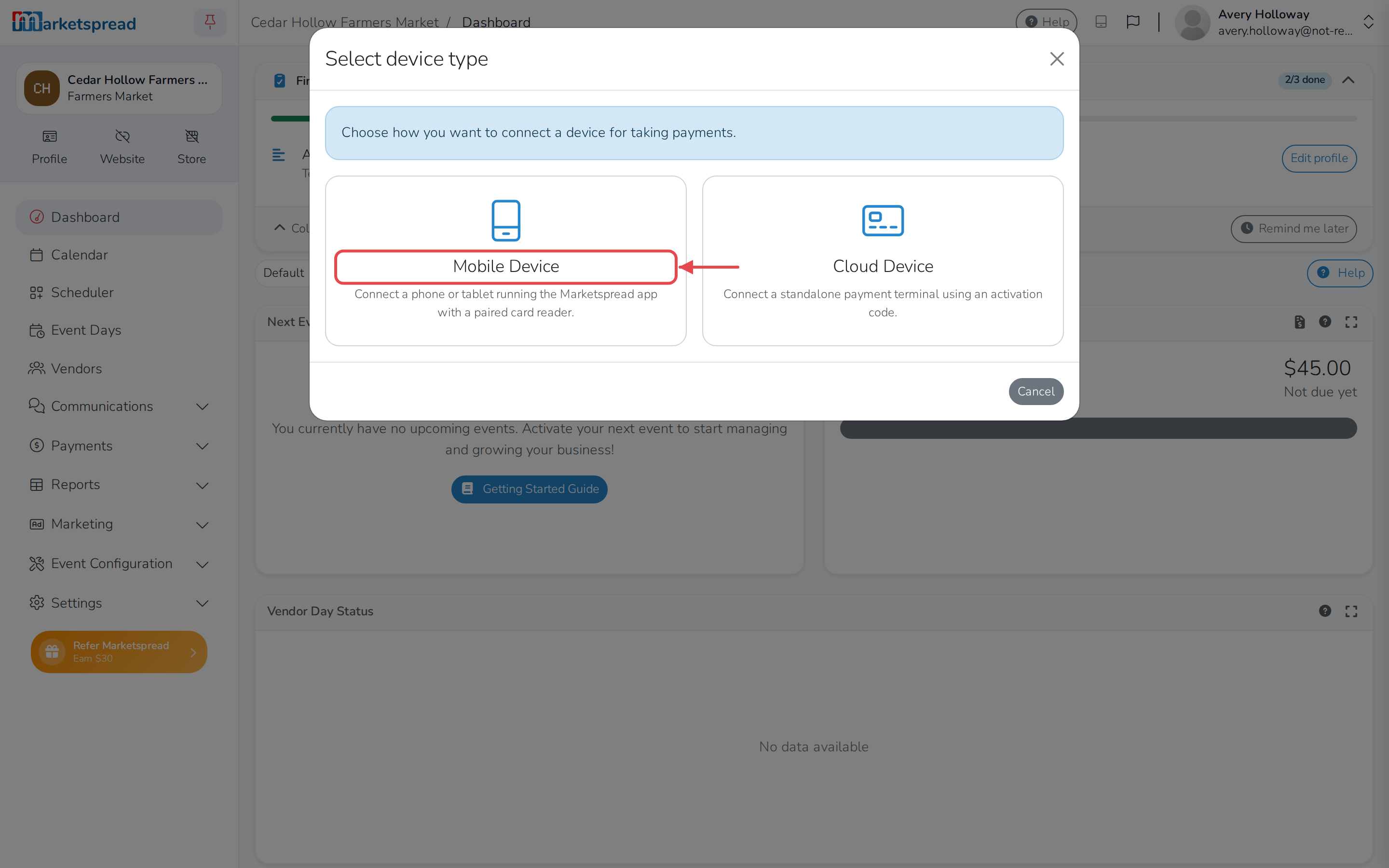
Click Mobile Device.
-
Select your phone or tablet from the list.
-
Click Select.
The icon turns green once you're connected. If your device isn't in the list, or shows "Terminal kiosk mode disabled," go back and finish setting it up first.
Take a payment by card
- Open Vendors and click the vendor you're charging.
- Click the Payments tab.
- Click the blue + button next to the invoice.
- In the Add Payment window, click Charge.
- Select Pay via terminal.
- Click Send to terminal.
- Take the card on the connected device — tap, dip or swipe — while the window shows "Sent to terminal, waiting for response...".
The window shows Success once the payment is approved, and a receipt prints automatically. Click Print invoice for a full invoice, or Print via terminal to print another receipt.
Take a cash payment
-
Open Vendors and click the vendor you're charging.
-
Click the Payments tab.
-
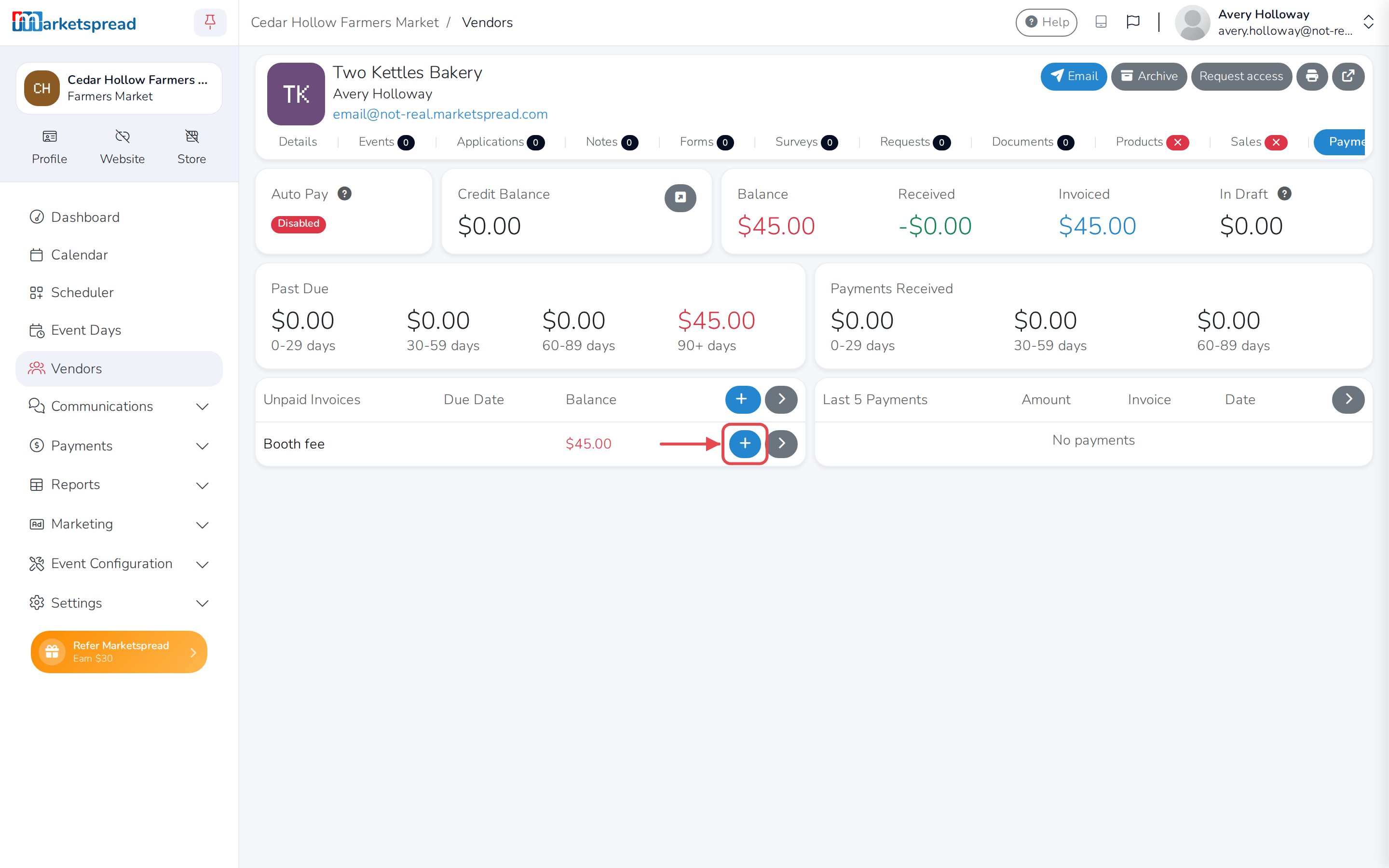
Click the blue + button next to the invoice.
-
In the Add Payment window, click Cash.
-
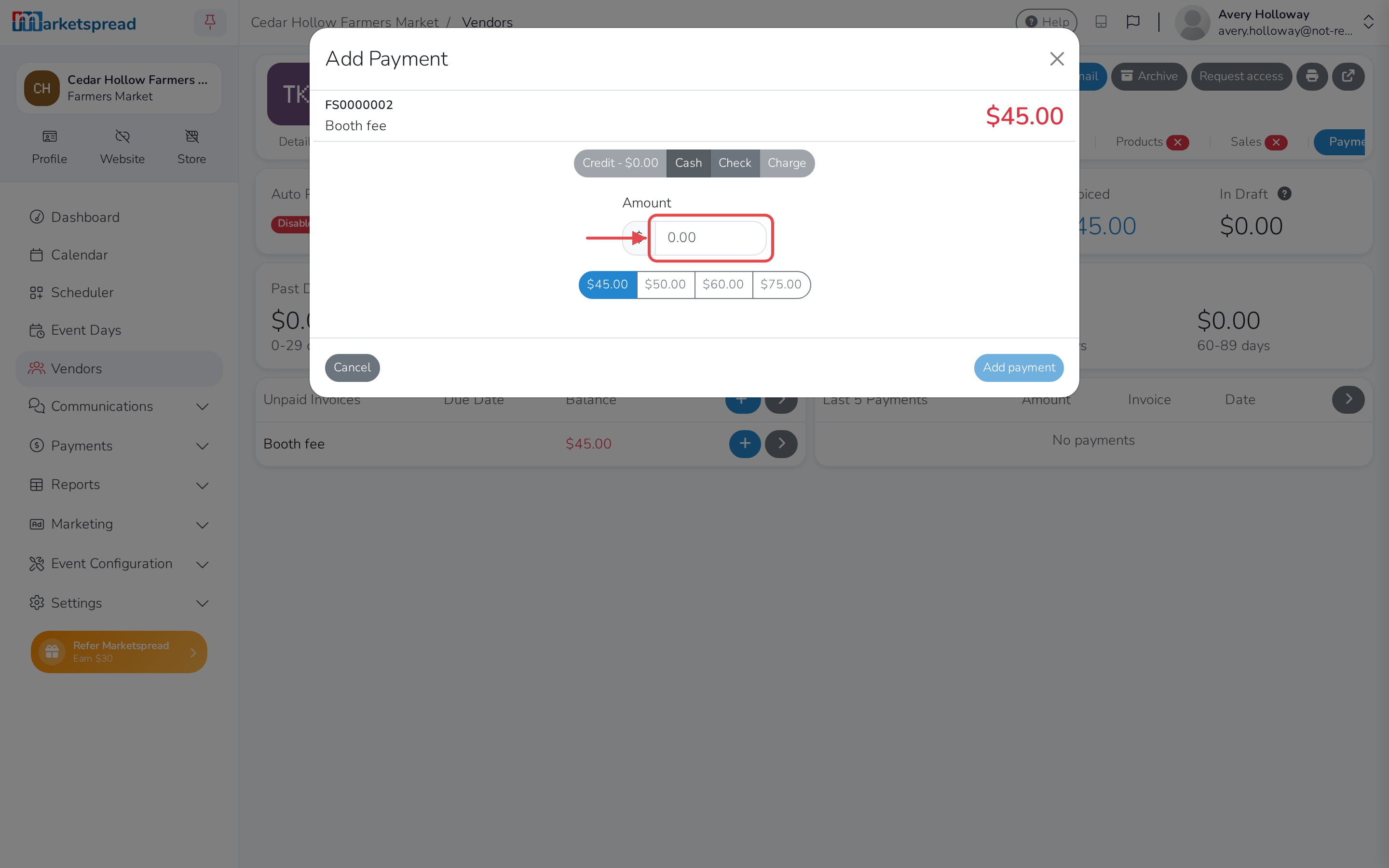
Enter the amount the vendor is paying with.
-
Click Add payment.
Note
Marketspread opens the cash drawer and prints a receipt automatically. If the amount is more than what's owed, it works out the change due too.
Change your device or open the cash drawer
Click the tablet icon in the toolbar, then:
- Click Change device to connect a different phone or tablet.
- Click Open cash drawer to open it without taking a payment.