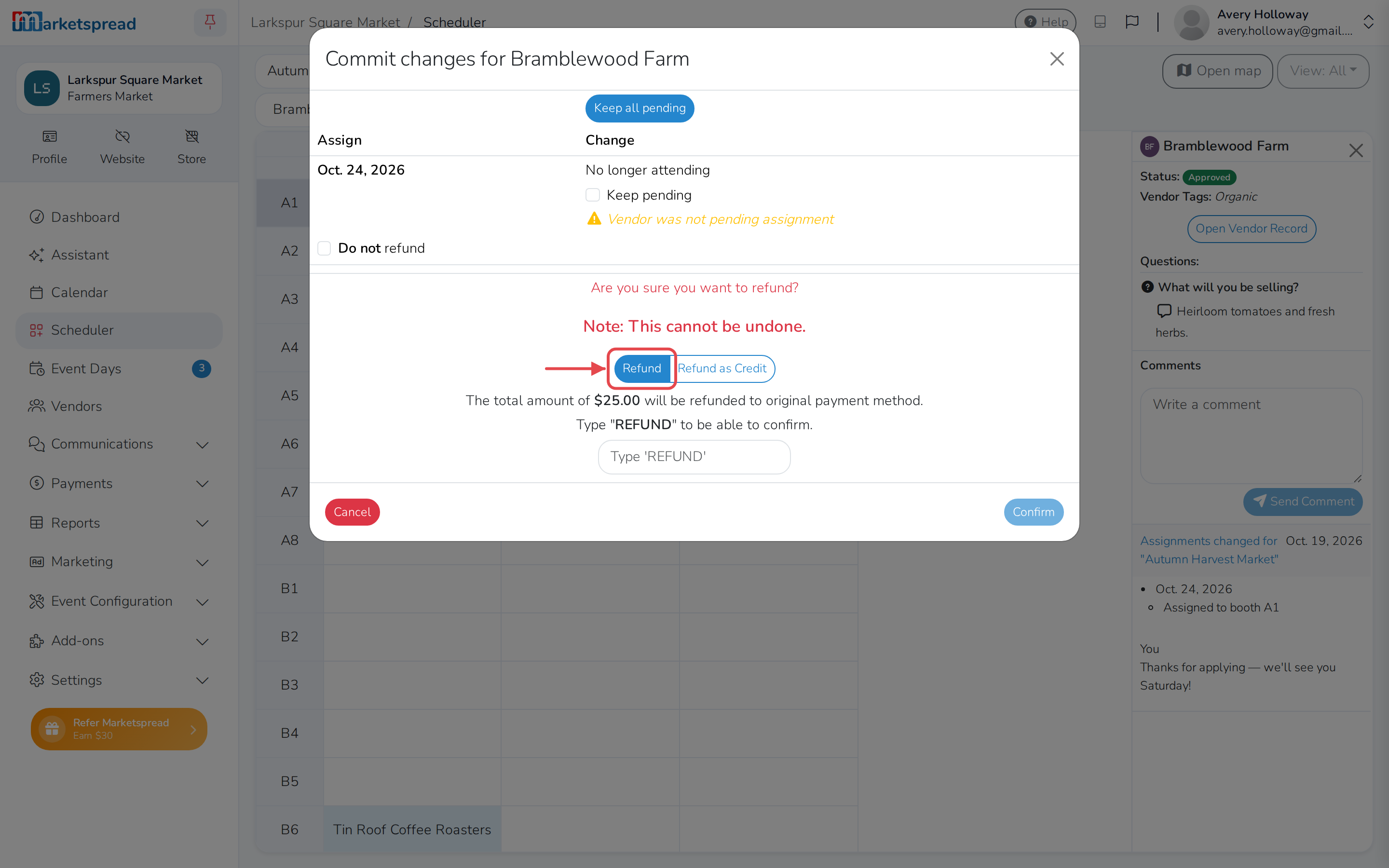
Scheduler is where you book vendors into booths for your events. It shows every booth for every event day in a grid, so you can see who's assigned, who still needs a spot, and what they owe.
From Scheduler you can:
- See which vendors are waiting for a booth on a given day
- Assign a vendor to a booth
- Unassign a vendor from a booth
Open Scheduler
There are three ways to get there:
- On your dashboard, open the Next Event card and click Scheduler.
- In the left-hand navigation, click Scheduler.
- On a vendor's page, click Scheduler.
What's on the screen
Scheduler shows different things depending on whether you've chosen a vendor.
With no vendor chosen
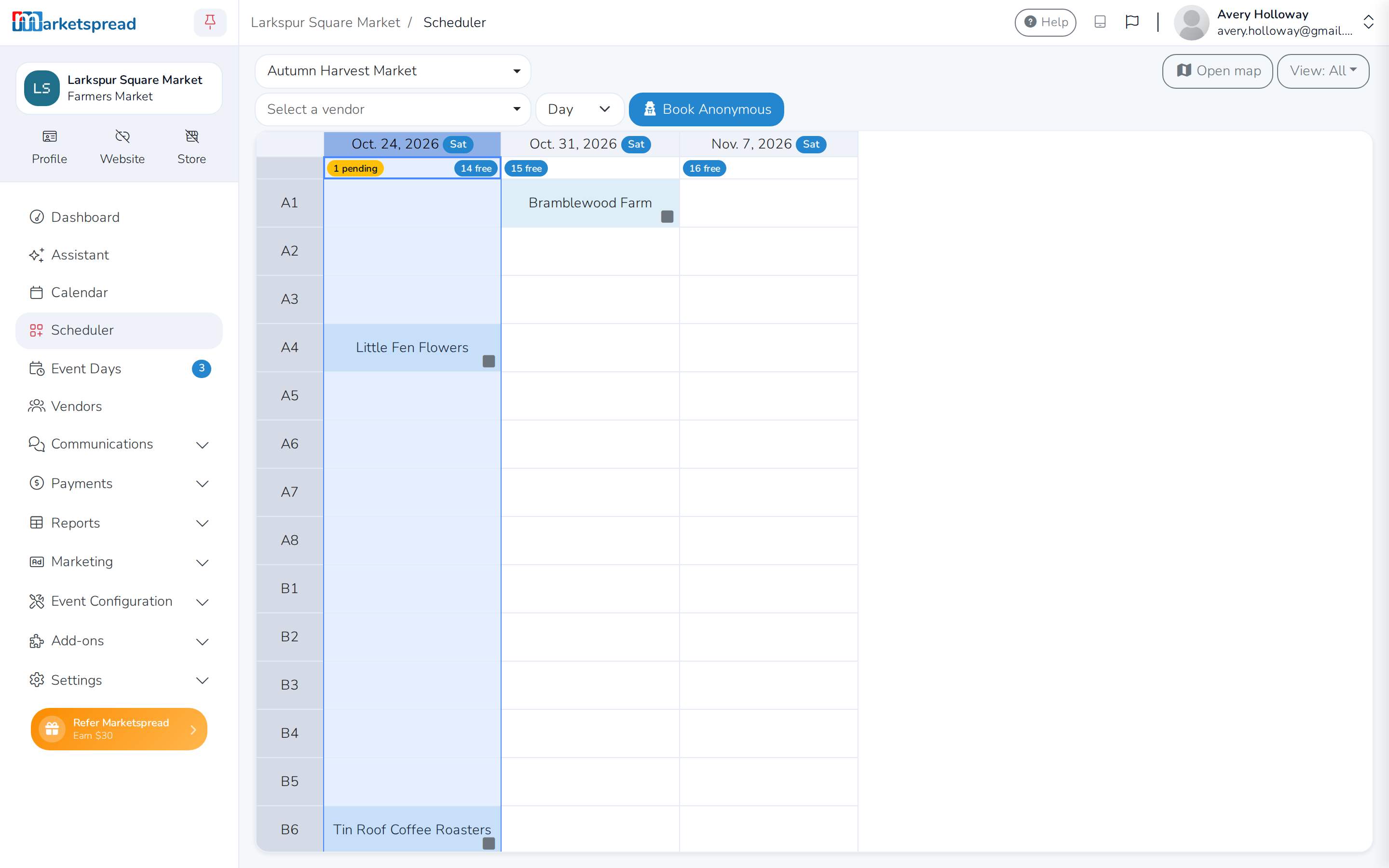
- Season picker — switch between your events
- Vendor picker — choose a vendor to manage
- Term picker — book by Day, Week, Month or Event
- All / Day — switch between seeing the whole event or one day at a time
- Each day's column shows a pending badge for vendors still waiting for a booth that day, and a free badge for how many booths are still open
- A booked booth shows the vendor's name, with a small square in the corner for its invoice status — see below
With a vendor chosen
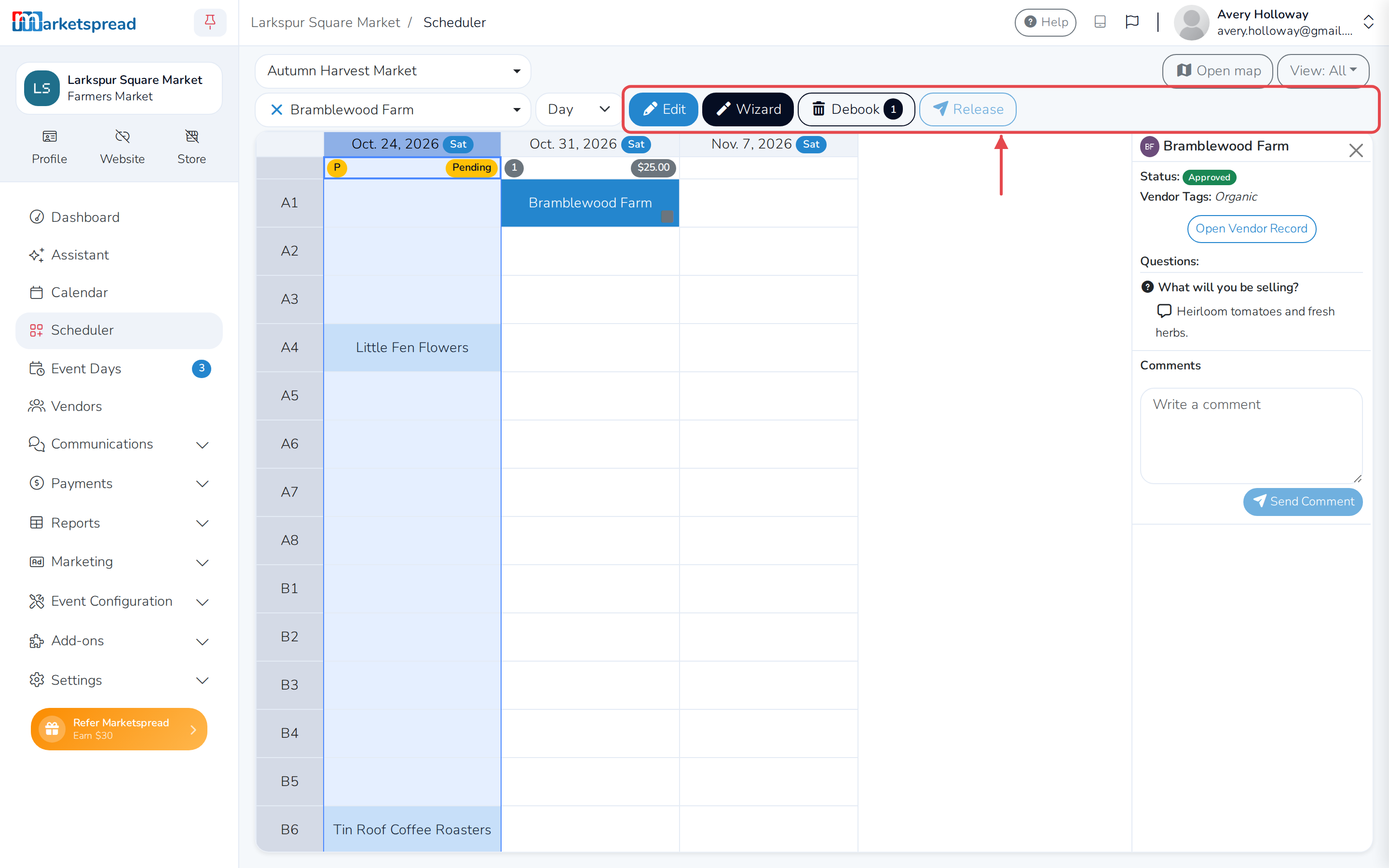
- A letter on a day they're not booked for yet: A for accepted, W for waitlisted, P for pending — rejected and not-attending vendors show nothing
- A yellow Pending badge on a day they asked for in their application
- Once they have a booking for a day, the top of that day's column instead shows how many booths they have and what they owe for it
Find vendors who need a booth
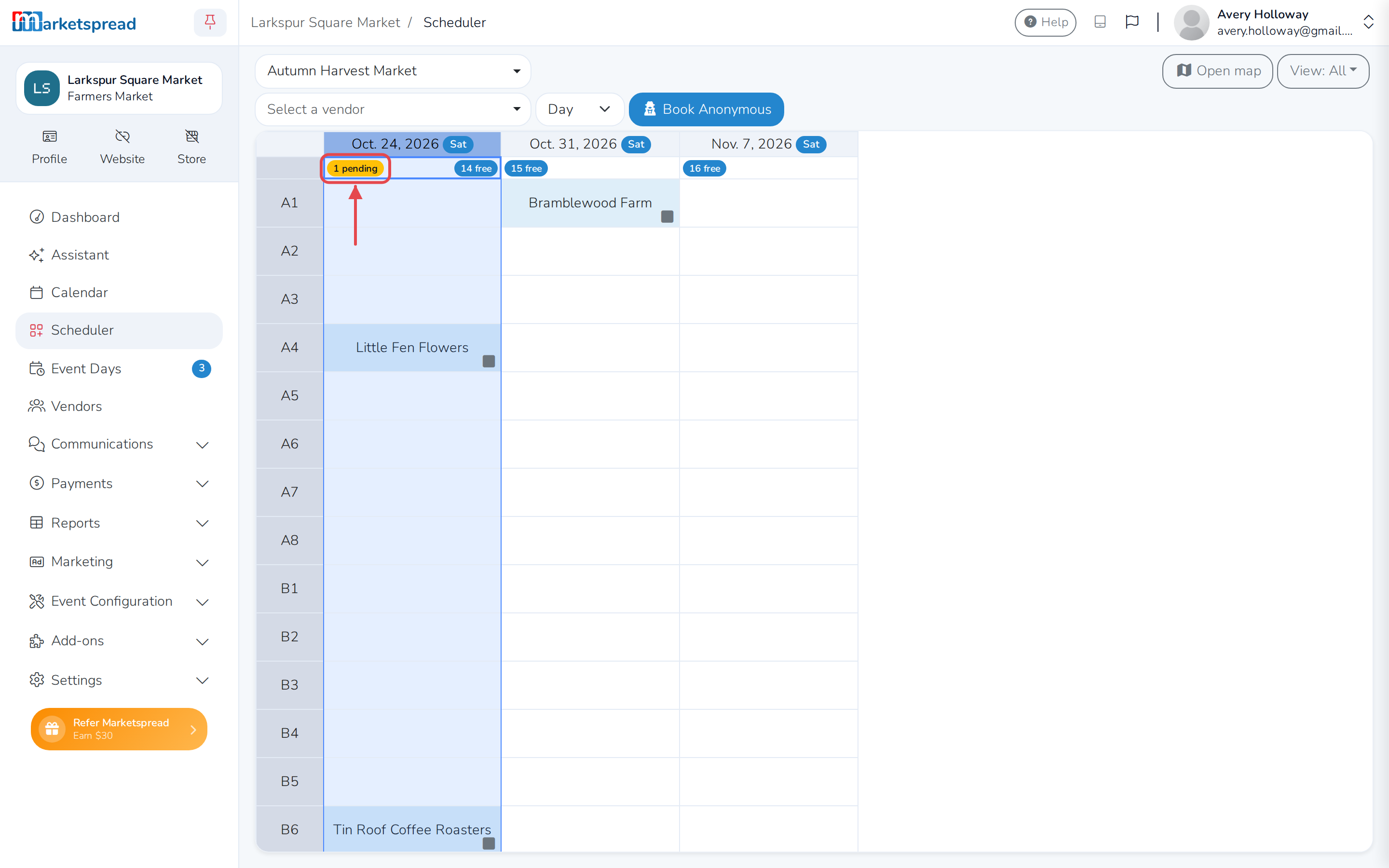
Each event day's column shows how many vendors are still waiting for a booth, and how many booths are still free that day.
-
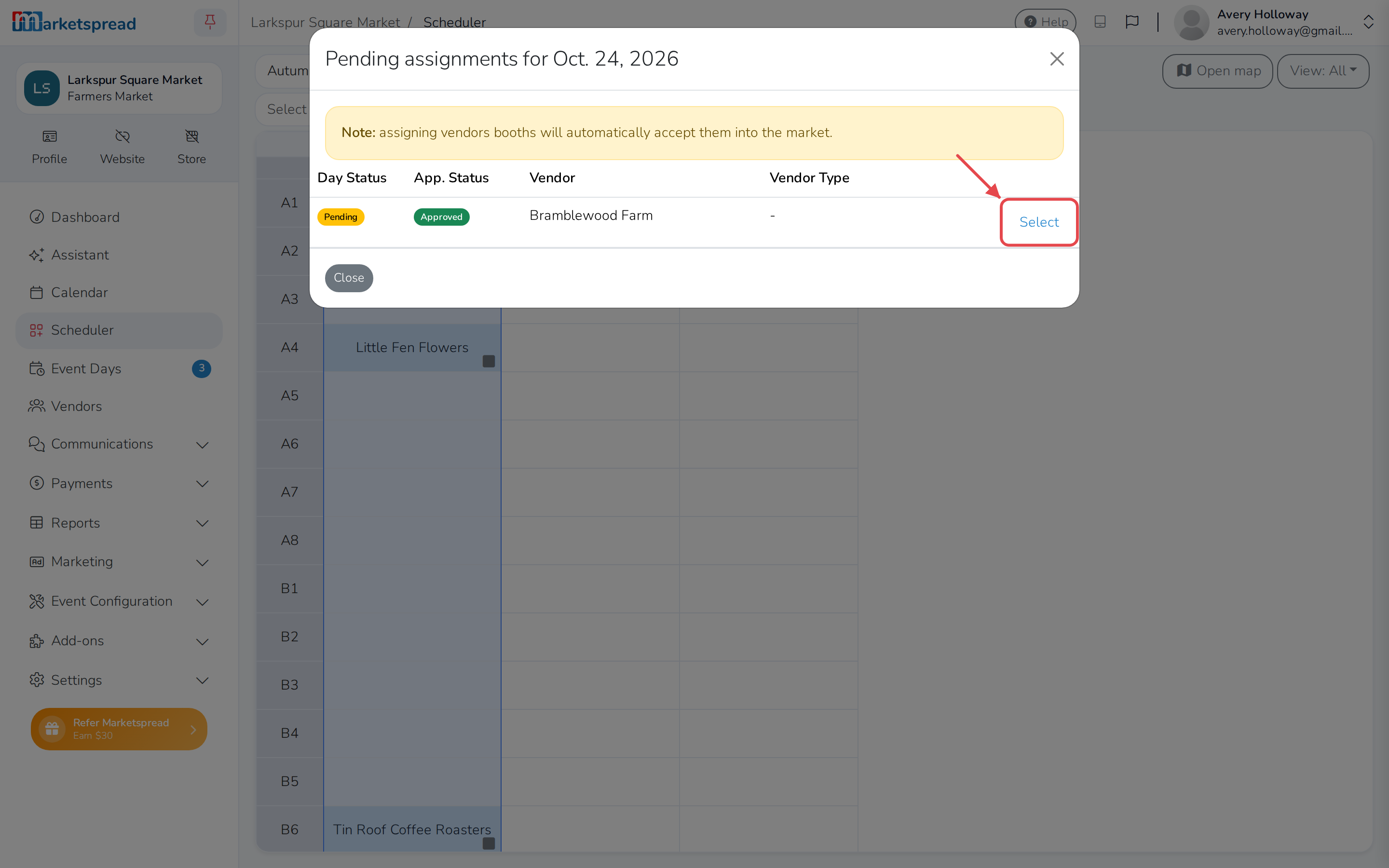
Click the pending badge for the day you want to fill.
-
Find the vendor and click Select.
Vendors marked Accepted already have a booth committed for that day. Pending and Waitlist vendors have asked to attend but don't have one yet.
Note
Assigning a pending or waitlisted vendor to a booth accepts their application into the market, and they drop off this list for that day.
What you see when you choose a vendor
Choosing a vendor adds a few buttons next to their name, and opens their comment log.
- Term — choose Day, Week, Month or Event; only the options your layout is set up for are available
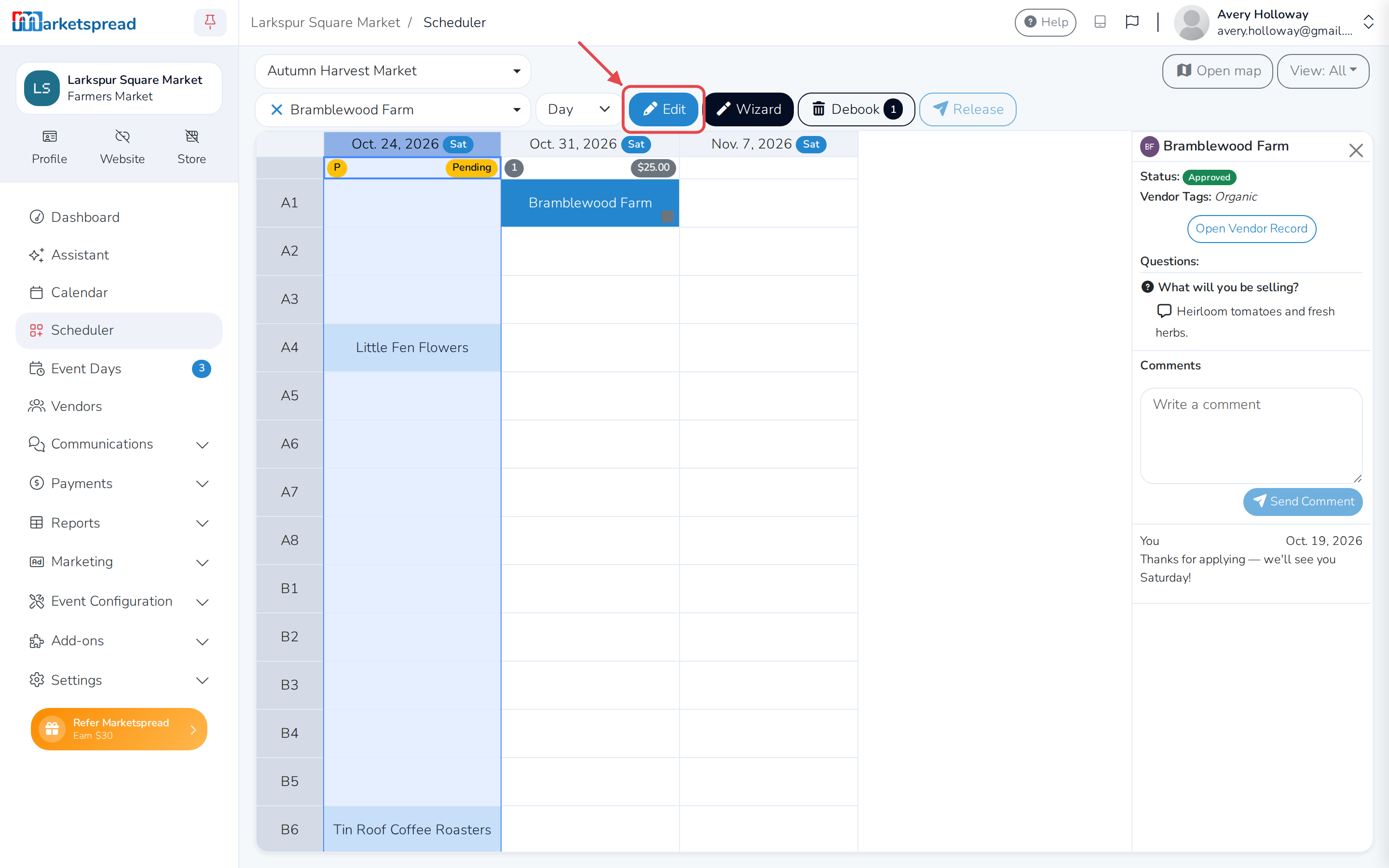
- Edit — turns on edit mode so you can book or clear their booths
- Wizard — book them through a step-by-step form instead of in Scheduler
- Debook — clear them from any number of days at once, without clicking through the grid
- Release — release draft invoices you've already created for them
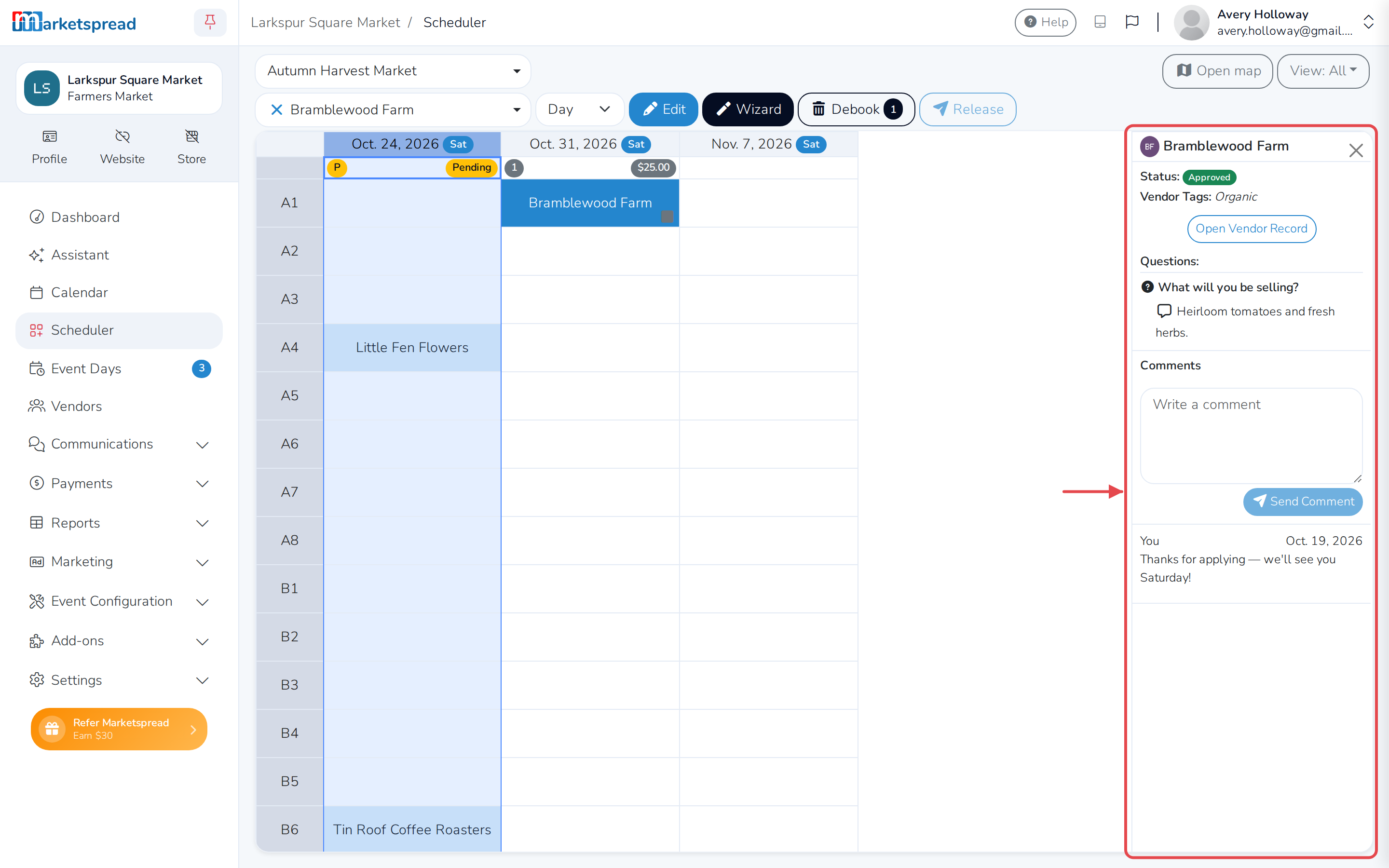
Click the panel icon next to Release to open their comment log. Add a comment and it's emailed to the vendor, along with a record of your market's past actions on their application. Any application question you've pinned to Scheduler, and the vendor's answer, shows here too.
Assign a vendor to a booth
-
Choose the vendor from the vendor picker at the top of Scheduler.
-
Choose Day, Week, Month or Event from the term picker next to it. This sets how long the booking runs.
-
Click Edit.
-
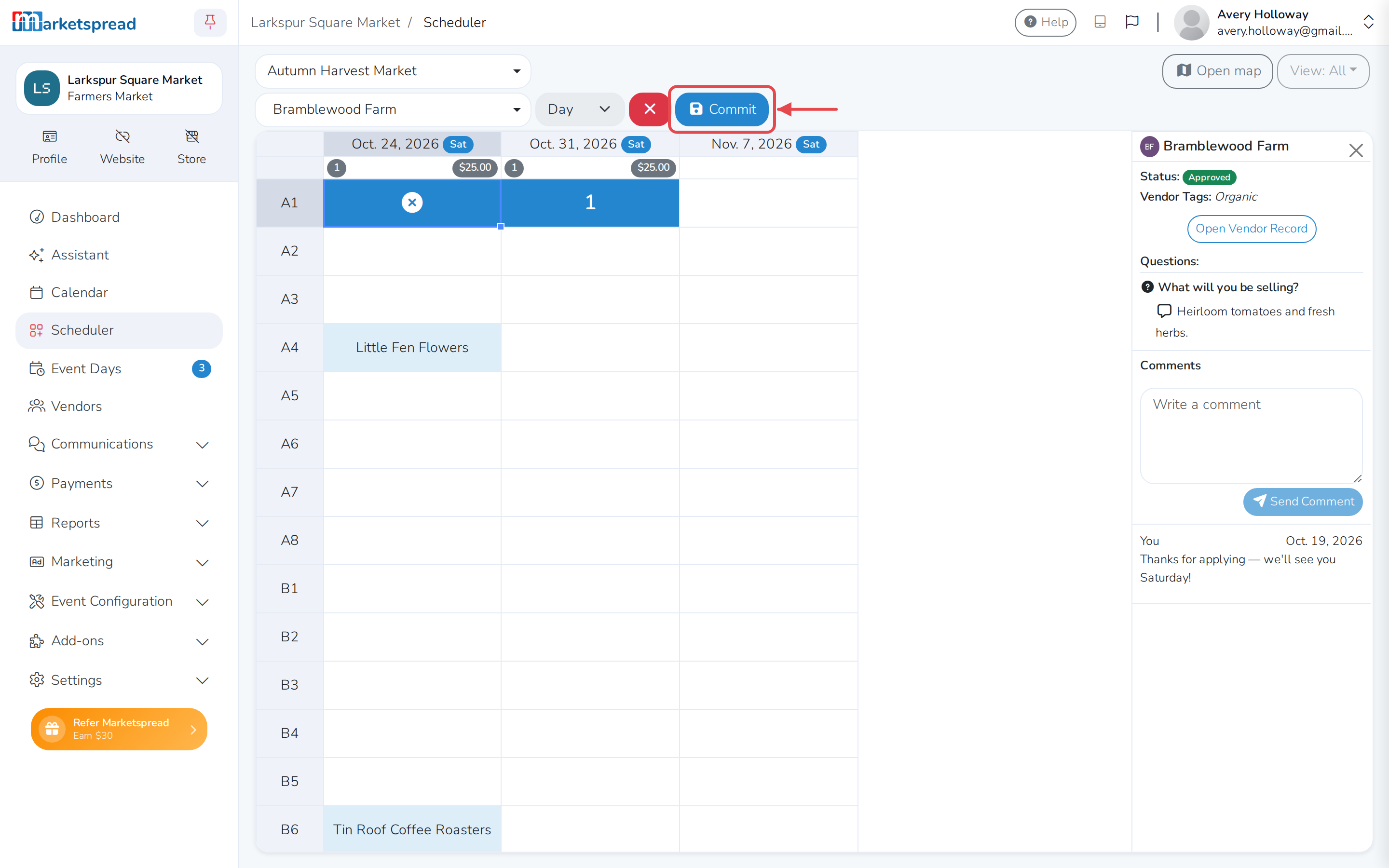
Click the box where the vendor's booth and day meet. It turns blue to show it's marked for booking.
-
Click Commit.
-
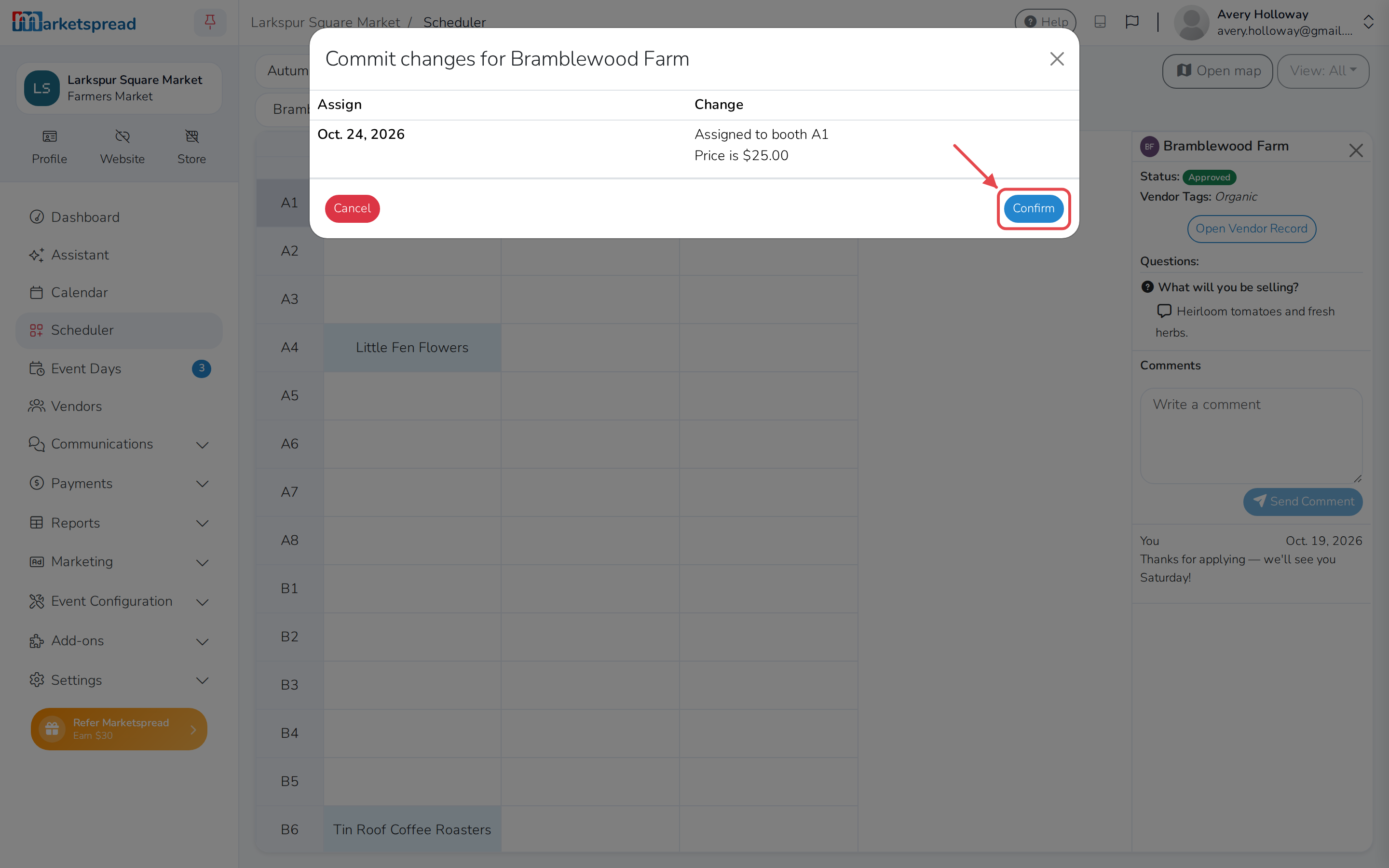
Review the changes, then click Confirm.
Tip
To book more than one box at once, hold Shift or Ctrl (⌘ on a Mac) and click each one, then right-click a selected box (or Control-click on a Mac) and choose Assign space(s) — or Assign space(s) to end to book the same booth for every remaining day of the event.
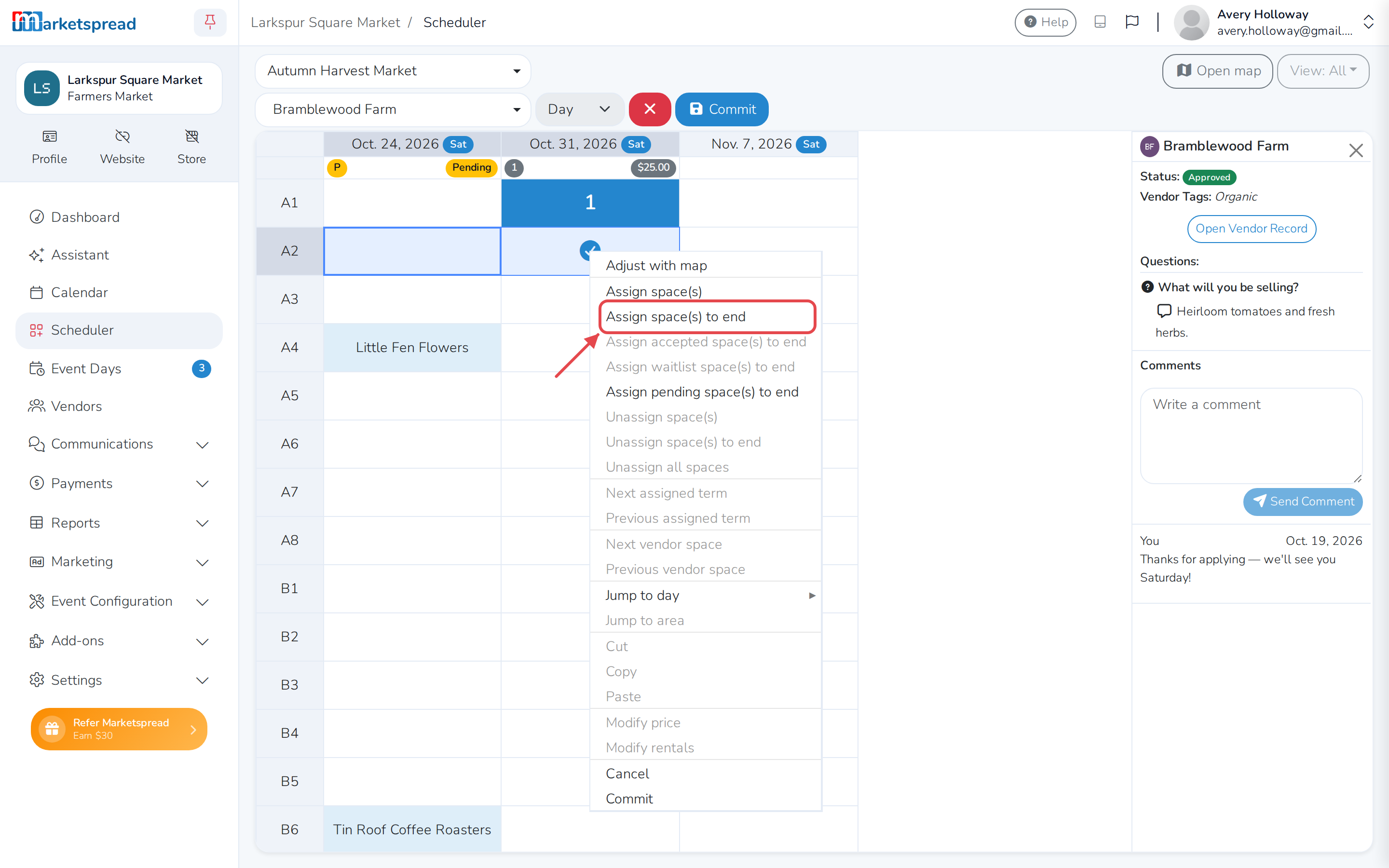
If the vendor has several days with the same status, Assign accepted space(s) to end, Assign waitlist space(s) to end or Assign pending space(s) to end book them into this booth for all of those days at once.
Tip
Click Wizard instead of Edit to book a vendor through a step-by-step form.
To book a walk-in vendor without adding them to your vendor list, don't choose a vendor first — click Book Anonymous instead. See Anonymous bookings.
Once you commit, a small square on the booth shows its invoice status:
- Grey — a draft that hasn't been released yet
- Grey clock — a draft scheduled to release later
- Blue — released, not yet paid
- Green — paid
- Red — overdue
If you've set up booth fees, the total the vendor owes for that day shows at the top of the column once they're booked. If the event day is published, the new booking shows up on your public event map right away — see Turn on manual event publishing if you'd rather publish days yourself.
Unassign a vendor from a booth
-
Choose the vendor from the vendor picker.
-
Click Edit.
-
Click the box you want to clear. It's already booked for this vendor, so clicking it marks it to be unassigned.
-
Click Commit.
-
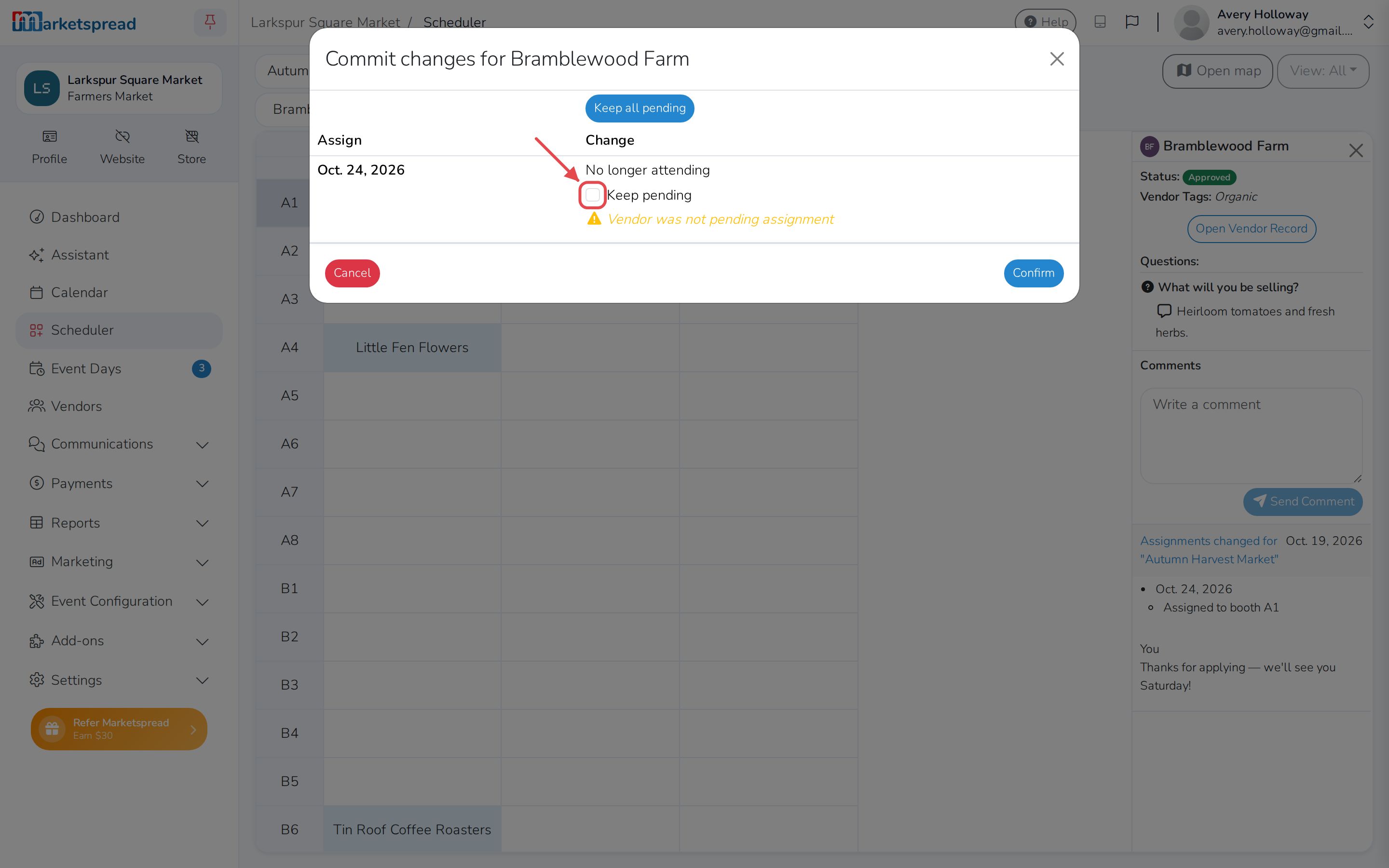
If the vendor should stay on the list to be rescheduled, check Keep pending.
-
Click Confirm.
Tip
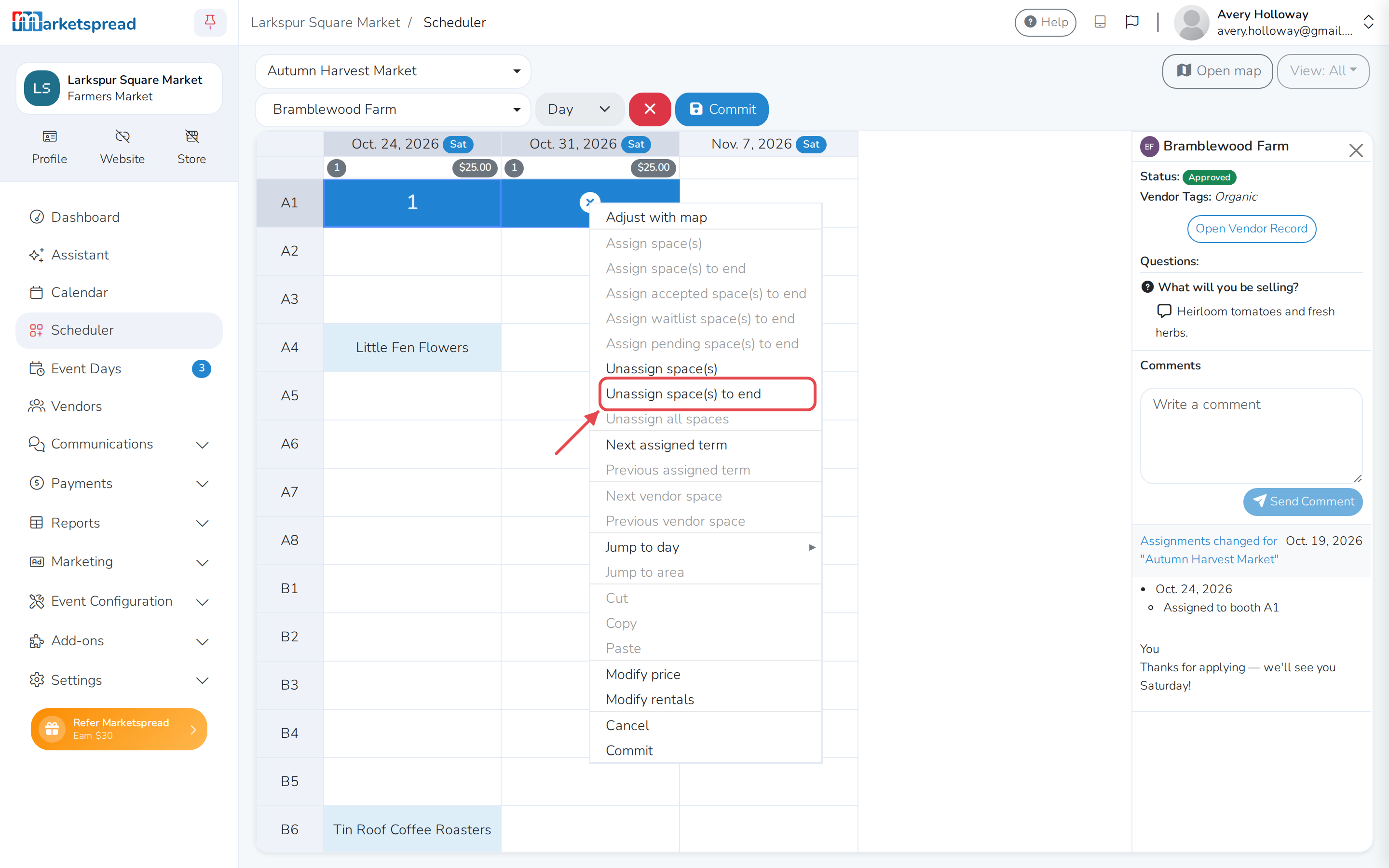
To clear more than one box at once, hold Shift or Ctrl (⌘ on a Mac) and click each one, then right-click a selected box and choose Unassign space(s) — or Unassign space(s) to end to also clear every day after it. Unassign all spaces clears every booth for the days you've selected.
Caution
If a booth you're unassigning was already invoiced and paid, Scheduler asks how to handle the money before you can confirm. Choose Refund to send it back the way the vendor paid, or Refund as Credit to add it to their account instead, then type REFUND or CREDIT to confirm — this can't be undone. Check Do not refund if you'll settle it yourself. Card payments refund automatically; for any other payment method, you'll still need to send the vendor their money directly.