


Your venue's Messenger plan sets how many emails and text messages you can send each month, and it's billed to the card on file. Open Add-ons in the left-hand menu of your dashboard, then click Messenger.
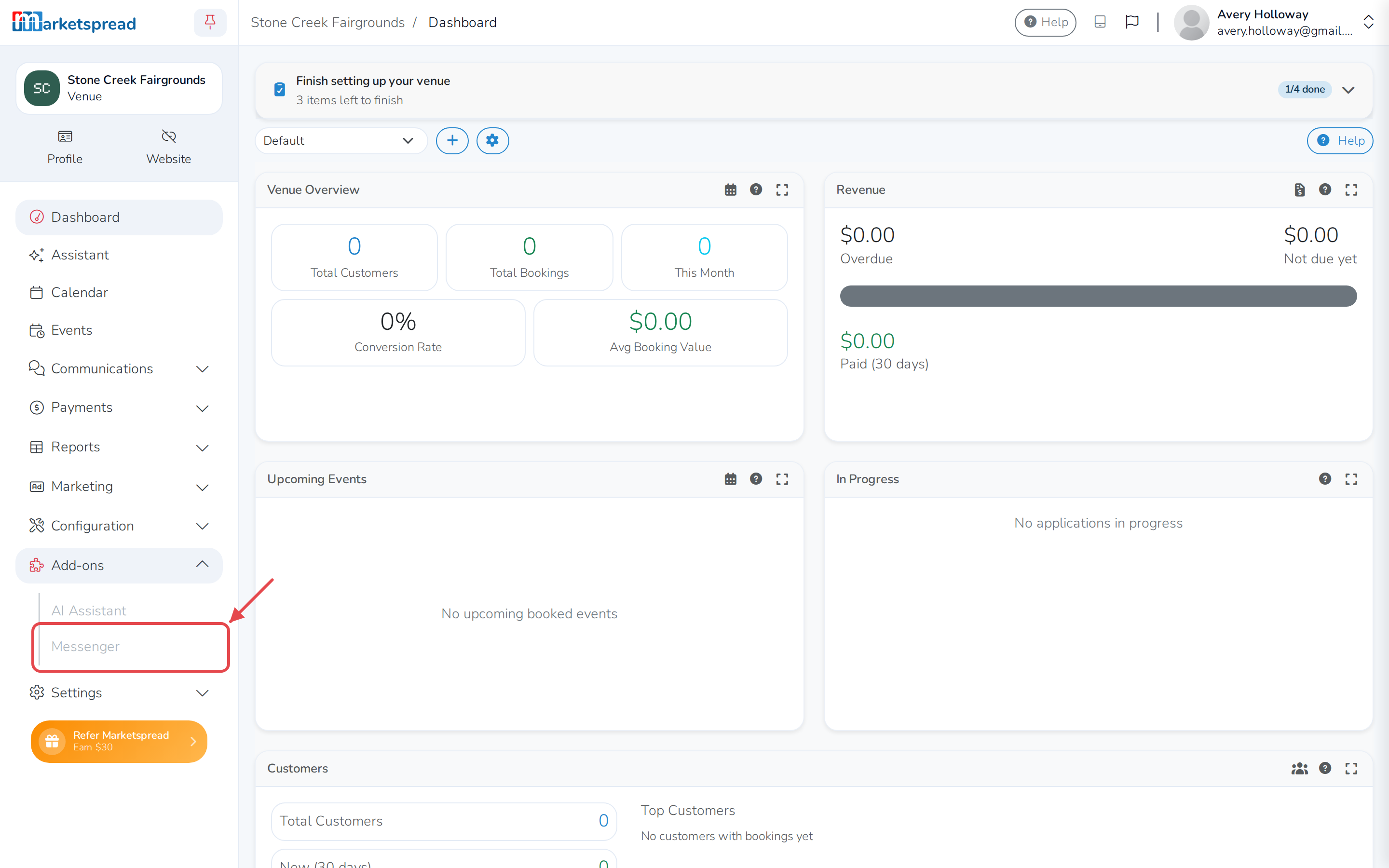
From this screen you can:
- Check your plan and how much you've used
- Upgrade or change your plan
- Update your payment method
- Downgrade to the Free plan
Check your plan and how much you've used
The Current Plan card names your plan and its price. Below it, three bars show what you've used this month:
- Free Emails — the emails every plan includes, used first.
- Plan Emails — extra emails your plan adds once the free emails run out.
- SMS — text messages your plan includes. The Free plan doesn't include any.
Go over what your plan includes and you're billed automatically: $0.01 for each extra email, $0.02 for each extra text.
Your card on file appears under Payment Method, showing its brand, last four digits and expiration date. Past charges are listed in the table headed Bills, with the plan, number of emails and texts sent, the total, and whether it's Paid or Unpaid. Click a bill's invoice number to see it.
Upgrade or change your plan
| Plan | Price a month | Emails | SMS |
|---|---|---|---|
| Free | $0 | 1,000 | 0 |
| Starter | $30 | 3,000 | 1,500 |
| Plus | $60 | 6,000 | 4,000 |
| Premium | $105 | 10,000 | 7,000 |
Need more than Premium? Select High Volume and contact us for pricing.
- Click Upgrade plan (or Modify plan, if you're already on a paid plan).
- Click a plan's name to select it. It's marked selected.
- Click Upgrade (or Modify).
Moving off the Free plan for the first time asks you to pay — see "Start a paid plan" below. Moving to a bigger paid plan takes effect right away. Moving to a smaller one takes effect on your next bill; until then it's shown as Next Months Plan.
Start a paid plan
Moving off the Free plan for the first time needs a card on file, and assigns your venue its SMS number.
- Enter your card details.
- Click Pay to confirm — the button shows the exact amount, prorated for today.
Update your payment method
- Click Modify payment.
- Enter your new card details.
- Click Update.
Your card is charged automatically on the 1st of each month.
Downgrade to the Free plan
Downgrading to Free takes effect on your next bill. From then on, your venue loses its SMS number, and everyone signed up for text messages is removed — neither can be undone.
- Click Modify plan.
- Click Free to select it.
- Click Downgrade.
- Type DOWNGRADE to confirm.
- Click Downgrade.
This doesn't refund what you've already paid — it just stops future charges.