


Payouts are the money from your venue's bookings and payments moving into your bank account. Click Payments, then Payouts, in your venue's dashboard to see them.
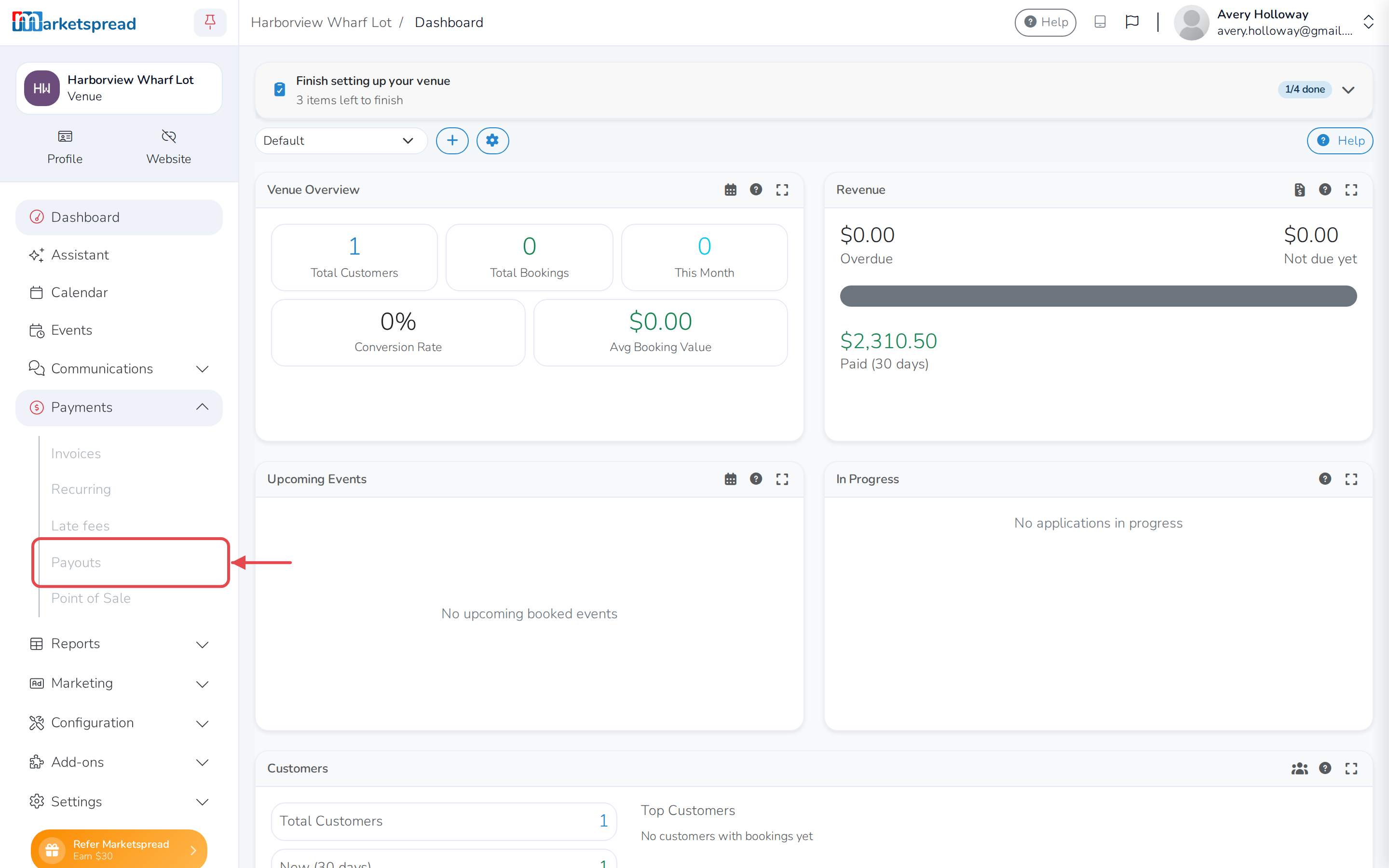
From here you can:
- Check where your money stands right now
- Find a specific payout
- See what's inside a payout, and what its status means
Check your balance
- At the top of the Payouts page, look at the four numbers: Total, Pending, Reserved and Available.
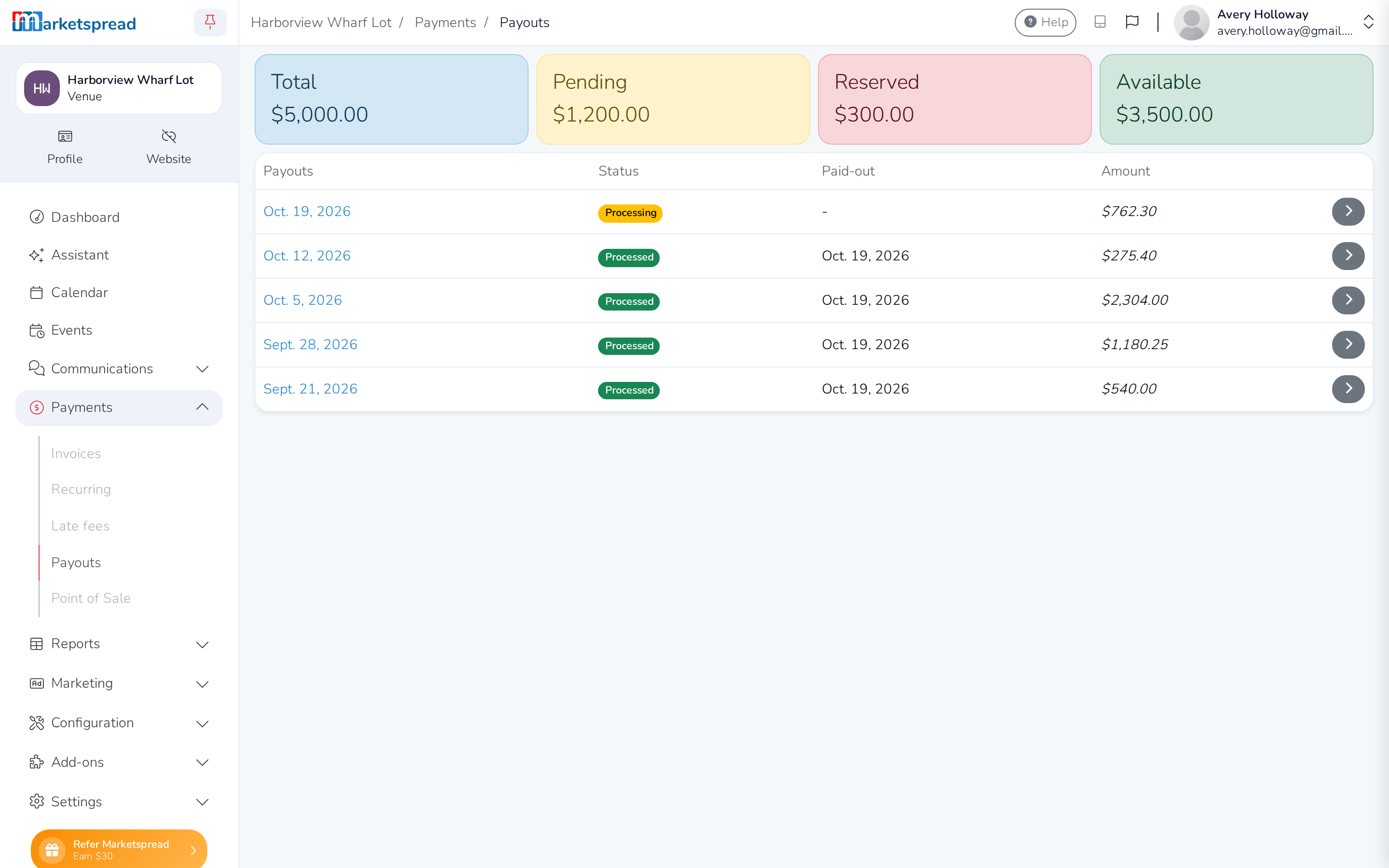
Available is what's ready to be paid out to your bank. The rest hasn't reached your bank account yet.
Find a payout
- In the Payouts list, each row shows a payout's date, Status, Paid-out date and Amount.
- Click the arrow on the right of a payout to open it.
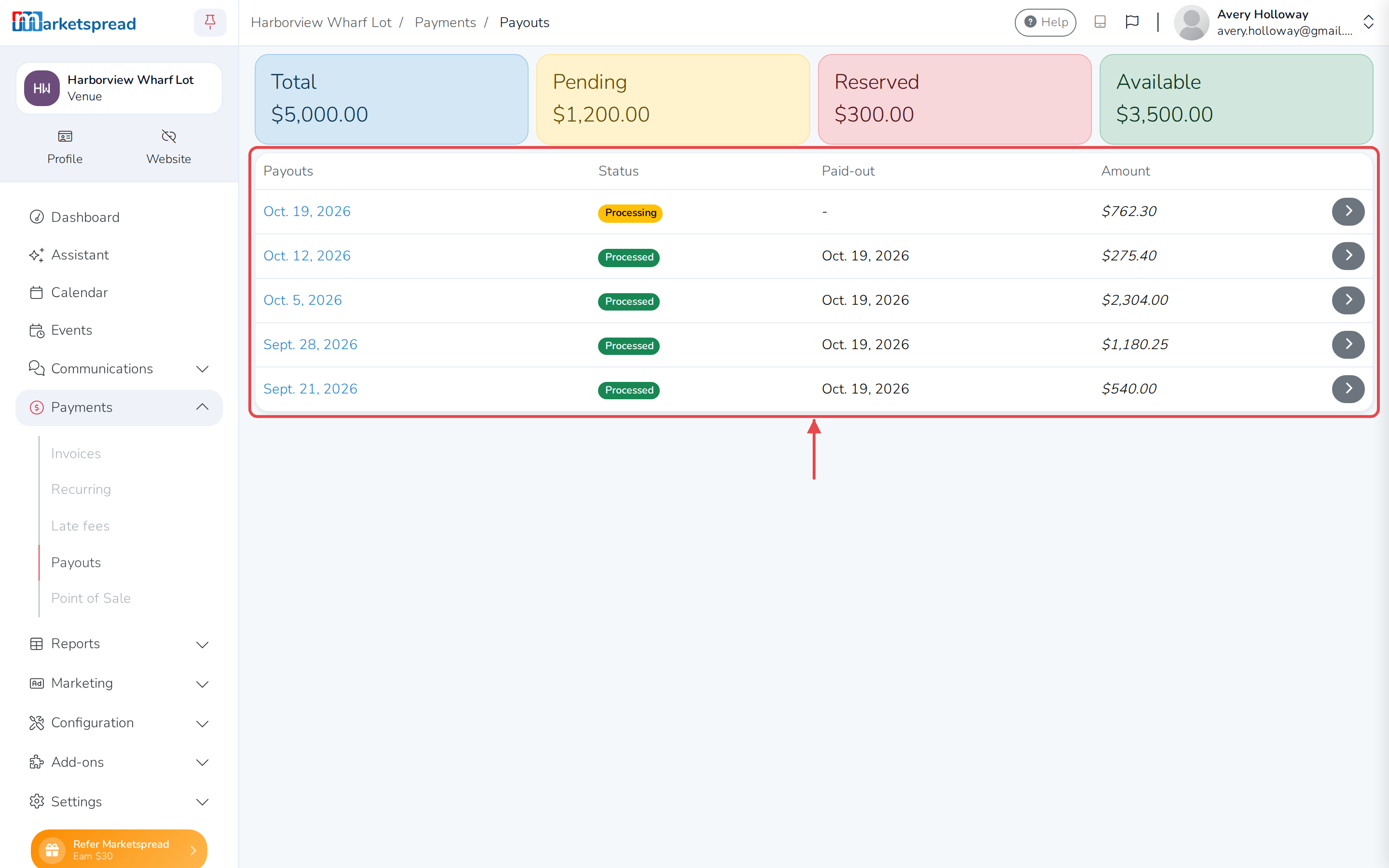
If you don't have any payouts yet, the list says No payouts, yet!. If there's more than one page, use the page numbers at the bottom to move through them.
Note
If your venue is part of an organization that manages more than one venue, market or vendor, clicking Payouts takes you to your organization's payouts instead — they're combined there.
See what's inside a payout
Opening a payout shows:
- Its ID, Date, Amount and Status
- The last 4 digits of the bank Account it went to
- A Totals table listing what made up the payout — Sales, Refunds and any Disputes, each with its own fees
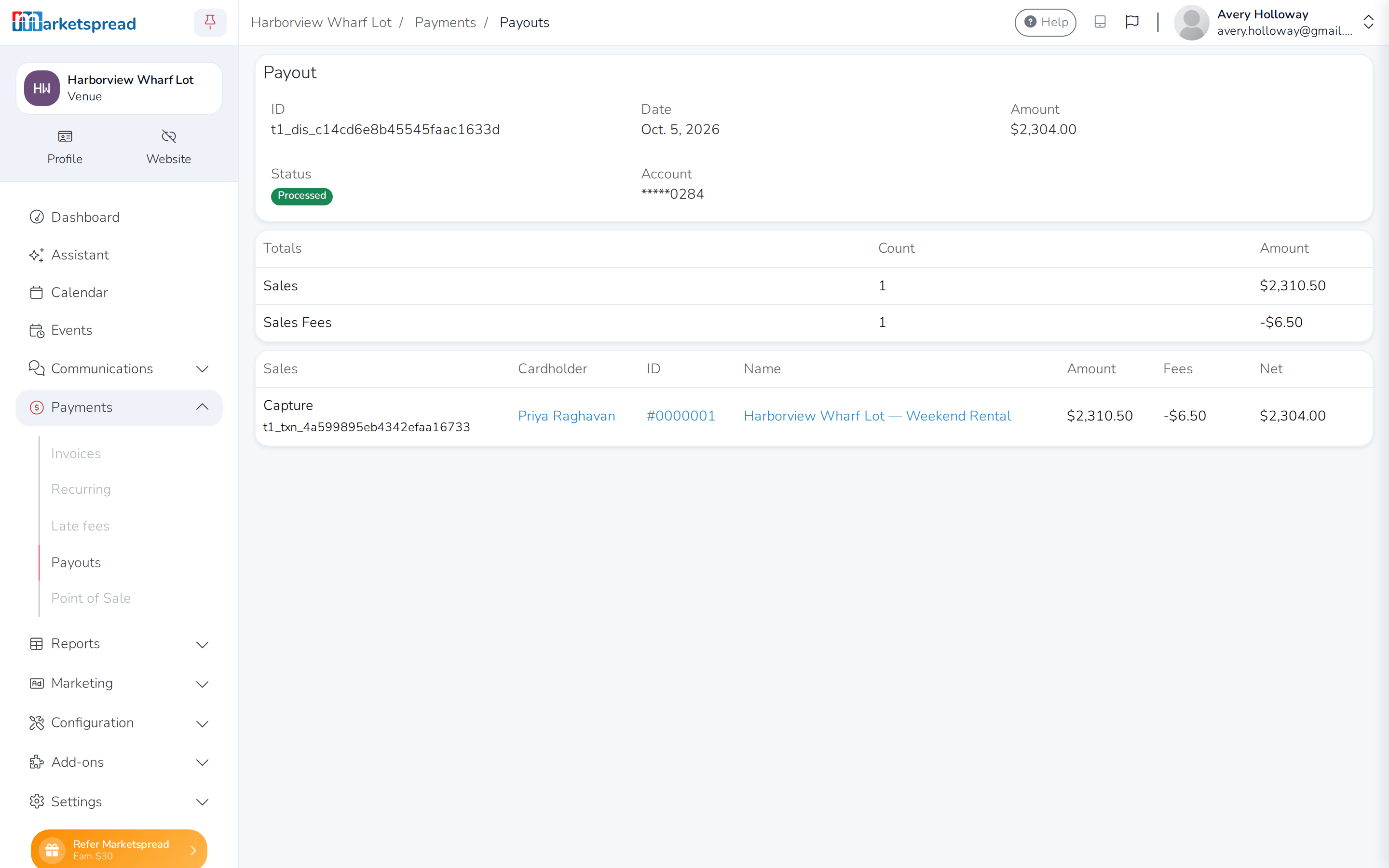
If the payout hasn't processed yet, you'll see Waiting on information from processor instead of the breakdown. Check back once it's done.
What a payout's status means
- Requested — it's queued to go out, but hasn't started moving yet
- Processing — it's on its way to your bank
- Processed — it's in your bank account; the Paid-out date shows when
- Returned — it was sent but bounced back
- Failed or Denied — it didn't go through
You get an email with a link back to the payout once it's processed.