


Anyone who applies to book your venue fills out the application you've set up on your Applications page. Add your own questions to it. Their answers show up on the Application tab of their booking request once they apply.
Add a question to your application
-
Click Configuration in the left-hand menu to expand it.
-
Click Applications.
-
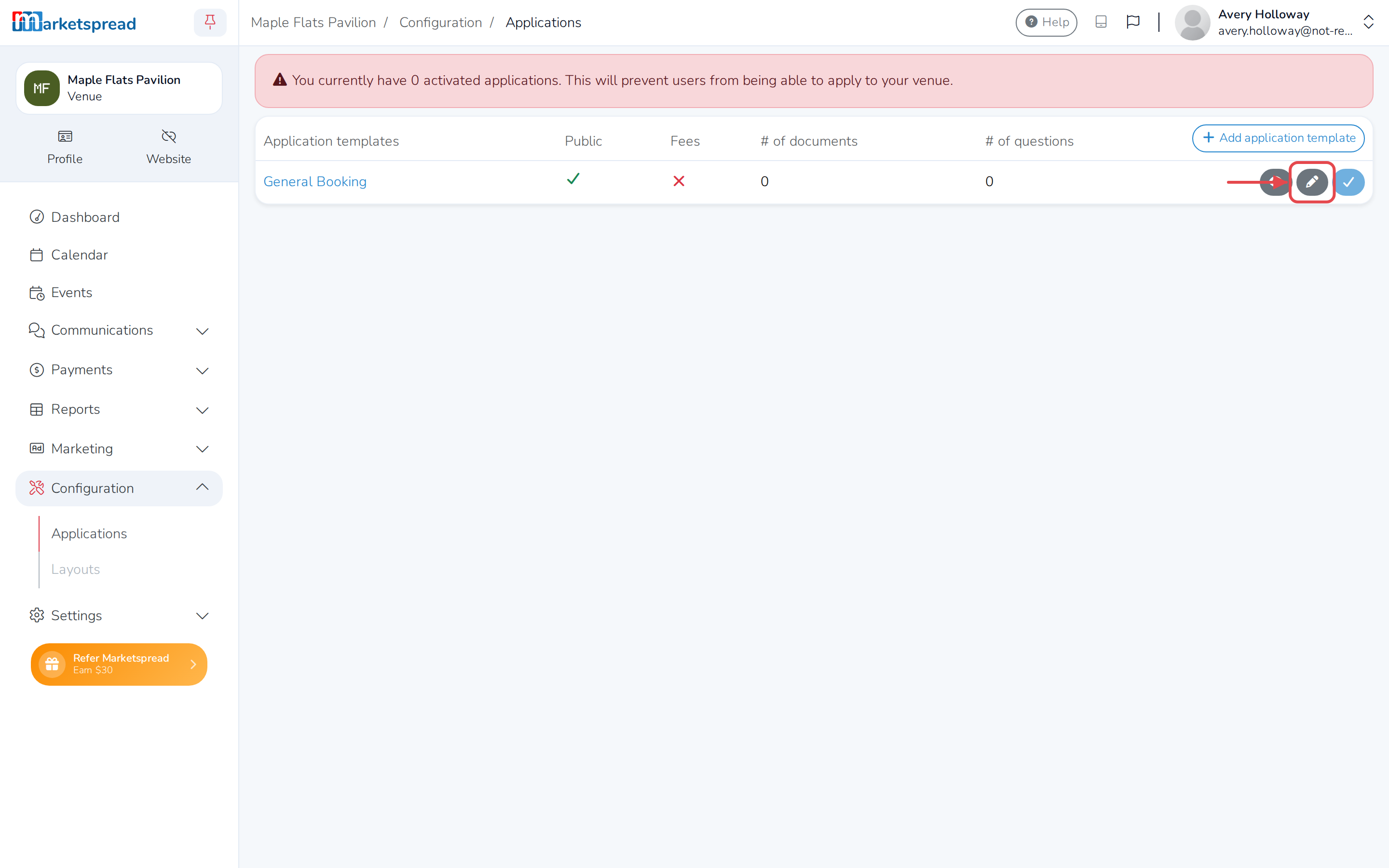
Click the pencil icon next to the application you want to add a question to.
-
Scroll to Questions.
-
Click Add question.
-
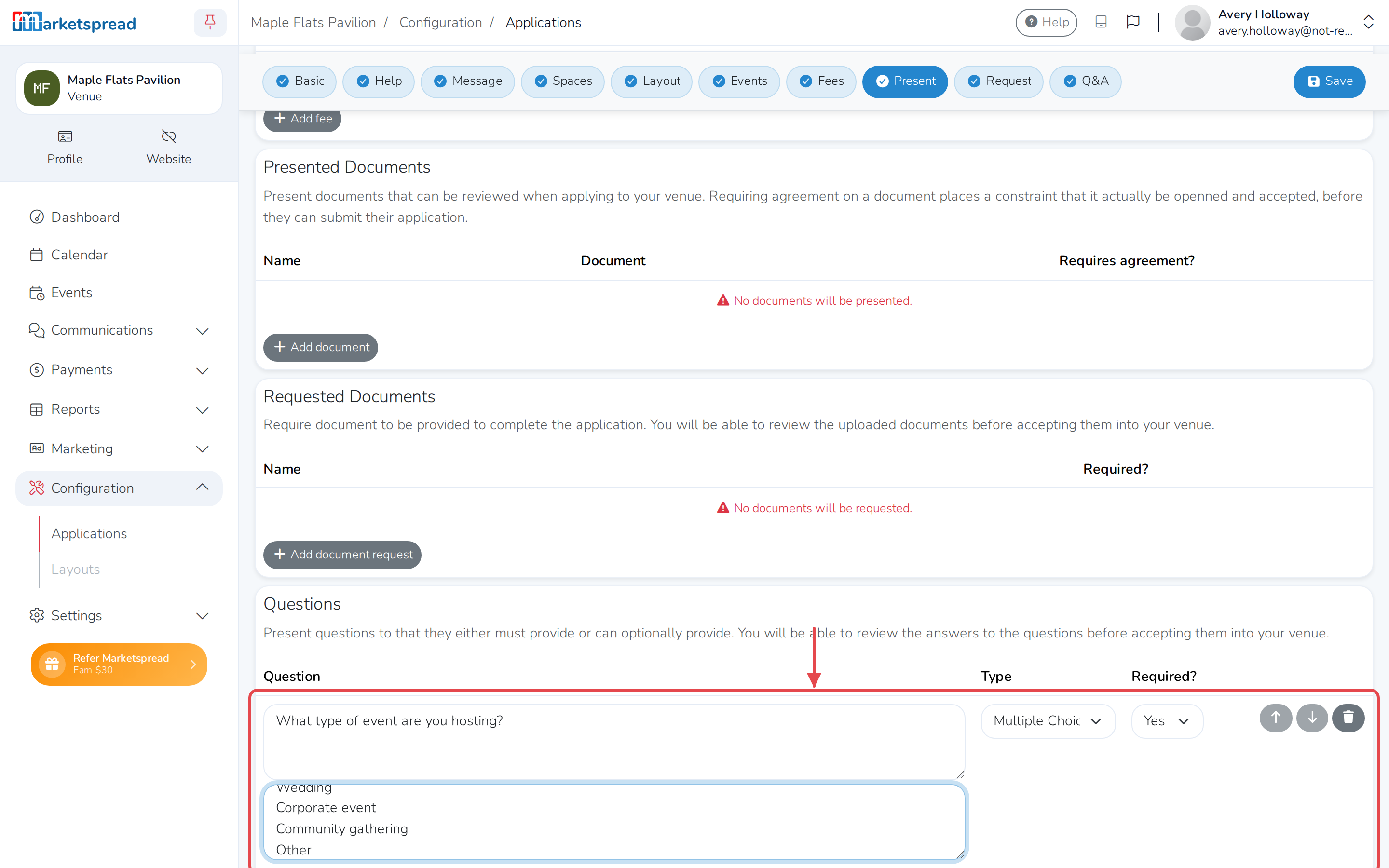
Type your question.
-
Choose a Type — Text, Short Text, Yes/No (Toggle), Multiple Choice, Multiple Choice (Dropdown) or Multiple Select.
-
If you chose a multiple choice, dropdown or multiple select type, fill in the choices, one per line.
-
Under Required?, choose Yes if applicants must answer before they can apply.
-
Click Save.
Read what an applicant answered
- Click Events in the left-hand menu.
- Click Review on the booking request, or click the event's name.
- Click the Application tab.
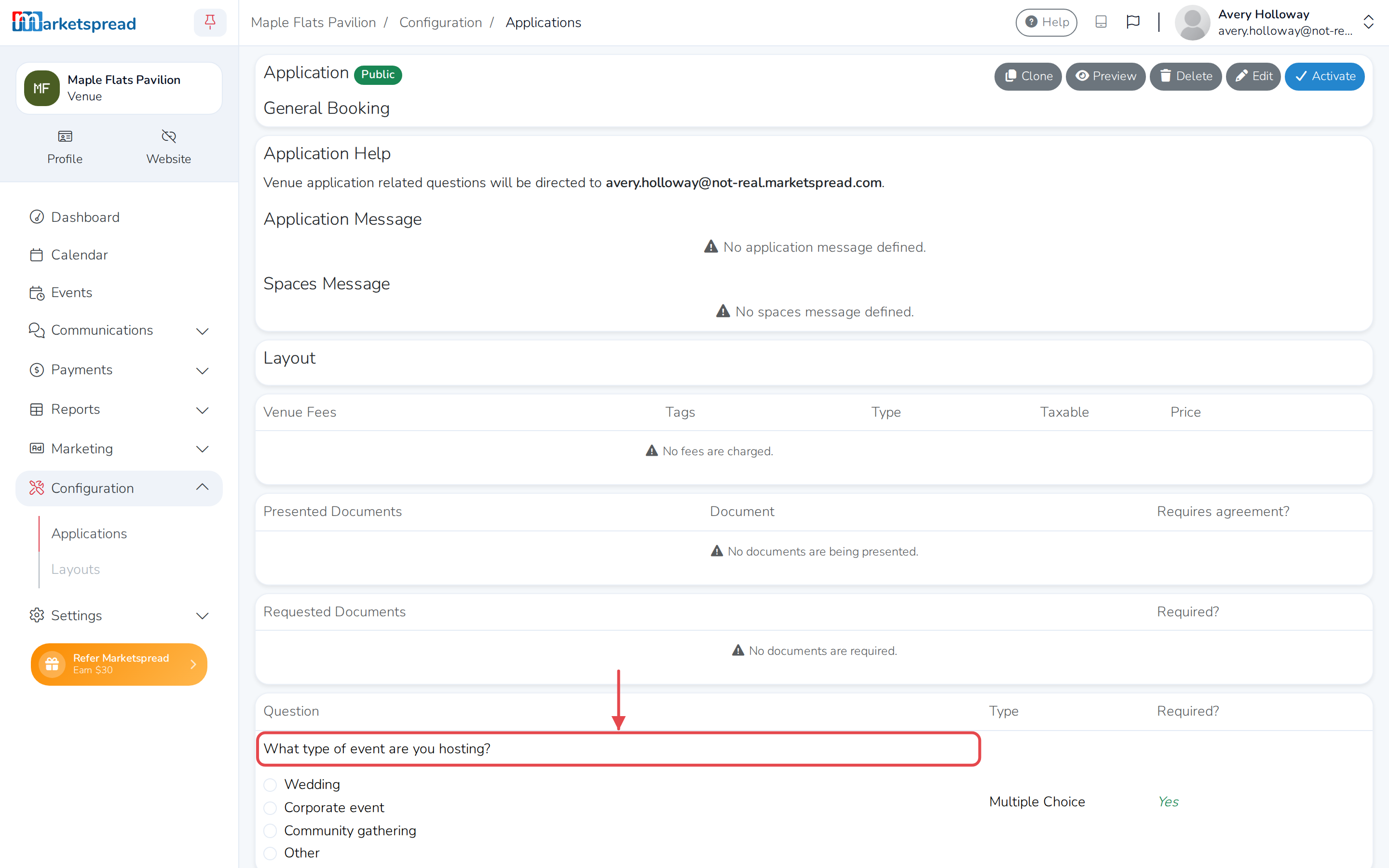
Each question appears with its answer underneath. A question that wasn't required shows Unanswered if the applicant skipped it.
Good to know
If you remove a question later, answers already submitted for it stay on existing booking requests. Only new applicants stop seeing it.