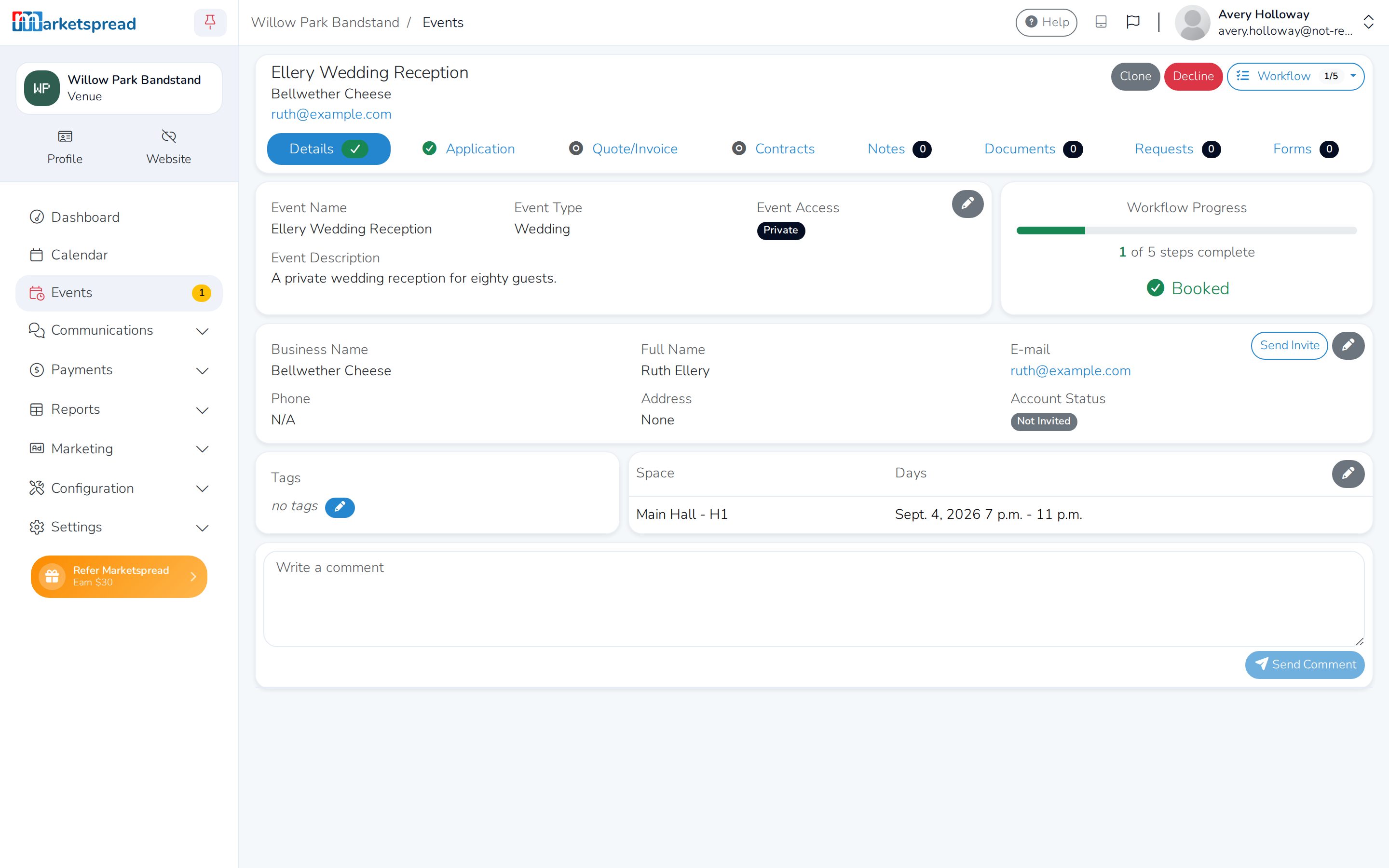
The venue calendar shows every booking at your venue by date, so you can see what's happening and when at a glance. Open it by clicking Calendar in the left-hand menu. From there you can:
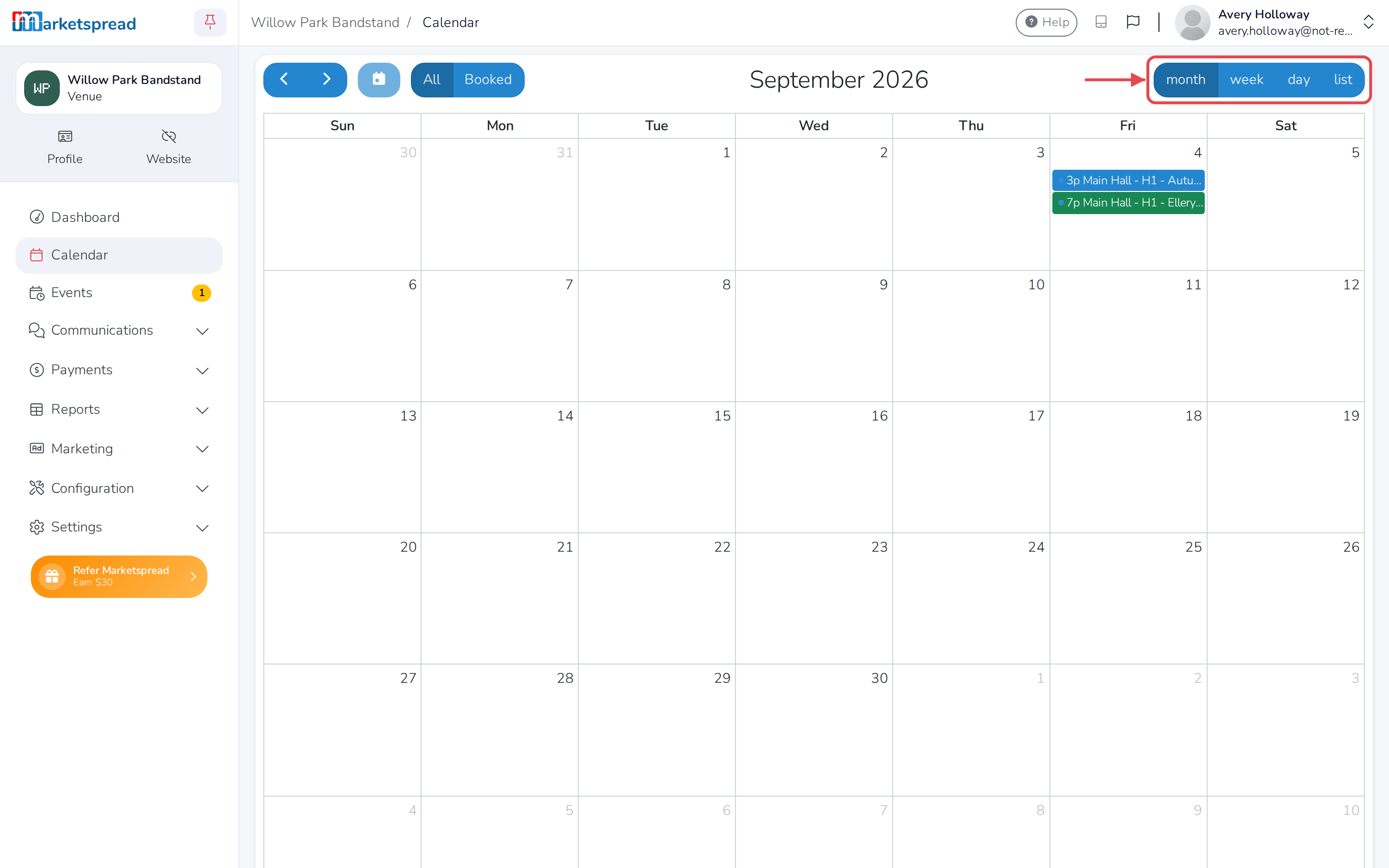
- Switch between month, week, day and list views
- Show only bookings you've confirmed
- Open a booking straight from the calendar
Switch how you view the calendar
- Click Calendar in the left-hand menu. It opens in month view.
- Click week, day or list at the top right to switch to that view.
- Click month to switch back.
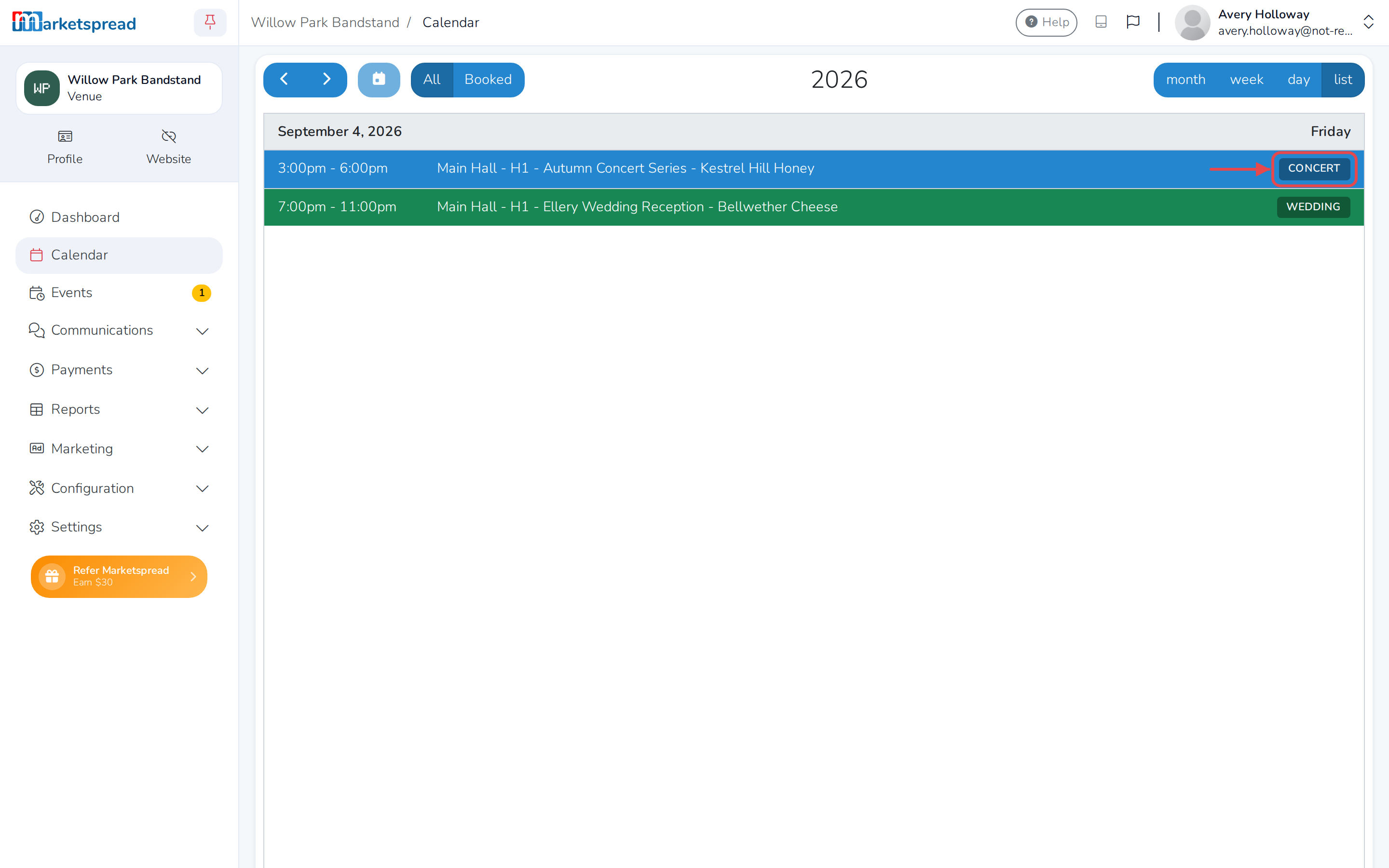
In list view, each booking also shows its event type.
Move to a different date
- Click the left or right arrow at the top left to move to the previous or next month, week or day.
- Click the calendar icon next to the arrows to jump back to today.
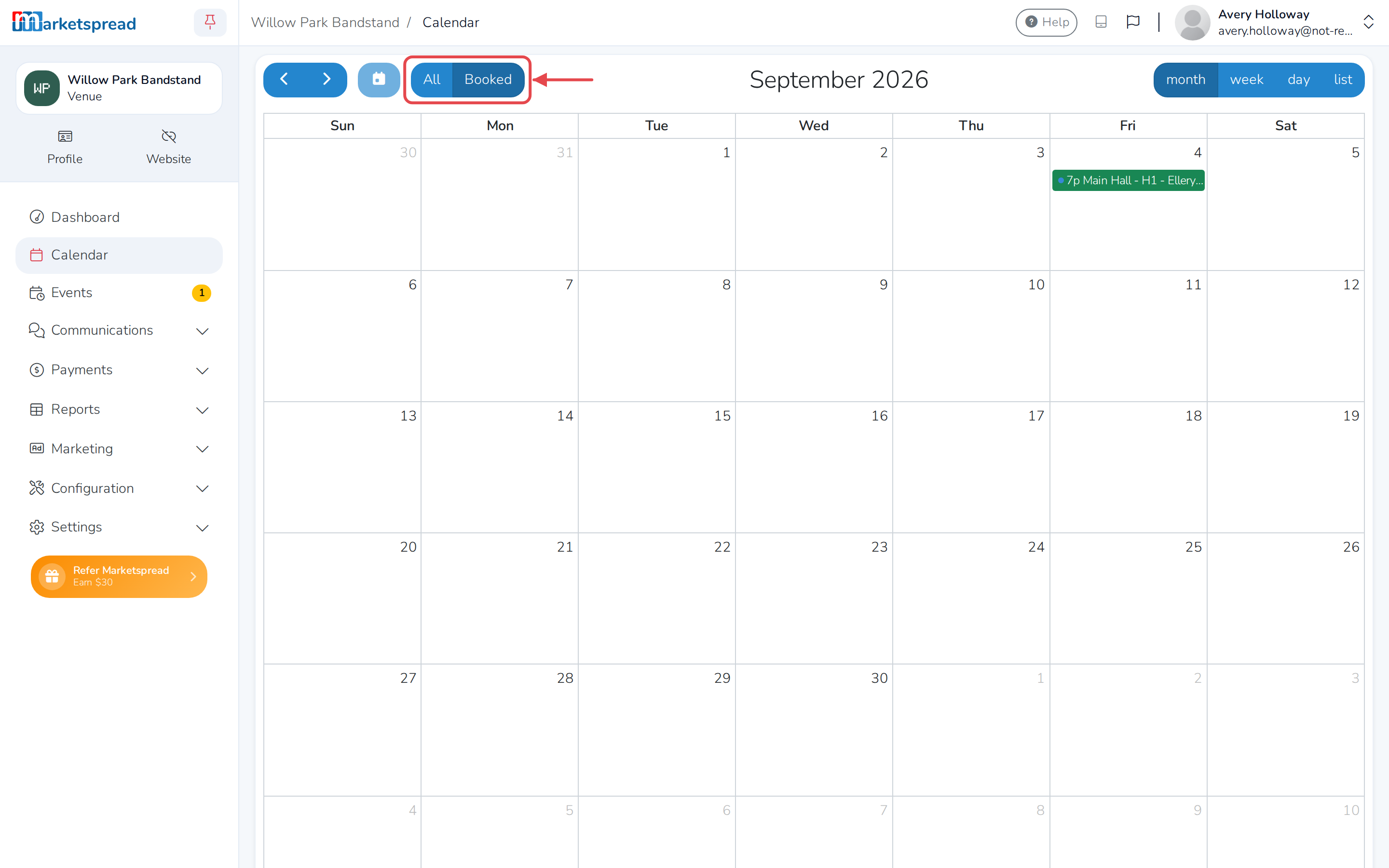
Show only booked events
- Click Booked at the top left. The calendar now shows only bookings you've confirmed.
- Click All to bring back every booking that hasn't been cancelled or declined.
Open a booking
- Click a booking on the calendar to open it.
This takes you to the same booking you'd find on your Events page, with its Details and Quote/Invoice tabs.