


When a customer pays you another way — cash, a check, or a card you charge yourself — record it against their invoice so the balance updates. Open the invoice, then choose how they paid.
From there you can:
- Record a cash or check payment
- Charge a card
Find the invoice
- Click Payments in the left-hand menu.
- Click Invoices.
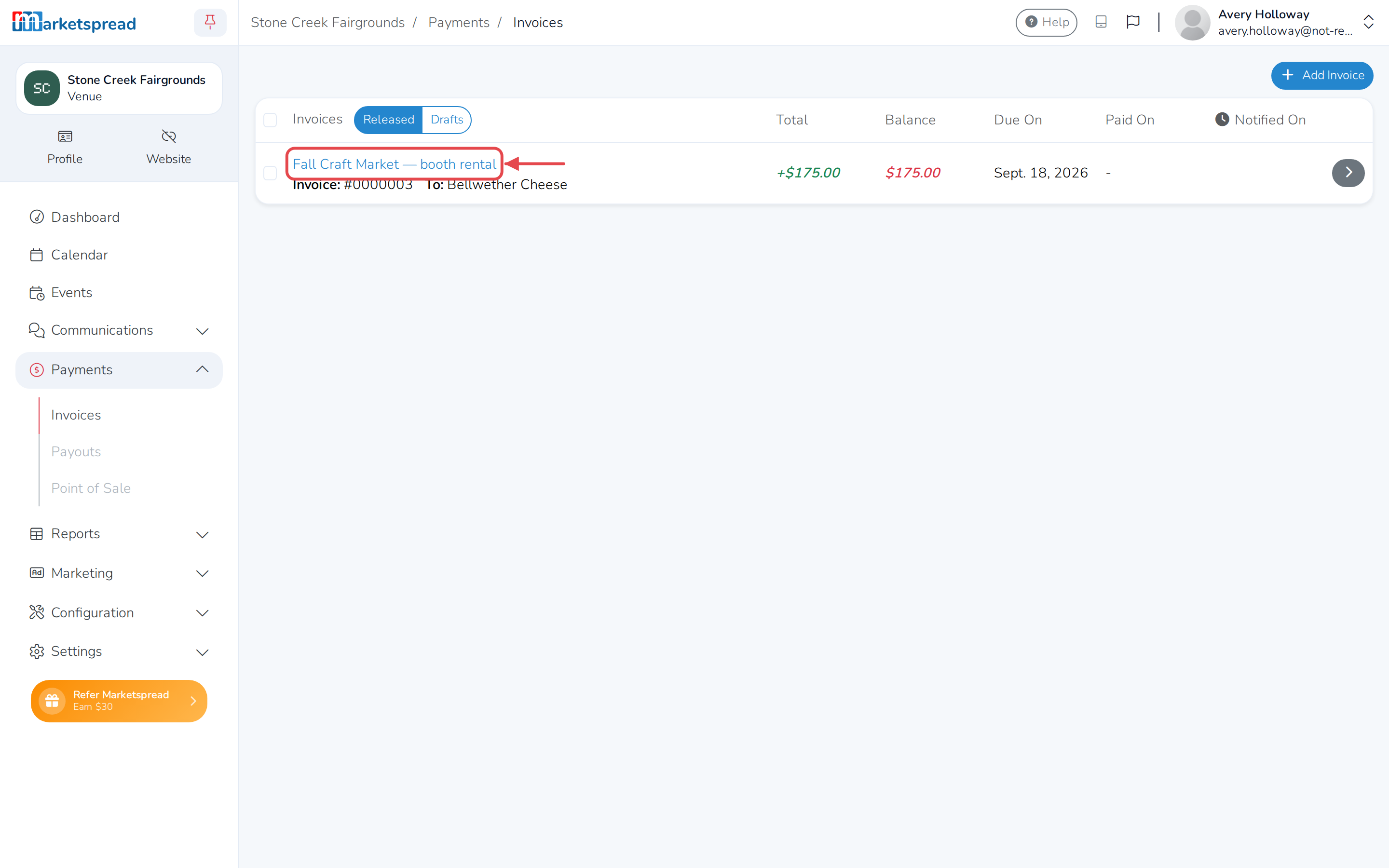
- Click the invoice you want to record a payment against.
Record a cash or check payment
- Click Add Payment.
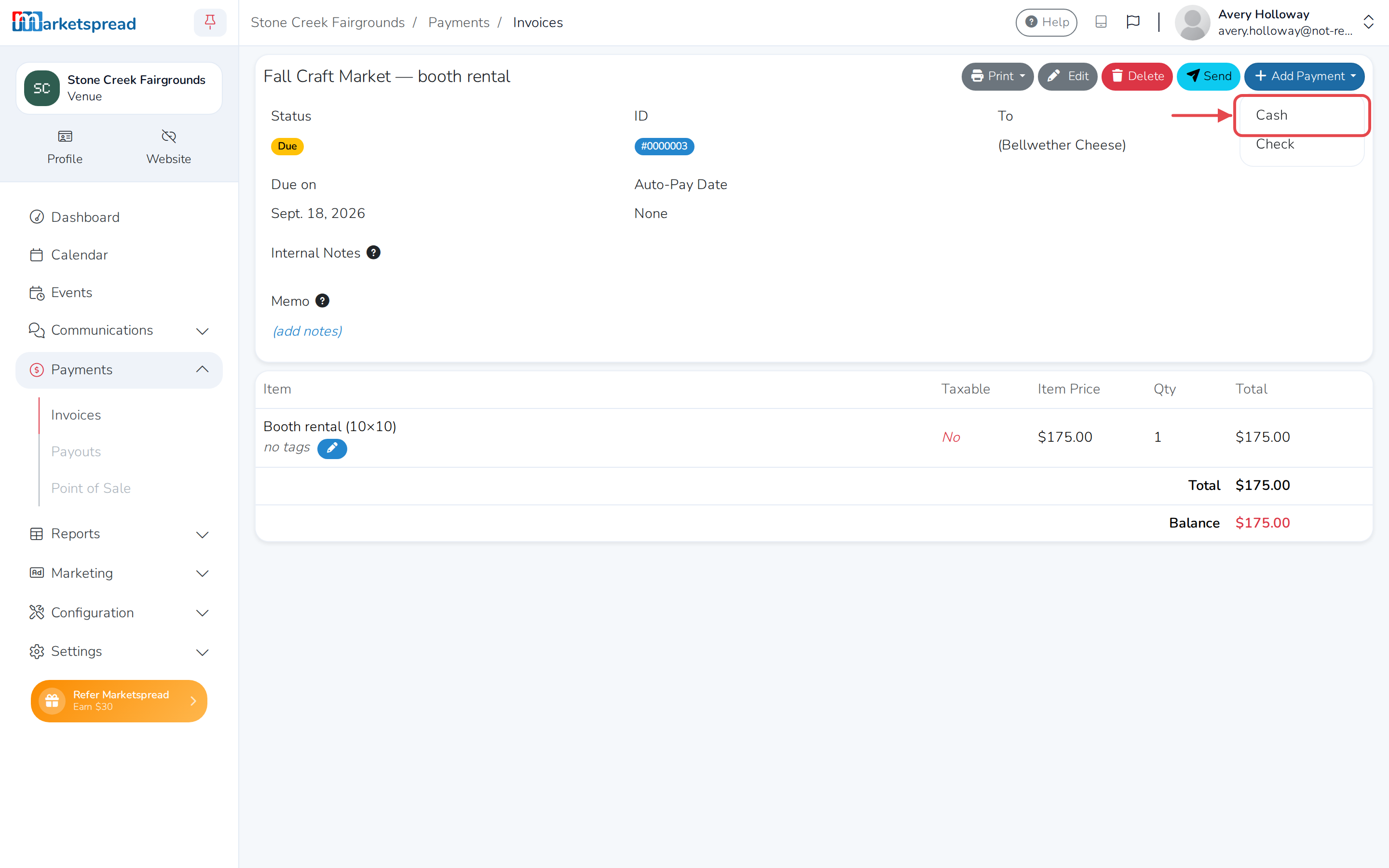
- Click Cash or Check.
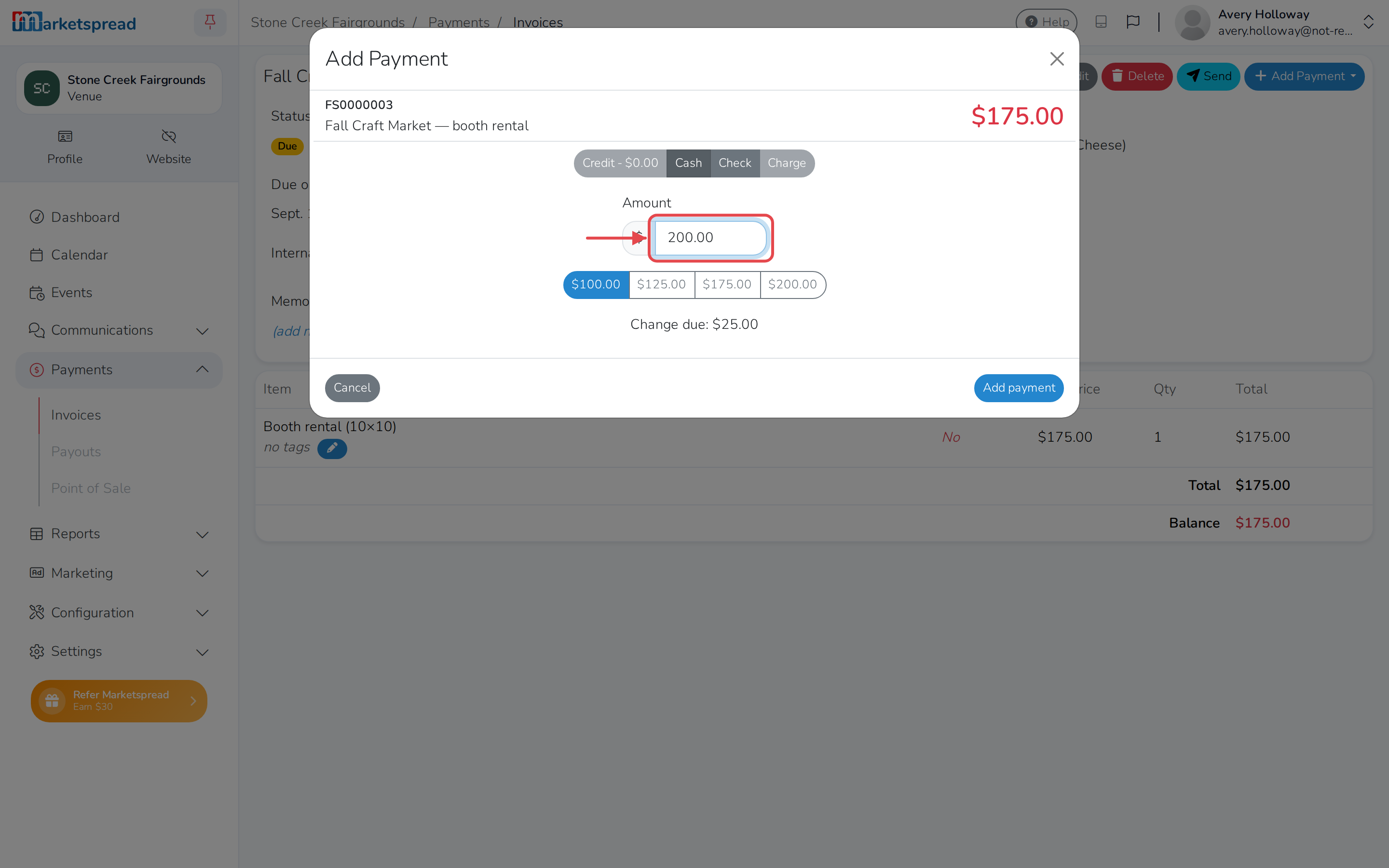
- Fill in Amount.
- If you're recording a check, fill in the check number.
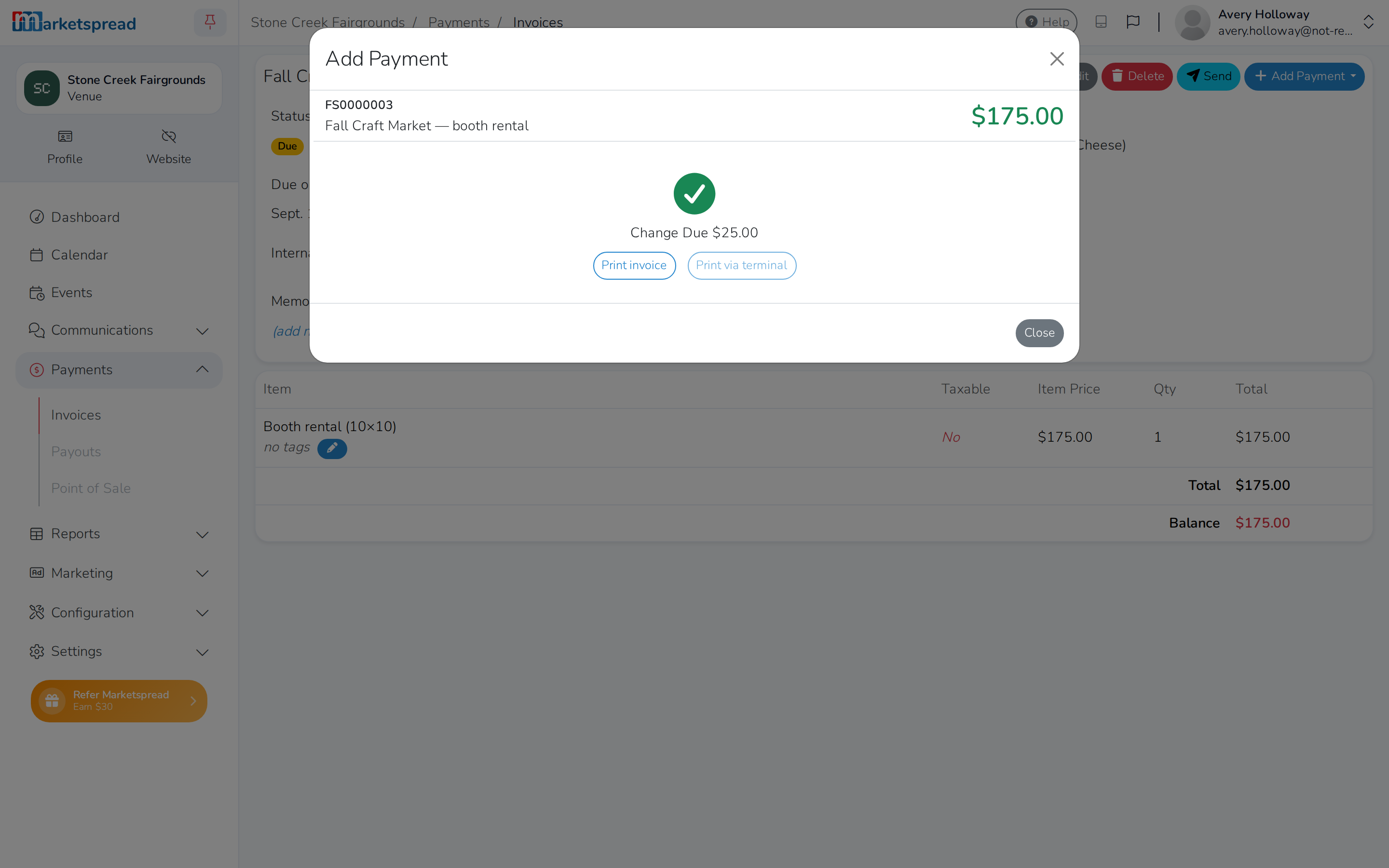
- Click Add payment.
If a cash amount is more than the balance, the change due shows once you add the payment.
Charge a card
- Click Add Payment.
- Click Charge.
- Fill in Amount.
- Choose one of the customer's cards on file, or select Manual entry and type in the card number, expiration date, CVV and zip code.
- Click Charge.
If the charge adds a fee, you'll see it before you confirm.
Good to know
- Only admins and managers can take a payment. Accountants can view invoices, but can't record a payment.
- If your venue accepts other ways to pay — like a customer's credit balance, or a payment type you've set up — those show as extra options when you click Add Payment.