


From a booking's Contracts tab, you can send a contract to your customer for an electronic signature. Sign it yourself if you're one of the signers, and check back once it's signed. You can get here whether or not you've already sent a quote.
- Send a contract for signing
- Sign a contract yourself
- Find the signed contract
- Add another contract to the same booking
Send a contract for signing
-
Open the booking and click the Contracts tab.
-
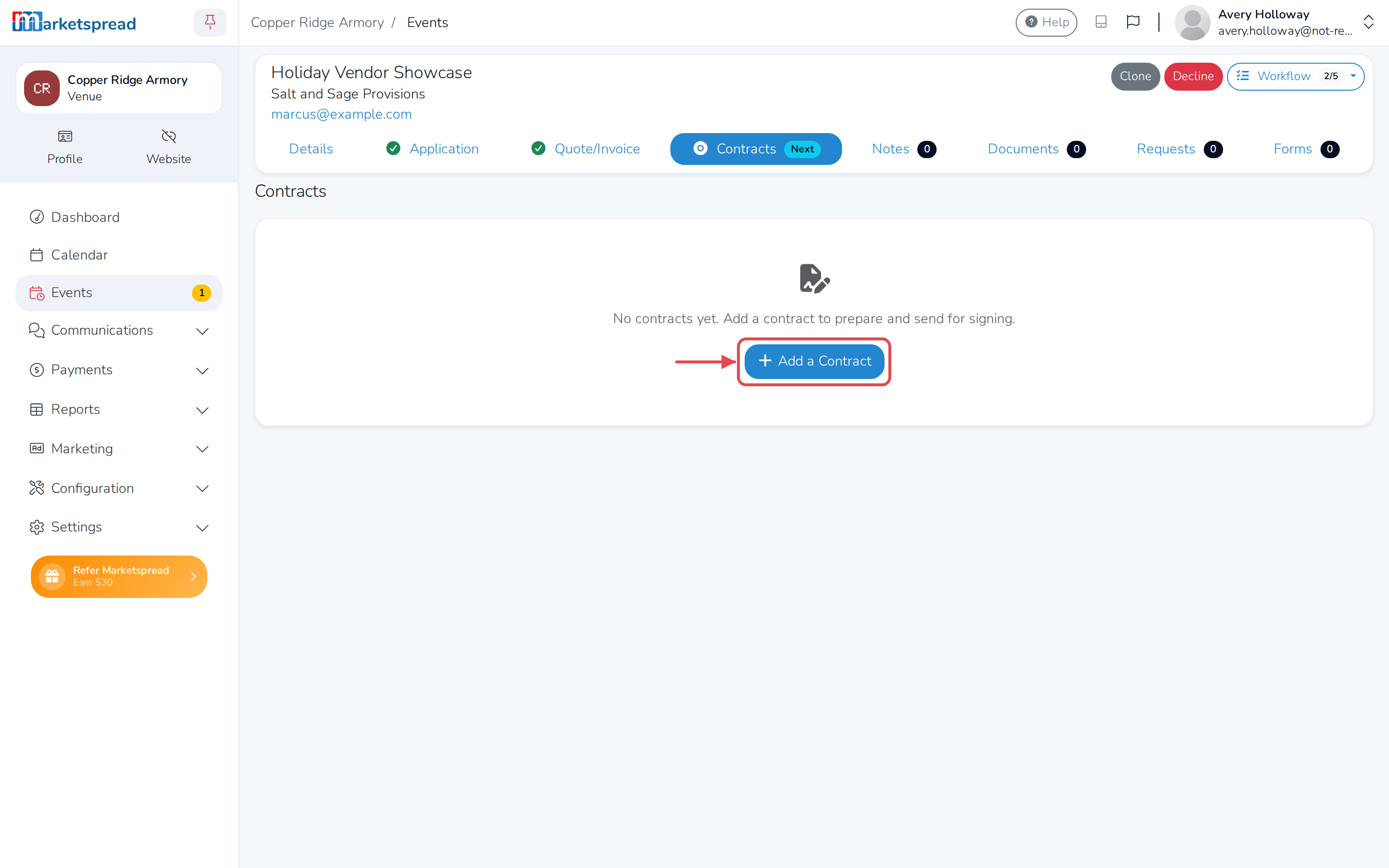
Click Add a Contract (or Add contract if the booking already has one).
-
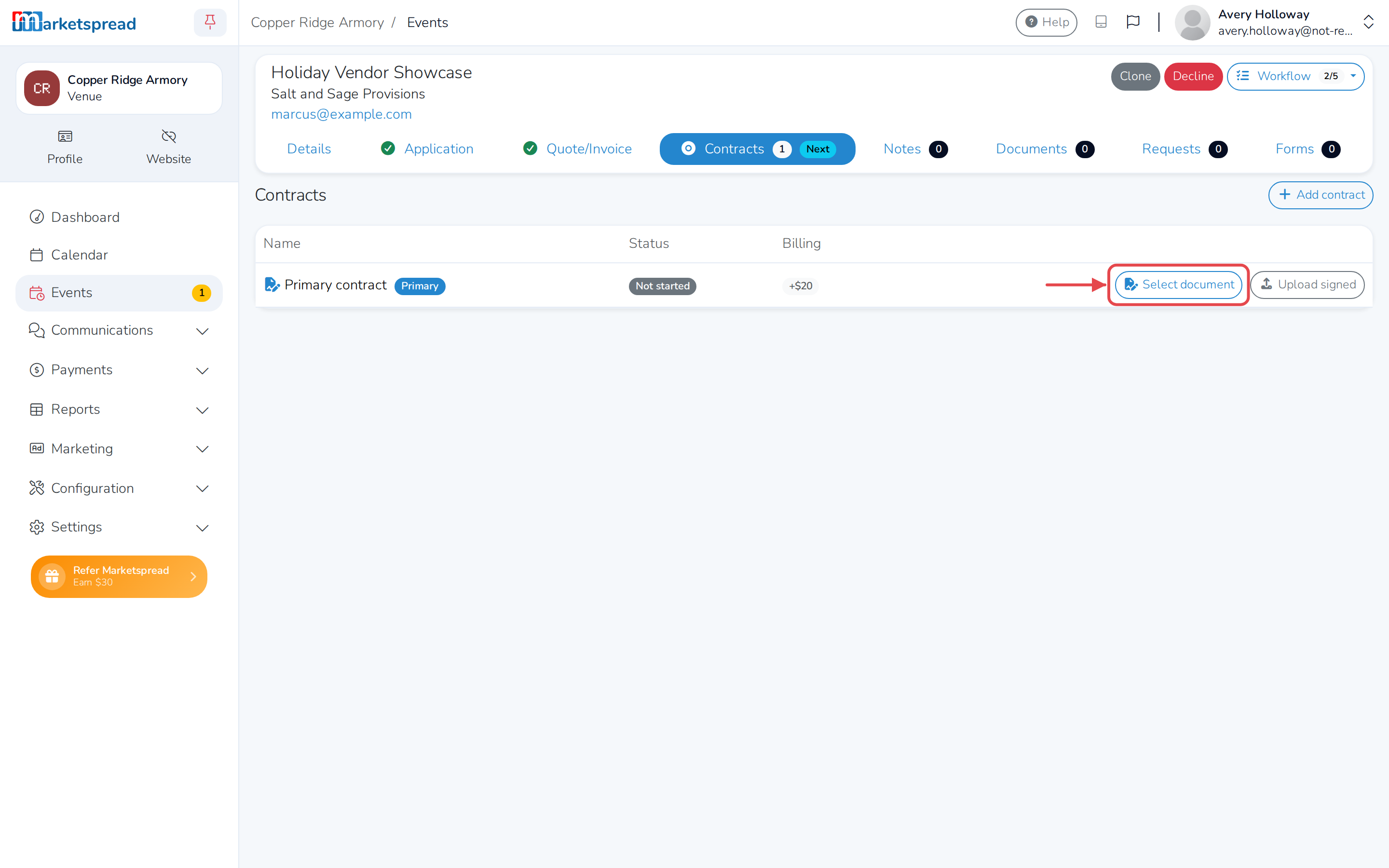
Click Select document.
-
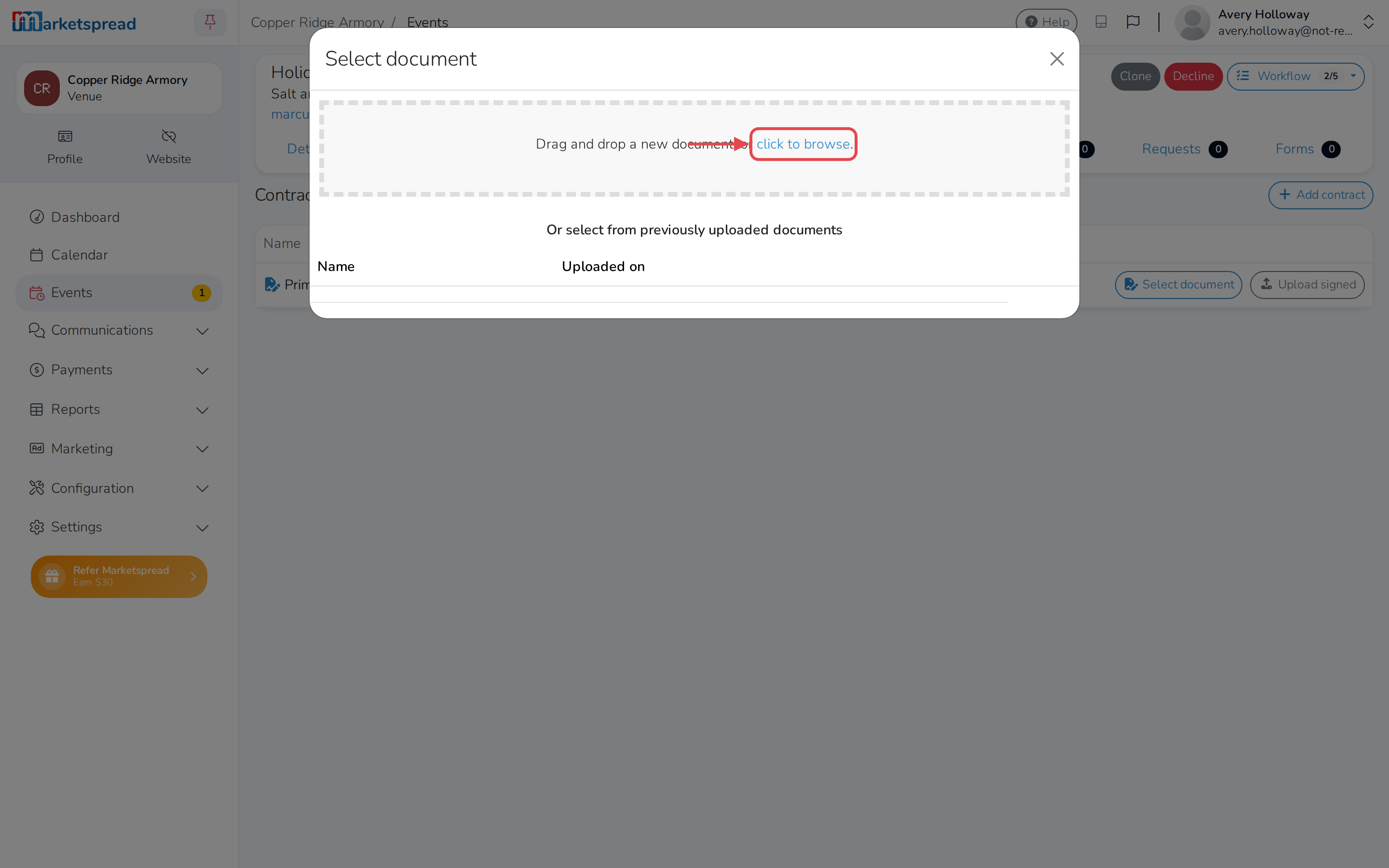
Choose the contract file to use.
-
Click Prepare to open it. A window opens where you can place a signature for each person who needs to sign. Your customer is added automatically — add yourself too if you need to countersign.
-
Click Send to Customer.
Your customer gets a notification that you've asked them to sign, with a link back to their booking.
Sign a contract yourself
If you added yourself as a signer while preparing the contract:
- On the Contracts tab, click View on the contract.
- If it's your turn to sign, you'll see a Sign Contract button. Click it and complete your signature in the window that opens.
Find the signed contract
-
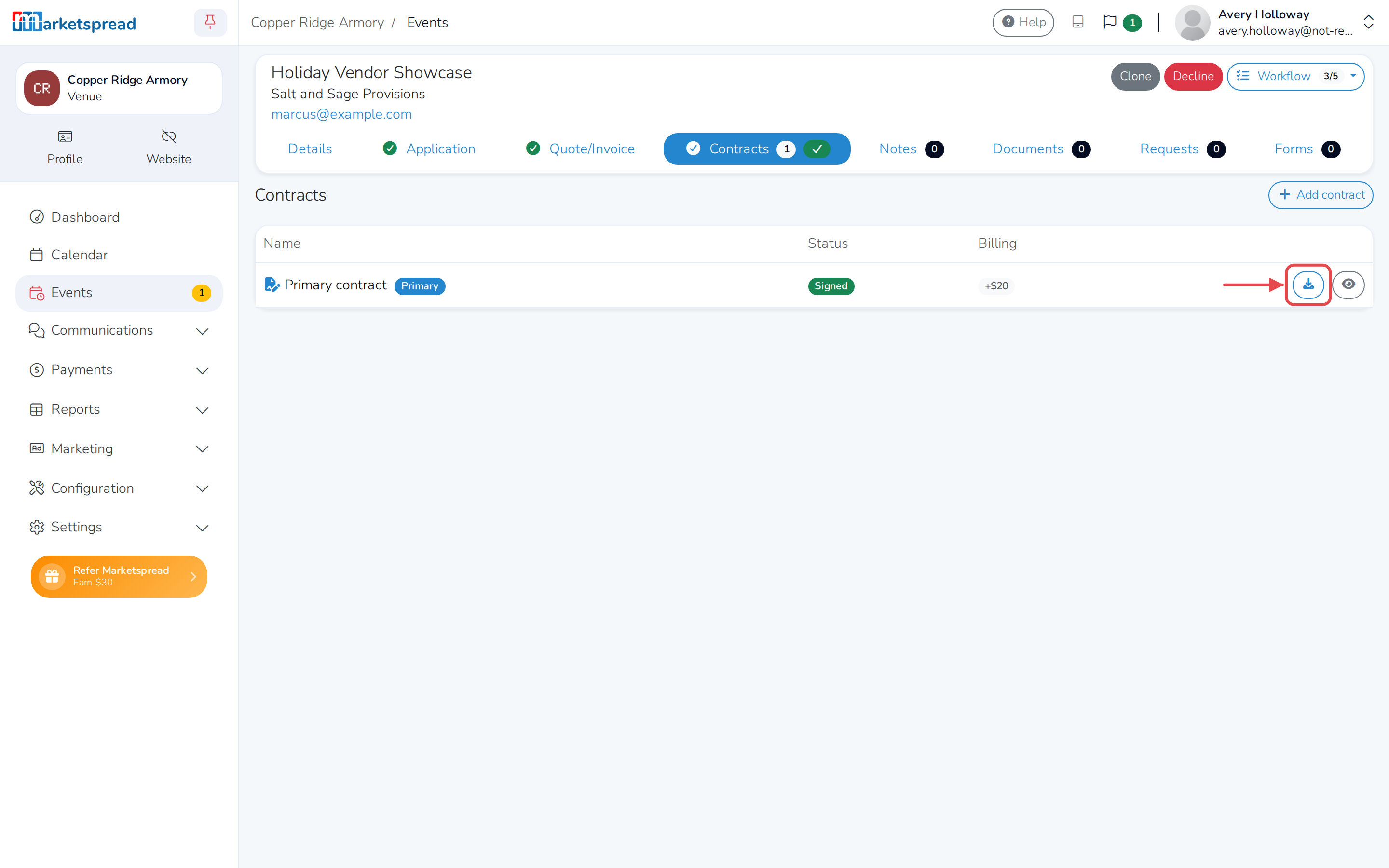
On the Contracts tab, a contract everyone has signed shows a green Signed badge.
-
Click the download icon to save the signed PDF, or the eye icon to view it in your browser.
Add another contract to the same booking
Some bookings need more than one document — a separate agreement alongside the main contract, for example.
- On the Contracts tab, click Add contract.
- Prepare and send it the same way as the first one.
Good to know
Nobody has to sign in a set order — your customer, and anyone else you add as a signer, can each sign as soon as they get access.
Only your customer is added to a contract automatically. If someone on your team also needs to countersign, add them as a signer while you're preparing it.
When a contract is signed, it's added to your bill — $20 for the first one on a booking, $1 for each one after that.